Creating Mobile Guides
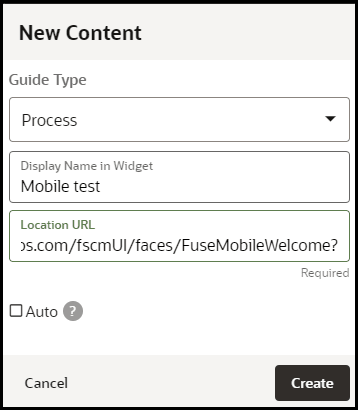
- Select the
 button on the home page of OGL Console
- Select Process from the Guide Type list
- Enter the Mobile
URL in the Location URL field.
Note: The Mobile URL is your instance URL (i.e. https://ucf6-zvdr-fa-ext.oracledemos.com) + the mobile UI string (/fscmUI/faces/FuseMobileWelcome?) resulting in https://ucf6-zvdr-fa-ext.oracledemos.com/fscmUI/faces/FuseMobileWelcome?. This is only applicable to Fusion Applications.
- Enter the title in Display Name in the Widget field
- Select Create Content
Note: The OGL Editor launches in a new tab, where you can start capturing the steps for the guide.
Adding the First Step to a Mobile Guide
After you create a guide, the OGL Editor appears over the URL you entered. You are prompted to select an element or to create a Splash step:
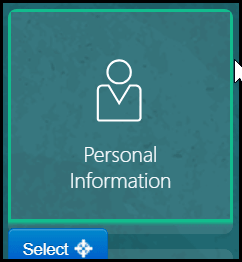
- To capture the screen element for your first step, move the mouse
on the screen and right-click an element to select it, or click Select
- Enter the text in the Content Editor field.
Note: As a best practice, it is recommended that:
- You consider the amount of text entered into the tip to ensure proper readability on mobile devices and to prevent impeding the functionality of tip buttons.
- You test the guide from end-to-end on various mobile devices prior to publishing the guide.
- The content types that are supported on mobile devices are as follows: Process Guides, Smart Tips, Beacons, Surveys, Links, Messages, Task Lists and Launchers.
- Open the Step Settings

- Set the Display Settings
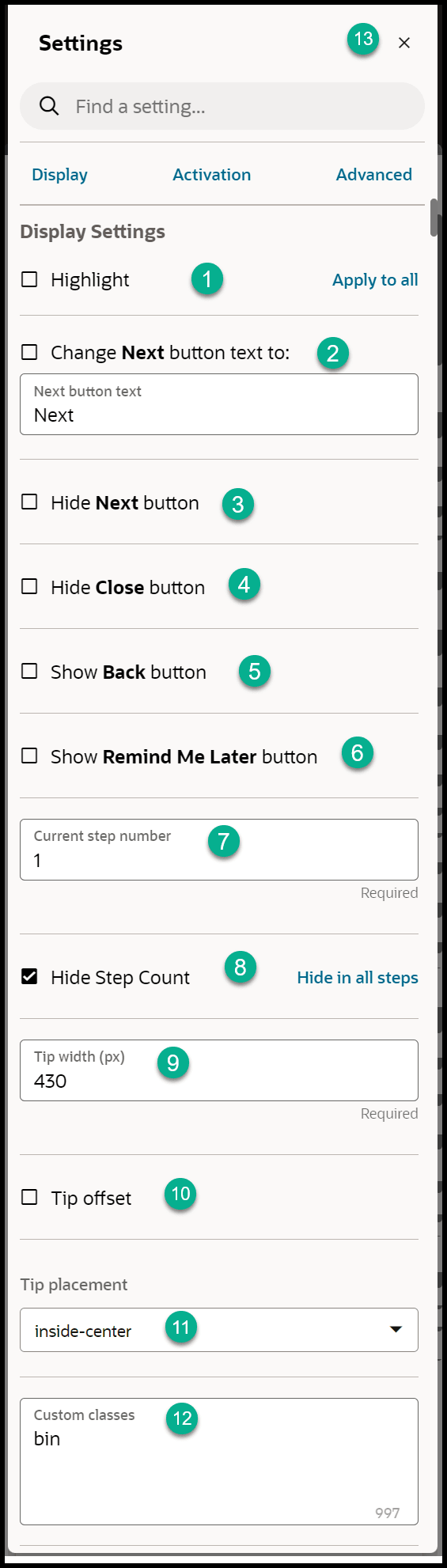
Note:
- By default, the tip placement is set at the bottom regardless of what is selected in the Display Settings.
- The Tip Width is always fixed for Mobile Guides.
- Set the Activation Settings
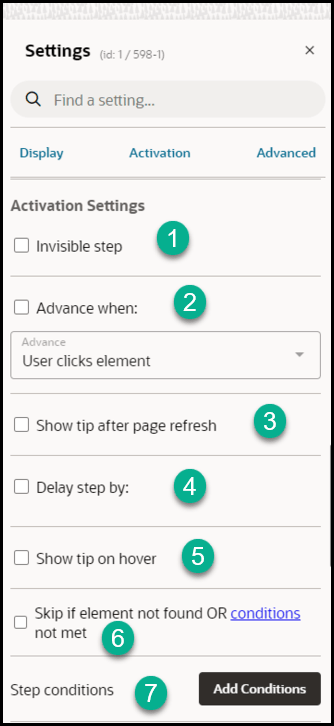
Note:
- You can set the Advance When option to advance on-click of a button. The tip is displayed at the bottom of the page and advances on-click of the selected button.
- For steps with a Next button, you can select any element on the page, the tip will be displayed at the bottom of the page and advance on-click of the Next button.
- Set the Advanced Settings
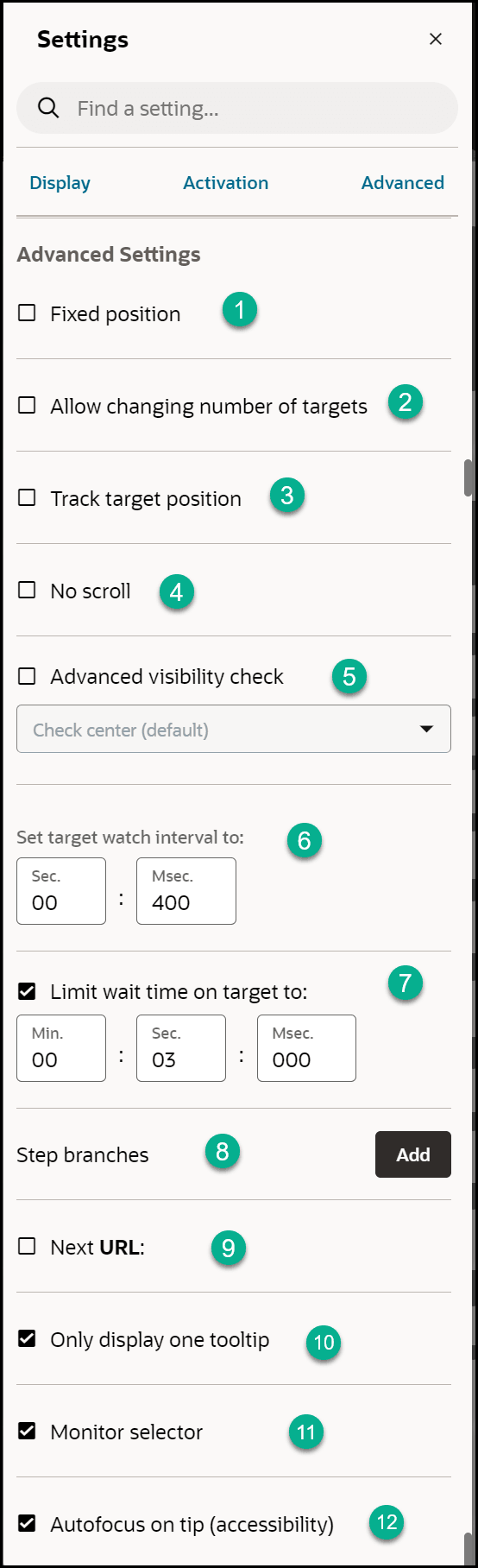
- Repeat steps 1 to 6 for the subsequent steps.
Note: After creating the first step and moving from the HomePage the mobile UI string in the URL might change from (/fscmUI/faces/FuseMobileWelcome?) to (/fscmUI/faces/FuseOverview?). Please replace Fuse with FndMobile so it becomes (/fscmUI/faces/FndMobileOverview?)
- After adding all of the guide steps, click Save and Close.
Note: The editing tab will close. Please go back to the OGL console tab.
Defining the Settings
- Select Settings
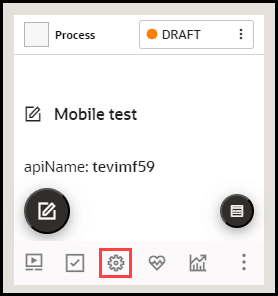
- Ensure the Mobile Guide checkbox is checked and the Sticky
Guide box is unchecked
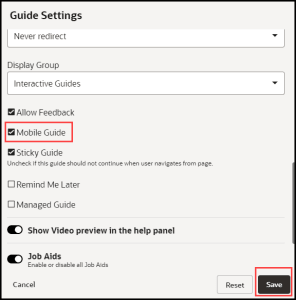
- Select Save Settings
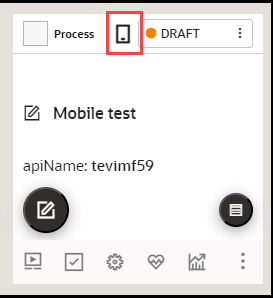
Note: After saving the settings, a mobile device icon
 will display to identify mobile guides/smart tips.
Testing the Mobile Guide
IMPORTANT: It is recommended that you test the guides on a mobile device for optimum results. Note: steps 1 to 3 below are relevant only when not testing on a mobile device.
| Step | Example |
|---|---|
| 1. Open a new tab |  |
| 2. Open Developer Tools (Right-click > Select Inspect/ Inspect element) | 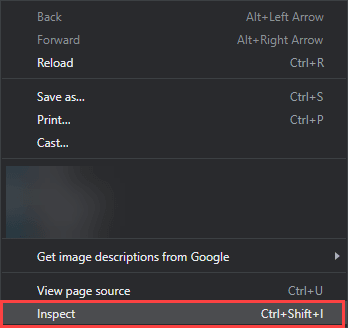 |
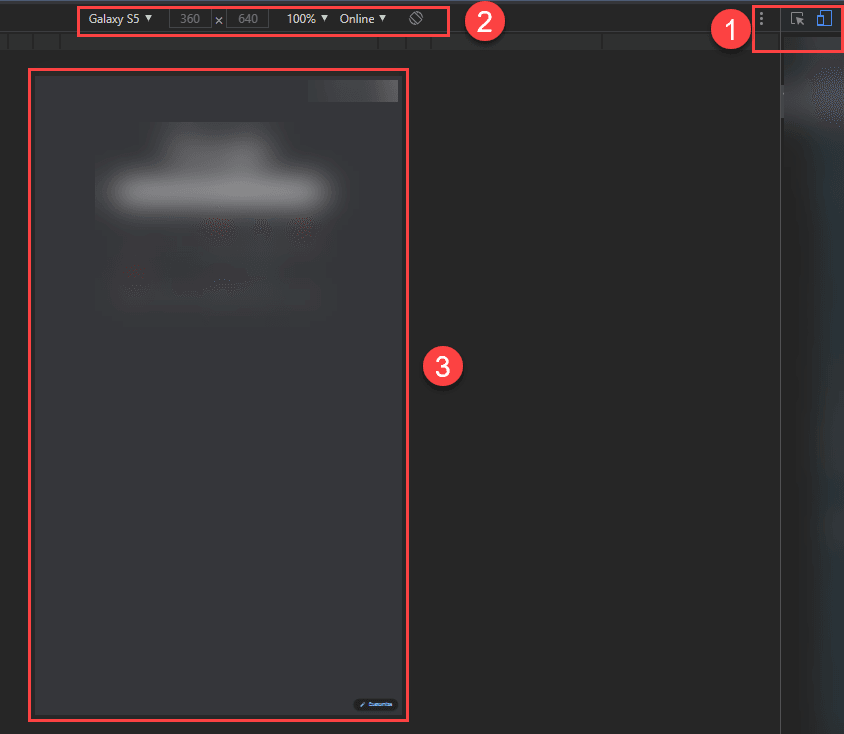
| 3. Go to Toggle Device Toolbar
(Ctrl+Shft+M)
1 = Toggle Device Toolbar indicator 2 = Device selector 3 = Page |
 |
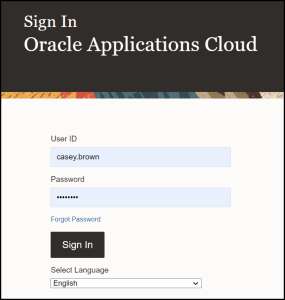
| 4. Log in to the application |
 |
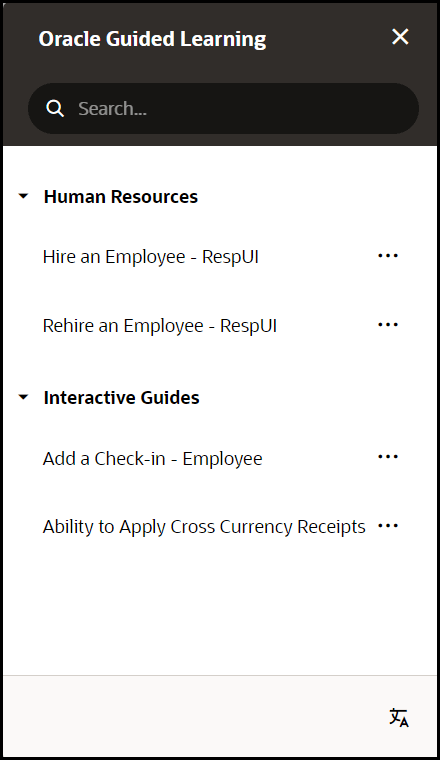
| 5. Open the OGL widget |
 |
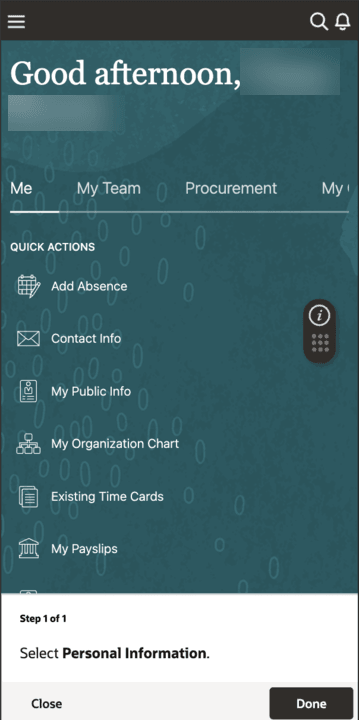
| 6. Run the guide
Note: The instructions will display at the bottom of the screen and advance on-click of the instructed button/link or the Next button. Use the Close(X) button to exit the guide. |
 |
