Creating Smart-Tips & Beacons
Smart-tips and beacons provide context-sensitive help on a field, button, or other UI element.
- Visible Smart-Tips: Used to provide context-sensitive help,
on-hover of the selected text, and provide supplemental information to buttons,
labels, and other screen elements. This uses a help icon (
 ) to draw the user's attention. This can be set as an icon with/without an
animation.
) to draw the user's attention. This can be set as an icon with/without an
animation.
- Invisible Smart-Tips: Anchored to an element on the page, Invisible Smart-Tips are used to provide context-sensitive help without displaying the help icon.
- Beacon: Adds a pulsing animation to draw the reader's attention. The best practice is to use beacons for emergency and temporary notifications.
Creating Visible & Invisible Smart-Tips
Smart-Tips appear when a user hovers over an element. Configuring Smart-Tips involves setting up the correct step-level settings and activation conditions. You can utilize Smart-Tips in the following ways:
- Create independent Smart Tips as a single-step guide
- Create a Smart Tip as part of an existing guide
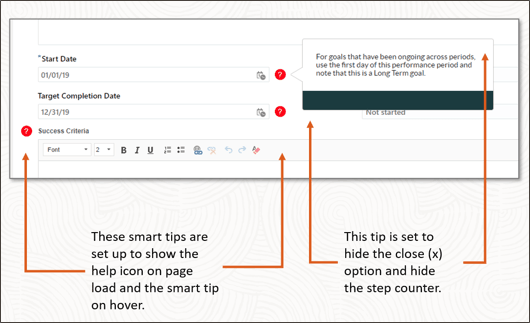
Creating Smart-Tips
- On the OGL console homepage, select Smart Tip under the
Create tab.

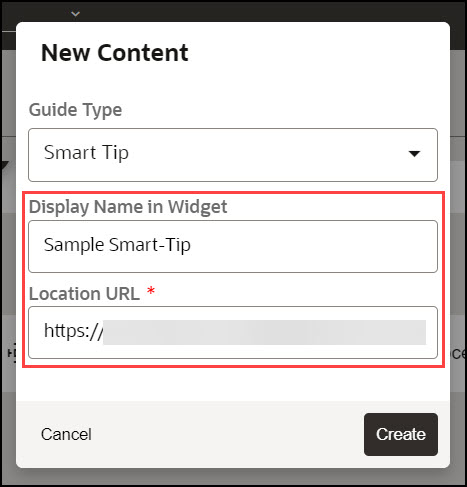
The New Content modal dialog is displayed.
- Enter the Display Name and the Location URL.
- Select the
 button to launch the OGL Editor.
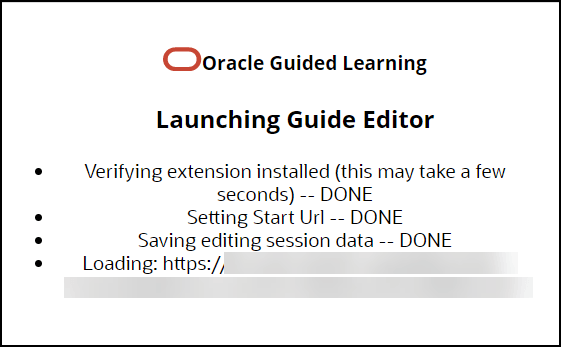
The OGL Editor launches in a new tab, where you can start capturing the steps for the guide.
Note:
The editor appears as an overlay on your application. - Enter the desired text to display in your Smart-Tip.
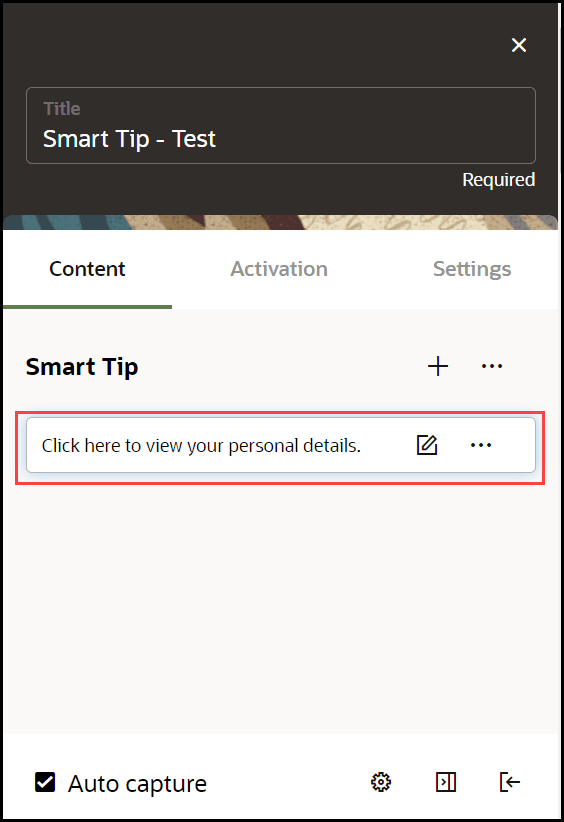
- Select the desired target element. (Hover over the desired element
and select the
 button.)
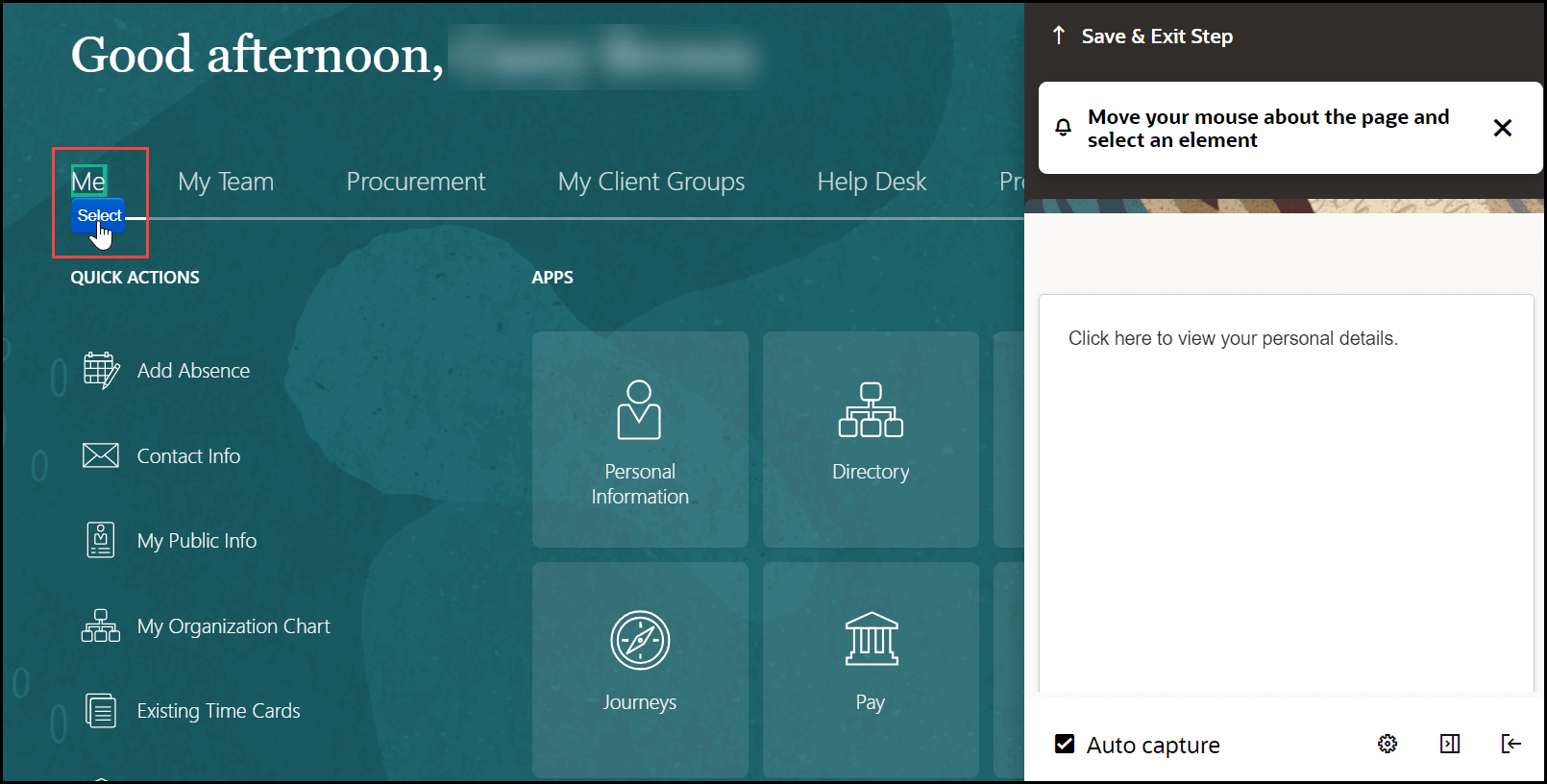
You can view the live preview of the Smart-Tip you just created.
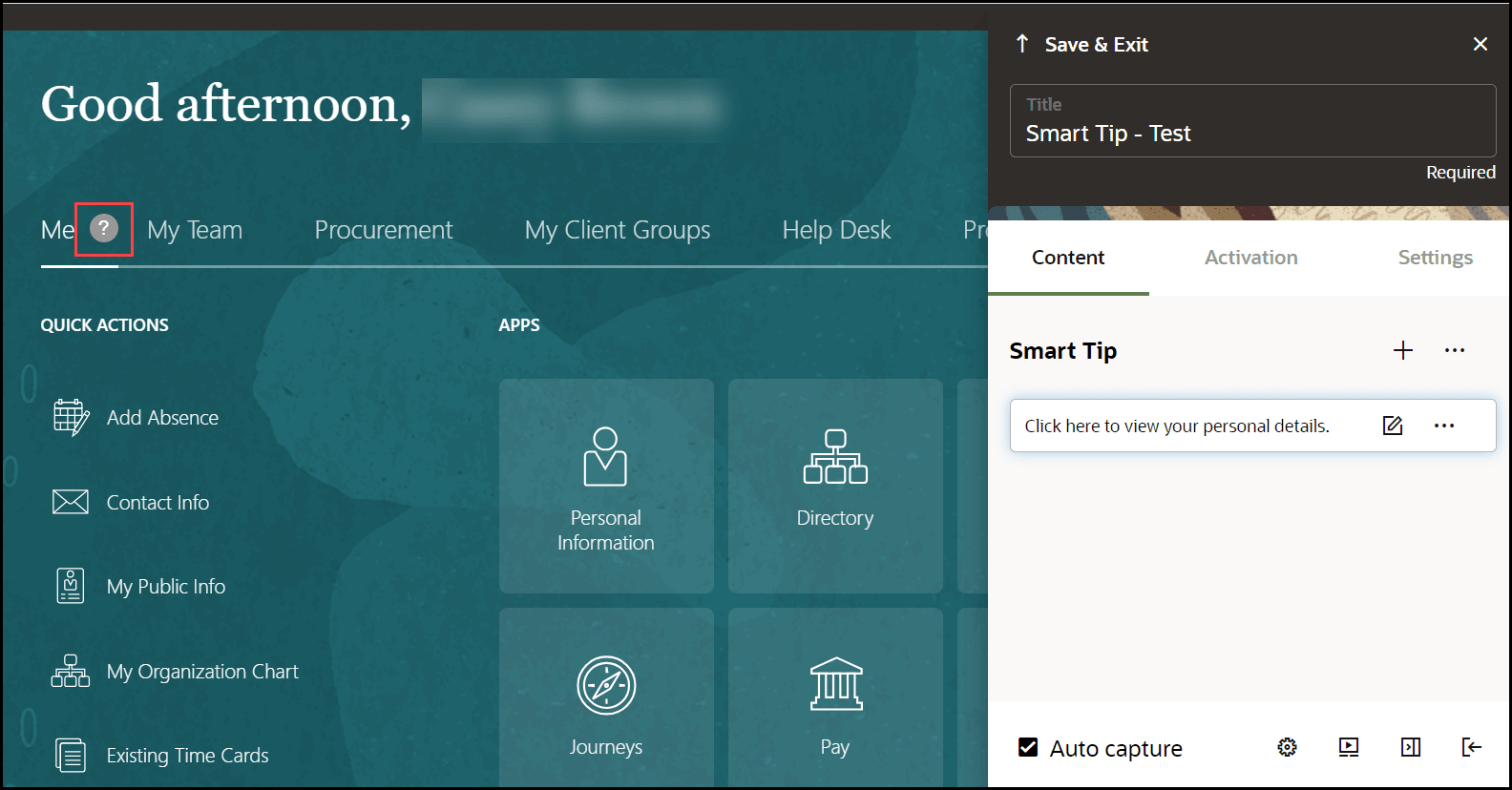
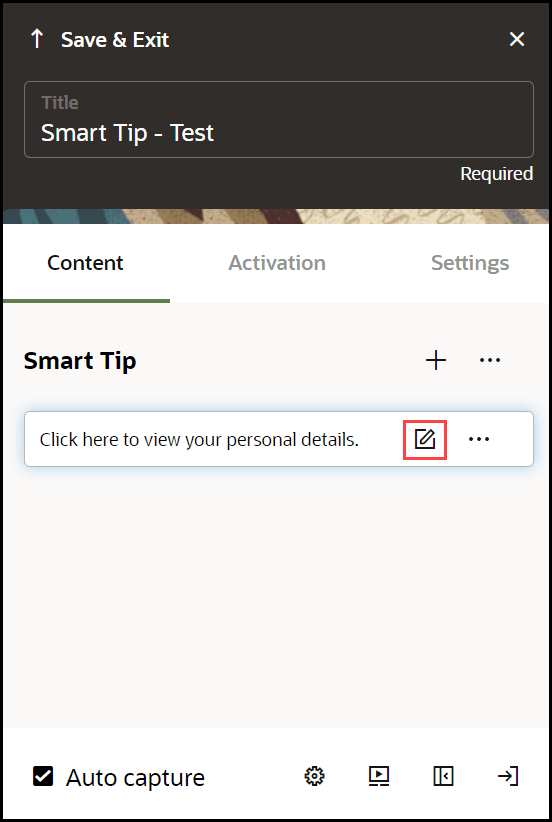
- Select the wrench icon (
 ) to go to Step Settings.
The settings window is displayed. Select on each tab to view the setting details.
- Set the required Display Settings:
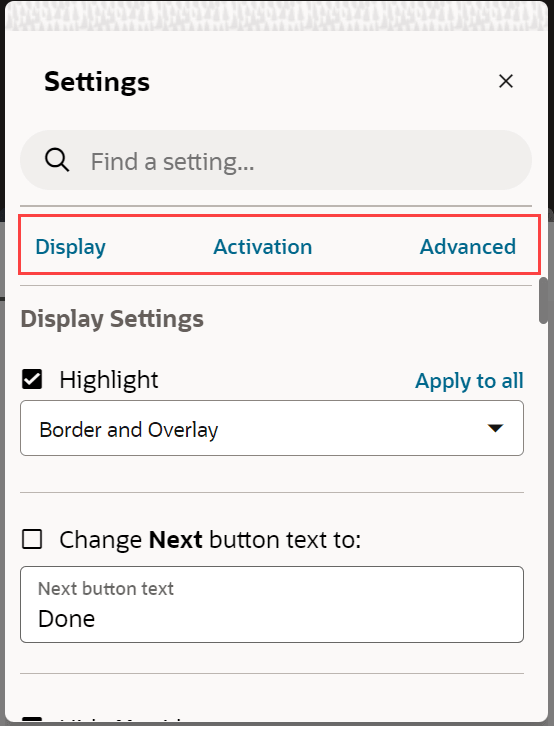
For more information, please see the Display Settings, Activation Settings and Advanced Settings pages.
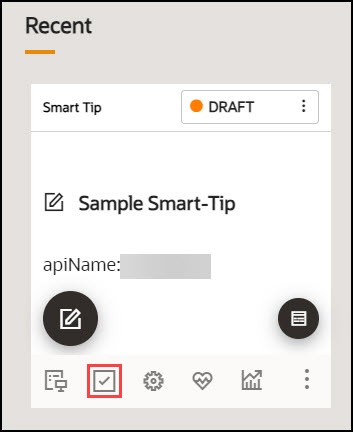
- On the OGL Console homepage, select the Activation icon
(
 ) for the Smart-Tip that you want to activate.Refer to the Enabling Guide Activation Settings section
for further information on activation.
) for the Smart-Tip that you want to activate.Refer to the Enabling Guide Activation Settings section
for further information on activation.
Note:
Set the Smart-Tip to autoload when activation conditions are met.Creating an Invisible Smart Tip
An Invisible Smart-Tip appears when a user hovers over a field, but there is no Help Icon or Beacon to indicate the Smart-Tip is there. Use Invisible Smart Tips to push information to your users at the point of interaction.
Configure an Invisible Smart-Tip just as you would a regular Smart-Tip or Beacon. However, do not choose Show Beacon or Show Help icon. Instead, leave those options blank and just configure the step to appear on hover in the Activation settings.
Creating Beacons
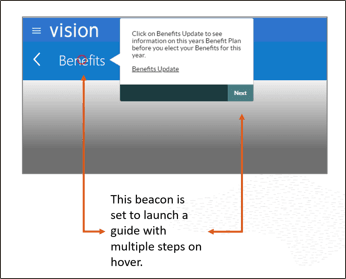
Beacons provide a pulsing animation to draw the reader's attention, then displays a message when the user hover over the item. The best practice is to use beacons for emergency and temporary notifications.
Creating a Beacon
- On the OGL console homepage, select Beacon under the
Create tab.

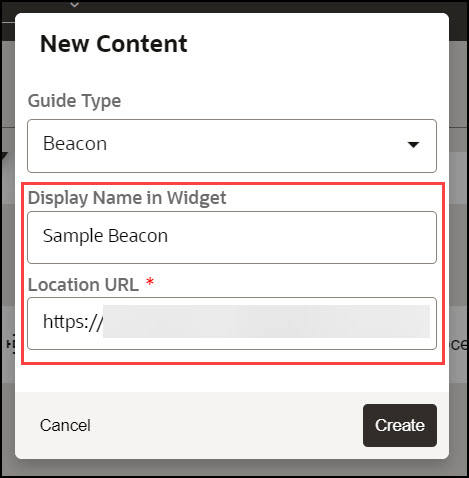
The New Content modal dialog is displayed.
- Enter the Display Name and the Location URL.
- Select the
 button to launch the OGL Editor.
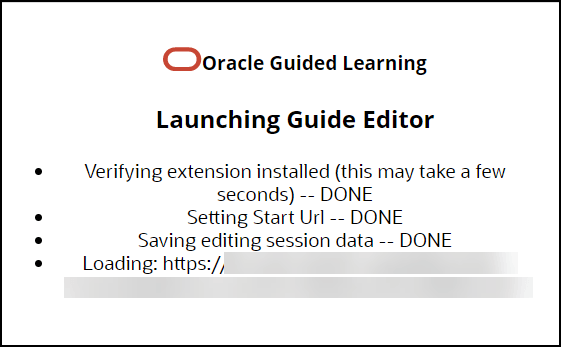
The OGL Editor launches in a new tab, where you can start capturing the steps for the guide.
Note:
The editor appears as an overlay on your application. - Enter the desired text to display when the Beacon is hovered
through.
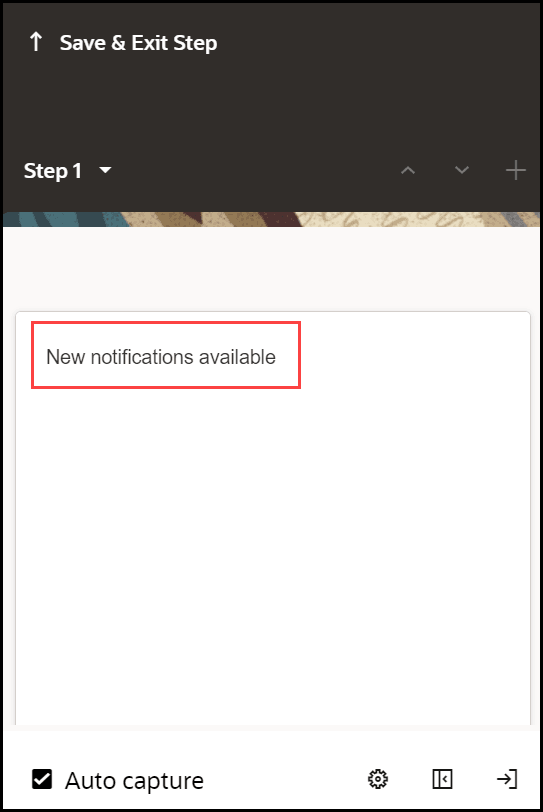
- Select the desired target element. (Hover over the desired element
and select the
 button.)
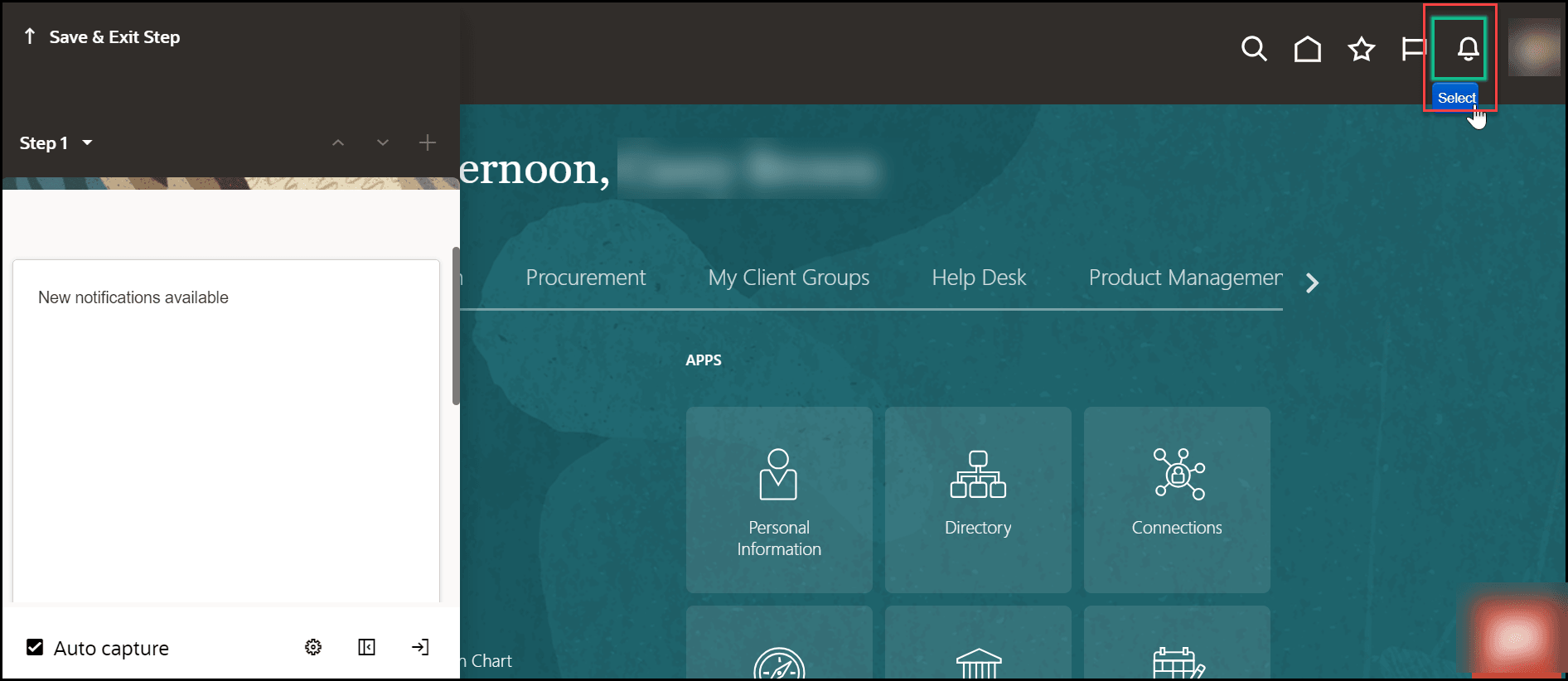
You can view the live preview of the Beacon you just created.
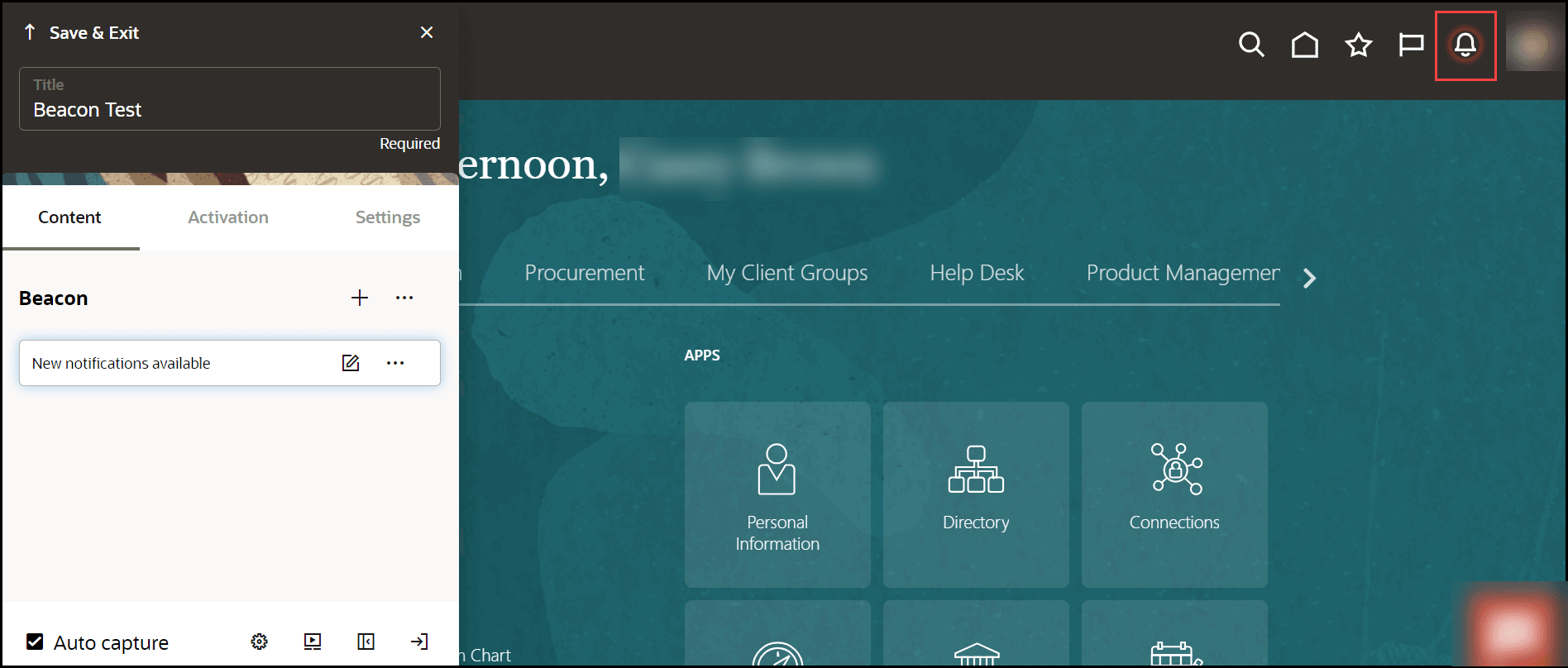
- Select the wrench icon (
 ) to go to Step Settings.
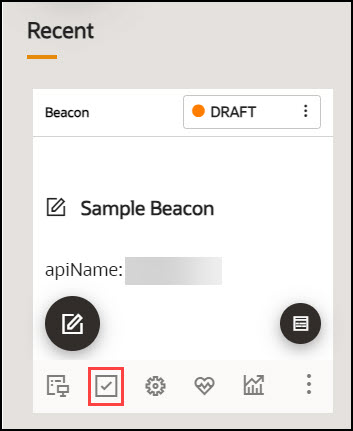
- On the OGL Console homepage, select the Activation icon
() for the Beacon that you want to activate.Refer to the Enabling Guide Activation Settings section for further information on activation.
Note:
Set the Beacon to autoload when activation conditions are met.
