Preview Modes of Process Guides
When working with Process Guides, you have the option to experience and validate the guide in different ways before sharing it with end users. The following options allow you to see how the guide will appear or behave in various formats.
- Preview
- Video, and
- Simulation
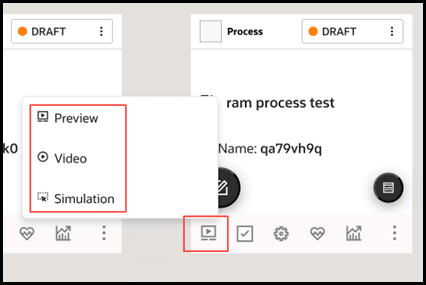
Preview
Opens the guide in a new browser tab, allowing you to walk through the steps as they would appear to a user. This helps ensure the content, flow, and triggers are functioning as intended.
Video
Generates a video-style preview in a new browser tab. This format displays each step along with its corresponding screenshot and tool tip, providing a complete visual walkthrough of the guide.
Simulation
Introduced into the product in Release 24C, Simulations launches an interactive version of the guide in a simulated application environment. Users can follow along step-by-step, practicing actions just as they would in the real application. This is especially useful for training and onboarding scenarios where hands-on experience is important.
Note:
For Simulations to function as intended, ensure that Global Image Capturing is set to Enabled in a Simulation-enabled account. Simulation playback relies on screenshots captured during the guide creation process. Once a Process Guide is created and saved, Simulation playback should be automatically available.Pre-requisites & Expected Behavior for Simulation
- Availability
- Simulations is automatically available for OGL accounts provisioned after the OGL 24C release (post July 7, 2024).
- Administrators of existing accounts (prior to July 7) must reach out to their OGL point of contact to enable Simulation. (Please note that Simulation is not available for included/base accounts.)
- Content Compatibility
- Simulations is not automatically available on content created before the feature was enabled.
- To enable Simulation preview mode on legacy guides, Content Developers must re-capture screenshots for all steps. This applies to both Base guides and Use Cases copied into the Content Library.
- Behavior in Simulation-enabled Guides
- In guides built with Simulation, tool tips will not appear within the screenshots on the Content Editor or in Step Guide/Job Aid view.
- Instead, a blue border highlights the selector point on each step.
Simulation & Video Playback Settings
Simulation and Video modes can also be configured to be displayed to end users on process guides visible in the help widget, offering them additional ways to consume and interact with the guide content.
Users with the appropriate permissions can manage the availability of Simulation and Video preview modes for the DEV and PROD domains through:
Settings > Application > Capture & Playback
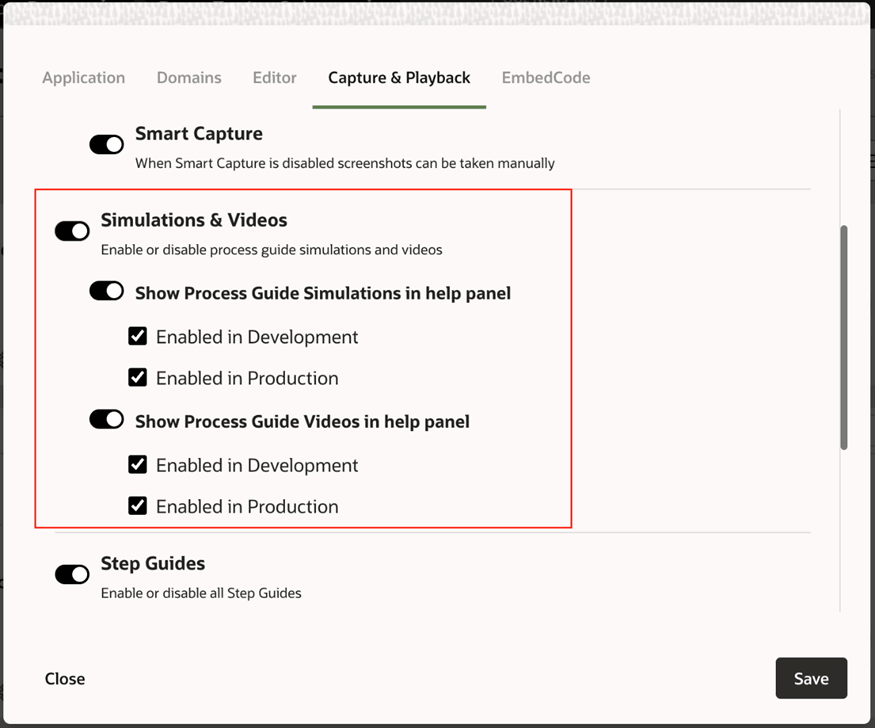
These settings are also available at the guide level for individual Process Guides and determine whether these preview modes are visible to end users.
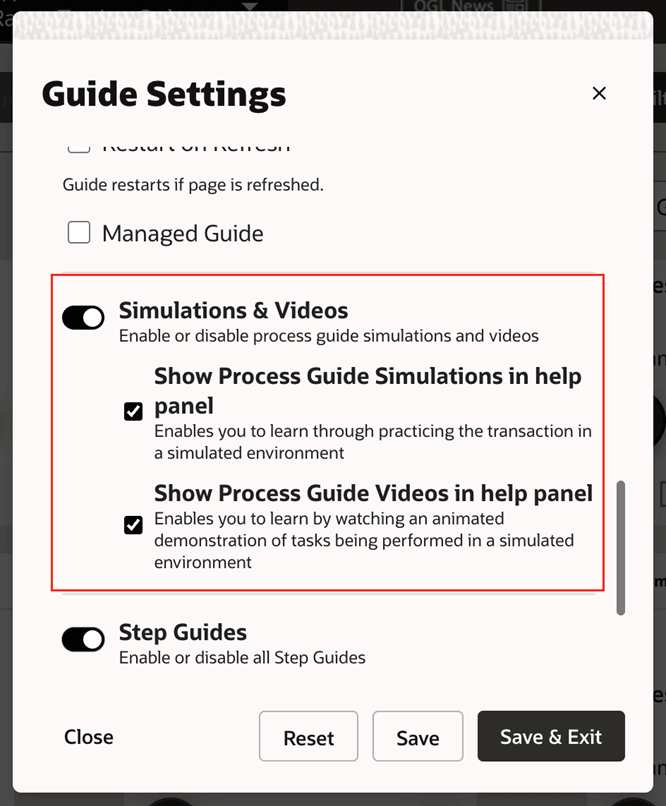
- If Simulation or Video is disabled at the account level, enabling it at the guide level has no effect.
- If enabled at the account level, you can choose to disable Simulation or Video for specific guides, giving you control over how content is consumed.
Note:
Simulation links generated from the OGL Help Widget/Panel can be shared outside the widget and embedded into external webpages or applications that accept link inputs. Please note that simulation links generated directly from the console are not shareable.