Quick Guide Builder (Auto-Recorder)
The Quick Guide Builder feature allows process experts and developers to quickly create prototypes of process guides by simply recording a navigation process in the host application without the need to identify HTML element selectors. Once recorded, a process guide is automatically created which can be then edited and configured using the OGL Guide Editor or Content Editor. This can be especially helpful for developers and content creators to enhance their collaboration with process experts when creating guides.
Oracle Guided Learning Auto-Recorder Extension Required
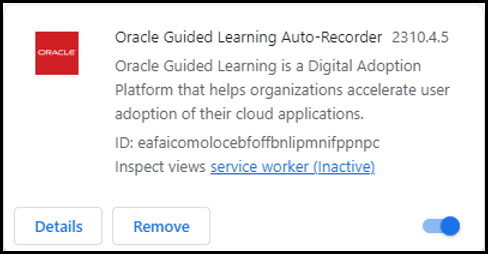
The Quick Guide Builder feature will require a separate Google Chrome browser extension called “Oracle Guided Learning Auto-Recorder” (Version 2310.4.5), which is available from the Chrome Store.
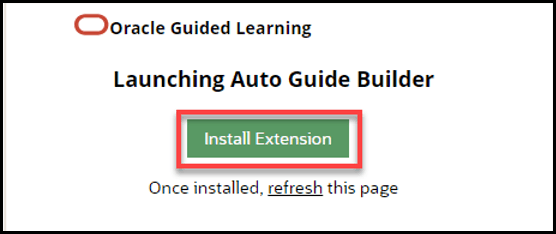
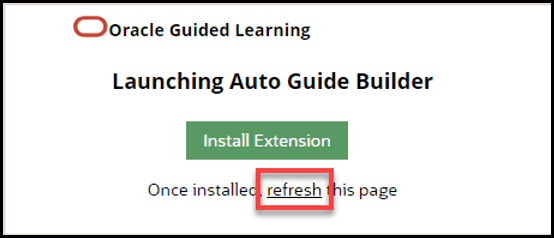
When recording your first process guide using the Quick Guide Builder, you will be prompted to install the extension. If you see the following message, select Install Extension to proceed.
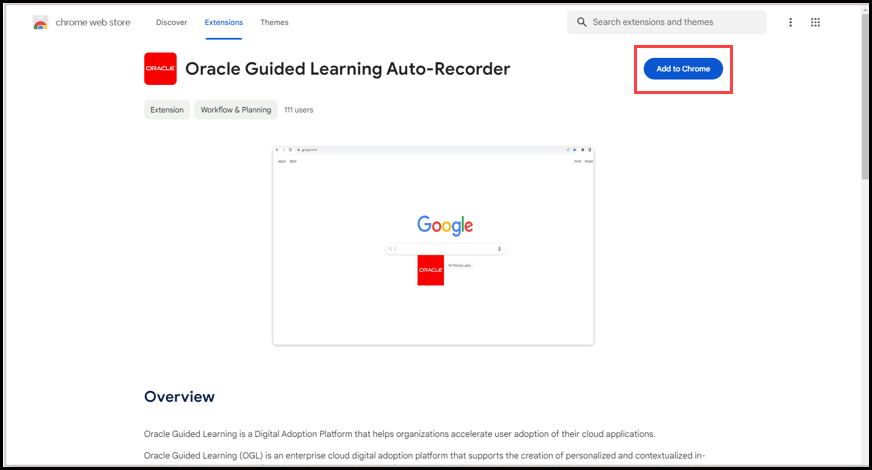
From the “Oracle Guided Learning Auto-Recorder” extension page, select Add to Chrome.
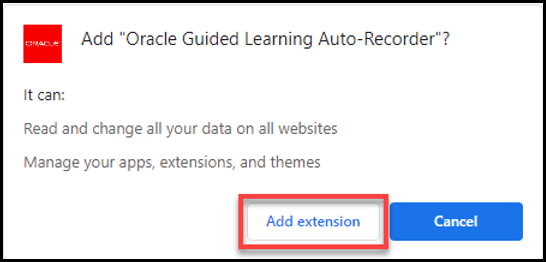
When prompted, select Add extension to proceed with the installation.
If necessary, close the Extensions tab to return to the OGL editor. Refresh the page to continue, if needed.
Quick Guide Builder Process Flow
Follow the steps below to create a Process Guide using the Quick Guide Builder feature. Simply use the “Auto” checkbox to record a process and automatically create a process guide.
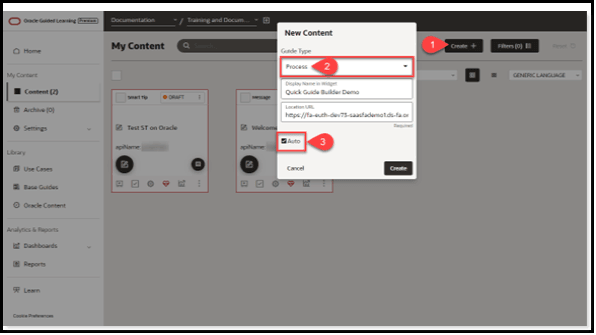
- From the Content page, create a new content item using the Create+
- In the New Content modal, select Process in the Guide Type drop down menu, enter a display name and location URL.
- Select the “Auto” checkbox to enable the Quick Guide Builder.
- Select the Create button to start
Note:
If this is your first time recording a process with the Quick Guide Builder, you will be prompted to install the Oracle Guided Learning Auto-Recorder browser extension, as shown below. (Refer to the “Oracle Guided Learning Auto-Recorder Extension Required” section above. Once the extension is installed, continue to Step 5.)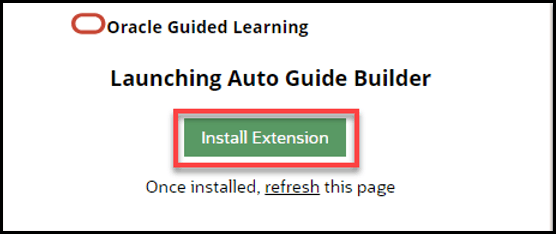
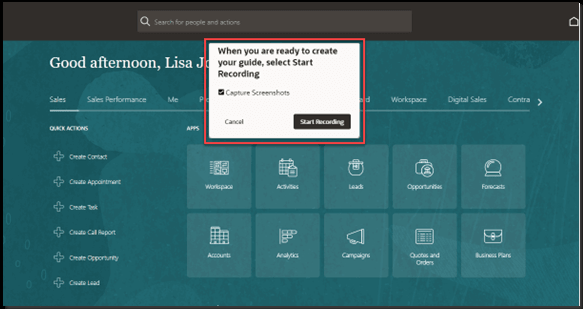
- In the host application, you will see the Auto-Recorder open on the screen
instead of the OGL guide editor. When ready, select the Start Recording
button to begin recording the process. (Note: Select the “Capture
Screenshots” option if you want the Auto-Recorder to capture screenshots with
each step.)
- While recording, notice the recording toolbar at the bottom of the screen that
indicates the number of steps captured.
Note:
If the “Advance on Click” option is checked, the Auto-Recorder will automatically apply an activation setting to advance the step when the user clicks the element.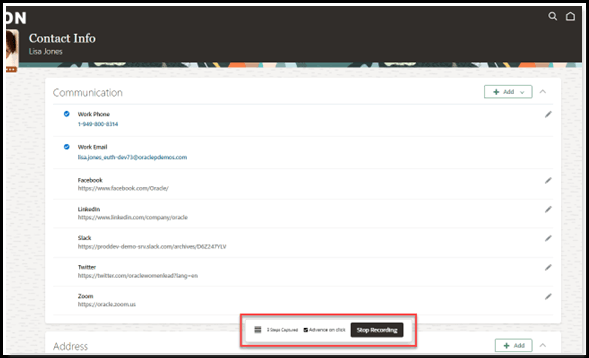
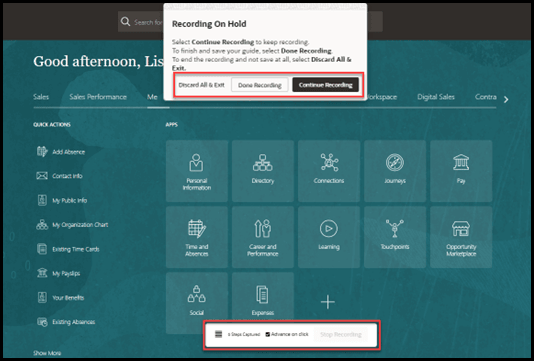
- While recording, you can stop the recording at any point during the process and
choose Discard All & Exit, Done Recording, or Continue
Recording. To finish and save the guide, select Done
Recording.
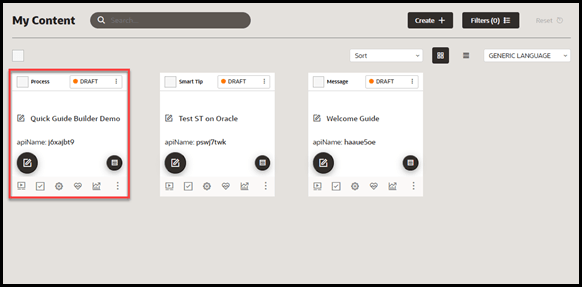
- Once the recording is complete. A new process guide will appear in the My
Content page where it can be further edited and configured using the OGL Guide
Editor just like any other process guide.
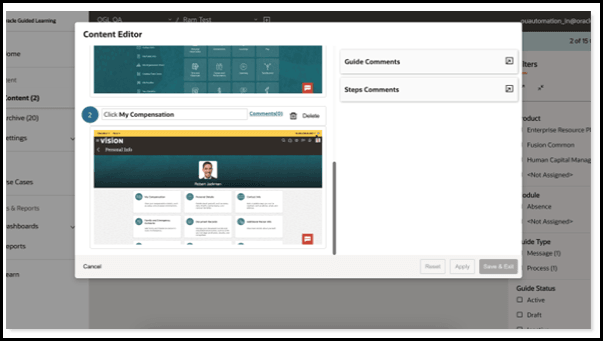
- The guide can also be edited using the Content Editor to make simple text and
formatting edits.
- The guide can now be deployed to the host application for further testing or
publishing.
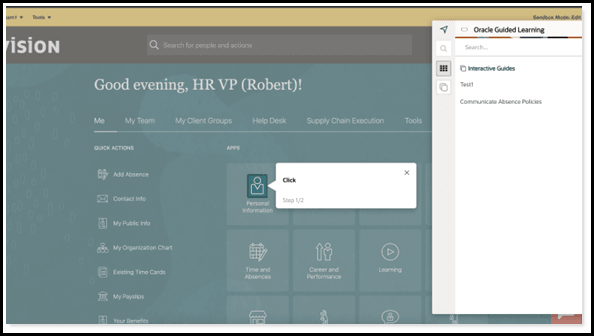
Known Issues/Expected Behavior of Quick Guide Builder in 23D release
- Quick Guide Builder is currently only available for creating Process Guides.
- No Auto-segmentation for pages/routes will be applied.
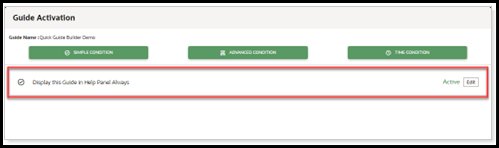
- Guides created with the Quick Guide Builder will apply an auto-generated
guide activation condition set to “Display the guide in the Help Panel
Always”. Any additional guide activation conditions will need to be manually
configured.
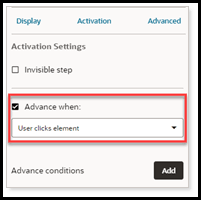
- Navigating from one page route to another in the host application is
achieved with the Advance on click setting, which is enabled by
default (no form elements or Next button on tool tips).

By enabling this option while recording, the Quick Guide Builder will automatically apply an advanced an activation setting to advance the step when the user clicks the element. This setting can be changed in the Full Editor after recording, as needed.
- OGL Widget is showing while Auto Recorder is active – Quick Guide Builder functionality allows users to switch between active tabs as well as windows and the recording jumps to that tab/window. The user could have a fusion instance already open prior to launching the Quick Guide Builder, so we will not be able to block the player from loading.