Enabling OGL by Embedding JavaScript
You can use JavaScript to embed OGL in a Fusion application or other web applications.
To embed the JavaScript in a non-Fusion web application, you add the provided JavaScript to all pages in your application where you want to use OGL. Because there are as many different ways to do this as there are web applications, we cannot address specific steps for non-Fusion applications. In general, add the OGL JavaScript to a common part of your application, such as the header or footer area.
Embed OGL JavaScript in Fusion
Creating and Publishing a Sandbox for OGL Configuration
Note:
- The JavaScript embed profile value should be set to No.
- Make sure there is no active sandbox.
To create a Sandbox and publish:
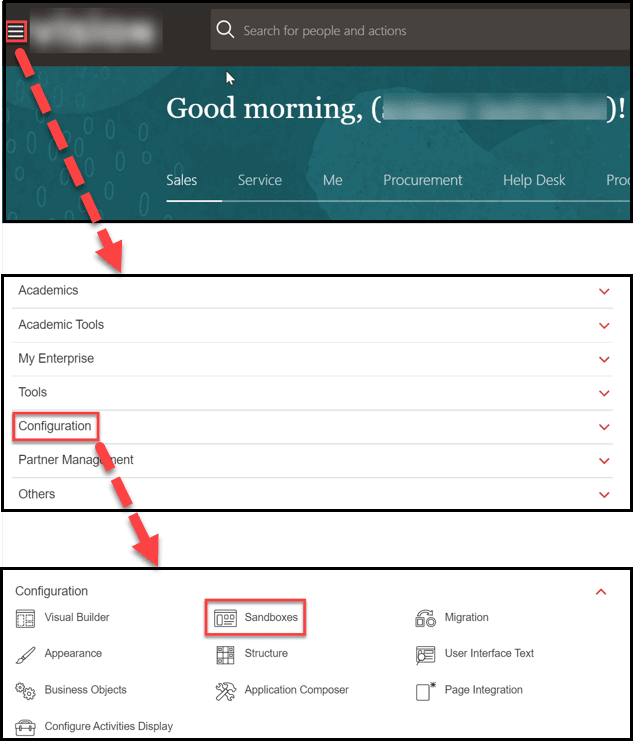
- Select the Navigator icon (
 ), > Configuration >
Sandboxes.
), > Configuration >
Sandboxes.
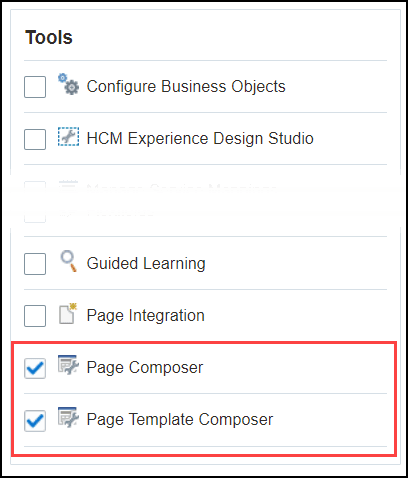
- Select Page Composer and Page Template Composer under
the available tools.
- Select the Create Sandbox button. The Create Sandbox screen is displayed.
- On the Create Sandbox screen, enter the Sandbox Name
and an optional description.

Note:
In the absence of an internal naming convention, the following naming convention is recommended, OGL-YYYY-MM-DD-V# (i.e., OGL-2020-10-09-V1)). - Set the Publishable option to Yes.
- Select the Create and Enter button.

The Sandbox has been created and entered.
Embedding the Script
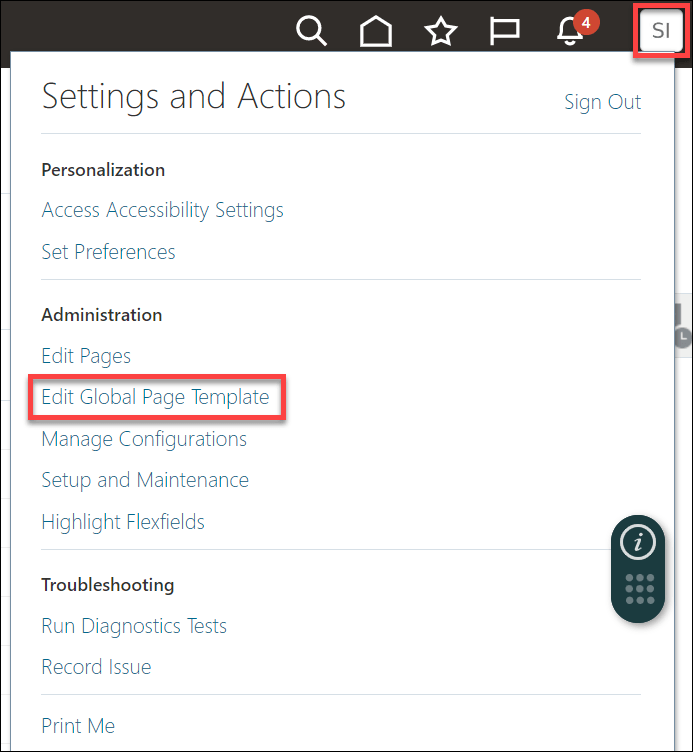
- While still in the sandbox, select the Settings and Actions
icon (
 ) at the top-right corner of your Fusion homepage. Then Select
the Edit Global Page Template from the options in the dropdown list.
) at the top-right corner of your Fusion homepage. Then Select
the Edit Global Page Template from the options in the dropdown list.
- Select the Global Page Template label area (highlighted in
blue).
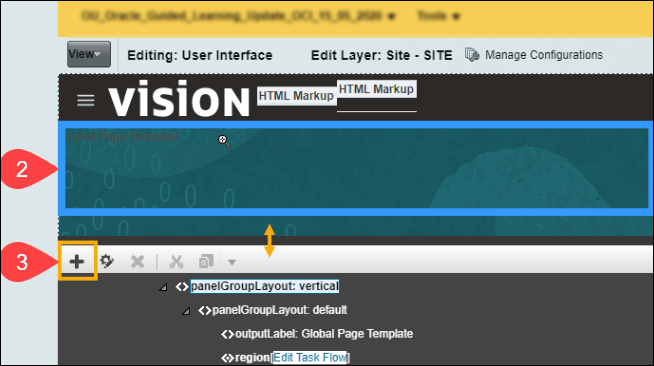
- Select the Add icon(
 ) in the footer area; you may need to drag the toolbar up
  to bring it into view.
Now, the Add Content modal window appears.
- Select Open, next to Components, and then select
Add, next to HTML Markup.
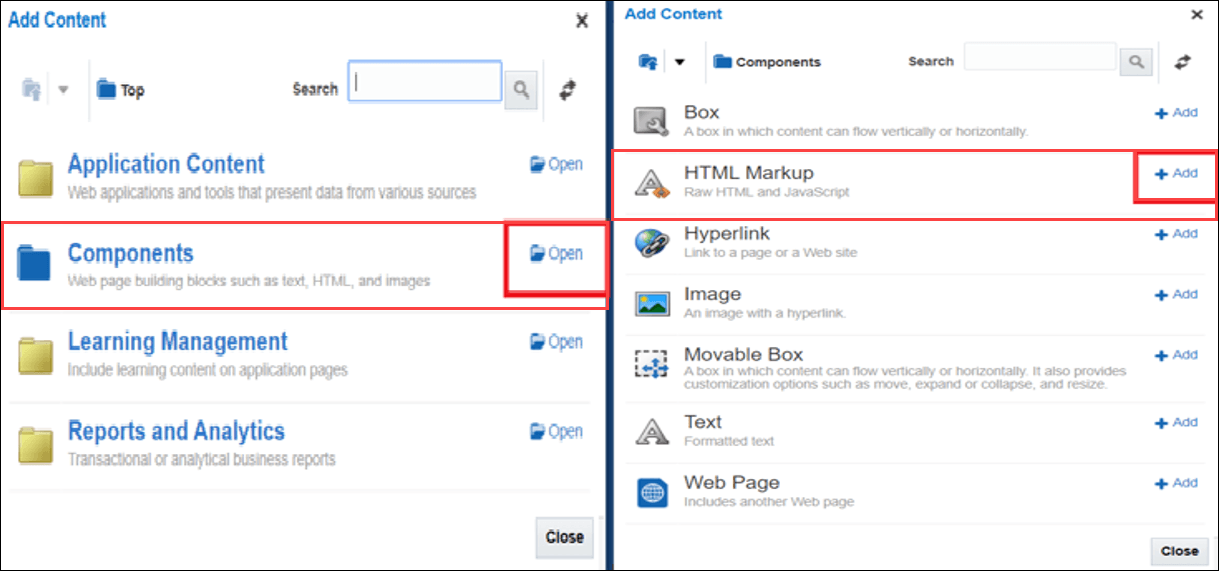
Select Open, next to Components, and then select Add, next to HTML Markup.
The HTML Markup settings is now visible.
- Select View, then select Design.
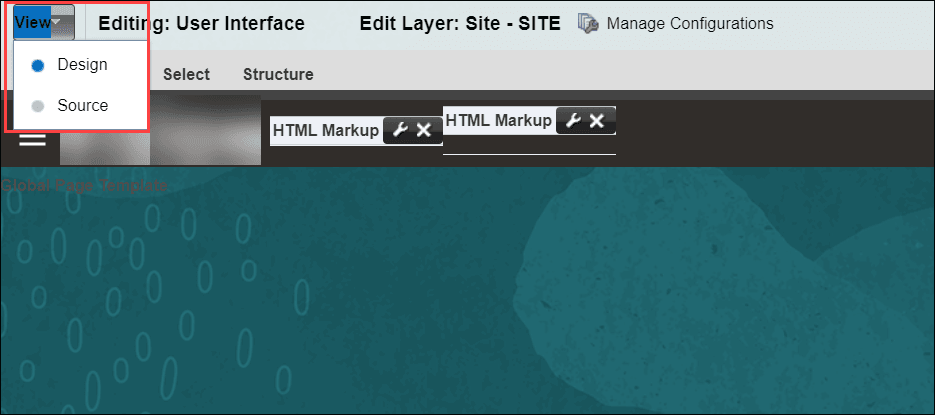
Note:
If you are unable to select Design, try enabling the Administrator Profile Value in Setup and Maintenace > Manage Administrator Profile Values >FND_PAGE_COMPOSER_SOURCE_VIEW > Set to “Yes”. - Select the Edit icon (
 ) of the newly added HTML Markup component.
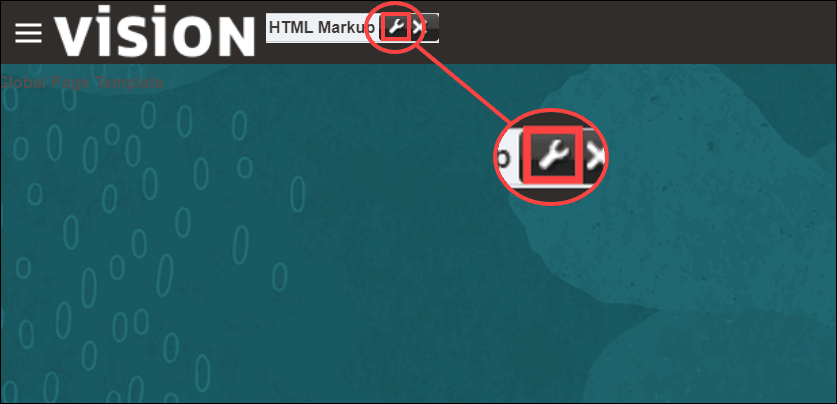
The HTML Markup editor is now visible.
- Select the Value dropdown, then select Expression Builder.
- Replace the contents of the Type a value or expression field
with the OGL JavaScript, then select OK.
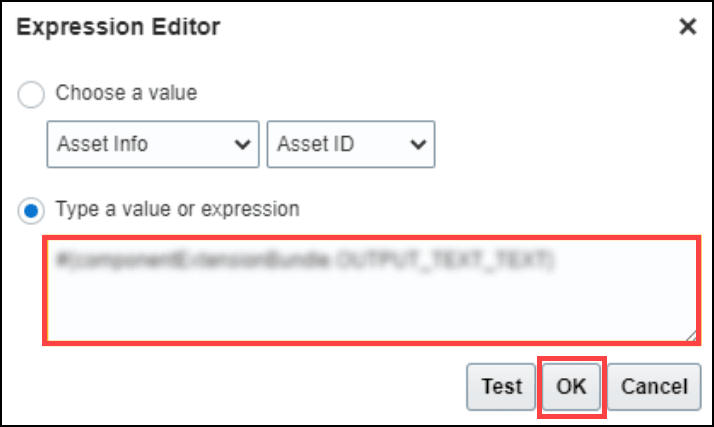
- Select OK again and select Close.
The JavaScript embed process is now complete.
- Verify that the OGL Widget (
 ) is visible. If the widget is not visible, perform the following
steps:
) is visible. If the widget is not visible, perform the following
steps:
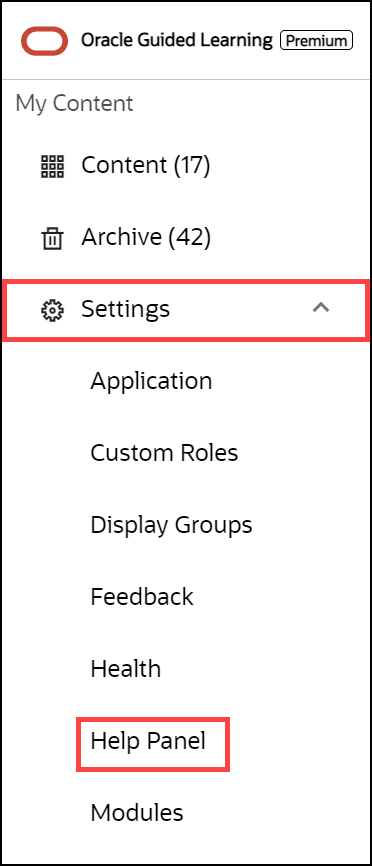
- Go to the OGL Console, then select Help Panel
in the Settings tab.
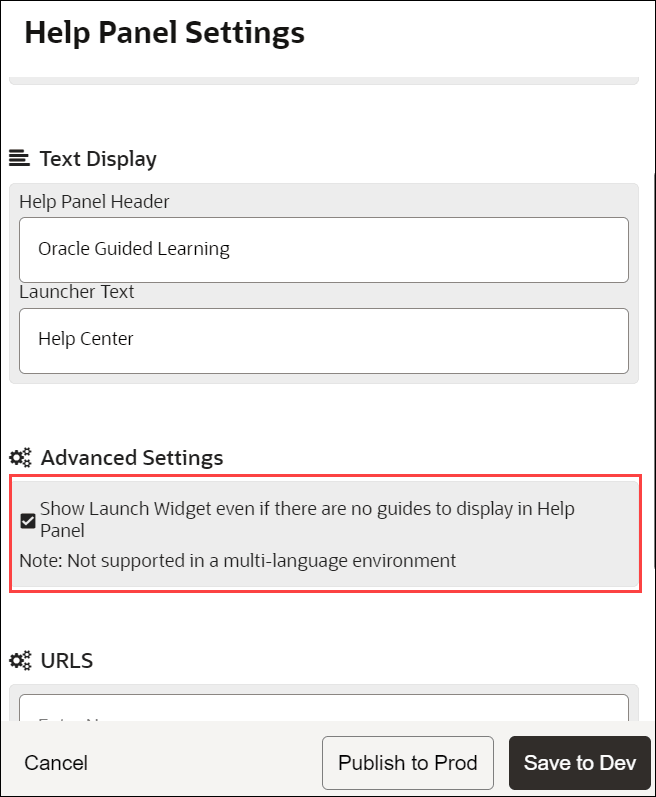
- Ensure that the Show Launch Widget even if there are no
guides to display in Help Panel option is enabled.
- Ensure that the Show Launch Widget even if there are no guides to display in Help Panel option is enabled.
- Wait 30-60 seconds then refresh your Fusion instance. If the OGL widget is still not displayed reach out to your OGL contact or create a support ticket on My Oracle Support.
- Go to the OGL Console, then select Help Panel
in the Settings tab.
- When you are ready, publish the sandbox to make your content
available to users. To publish the sandbox, follow these steps:
- Click the Sandbox Name, then select Publish.
- An information dialog box is displayed, select Yes to confirm.
- Select Publish.
- A warning dialog box is displayed, select Yes to confirm the action.
