The OGL Console
The Oracle Guided Learning provides a simple, user-friendly interface that lets you easily navigate the features. The user interface is organized into pages and features that help you accomplish your tasks. Additionally, we have incorporated OGL onto your OGL console (OGL-On-OGL) to help orient you to the user interface and to provide guidance on navigating the console.
The Redwood Theme
Redwood is the name of the approach to our next-generation product and communication design, user experience platform, and brand design system. While it’s not the only manifestation of the changes we’re making, it’s perhaps the most visible. Redwood is at the core of our express goal: getting customers to fall in love with Oracle one interaction at a time. This is just the beginning. Redwood is a living thing, and all of us are going to help it evolve and improve in the coming months and years.
Redwood is the recommended theme for all Oracle Applications. OGL content is best presented in the Redwood theme and is optimized for Oracle Fusion applications that also apply the Redwood theme.
Homepage UI Elements
Let us get familiarized with some of the homepage UI elements.
The OGL Homepage looks like this.
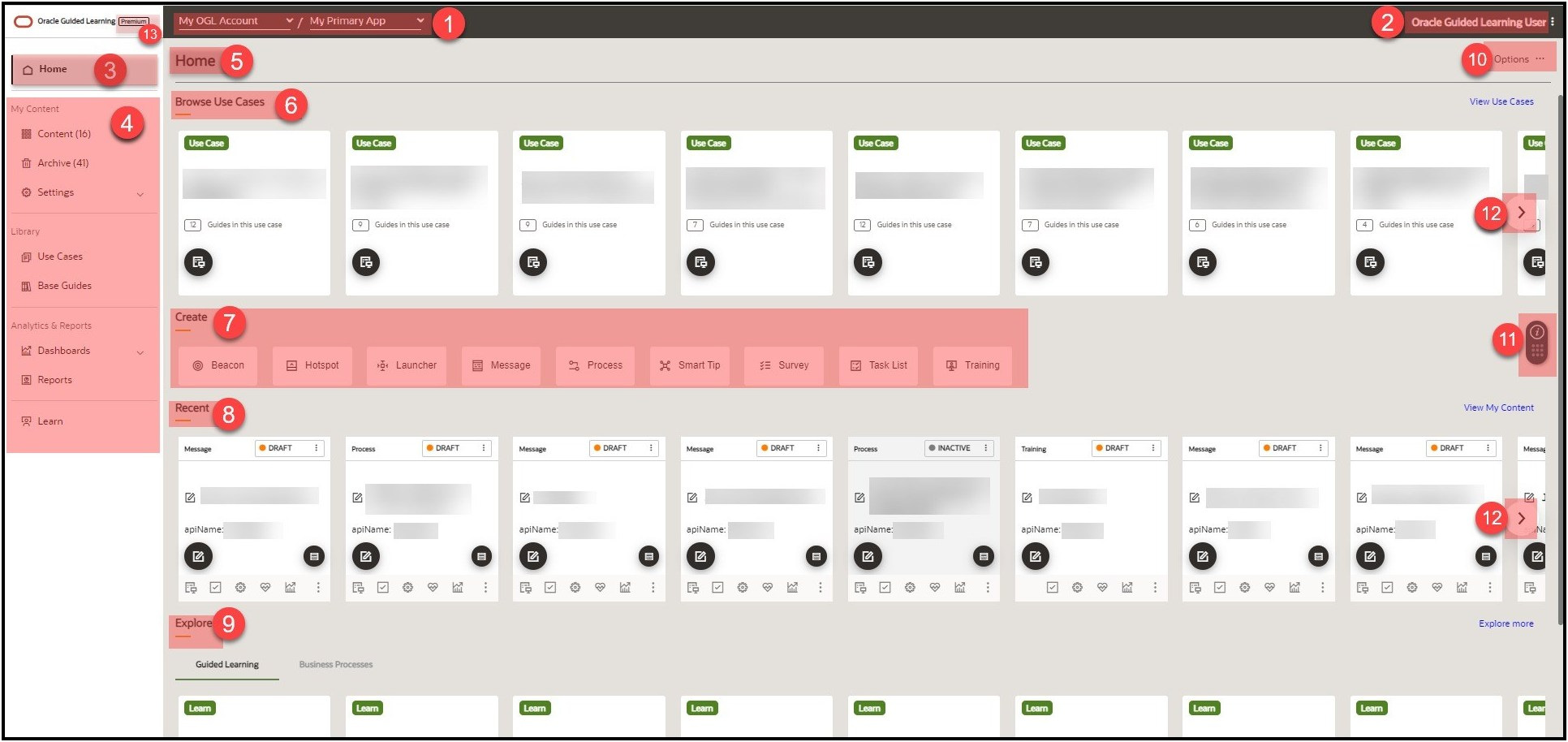
| No | Element | Sub Menu/Element | Function |
|---|---|---|---|
| 1 | Account and Apps | Displays the Account Name and the Application Name. | |
| 2 | User Menu | My Profile, Help, Support, Forum, About and Sign Out | Displays the Profile Information and Profile Settings. Provides the hyperlink to the OU Support Help, User Guides, and Forums. It also contains the OGL info and options to Sign Out of OGL. |
| 3 | OGL Homepage Button | It returns you to the OGL Homepage from the current page you are on. | |
| 4 | Main Navigation Menu | My Content, Library, Analytics & Reports and Learn | My Content lists all the existing guides, and Archive shows all archived guides. The Library section consists of Use cases and Base Guides. Analytics & Reports provides an interactive Dashboard and OGL user analysis reports. Finally, the Learn option takes you to the learning center. |
| 5 | Homepage Title | The Homepage Title is exclusive to the homepage and indicates that you are on the homepage. | |
| 6 | Browse Use Cases | Provides quick access to Use Cases from the Use Case Library. | |
| 7 | Create | Beacon, Hotspot, Launcher, Messages, Process, Smart Tip, Survey, Task List and Training | This menu lets you create different OGL guides, including Beacon, Hotspot, Launcher, Messages, Process, Smart Tip, Survey, Task List, and Training. |
| 8 | Recent | Displays the recently used guides. | |
| 9 | Explore | Guided Learning and Business Process | This library provides access to training resources on Guided Learning and Business Processes. |
| 10 | Options | Options let you filter the contents you see on the homepage. | |
| 11 | Help Widget | Getting Started, OGL Digital Learning, Documentation and Support | The Help Widget in the OGL Console offers a variety of tours, help and support resources, and access to training on how to use the OGL Console effectively. |
| 12 | Scroll Button | Scroll right and left between content tiles with the Scroll Buttons. | |
| 13 | Premium Badging | Premium badges are exclusive to premium accounts. This insignia indicates that your OGL account is a premium account with access to premium features and unlimited guides. |
