The Full Editor
Open the OGL Full Editor
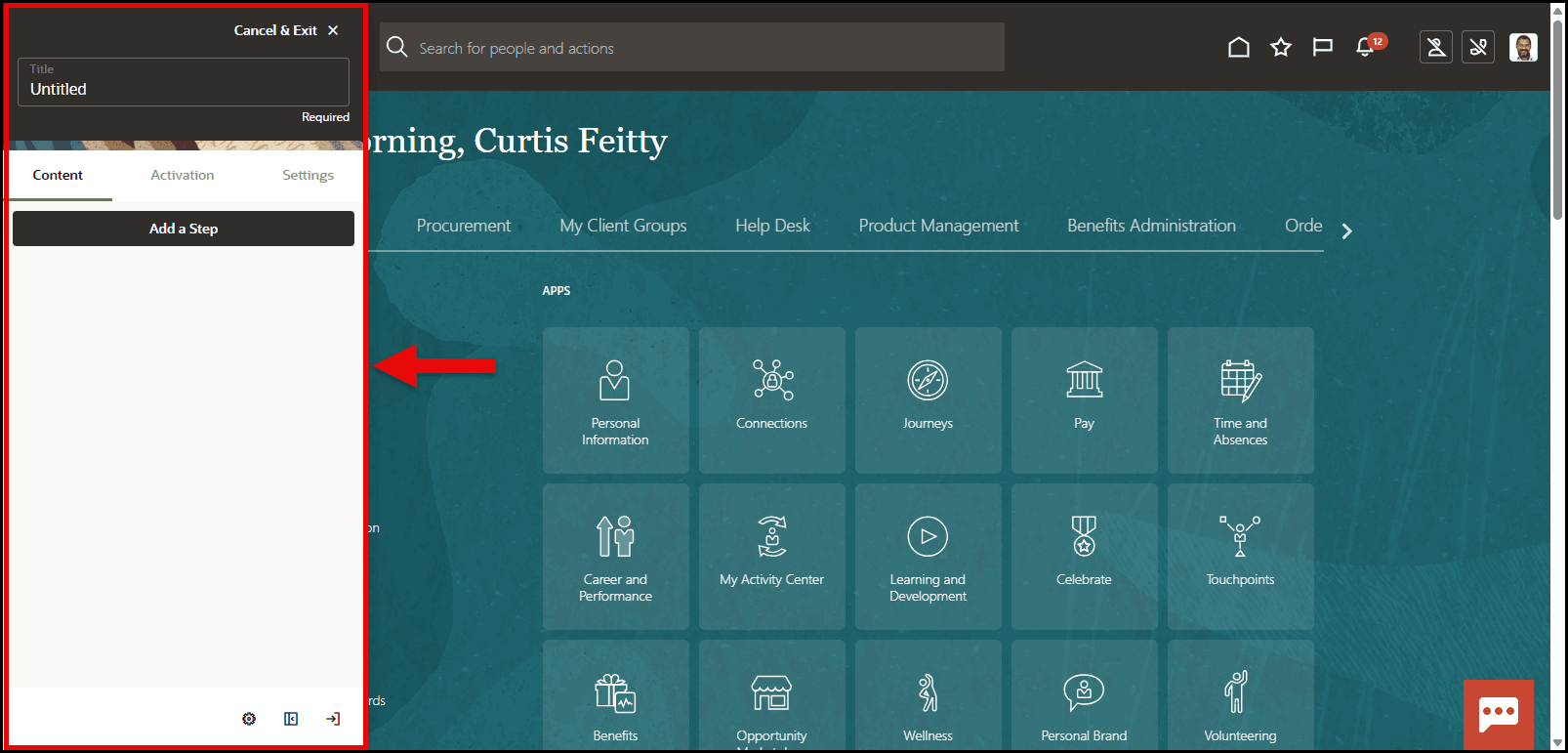
When creating or editing a guide, the OGL Full Editor will open in the host application and will be docked on the left side of the page, by default, like this:
Moving the OGL Editor panel
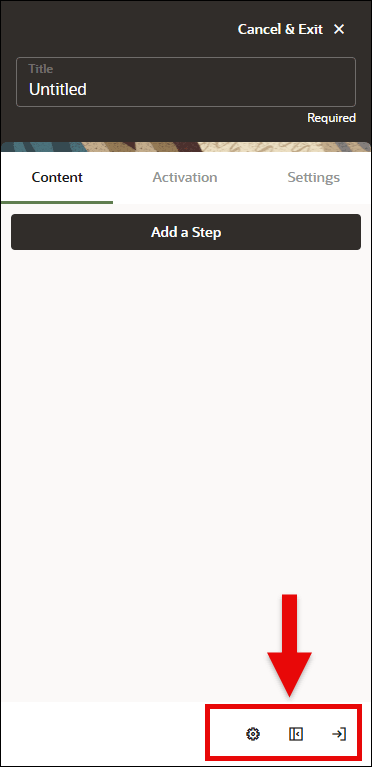
The OGL Editor may cover parts of the application that you need to work with. To reposition the editor panel, you can move it to the left or right side of the screen or minimize it entirely by using the buttons at the bottom of the editor panel.
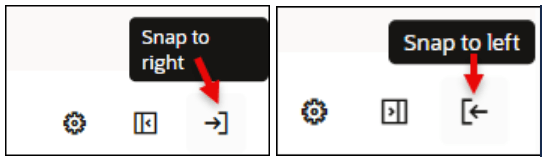
To dock the OGL Editor to the right or left side of the screen, select the Snap to right or Snap to left buttons.
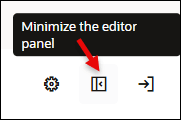
To minimize the OGL Editor entirely, select the Minimize the editor panel button.
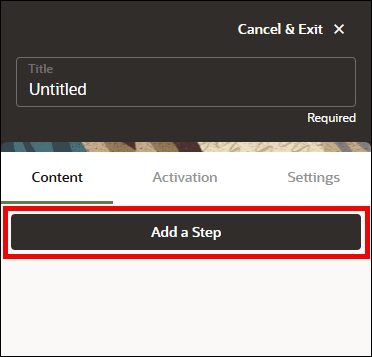
Select Add a Step to add a new step to your guide and open the editing tools.
OGL Full Editor Controls
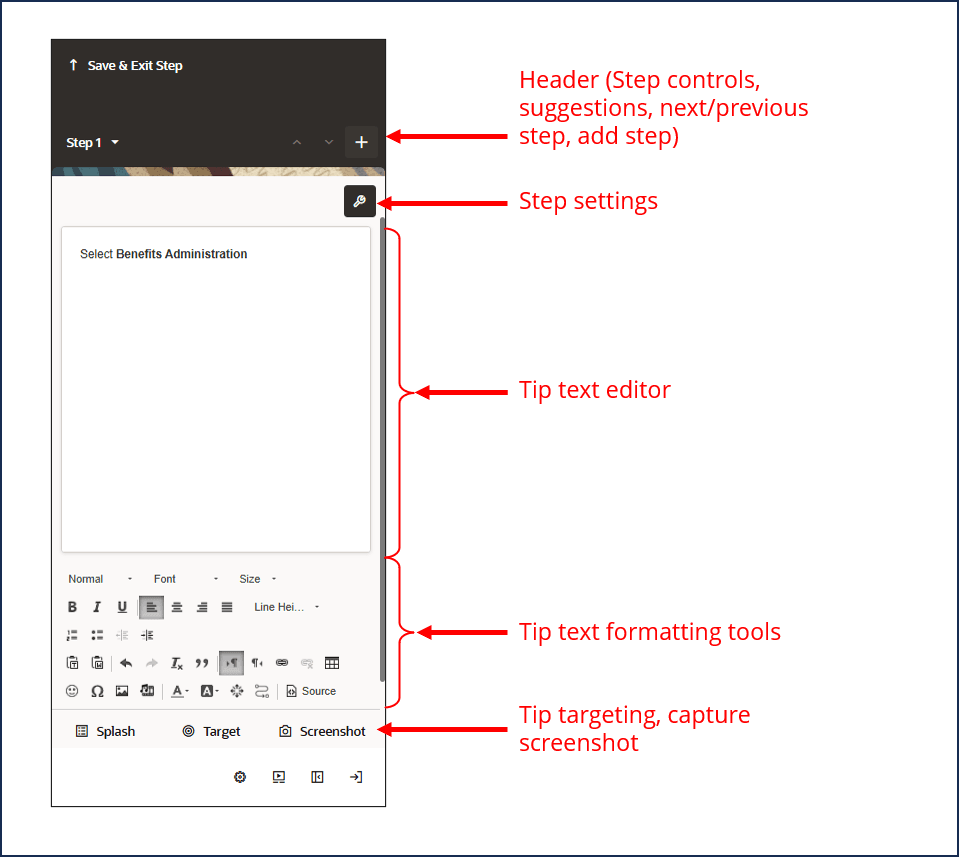
The editor panel is comprised of several sections, each with different settings and tools that you can use to configure your guide steps and tips.
Formatting Tools
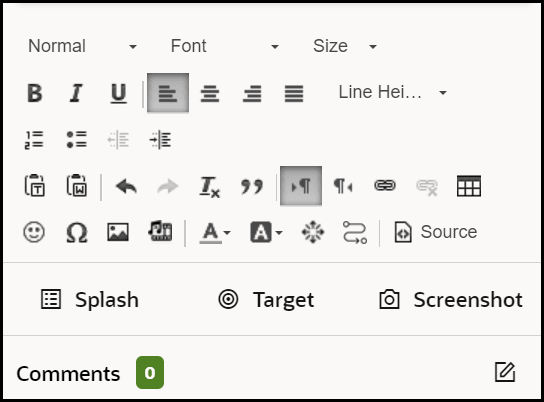
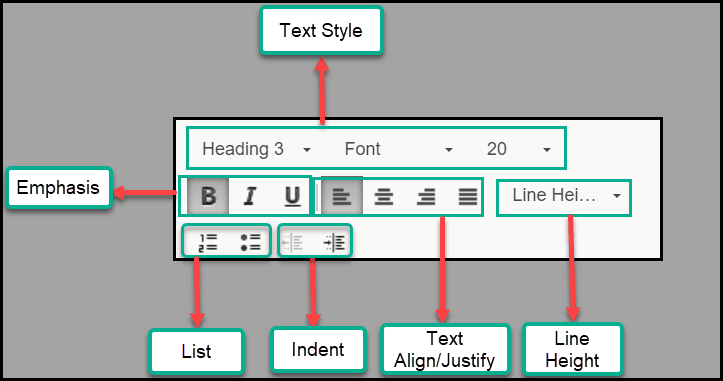
The formatting tools section of the editor provides various options to format your tip text, such as text style, font, size, color, etc. Refer to the diagrams below for a description of each tool button.
| Sl No | Element | Description | Note |
|---|---|---|---|
| 1 | Text Style | Set or modify the selected text's style (such as Heading 1-6 or Paragraph), font type and font size using these dropdowns. | |
| 2 | Emphasis | Set or unset Bold, Italic, or Underline emphasis on the currently selected text. | |
| 3 | List | Add numbered or bullet list. | Right click the list elements to open the list properties dialog, where you may choose numbered list type (Decimal, Latin numerals, Alpha etc.) or bullet list type (Circle, Disc or Square). |
| 4 | Indent | Increase and decrease text indentation level. | Increasing the indentation level of a list item creates a nested effect. |
| 5 | Text Align / Justify | Set the alignment for the currently selected paragraph to Left, Center, Right, or Justify. | |
| 6 | Line Height | Set the line height. |
| Sl No. | Element | Description | Note |
|---|---|---|---|
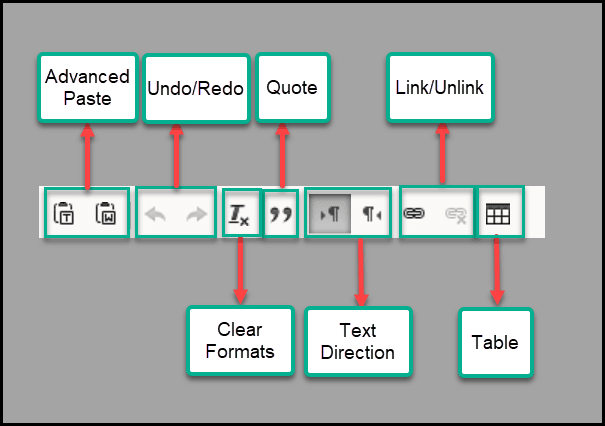
| 1 | Advanced Paste | Paste rich content as plain text (without styling) or paste from Word and keep the content styles intact. | |
| 2 | Undo / Redo | Undo changes to the content or redo changes which were previously undone. | |
| 3 | Quote | Turn selected text into a quote element with its custom styling. | |
| 4 | Link / Unlink | Turn selected text into a link (anchor) or insert link at the current cursor position. | The Link dialog allows you to set the type of the link, its URL, and its target window (open in same/new tab or window) |
| 5 | Clear Formats | Remove all content styling, such as text color, background color, font size and type etc. | |
| 6 | Text Direction | Set the direction of the currently selected paragraph to Right or Left. | |
| 7 | Table | Add or modify a Table element. The Table Dialog lets you set table properties such as the number of rows and columns, table headers, border, width, and more. | You can also right-click a table in the content to open the table properties as well as cell and row level options. |
| Sl No. | Element | Description | Note |
|---|---|---|---|
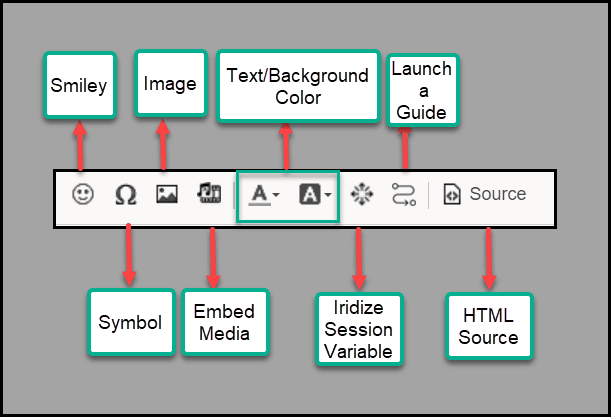
| 1 | Smiley | Insert a Smiley | Make someone’s day better! |
| Image | Add or modify an image element. The Image dialog allows you to set image properties such as its URL, size, alignment, and whether it is a Captioned Image. | You can change the image's size both from the Image dialog or by the in-content drag-to-resize controls. For Captioned Images, the caption can be edited directly in the content. | |
| 2 | Text / Background Color | Set the text and background colors of the currently selected text. The color selection dialog lets you choose a color from a list of preset colors or enter your own custom colors. | |
| 3 | Launch a guide | Insert a link or button to launch a guide from a specific step. | |
| 4 | Symbol | Add a special symbol to the current cursor position. This is especially useful for adding currency symbols, such as Euro or Pound or Yen. | |
| 5 | Embed Media | Add or modify a video or slideshow from an external source. | While the main use of this option is to embed videos in guides and messages, supported services also includes audio, photo, and rich content sources. |
| 6 | Iridize Session Variable | ||
| 7 | Source | View and edit the HTML source of the step's content directly. |
