Advanced Settings
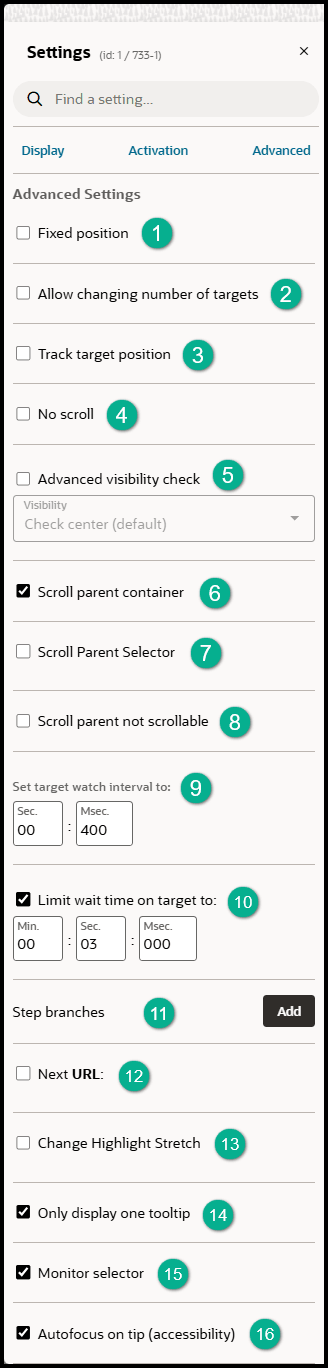
| Element | Description |
|---|---|
| 1. Fixed Position | When using a splash tip, you can use this setting so that the tip will remain visible even if the user scrolls up or down the page. |
| 2. Allow changing number of targets | Use this setting when attaching a tip to multiple targets, where the number of targets may dynamically change while the tips are showing. |
| 3. Track target position |
If the element’s position moves dynamically (fixed positioning), this will ensure that the tip stays on the target element. This setting is useful when page contents or elements change dynamically on a screen. For example, an error message may appear as a banner on the top of the screen, moving all pages elements further down the screen. Turning on Track Target Position moves the OGL tip in line with the repositioned elements when this occurs. |
| 4. No scroll | By default, the OGL will scroll the page so that the tip and the highlighted element will be visible. This setting allows you to disable this behavior. |
| 5. Advanced visibility check |
On some applications, OGL might think that an element is visible while it is not. This can happen if the web application uses multiple layers and an element could be hidden behind another one that was added on top of it. This setting will run some extra checks against the element and options include:
|
| 6. Scroll parent container | If the target element is within an internal element with an internal scroll, this will enable us to scroll down to the target element. |
| 7. Scroll Parent Selector(If Scroll parent container is checked) | Use automatic scroll parent element detection. |
| 8. Scroll parent not scrollable | Scroll element when the parent container is not scrollable. Enable scroll option to target element when the parent element is not scrollable. |
| 9. Set target watch interval to | This is used to set the watchdog interval. The behavior is, when the target element disappears the tip should remain visible for the time set in the editor and then hide. |
| 10. Limit the wait on target to 'x' ms. | Guide tips wait indefinitely for the target element to appear. This setting sends an error message if the current target element does not appear within 'x' minutes, seconds, and milliseconds, so that we can notify you and fix the problem. |
| 11. Step Branches | This setting allows you to define one or more branches in the step, either jumping to another step in the current guide or launching a different guide. |
| 12. Next URL | Navigates the user to a new page when selecting the next button. (Note: This is especially useful if you want to create a site tour.) |
| 13. Change Highlight Stretch | Make the highlighted section of the screen smaller or bigger using pixel precision. This is especially useful if the section you want to highlight does not have a corresponding HTML container like highlighting a column in a table. |
| 14. Only display one tooltip | When you setup a tip in OGL, you must target a selector as a way to identify the element on the page that the tip should point to. Sometimes, that selector will match multiple elements on the screen. In order to avoid displaying the same tooltip multiple times, this setting is turned on by default. |
| 15. Monitor selector | This is a default setting that tells OGL to keep searching for the element on the page even if it has found a match for it. This is important because sometimes elements (e.g. menu items) on the page disappear and reappear, and we want the tooltip to attach to them in these situations. However, if you selected "Skip if element not found" in the Activation, then deselect the Monitor selector. |
| 16. Autofocus on tip (Accessibility) | Auto focus is used to automatically get the browser focus on tooltips, if not enabled the focus will be on the target element. |
