Activation Settings
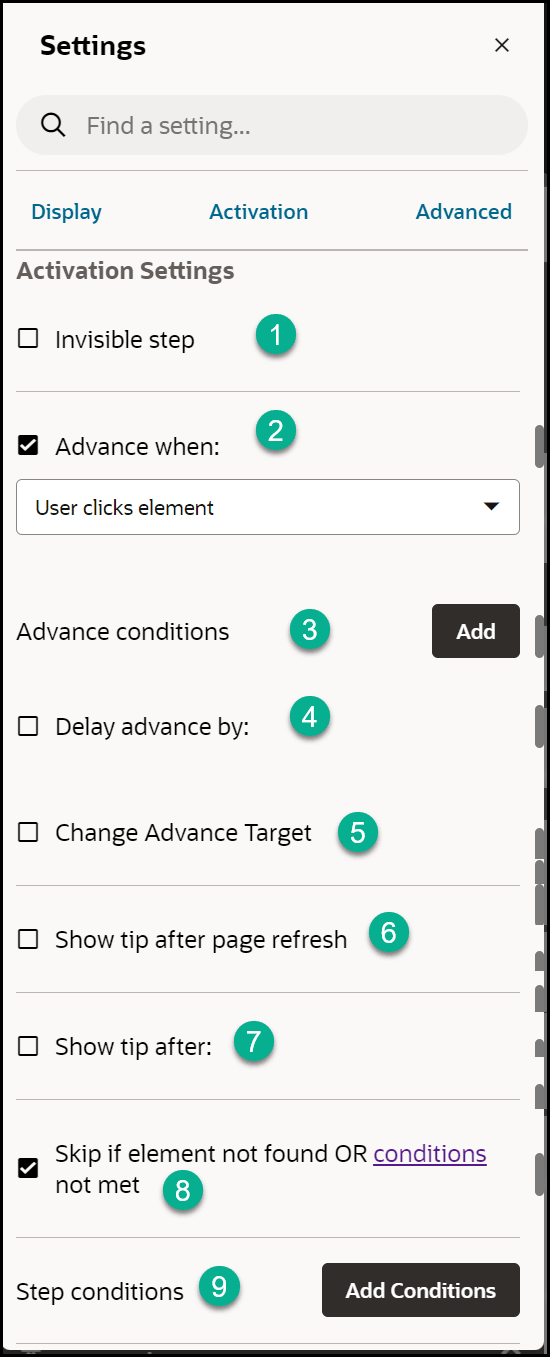
Table 3-2 Display Settings Elements and their Descriptions
| Element | Description | Note |
|---|---|---|
| 1. Invisible step | An invisible step has no visual representation. But it still behaves like a normal step and can wait for any type of user interaction. |
Use this setting in conjunction with the 'Immediately' setting for 'Advance when' for cases like the following:
|
| 2. Advance when |
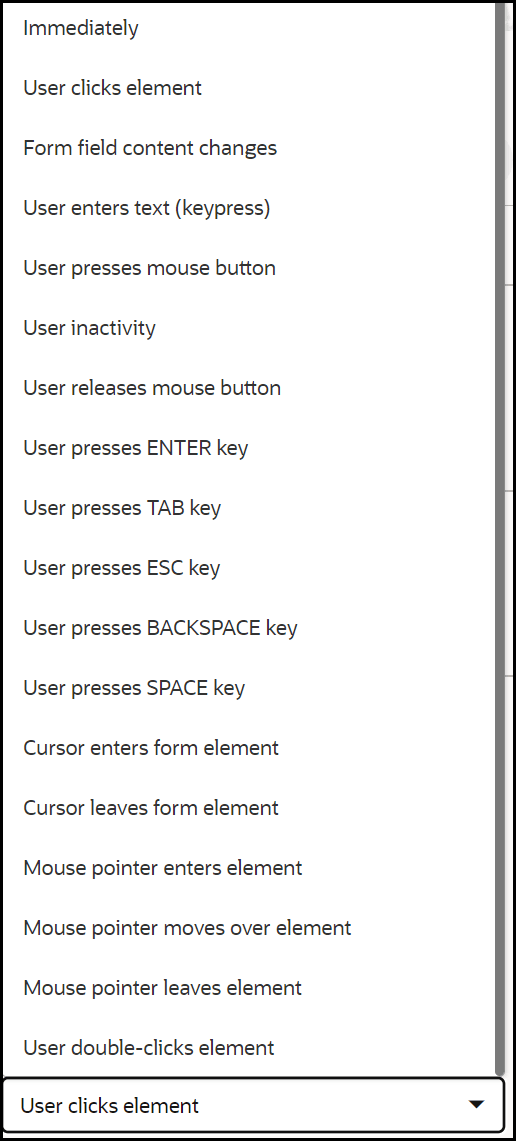
Specify what user interaction advances the guide. The most common type is User clicks element.
|
Commonly used events include mouse events (click, double-click), keyboard events (keypress, tab) and page element events (gain/lose focus).
Note: In the Advance when: setting, choose the user action that you wish to be counted when the user interacts with the selected element. When a user clicks an element, there are two distinct events that can be counted:
Key Differences:
|
| 3. Advance conditions | Sets additional page conditions for when the user can advance to the next action. | For example: Use this if the page has a visible element or if a form field has a selected value. |
| 4. Delay advance by |
Sets a timed delay in milliseconds before advancing to the next step. If the step has an 'Advance when' event set, the delay period starts after that event occurs. If there is no 'Advance when' event set, the delay period starts as soon as the target element is found. Use the list of values to choose additional predefined durations and units (min, hour, etc.). |
For example: Use this in conjunction with the User enters test (keypress) setting for Advance when. The next tip will appear automatically x milliseconds after the user has started typing text. CAUTION: With this setting the guide does not advance to the next step before the delay period is over. Thus, a page refresh or navigation during the delay period will cancel the advancement to the next step. |
| 5.Change Advance Target | Use this setting when you want the tip to point to one target element and at the same time wait for the user to interact with another element. | |
| 6. Show tip after page refresh | This option can prevent tip flashing. | Use “Show tip after” as an alternative for “Show tip after page refresh” if you need to prevent a tip from flashing but there is not a page refresh. This can sometime happen when a partial page refresh occurs. |
| 7. Show tip after |
Sets a timed delay in milliseconds before showing the current tip. Use the list of values to choose additional pre-defined durations and units (min, hour, etc.). |
Use the edit (pencil) icon to modify defaults. |
| 8.Show tip on hover | Only show this tip when the user moves their mouse over the target element, help icon, or beacon. | Left unselected the tip will always display. Use in conjunction with Smart Tips. |
| 9. Skip if element not found OR conditions not met | Tips are rendered as soon as their related element becomes visible. Choose this option to not wait for an element and simply skip to the next step in the guide if the element is not found or additional defined conditions are not met. | For example: If you want to create a guide on the Settings page of your application, your first tip should probably be: "Select Settings”. But what if the user launched the guide from the Settings page? The solution: set that first step to be optional. |
| 10. Step Conditions | Use this setting to add and edit a list of page conditions for the tip. The tip will only be shown when all the conditions are fulfilled and will be hidden as soon as any of the conditions becomes false. |
There are cases where you want to condition the showing of a specific tip in a step on the state of the page the guide is running on. For example, whether a page element, other than the target element of the tip, exists or is visible on the page. Another example can be to only show a tip on a specific page based on the page URL (and maybe skip the step on other pages). This setting is especially useful in cases where you have multiple tips in a step. It is especially useful for conditional branching of a guide, where the different tips in a step have different conditions and are set to launch different guides (or continue with the current guide). Another common use case is for optional navigation steps, that should only show if the user is not already on the page where the guide is built to run. Note: Step Conditions can also allow you to apply validation rules to form fields to ensure accurate data entry. To learn more about how to use Form Field Validation, refer to this Knowledge Article. |
| Anti Flicker Conditions | Adding page URL condition to a step in order to avoid/control the flickering issue when page is refreshed |