Display Settings

Table 3-1 Display Settings Interface
| Setting Name | Description |
|---|---|
| 1. Highlight / Apply to all |
Adds a Border/Overlay/Border+Overlay around the selected element.
Click Apply to all to update all tips to the current setting. |
| 2. Change Next button text to: |
Allows you to change/update the text of the Next button. On the first tip of a guide, consider changing the text to something more engaging like “Let’s Go” or “Show Me”. For the last tip, try “That’s It” or “Got it!” or "Done". |
| 3. Change Next button text to: |
Allows you to change/update the text of the Next button. On the first tip of a guide, consider changing the text to something more engaging like “Let’s Go” or “Show Me”. For the last tip, try “That’s It” or “Got it!” or "Done". |
| 4. Hide Next button |
Determines if the Next button should be displayed or not. |
| 5.Hide Close button |
Determines whether the Close button is displayed on the tip for end users. Use this setting when launching a guide for first-time users or for Smart Tips that appear and disappear based on hover actions |
| 6.Show Back button |
Determines is the Back button is displayed on the tip for end users. When it is not possible to move back to prior pages in the host application, it is a best practice to hide the Back button. Never have the Back button on the first step of a guide. |
| 7. Current Step Number |
Sets the number in the field that you want to be assigned as the step number for this tip. When a step has multiple tips, but you want the step count functionality to be meaningful, assign a step number to the tip so that the user can better understand where they are in the process. |
|
8. Show Tip Arrow |
Determines whether the pointed tip arrowhead will be displayed. |
| 9.
Hide Step Count Hide / Show in all steps |
Toggles the display of the step counter at the bottom right corner of your tip. Depending on whether this option is selected or not, the link will display either Hide or Show in all steps. Use the link to update other steps in the guide with the same setting. Note: This setting is only available for Process guides and not Smart Tips, Beacons, or Message guides. |
| 10. Tip width |
Determines the tip width. Select the number in the text field to edit. The tip width can be set in pixels (350 = 350px) or as % of the screen area(50%). |
| 11. Tip height |
Determines the tip height. Select the number in the text field to edit. The tip height can be set in pixels (350 = 350px) or as % of the screen area (50%). Note: If tip height is set to a size that smaller than the amount of tip text displayed, scroll bars will automatically appear to allow end-users to scroll up/down to read through the tip text. |
| 12. Tip placement |
Use this setting to define the position of the tip in relation to the selected element. (i.e. Top/Bottom/Left/Right) |
| 13. Tip offset |
Determines the offset of the Tooltip relative to the selected element. 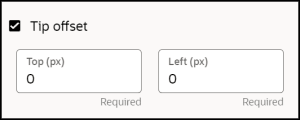 To offset the tooltip
|
| 14. Show help icon |
Enable a graphical help icon next to the target element.
|
| 15. Custom class |
Where applicable you can enter a custom CSS class that will apply to the tooltip. To add multiple custom classes, separate each class with a single whitespace. This setting includes 2 preset custom classes (button and banner) which can be selected from the drop-down menu when the field is selected, as shown below: 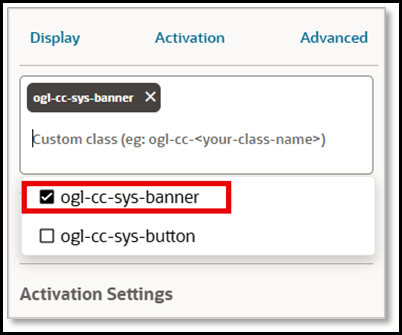 Selecting either option will convert the current tooltip to either a banner or button, based on your selection. You can adjust the width and height of these elements using the Tip Width and Tip Height settings. Note: To implement additional custom class images, you will need to update the OGL Theme Design Kit and related CSS classes. Refer to the Theme section of the user guide for more information. |
| 16. Show beacon |
Enable a flashing beacon associated with the target element to draw the end user's attention. |
| 17. Disable Element |
Blocks the user from interacting with the highlighted element. Use this option if you want to highlight a button and explain it while making sure the user cannot select it. |
| 18. Change Highlight Element |
While the tip will always point to the target element, you can choose to highlight a different element on the screen. This is commonly used in steps that require two actions. For example, consider a step that says “Enter criteria, then select Search.” The target is the search area, but the highlighted element is the Search button. |
