Step Settings Details
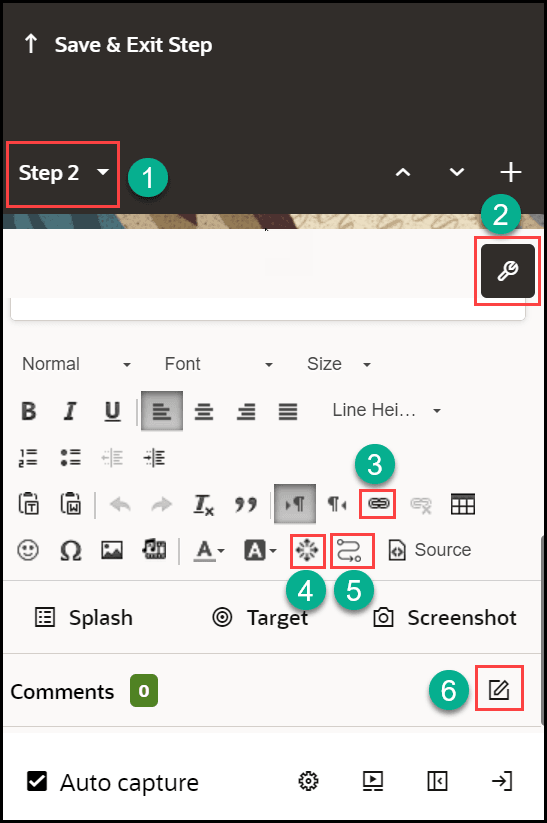
| Sl No. | Element | Description | Note |
|---|---|---|---|
| 1 | Show Step List | Displays the current step/tip being edited and allows you to jump to another step/tip. | |
| 2 | Step Settings | Opens the Step Settings panel for the current step/tip | Step Settings include Display Settings, Activation Settings, and Advanced Settings |
| 3 | Hyperlink | Select a part of the tip's content and select this button to convert it into a link. | |
| 4 | Session Variable | Select to add an Iridize Session Variable button. | Session Variable buttons can be used to create rich guide flows based on user choices. Selecting a session variable button dynamically sets a variable that can be used in step and branch conditions to control step activation and guide flow. The variable can also be persisted as a user field, which can be used in Guide Activation Conditions. |
| 5 | Launch Guide | Insert a link or button to launch a guide from a specific step. | |
| 6 | Step Comments | Displays the number of comments associated with the current step/tip | Use the Edit (pencil icon) to add comments to the current step/tip |
Note: Place the cursor near the elements and the names of those elements pop up for your reference.