Guide Status Management
Guide statuses are displayed on top right corner of the guide in the tile view.
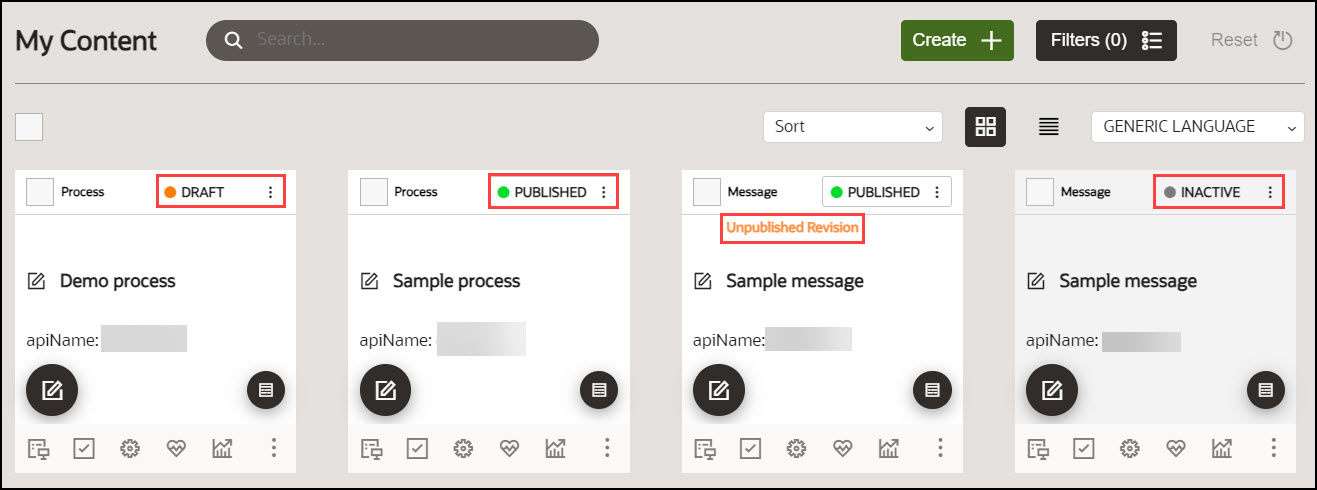
A guide can be in one of the following statuses:
Table 4-1
| Guide Statuses | Description |
|---|---|
| DRAFT | The guide is available only in DEVELOPMENT environments. |
| PUBLISHED | The guide is published and available in both DEVELOPMENT and PRODUCTION environments. |
| PUBLISHED with an Unpublished Revision | There is a published revision of the guide, which is available in the PRODUCTION instance, and there is also an UNPUBLISHED REVISION (usually an updated version) of the guide which is only available in the DEVELOPMENT environment. |
| INACTIVE | The guide is not active and cannot be accessed in the DEVELOPMENT or PRODUCTION environments. |
Guide Cycle
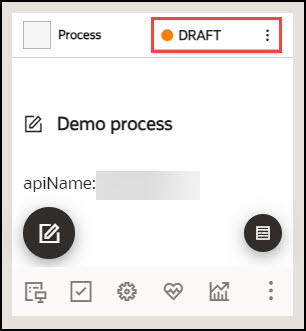
Draft Status
When a guide is created but not yet published, it is assigned a DRAFT status. Guides with Draft status can only be accessed in Development instances.
Published Status
Publish the guide in DRAFT status to change their status to "PUBLISHED". Once published, these guides will be accessible in both the Production and Development instances.
To publish a guide in DRAFT status:
- Select the DRAFT button.
- Select Publish.
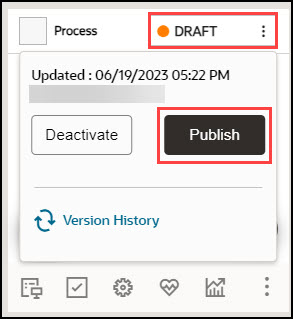
The status is changed now to PUBLISHED.
Note:
Please be aware it may take up to 5-10 minutes for the changes to reflect in the Production instance.
To unpublish a guide in PUBLISHED status:
- Select the PUBLISHED button.
- Select Unpublish.
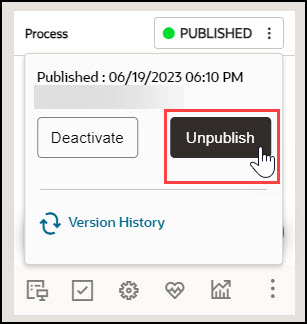
The status of the guide now changes to Draft.
Published Status with Unpublished Revision
After guides are published, they can still be revised. When revisions are made but have not yet been published, the guides will be labeled as "Unpublished Revision."
To revise a published guide:
- Select the Editor icon on the PUBLISHED guide.
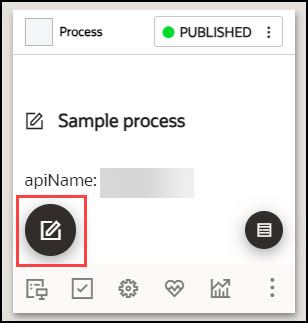
The guide editor launches.
- Make desired changes in the guide.
- Select Save & Close.
The guide is now labeled as "Unpublished Revision."
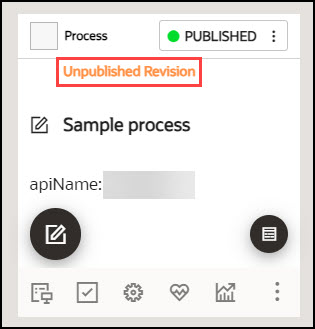
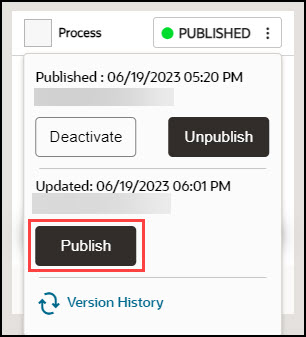
To publish an Unpublished Revision:
- Select the PUBLISHED button.
- Select Publish.
Inactivated Status
Both the guide in DRAFT and PUBLISHED status can be inactivated.
To make a guide inactive:
- Select the DRAFT/PUBLISHED button.
- Select Deactivate.
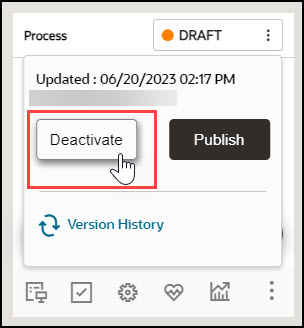
The guide is now inactivated.
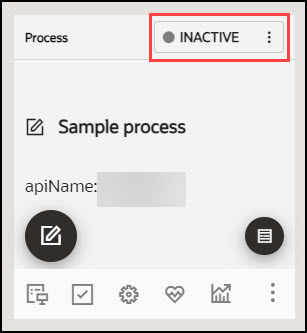
- Select the INACTIVE button.
- Select Activate.
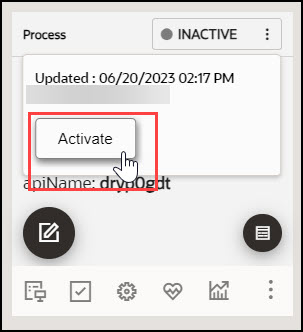
The status is now changed back to its previous state, either as a draft or as published.
Version History
This feature allows OGL developers to automatically save multiple versions of their active guides and provides the ability to preview any prior versions of guides. OGL console users with appropriate permissions can view the version history of guides and can select a previous version to be restored. OGL console users must have the Developer security role and Edit Guides permission.
To access the version history of a guide:
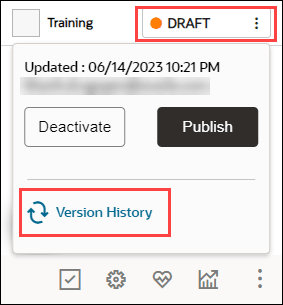
- Select the DRAFT/PUBLISHED button, then select Version History.
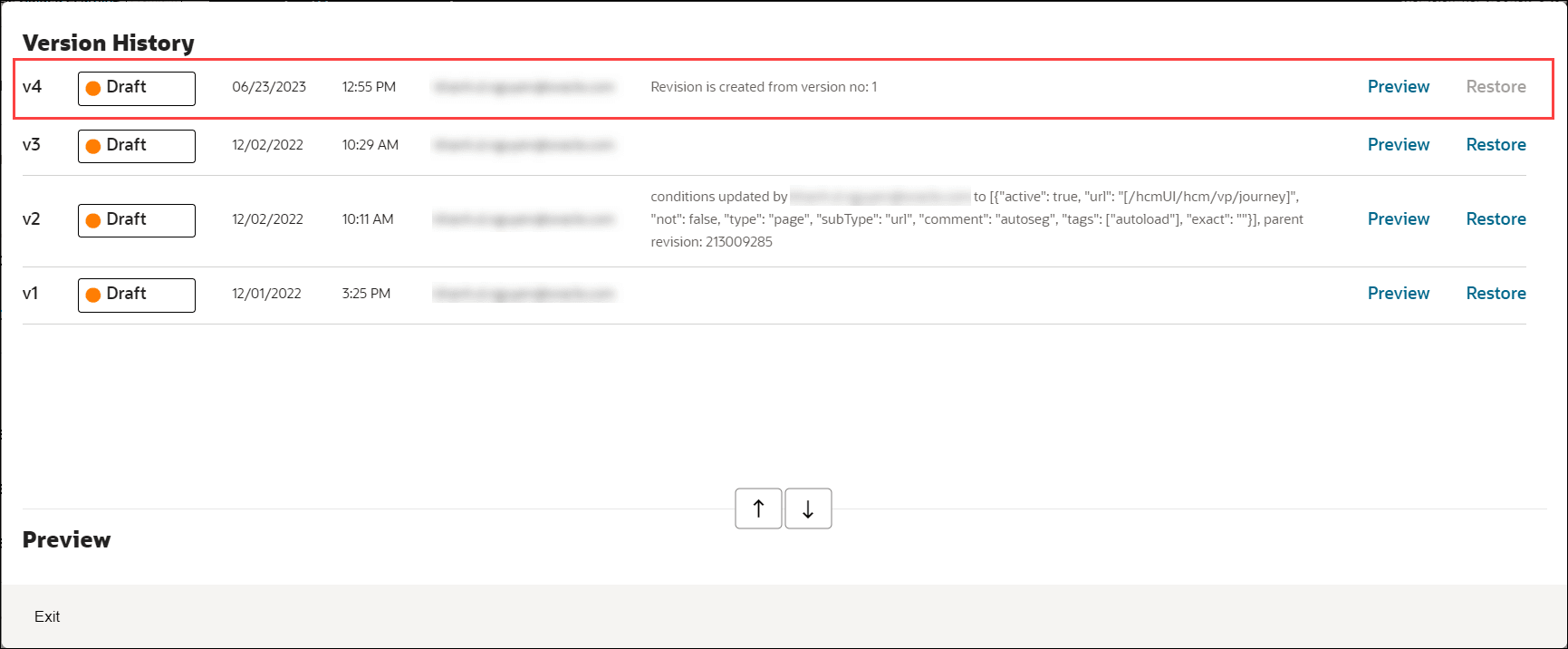
The Version History opens in a modal displaying all prior versions of the guide, including the date and time of each revision, and the username of the OGL administrator who edited/saved each version.Guide versions are listed sequentially in descending order by date (newest to oldest).
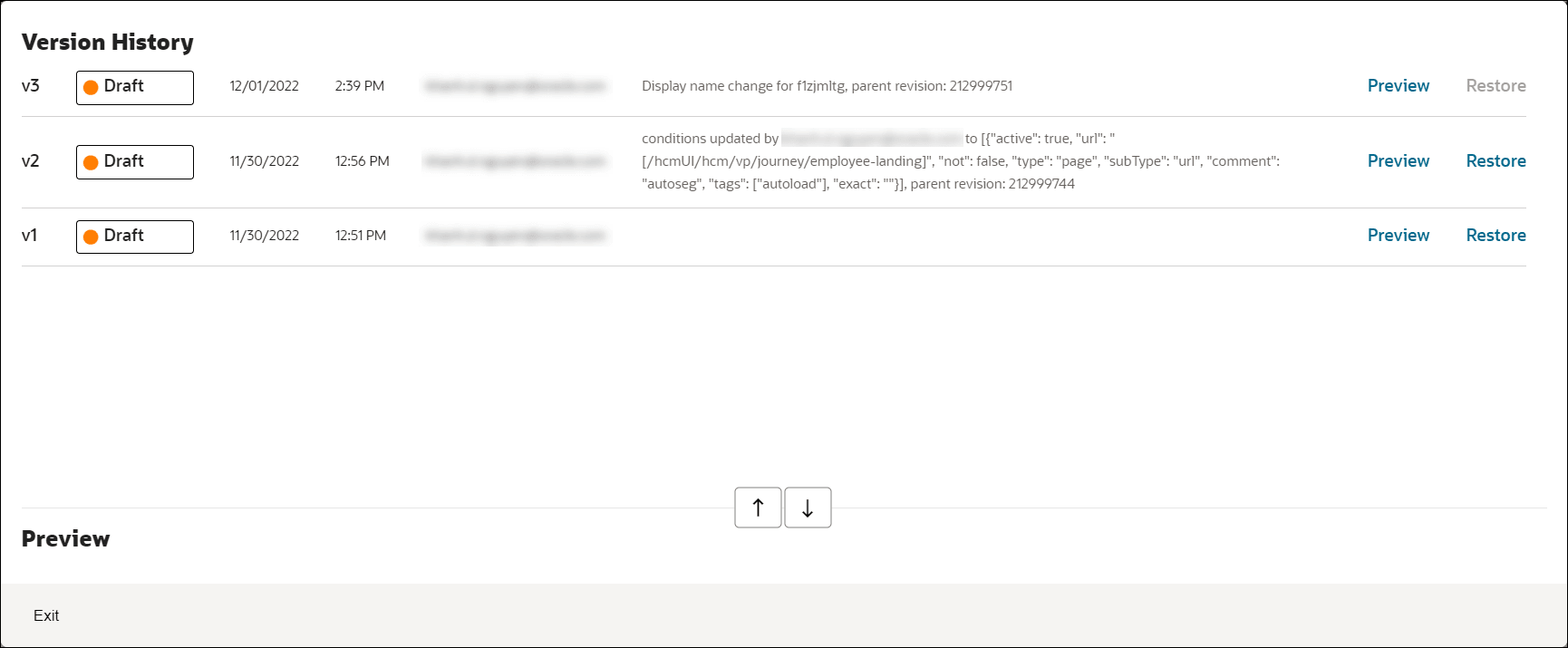
- To preview any prior version of the guide, select the corresponding
Preview link to the right of the version.

The preview will expand in the modal to display a step video, screenshots, and steps contained within of the guide (if applicable) as well as well as the text contents of each step.
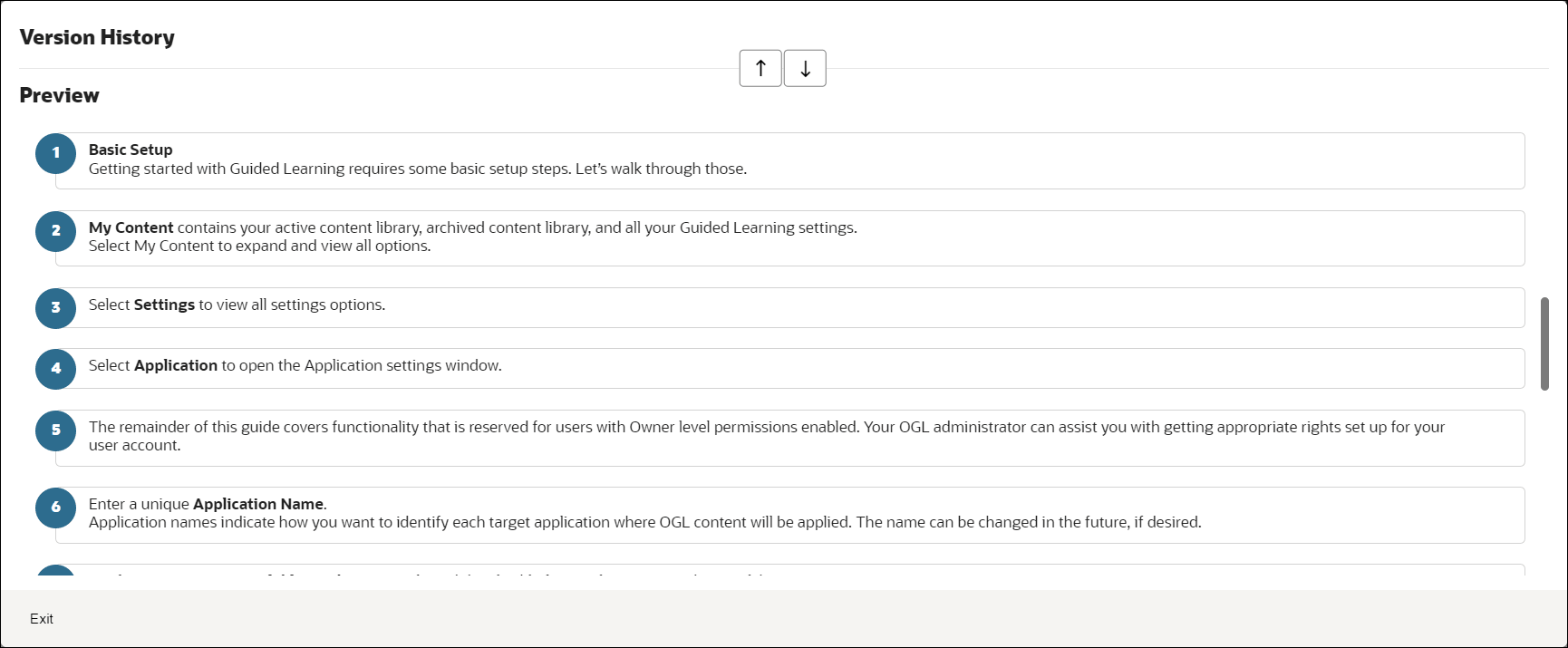
Note:
The preview displayed within the Version History is read-only and will not allow you to edit the guide contents. To edit the guide content, you will need to use the OGL Editor or Content Editor to make changes. - To restore the guide to a previous version, select the corresponding
Restore button to the right of the version you wish to restore.

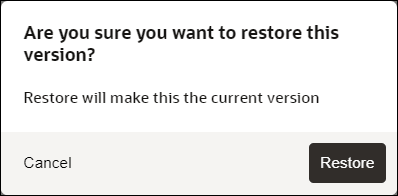
A dialog message will appear prompting you to confirm the action or cancel. Select Restore to confirm and continue.
A new version of the guide will appear at the top of the Version History modal with a comment indicating that a new revision has been created from a previous version.
Note:
Known Issue:If you create a guide, translate it to another language, and then delete any steps from the guide in the original Generic Language folder, the translated version will also show the steps deleted, as intended. However, the older versions of the guide in Version History will also show those steps as deleted within the Preview. This issue occurs only within the Preview and will not delete those steps from prior versions. If you restore the guide to an older version, the Preview will be restored in the Content Editor and will show the deleted steps as restored.
