Content Editor
The Content Editor enables you to make simple text edits to guides without the need to access the OGL Editor. OGL administrators can provide you access to the Content Editor only (if required) for reviewing and making simple updates. Users who have the appropriate security role and permissions can make the following changes to a Guide from the Content Editor:
- Edit and format guide step text.
- Translate guide step text in a connected guide.
- Add links to a guide step.
- Add/edit Guide and Step Comments.
Important:
In order to access the Content Editor, your profile must have Editor Role/Permissions enabled.Learn more about User Management.
To learn how to access the Content Editor, please refer to the "Working with the Editors" section.
Editing the Text Using the Content Editor
On the Content Editor panel, select the text in a specific step to make changes.
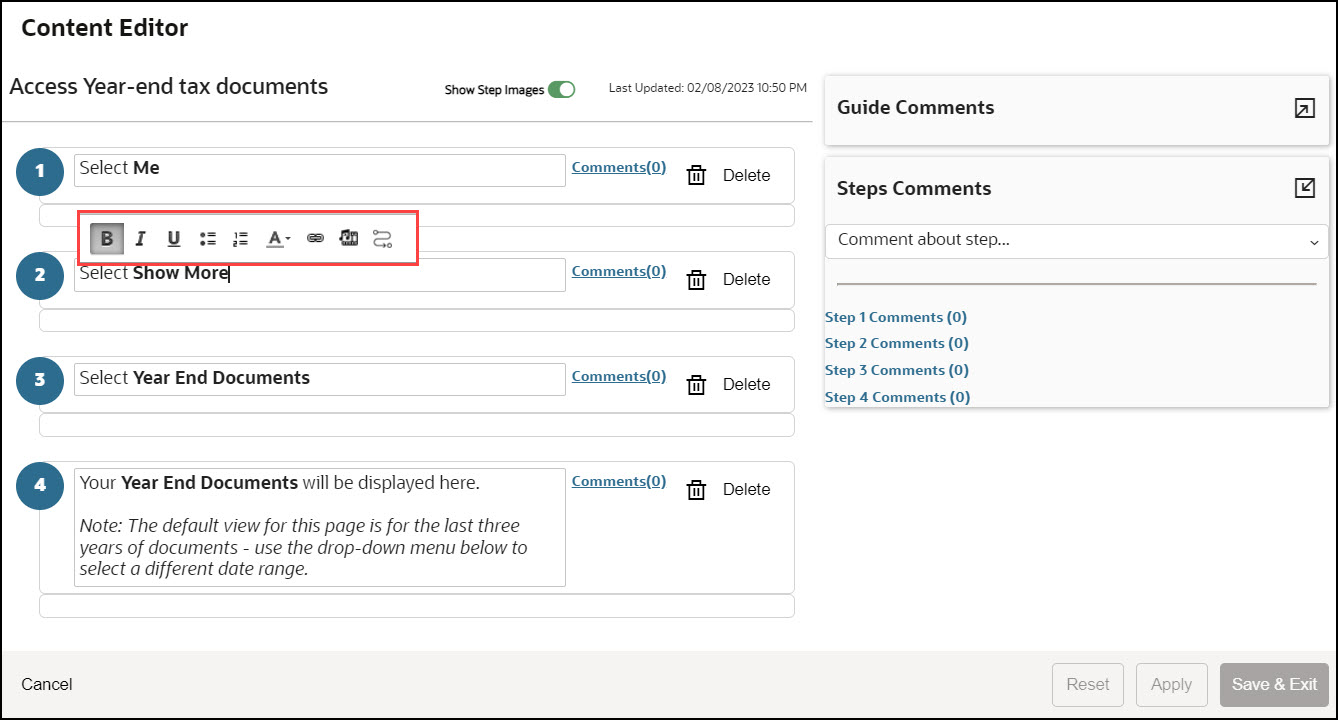
The below controls are displayed when you select a step, allowing you to make changes to the text, add bullet points, change the font color, or embed a link and multimedia.

To learn how to use the formatting tools, please refer to the "Editing Guide Content" section.
Showing or Hiding Step Videos and Step Images
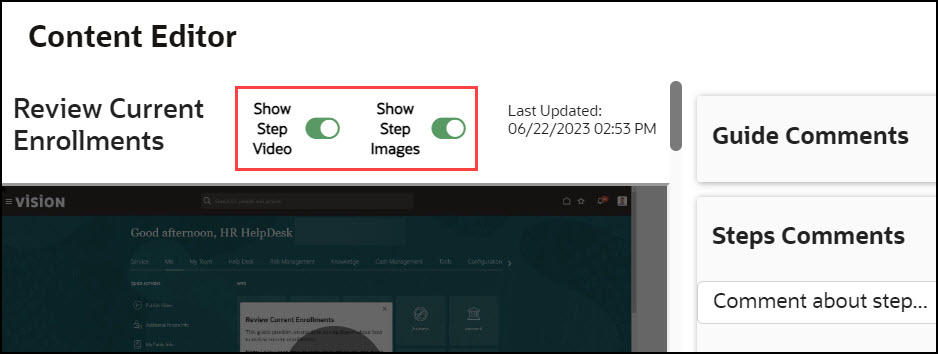
To display or hide the step images and videos, use the toggle button.
With the Content Editor, you can delete guide steps.
Important:
Deleting guide steps using the Content Editor requires the Developer security role and Edit Guides permission.Learn more about User Management.
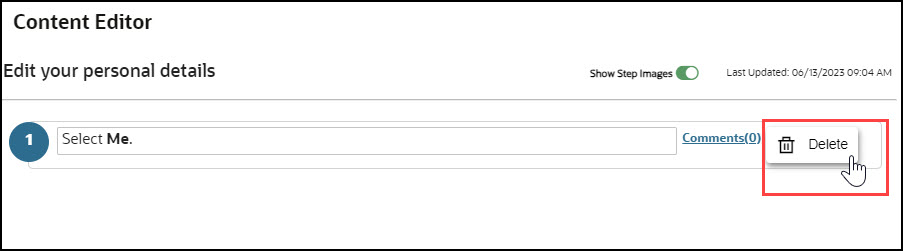
To delete a step, select the Delete button located next to the respective step.
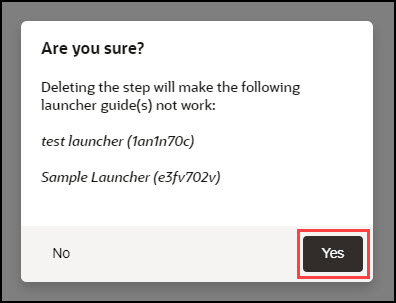
To delete the step, a confirmation dialog will appear, and you must select Yes.
Important:
Use caution when deleting guide steps using the Content Editor as this may cause some guides to break or malfunction. It it strongly recommended that you test your guide after deleting any steps.
Learn more about User Management.
Important:
Once a guide step is deleted using the Content Editor, you cannot undo this action. Instead, you will need to restore the guide to a previous version using the Version History in the Guide Status.Learn more about Version History If you delete any steps from a guide, the other versions of the guide in Version History will also show those steps as deleted within the Preview. This issue occurs only within the Preview and will not delete those steps from prior versions. If you restore the guide to an older version, the Preview will be restored in the Content Editor and will show the deleted steps as restored.Guide and Step Comments
To support collaboration between multiple OGL developers or guide reviewers, OGL provides a comments feature that allows guide reviewers with editor access to add comments to a guide or an individual step within a guide. This feature allows OGL developers and reviewers to collaborate efficiently on edits and guide status throughout the review and approval process. This incorporates a simple "What you see is what you get" (WYSIWYG) editor.
Examples of potential comments that could be made about an overall guide include:
- "Guide passes testing"
- "I cannot find this guide in the widget"
- "This guide failed testing, see comment on Step 12"
- "We don't use Milestones, so this guide must have those steps removed."
- "This guide must be expanded upon because we have some custom workflows.''
Examples of comments that might be made at the step level include:
- "Please change the selector for this step to Personal Information"
- "Guide does not advance after this step"
- "Please insert a smart tip on the date field"
- "Please insert a link to the travel policy in this tip"
Comments can be added, viewed, and edited through the content editor or included when editing in the full editor.
Adding Guide Comments
This feature allows you to enter issues or comments into the guides.
To add guide comments:
- Select the expand icon to access the text field.
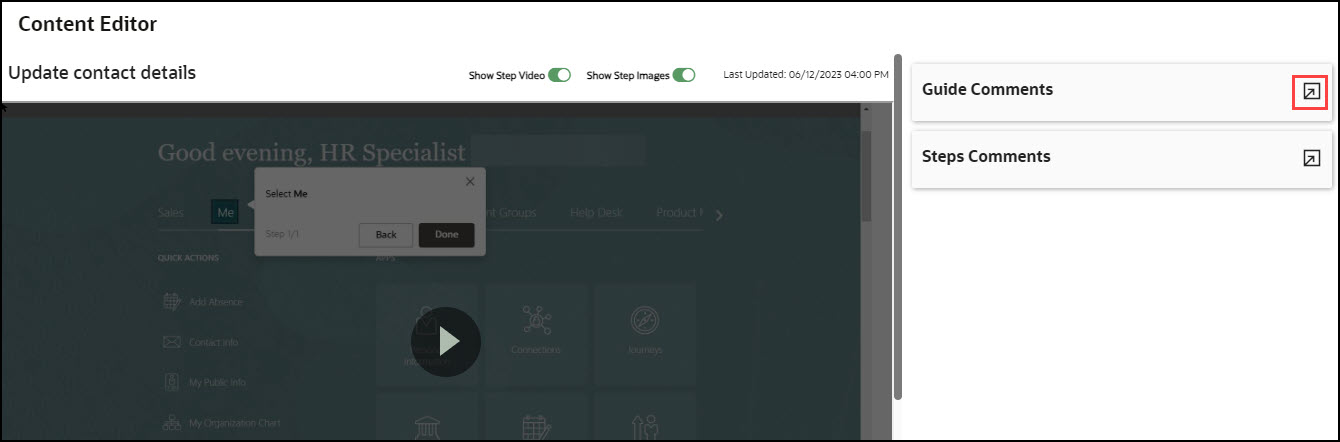
- Enter the comments and select the Send button (
 ).
).
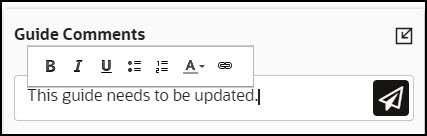
The issue/comment is now added to the guide and is visible here.
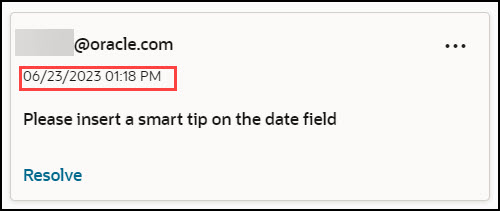
Comments are displayed in date/time order, with the newest comment at the top of the list. OGL Editors can review all comments added to a guide from the comments panel and use the comments links to view comments related to a specific step. All comments are date, time, and user stamped.
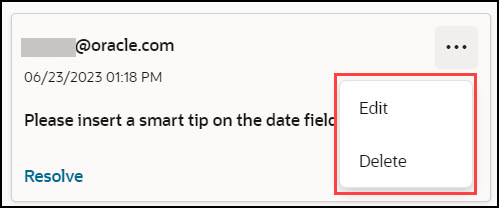
Comments can be edited or deleted from the comments panel.
Resolving an Issue
After fixing the issue, the concerned individual can mark it as resolved.
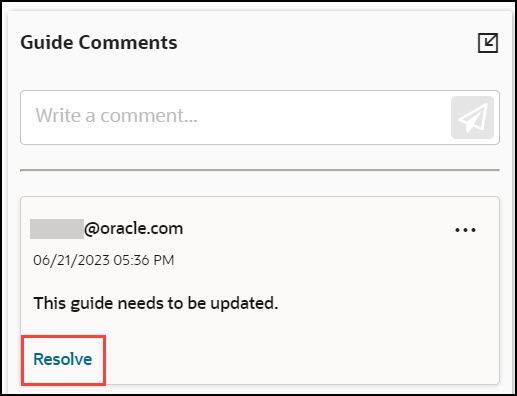
To mark an issue as resolved, select Resolve.
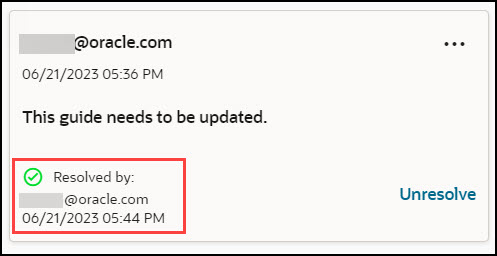
The issue is now marked as resolved.
Revert a Resolved Issue
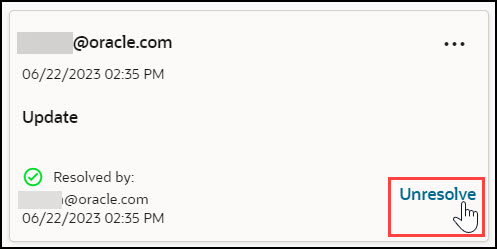
To undo the resolved issue, select Unresolve.
Adding Step Comments
This feature allows you to enter issues or comments into specific steps.
- Select the expand icon to access the text field.
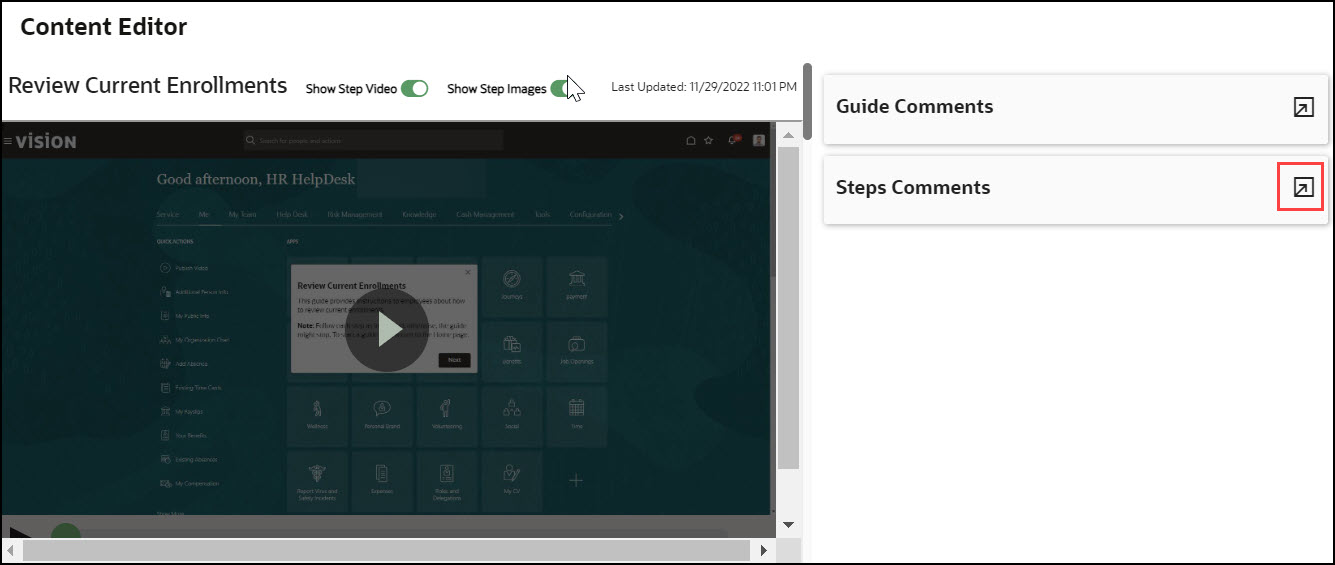
- Select the step you want to add the comment/issue to.
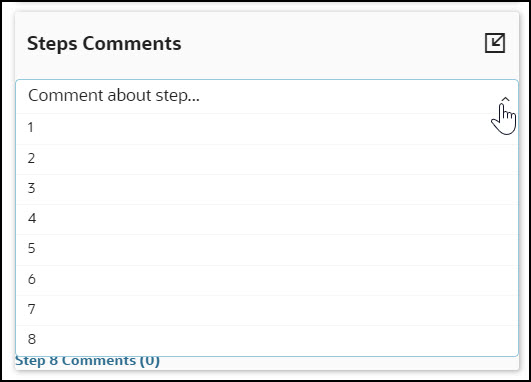
- Enter the comments and select the Send button ()
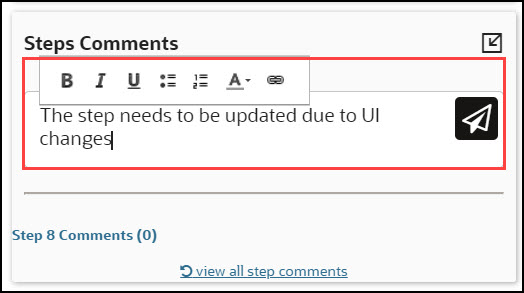
The issue/comment is now added to the step and is visible here.
Comments are displayed in date/time order, with the newest comment at the top of the list. OGL Editors can review all comments added to a guide from the comments panel and use the comments links to view comments related to a specific step. All comments are date, time, and user stamped.
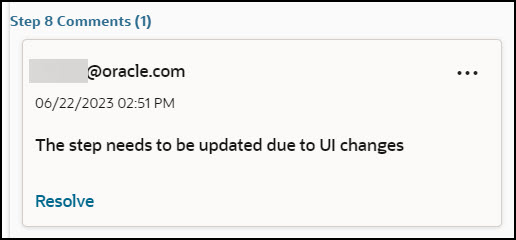
Resolving an Issue
After fixing the issue, the concerned individual can mark it as resolved.
To mark an issue as resolved, select Resolve.
Revert a Resolved Issue
To undo the resolved issue, select Unresolve.
Note:
To view comments for a step, simply access the OGL Editor. If there are comments available, the Comments button will display the number of comments as highlighted in the below screenshot.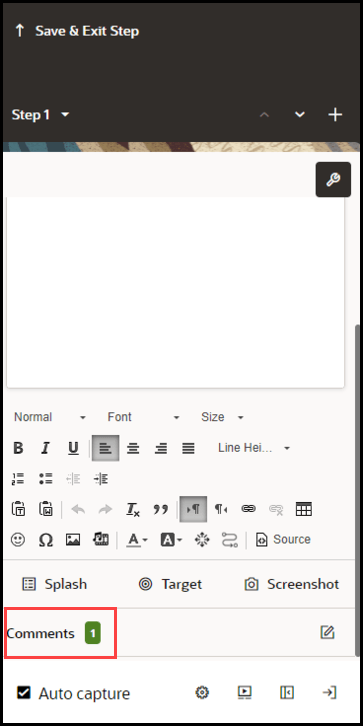
Saving Changes
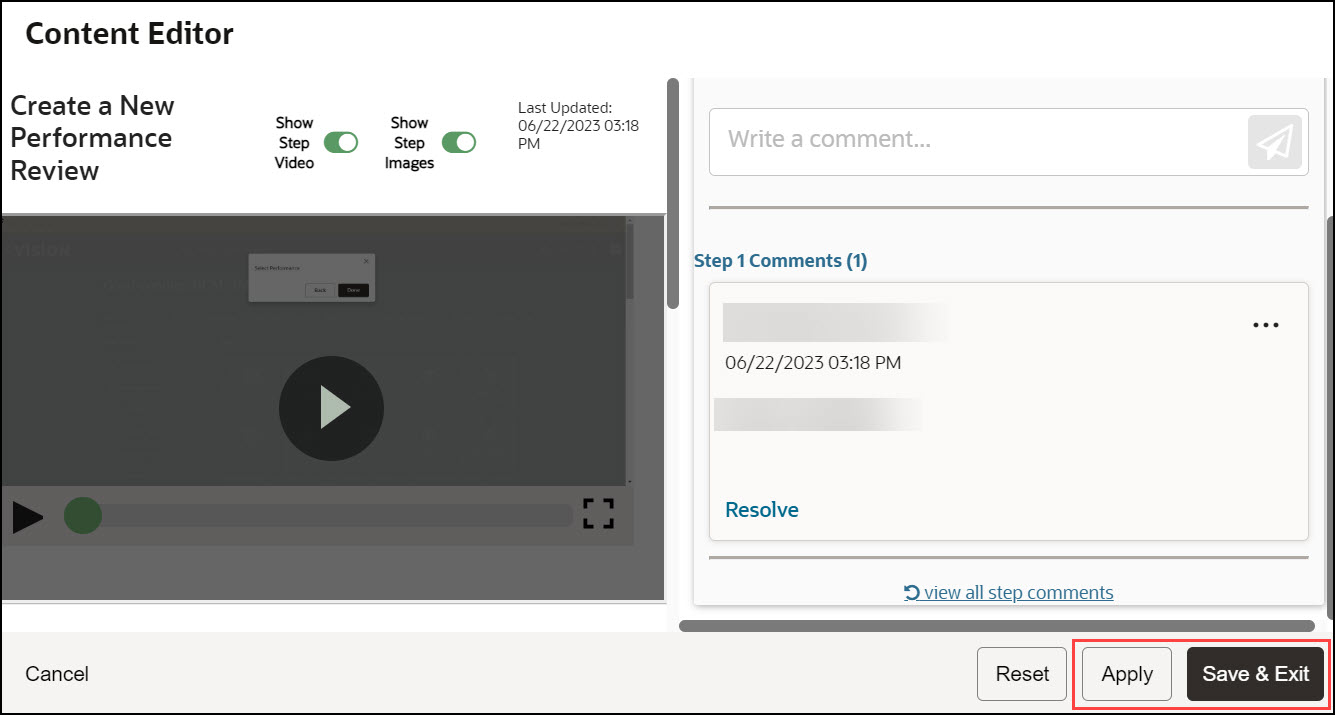
Once you finish editing, select Apply or Save & Exit, andthe guide status will update to Unpublished Revision. Depending on your permissions, you can either publish the guide changes to production or request that the changes are published by an OGL administrator with the appropriate permissions.
Remember:
- Comment Edit and Delete buttons are only available if the OGL developer or User has the correct permissions.
- All comments show the user name of the user who added them and the date that the comment was added. If the date is today's date, then it will show the number of hours since the comment was made.
- Comments can be edited and deleted by the creator of the comments.
- Users with the Manage Comments permission under the Owners group can edit or delete comments.
- Comments remain with the guide for the life of the guide.
- Comments are copied with the guide if it is cloned.
- When a tip or entire step is deleted, the comments are deleted also., even if the user does not have the Manage Comments permission.
- The character limit in all comments is 512 characters.
- Each comment creation field includes a character limit counter that dynamically counts down from the character maximum as the user types.
- When a user deletes a comment, they are prompted with the following message: “Are you sure that you want to delete this comment?”.
- If the user has not seen the guide or step comments, an indicator lets them know that new comments are available.
