3 Working with the Editors
The OGL Editor
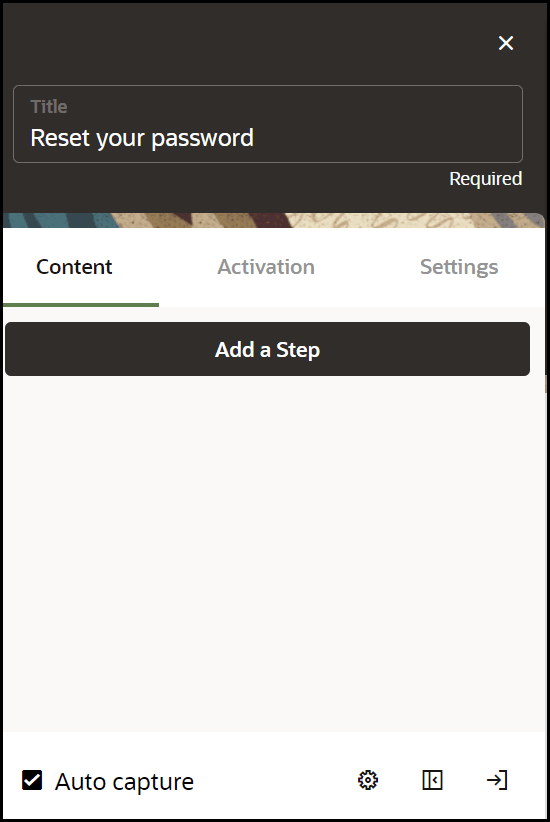
The OGL Editor serves as the primary tool for creating various guides and formatting content.
Important:
- To use the OGL Editor, it is necessary for your browser to have the OGL Extension installed.
-
In order to access the OGL Editor, your profile must have Developer Rights/Permissions enabled.
Learn more about User Management.
Use the OGL editor to create process guides, Smart Tips, messages, and other OGL items. You can access the OGL editor by creating a new guide or from an existing guide. Guide creation is covered later in this document.
To access the OGL Editor (To Create a New Guide):
- On the Main Navigation Panel, select Content.
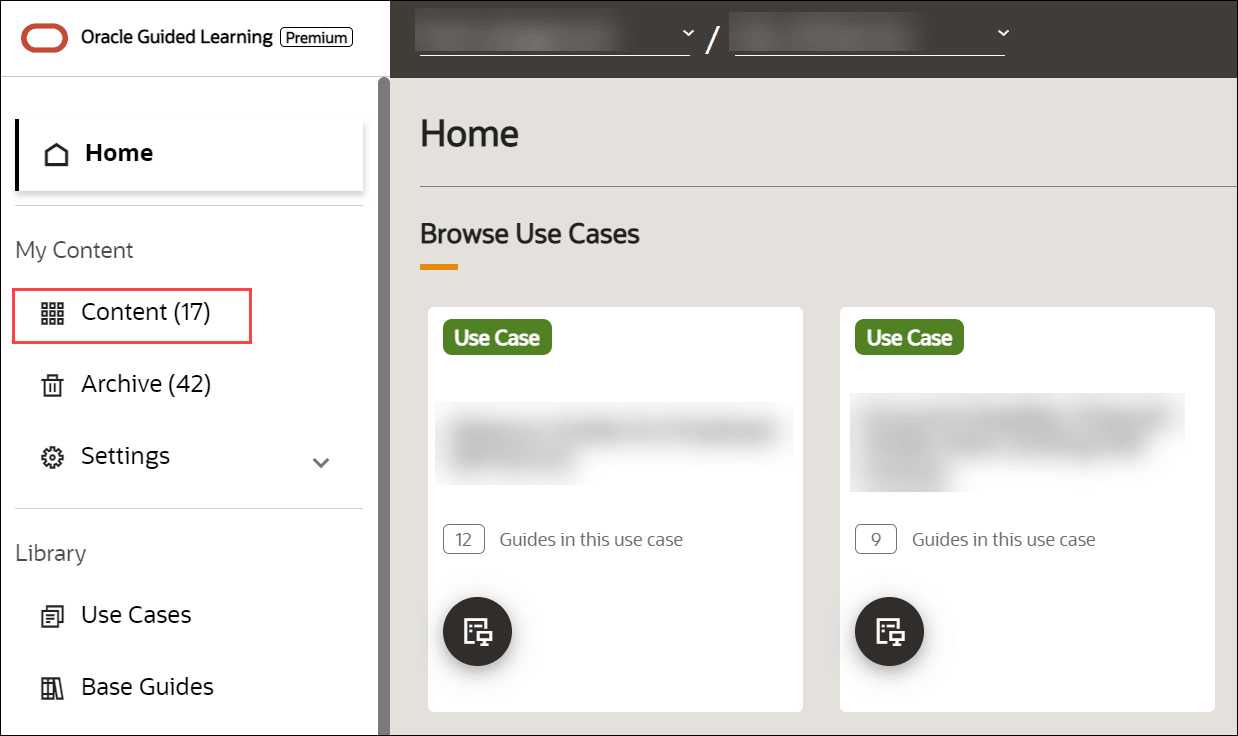
- On the My Content screen, select the
 button.
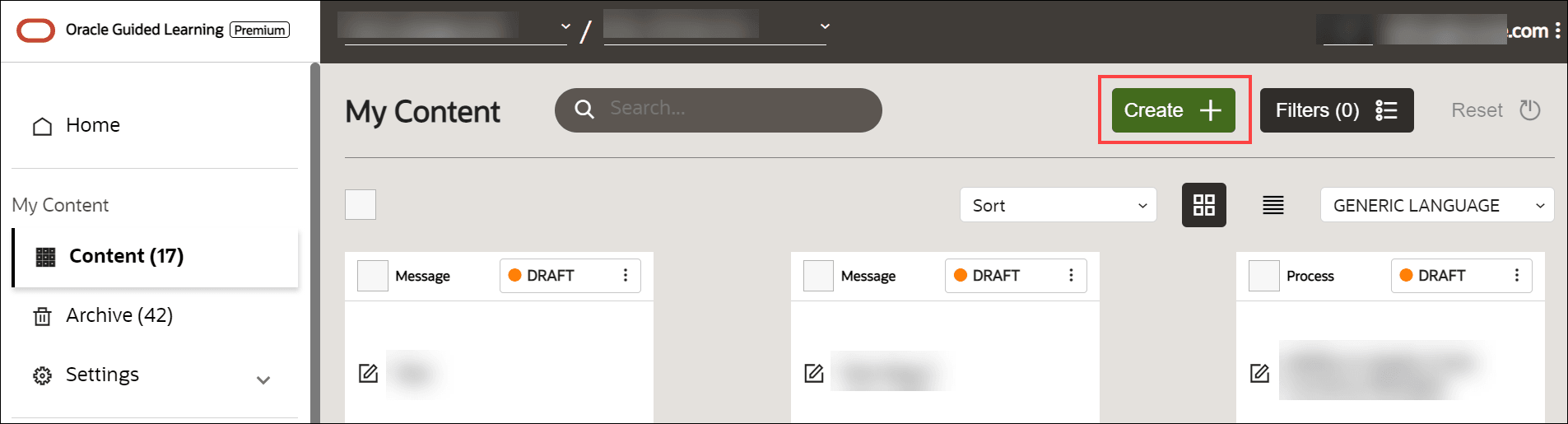
The New Content modal window appears.
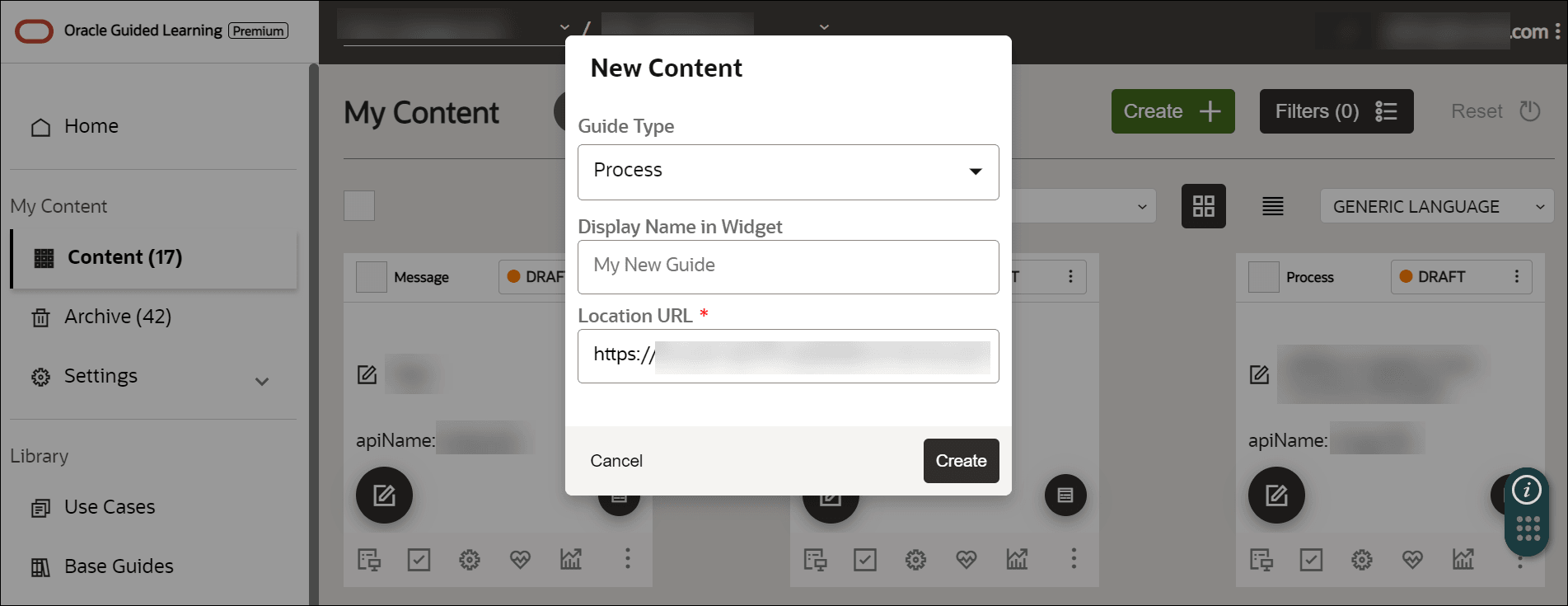
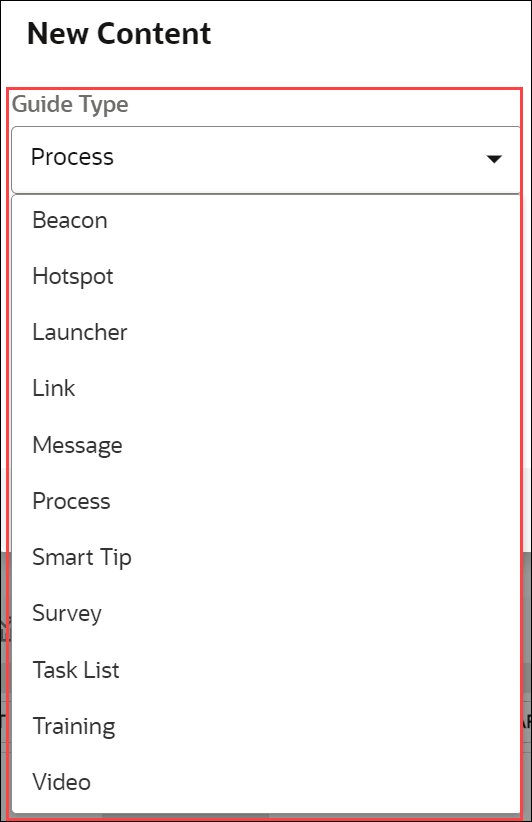
- Select the guide type from the Guide Type dropdown.
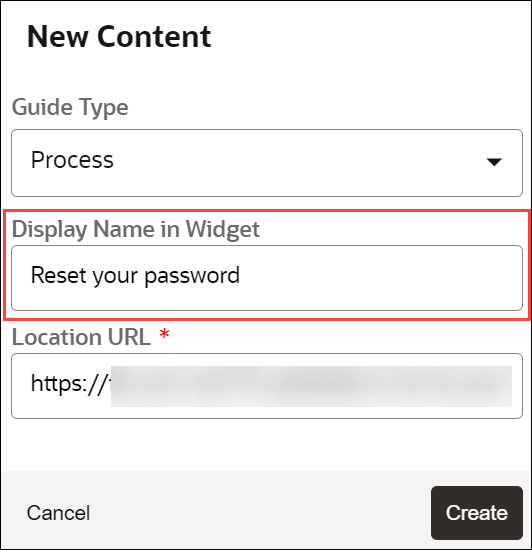
- Enter the desired display name of the new guide.
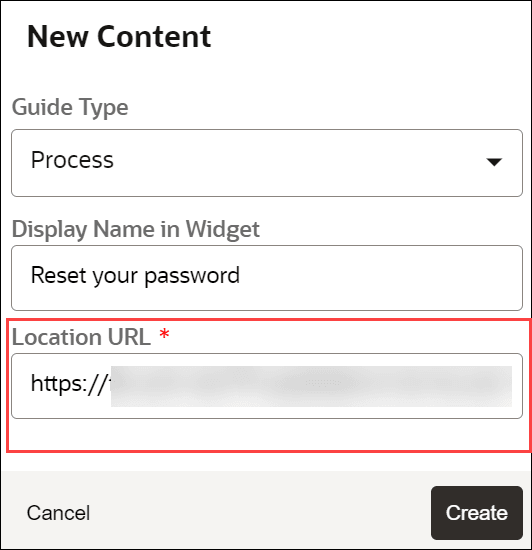
- Enter your application’s URL in the Location URL field.
- Select Create.
The Guide Editor launches.
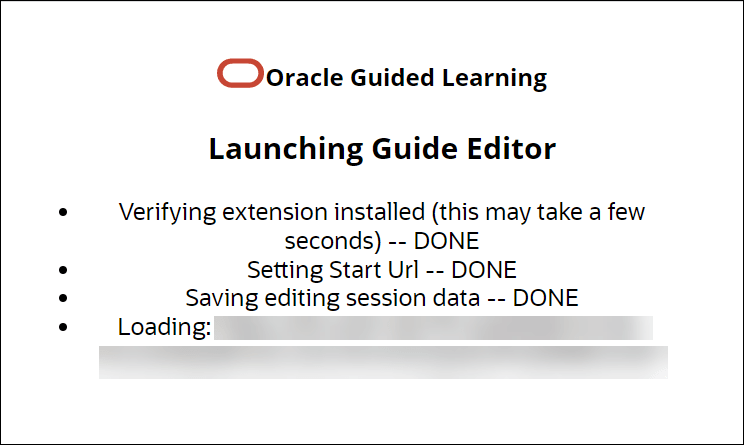
The OGL Editor opens in a new tab. The editor appears as an overlay on your application.
To access the OGL Editor (To Update an Existing Guide):
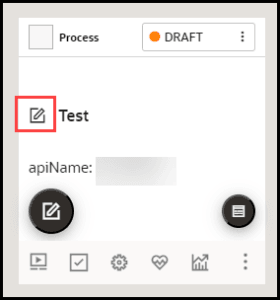
- Select the Editor icon (
 ) on the guide you want to edit.
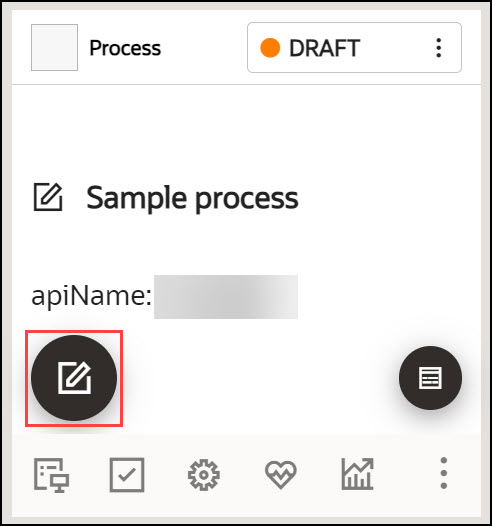
The OGL Editor opens in a new tab. The editor appears as an overlay on your application.
To learn more about creating guides, kindly access the link "Creating OGL Content".
The Content Editor
The Content Editor enables you to make simple text edits to guides without the need to access the OGL Editor. OGL administrators can provide you access to the Content Editor only (if required) for reviewing and simple updates. All users can make the following changes to a Guide from the Content Editor:
- Edit guide step text.
- Translate guide step text in a connected guide.
- Add links to a guide step.
Important:
In order to access the Content Editor, your profile must have Editor Rights/Permissions enabled.
Learn more about User Management.
To access the Content Editor:
- Select the Content Editor (
 ) icon on the guide tile.
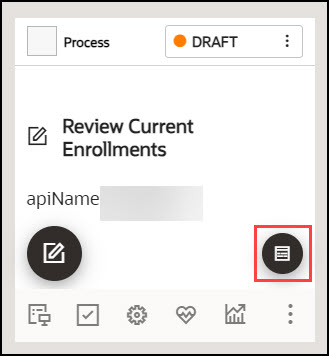
The Content Editor dialog is now displayed.
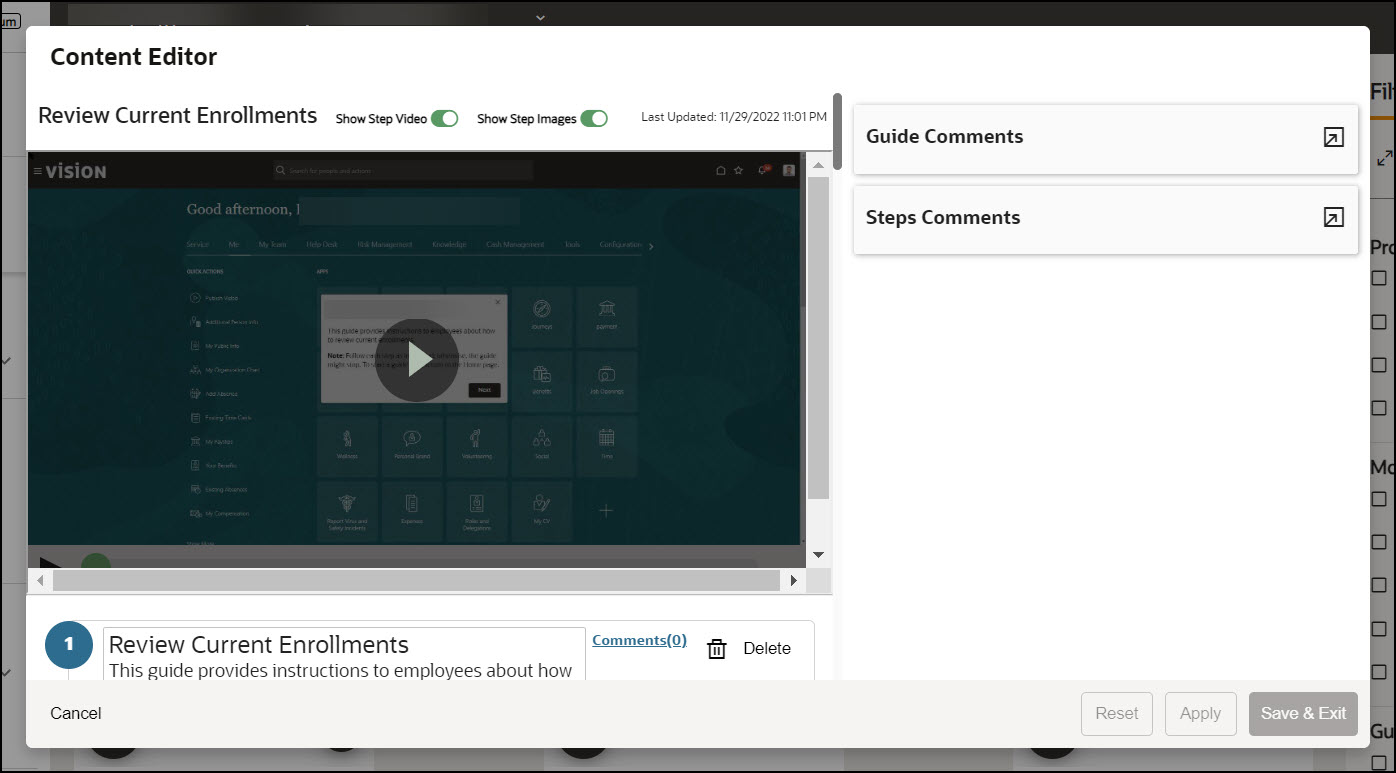
To learn more about the Content Editor and its usage, kindly access the links "The Content Editor" and "Editing Guide Content".
Screenshot Masking
OGL developers often need to capture screenshots of their guides for various purposes, including documentation. Sometimes fields containing sensitive information or data may be visible in these screenshots posing a privacy risk. To address this concern and to enhance user privacy, we have added a new feature and functionality to the OGL Content Editor that allows users to quickly mask sensitive fields and make other visual manipulations to guide screenshots.
New in OGL 25B, the OGL Content Editor now features a screenshot masking tool that allows users to quickly blur sensitive areas of the screenshot to better safeguard data and enhance privacy. This feature includes additional functionality that allows users to draw, edit, and reposition element selectors to improve visibility of the target element. With this feature, developers can also upload, download, and save screenshots which adds more efficient options for content management.
Accessing the Screenshot Masking Tool
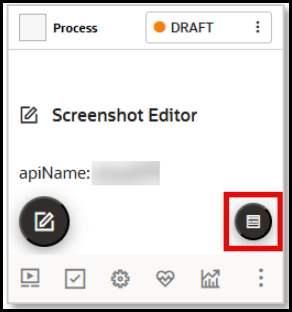
- From the My Content page, select the Content Editor button on the guide
tile.
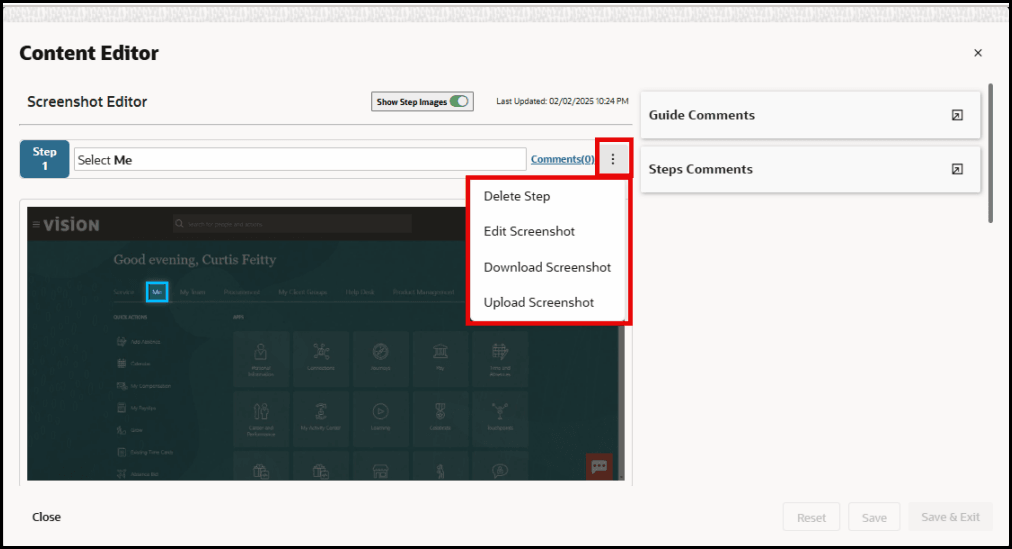
- In the Content Editor modal, select the Step options… (
 ) button next to the guide step you wish to edit to
open the Step Options menu.
- Select Edit Screenshot from the menu.
Note:
To edit a screenshot, you can also select the Enlarge Screenshot ( ) button in the top-right corner of a screenshot preview to expand
the screenshot to full screen.
) button in the top-right corner of a screenshot preview to expand
the screenshot to full screen.
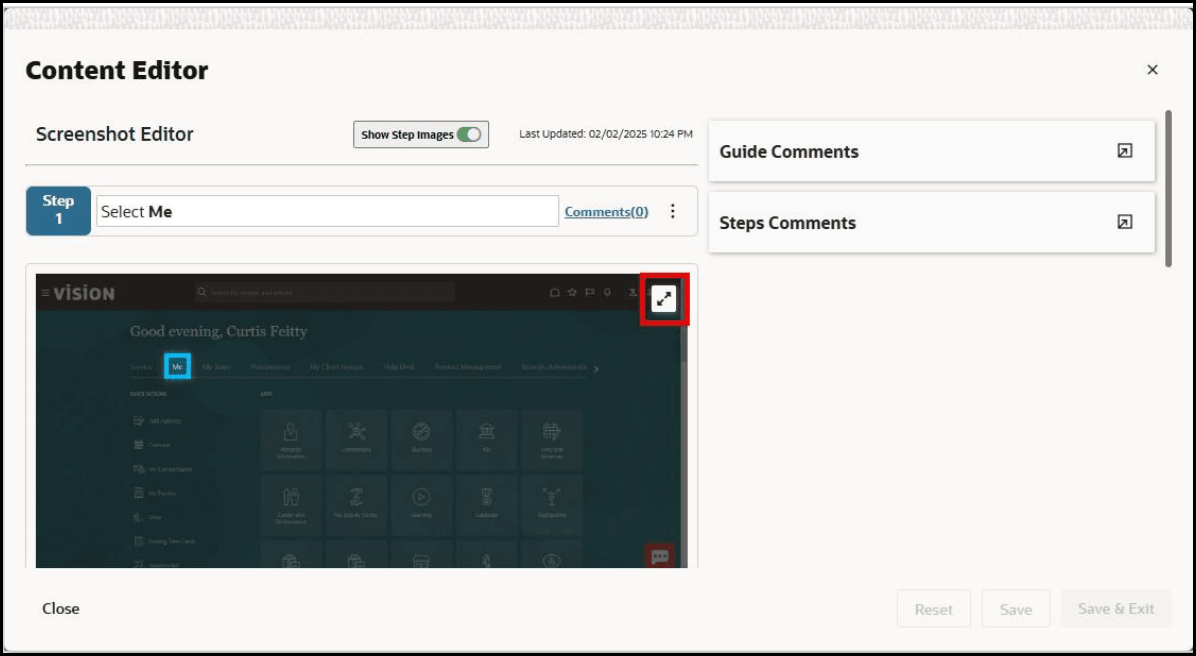
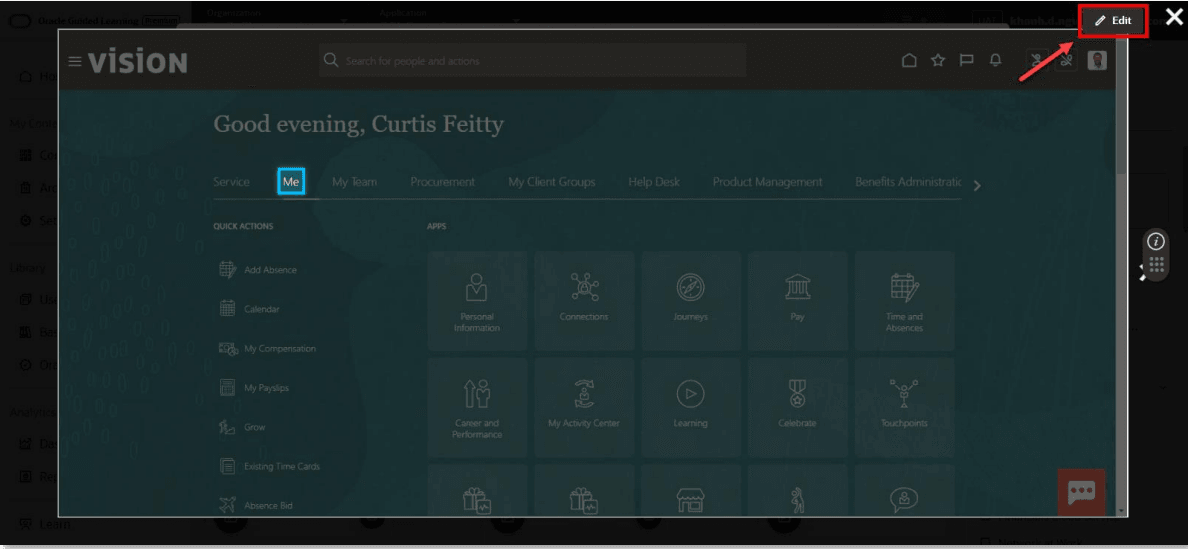
- Select the Edit (
) button in the top-right corner of the screenshot to open the editing toolbar.
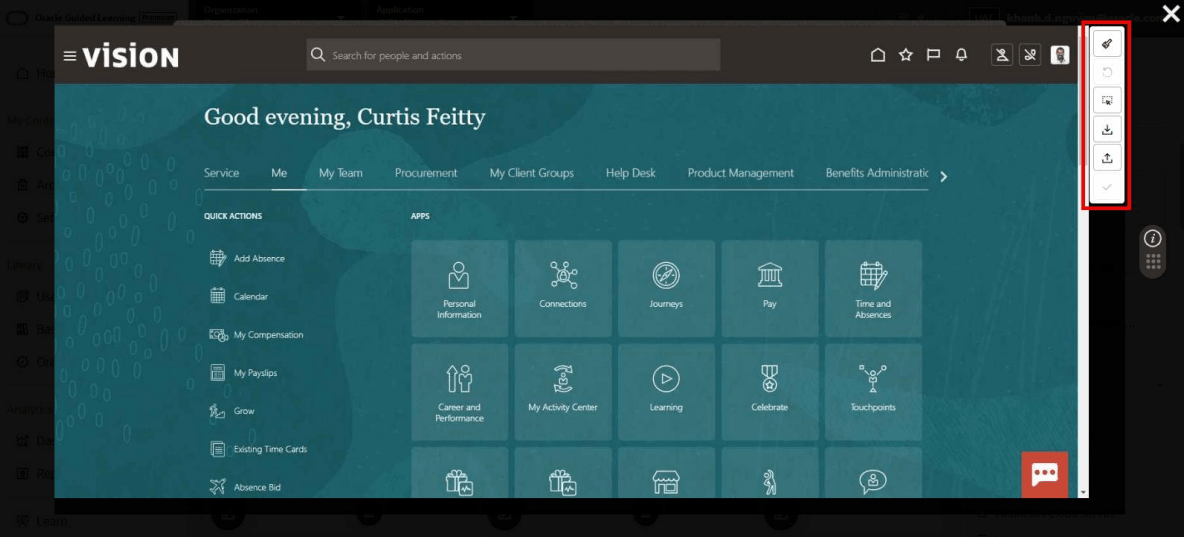
A screenshot editing toolbar opens on the right side of the screen.
Using the Blur Tool
To mask or blur an area of the screenshot, select the Blur (

) button in the toolbar, then click and drag a box around the area or element you wish to blur.
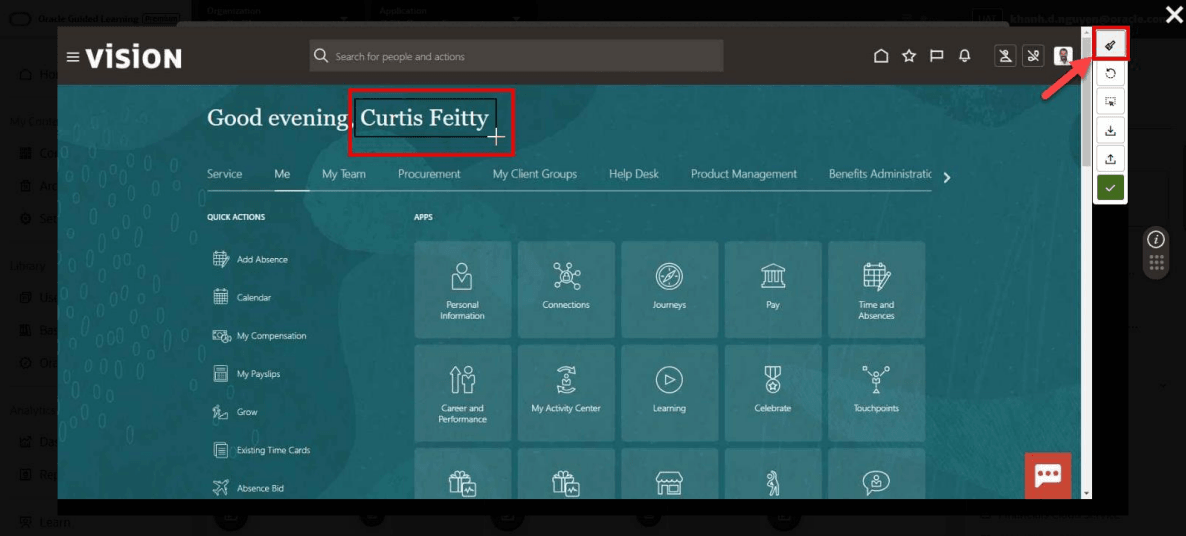
The selected area will now be blurred. The default value of the blurring effect is set at 6. To adjust the amount of blurring, select the blurred element to open the Blur slider. Click and drag the slider to adjust the amount of blurring effect.
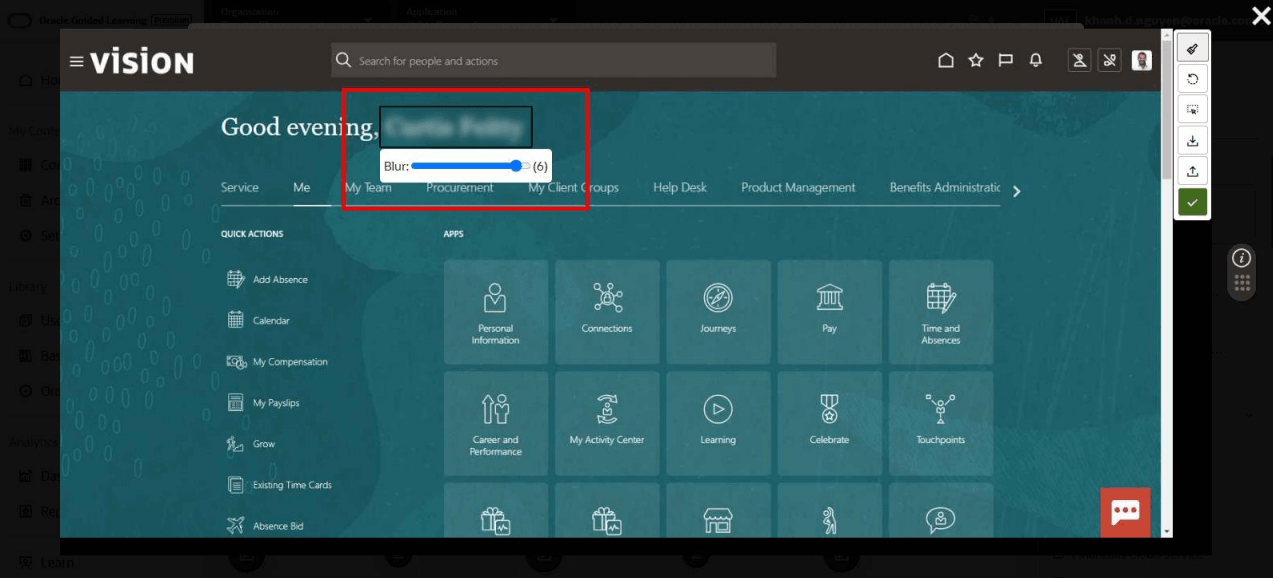
Note:
To blur other elements on the page, simply click and drag a box around the desired element and adjust the settings, as needed.Draw/Edit Selector
To draw or edit the border around the
selector, select the Draw Selector ( ) button in the Screenshot Editor toolbar. If applicable, blue border will
appear around the current element selector. You can move the position or adjust the
size of the selector border by clicking and dragging the blue border.
) button in the Screenshot Editor toolbar. If applicable, blue border will
appear around the current element selector. You can move the position or adjust the
size of the selector border by clicking and dragging the blue border.
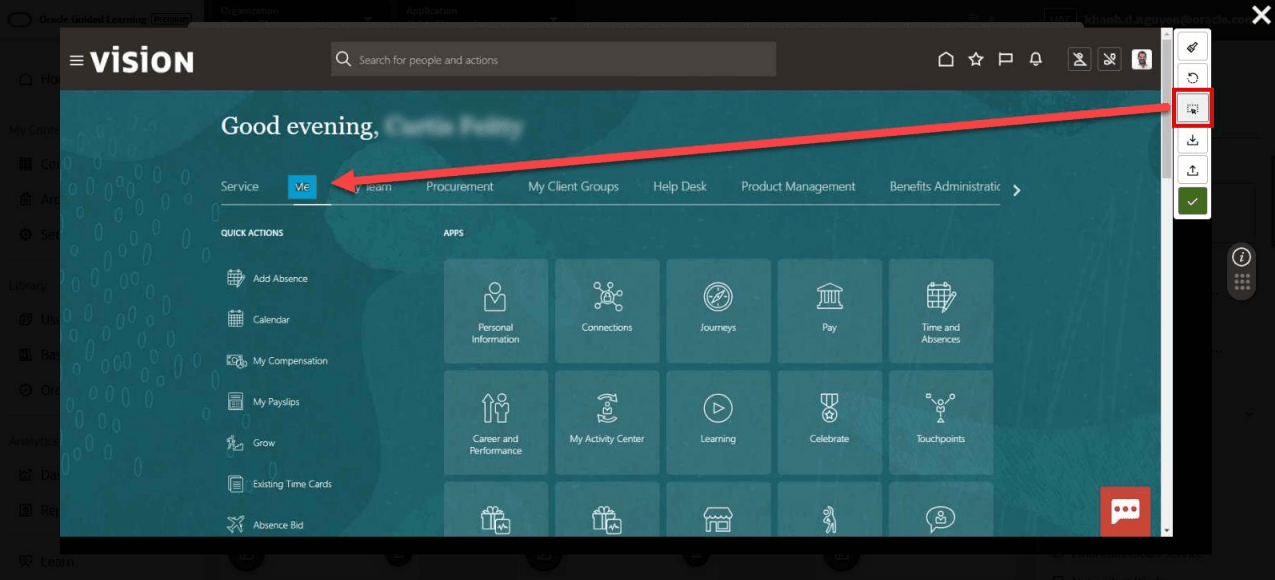
Saving or Reverting the Screenshot
Once you’ve made the necessary changes to your screenshot, you can save your changes or reset the screenshot to its previously saved state.
To save your
changes, select the Save (  ) button on the toolbar. This will replace the previous screenshot with the
newly updated screenshot. This will also save a new version of the guide in the
Version History.
) button on the toolbar. This will replace the previous screenshot with the
newly updated screenshot. This will also save a new version of the guide in the
Version History.
To discard your changes and revert the screenshot to its
previously saved version, select the Reset ( ) button on the toolbar.
Note:
The Reset button does not function as an “Undo” action. For example, if you have applied 2 blurred areas to a screenshot without saving, selecting Reset will remove both blurred areas and restore the screenshot to its previous version.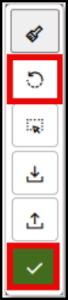
Downloading or Uploading the Screenshot
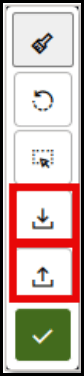
To download a copy
of the screenshot to your file system as a JPG image file, select the Download
( ) button. The file will be downloaded to your default Downloads folder.To
upload a screenshot image, select the Upload (
) button. The file will be downloaded to your default Downloads folder.To
upload a screenshot image, select the Upload ( ) button on the toolbar and browse to and select the image
file.
) button on the toolbar and browse to and select the image
file.
Known Issues/Expected Behavior
- Download/Save functionality:
If developers attempt to download/edit an image from a different server (such as collections, Use Case library, Base Guide library, or imported guides from one tenancy to another), the action will be blocked, and an error message will appear, indicating that the image must be recaptured. Therefore, developers will need to recapture the screenshot before they are able to download or save it.
- Upload functionality:
The maximum file size of the screenshot image is 1MB (this is subject change). If the developers attempt to upload an image exceeding this file size limit, the upload will not be allowed, and the user will receive an error message.
Note:
File upload is currently supported only for jpg format.Screenshot Capturing for Translated Content
The screenshot capture functionality allows content developers to capture and/or upload screenshots for translated content and blur them as well. Allows developers and administrators to present screenshots in their translated languages, providing a more helpful experience for end-users consuming multi-language OGL content.
Previously, when OGL content was translated, screenshots would render only in the original Generic Language, which did not accommodate customers with specific language requirements. This enhancement to the OGL console now allows the Full Editor to be accessible from translated guides in the language folders, which enables content developers to manually re-capture step screenshots of translated guides, including any translated content. This enhancement also allows developers to use the screenshot editing tool in the Content Editor (first introduced in OGL 25B) to blur sensitive areas of the screenshot to better safeguard data and enhance privacy.
Capturing Screenshots for Translated Guides
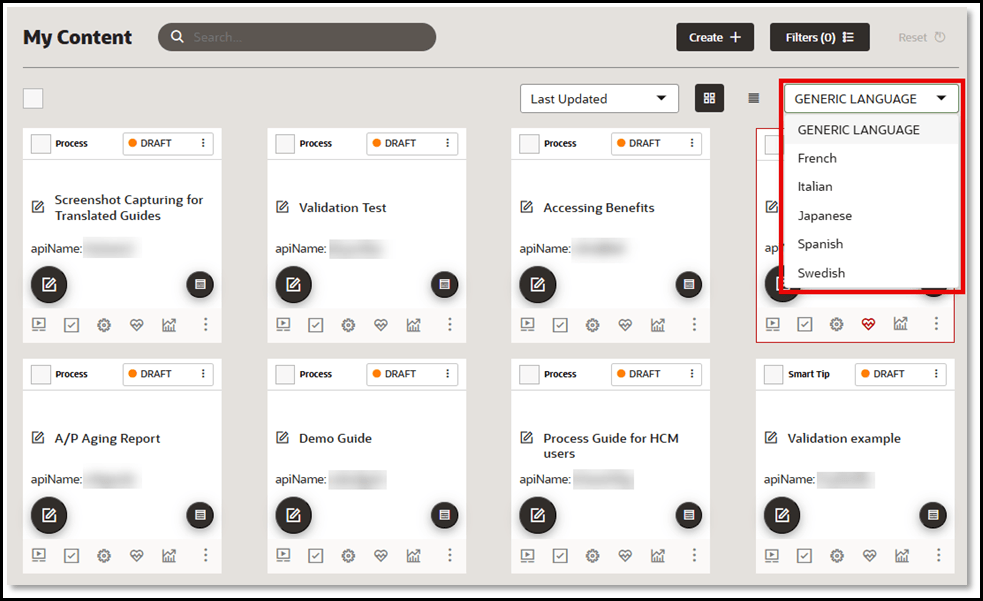
- From the My Content page, select the Language drop-down menu and
select an available language that contains translated content items.
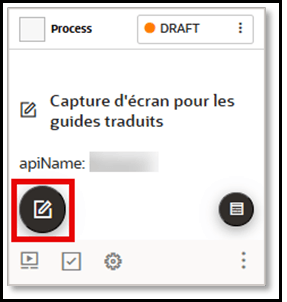
- Select the Editor button within a translated guide to open the guide in
the Full Editor.
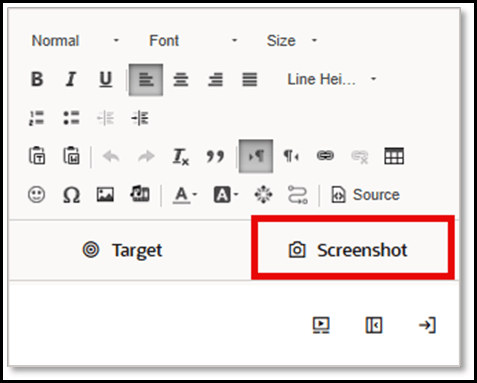
- In the Editor, select the Edit Tip button.
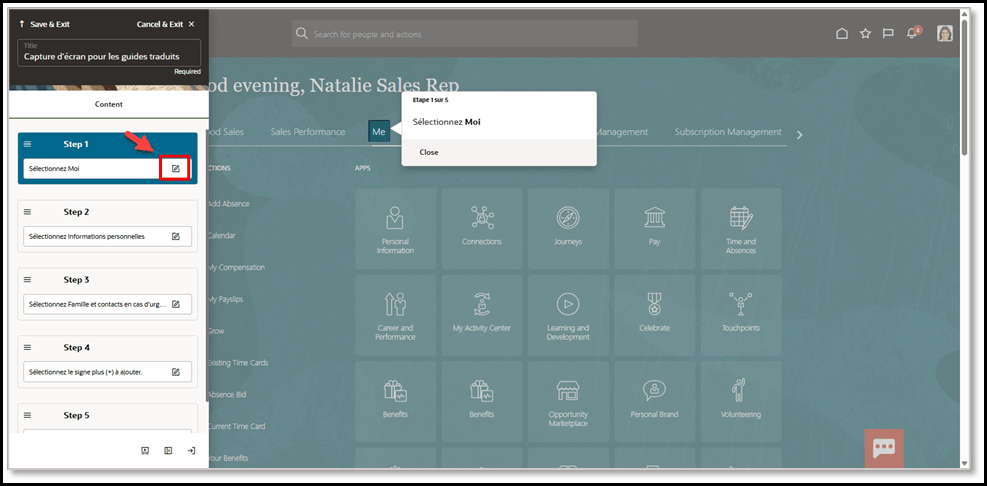
- In the Edit Tip panel, select Screenshot to re-capture the screen with
the translated content displayed.Then select Save & Exit
Step.
- Repeat each step, as needed, to re-capture all necessary screenshots containing
translated content.
Blurring Screenshots for Translated Guide
- Select a translated guide from an available language within the Language folders.
- Select the Content Editor button on the guide.
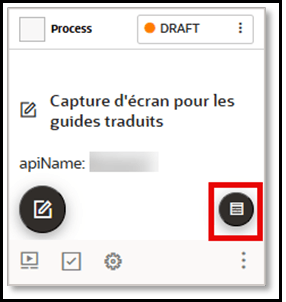
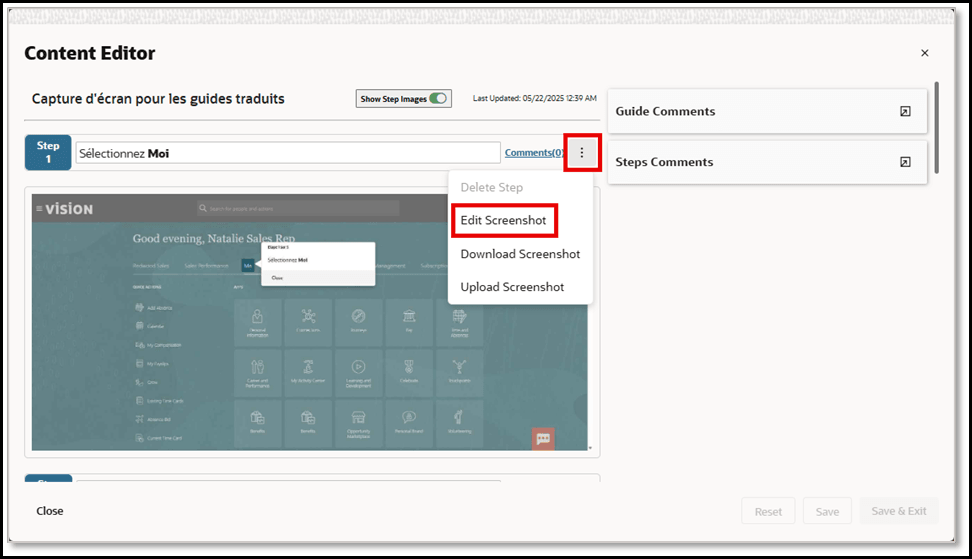
- In the Content Editor modal, select the Step options… ( ) button next to
the step you wish to edit, then select Edit Screenshot.
Note:
You can also select the Enlarge Screenshot ( ) button in the top-right corner of a screenshot, then select the
Edit (
) button in the top-right corner of a screenshot, then select the
Edit ( ) button to open the editing toolbar.
- A screenshot editing toolbar opens on the right side of the screen.
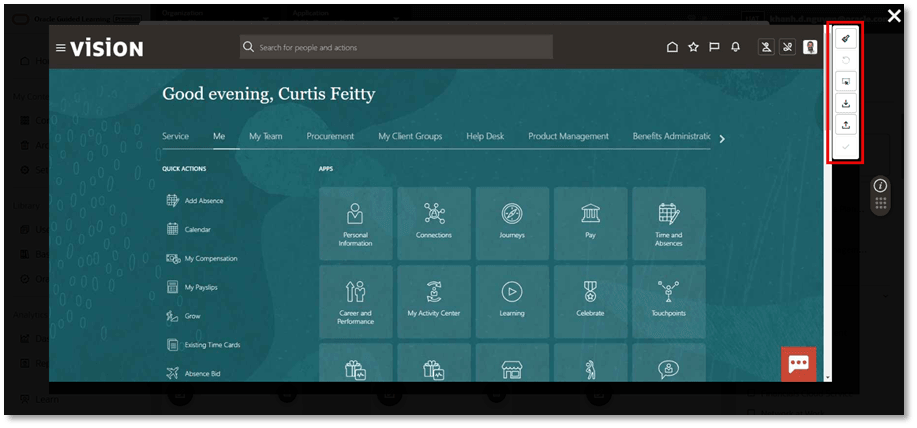
- You can now utilize the Blur tool, Draw Selector tool, Download, and Upload options from the screenshot editing toolbar, as needed.
Known Issues/Expected Behavior
- Expected Behavior: For translated guides, each step screenshot will need to be manually re-captured in the Full Editor and/or uploaded via screenshot editing tool in the Content Editor.
- Hotspots and Launchers Not Retaining the Updated Selectors in the Flow Editor within the Language Revisions.
-
Download/Save functionality: If developers attempt to download/edit an image from a different server (such as collections, Use Case library, Base Guide library, or imported guides from one tenancy to another), the action will be blocked, and an error message will appear, indicating that the image must be recaptured. Therefore, developers will need to recapture the screenshot before they are able to download or save it.
-
Upload functionality: The maximum file size of the screenshot image is 1MB (this is subject change). If the developers attempt to upload an image exceeding this file size limit, the upload will not be allowed, and the user will receive an error message.
- File Format: File upload is currently supported only in jpg format.
Note:
While blurring screenshots may obscure sensitive areas of a screenshot, please note that previous versions of the guide may still exist in Version History, which may contain unblurred (unedited) screenshots. Please use caution when restoring previous versions of guides and apply any screenshot blurring, as needed, prior to publishing the guide.