Editor Controls
Below is a brief explanation of Editor Controls.
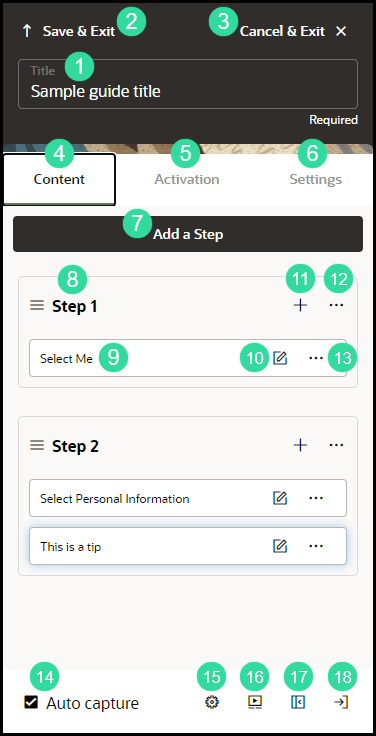
| Sl | Element | Description | Note |
|---|---|---|---|
| 1 | Title | Maximum of 100 characters | |
| 2 | Save & Exit | Save changes and close the guide editor. | |
| 3 | Cancel & Exit | Discard changes and close the guide editor | |
| 4 | Content | Content tab allows you to add, edit, and configure guide steps and tips | Settings and configuration options may vary based on guide type |
| 5 | Activation | Activation tab allows you to add, edit, and delete guide activation settings | See Guide Activation for more information Enabling Guide Activation Settings |
| 6 | Settings | Settings tab allows you to configure and manage guide-level settings | Guide settings can also be accessed from the guide tile in the OGL console |
| 7 | Add a step | Adds a new step to your guide | |
| 8 | Current step | Displays the guide step and all associated tips | |
| 9 | Add another tip to this step | Adds a new tip immediately after the selected step/tip | |
| 10 | Step Actions | Opens a step-level action menu that allows you to Clone, Move, or Delete the selected step | |
| 11 | Tip text | Displays an abbreviated preview of the text within the tip | |
| 12 | Edit Tip | Opens the tip editor to allow text edits, formatting, and other tip-level adjustments | |
| 13 | Tip Actions | Opens a tip-level action menu that allows you to adjust Tip Settings, Clone, Move, or Delete the selected Tip | |
| 14 | Auto capture | Automatically take a screen capture of a tip as you select it. Select the checkmark (bottom right) of the screen along with the check box. | Use the camera icon to capture screenshots of additional step tips if more than one is added to the step. |
| 15 | Element Selector Settings |
Opens a menu that allows you to adjust element selection preferences for this guide. Element selector options include:
|
Do not use Element Text or Element Title if capturing elements for multi-language deployment. Some HTML elements have an id attribute. If they do, they are good for capturing the element because they tend to be constant and are unique in a page. Unfortunately, some applications either do not conform to the uniqueness on a page or may dynamically change the id. For such applications, of which Oracle Fusion Applications is an example, do not use Id Attribute. |
| 16 | Preview | Launch a preview of your guide in a new browser tab | If you have already opened the preview, select this again to refresh the preview tab and relaunch the guide with your recent changes. |
| 17 | Minimize the editor panel | Minimizes/hides the guide editor panel | Use for maximum screen view. |
| 18 | Snap to Right or Left | Move the position of the editor to either the right or left side of the browser window. |
