Editing Guide Content
OGL provides a basic editor called the Content Editor and an advanced editor called the Full Editor. The Content Editor is used primarily for basic editing and formatting, while the Full Editor allows for more advanced editing and configuration of guides, including Display, Activation, and Advanced Settings. You can do most of your work in the Content Editor, but you will need to open the Full Editor from time to time to apply more advanced settings. The underlying content is created in HTML, which you can also access through the Full Editor.
With the Content Editor, you can:

- Apply Bold, Italics, or Underlines to the text.
- Create a bulleted list.
- Change text color.
- Add hyperlinks.
- Insert a variable.
- Add a title as an H1 paragraph.
- Add a link to another guide.
To add Bold, Italics, or Underlines:

- Select desired text.
- In the editor, select the Bold, Italics, or Underline icon.
To add a bulleted list:

- Select desired lines.
- In the editor, select the Bulleted List icon.
To add a numbered list:

- Select desired lines.
- In the editor, select the Numbered List icon.
To change the color of the text:
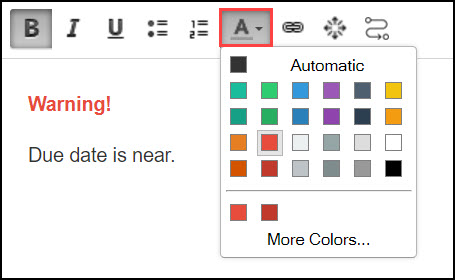
- Select desired lines.
- In the editor, select the Text Color icon.
- Choose the desired color.
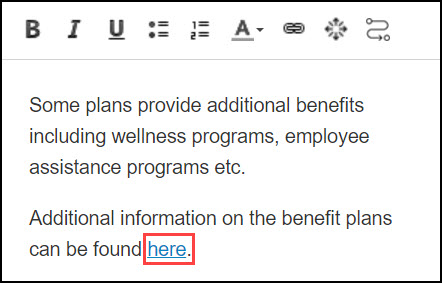
Hyperlink in a Step:
To add a hyperlink to step text within a guide:
- Select the tip and enter the descriptive text.
- Select the text that you want to turn into a hyperlink.
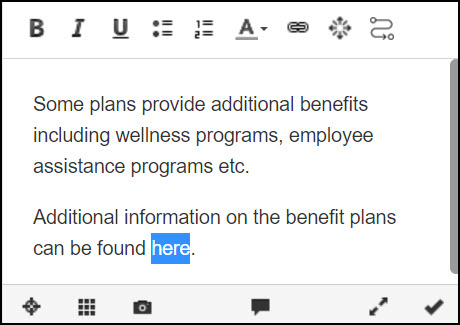
- Select the Hyperlink icon.

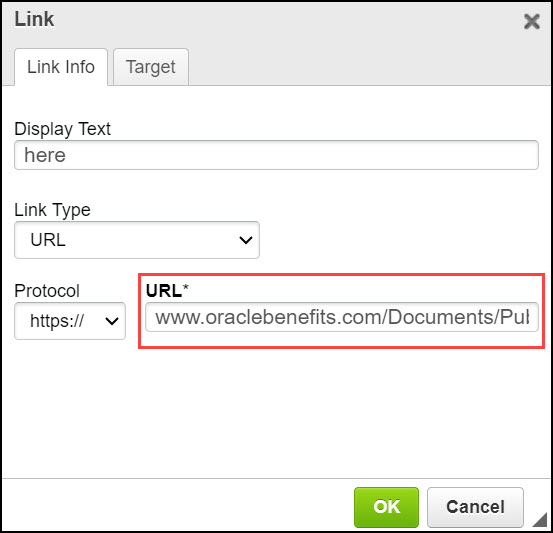
The Hyperlink modal window is displayed.
- Enter or paste your hyperlink and select OK.
The selected text is now turned into a hyperlink.
Embed Media:
Your guide can include a picture, video, audio, or other multimedia content.
To embed media:
- From the tip editor, open the full editor.
- Select the Embed Media from External Sites icon.
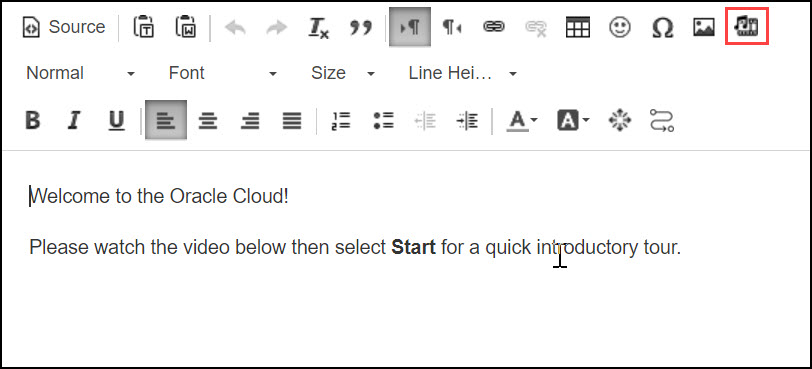
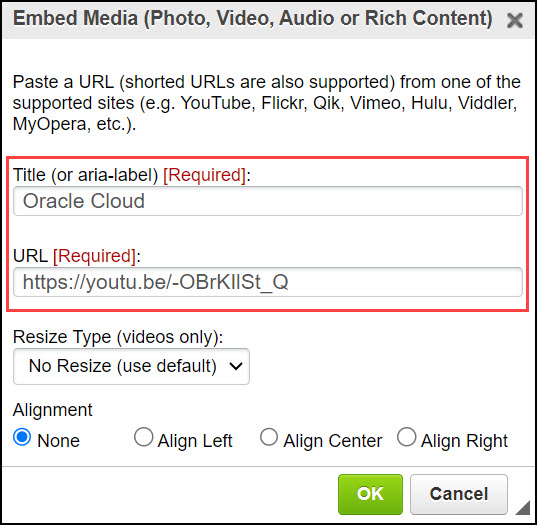
The Embed Media modal window is displayed.
- Enter the Title of the media.
- Enter the URL of the media.
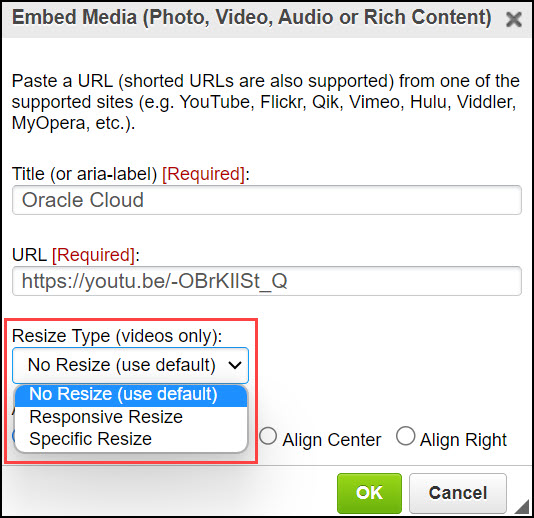
- Resize the media if required. (Only valid for videos.)
- Select the desired Alignment option.
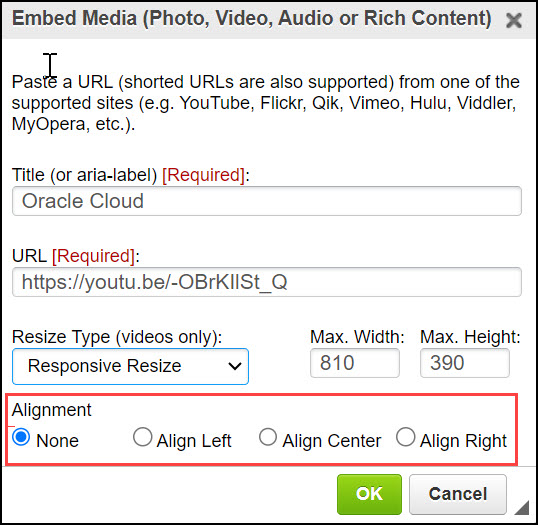
- Select OK.
To add Session Variable Properties:
- On the desired step, select Iridize Session Variables
icon.

The Session Variables modal window is displayed.
- Enter the Variable Name and Variable Value.
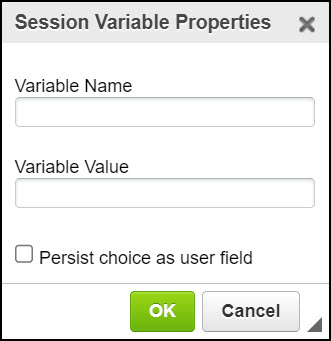
- Select OK.
Launch a Guide:
With the Launch a Guide feature, you can now easily include a link to a relevant guide within your guide. With this feature, users can easily find and access the related guide they are looking for.
To insert the link to another guide:
- Go to the desired guide.
- Select the desired step.
- Select the Launch a Guide icon.

The Launch a Guide modal window is displayed.
- Enter the display text.
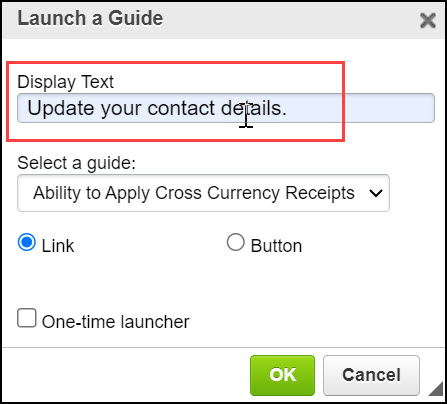
- Select the existing guide from the dropdown to link it with the
current guide.
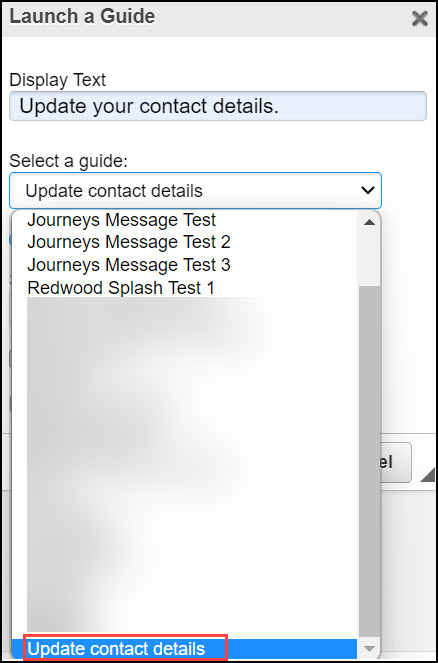
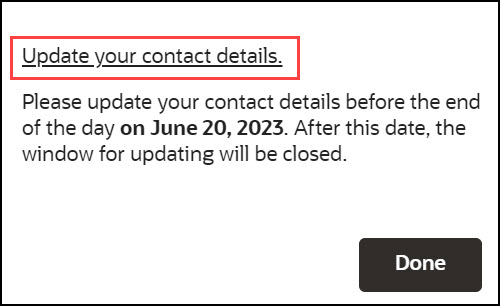
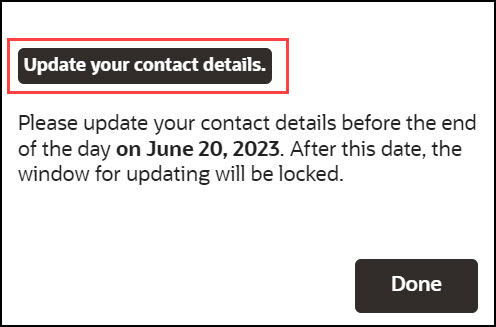
- Select the desired display option (Link or Button).
Link view:
Button view:
- Choose the starting step to be shown in the guide.
- Check the option "Keep this guide running" to keep the main guide running, even when the new guide is launched.
- Check the option "One-time launcher" to restrict the guide to launch only once.
- Select OK to save.
With the OGL Editor, you can:
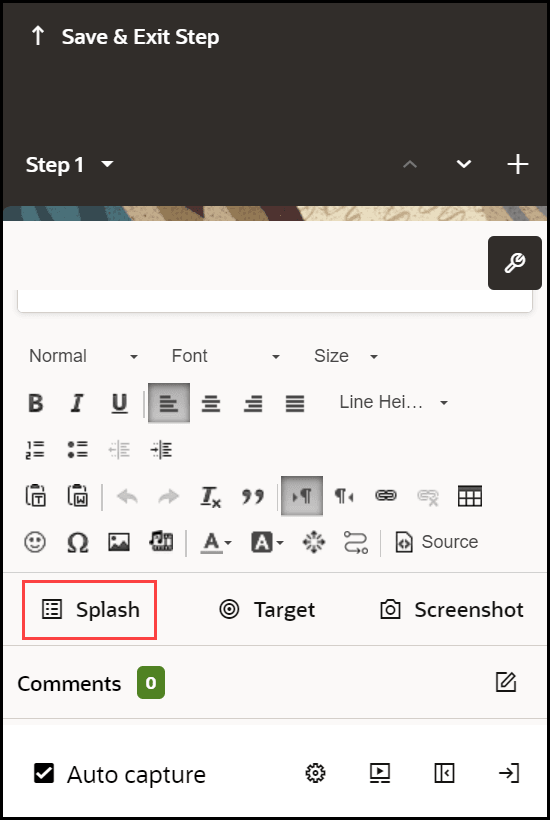
Add a Splash Tip:
Splash steps are also known as modal or lightbox steps. They are non-interactive informational steps that draw attention by graying out the background and focusing the user on the step itself. Splash steps are common at the beginning and end of a flow to describe the objective of the flow and summarize what the user learned.
The tip's background appears greyed out because of the activated splash tip feature.
When you create a new tip, select Add Splash. However, change the target to just “body” if you need to update an existing tip.
Change the tip target to the body:
- Select Change Tip Target.
- On the selector dialog, select the Edit icon.
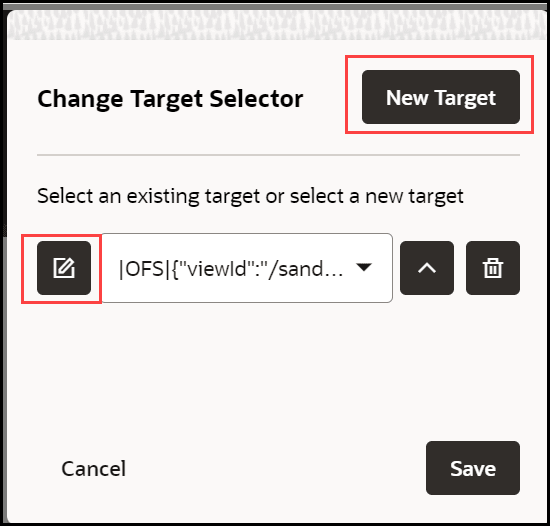
- Update the selector
- Click Save to save the new target.
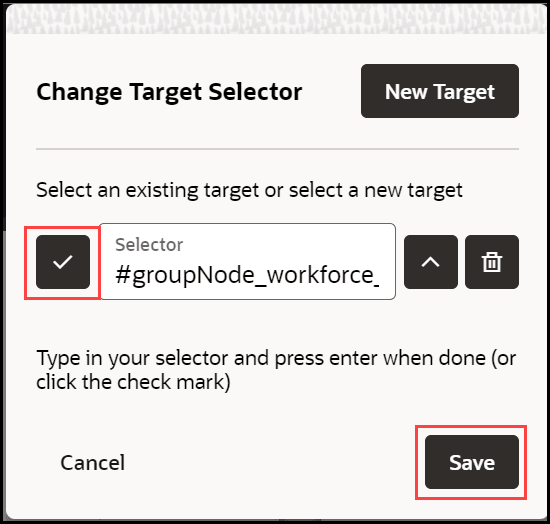
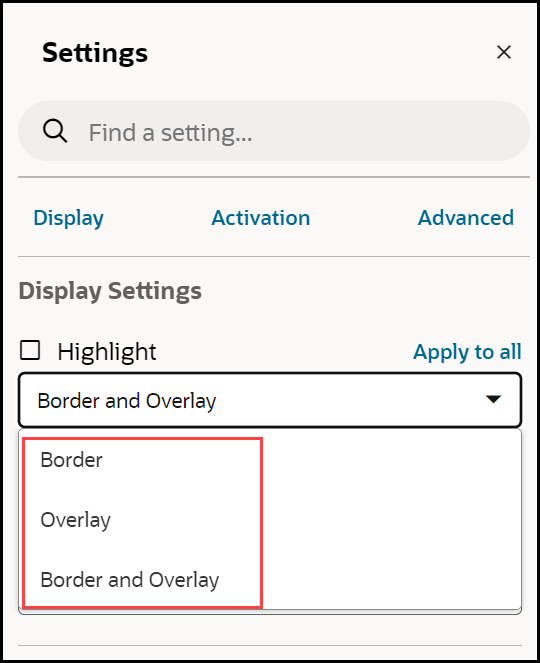
- Close the selector dialog, and then select Display Settings.
- Change the Highlight option to Border and Overlay or
just Overlay.
Adjust Tip Size:
Follow the tip sizing guidelines when adjusting the tip size.
- Open the step Display Settings.
- Select the tip size (default value: 280px), and then enter your
new size.
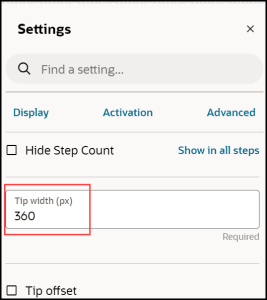
- Press Enter.
Creating Optional Steps:
- Open the Activation Settings.
- Check the option Skip if element not found OR conditions not met
- Select Add Conditions, next to Step Conditions.
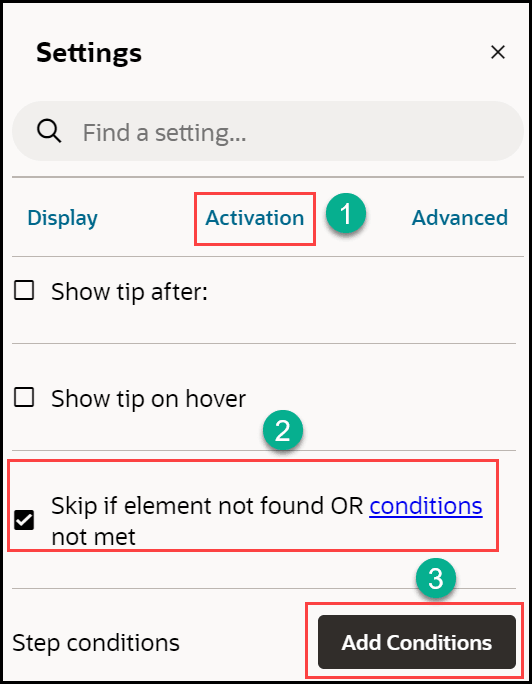
- Select When page > has > element.
- Select the Pick a Selector icon.
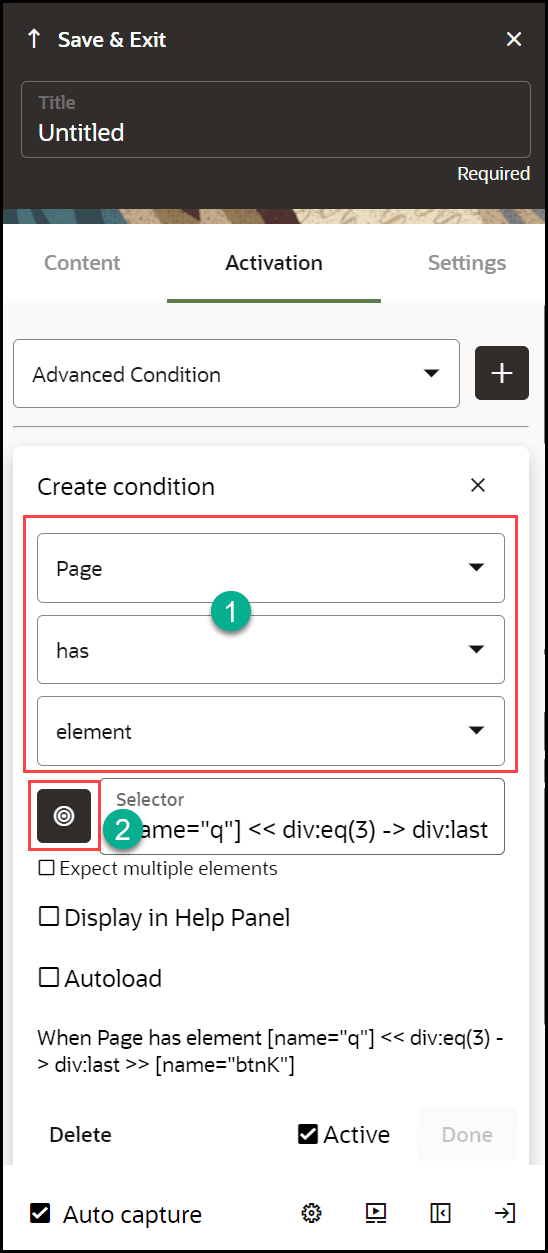
- Select an element or, select the Edit (
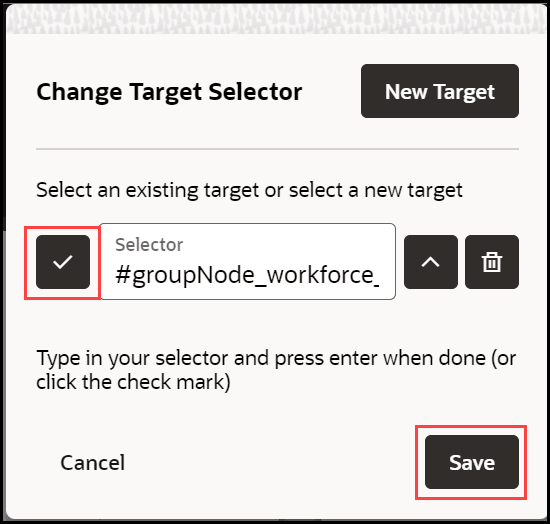
 ) icon in the selector dialog, and enter a selector.
- Select the checkmark icon.
- Select Save.
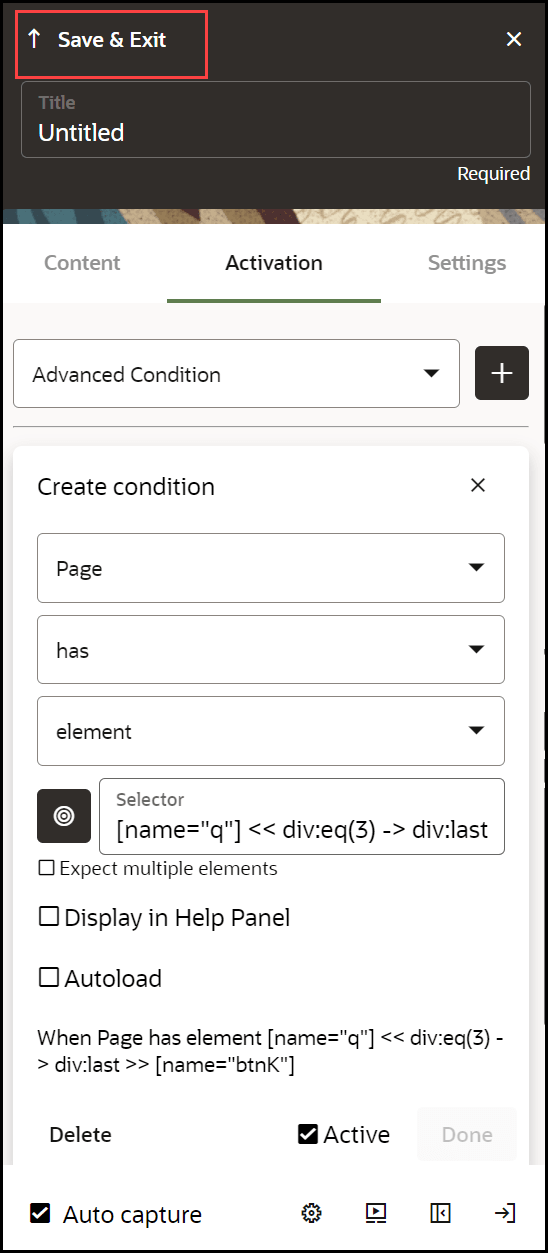
- Select Save & Exit under Edit Step
Conditions.
Changing a Tip Position:
In addition to specifying the general position (top, bottom, left, and right) you can enter offsets in pixels to precisely position tips.
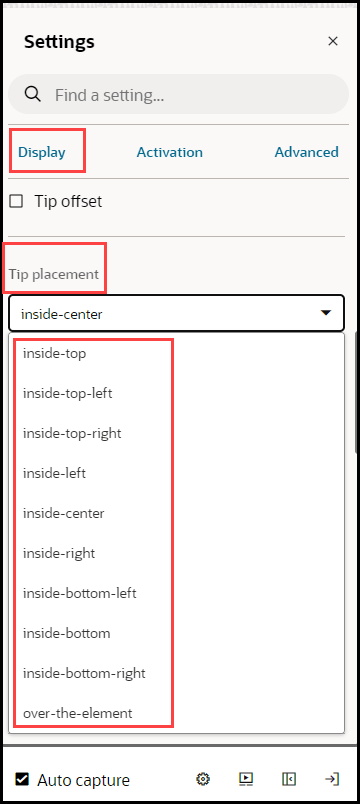
- Open the Step Settings.
- Expand Display Settings.
- Choose a location in Tip Placement.
To get more precise:
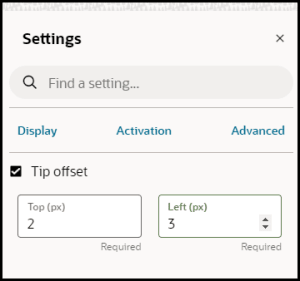
- Select Tip Offset.
- Enter numbers in pixels to adjust the placement. These are
offset from values, so positive numbers will move the step down or to the
left. Negative numbers will move the step up or to the right.