Selecting Targets
Targets are HTML elements within a page to which guides can be anchored and can allow users to interact with, such as selecting or hovering over. Selecting target elements is a combination of art and science. Using the OGL Editor, you can select most targets by hovering over elements and either right-clicking (Control+click for Mac) or choosing the Select button.
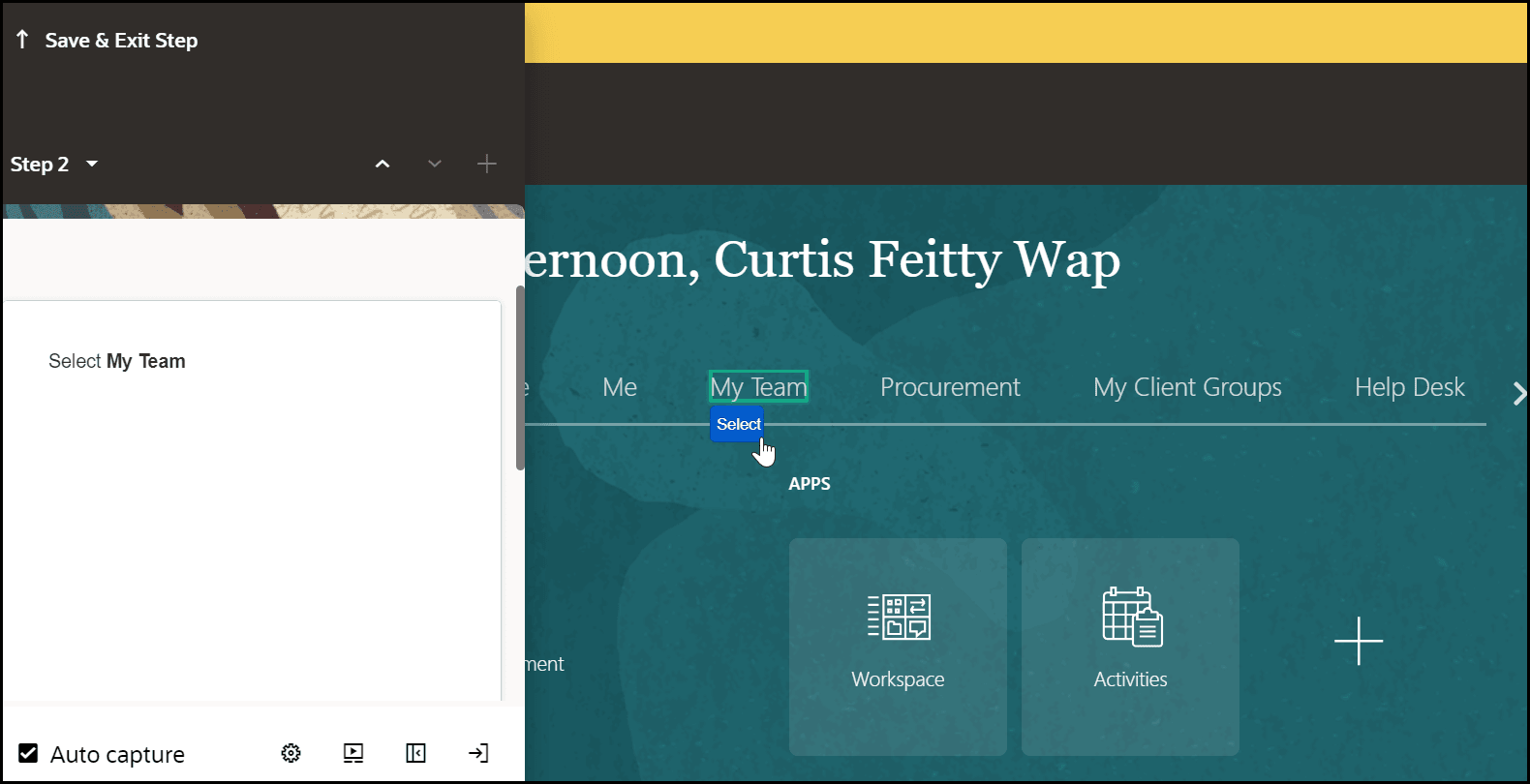
You can select a target at any time by selecting Target.
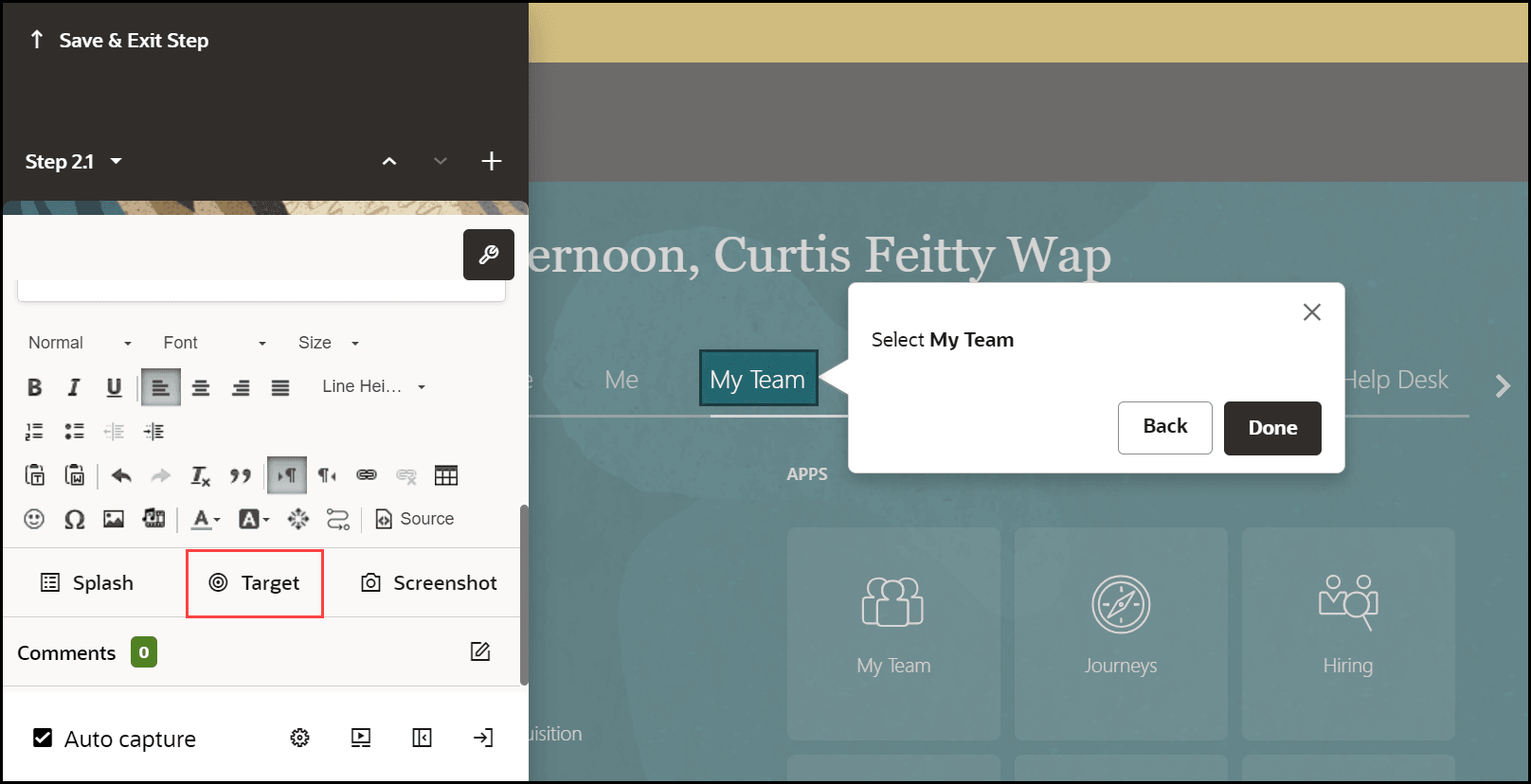
Viewing Selected Targets
You can view the target selector to troubleshoot or see how OGL selected the target.
To update the selector:
- Select Change Tip Target.
- On the selector dialog, select the Edit icon.
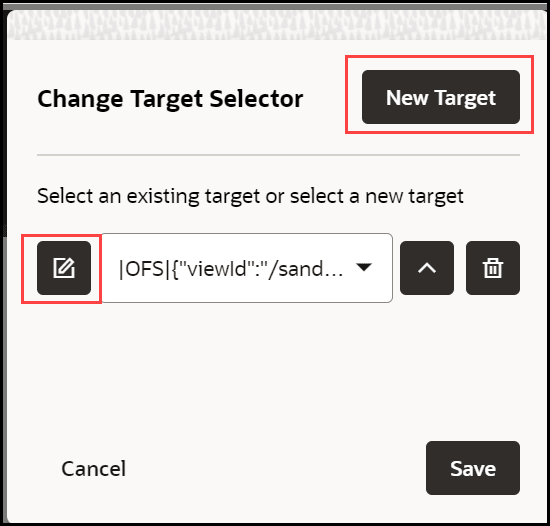
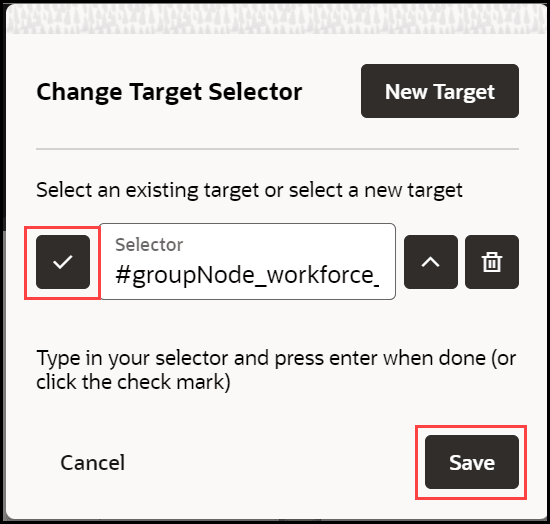
- Update the selector.
- Select the check mark to save the new target.
Selectors
OGL supports a variety of jQuery and CSS selectors.
Examples:
- [id$="HRD_CAREERDEV_MANAGER::icon"]
- [id*="HRD_CAREERDEV_MANAGER::icon"]
- span:contains('Career Statement')
- label:contains('Goal Name')
- src:contains(‘qual_personstar_32.png’)
- button:contains("OK"):first
