Working with Step Settings
This section includes details about some of the more complicated step settings. See the Step Settings section for details about all the step settings.
Adding Step Conditions
Step conditions define when a step appears. You can use step settings to create an optional step or set up multi-tip steps where only one tip shows at a time.
To add a step condition:
- Go to the Step on which you want to add the condition.
- Click Edit tip icon.

- Select Step Settings icon.

- Click Activation Settings.
- Click Add Condition.
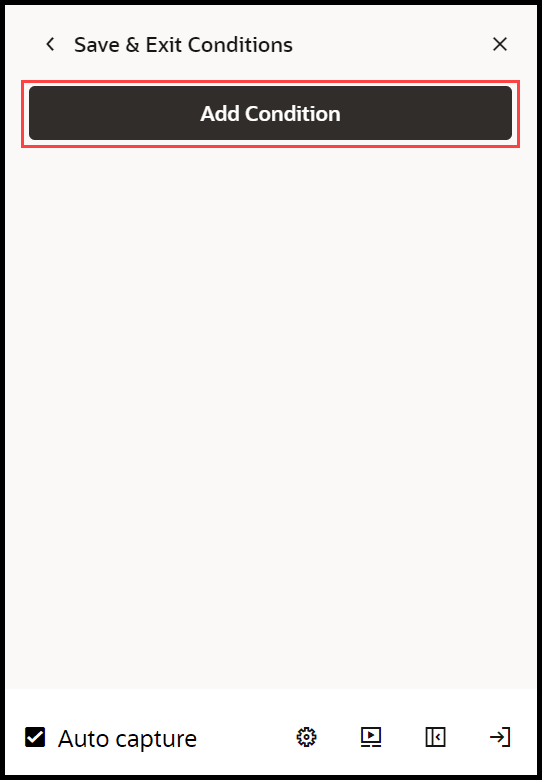
- Configure your expression.
When configuring an element expression, use the target selector to choose an element. Uses of some common expressions:
- when page has element: to have the tip appear when a certain element is on the page
- when page has not element: to have the tip appear when a certain element is not on the page
- when page has visible element: to have the tip appear when a certain element is visible on the page
- when page has not visible element: to have the tip appear when a certain element is not visible on the page
- when page has URL matching: to have the tip appear on a certain page. Note, for Fusion application, you cannot use the actual URL and must use the route. This is advanced functionality and, if needed, contact support.
- When page has not form field with value 'ogl': The tip will appear when the specified form field is either absent or present with a value other than 'ogl'. If the 'Require Field Presence' option is enabled, the tip will only appear when the form field must be present and contains a value other than 'ogl'.
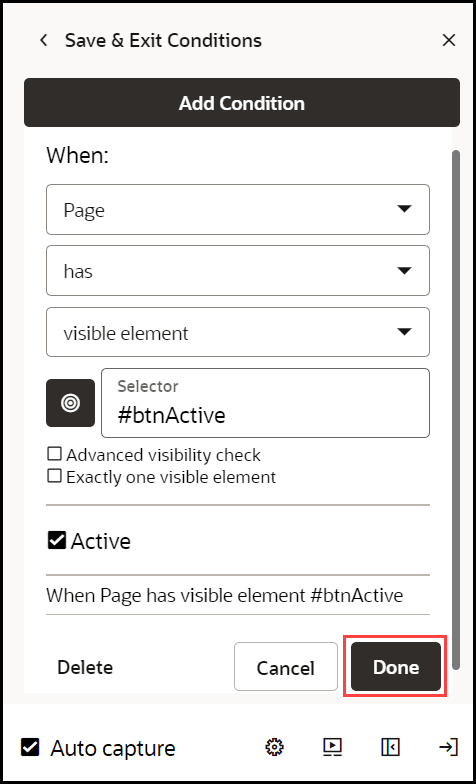
- Select Done.
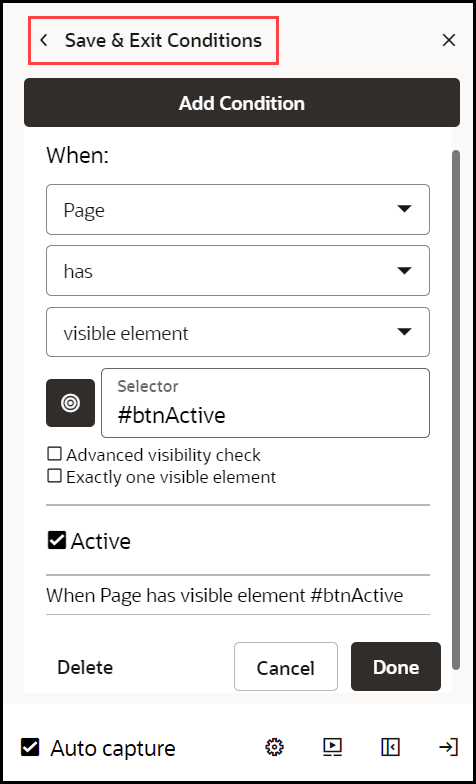
- Select Save & Exit Conditions .
Adding Branches
Branches allow you to specify where the guide goes after a user completes a step. You can go to a step within the guide, open another guide, close the current guide, or launch cross-domain or cross-app guides.
- Open the Step Settings.
- Expand Advanced Settings.
- Select Add, next to Step Branches.
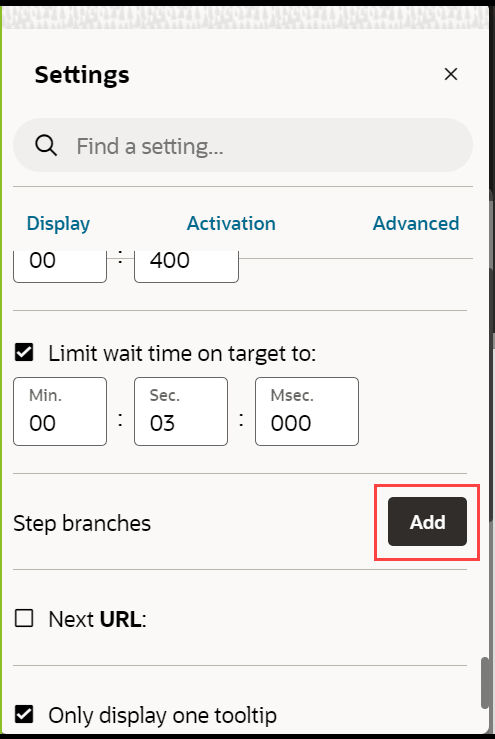
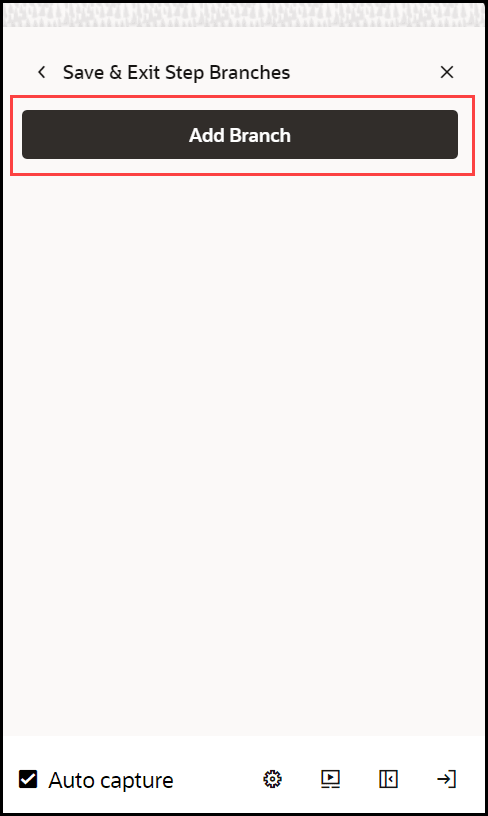
- Select Add Branch.
- Choose the desired Branch Type from the dropdown.
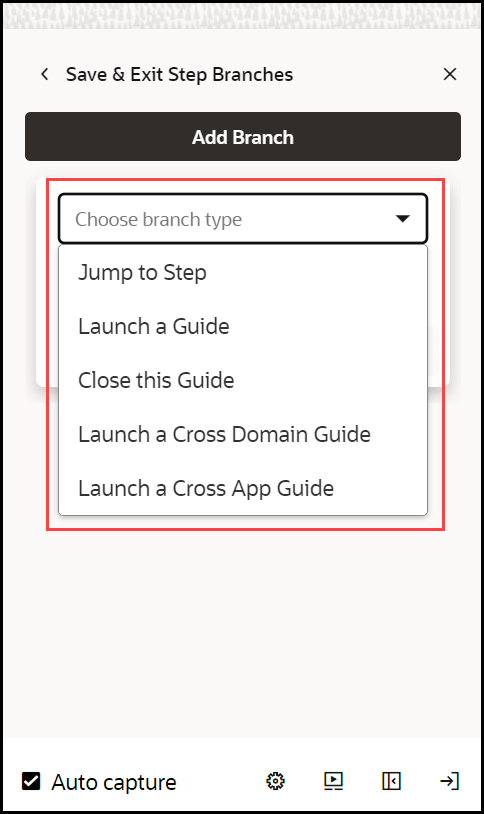
Branch types include:
- Jump to Step: Go to a specific step within the current guide
- Launch a Guide: Go to another guide at a specified step
- Close this Guide: End the guide
- Launch a Cross Domain Guide and Launch a Cross App Guide: These are advanced features and we recommend contacting support for assistance if the guides are needed
- Optionally add conditions that affect when to branch
- Select Done under Add Conditions.
- Select Done under Edit Branches.
Working with Tabs and Multiple Tips
In any guide, each step can display one or more tips simultaneously. This setup is commonly found on steps that include Smart Tips or the first few steps of a guide that can vary depending on what is on the page.
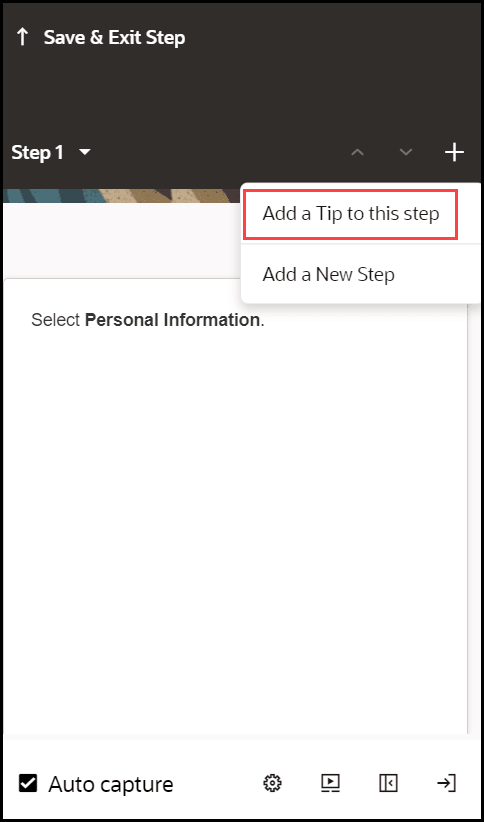
- To add a tip, select the step where you would like to add another
tip, and then select the Add (
 ) icon in the Step Settings panel.
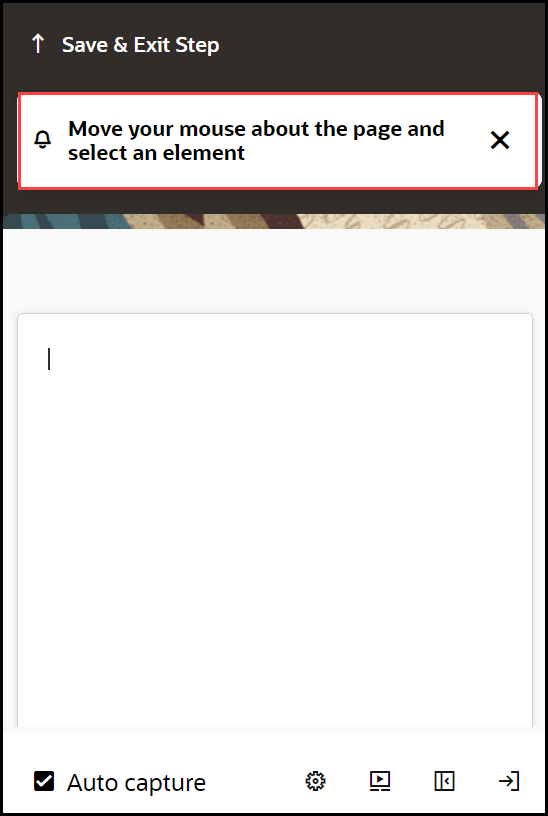
- Choose the target element for the new tip.
- Configure the Display Settings, Activation Settings, and Advanced Settings for each tip individually.
