OGL Account Setup
As a customer, you can contact your Oracle Account Manager to request an OGL account. Once your order is processed, Oracle will provision your OGL account, and a Welcome to Oracle Guided Learning email will be sent to the admin/buyer in the order with instructions on how to sign in to OGL and register for a webinar to help your get started with using OGL. You can contact Oracle Support if there is any issue with the account or if you do not receive the provisioning email.
Confirmation Email
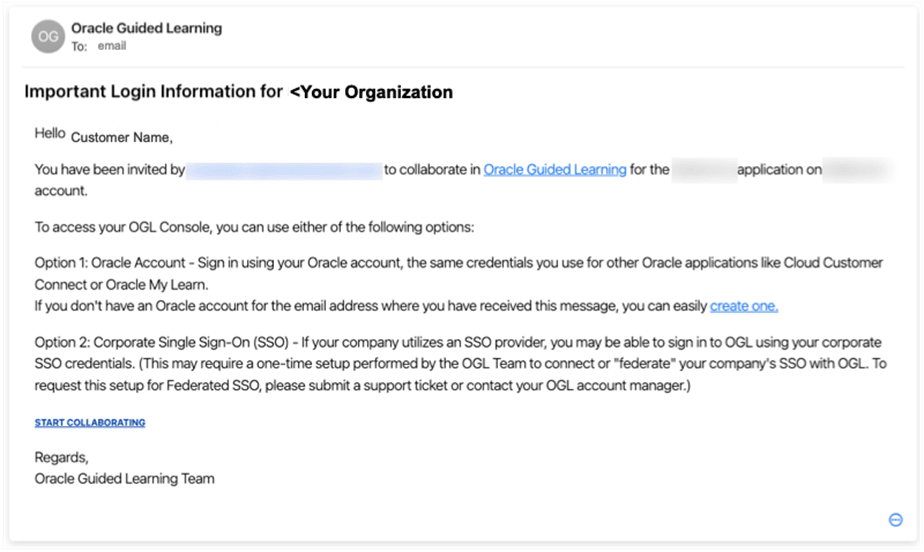
Once your OGL account is created, you will receive an invitation email that contains the link to access the OGL console along with instructions on how to sign in using an Oracle Account or your company's Federated Single Sign-On (SSO). Follow the instructions provided in the email to access the OGL console.
Below is an example of the confirmation email:
Sign In to OGL
Important Note
Beginning in OGL 24A Release, OGL console users must sign in using a Single Sign-On (SSO) provider to authenticate. This means that you must either sign in using an Oracle Account or your company's Federated Single Sign-On (SSO)*.
If you do not have an Oracle Account, you can easily create one. This is the same account that you use to access to other Oracle services, such as Cloud Customer Connect, My Oracle Support, and My Learn. With your Oracle Account, you can conveniently access OGL along with other Oracle services using a single username and password. When creating your Oracle Account, be sure to use the same email address that is associated with your OGL account.
*Federated Single Sign-On (SSO): If you wish to sign in to OGL using your company's Single Sign-On (SSO) provider, you may need to request a one-time configuration to be performed by the OGL Product Team to integrate your company's SSO with OGL. Once configured, you will be able to sign in to OGL using your company's SSO. To request SSO integration with OGL, please contact your Oracle Account Manager or log an OGL support ticket.
Once you have successfully setup your Oracle Account or enabled your company's SSO with OGL, you can access OGL by selecting the START COLLABORATING link located at the bottom of the confirmaltion email.
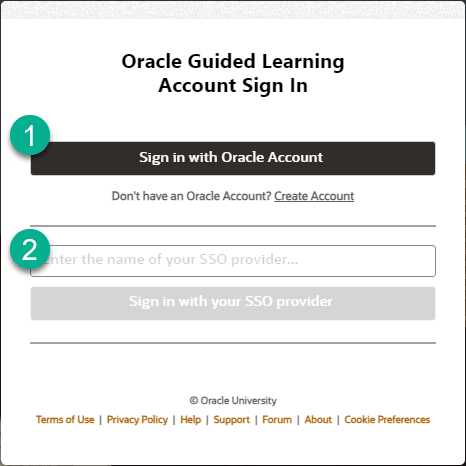
You will be directed to the OGL Sign-In screen as shown below. (We recommend that you bookmark this URL for future use.)
Sign in using one of the following options:
Option 1:
Select Sign in with Oracle Accountto be directed to the Oracle Account sign-in page and enter your login credentials.
OR
Option 2:
To sign in using your company's SSO (if configured), enter your company name and select Sign in with your SSO provider to be directed to your company's SSO page.
Once you have successfully signed in, yu will be redirected to the OGL Console.
