Accessing OGL for the First Time
The OGL Console is a web application used to manage your content library. When you access the OGL Console for the first time, you are prompted to install the Chrome extension required to develop content.
Google Chrome and Microsoft Edge are required for content creation in the OGL Console. Before proceeding, verify your organization's OGL tenancy by referring to the OGL Welcome email received during provisioning or logging a request on My Oracle Support.
Installing the OGL editor extension for Google Chrome
Prerequisites:- Google Chrome browser
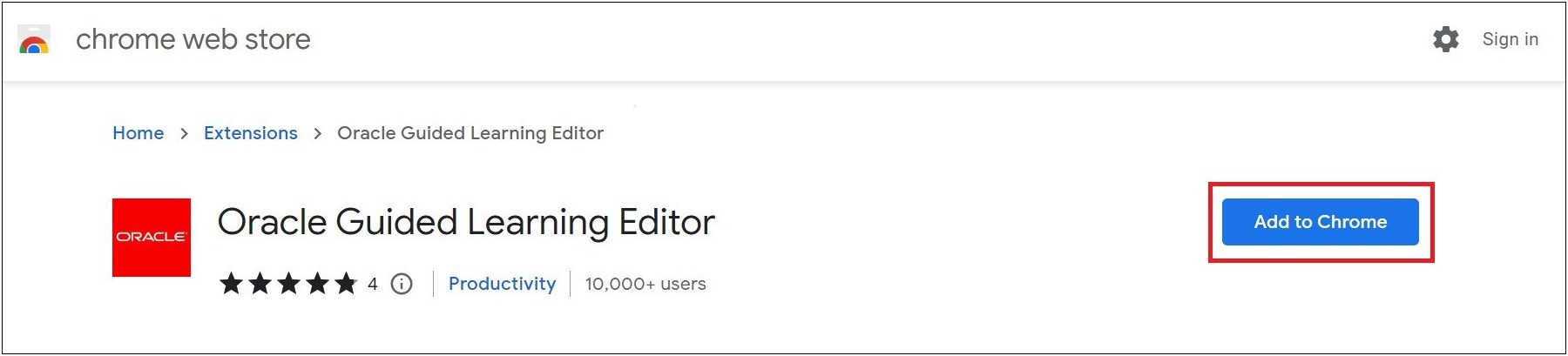
- Go to the Chrome Web Store.
The page below opens; select Add to Chrome.
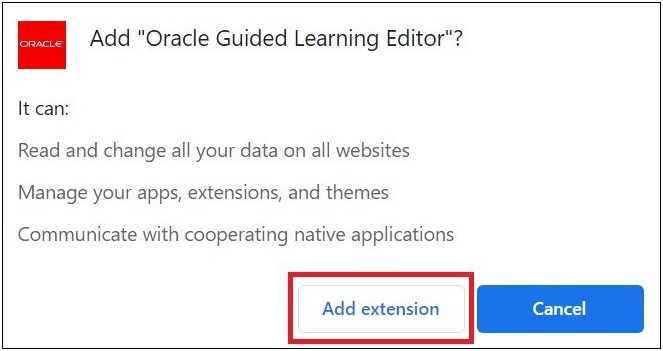
- Select Add extension.
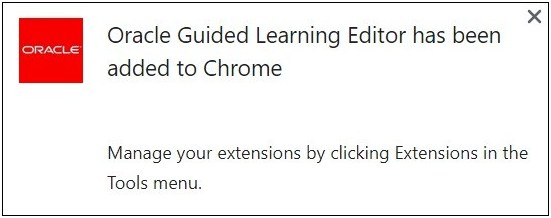
- A confirmation message is displayed once the setup has been
completed. You can now visit the OGL Console to start collaborating.
Accessing the OGL Console on Google Chrome
To access the OGL Console:- Go to the OGL console via the unique tenancy designated to you.
- On the Sign-in screen, type the username and password.
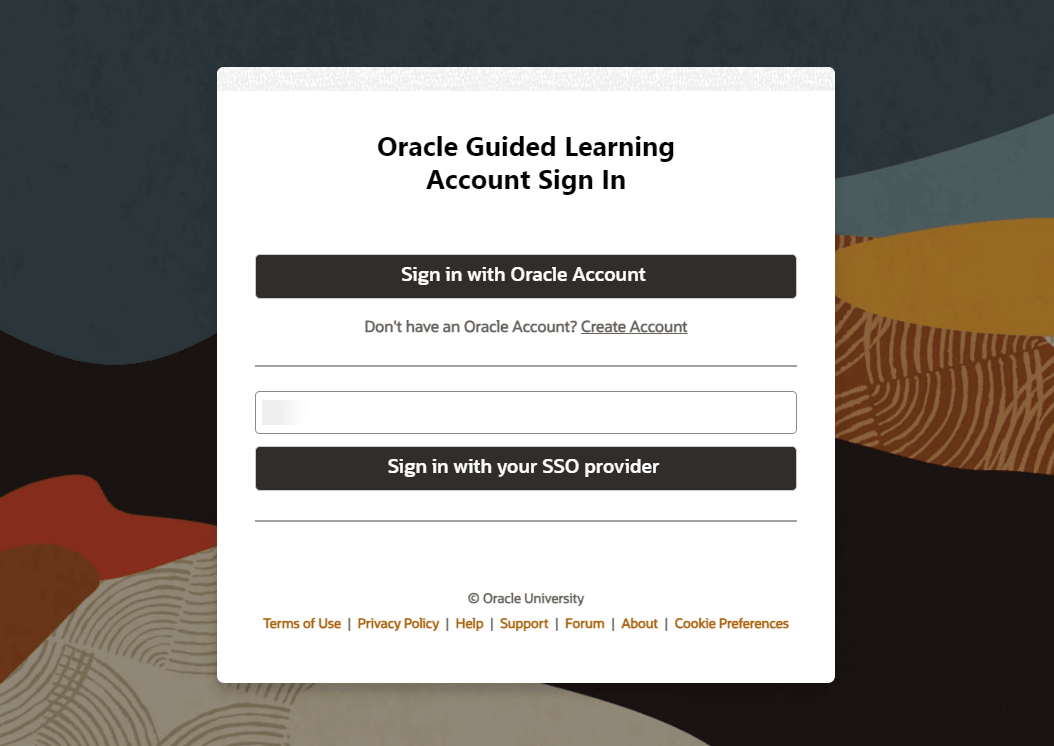
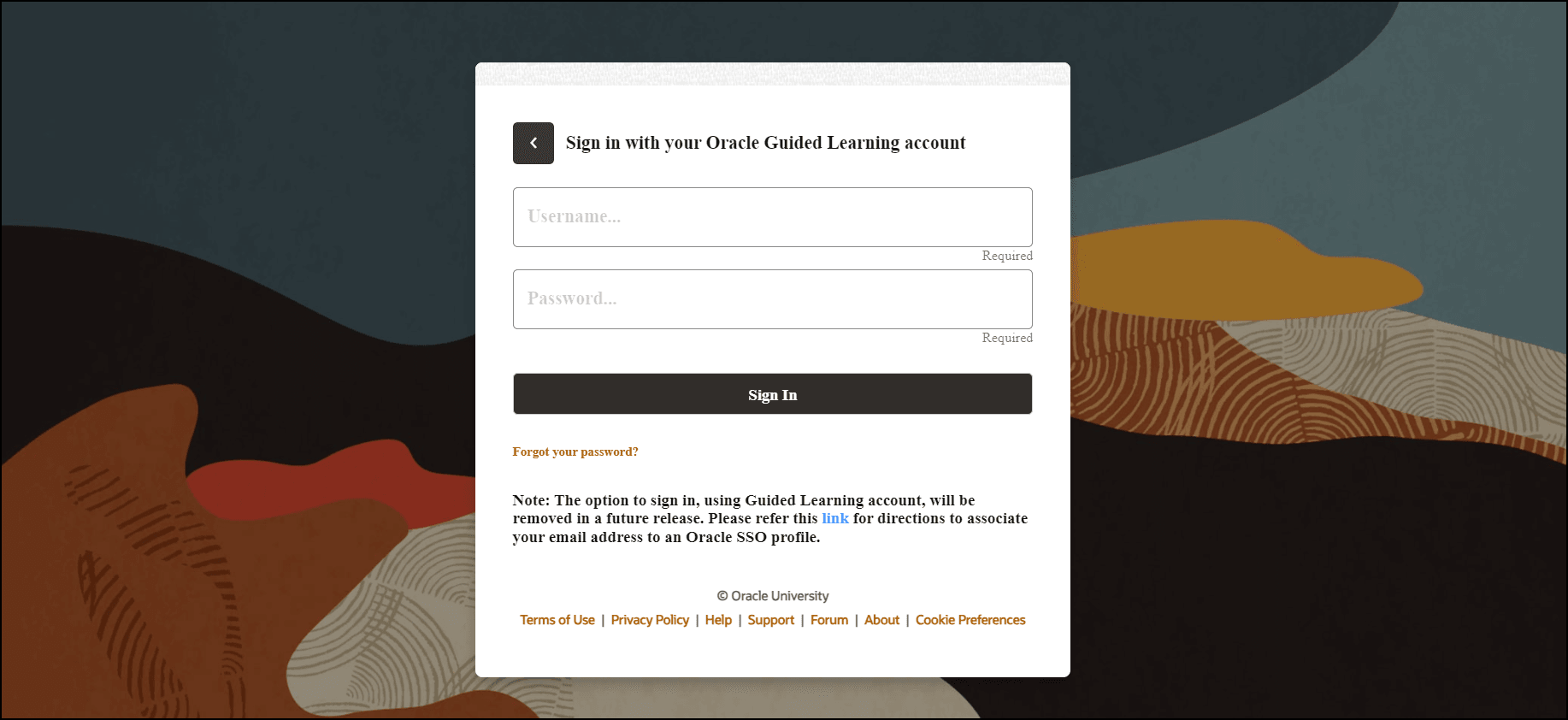
- Select Sign In.
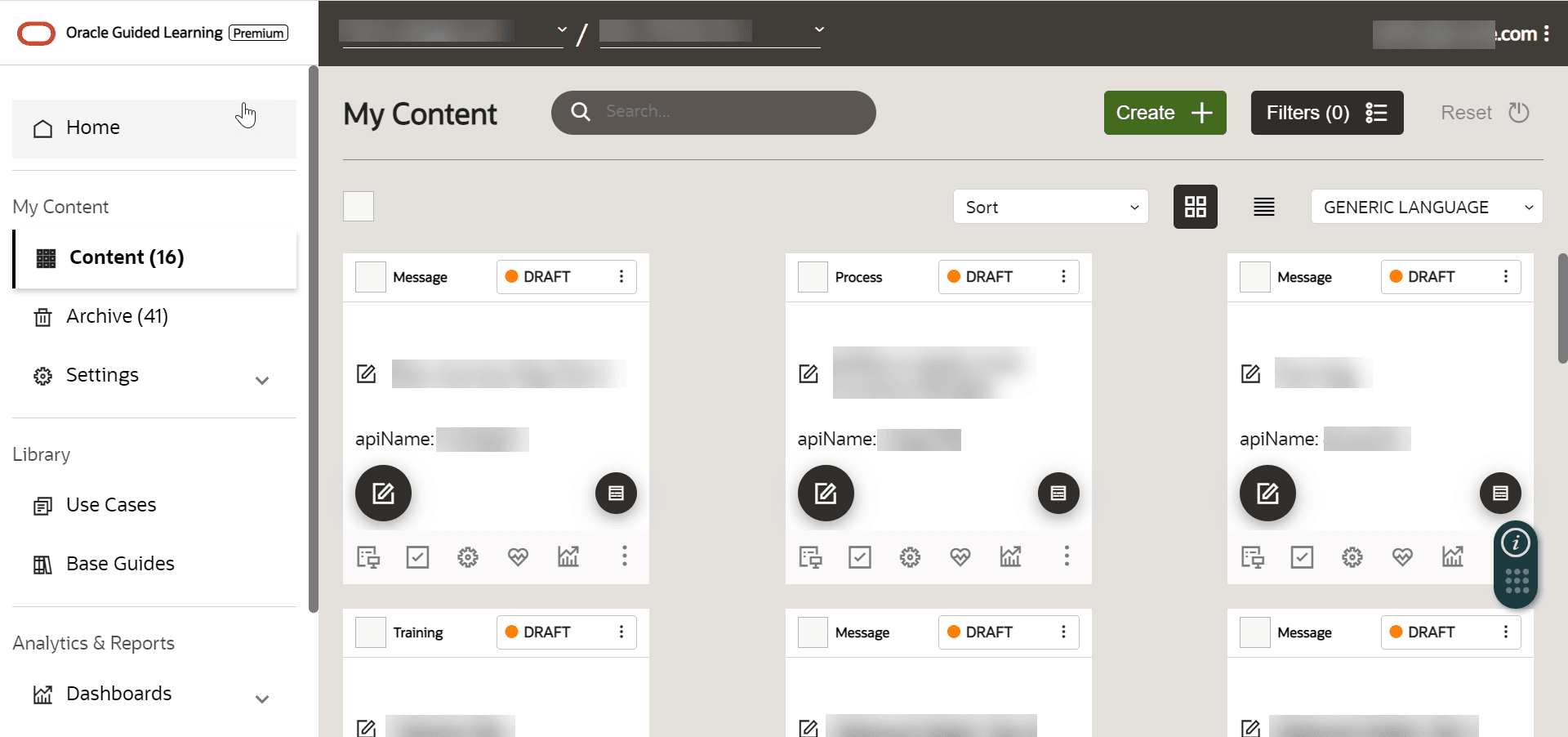
After a successful login, you will be redirected to the OGL console's Homepage.
Important:
- CAPTCHA verification will be required after two (2) failed attempts.
- The account will be locked after three (3) failed attempts.
- On the OGL console, in the right corner of the header, select the
Ellipsis icon (
 ) right after the user email ID. Then select Sign Out.
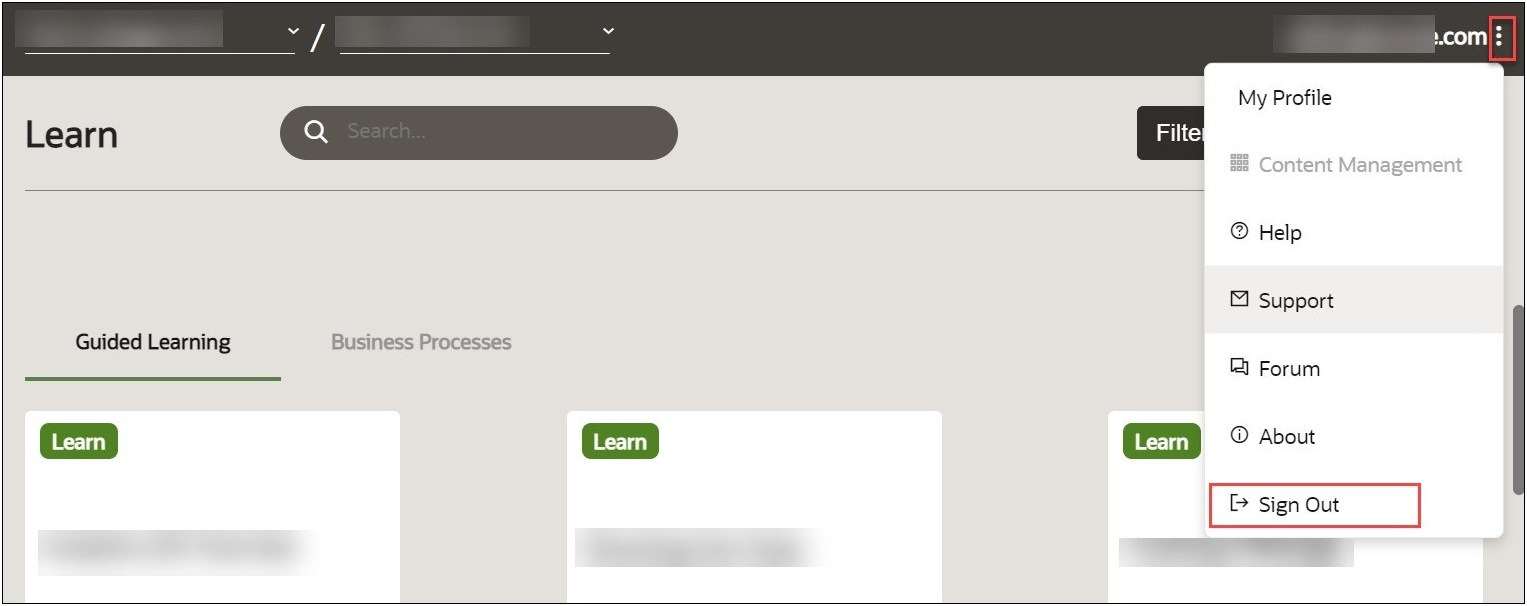
You are now logged out of the OGL Console.
OGL Editor Extension for Microsoft Edge
Beginning in OGL 25B Release, the OGL Full Editor extension is now compatible with Microsoft Edge browsers. Content developers can now use Microsoft Edge in addition to Google Chrome for guide development activities. Note: Applies only to the OGL Full Editor Extension and not the Runtime Player extension.
Installing the OGL Editor Extension for Microsoft Edge- Microsoft Edge uses the same OGL Editor extension as Google Chrome.
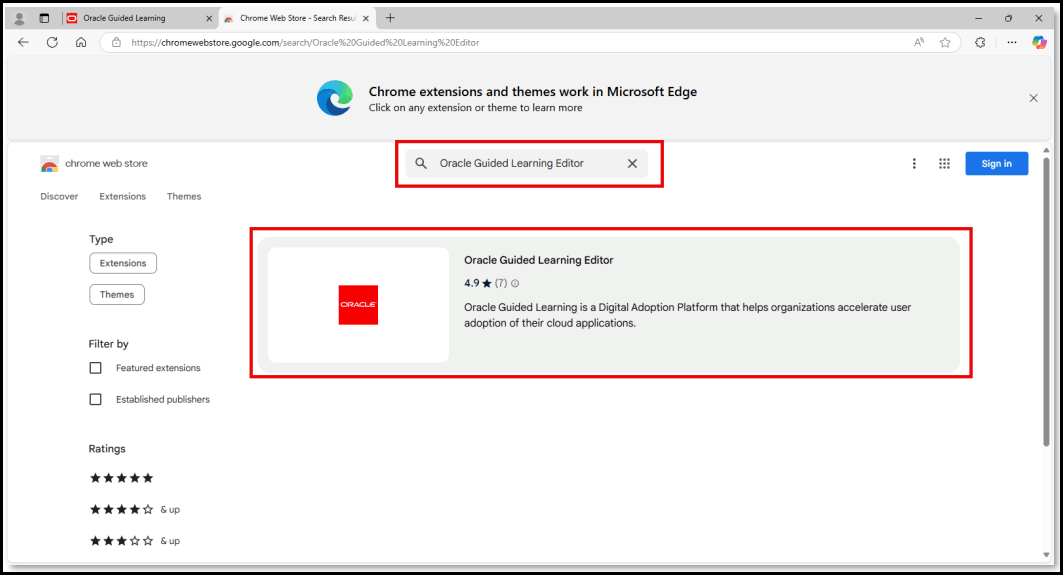
- To download and install the OGL Editor extension, users can access Google Chrome Store (https://chromewebstore.google.com/) from their Edge browser and search for the OGL Editor extension there.
- Users can then install the extension from Google Chrome store exactly as they would for the Google Chrome browser.
From your Microsoft Edge Browser, go to: https://chromewebstore.google.com/
1. In
the Search extensions and themes (  ) field type in “Oracle Guided Learning Editor” and select it from the
list.
) field type in “Oracle Guided Learning Editor” and select it from the
list.
2. Select the Get button.
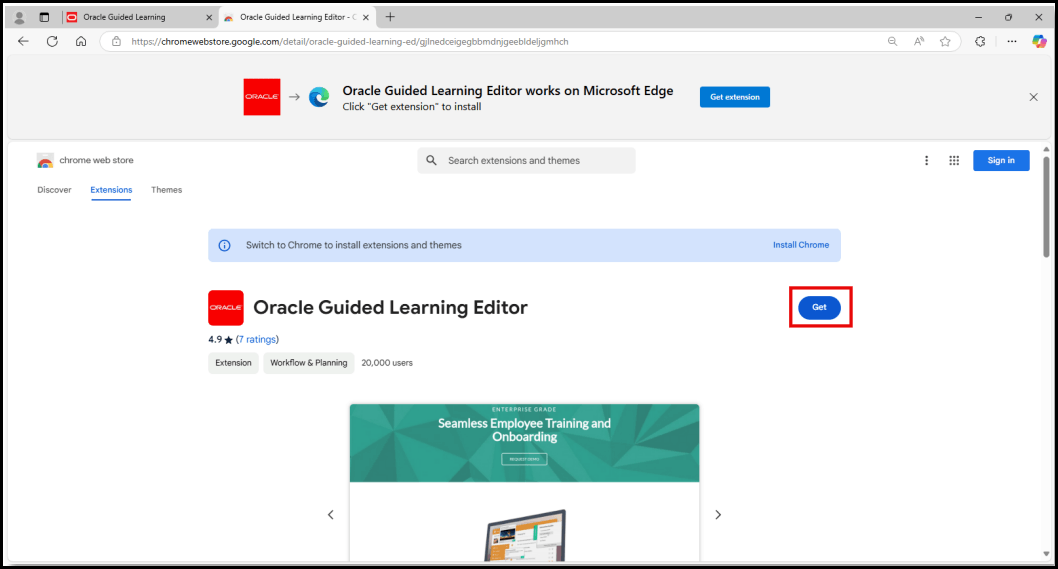
3. In the Allow extensions from other stores popup menu, select Allow.
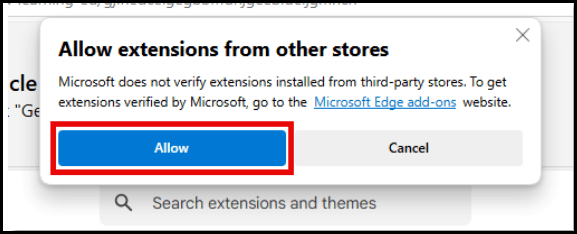
4. Select the Add extension button.
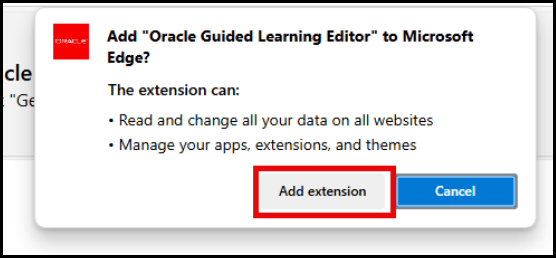
A confirmation message will appear once the Oracle Guided Learning Editor extension has been added.
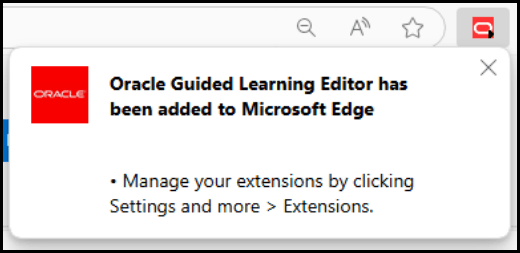
You can now sign in to Oracle Guided Learning and begin developing OGL content.
Adjust Tracking Prevention SettingsIn some cases, the OGL Editor extension may not load due to Microsoft Edge’s Tracking Prevention settings, which are designed to detect and block potentially harmful trackers found on some websites. In this case, the editor will attempt to load and will idle with a spinning wheel, as shown below:
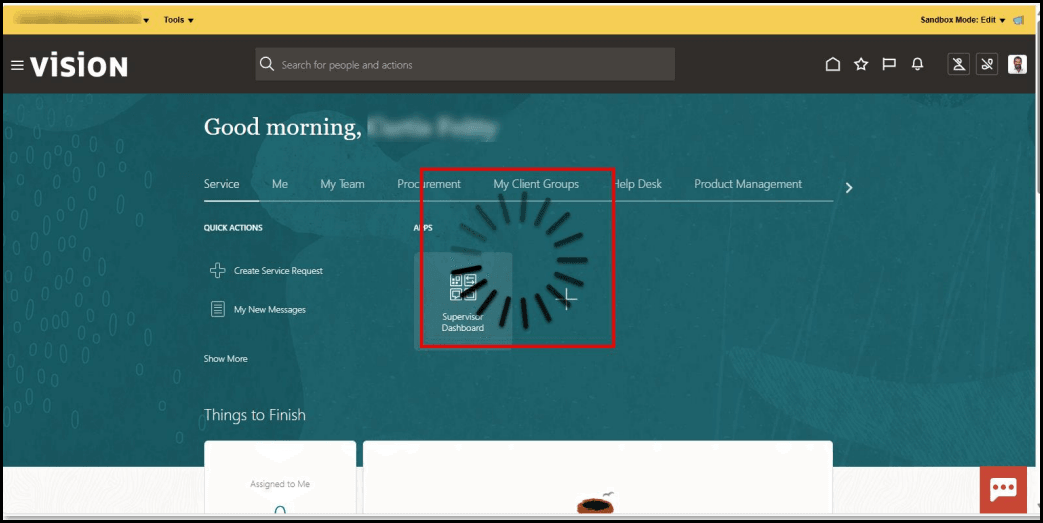
To adjust the Tracking Prevention settings,
select the Settings and more ( ) button to the right of the address bar, then select Settings from the
menu.
) button to the right of the address bar, then select Settings from the
menu.
Note:
You may need to consult with your IT Department or Network Administrator prior to adjusting these settings.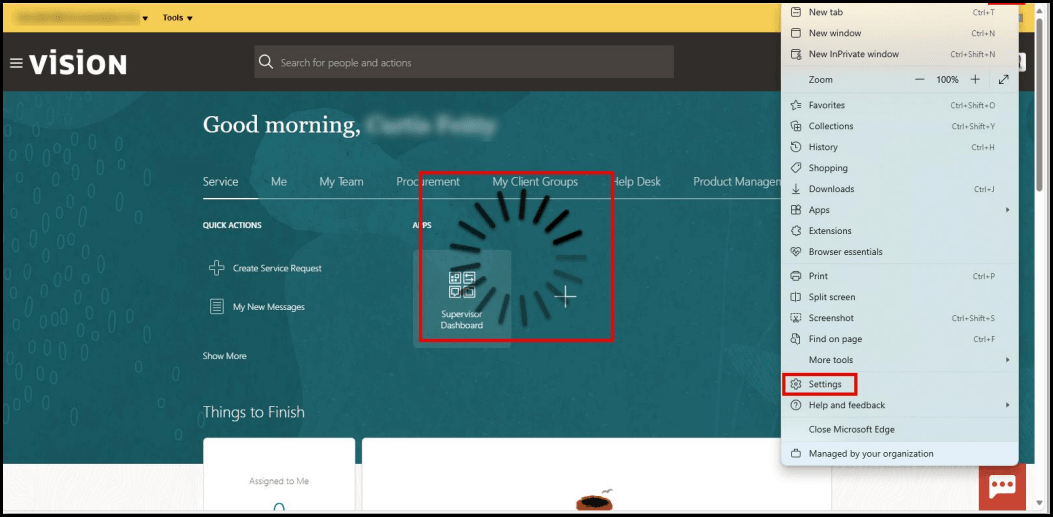
In the Settings left panel, select Privacy, search, and services, then look for the Tracking Prevention section and note the current setting (Basic, Balanced, or Strict).
Note:
Select the icon next to Tracking Prevention to learn more about how
Microsoft Edge handles trackers.
icon next to Tracking Prevention to learn more about how
Microsoft Edge handles trackers.
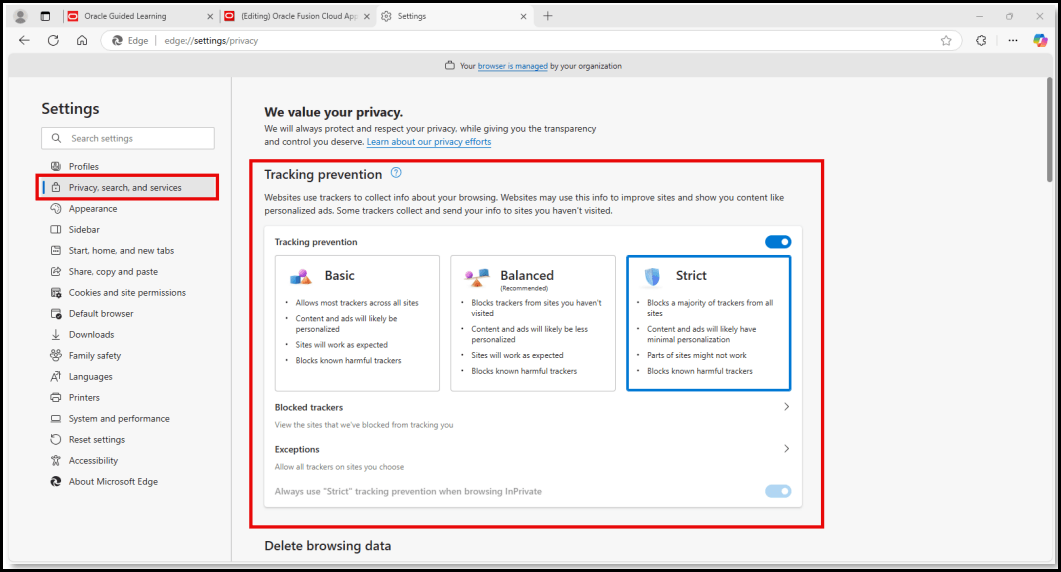
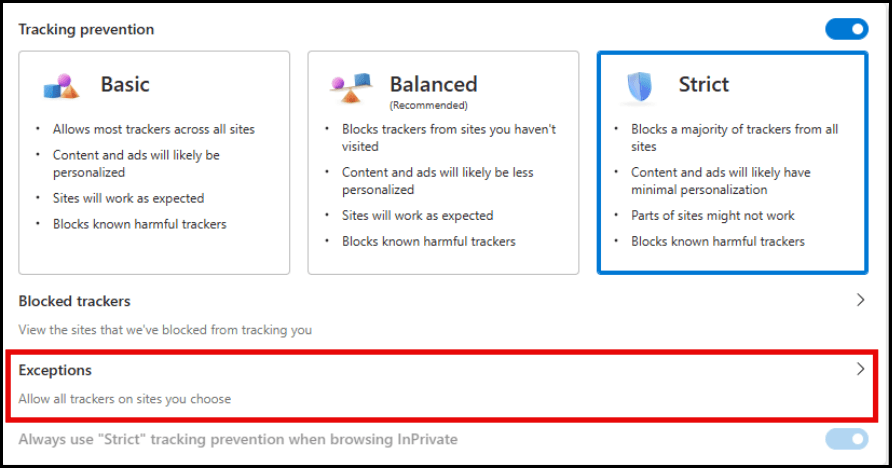
There are 3 Tracking Prevention modes:
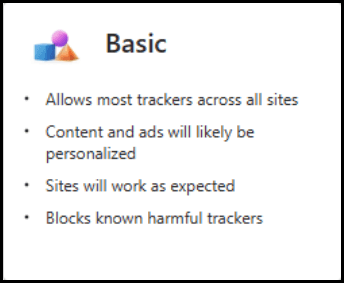
Basic: Blocks potentially harmful trackers but allows most other trackers and those that personalize content and ads.
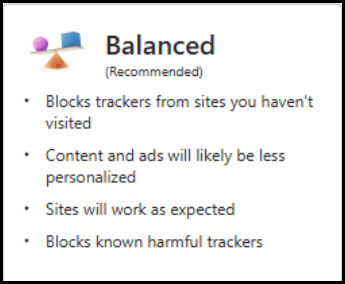
Balanced (Recommended): Blocks potentially harmful trackers and trackers from sites you haven’t visited. Content and ads will likely be less personalized. This mode will allow the OGL Editor to run on most sites and will allow you to develop OGL content on most HTML pages.
Strict: Blocks potentially harmful trackers and most trackers across sites. Content and ads will likely have minimal personalization. This option blocks the most trackers but could cause some websites to not behave as expected. For example, a video might not play, or you might not be able to sign in.
Note:
This mode may require you to add URLs to an Exceptions list for websites on which you intend to develop OGL content. See below for details about managing the Exceptions list.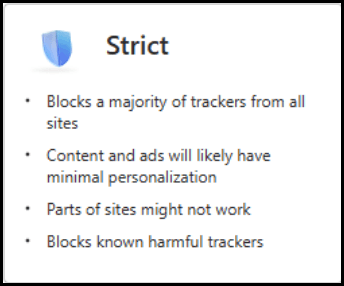 Exceptions List for Tracking Prevention in Strict Mode
If you choose Strict mode, select Exceptions in the Tracking prevention section.
Select the Add a site button to add a site to the Exceptions list.
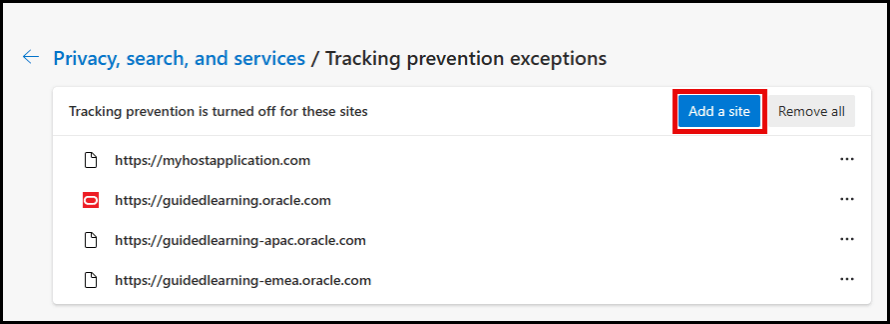
Enter the URL of the site for which you intend to develop OGL content, then select Add.
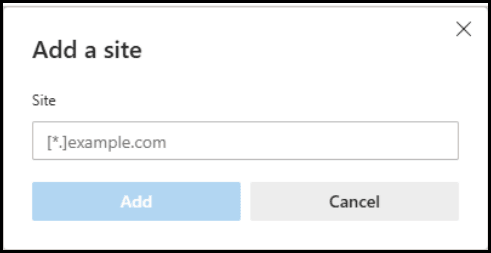
Once the site is added to the Exceptions lists, you will be able to be able to load the OGL Editor from that site.
Oracle Guided Learning SSO Integration
Oracle Guided Learning offers the flexibility of using your organization's SSO to authenticate your OGL Console session. Users still have the option to sign in manually with their OGL Console username and password. If you are interested in SSO, ask your Oracle Guided Learning contact for more information or log a request on My Oracle Support.
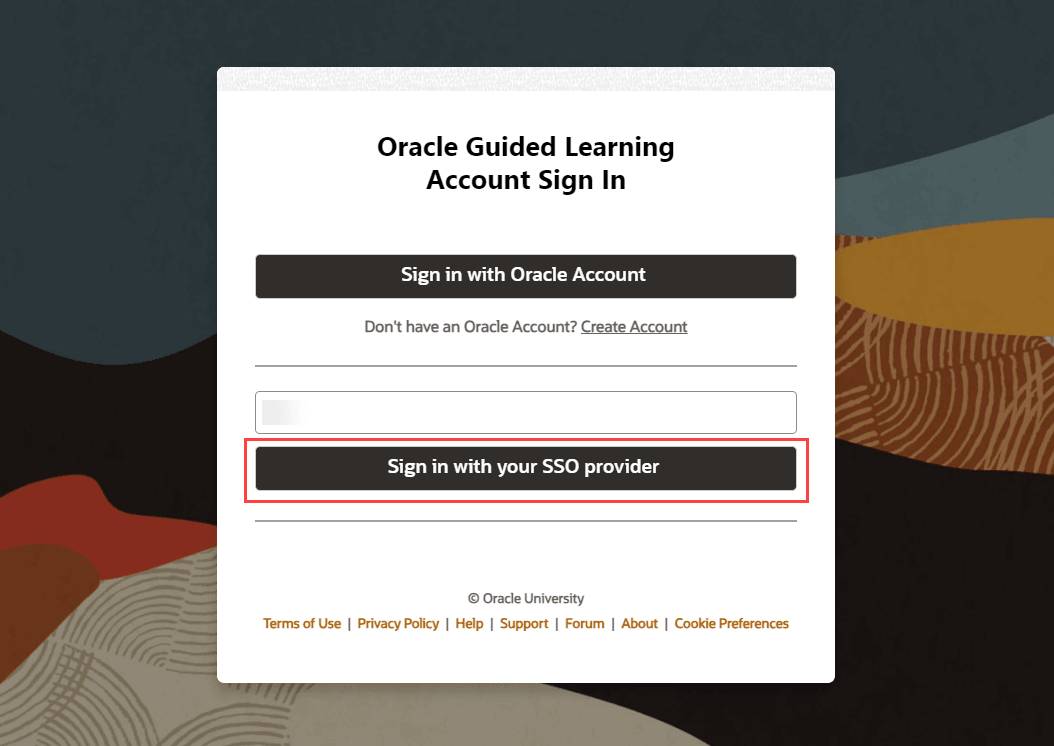
With OGL 23C release, you may need to transition your OGL sign-in process to Single Sign On (SSO) if you have not already done so. Making this transition is easy and will help ensure the highest level of security and privacy of your data. Please read the following information to understand your part in this security enhancement.
Why the change?
To better ensure the security of your data, in alignment with the latest security standards and practices, Oracle Guided Learning is moving to an SSO-only sign-in experience. For OGL users, this means a more simplified and secure sign-in process to access the OGL console.
What is your part in the change?
With 23C release, there are three options to sign in to OGL:
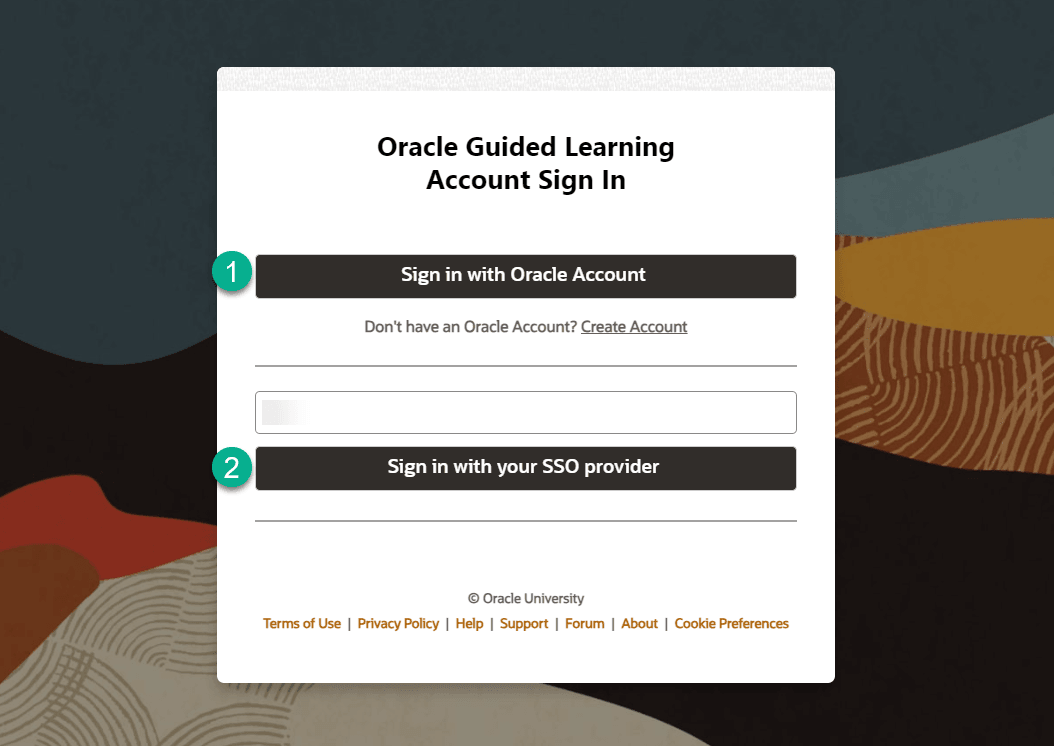
- Sign in with an Oracle Account
This is a new option in Release 23C. If you already have an Oracle Account that you are using to access Oracle services such as Customer Connect Forums, Events, and online training via MyLearn, you will now be able to use that same account to sign-in to OGL with no additional setup required. If you don’t currently have an Oracle Account, you can easily create one. An Oracle account is easy to set up and is governed by Oracle’s advanced data security policies.
- Sign in using your organization’s Federated Single Sign On
(SSO)
If you are interested in integrating your organization’s SSO with OGL, please contact your network administrator and raise an OGL support ticket to request “SSO integration”. One of our experts will work with your organization’s network administrator to guide the implementation process.
What is the benefit of adopting SSO?
By shifting to an SSO process, your access to Oracle applications and support functions will be simplified and consolidated into one login and password. There will be no impact to your current user management roles and/or entitlement process for new developers, editors and owners.
For more information:
Further information is available in this document. If you have additional questions, please engage with your OGL point-of-contact.
