Deploying Oracle Guided Learning for Oracle Cloud Fusion
Overview of the Oracle Guided Learning Integration
Oracle Guided Learning (“OGL”) works as an overlay to your Oracle Cloud Fusion (“Fusion”) environments that understands user behavior in the application and presents the content relevant to their page location and user role.
In this chapter, we will cover the steps required to deploy guided learning, including:
- Setting up your Oracle Guided Learning (OGL) account so that it gets connected with your Oracle Cloud Fusion environment(s) and then,
- Configure your Oracle Cloud Fusion environment(s) to display the desired content from your OGL account.
Before you start configuring the OGL Domain Settings, you must meet the following pre-requisites:
- OGL Console Permission: Owner > Manage Cloud Configuration
- Fusion Environment Access: Application Administrator/Implementer
- Fusion Administrator Profile Value: Guided Learning Enabled
Additional details and procedures for each of these pre-requisites are provided below.
OGL Console Permission: Owner > Manage Cloud Configuration
To access the OGL Cloud Configuration, you must have the owner permission "Manage Cloud Configuration" to edit and manage Cloud Configurations in OGL.
To enable "Manage Cloud Configuration" owner permission:- On the OGL console, go to Settings>User Management.
- Among the list of users, find your name and email ID.
- Select the Details dropdown menu under the Owner's column on the line that displays your name or email ID.
- Select "Manage Cloud Configuration" from the dropdown
options.
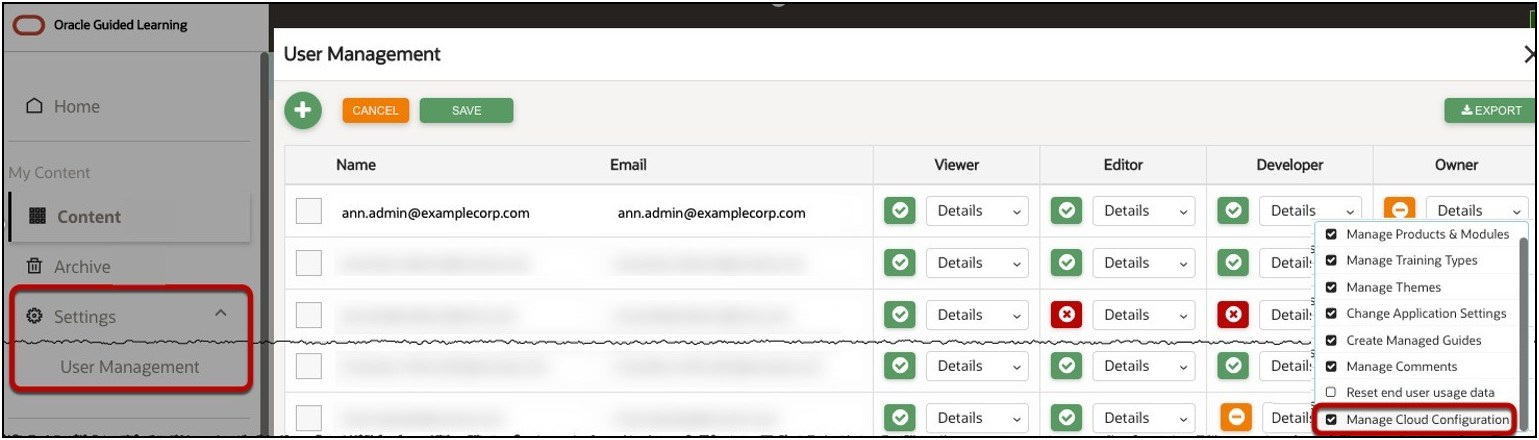
The "Manage Cloud Configuration" owner permission is now enabled for your account.
Note:
If you see the below message when accessing the OGL Settings>Application>Domains tab, ask your OGL administrator to update your user permissions to enable Manage Cloud Configuration.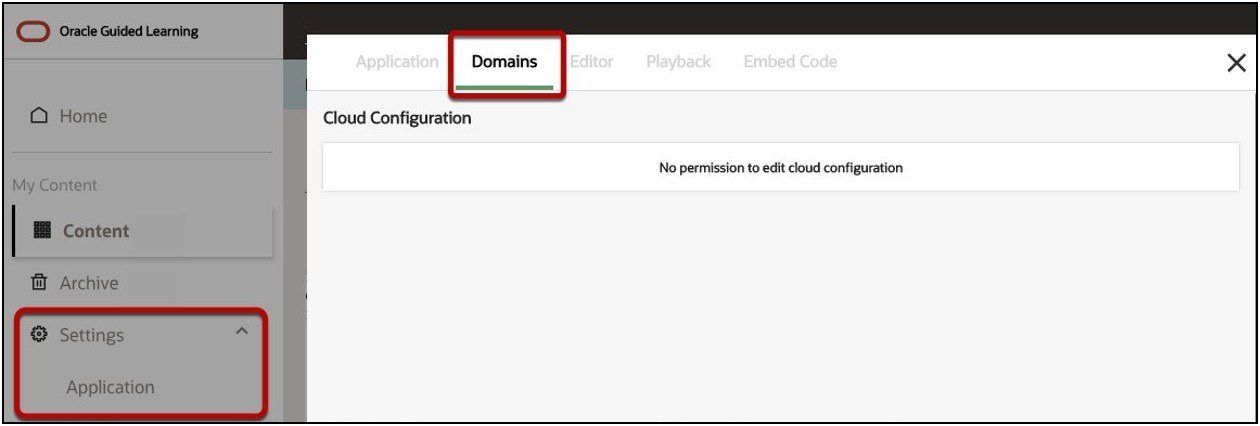
Fusion Environment Access: Application Administrator/Implementer
To enable OGL on Oracle Fusion Application(s) and to set the OGL Fusion profile value, you should log in to the Oracle Fusion application as a user with the Oracle Fusion Application Administrator/Implementor role. Specifically, you are required to:
- Create and publish an Oracle Fusion Sandbox; and,
- Access and update the Configure Guided Learning task page within Setup and Maintenance.
Note:
If you do not have access to perform these actions, please contact your Oracle Fusion Administrator.Fusion Administrator Profile Values for Guided Learning
For OGL to be applied to an Oracle Fusion Domain, the best practice is to check the Oracle Fusion Applications Administrator profile value for Guided Learning Enabled (FND_GUIDED_LEARNING_ENABLED) is set to Yes at the site level.
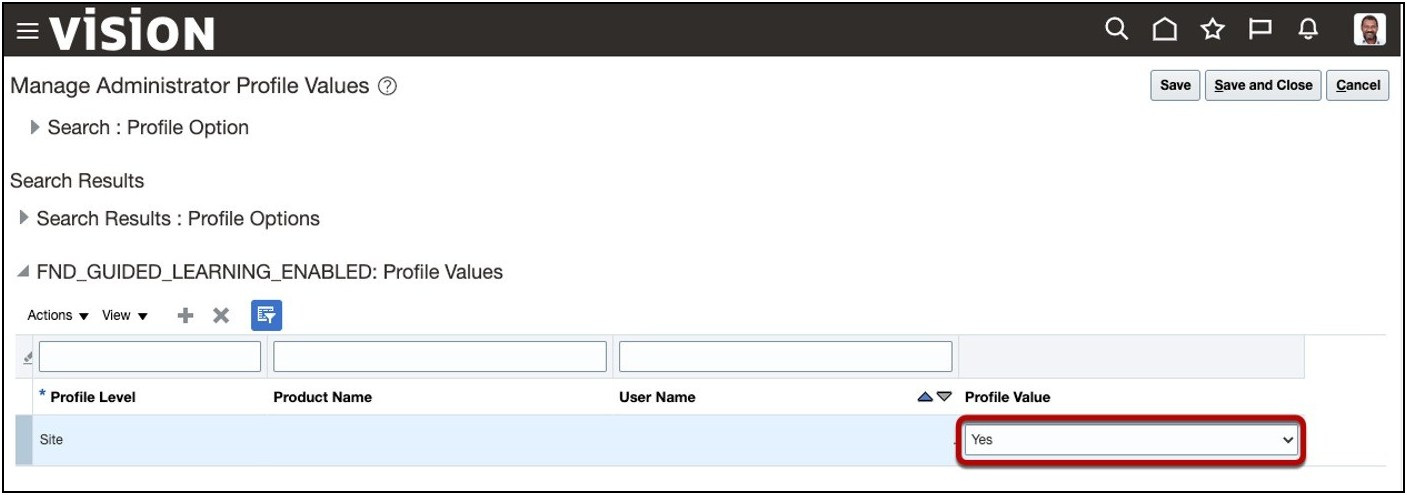 To enable the OGL profile value:
- Sign in to your Fusion instance.
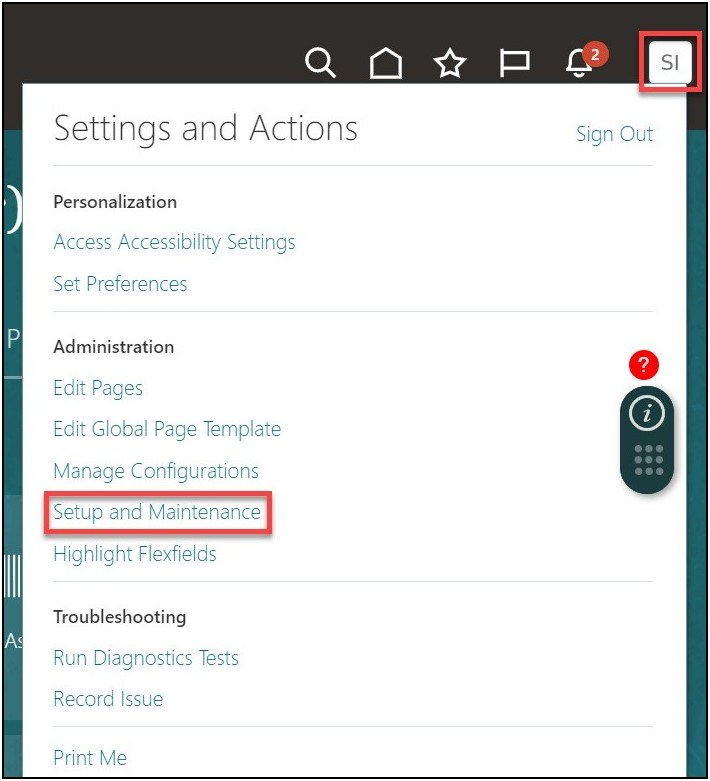
- Select the Settings and Actions icon (
 ) at the top-right corner of your Fusion homepage, then select
Setup and Maintenance from the options in the dropdown list.
) at the top-right corner of your Fusion homepage, then select
Setup and Maintenance from the options in the dropdown list.
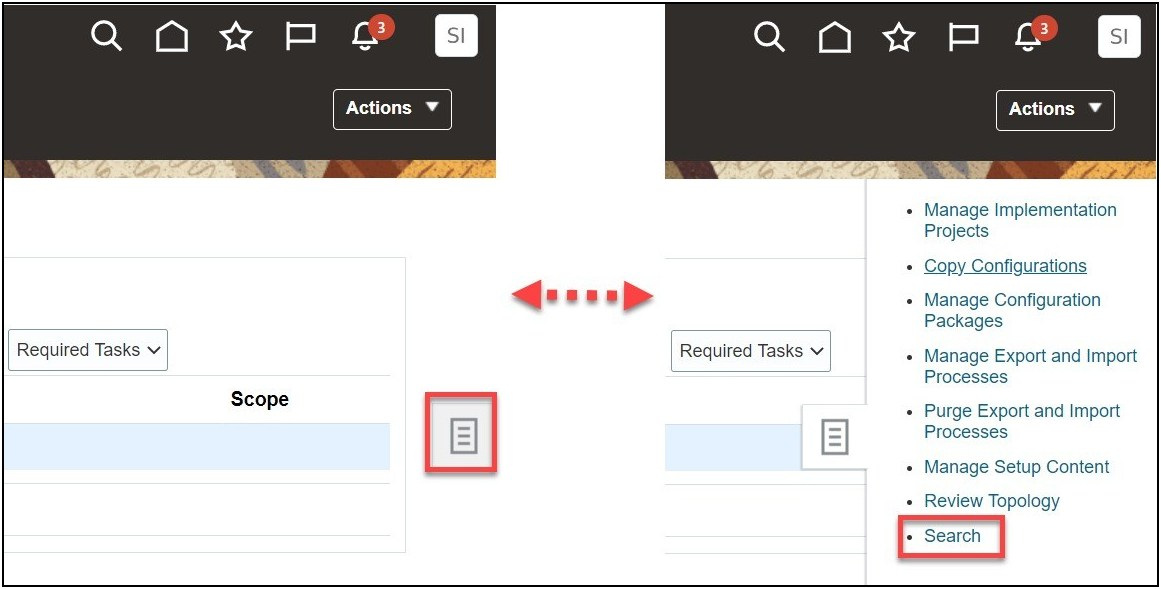
- Select the Tasks icon (
 ) on the Setup and Maintenance screen to view the slide menu.
Then select Search from the options in the slide menu.
) on the Setup and Maintenance screen to view the slide menu.
Then select Search from the options in the slide menu.
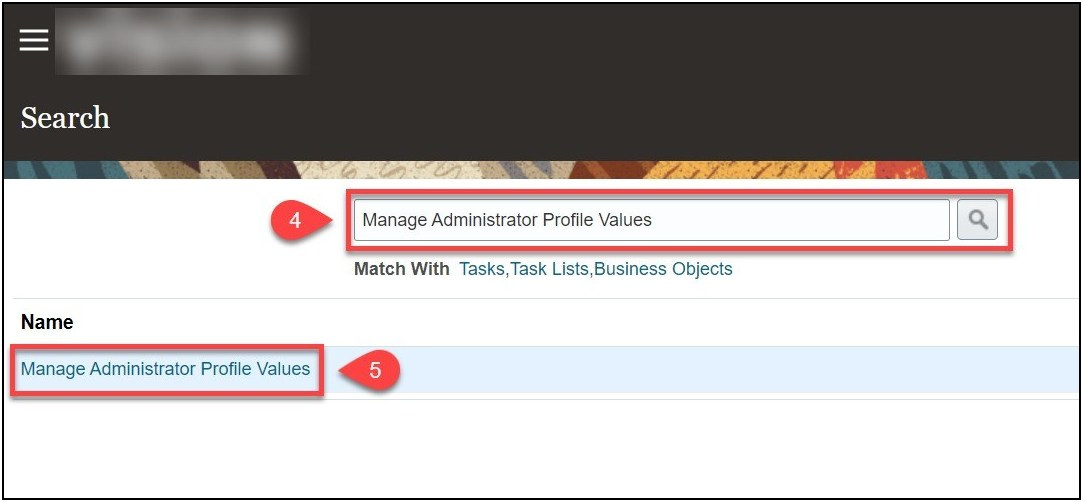
- In the search field, enter "Manage Administrator Profile
Values", then select the Search icon (
 ).
). - From the search result, select Manage Administrator Profile
Values.
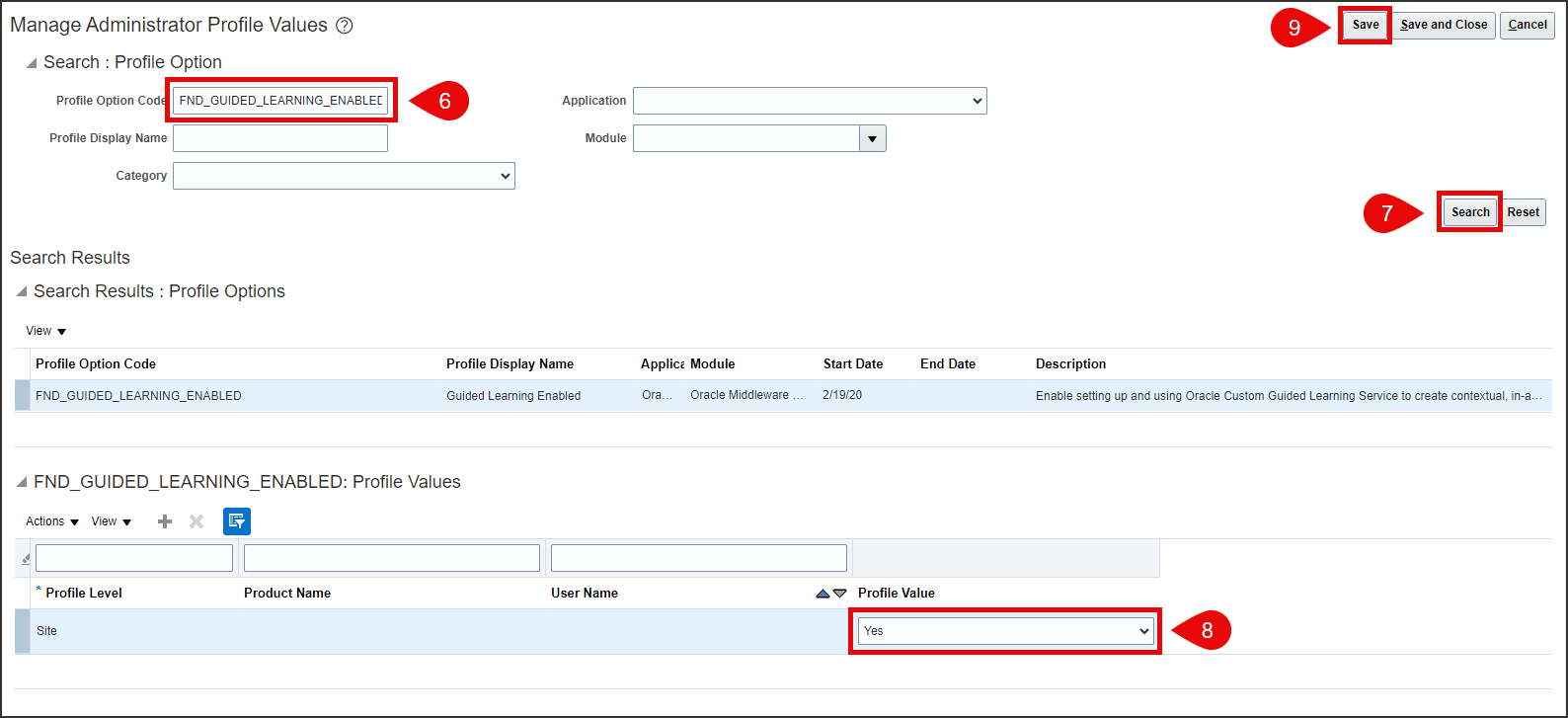
 A new window opens now, where you can manage
Administrator Profile Values.
A new window opens now, where you can manage
Administrator Profile Values. - In the Profile Option Code field, enter "FND_GUIDED_LEARNING_ENABLED".
- Select the Search button.
- Under FND_GUIDED_LEARNING_ENABLED: Profile Values, set the Profile Value to Yes.
- Select the Save and Close button on the top-right corner of
the screen.
- From the same Manage Administrator Profile Values window, replace the value in the Profile Option Code field with "ORACLE.ADF.VIEW.ALLOWED_ORIGINS".
- Select Search.
- Enter the Profile Value based on your specific data center
region, as provided below:
- NA Tenancy: 'self' https://guidedlearning.oracle.com
- EMEA Tenancy: 'self' https://guidedlearning.oracle.com https://guidedlearning-emea.oracle.com
- APAC Tenancy: 'self' https://guidedlearning.oracle.com https://guidedlearning-apac.oracle.com
- Select Save and Close.
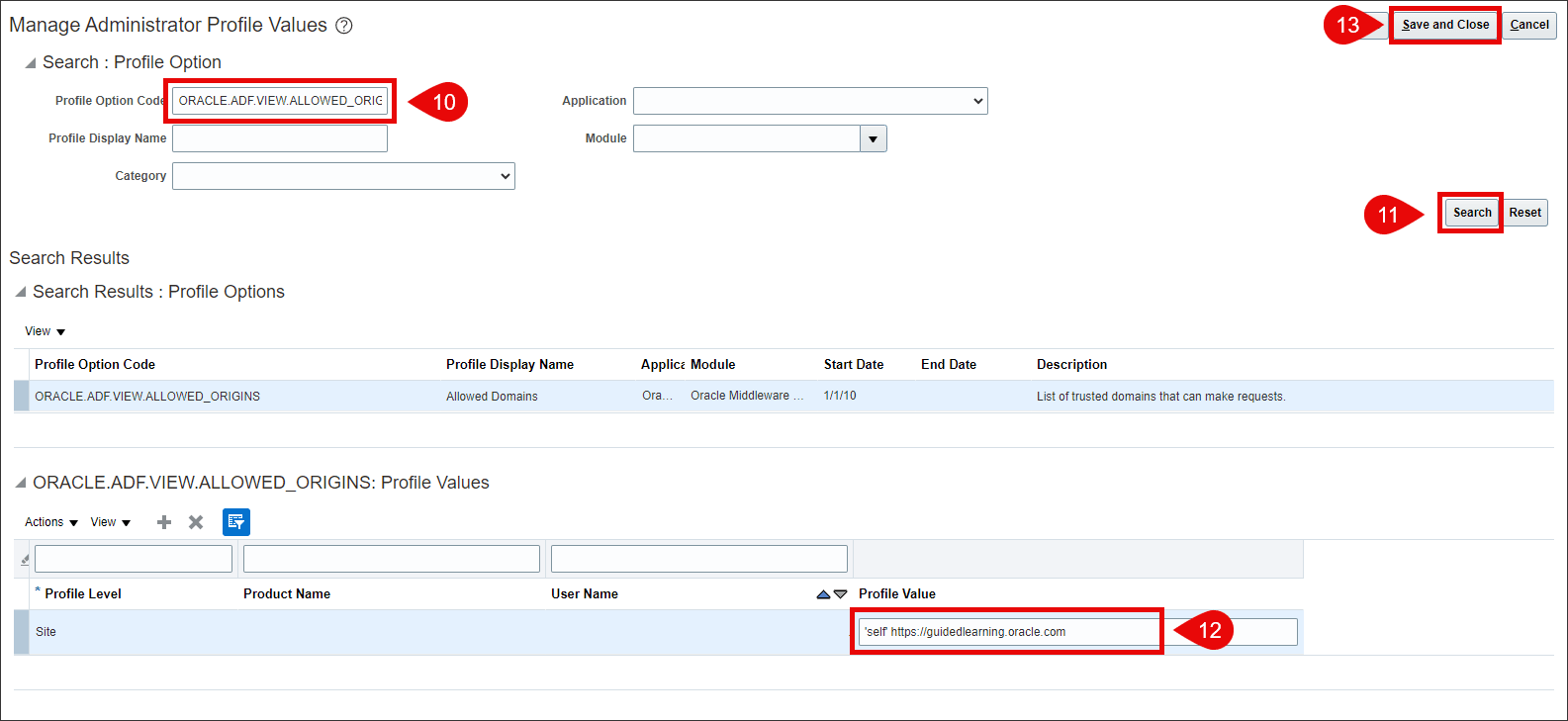
- The OGL profile values are now enabled.
Creating and Publishing a Sandbox for OGL Configuration
Once the Profile Value is set, you can create a Sandbox for OGL configuration.
To create a Sandbox and publish:
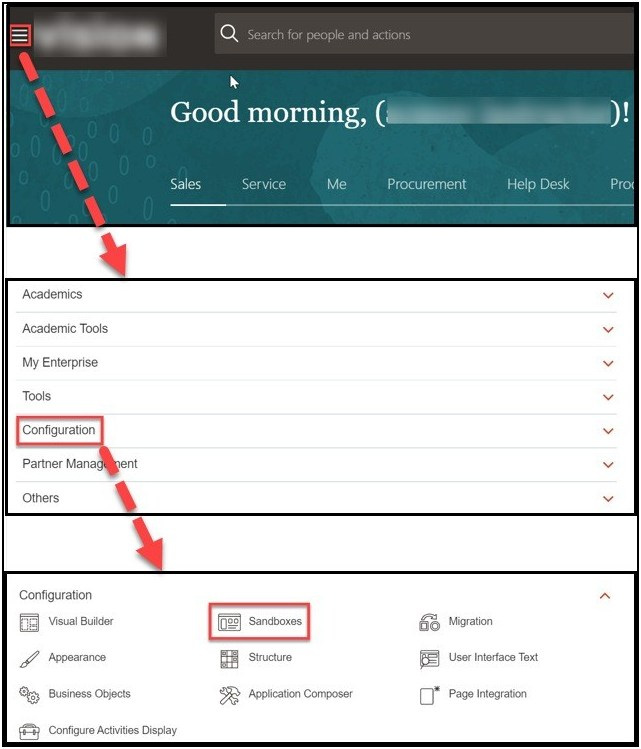
- Select the Navigator icon (
 ) > Configuration >
Sandboxes.
) > Configuration >
Sandboxes.
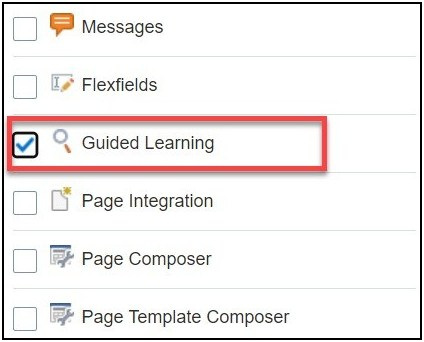
- Select Guided Learning under the available tools.
Note:
If Guided Learning is not available, complete the steps above in Prerequisite: Fusion Administrator Profile Value: Guided Learning Enabled - Select the Create Sandbox button. The Create Sandbox screen is displayed.
- On the Create Sandbox screen, enter the Sandbox Name
and an optional description.

Note:
In the absence of an internal naming convention, the following naming convention is recommended, OGL-YYYY-MM-DD-V# (i.e., OGL-2020-10-09-V1)). - Set the Publishable option to Yes.
- Select the Create and Enter button.
 The Sandbox is now created and published.
Set Up Your OGL Account to Connect to Your Fusion Domains
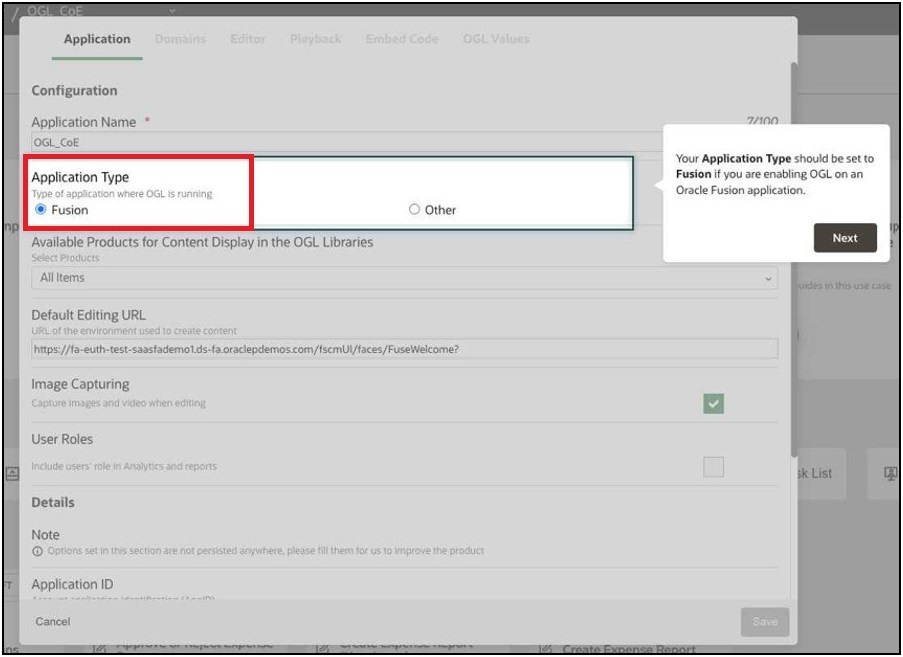
To set up your OGL Account:- On the OGL console, go to Settings>Application.
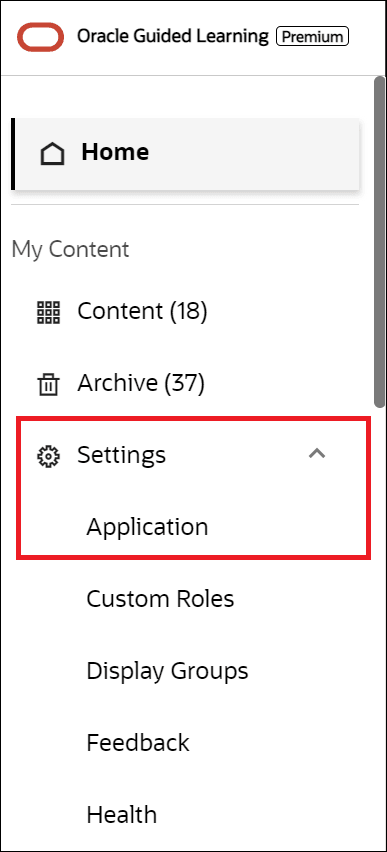
- Set the Application Type to Fusion if you are enabling
OGL on an Oracle Fusion application.
- Select Domains.
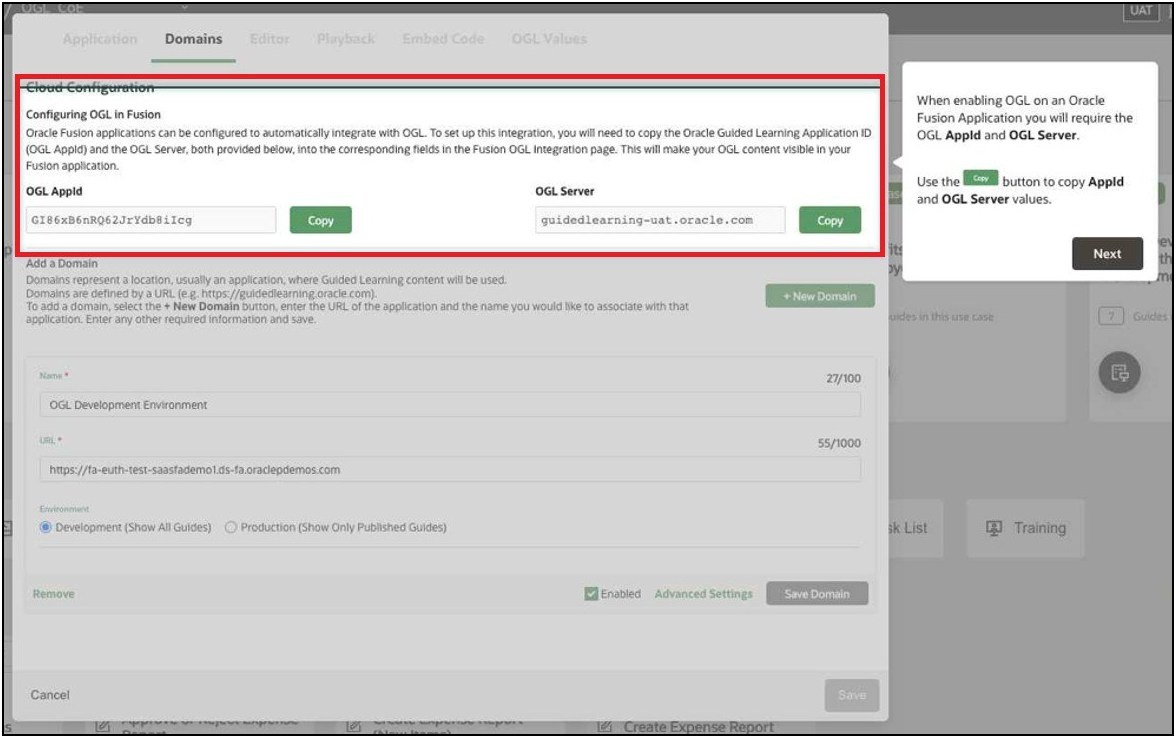
- While enabling OGL on an Oracle Fusion Application, the OGL
AppId and OGL Server values are required to complete the OGL
configuration in the Oracle Fusion application. Use the
 button to copy AppId and OGL Server valuesto the clipboard
and paste it to a text file to use later.
button to copy AppId and OGL Server valuesto the clipboard
and paste it to a text file to use later.
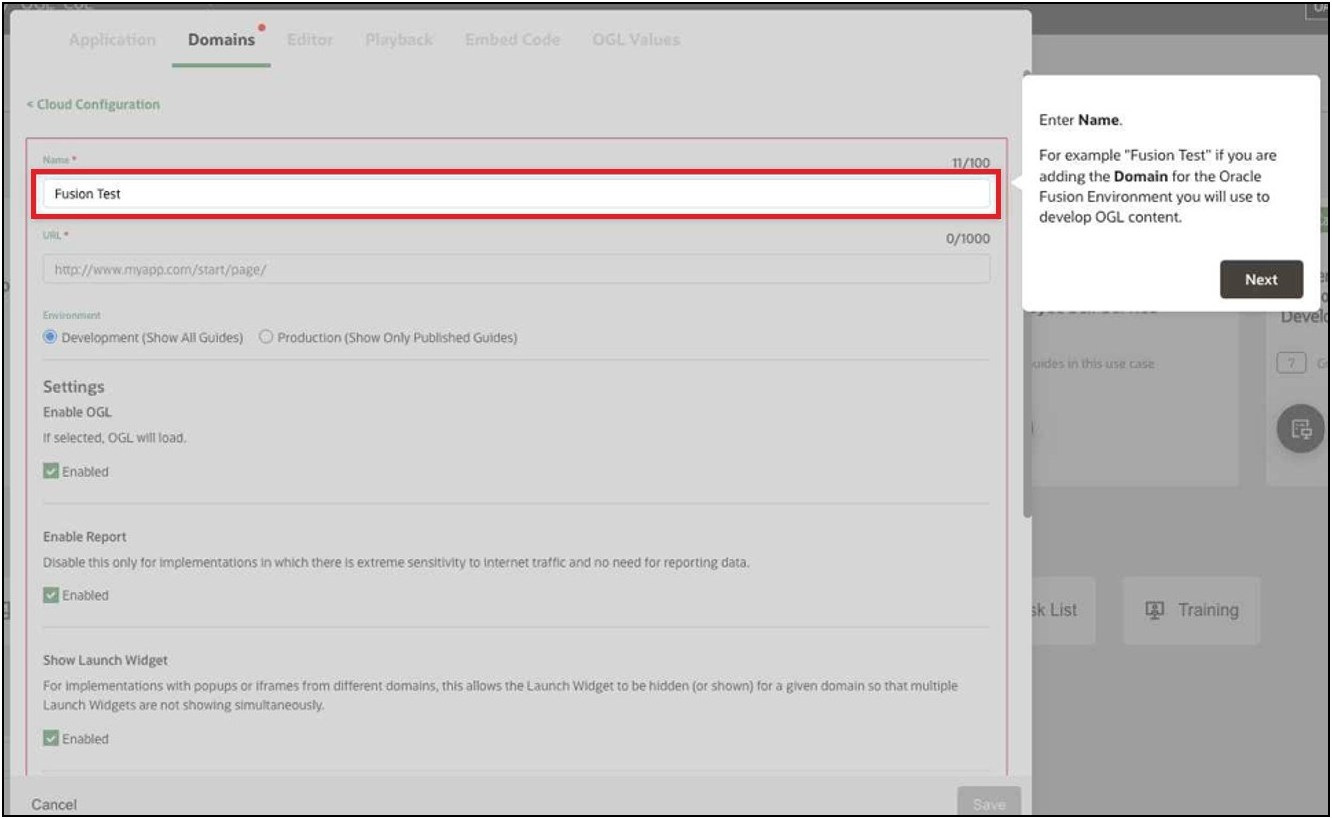
- Select +New Domain.
- Enter the desired Domain Name.For example, enter "Fusion
Test" if you are adding the Domain for the Oracle Fusion
Environment to develop OGL content.
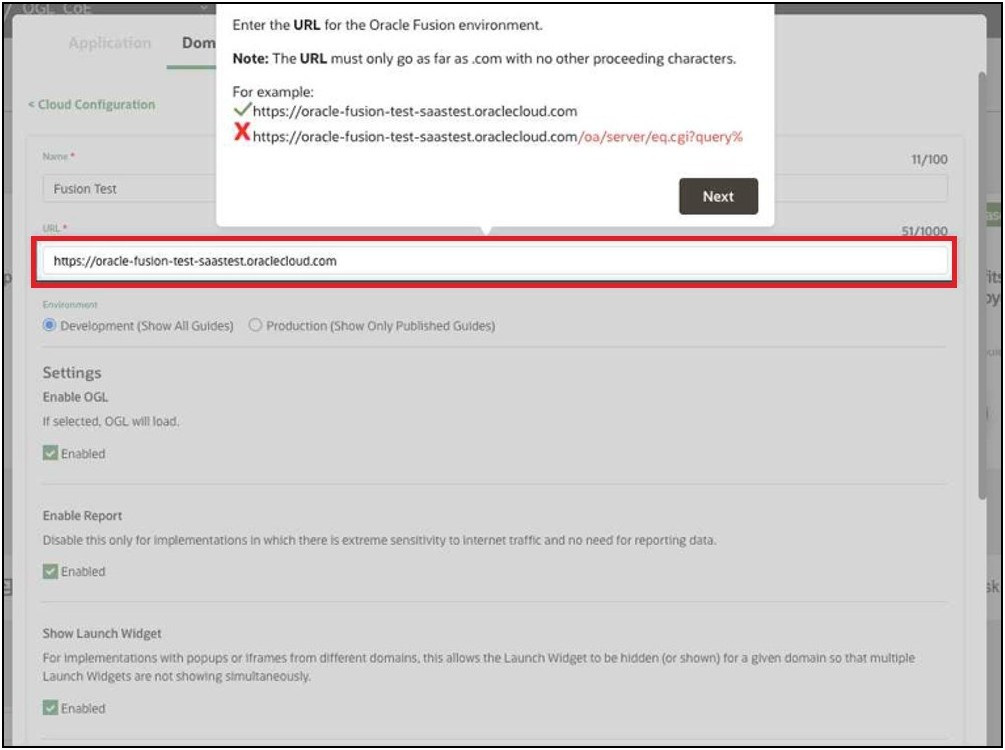
- Enter the URL for the Oracle Fusion environment domain.
Note:
The URL must be limited to the top-level domain (.com) with no other proceeding characters.For example:
√ https://oracle-fusion-test-saastest.oraclecloud.com
χ https://oracle-fusion-test-saastest.oraclecloud.com/oa/server/eq.cgi?query%
- Anonymous plus Disabled Specific Domain(s)
If you want any domain to use the OGL Domains setting EXCEPT for a given domain, you should create an anonymous domain that is enabled and keep the other domain that is disabled. In this situation, the Domains tab would look like this:
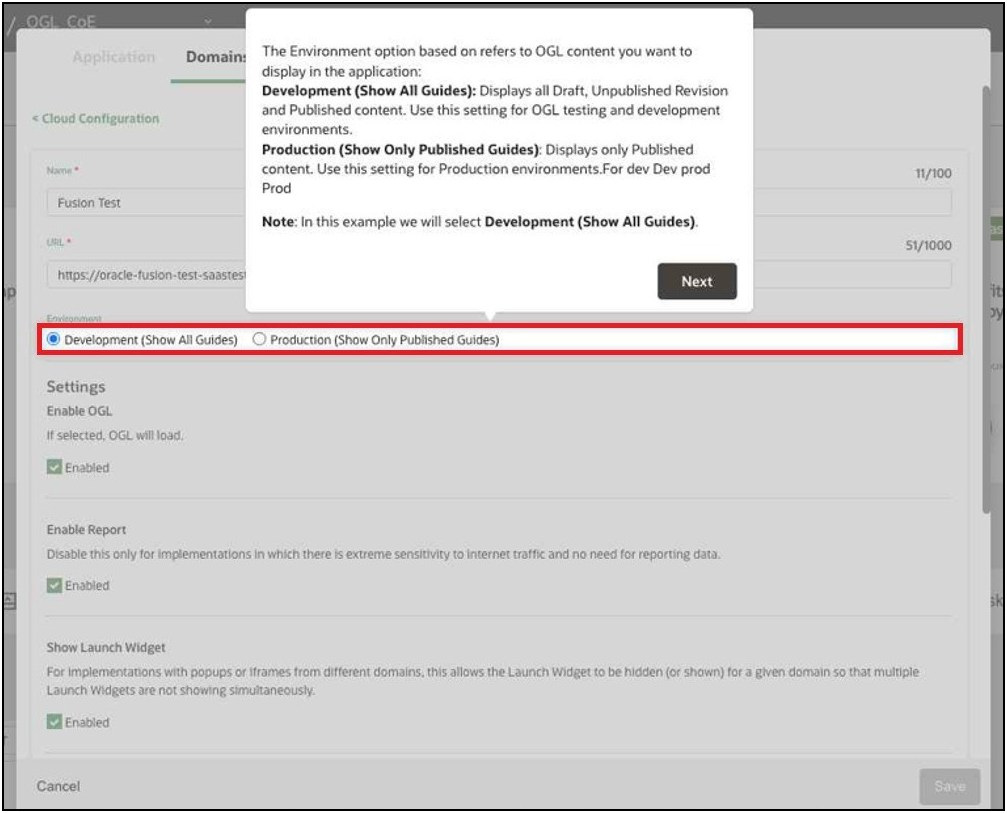
The Environment option refers to the OGL content you want to display in the application:
- Development (Show All Guides): Displays all Draft, Unpublished Revisions, and Published content. Use this setting for Fusion testing and development environments.
-
Production (Show Only Published Guides): Displays only Published content. Use this setting for Fusion Production environments.
Note: In this example, we selected Development (Show All Guides).
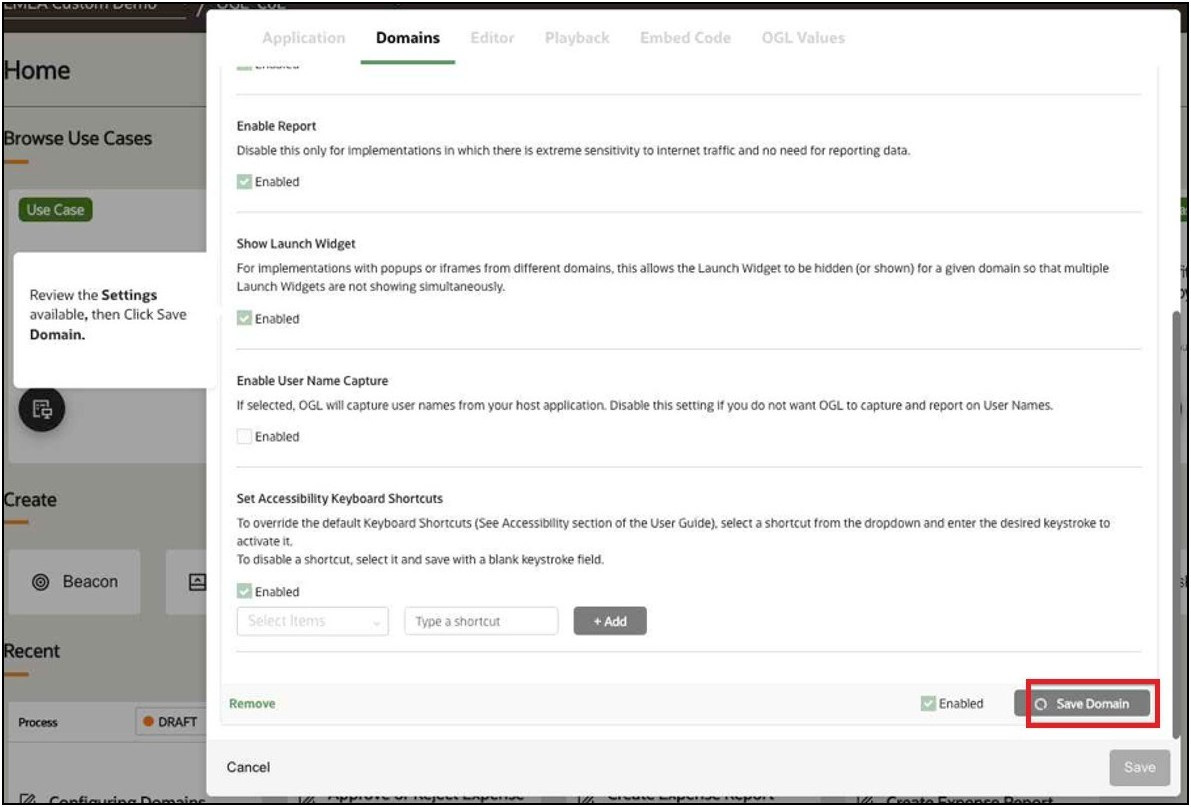
- Review the Settings available, then select Save
Domain.
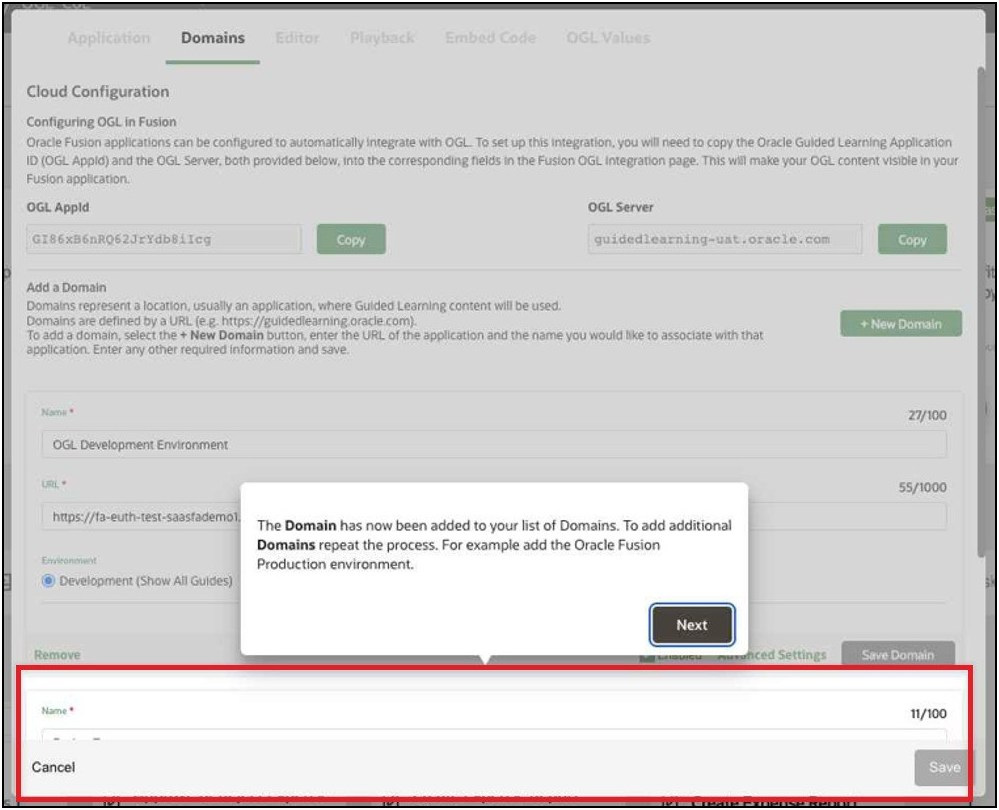
 The Domain has now been added to your list of
Domains. To add additional Domains, repeat the process.
The Domain has now been added to your list of
Domains. To add additional Domains, repeat the process.
- Select Save to save the changes and exit the modal window.
Once the Domain is added to the OGL Console, the next step is to navigate to the Oracle Fusion Application
Keep the AppID and OGL Server values handy, which is required in the upcoming process.
Complete the Configure Guided Learning Task in Fusion
To enable OGL on Oracle Fusion Application(s), login to the Oracle Fusion application as a user with the Oracle Fusion Application Administrator/Implementor role and create a sandbox that includes the Guided Learning tool set.
Note:
In this example, we have already created a Sandbox with the required user login. Click here for details on how to create an Oracle Fusion Application Sandbox.- Select the Settings and Actions icon (
) at the top-right corner of your Fusion homepage, then
select Setup and Maintenance from the options in the dropdown list.
- Select the Tasks icon (
) on the Setup and Maintenance screento view the slide menu.
Then select Search from the options in the slide menu.
- In the search field, enter Configure Guided Learning,
then select Search.
- From the search result, select Configure Guided Learning.
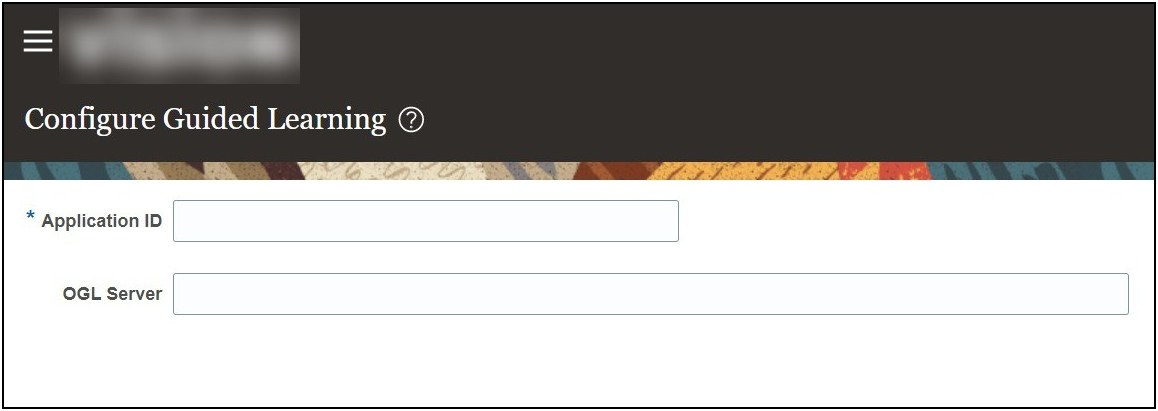
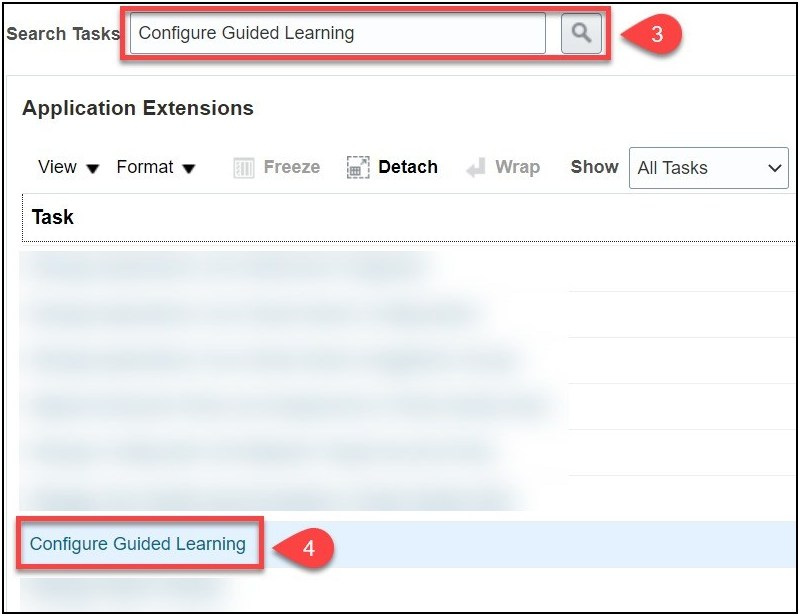 The Configure Guided Learning page is
displayed.
The Configure Guided Learning page is
displayed.
- Enter the Application ID and the OGL Server URL based
on your OGL Tenancy (You can find and copy this information from the OGL Console
in Settings > Application > Domains (see screenshot shown below):
NA Tenancy: guidedlearning.oracle.com
EMEA Tenancy: guidedlearning-emea.oracle.com
APAC Tenancy: guidedlearning-apac.oracle.com
Note:
Enter only the OGL Server name as per your console (i.e., do not include "https://" or other characters).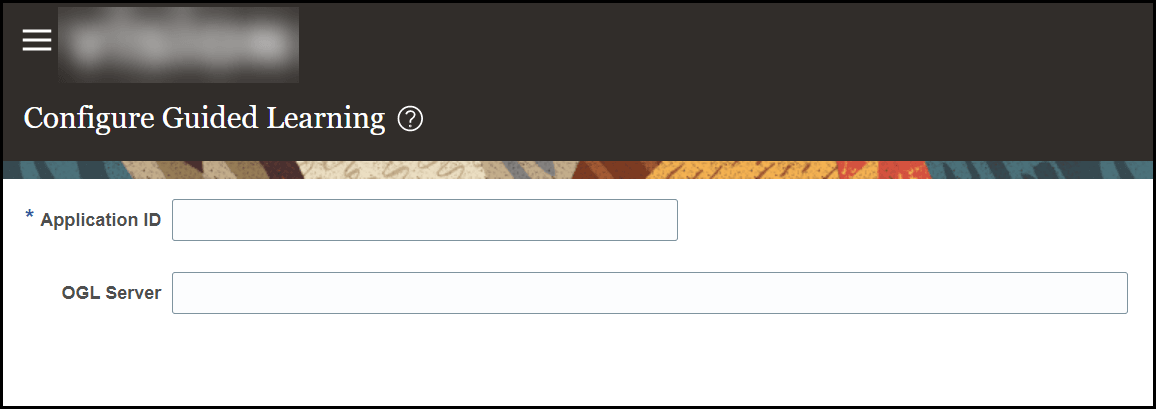
- Select Save and Close.
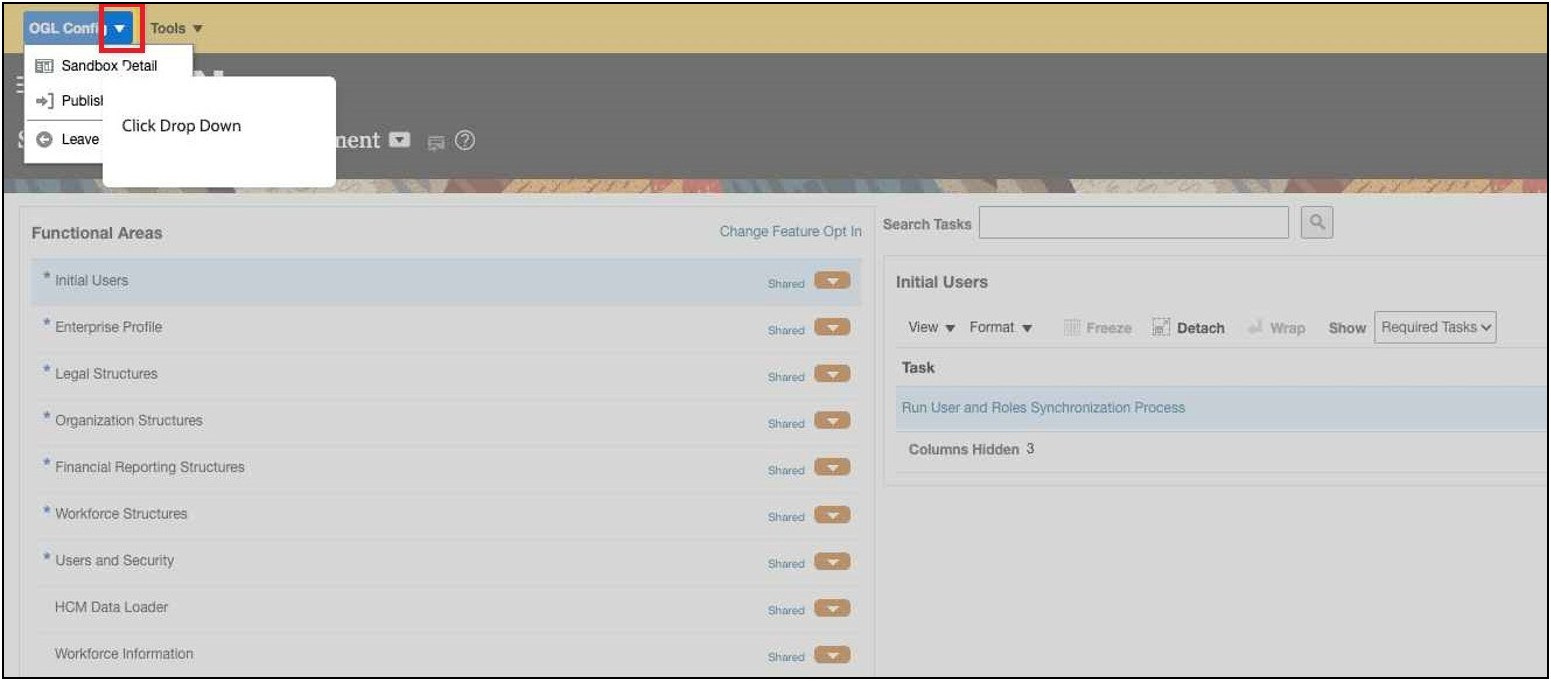
- Select the Sandbox dropdown menu.
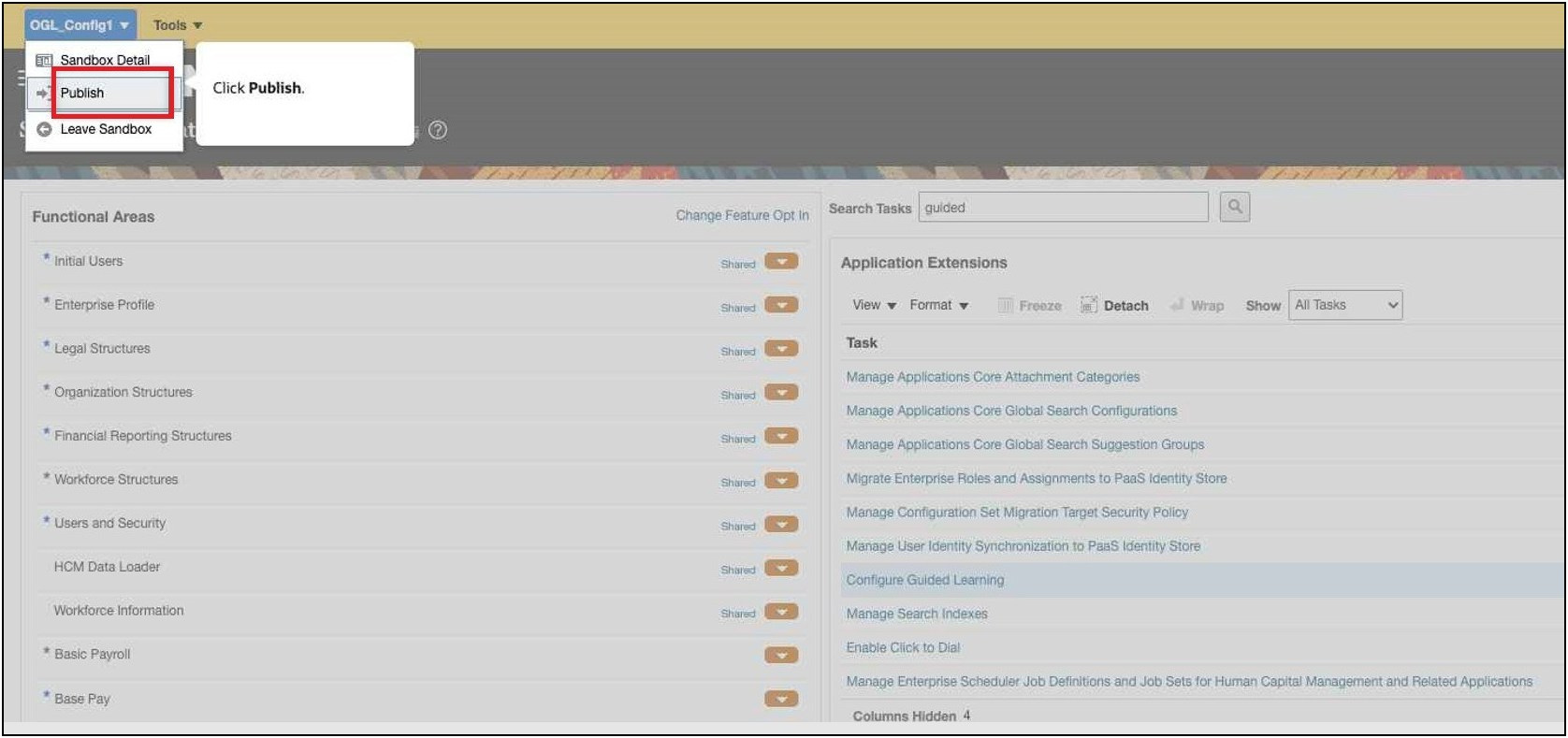
- Select Publish andthen select Yes to publish the OGL
settings for the Oracle Fusion application.
 OGL is now enabled on your Oracle Fusion Application.
You can repeat the process for all Oracle Fusion applications that require OGL
integration.
OGL is now enabled on your Oracle Fusion Application.
You can repeat the process for all Oracle Fusion applications that require OGL
integration.
Once these actions are completed, the OGL widget should display on your Home Screen.The OGL widget looks like this:

Note:
If the OGL Widget does not display, please review your organization’s Content Security Policy. For more information about Content Security Policy (CSP) errors and how to troubleshoot them, refer to the CSP Error Correction Knowledge Article.