Integrating EPM Cloud with Oracle Guided Learning
From EPM Release 24.08, you no longer need an OGL extension to view your OGL content. An enhancement in EPM, "EPM Embed" seamlessly integrates the OGL JavaScript directly with your EPM application.
Note:
This feature is available for EDM releases 24.12 onwards.User needs to have Service Administrator role to see the OGL setup page.
Note:
If you have been using an OGL extension in your browser. please follow steps 4 and 6 to de commission the OGL EPM Extension to return to configure EPM Embed as given in Steps 1 to 3 below.Follow these steps to integrate an OGL application into your EPM Cloud environment:
- Navigate to Applications, then Settings (For Financial
Consolidation and Close, FreeForm, Planning, Profitability and Cost Management
and Tax Reporting applications)
Note:
- For Narrative Reporting of EPM: Navigate to Tools, then Settings.
- For EDM: Navigate to Tools > Settings> Oracle Guided Learning.
Note:
For more information about OGL on EPM, refer to the following Documentation. - Enter the following Oracle Guided Learning Settings:
- Application ID <OGL Application ID supplied to your OGL Administrator by Oracle>
- Server URL
- Depending on your OGL data centre region, choose the Server
Value as provided below:
- NA Tenancy: https://guidedlearning.oracle.com
- EMEA Tenancy: https://guidedlearning-emea.oracle.com
- APAC Tenancy: https://guidedlearning-apac.oracle.com
Note:
Ensure to use https:// protocol when entering the OGL server URL.
- Click Save. Your OGL Help widget will start to display on
your Home screen upon re login for the OGL changes to be reflected.
Note:
Having OGL embed on your EPM/EDM application and also OGL extension may cause unpredictable behavior in the OGL interface for end users as both java scripts from the Embed and Extension can interplay.EPM Domain
EPM embed by default treats its EPM Domain as Production. This means it will show only published OGL content on such EPM domain. EPM user need to specify the Domain as Development, in order to show all guides (draft, published).
To configure your EPM environment as Development:
- Sign in to the OGL Console.
- In the left Navigation menus, click Settings> click Applications>and then click Domains.
- Select New Domain and enter the Domain Name and URL (make sure the URL is till .com, e.g. set Environment = Development.
- To render only published content, set Environment = Production, and set the domain status to "Enabled".
- Click "Save Domain".
Note:
Ensure to complete Domain entry configuration correctly for OGL content to display on all host applications, appropriate to the setting. Remember OGL content will not serve to domains not listed in OGL Cloud Configuration.
Follow steps 4 and 6 to un-install / re issue the OGL Extension.
- Remove extension from your local computer.
- Click the 3 dots in your Browser setting → Navigate to Extension → Manage Extensions → select extension to remove → Click Remove.
- If your Extensions are managed by your Company IT organization, contact your IT Administrator to have bulk removal.
- Bulk remove OGL extension from Chrome Store.
- Submit Support request
to Oracle Guided Learning support or contact your OGL Account Manager
and provide details such as
- OGL Server URL,
- OGL App ID,
- EPM Production instance URL and / or
- EPM Development instance URLs as applicable,
- the Chrome store link which was shared to you when you received the OGL Extension
- Oracle Guided Learning support will coordinate the removal of the extension from Chrome Store and update your Support request.
- Submit Support request
to Oracle Guided Learning support or contact your OGL Account Manager
and provide details such as
- Have your Extension re-issued, If you need to drop only your EPM
product from your OGL Extension retaining extension for all other Oracle
products.
Auto Segmentation
- https://docs.oracle.com/en/education/oracle-university/guided-learning/user-guide/ogl-user-guide.pdf feature in OGL helps launch the guide from the EPM users page instead of launching the guide from first step. To activate this functionality in EPM Embed you will need to enhance your EPM Embed experience with auto segmentation and perform the following steps.
- Submit Support request to Oracle
Guided Learning support or contact your OGL Account Manager and provide details
such as
- OGL Server URL
- OGL App ID
- EPM instance URL (dev / prod) where this functionality needs to be available
- For the details submitted, Oracle will include the auto segmentation function to the Customer's Java Script configuration. This will enable the OGL user to launch guides from their current page.
- Check your Application Editor setting to ensure Enable
Autogenerated Guide Conditions is turned on.
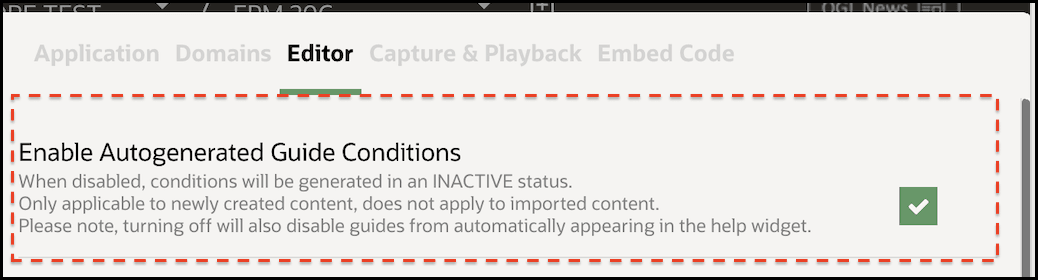
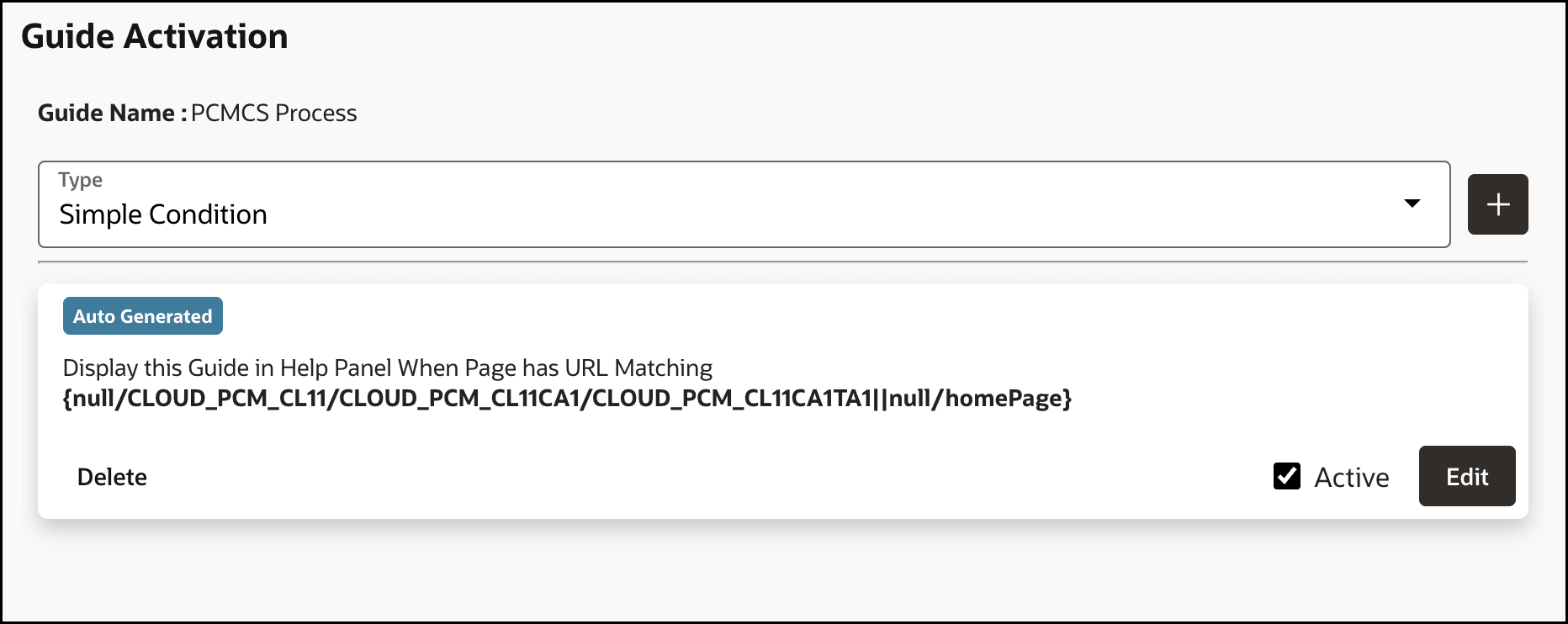
- For existing guides, Re-open the guide in Flow Editor and save.
Check the guide to verify if the auto generated route condition in activation
settings is showing properly.
- Test and deploy the guide.
- Does page auto segmentation now work with EPM Embed?
In order to get auto segmentation work for EPM Embed, Customers have to follow the steps outlined for use of auto segmentation. Refer steps 7 to 12 given above. If Customers have used EPM Extension to deploy their OGL, they need to first have Extension uninstalled / URL removed from their Extension and move to EPM Embed.
- How can Customers who have multiple 3rd party applications in
one extension, move to EPM Embed?
Customers who have multiple 3rd party applications in one extension have to follow steps 5 and 6 given above in order to move to EPM Embed.
- Does EPM Embed allow role segmentation?
EPM Embed now available in Release 24.08 does not support role segmentation / user group segmentation. This is an enhancement planned for future release. However EDM Release 24.12 supports Role segmentation for roles: SERVICE_ADMIN, ACCESS_CONTROL_MANAGER, ACCESS_CONTROL_VIEWER, MIGRATION_ADMINISTRATOR, SECURITY_ADMIN, VIEW_CREATOR, APP_CREATOR & AUDITOR
- Can Existing EPM clients who are currently using OGL via
extension trial the new EPM embed?
EPM Embed now available in Release 24.08. (For EDM releases 24.12 onwards) Client in prior release of EPM need to check with EPM support on how to get EPM embed on a lower version of EPM.
- How can EPM client currently using OGL via extension remove it
from their Chrome browser?
Customers who installed OGL extension via Chrome Store will have to follow steps 5 and 6 given above in order to remove their extension.
Customers who installed OGL extension via their local IT Administration, have to contact their local IT Administration team to have their extension removed.
Note:
Starting EPM 24.12 release, removing extension is a must before moving to EPM embed to avoid unforeseen errors. - Does Embed allow for more seamless branching (of guides) across EPM modules?
Embed allows for seamless branching
- Does Embed allow ability to better define selectors?
- Embed allows for better selector using FQID (Fully Qualified id). Refer to https://docs.oracle.com/en/cloud/saas/enterprise-performance-management-common/cgsad/creating_ogl_content_for_epm.html
- Embed allows for better selector using auto-segmentation (details on how to implement auto-segmentation is provided in the earlier sections)
- Moving away from runtime extension, and starting with EPM embed, The
application inside the iframe is another EPM application which also uses OGL
EPM embed and this causes two widgets to appear?
- A ticket needs to be raised to Oracle team to make changes, i.e. remove tline of code in Cloud config.: "showStartPanel":true
- Refresh after Cloud config is saved
- I am not seeing user names in OGL analytics dashboard, instead
I am seeing as encrypted data. How can I enable user names to show in OGL
analytics dashboard?
- Submit Support request to Oracle Guided Learning or contact your OGL Account Manager and provide details of your OGL App ID. Oracle will process the support request and start to capture "user name" in Customer's OGL analytics. You may then navigate to OGL Settings / Application/ Domains / Advance settings /Enable User Name Capture.
- Please make sure your EPM version is 24.12 or above.
Note:
The analytics data will show “user first name” from the time, this setting has been updated.
- What is EPM Automate?
EPM Automate enables users to remotely perform tasks within Oracle Enterprise Performance Management Cloud environments. For more information about EPM Automate, refer to this topic in the Oracle Fusion Cloud EPM User Guide: https://docs.oracle.com/en/cloud/saas/enterprise-performance-management-common/cepma/using_epmctl.html
- How do I install EPM Automate?
You install EPM Automate to run commands. Some commands can also be run directly in Oracle Enterprise Performance Management Cloud using Groovy scripts without installing EPM Automate. EPM Automate installer for Windows and Linux/UNIX, and macOS X is available from your EPM Cloud environment. Refer to the links below for instructions on how to install EPM Automate:
For Linux/UNIX/macOS X: https://docs.oracle.com/en/cloud/saas/enterprise-performance-management-common/cepma/installing_epm_automate_linux_unix.html
- How do I set an IP Allow list of IP Addresses in EPM Cloud?
In some instances, you may need to setup and configure an IP address allowlist of the OGL server or the outbound IP address of the data center that hosts the OGL server must be added to the IP allowlist in order to connect to OGL server. By configuring an 'allowlist' or a 'denylist', adminsitrators can control whether Internet Protocol (IP) addresses belonging to a network can connect to an environment. An allowlist contains rules that define which IP addresses can access an environment while a denylist contains rules that exclude IP addresses from connecting to an environment.
For information and instructions on how to set IP allowlist, refer to the following topic in the Oracle Fusion Cloud EPM User Guide: https://docs.oracle.com/en/cloud/saas/enterprise-performance-management-common/cepma/epm_auto_set_ip_allowlist.html
- How do I upload files from local computer to the service?
Refer to the instructions outlined in this topic in the Oracle Fusion Cloud EPM User Guide: https://docs.oracle.com/en/cloud/saas/enterprise-performance-management-common/cepma/epm_auto_upload_file.html
