Optimization Dashboard
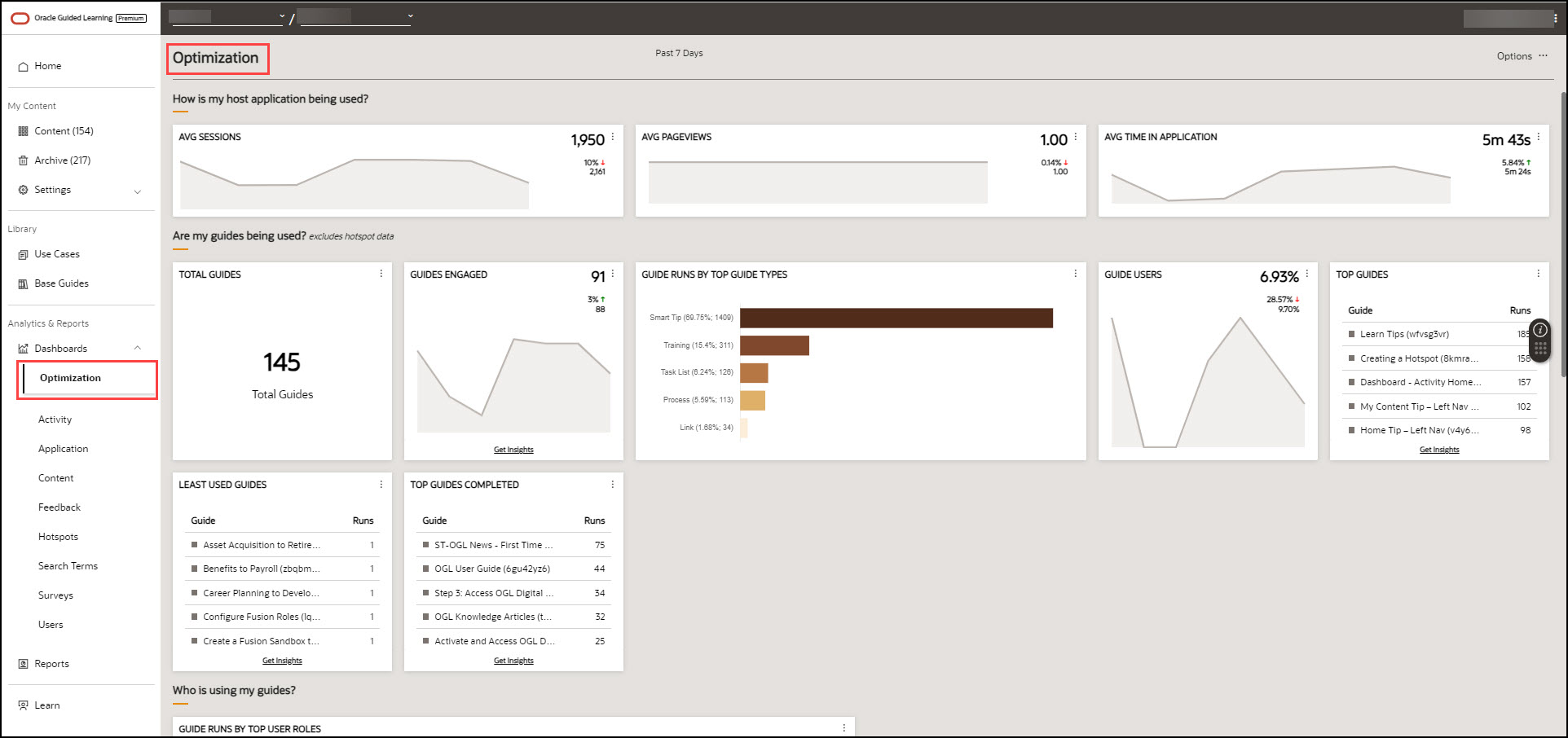
The Optimization dashboard is designed to provide a comprehensive analytics overview of recent host application activity and guide utilization over a fixed timeframe. The dashboard is comprised of data tiles called "widgets" that display analyses of various metrics, such as, top user roles, events based on activation conditions, feedback trends, and highlights any potential guide issues. The Optimization dashboard also provides second-level drill-down tables that allow you to get insights about guides with just one click, enabling you to quickly filter selected guides for efficient guide management.
Accessing the Optimization Dashboard
- On the left Navigation Panel, select Dashboards >
Optimization.The Optimization dashboard is now displayed.
Tip:
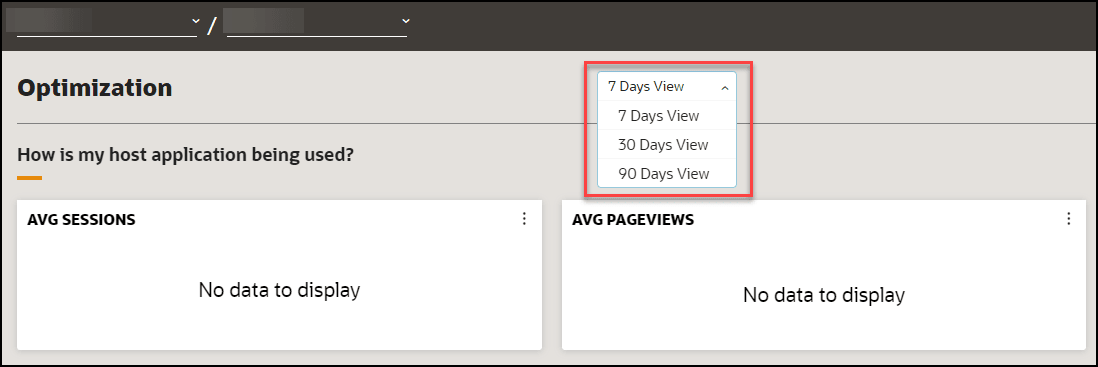
By default, the Optimization dashboard shows analytics data for the last 7 days. Beginning in release 23C, you will also have the option to select timeframes of 30 or 90 days for an extended view.
To view the Optimization data for an extended period, choose the filter at the top of the page and select the desired timeframe (Valid from release 23C onwards).
The Optimization dashboard offers insights on important daily and weekly metrics sorted by content health and target application traffic. It identifies areas that need improvement and provides detailed information on their health status.
What You Can See on the Optimization Dashboard
How is my host application being used?

In this section, you will find graphs that display Average Sessions, Average Page Views, and Average Time In Application. These graphs provide insight into how users interact with your host application.
Average Sessions
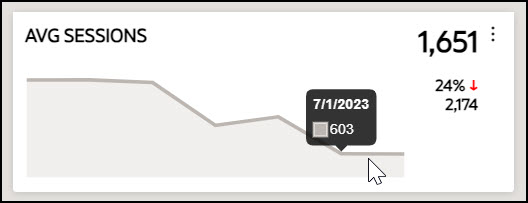
A session is defined as the continuous period of user activity within a chosen host application, such as HCM or ERP. The Average Session is calculated by taking the average of all the sessions recorded within the past chosen interval.
Average Page Views
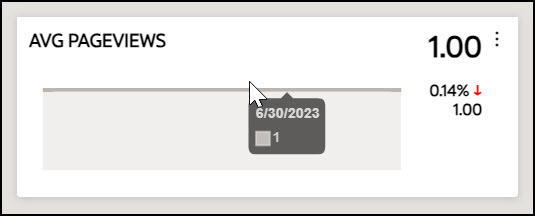
The Average Pageview is the average number of times a unique page is visited in the selected host application within the past chosen interval.
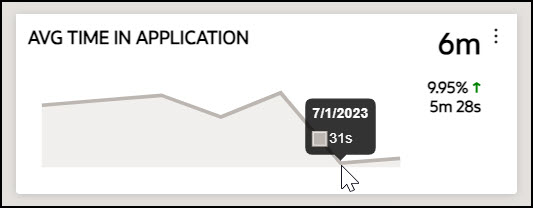
Average Time In Application
The Average Time in Application is the average amount of time that users have spent in the selected host application during the past chosen interval.
Are my guides being used?
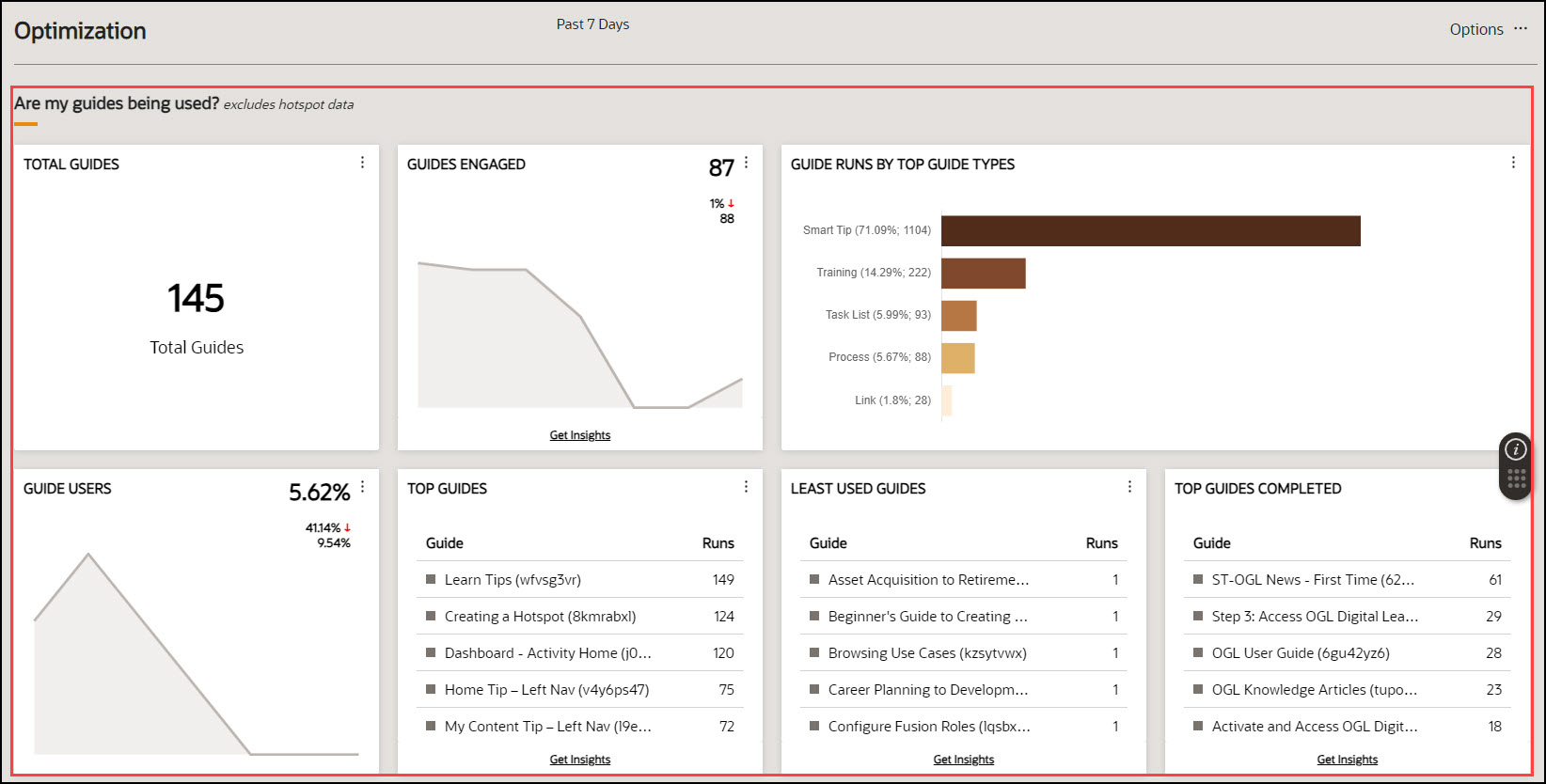
In this section, you will find graphs, charts, and statistics that display Total Guides, Guides Engaged, Guide Runs by Top Guide Types, Guide Users, Top Guides, Least Used Guides, and Top Guides Completed. These data provide insight into how users engage with your OGL guides.
Note:
The information gathered by hotspots is not used to generate insights in this section.Total Guides
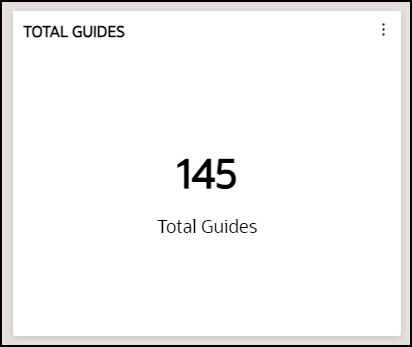
The total number of guides in an account, including those in draft, published, and inactive status.
Guides Engaged
This refers to the number of guides the user has interacted with within the past chosen interval.
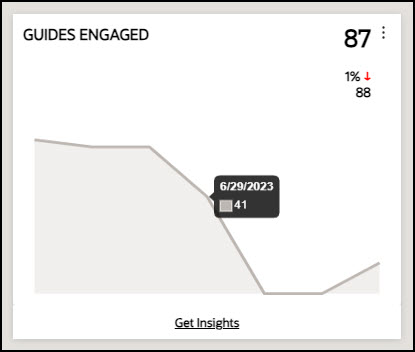
You can get detailed insights by selecting Get Insights.
Select here to learn more about detailed insights.
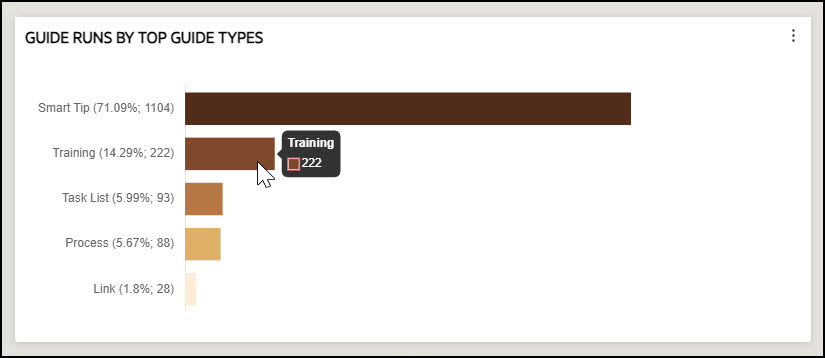
Guide Runs By Top Guide Types
This is a graphical representation of the top five most used guide types in the order of their usage. The chart shows the total number of times each guide type has been run and its percentage in relation to the total number of guides run.
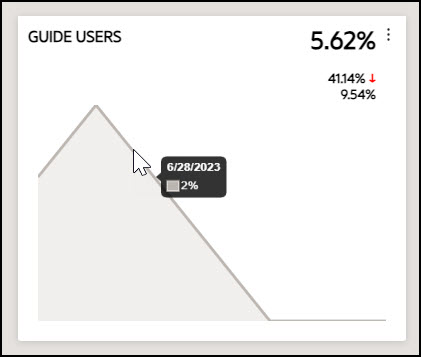
Guide Users
Guide Users refers to the percentage of host application users that engaged a guide within the chosen interval, and it displays the latest trends.
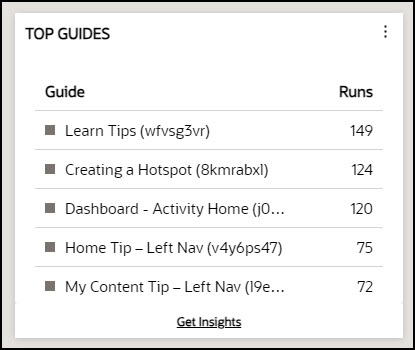
Top Guides
The Top Guides displays the five most used guides, listed in order of their usage.
You can get detailed insights by selecting Get Insights.
Select here to learn more about detailed insights.
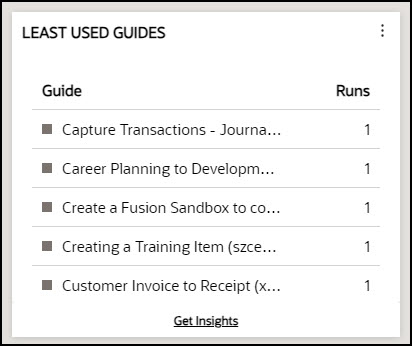
Least Used Guides
The Least Used Guides displays five least used guides, listed in order of their usage.
You can get detailed insights by selecting Get Insights.
Select here to learn more about detailed insights.
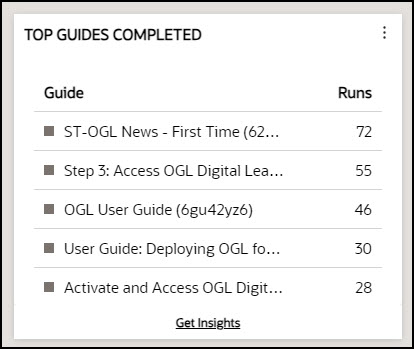
Top Guides Completed
The Top Guides Completed shows the five most used guides that have been successfully completed till the final step.
Who is using my guides?
Guide Runs by Top User Roles
This feature shows the insights related to the user roles, including the percentage of runs completed by each role and the total number of runs completed by each specific role.
Important:
The user roles must be enabled in all the selected applications for insights related to roles.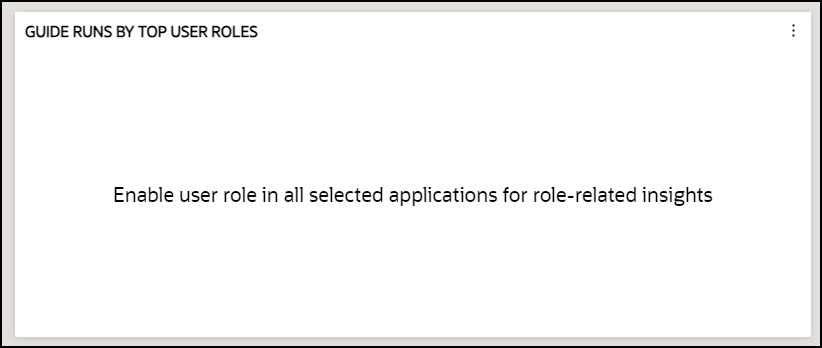
Do I have any upcoming guide management events?
This section displays insights related to guide management events.

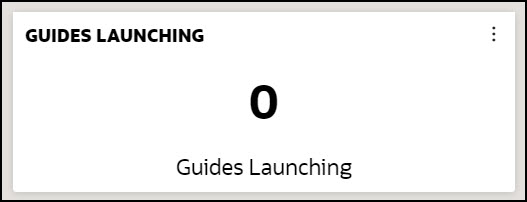
Guides Launching
The Guides Launching shows the number of guides coming up soon based on their "display date start" conditions.
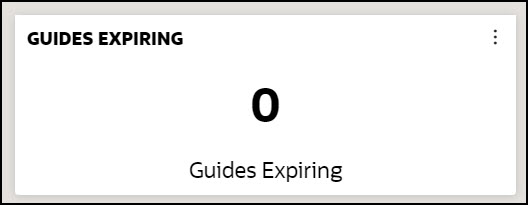
Guides Expiring
The Guides Expiring shows the number of guides expiring soon based on their "display date end" conditions.
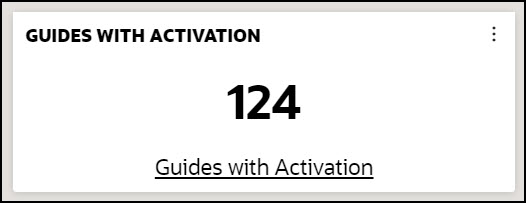
Guides With Activation
The Guides with Activation shows the number of guides with at least one activation condition (e.g., simple, advanced, time).
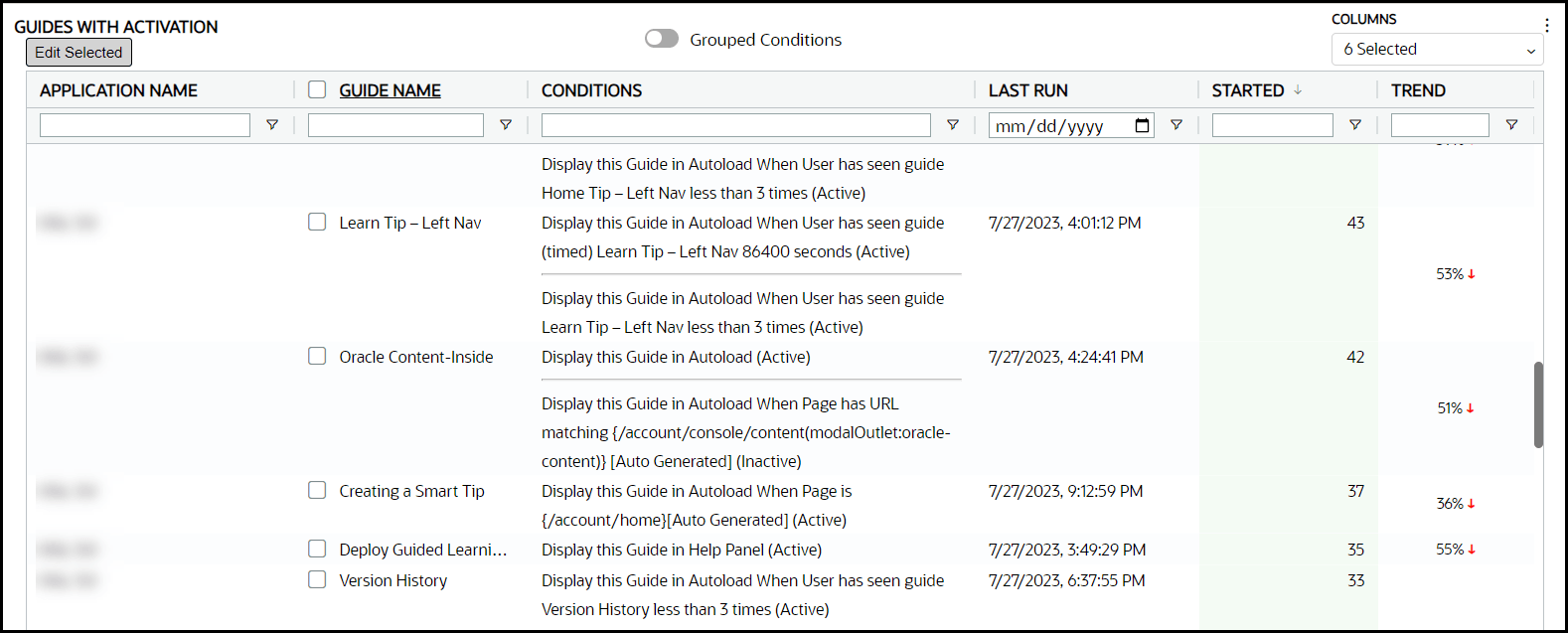
Select the Guides with Activation link to display a filterable table of guides along with their associated activation conditions.
Are my guides helpful?
This section displays insights related to user experience.
Feedback
The Feedback tab displays the user feedback for user experience insights.
Note:
User feedback must be enabled in all the selected applications for insights related to user experience.
Are there any potential problems with my guides?
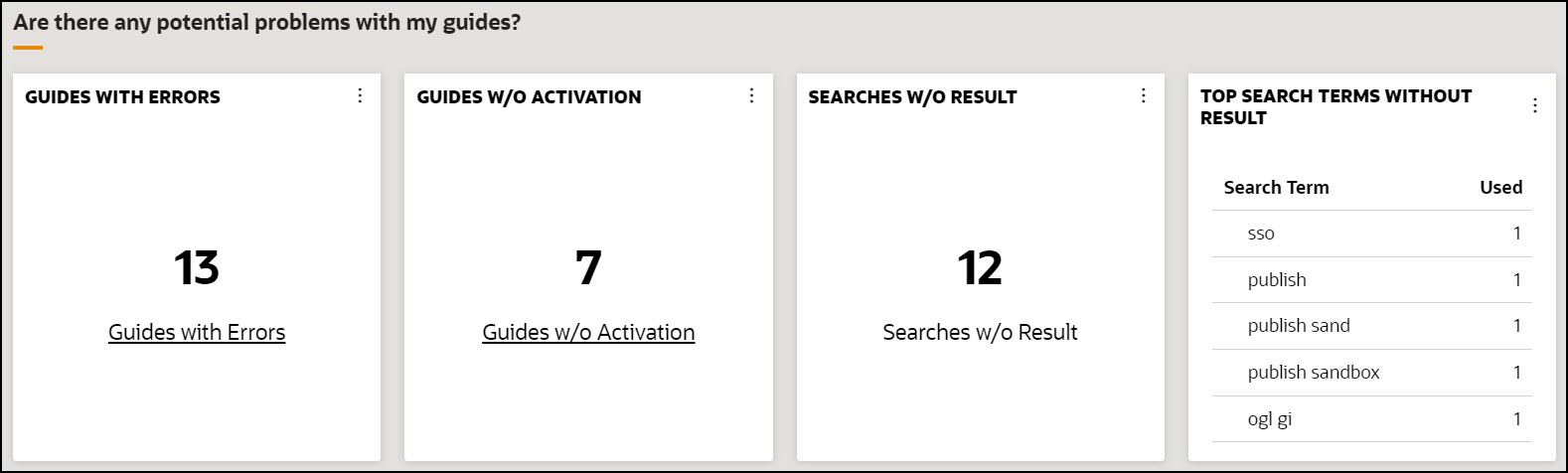
This section displays the potential problems with the guides if found any.
Guides with Errors
The Guides with Errors tab shows the total count of guides that have experienced errors, which OGL has identified.
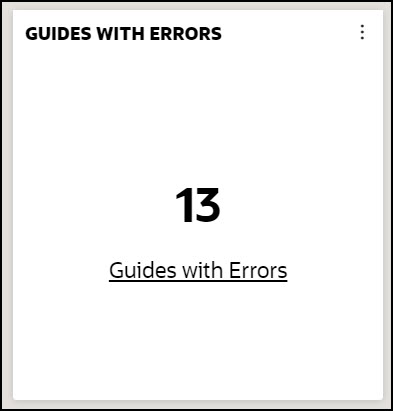
Select Guides with Errors to see the detailed Guide Health.
Afterward, you can choose particular guides and hide or dismiss the error report.

Example:
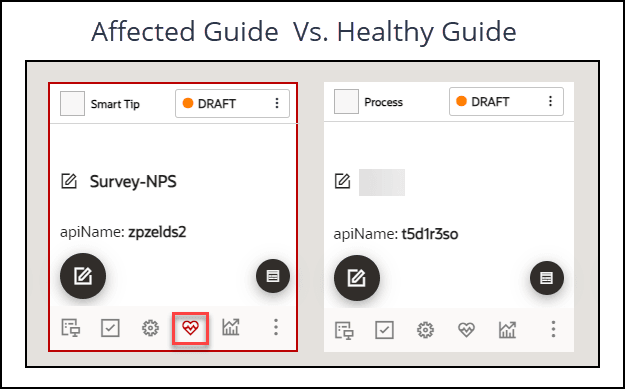
If you activate the Sticky Guide function for a Smart-Tip, the border around the content tile will turn red, indicating that the guide's health has been compromised. This will be considered an error, and the guide will be included in the tally of Guides with Errors.
Guides Without Activation
The Guides Without Activation tab shows the total number of guides that currently exist without any activation conditions.
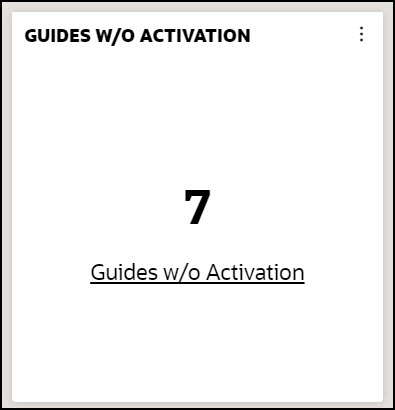
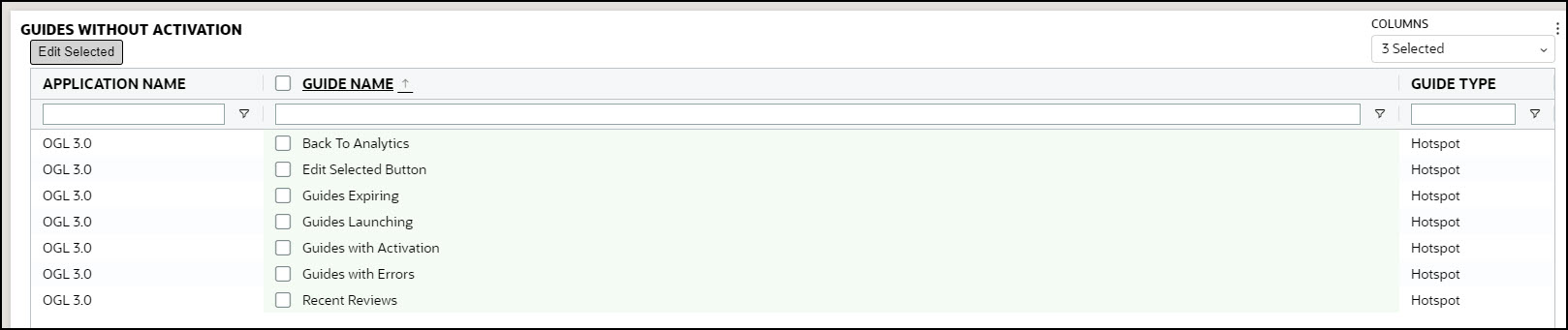
Select Guides Without Activation to see the detailed list of guides without activation conditions.
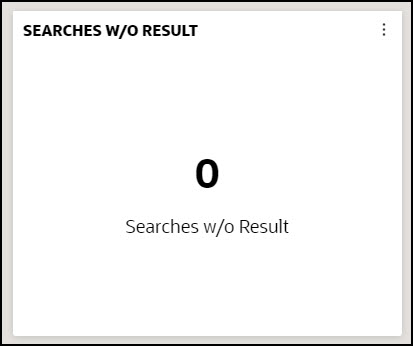
Searches Without Result
The Searches Without Result tab shows how many times users' searches did not yield any results.
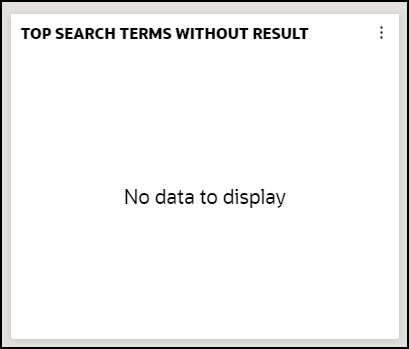
Top Search Terms Without Result
The Top Search Terms Without Results tab displays the most commonly searched terms by users that did not produce any results.
Exporting the Detailed Analytics Report
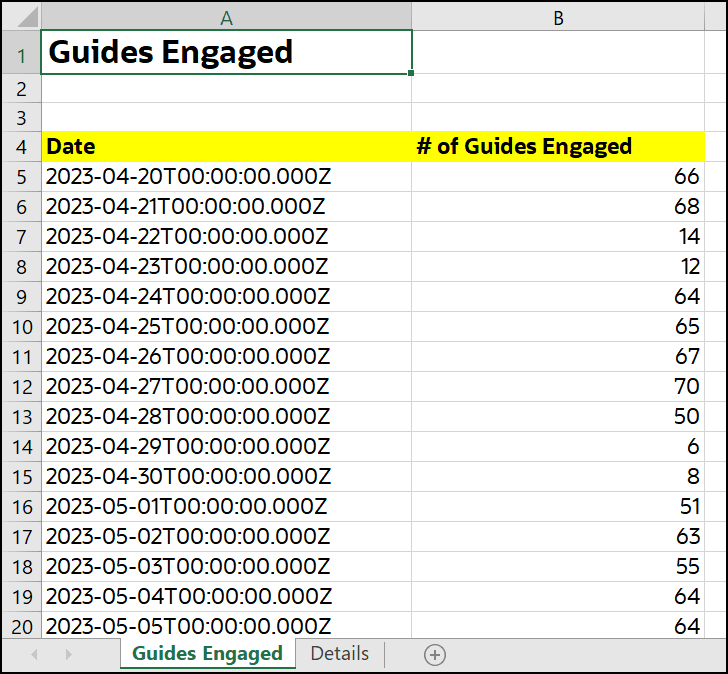
You can easily export a comprehensive analytics report in CSV and XLSX formats with just one click.
- Navigate to the desired tab to export its data.
- Select the ellipsis icon on the top-right corner of the tab.
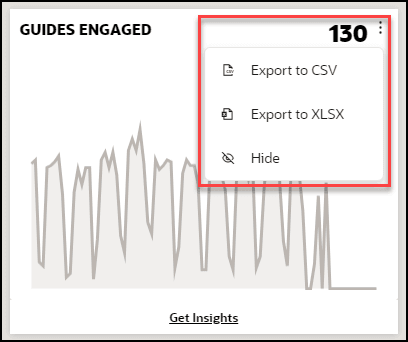
- Choose the output format for the detailed report that you wish to export.The
detailed report is now downloaded.
Customizing the Optimization Dashboard
You can customize the Optimization dashboard by choosing which of the dashboard widgets you want to be displayed.
- Select Options in the top-right of the page to open the Show/Hide
Widgets panel.
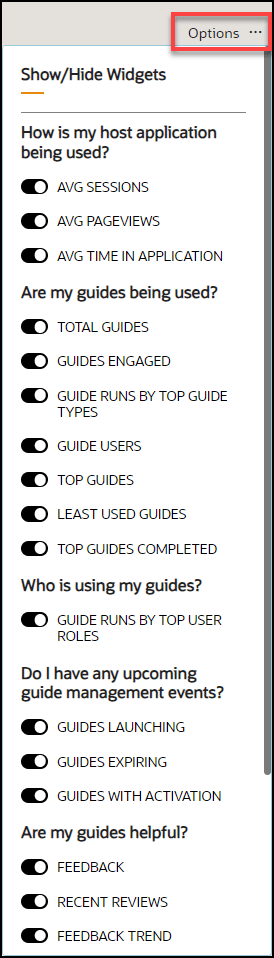
- Enable or disable any of the dashboard widgets you wish to display by using the toggle switches.
