Pages
A common method to determine when a guide should run or be visible in the Help Panel is to apply a guide activation condition that is based on the page URL, or for Fusion, the page route. Getting the route in Fusion is not a straightforward task and keeping track of all the pages and their URLs or page routes for an application can be a difficult task. The Pages manager can help console users efficiently catalog and manage page URLs and/or Fusion page routes by assigning them a user-friendly name that can later be referenced in guide activation conditions.
Accessing the Pages Manager
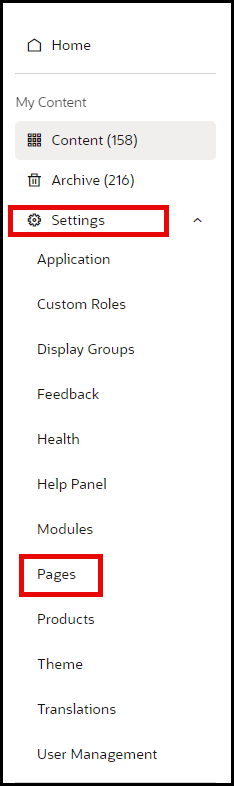
From the left navigation panel, select Settings> Pages to open the Pages manager.
Configuring Pages
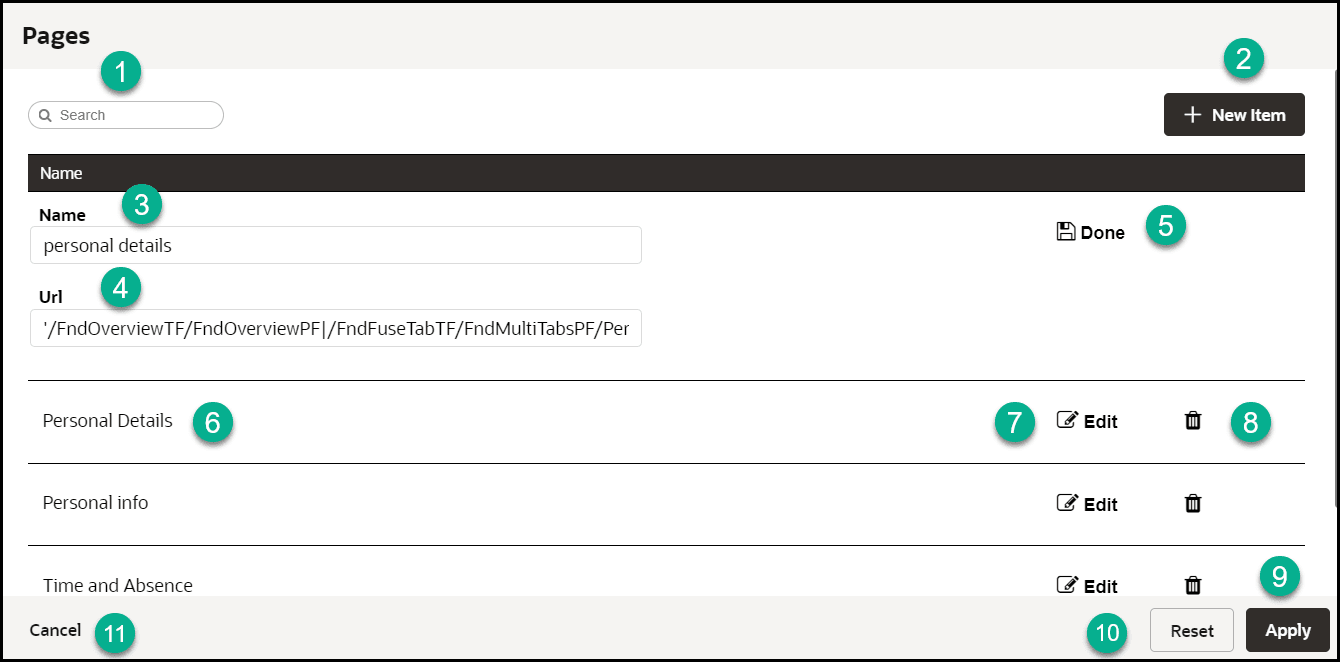
In the Pages manager, you can create new custom pages and assign a user-friendly name to an associated URL or Fusion page route. To find the Fusion page route, see instructions in #4 on the below.
| Legend | Name | Additional Information |
|---|---|---|
| 1 | Search box | Provides dynamic search functionality. |
| 2 | New Item | Adds a new line to the list. |
| 3 | Name Field | The name field cannot be empty. Duplicate values are not allowed. |
| 4 | URL |
To find the URL:
Note: This is the route automatically captured by OGL or returned by iridize.master.getRoute() |
| 5 | Done/Save | Saves the changes made to the field. The button only becomes active when an acceptable value is entered in the field. |
| 6 | Page name field (Existing) | This name has been automatically defined by OGL. |
| 7 | Edit | Allows changes to be made to the field. |
| 8 | Delete | Deletes the line item. Action cannot be reversed and all linked content items will be disassociated. |
| 9 | Apply | Saves the changes made. A confirmation is displayed if the operation has either been completed successfully or failed with errors. |
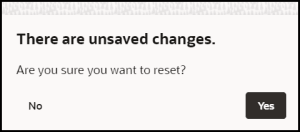
| 10 | Reset | Reset the changes made. A warning will be displayed
if there are unsaved changes.
|
| 11 | Cancel | Discards any changes that were made and closes the
interface. A warning will be displayed if there are unsaved
changes.
|

Using Pages Info for Activation Settings
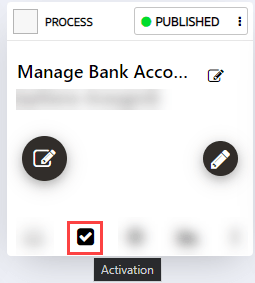
From the OGL Console, select the check icon for the guide that you want to access.
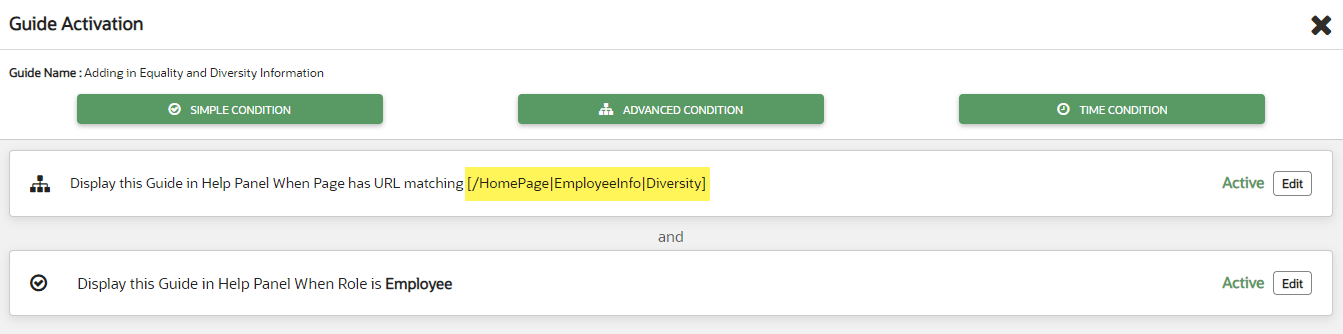
By copying the route value for a page (highlighted in the image below), the developer can copy the URL (or route, in the case of Fusion) for use in configuring activation settings.
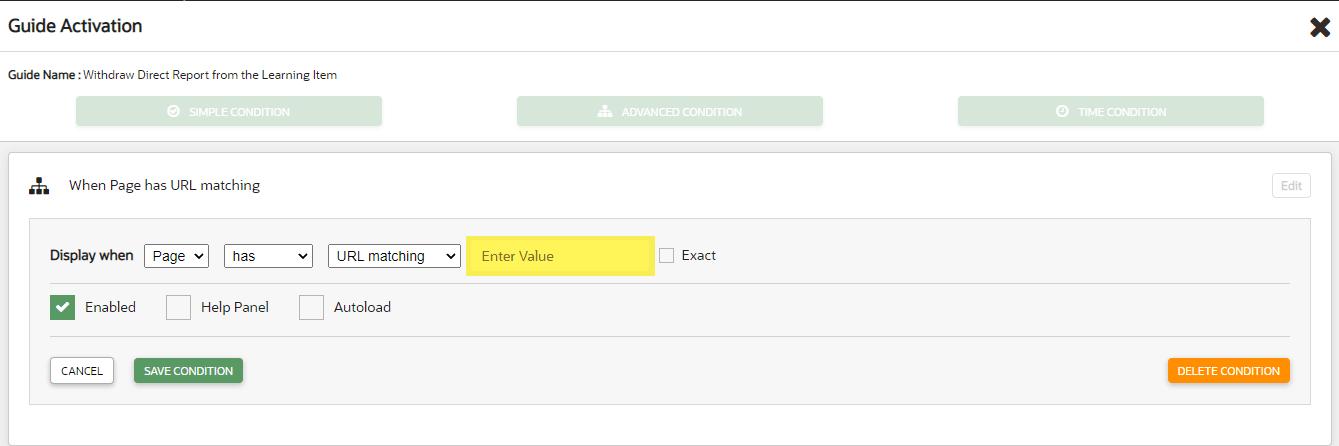
Once the URL has been copied, it is just a matter of pasting that value in the field outlined in red below. Be sure to paste in the value exactly as copied and do NOT enclose the pasted URL in brackets ( [ ] ).
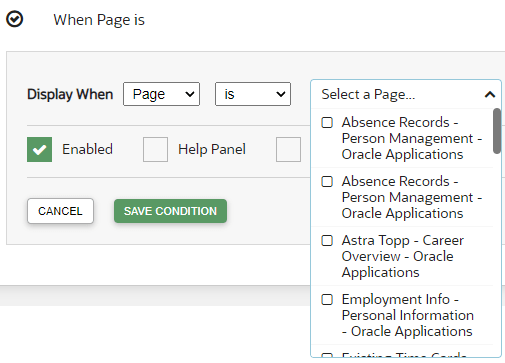
Important: If a page has been defined in the pages Manager, then the condition can be added as a simple condition (When Page is (or is not)). When a page becomes defined in Page Manager, OGL will update the corresponding guides to reflect the page name.
For more information, refer to Enabling Guide Activation Settings.
Note:
Some Fusion page routes may change during a Fusion quarterly update. In this case, you will need to manually update the page routes in the Pages manager. This will not happen automatically. As a best practice, we recommend that you review and update page routes with each Fusion quarterly update or consult with your Fusion administrator to identify any potential impacts on page routes and update them in the Pages manager accordingly.