Modules
Understanding Modules
As your content library grows, it can become increasingly difficult to manage a large volume of guides, especially if you have OGL deployed to multiple Fusion products (e.g. HCM, ERP, etc.) and/or modules (e.g., Financials, Procurement, Human Resources, Recruiting, etc.). One way to organize your guides may be to categorize them by the Fusion products and modules to which they are associated. Whether you are using OGL in Fusion or other applications, product and module labels allow you to manage your guides more efficiently, making it easier to find, filter, and organize guides by their respective products and modules. The Products and Modules features enable console users to create, edit, and manage custom labels which can then be tagged to guides for use in filtering in both the Content library as well as Analytics.
Accessing the Modules Manager
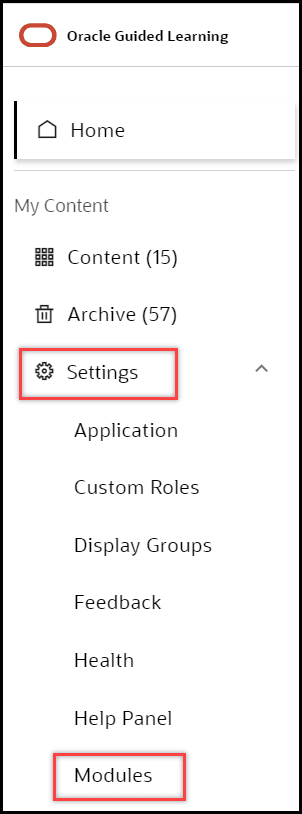
- On the OGL Console homepage, go to the left navigation panel.
You can see the Settings tab on the left navigation panel.
- Select Modules from the Settings tab on the left navigation panel.
Understanding the Interface
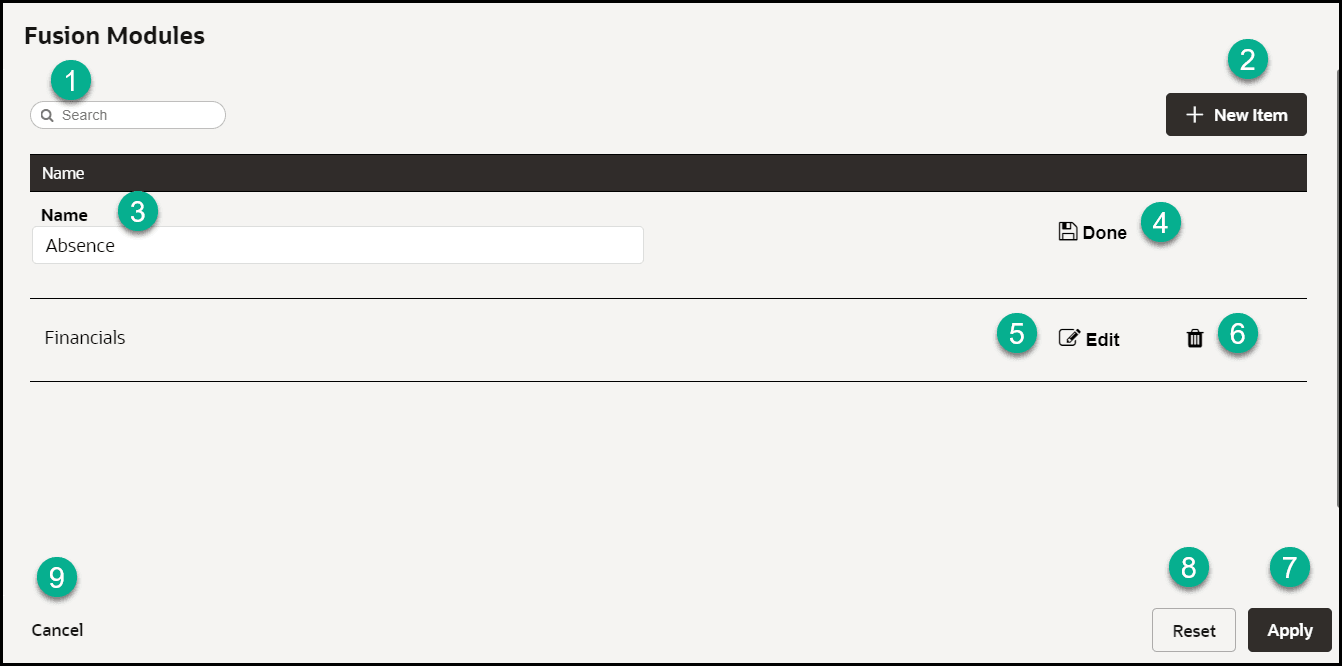
| Legend | Name | Additional information |
|---|---|---|
| 1 | Search box | Provides dynamic search functionality. |
| 2 | New Item | Adds a new line to the list. |
| 3 | Name field | The name field cannot be empty. Duplicate values are not allowed. |
| 4 | Done/Save | Saves the changes made to the field. The button only becomes active when an acceptable value is entered in the field. |
| 5 | Edit | Allows changes to be made to the field. |
| 6 | Delete | Deletes the line item. Action cannot be reversed and all linked content items will be disassociated. |
| 7 | Apply | Saves the changes made. A confirmation is displayed if the operation has either been completed successfully or failed with errors. |
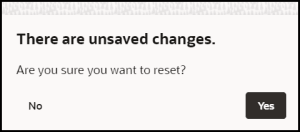
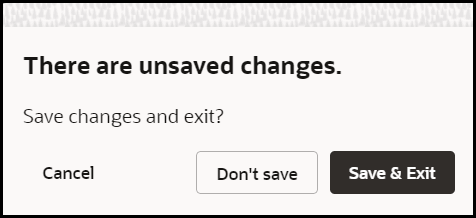
| 8 | Reset | Reset the changes made. A warning will be displayed
if there are unsaved changes.
|
| 9 | Cancel | Discards any changes that were made and closes the
interface. A warning will be displayed if there are unsaved
changes.
|
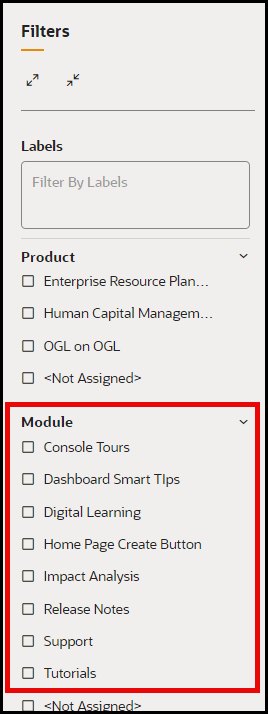
You can use the Module labels to filter your guides by their respective modules.