Reports
You can download complete reports customized to meet your unique specifications from the OGL Analytics Reports. Common configurations include Date Range, Application(s), Environment(s), Platform(s)and supported Export format.
Accessing the Reports dashboard:
- On the OGL Console homepage, go to the left navigation panel.
You can see the Analytics & Reports section in the navigation panel.
- Select the Reports dropdown option.
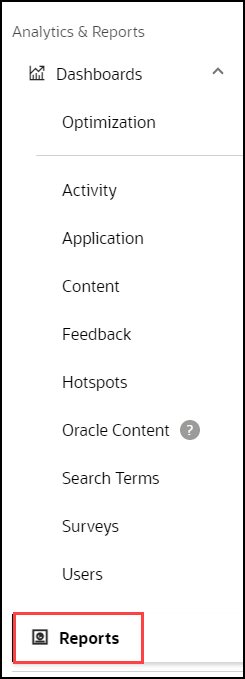
Reports Dashboard is displayed.
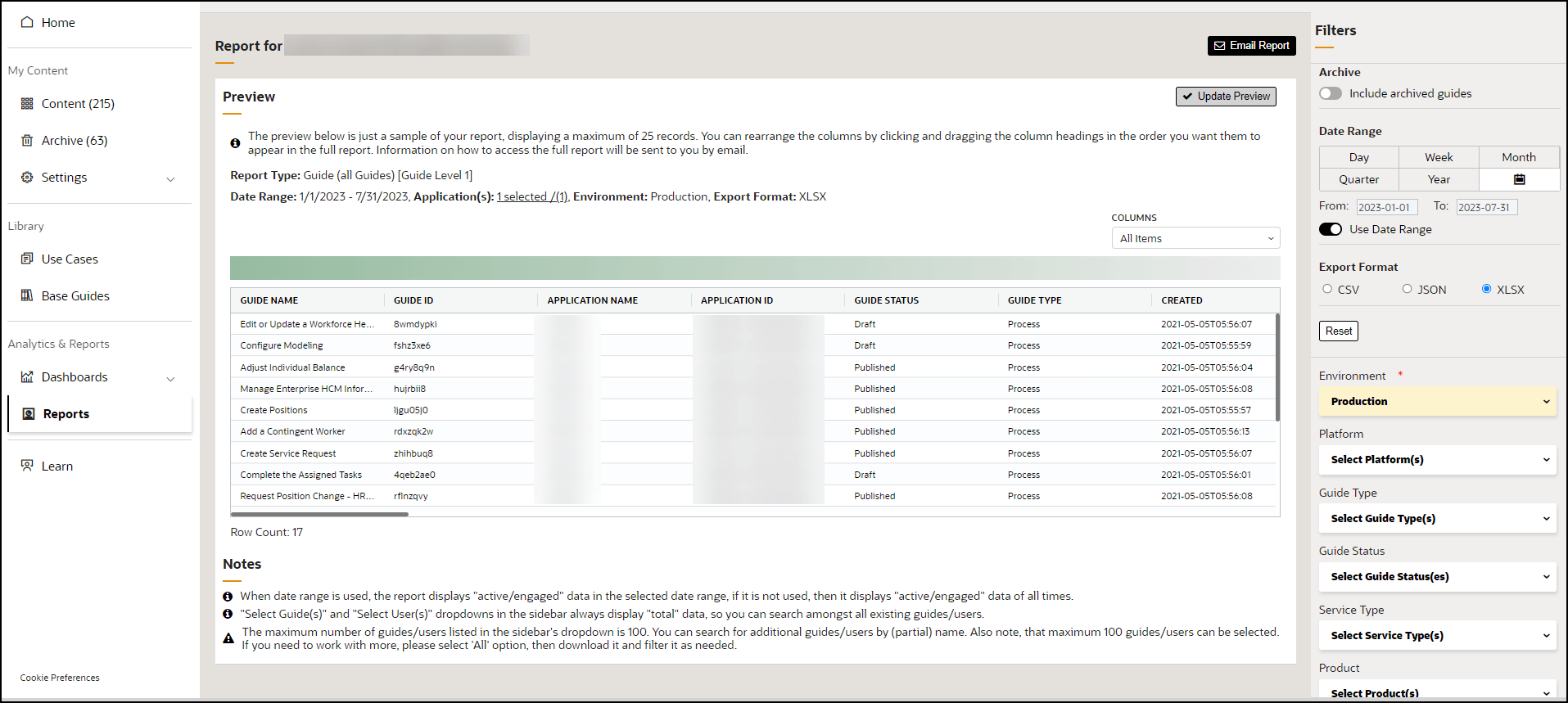
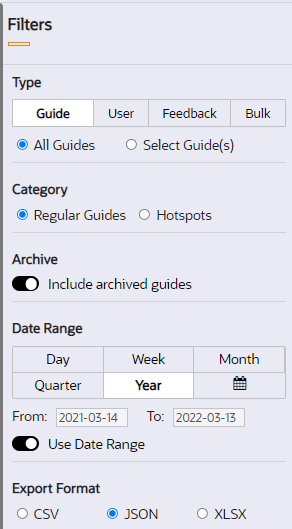
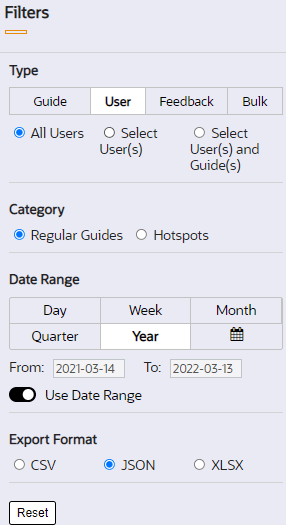
There are 4 main types of Reports that can be downloaded:
- Guide
- User
- Feedback
- Bulk
| Guide | User | Feedback | Bulk |
|---|---|---|---|
 |
 |
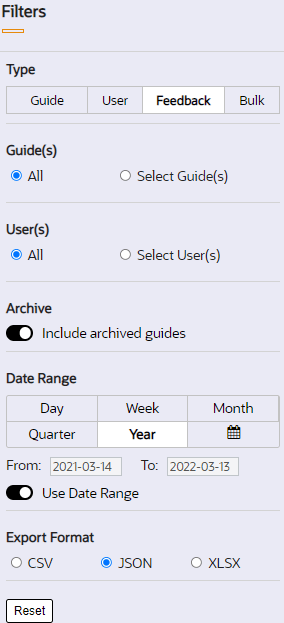 |
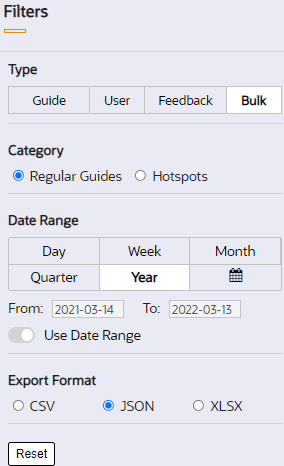 |
|
Notes:
|
Note:
|
||
Once the options are selected, preview the data set by clicking on the Update Preview button in the main section of the window:
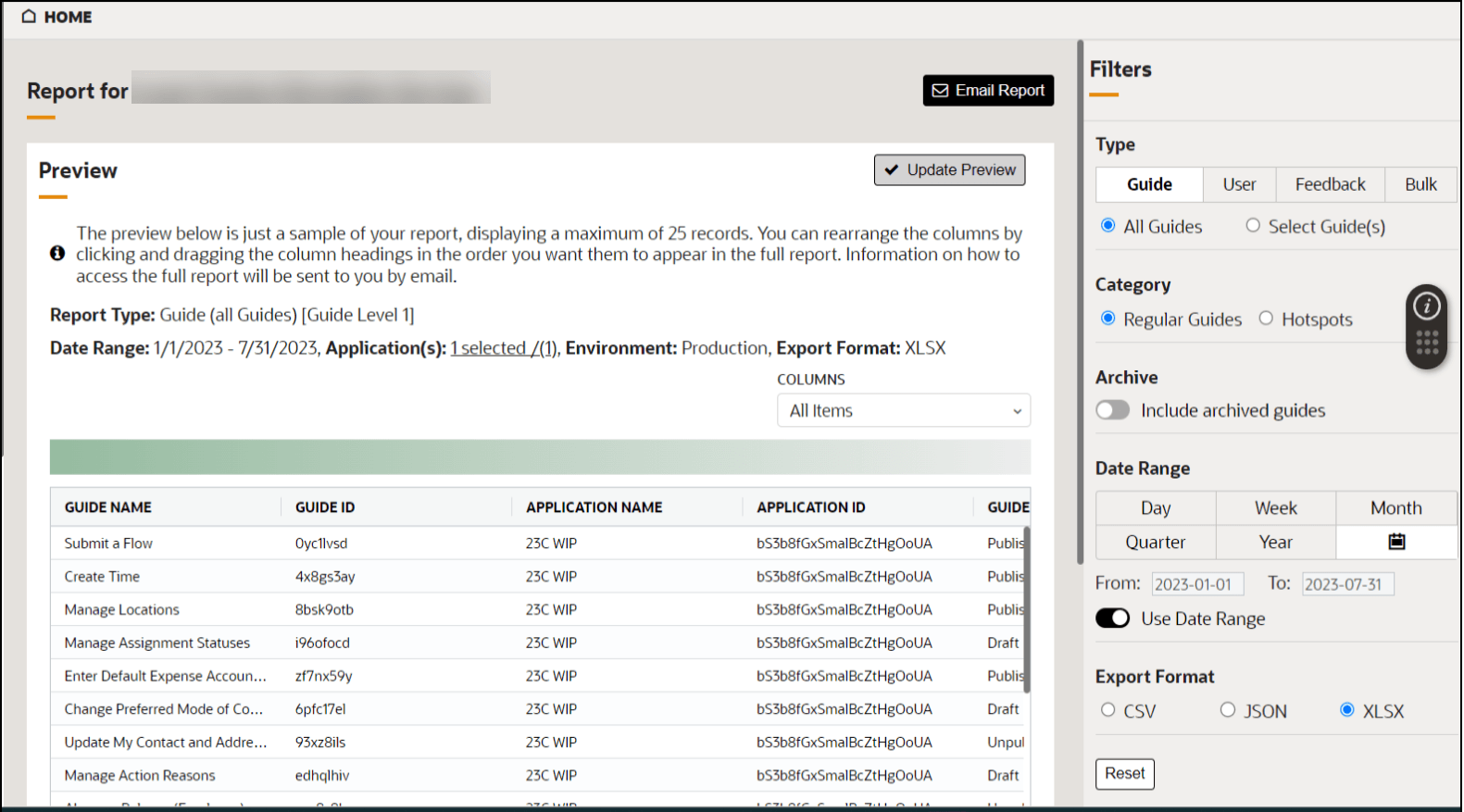
A summary of the criteria used for the report is presented above the preview table:
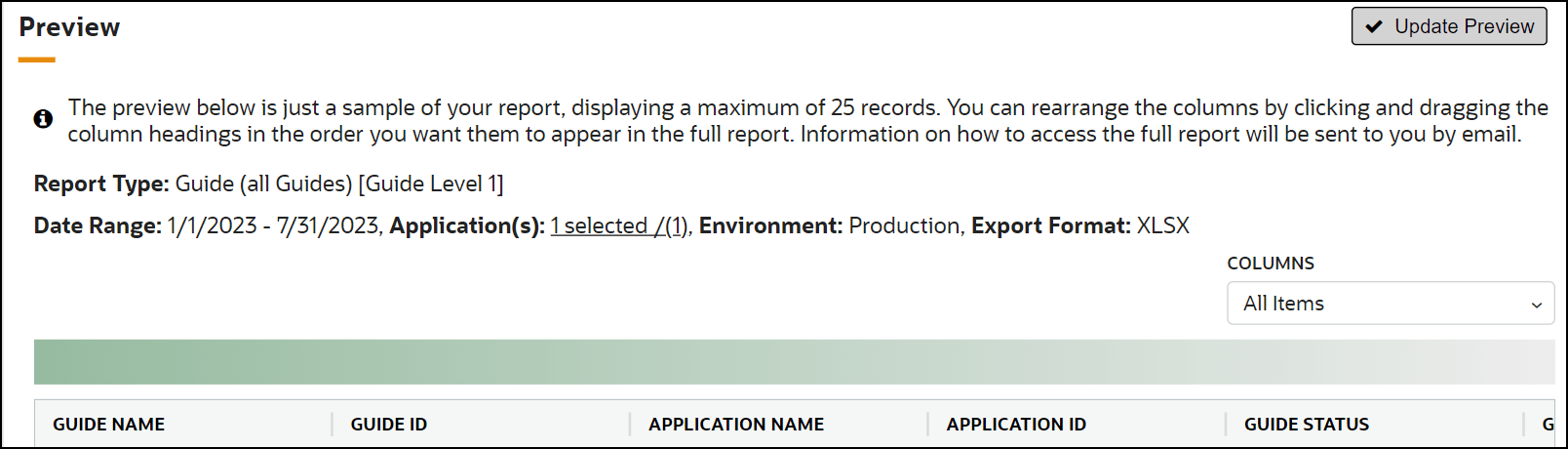
Select the Email Report button to request the required data report to be sent to your email address.
Note:
A known issue has been identified in OGL reports in which the Update Preview function fails and returns an error when the user selects a combination of a Report Type of Feedback and a Role Filter. This issue will be fixed in a future release. As an interim workaround, users can generate a Feedback report without Role filters and instead, export the data to Excel or other Business Intelligence application to apply filters.User can schedule recurring reports based on their filter selections and have the reports sent to their inbox to save time in recreating reports over time. Especially helpful when wanting to track and measure ongoing outputs from OGL.
In Reports, you can schedule reports based on the filter parameters applied within the Filters panel. Simply apply your filters and then press the Schedule button.
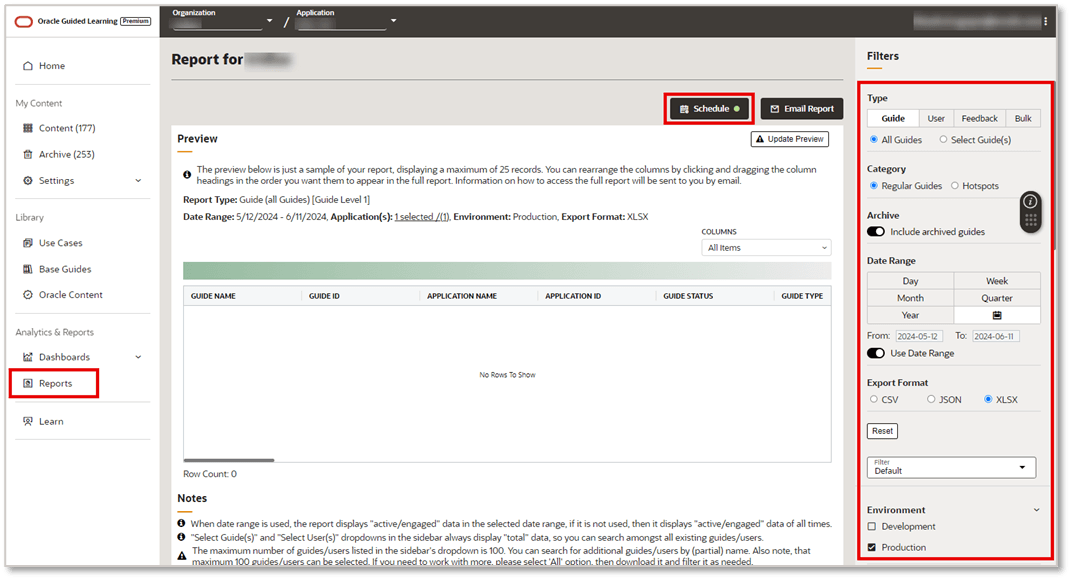
Note:
At present, this functionality only works upon the current view selected - i.e. you can only have 1 scheduled report based on 1 set of filters. To create another scheduled report, you will need to delete the first schedule and setup a new one. We will be looking at enhancements to this feature in future releases.- Start and End date of the report schedule
- Report Frequency (daily, weekly, or monthly)
- Day(s) of the week and/or day(s) of the month that the report will be sent
Example 1: Daily report scheduled for every day starting on 8/28/24 ending on 12/31/24.
Data Filters applied: All guides, Last 24 hours, Production env, Desktop platform, Published status, Excel format.
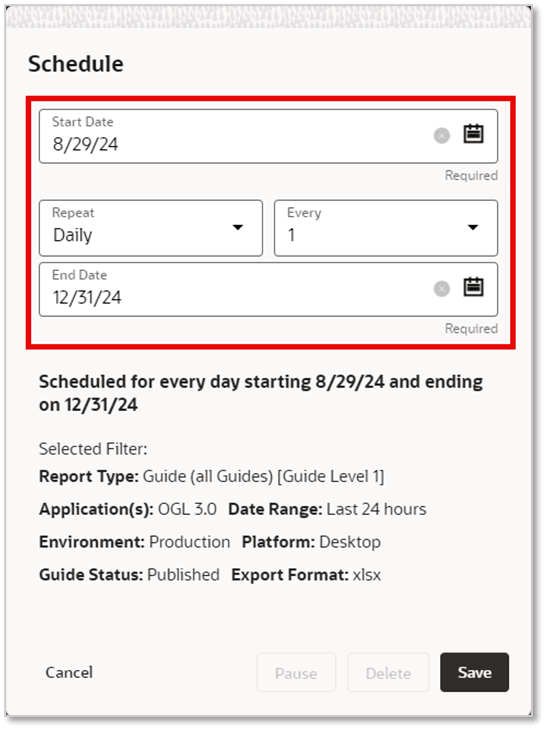
Example 2: Weekly report scheduled for every Monday ending on 12/30/24:
Data Filters applied: All Users, Last 7 days, Production env, Desktop platform, Process guides, CSV format.
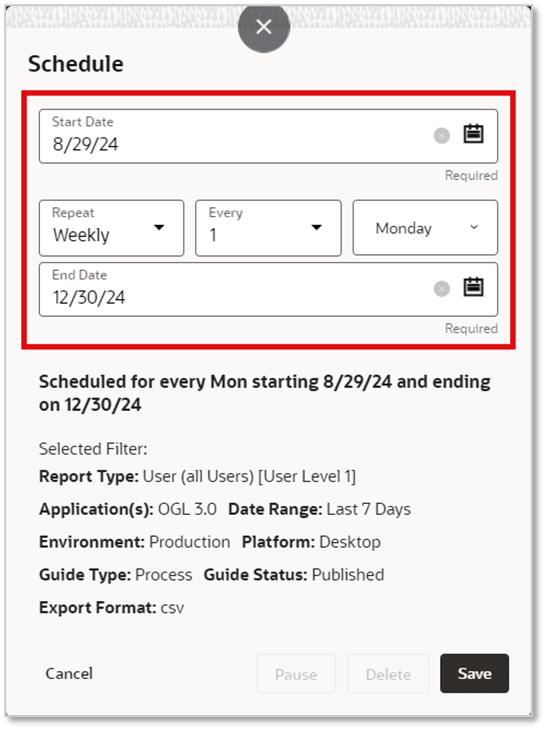
Example 3: Monthly report scheduled on the first day of every other month beginning 8/29/24 and ending on 6/3/2025.
Data Filters applied: All guides, Last 30 days, Production env, Desktop platform, Published and Draft status, Excel format.
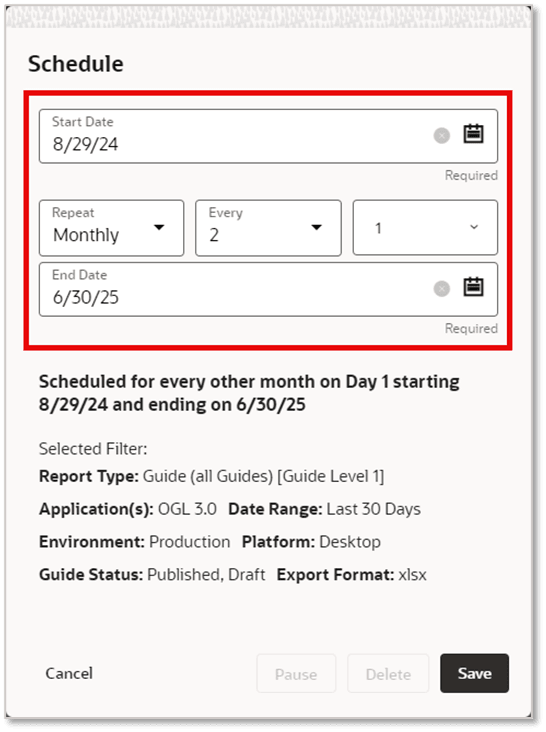
Key considerations when using Schedule Email Report feature:
- Currently, only 1 scheduled report can be setup at a time, based on 1 set of filters and recurrence settings. To create another scheduled report, you will need to delete the first schedule and setup a new one. We will be looking at enhancements to this feature in future releases.
- Once a report is scheduled, you can Pause (
 ) or Delete (
 ) the report schedule at any time by selecting the appropriate button
in the Schedule modal.
) the report schedule at any time by selecting the appropriate button
in the Schedule modal.
- The Schedule button in the Reports page will indicate the current status of a scheduled report.
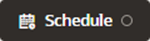 Black indicates that there is no report scheduled.
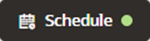 Green indicates that a report is currently scheduled and
Active.
Green indicates that a report is currently scheduled and
Active.
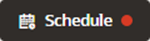 Red indicates that a report is currently scheduled and
Paused.
Red indicates that a report is currently scheduled and
Paused.
Multiple Scheduled Email Reports
The report scheduling functionality allows console users to create and manage multiple OGL analytics reports with different filter criteria and provides the ability to add multiple email recipients to share scheduled reports with other console users.
OGL administrators can schedule recurring analytics reports in OGL and have them delivered directly to your inbox. Apply your preferred filters, set the frequency (daily, weekly, or monthly), and let the system do the rest. This feature supports multiple scheduled reports, helping you save time and stay on top of key metrics without manual effort. Easily pause, resume, or delete schedules anytime from the Schedule modal.
The Schedule Email Reports feature takes the hassle out of repetitive reporting tasks. Instead of manually applying filters and exporting data each time, users can automate recurring reports with just a few clicks. This not only saves time but also ensures that key insights are consistently delivered to the right people. Whether you're tracking performance trends, monitoring KPIs, or sharing updates with stakeholders, this feature helps teams stay aligned, informed, and proactive without the extra effort.
The Schedule Email Reports feature is built to make reporting effortless and impactful. Here's how it helps:
- No more repetitive work - set it once, and reports arrive automatically.
- Always stay informed - get the right insights at the right time, without logging in
- Share with ease - send reports to teammates or stakeholders in just a click.
- Track what matters - schedule reports with different filters to monitor multiple metrics.
- Act faster - consistent updates mean quicker, more confident decisions.
Note:
Role/Permission: To use the Schedule Email Report feature, OGL console users must have the Owner > Manage Users role and permission in the User Management settings. Please consult with your OGL Owner Administrator to request this role/permission, if needed.Scheduling a Report
- Login to the OGL Console.
- Navigate to the Reports.
- Apply the desired filters for the report you want to schedule and click
Schedule.
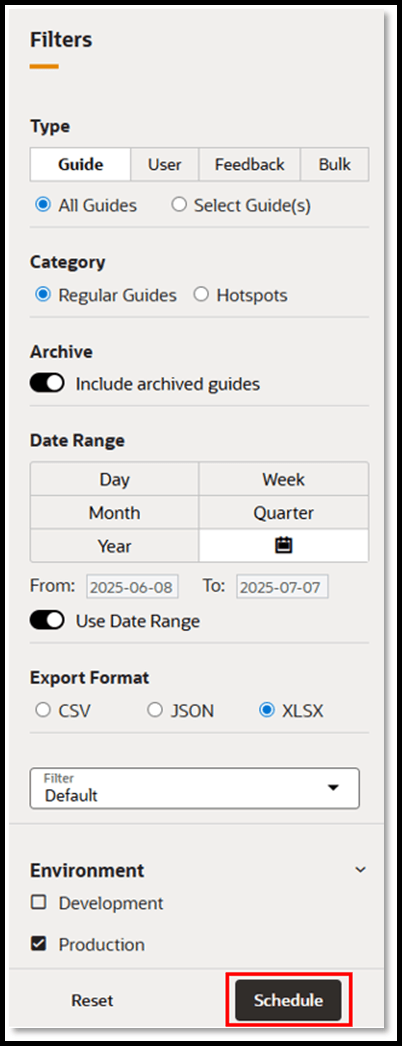
- A Schedule modal will appear.
- Enter a title for the report.
- Select the Start Date.
- Choose the recurrence pattern (Daily, Weekly, or Monthly), along with the time interval.
- Set the End Date for when the schedule should stop.
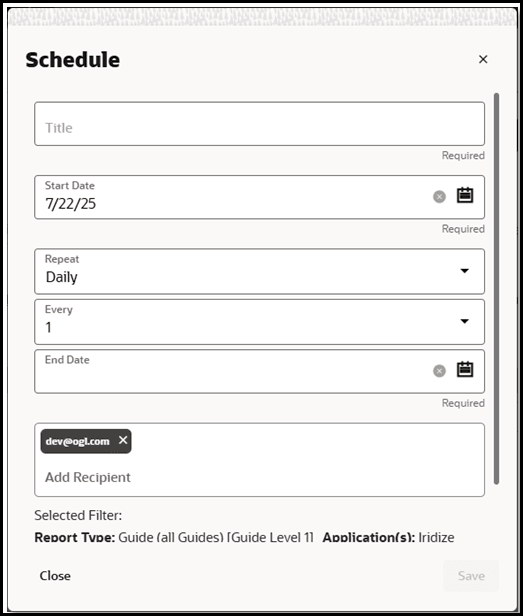
- Add the recipients who should receive the email report.
Note:
Report recipients must have an active OGL account on the APPID with at least a Viewer role and related permissions. To add additional report recipients, please consult with your OGL Owner Administrator to add users in User Management. - Ensure the selected filters in the modal match those applied on the Reports page.
- Click Save to create the schedule.
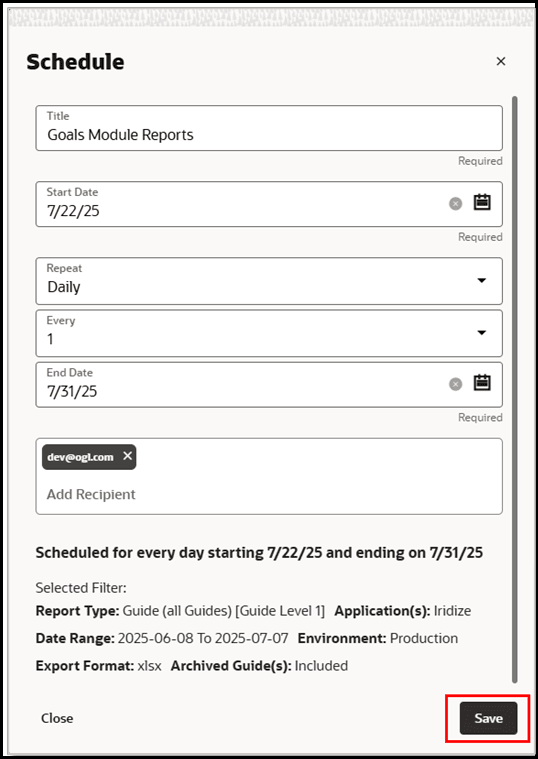
Viewing and Managing Schedules
To view all scheduled reports in the domain, click the Schedule button at the top of the Reports page.
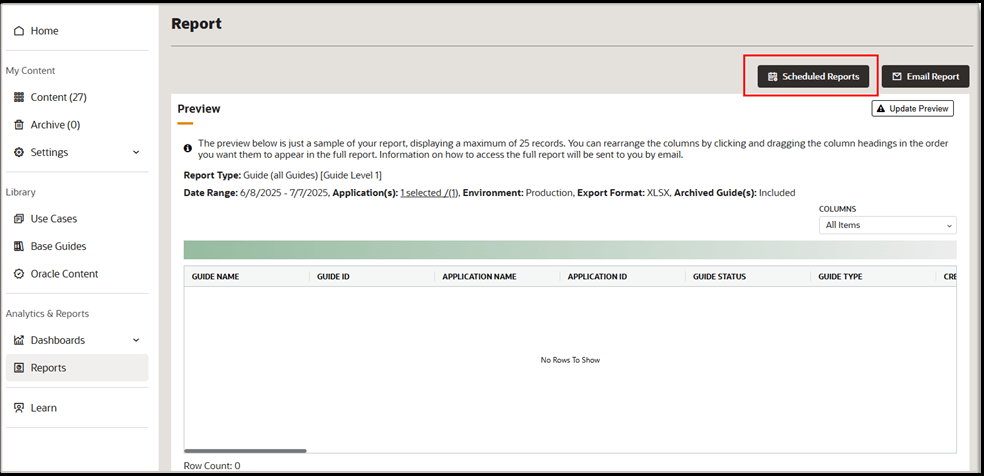
A modal will open showing the list of existing schedules.
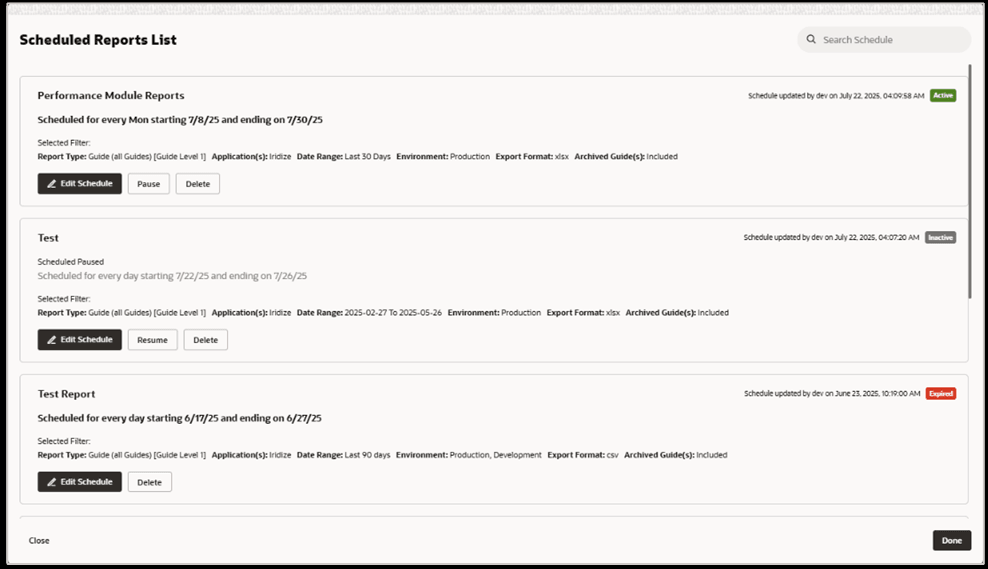
From here, you can:
- Edit any existing schedule to update its details.
- Pause active schedules and resume them later.
-
Delete schedules when they are no longer needed.
Schedule Status Definitions:
- Active: The schedule is currently running and sending reports based on the defined time interval.
- Inactive: The schedule is paused, and no emails will be sent until resumed.
- Expired: The schedule has reached its end date and is no longer active.
- Scheduled reports can only be created for a single App ID. If multiple apps are selected, the Schedule button will be disabled.
- Workaround – Setup separate scheduled reports per APPID using the same report filters, parameters, and recipients.
- The Title field has been introduced in 25D. As a result, existing schedules will have an empty title by default. Users can update the title by accessing the Edit Schedule option.
- To add recipients to a schedule, the scheduler must have "Manage Users" permission.
- A maximum of 25 separate scheduled reports can be created per Account/Organization (APPID).
