Users Dashboard
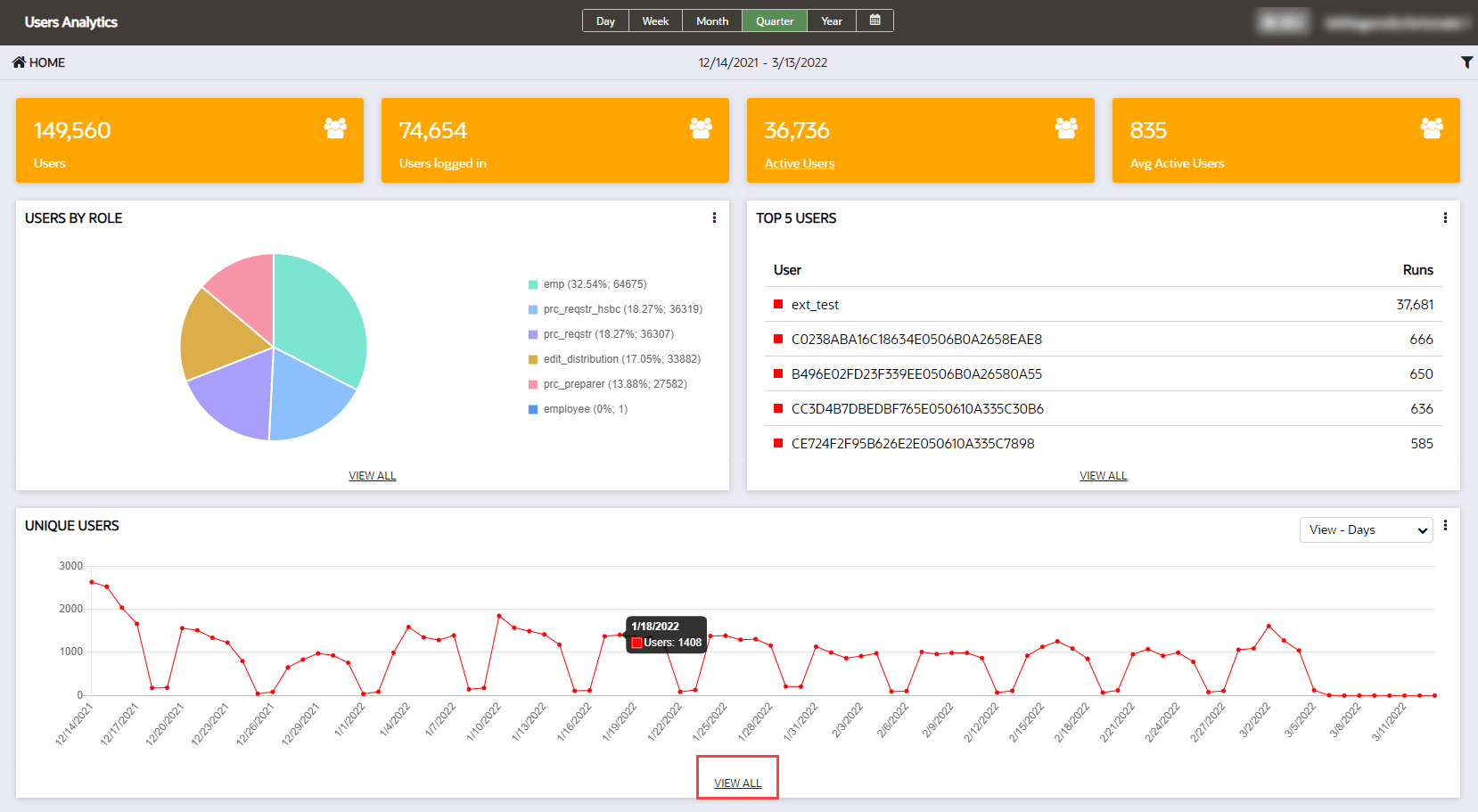
The Users Analytics dashboard provides information about user logins and activity in the host application, including unique users over time. Options to view additional details and filter views are also available using the links and menus on the page.
Accessing the Users Analytics dashboard:
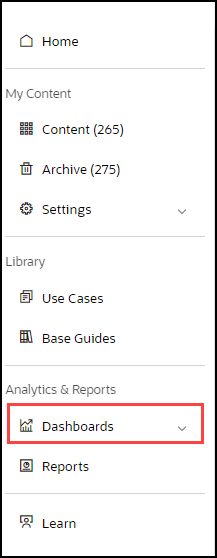
- On the OGL Console homepage, go to the left navigation panel.You can see the Analytics & Reports section in the navigation panel. in the OGL Console.
- Select the Dashboards dropdown menu.
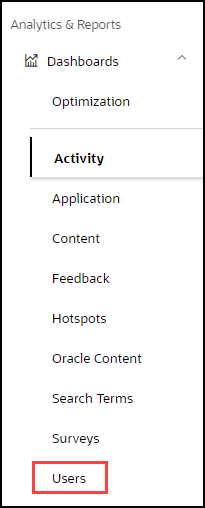
- Select Users in the Dashobards area.
User Analytics dashboard is displayed.
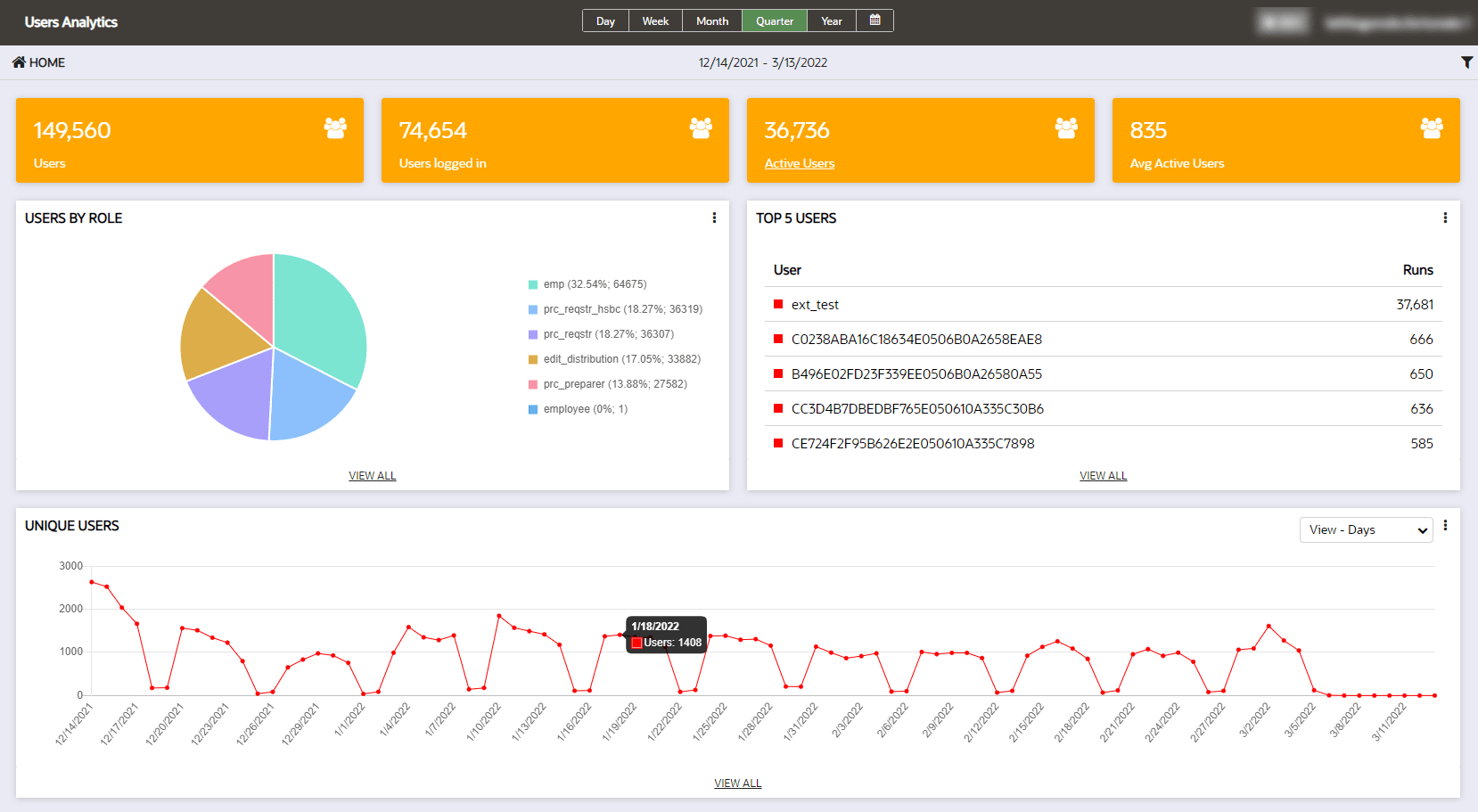
The User Dashboard provides detail from a user perspective on Oracle Guided Learning activity. This Dashboard displays the following:
- Users: Number of all-time users logged in to the host app (not affected by the reporting period)
- Users Logged in: Users logged in to the host app during the reporting time period
- Active users: Users that have engaged with OGL during the reporting time period
- Average Active Users: The average number of users that have engaged with OGL per day for the reporting period
If roles have been defined in the Oracle Guided Learning account, the number of users by role is also displayed.
Please note the username can be displayed if local data regulations and our client’s own data rules allow for the capture of the username in OGL. For clients bound by regulations such as GDPR, the username is not displayed because this data is not captured in Oracle Guided Learning.
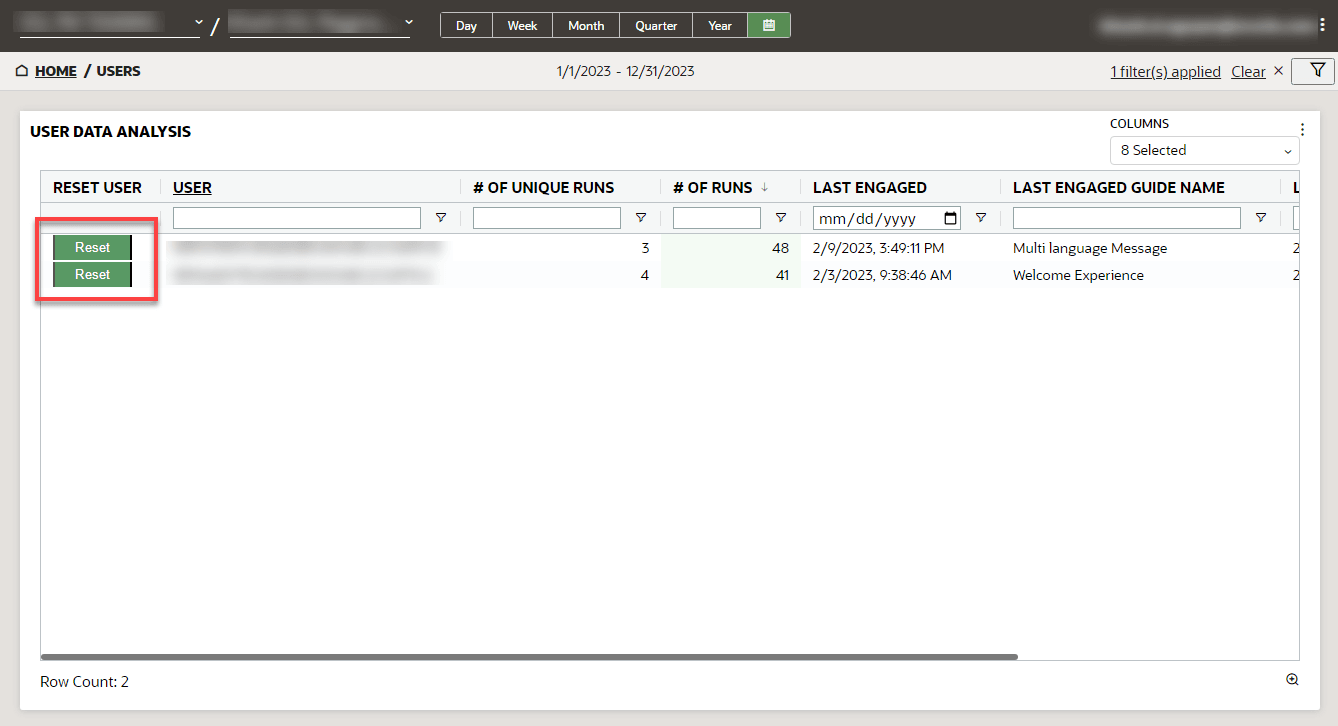
Resetting User Analytics Data
Note:
Resetting user data will delete all previous activity data for the user in analytics. This should only be used for development or testing purposes. Please contact your OGL administrator before resetting any user's data.- From either the Top 5 Users or Unique Users widgets, select VIEW
ALL to drill down and view the User Data Analysis.
- Click Reset button which will delete all previous activity data for the user
in analytics.