Surveys Analytics Dashboard
The Survey Analytics Dashboard gives you to the ability to process, store, and visualize survey data that is provided by end users who complete surveys. This adds another tool in OGL’s "insight to action" toolchest, supporting content management, product management, and analytics.
Accessing Surveys Analytics Dashboard
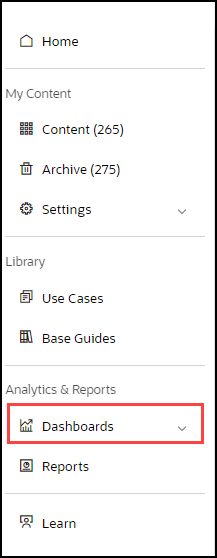
- On the OGL Console homepage, go to the left navigation panel.
You can see the Analytics & Reports section in the navigation panel.
- Select the Dashboards dropdown menu.
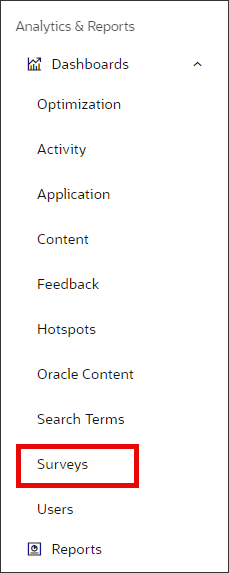
- Select Surveys in the Dashboards area.
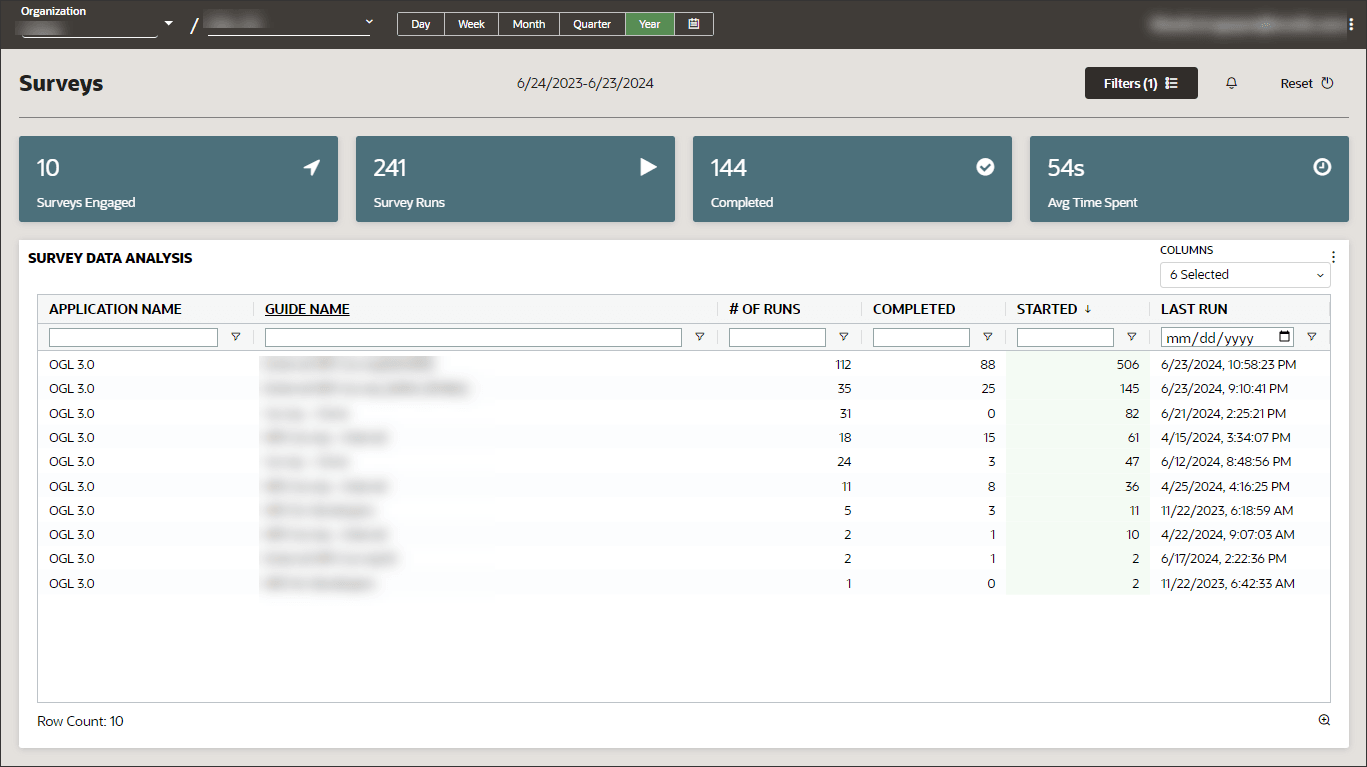
The Surveys Dashboard replaces the information previously delivered in the left panel of the dashboard. The Surveys Dashboard summarizes survey data as collected by end users in the host application who have completed survey guides, including the application name, guide name (or apiName), number of runs, number of completions, number of times the survey was started, and the last run date.
To view analytics of response data for a specific survey, select the Guide Name of the survey to open it.
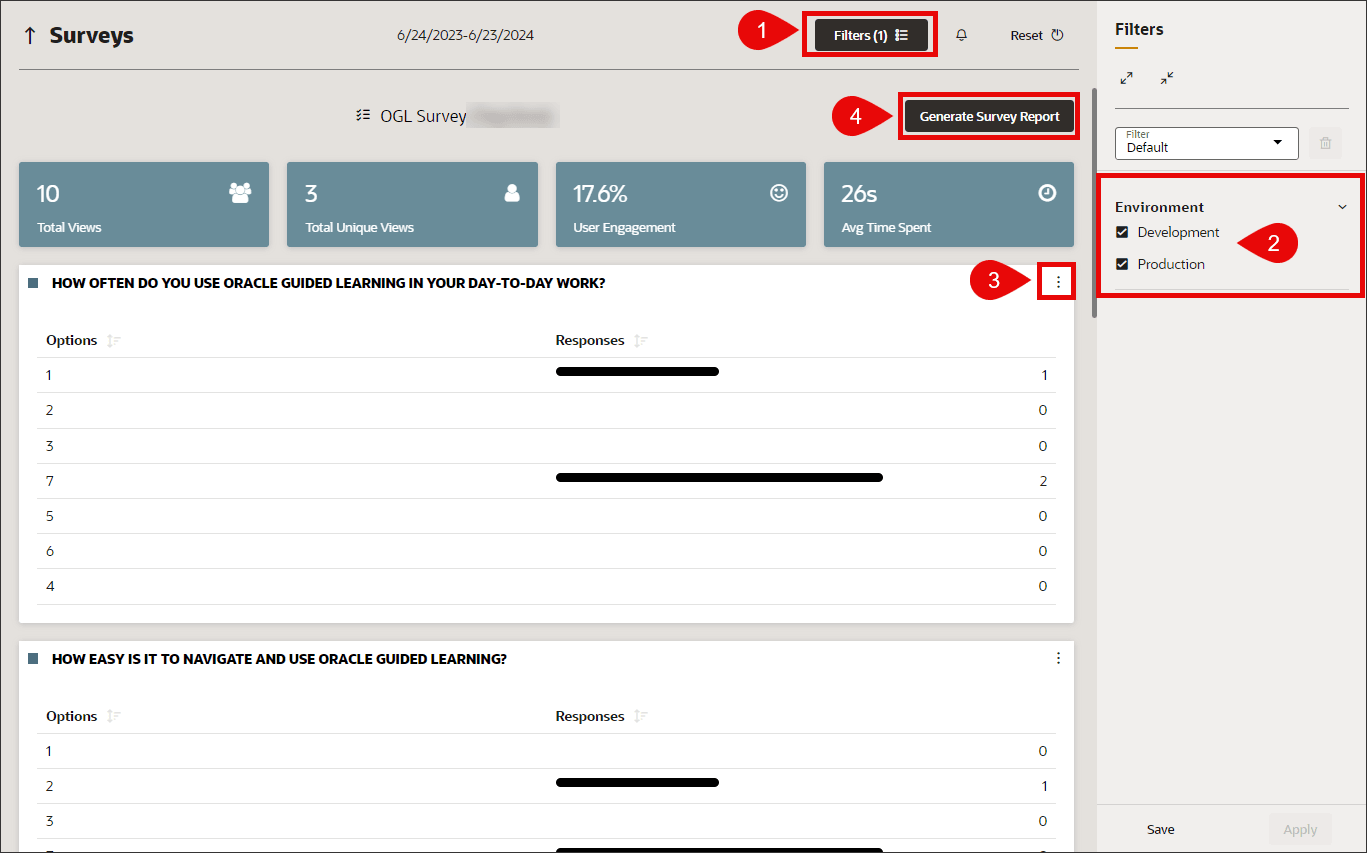
The Surveys Dashboard opens the results of the selected survey and displays the survey analytics for that guide, including total number of views, total unique views, rate of user engagement, and average time spent. Below the summary, you can also see a breakdown of each survey question, answer options, and total responses for each question.
Filtering Survey Data
- Select the Filters button to open the filter panel.
- Select the environment(s) to include in the analytics (Development and/or Production).
Exporting Survey Data
- To export the survey response data into a CSV or Excel file, select the "
 " icon in the top-right corner of each survey question.
- To export all data from the survey into a report, select the
Generate Survey Report button to have the report emailed to your
email address.