Theme
Please note that modifying the Theme (Design Kit) might impact accessibility. For more information about Oracle's commitment to accessibility, see http://oracle.com/accessibility.
Accessing the Interface
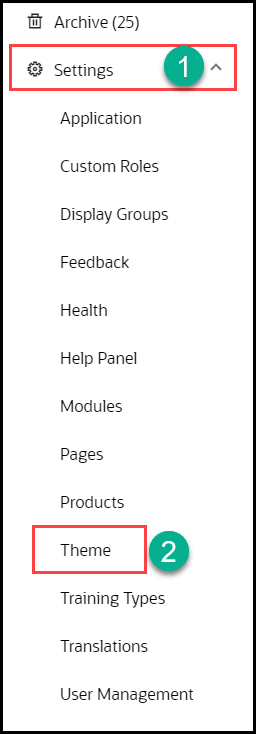
- On the OGL Console homepage, go to the left navigation panel.
You can see the Settings section in the navigation panel.
- Select the Settings dropdown menu.
- Select Theme in the left panel.
WYSIWYG Theme Editor
Customers may sometimes need to change their OGL theme to align with their corporate branding standards. Previously, OGL theme customization was limited to editing the HTML file within the OGL design kit, requiring users to have knowledge of HTML and CSS to make theme customizations.
With the new Theme Editor in OGL 25B, developers and administrators can now make changes to their OGL theme using a more user-friendly tool that incorporates a “What You See Is What You Get” (WYSIWYG) visual interface without the need to edit CSS rules in an HTML file.
This new feature offers a more convenient and efficient way to format the appearance of common OGL theme elements, such as tooltips, backgrounds, text, buttons, launch widget, smart tips, and help icons. Themes can be saved, imported, exported, and set for Development and/or Production environments.
In this first iteration of the WYSIWYG Theme Editor, users will be able to customize the primary, secondary, and tertiary colors of the following OGL theme components:
- Body Color
- Button, Launch Widget and Header Color
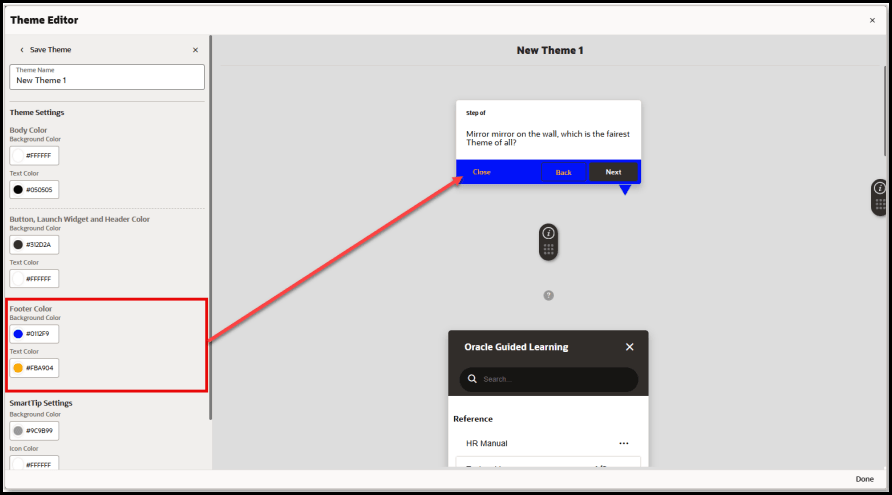
- Footer Color
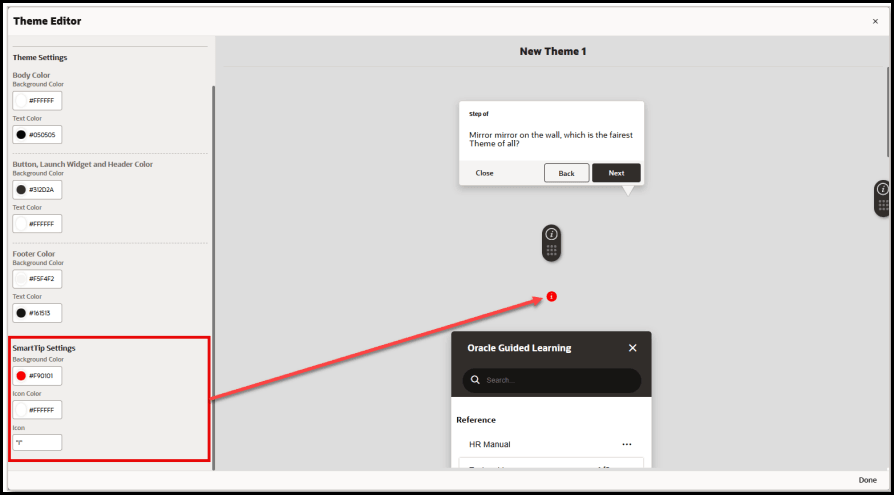
- SmartTip Background, Icon Color, and Icon CharacterOn the OGL Console homepage, go to the left navigation panel.
The Theme Editor also allows users to preview their theme changes in real-time, save and name the theme, and set the theme for PROD and/or DEV environments. The Theme Editor also allows users to Duplicate, Export, Import, and Delete themes, as needed.
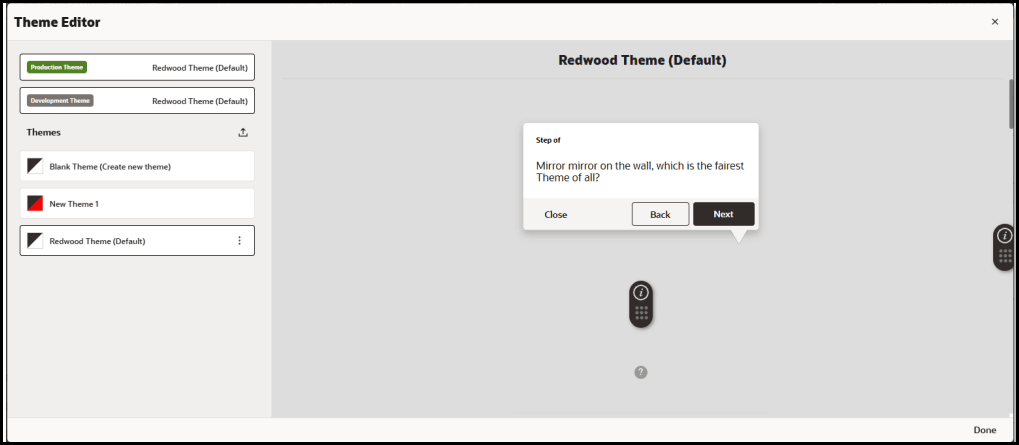
Launching the Theme Editor
From the OGL Console, select Settings > Theme
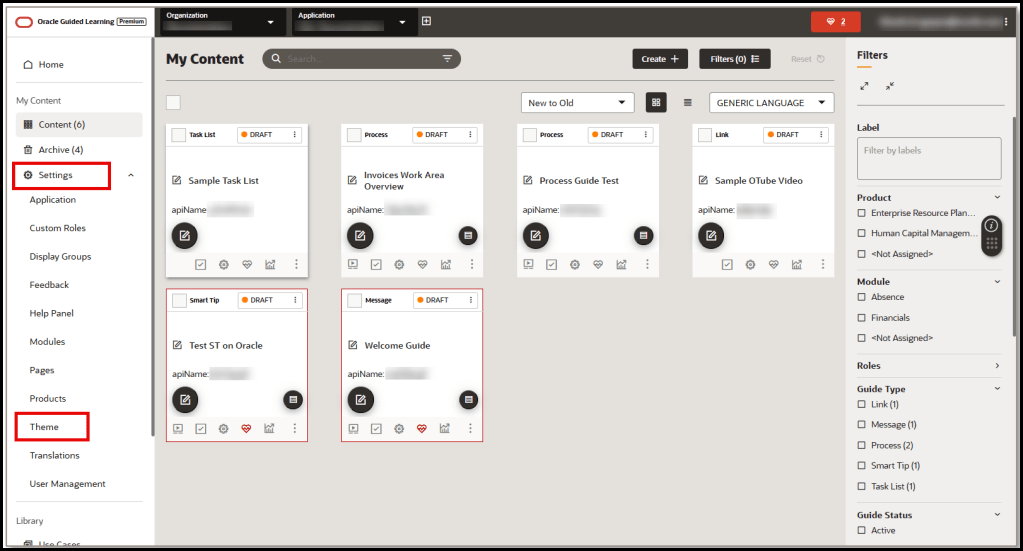
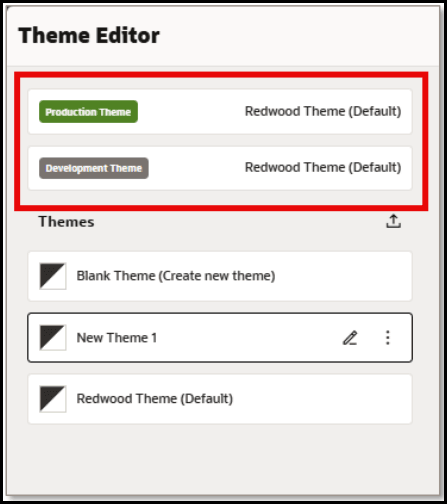
The Theme Editor modal opens:
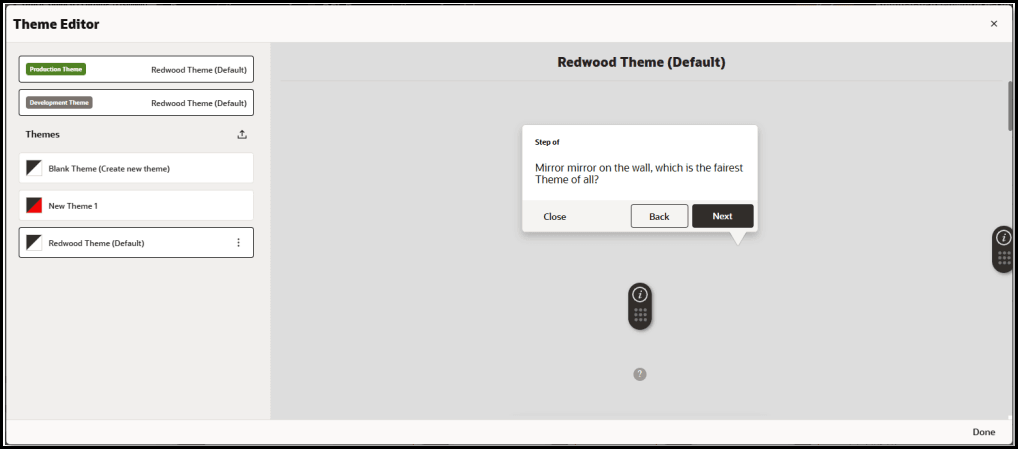
The currently set PROD and DEV themes are always listed at the top of the editor:
Importing Themes
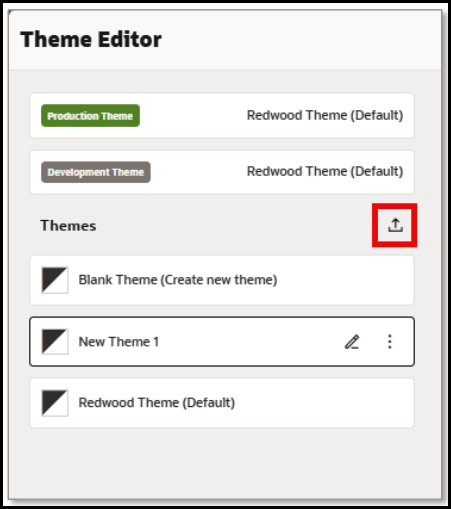
Selecting the Import Theme
button allows you to select and upload an existing theme (HTML file) from your file system.
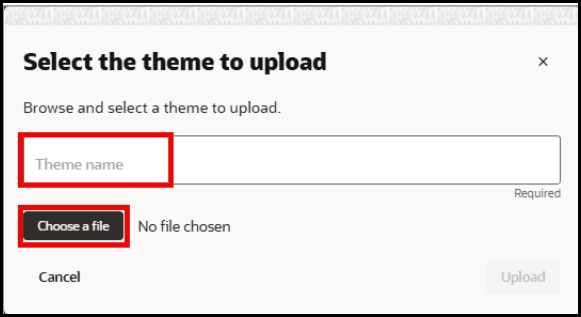
Enter a name for your theme and then select Choose a file to browse for an existing theme file.
Available Themes List
In the Themes section, users can choose from a list of available themes to edit or create a new Blank Theme.
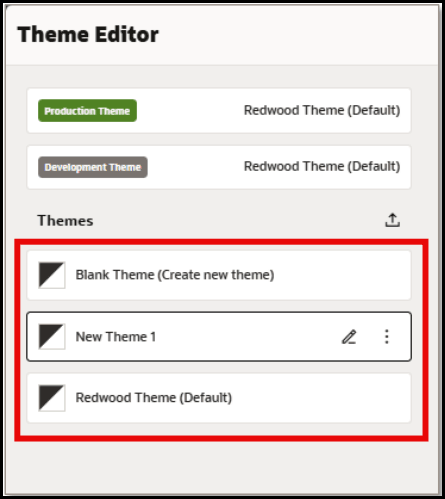
Select the Edit

button next to any theme to open the Theme Settings for the selected theme.
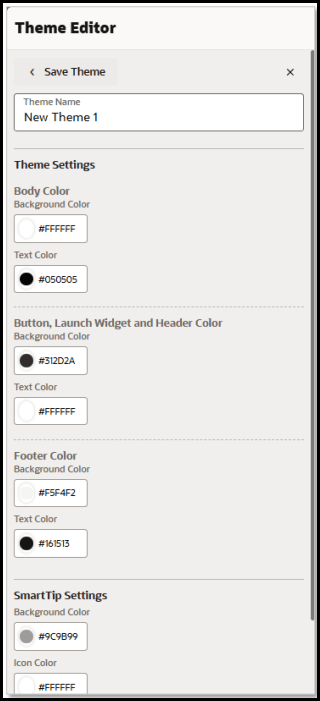
Editing a Theme
The Theme Editor now displays:
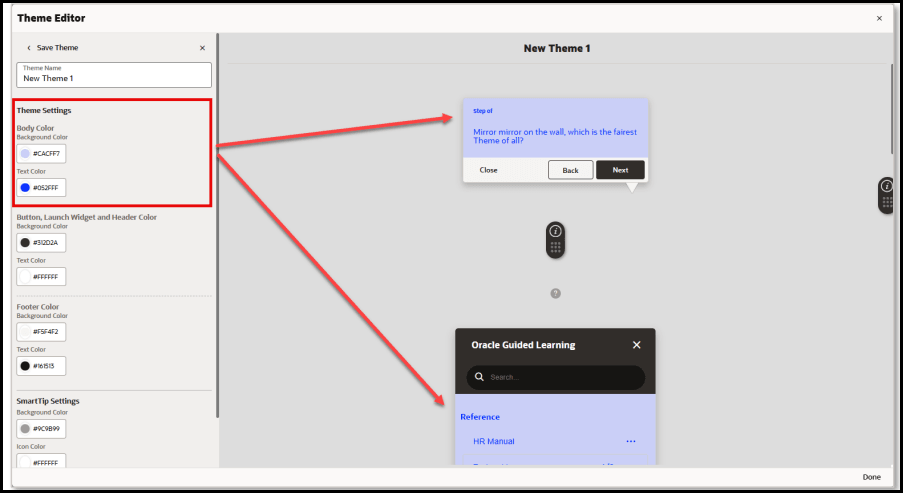
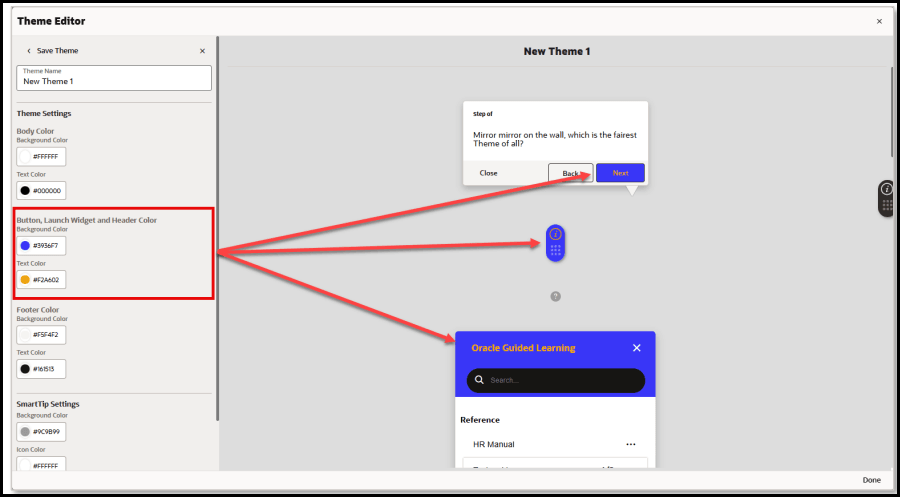
The following screenshots depict which theme elements will be affected by each theme setting:
Body Color – Background and Text:
Button, Launch Widget and Header Color – Background and Text
Footer Color – Background and Text:
SmartTip Settings – Background Color, Icon Color, and Icon (character)
Using the Color Picker
To change the color for an element, select the circle on the left of the color setting
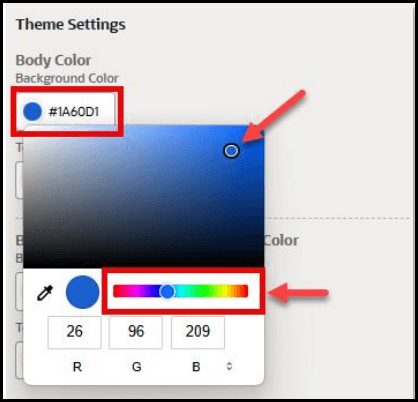
to open the color picker. Colors can be selected by dragging the color slider to a desired hue, then selecting the desired shade of the color above. To pick a color, move your mouse cursor about the color picker (or use the arrow keys on the keyboard), then click on the desired color (or press ‘Enter’). Once selected, the color code will be displayed in the color field as a Hexadecimal code value.
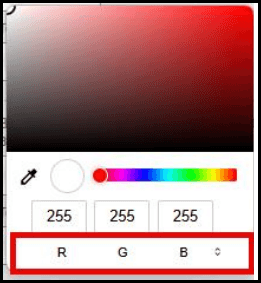
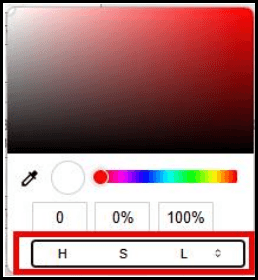
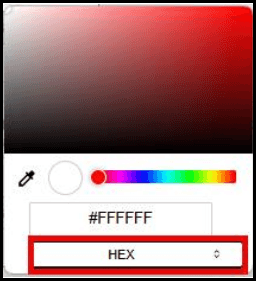
To change the color model, select the arrows ( ) to cycle between RGB, HSL, and HEX color modes.
RGB (Red, Green, Blue) Color Mode:
HSL (Hue, Saturation, Lightness) Color Mode:
HEX (Hexadecimal Code) Color Mode:
Note:
Colors can also be input as a Hex code, RGB, or HSL value directly into the color text field(s).Sampling a color on the screen
You can also pick a color by sampling the color of any pixel from anywhere on your screen using the Eyedropper tool.
Select the Eyedropper
 to change your mouse cursor into a magnifier that zooms into a selected
area(
to change your mouse cursor into a magnifier that zooms into a selected
area( ). Move your mouse about the screen (or use the arrow keys) to position the
magnifier over any area of the screen. Place the center of the magnifier over a
pixel containing the color you wish to sample and click the mouse button (or press
the Spacebar) to sample that color. The color picker will update with the selected
color code value.
). Move your mouse about the screen (or use the arrow keys) to position the
magnifier over any area of the screen. Place the center of the magnifier over a
pixel containing the color you wish to sample and click the mouse button (or press
the Spacebar) to sample that color. The color picker will update with the selected
color code value.
Note:
To cancel and exit out of the Eyedropper/Magnifier tool, press the Esc key.Saving Your Theme
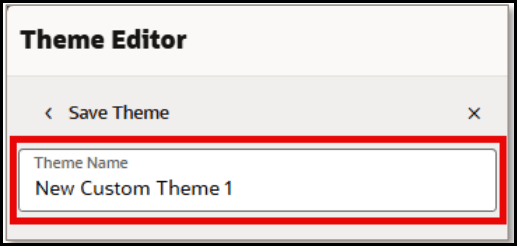
To save your theme changes, enter a name in the Theme Name field, then select Save Theme.
More Actions
Selecting the More…

button next to any theme will open the More Actions menu.
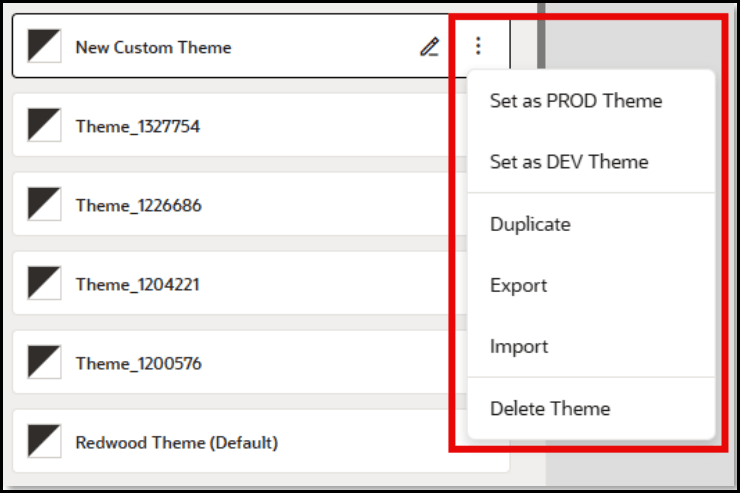
The following actions can be performed from the More Actions menu:
- Set as PROD Theme – Publishes the selected theme to the Production environment.
- Set as DEV Theme – Publishes the selected theme to the Development environment.
- Duplicate – Makes a copy of the selected theme and appends “- Copy” to the theme name.
- Export – Downloads the selected theme as an HTML file to your default Downloads folder.
- Import – Opens the Upload modal allowing you to select an existing OGL Theme HTML file to replace the selected theme
Border Settings in WYSIWYG Theme Editor
This new enhancement in the OGL Theme allows developers and administrators to easily customize Tip and Smart Tip borders through a user-friendly interface, eliminating the need to manually edit CSS in HTML files.
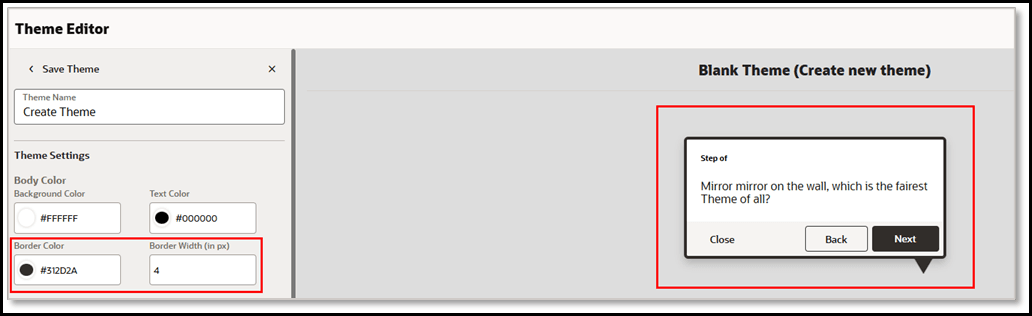
Tip Border Customization:
Set the border color and width for Tips in the Body Color section of Theme Settings. These settings apply to Tooltips, Feedback, and Task list components.
- Navigate to Theme Editor.
- Click Create New Theme or click the Edit icon to modify an existing theme.
- In the Body Color section, locate the Border Color option to set the border color for Tooltips, Feedback, and Task list components.
- Use the Border Width setting to define the thickness of the border in pixels.
- Changes will be reflected immediately in the preview panel on the right.
- Click Save to Dev and/or Save to PROD to apply the changes to the
respective environments.
Smart Tip Border Customization:
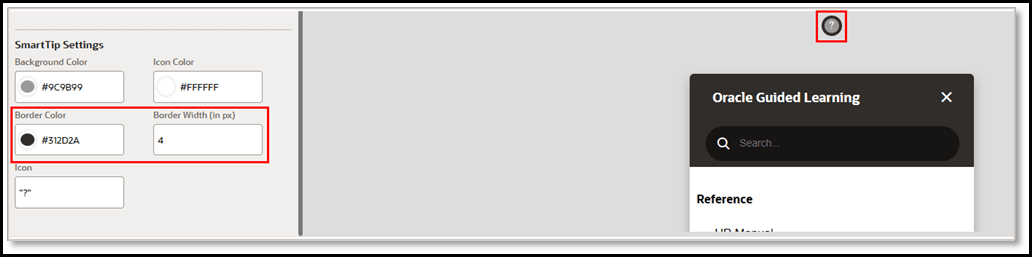
Configure the border color and thickness for Smart Tips in the Smart Tip Settings section. This allows you to add and control the thickness of borders specifically for Smart Tips.
- Navigate to the Theme Editor.
- Select Create New Theme or click the Edit icon to update an existing theme.
- In the SmartTip Settings section, find the Border Color option to customize the SmartTip border color.
- Use the Border Width setting to specify the thickness of the SmartTip border in pixels.
- All changes will be instantly visible in the preview panel on the right.
- Click Save to Dev and/or Save to PROD to apply the updates to the
corresponding environments.
Known Issues/Expected Behavior
Feature limitation: With OGL 25D Release, the following elements are not currently customizable using the Theme Editor:
- Search bar in the help panel
- Text area & Smiley's in the feedback modal
- Step guide menu drop-down in the player side
- Language menu drop-down in the player side
- Mouse hover color - Next button, Guide list & step guide launcher menu.
These theme elements and more will be customizable in future iterations of the Theme Editor. For now, users can still download their OGL Theme HTML file from which to make further customizations by editing the HTML code and CSS rules, as needed.
