Configuring Themes
OGL includes several default themes. You can also customize tip colors, fonts, and tip positions as per your branding requirements.
Download the Design Kit
The Design Kit provides the ability to update the theme however you want, this article is meant to provide some basic guidelines and covers updating some of the basic attributes of the theme and does not cover advanced CSS methods.
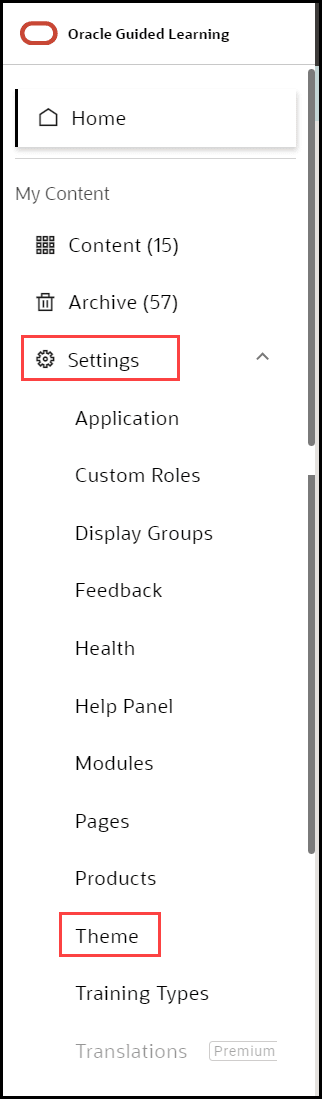
- On the OGL Console homepage, go to the left navigation panel.
You can see the Settings tab on the navigation panel.
- Click the Settings tab, list of options are displayed.
- Select Themein the left navigation panel.
- Select the Upload/Download Theme tab.
The following interface is displayed.
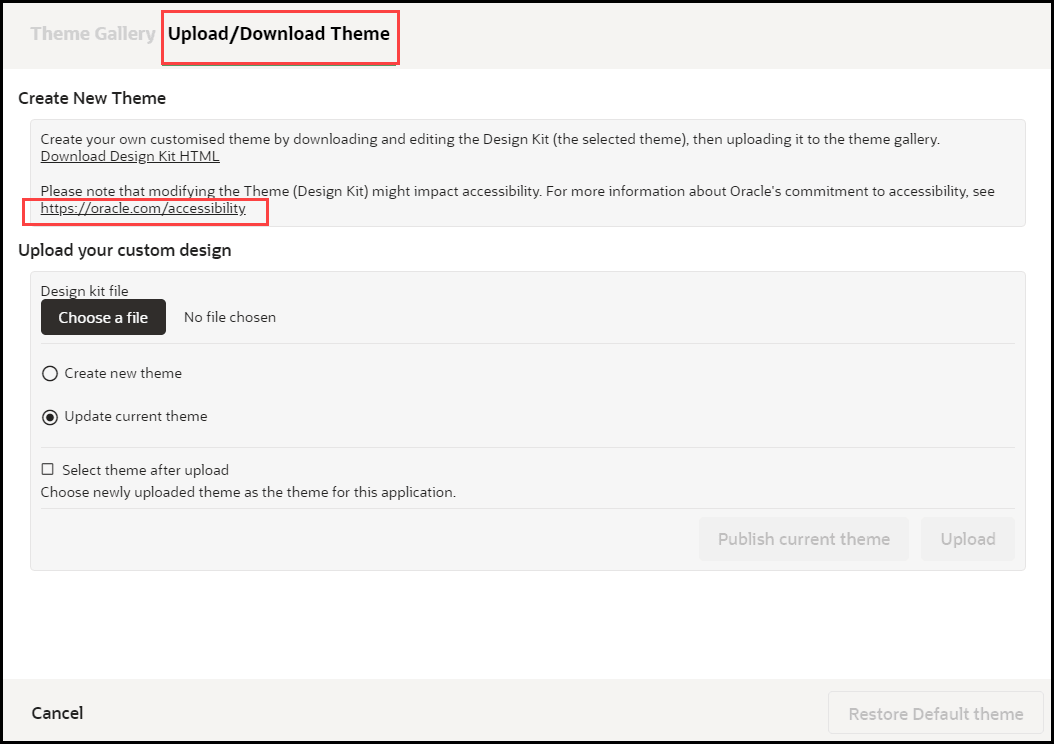
- Click Download the Design Kit HTML link.
This will download as file "OGL_Theme_Design_Kit..." HTML file. Ensure you rename the file accordingly.
- Save the HTML file to a local directory.
Note: Rename the file accordingly, our recommendation is to rename it using the following convention: Design_Kit_ORGNAME_DD_MMM_YYYY
Update the Design Kit
To update the design kit, you will need to use a suitable text/HTML editor.
- Open the Design Kit in a browser
- Open the same file with the HTML/text editor
- Find the CSS class and update the relevant attributes
- Save the changes, then refresh the Design Kit in the browser to preview the changes before uploading them to the OGL Console
Upload the Design Kit
- Select the Content tab in the OGL Console
- Select Themein the left panel
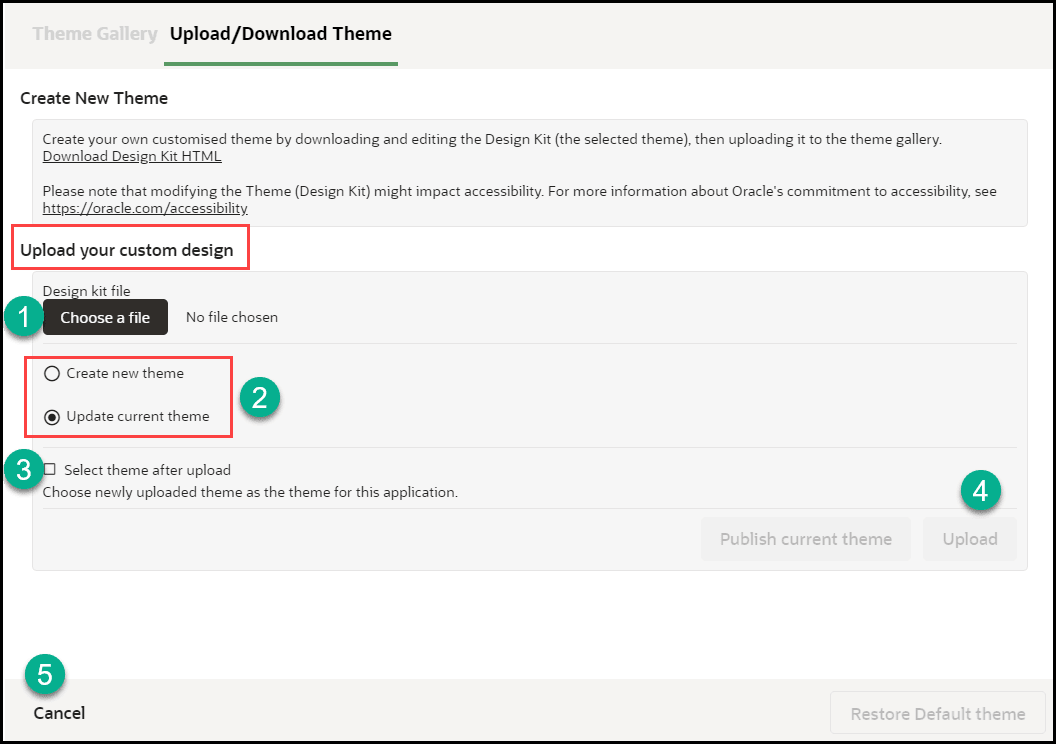
- Select Upload Theme
- Select Choose File (A), then select the file saved in your local directory.
- Select Create new theme (B). Note: Select Update current theme if you are updating an existing custom theme
- Check the Select new theme after upload check-box
