Using the Multi Language Widget
A user may choose to select an alternative language available on the OGL widget. Here is an easy way to do this:
- Open the Guided Learning widget.

- At the bottom-left of the open widget, click the Language
Selection icon (
 ) then select the desired language from the menu.
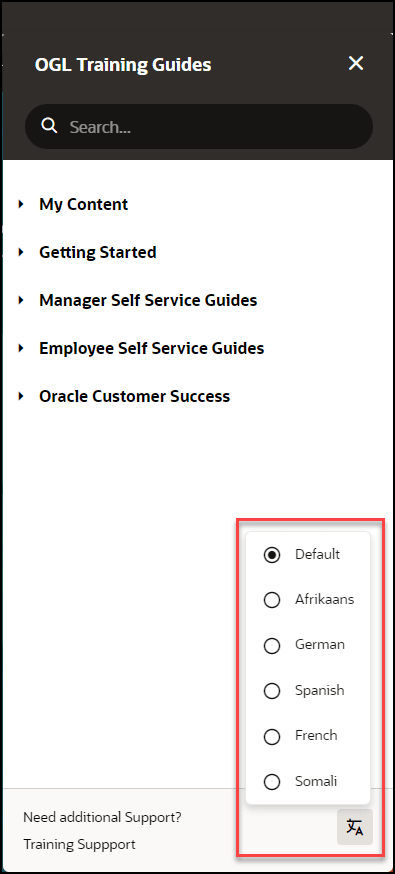
All guides available in the selected language will now display in the widget. For example, if you selected Dutch from the available languages, all Dutch guides will now display in the widget.
Once you sign out of the Fusion application and sign back in, the widget language will default to the language you have previously chosen.
Note:
If a user does not manually select a language from the OGL Language Menu, OGL defaults to the Fusion application language for the session.