Manual or External Translation
- Arabic
- Chinese - Simplified
- Chinese - Traditional
- Croatian
- Czech
- Danish
- Dutch
- Finnish
- French - Canada
- French - France
- German
- Greek
- Hebrew
- Hungarian
- Italian
- Japanese
- Korean
- Norwegian
- Polish
- Portuguese - Brazil
- Portuguese - Portugal
- Romanian
- Russian
- Slovak
- Slovenian
- Spanish - Worldwide
- Swedish
- Thai
- Turkish
- Vietnamese
Translating the Guides Using Machine Translation
To manually translate guides, you will need to first export the OGL properties files of the guides you wish to translate, then use an external translation service or manually translate the guide contents. Once translations are completed, you will need to generate a ZIP file of the translated guides, then import it back to OGL. The Translations function in OGL allows you to manage the exporting/importing of the properties files for manual translation.
Note:
- The best practice is to have the content ready and signed off in the Generic Language (English) before submitting the machine translation.
- Guides will only be tested in the default language. The client is responsible for testing the foreign-translated content (only for Managed Service clients).
This section will guide you on how to translate your guides using machine translation.
To translate:
Step 1: Export the OGL content from the Generic Language folder (English folder).
Note:
By default, OGL guides are in English. If you are using an APP ID without translated guides, you will only have a generic folder including all the English guides. As soon as a translation is completed, folders with the translated content in other languages will be created.- From the OGL console left navigation pane, select Settings
> Translations.
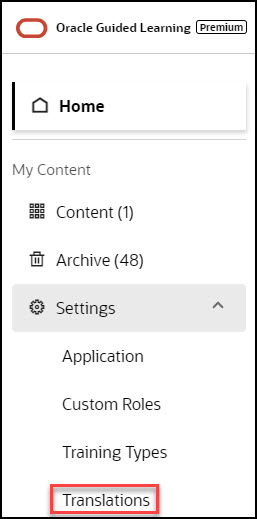
The Translations modal is displayed.
- Select Export.
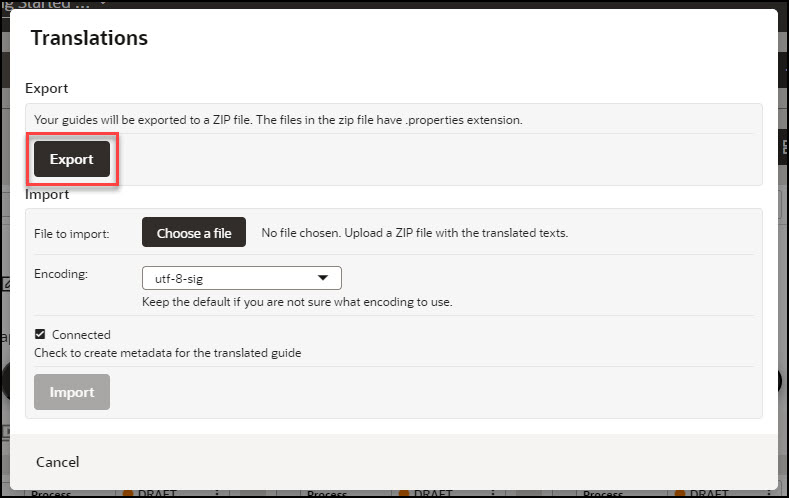
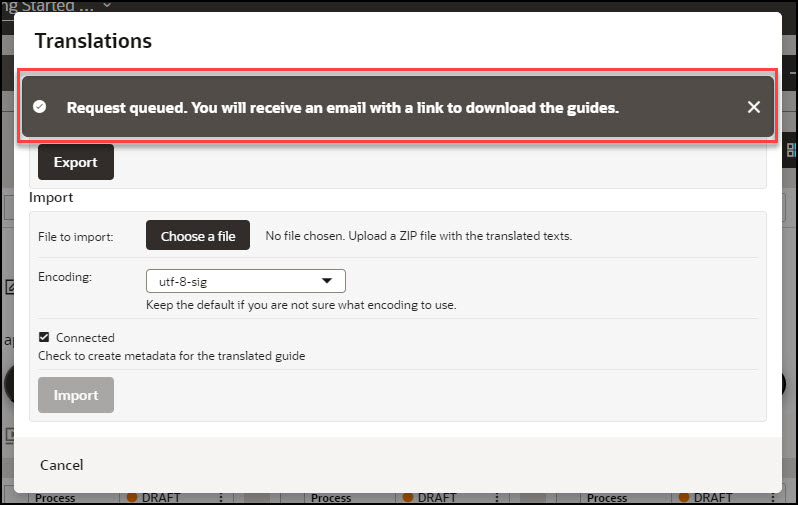
A ZIP file containing your guides is sent to your email address.
- Look for the email from Oracle Guided Learning containing
the link to your translation export file and select Download.
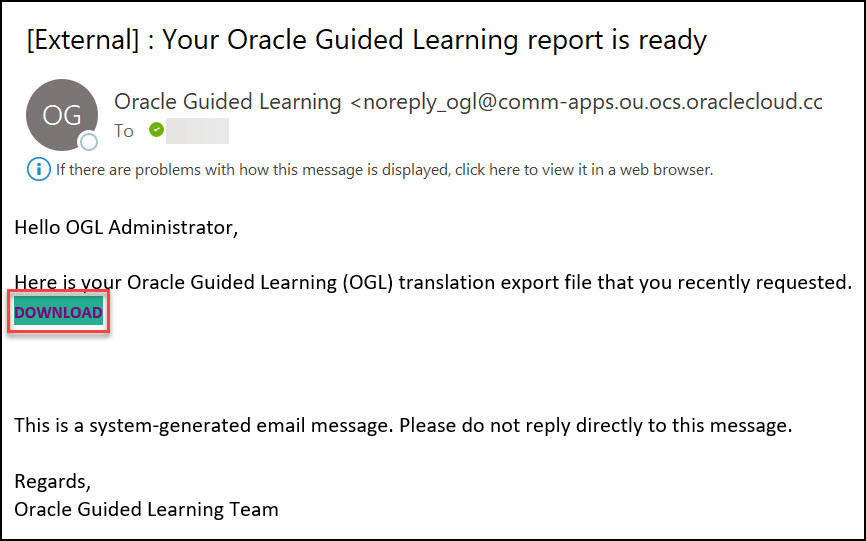
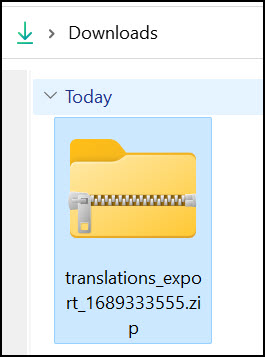
The browser now downloads the ZIP file.
- Navigate to your Downloads folder in the local drive
and unzip/extract the downloaded file.
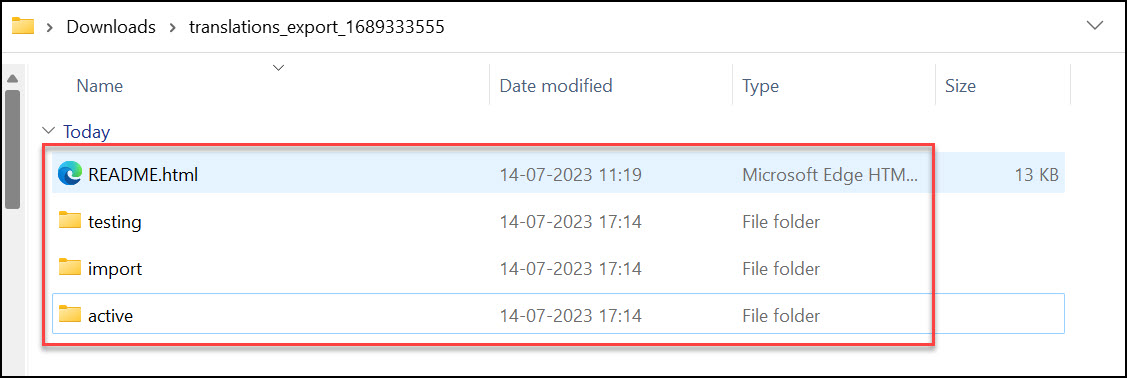
After extracting the folder, you will notice three subfolders named Active, Testing, and Import and a README.html file.
Note:
Active:
This folder contains the guides with status as published in the OGL dashboard from different languages/ default languages.
Testing:
This folder contains the guides with status as a draft in the OGL dashboard from different languages/ default languages.
Import:
This folder is used to import the translated content to the OGL dashboard in different languages.
Readme:
This is an HTML file that gives insights into export and import.
- Select Export.
- Navigate to the "testing" folder within the extracted folders.
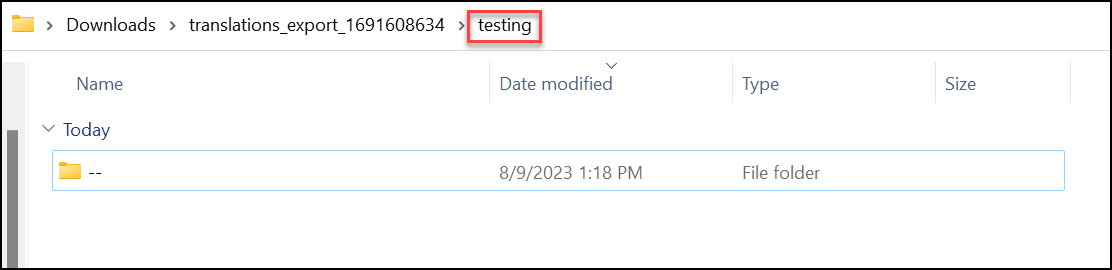
- Go to the subfolder named "--".
Note:
“--” is the default name for generic folders.You can see the list of existing guides in the English language, identified by their API IDs.
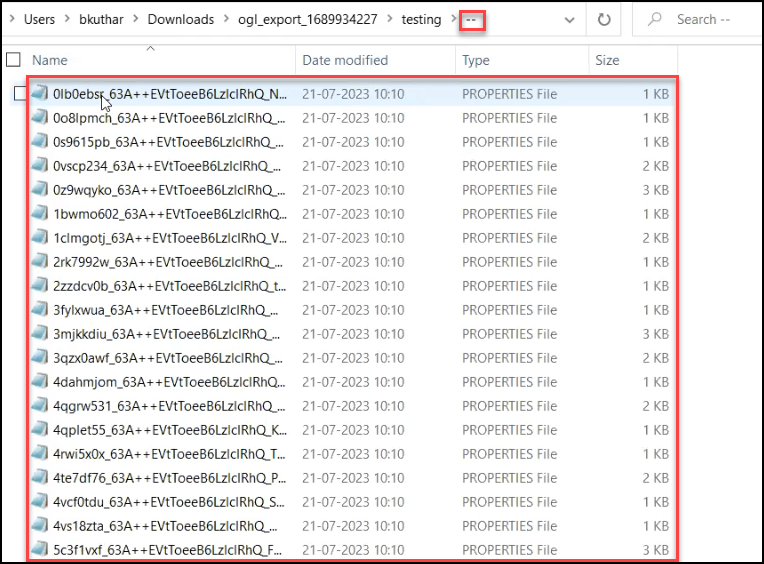
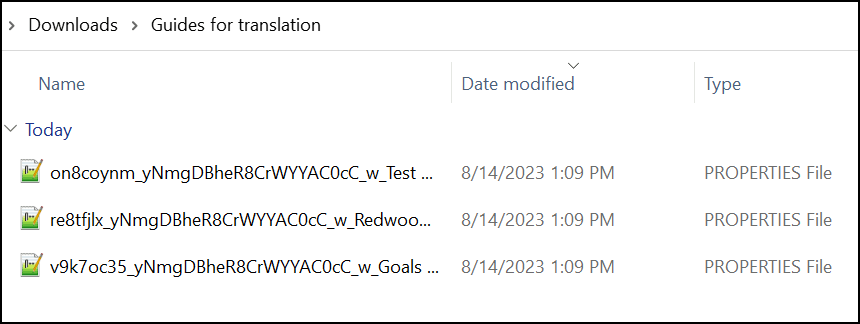
- Select the guides you want to translate, copy and paste them to a
new folder.
Tip:
- Use the API names of the guides to identify the exact guides you want to translate.
- Consider renaming the new folder to make it easier to identify.
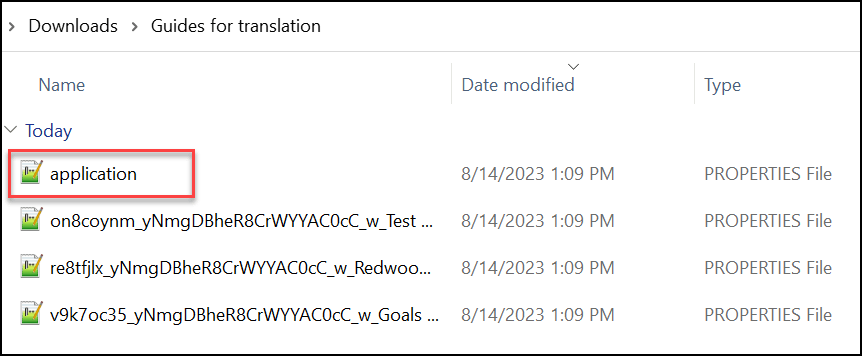
- Copy and paste the application PROPERTIES File (.properties) from
the testing folder to the newly created folder.The application PROPERTIES File
contains all the basic setups like Next, Back, Done,
Help, etc.
Step 2: Import the translated guides to OGL.
- Open the downloaded machine translated Zip file & keep it ready for
copying.
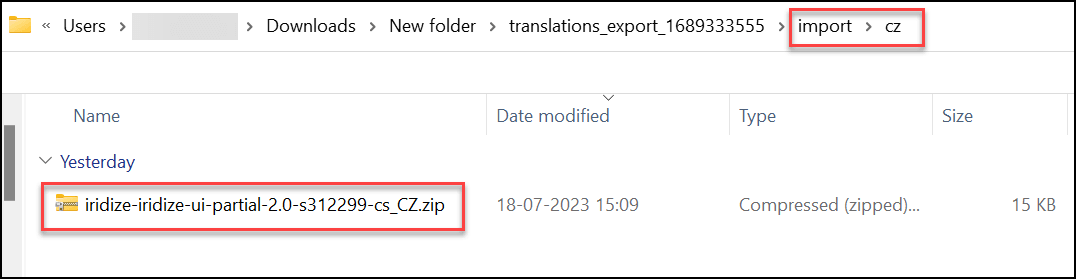
(In the following example, we have retrieved the translated content in Czech.)

- Navigate to the folder where you first downloaded the ZIP file from the OGL
Dashboard.
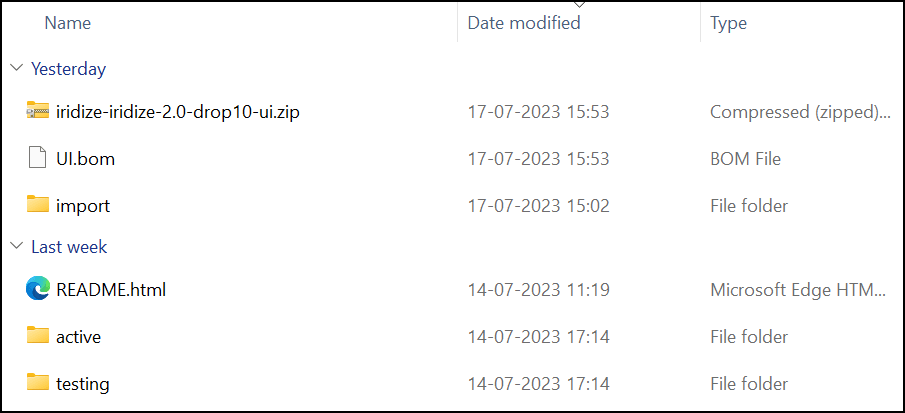
- Open the import folder and create a new folder. Name the folder with the
language code for which you translated.
Tip:
To import French guides, the folder should be named "fr," while for Czech, it should be named "cz," and so on.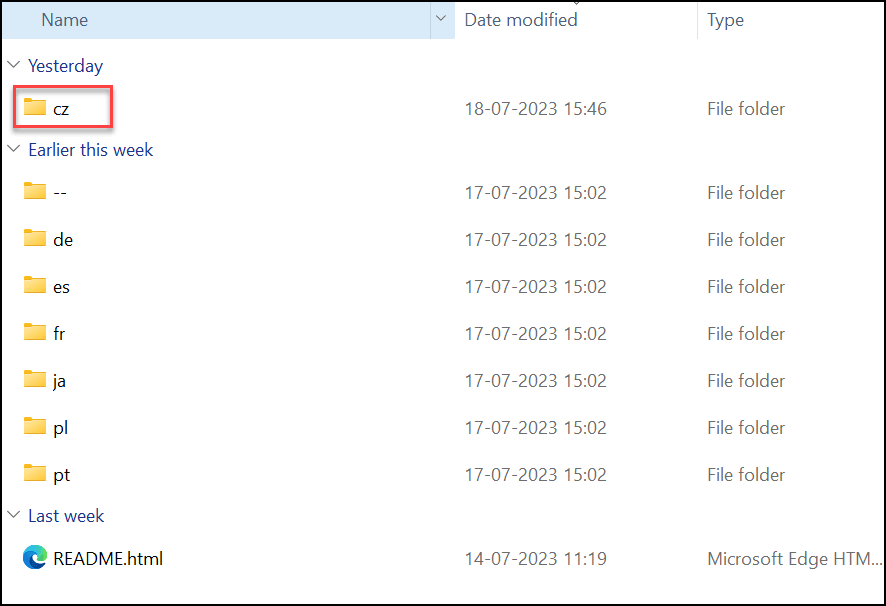
- Copy and paste the translated content to the specific language folder.
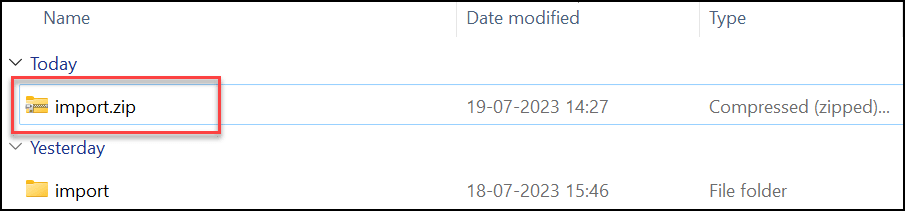
- Compress/Zip the import folder alone.
- Navigate to the OGL dashboard.
- Go to Settings > Translations.
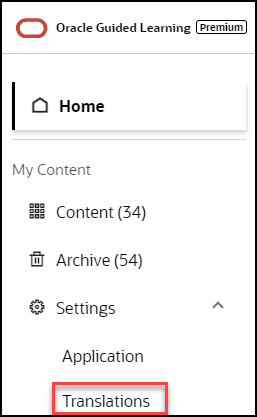
The Translations modal window is displayed now.
- Under the Import section, select Choose a file
andchoose the file named"import.ZIP".
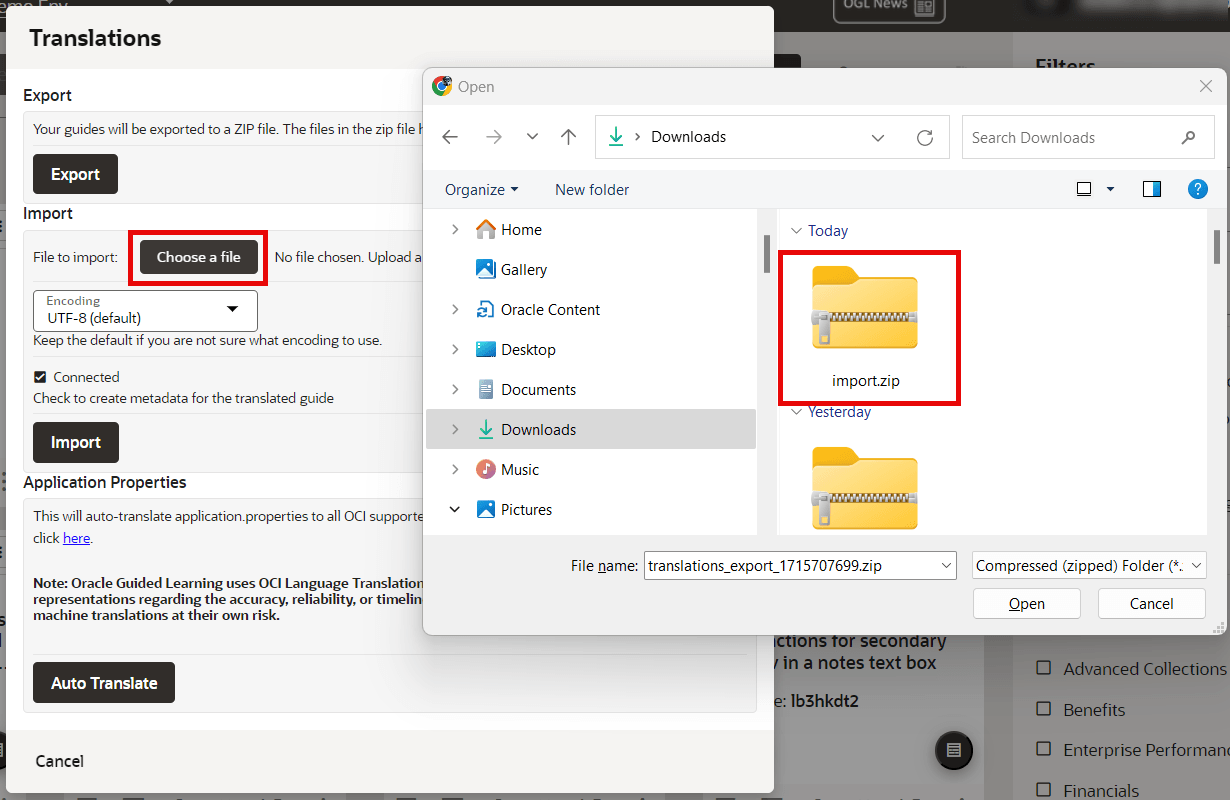
- Set the encoding to utf-8-sig.
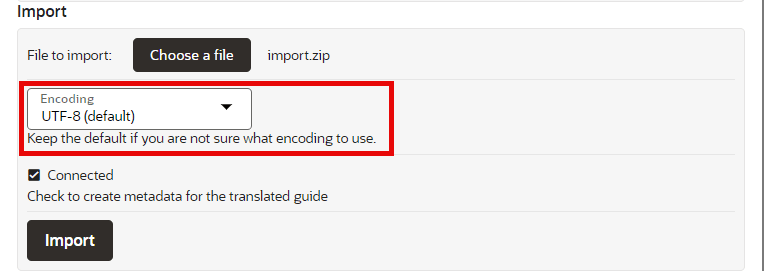
- Check in the Connected checkbox.
(If this option is not checked, any additional modification cannot be made in the guide.)
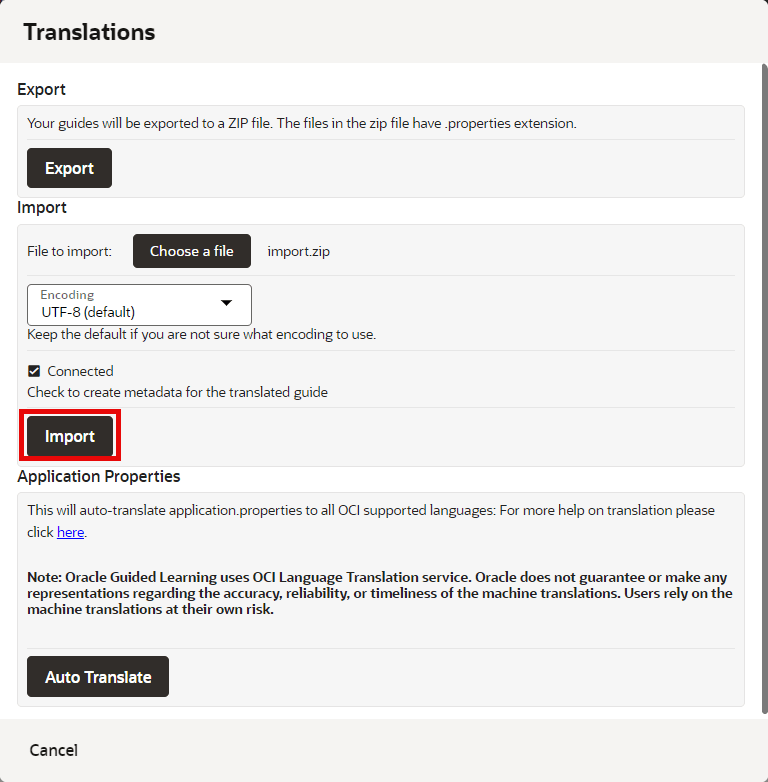
- Select the Import button.
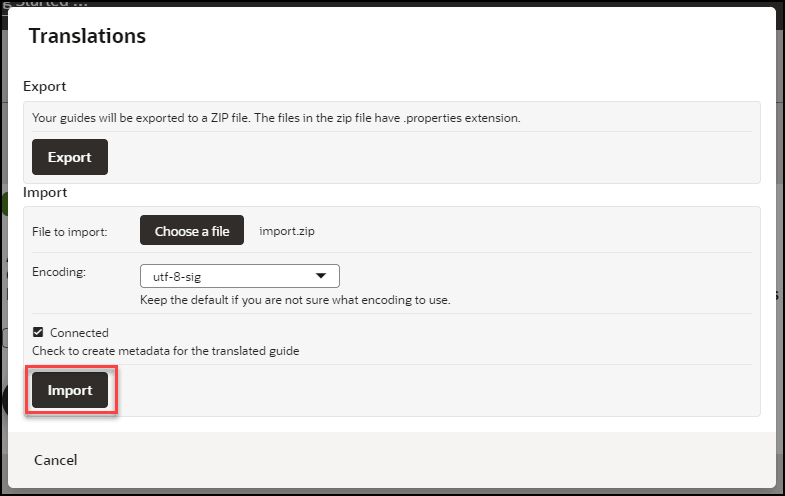
The translated content is now imported.
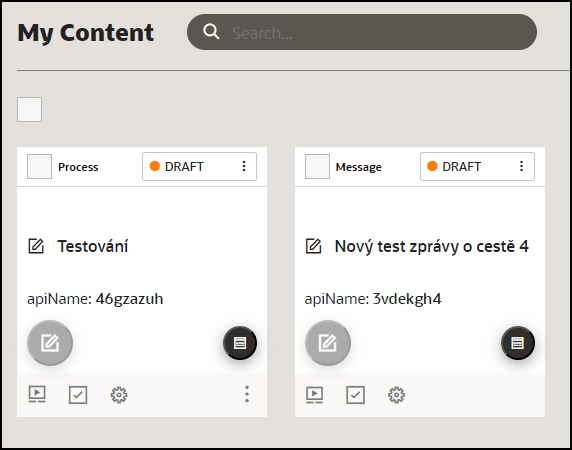
- Verify all the translated guides are available in the respective language
folders.
- On the OGL console, select Contents.
- Select the GENERIC LANGUAGE dropdown and choose the desired
language.
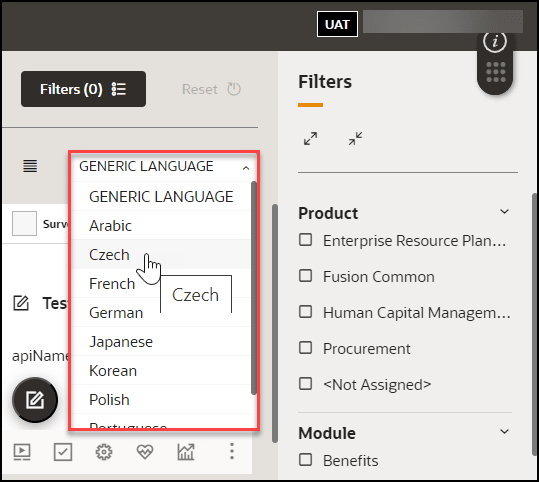
The translated guides are now displayed.
- Launch any guide in the Fusion Application by changing the language in
the Application login screen.
(Normally, the guide will progress similarly to the default language guide. If the translation guide does not progress like the default language guide, follow the steps in the troubleshooting tips.)
