Multi-Language Functionality
Overview of Multi-Language Functionality
The Multi-Language functionality allows you to create copies of an OGL item (i.e., guide, smart tip, etc.) into additional languages (i.e., An English worded OGL item can be made available in Dutch, French, etc.).
Note:
Kindly note that this feature does not have an automatic translation capability for the guides.The screenshot of the OGL console below highlights the default language or the currently selected language if there are multiple options available in the account.
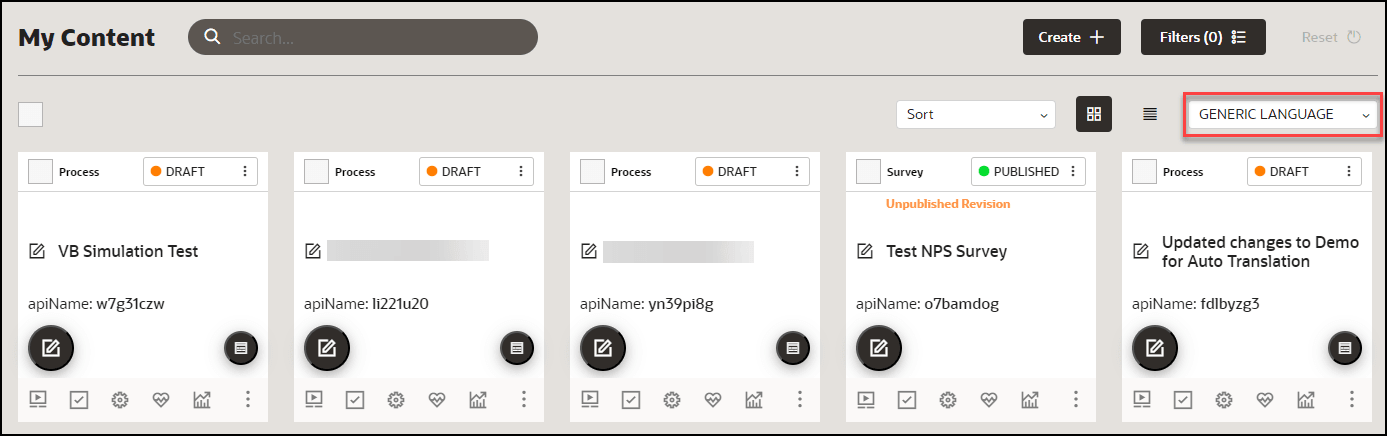
Important:
The Multi-Language functionality:
- Does not apply to Training Content (Use the properties file to translate these item types. Refer to OGL Console Left Panel - Translation.
- Allows use of the Content Editor in the alternate language folder to perform quick manual translations without having to wait on/purchase a translation service.
- Updates (OGL item structure & settings ) are inherited. You only need to update the text in alternate language OGL item(s).
- Allows you to have different languages for different OGL items (i.e., OGL Item A can have languages EN(default), FR, DE, and OGL Item B can have languages EN(default), ES, NL).
Default Language Setting
Previously Oracle Guided Learning’s default language for guides was English. From OGL release 21A, we have the facility to set the default language to any Fusion-OGL-supported language.
Accessing and Using the Multi-Language Functionality
- On the OGL console, go to Contents.
- On the target guide, select the ellipsis icon (
 ) and then Languages (
 ).
).
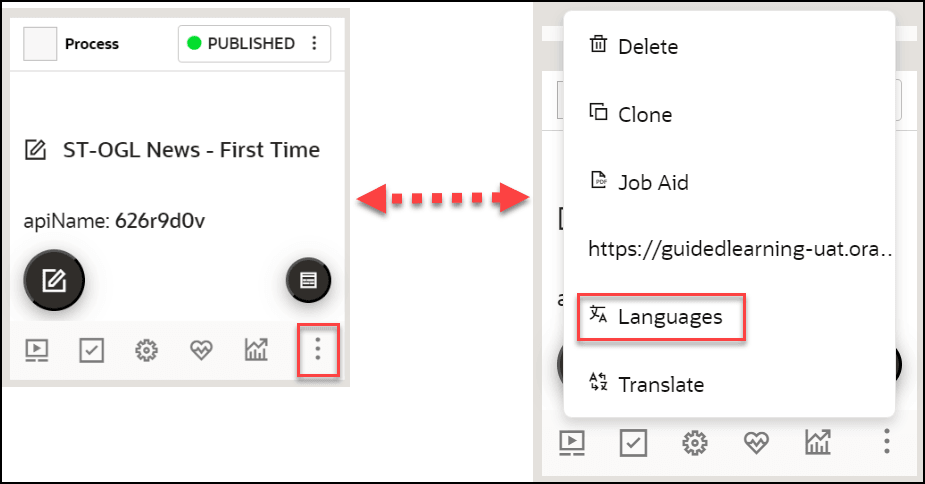
The Languages modal window is displayed now.
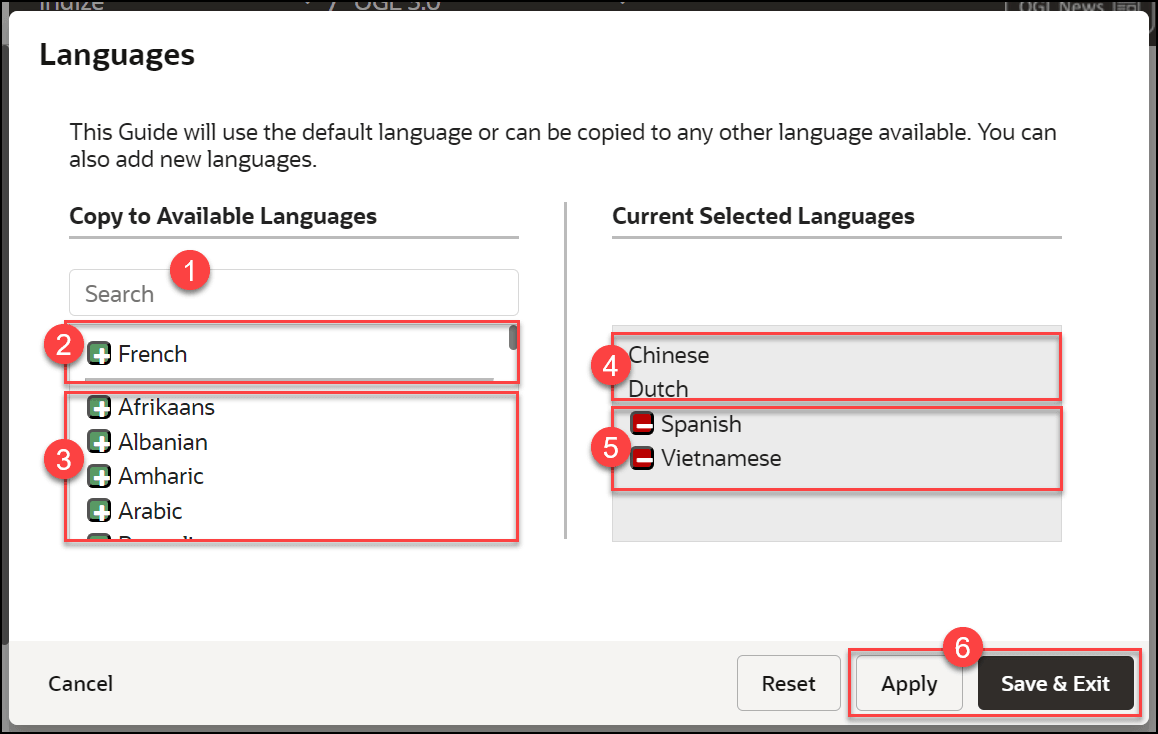
 Language Search Field
Use this field to search for a target language. Search results are filtered dynamically.
 Existing Languages in the Account/AppID
Languages currently available in the account/appID are displayed in this section (at the top). A horizontal line acts as a divider between 2 and 3.
 OGL Supported Languages
This section lists the OGL supported languages. You can select a language by clicking the green button (
 ). The selected language will be listed in the Current Selected
Languages section (5).
). The selected language will be listed in the Current Selected
Languages section (5).
Restriction:
Although there might be an extensive number of languages listed in OGL, for Fusion only the languages listed below are supported.- Arabic
- Chinese (Simplified)
- Chinese (Traditional)
- Czech
- Danish
- Dutch
- English
- Estonian
- Finnish
- French
- French (Canadian)
- German
- Greek
- Hebrew
- Hungarian
- Italian
- Japanese
- Korean
- Latvian
- Lithuanian
- Norwegian
- Polish
- Portuguese (Brazilian)
- Portuguese (European)
- Romanian
- Russian
- Slovak
- Spanish
- Swedish
- Turkish
 Current Selected Languages - Previously Created
When an OGL item has an existing copy in alternate languages (i.e English) the languages are listed first as read-only.
 Current Selected Languages - To be added
Current language selections are listed below the existing languages for the OGL item. To remove a language from the current selection, click the red button (
 ).
).
 Apply and Save and Exit buttons
Once you have made your selections, click on Apply, then Save & Exit to create alternate language copies of the OGL item.
- Choose the language(s) to which the guide needs to be translated. You can select
multiple guides at once.
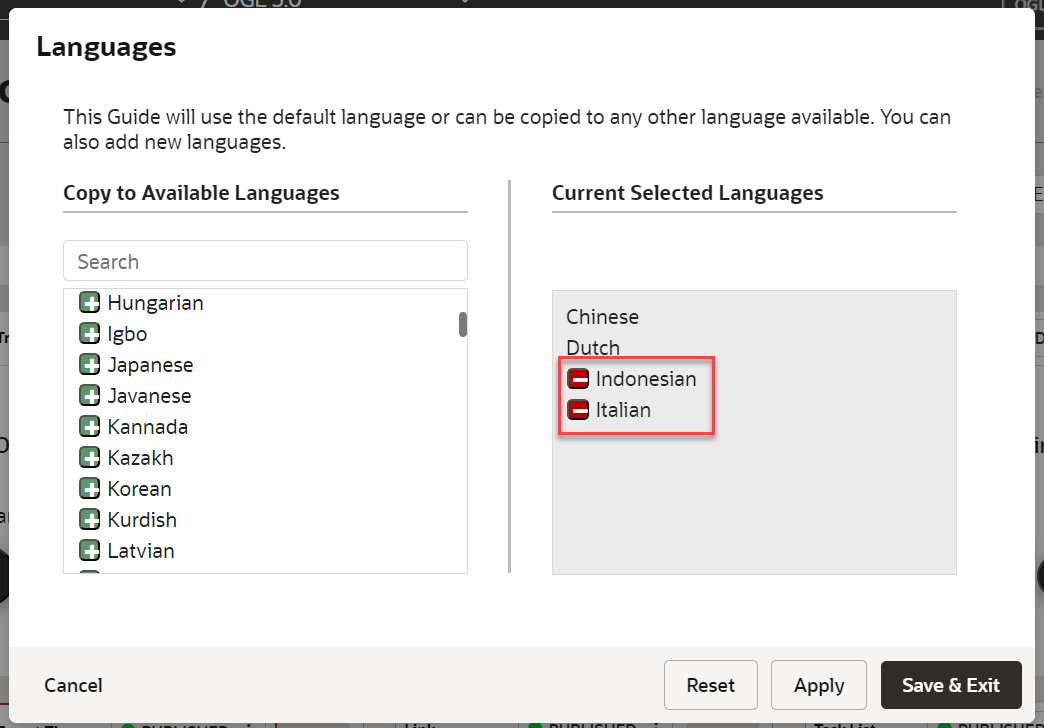
- Select Save & Exit.
The guide is now cloned.
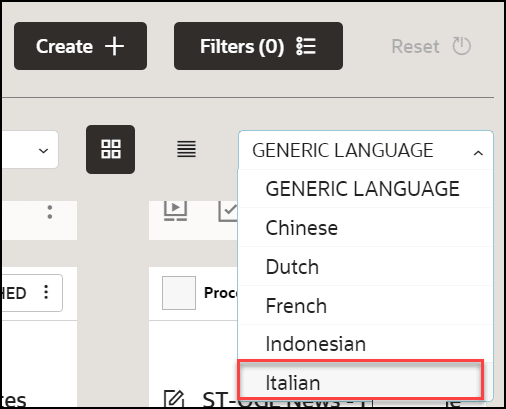
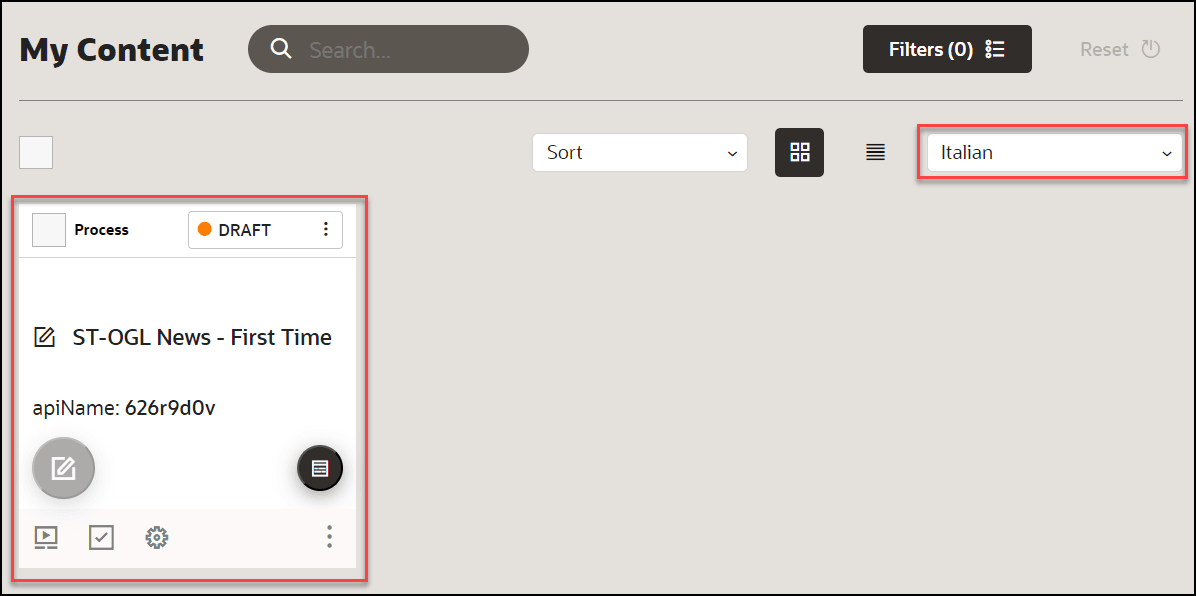
- Navigate to the specific language folder to which you have
translated the guide.
The guide is now cloned with same API ID.
Note:
Kindly note that this feature does not have an automatic translation capability for the guides. Once you have cloned the guide, it will remain in the generic language, and you will need to manually translate the guide or use an external translation service/purchase a translation service. Another option would be to manually translate the guide through a third-party translator such as Google Translate for a quick translation. - Select here to learn how to translate the guide using an external translation
service.
or
Contact your OGL Account Manager to purchase a translation service.
- Alternatively, use a third-party translator such as Google Translate for a quick
translation.
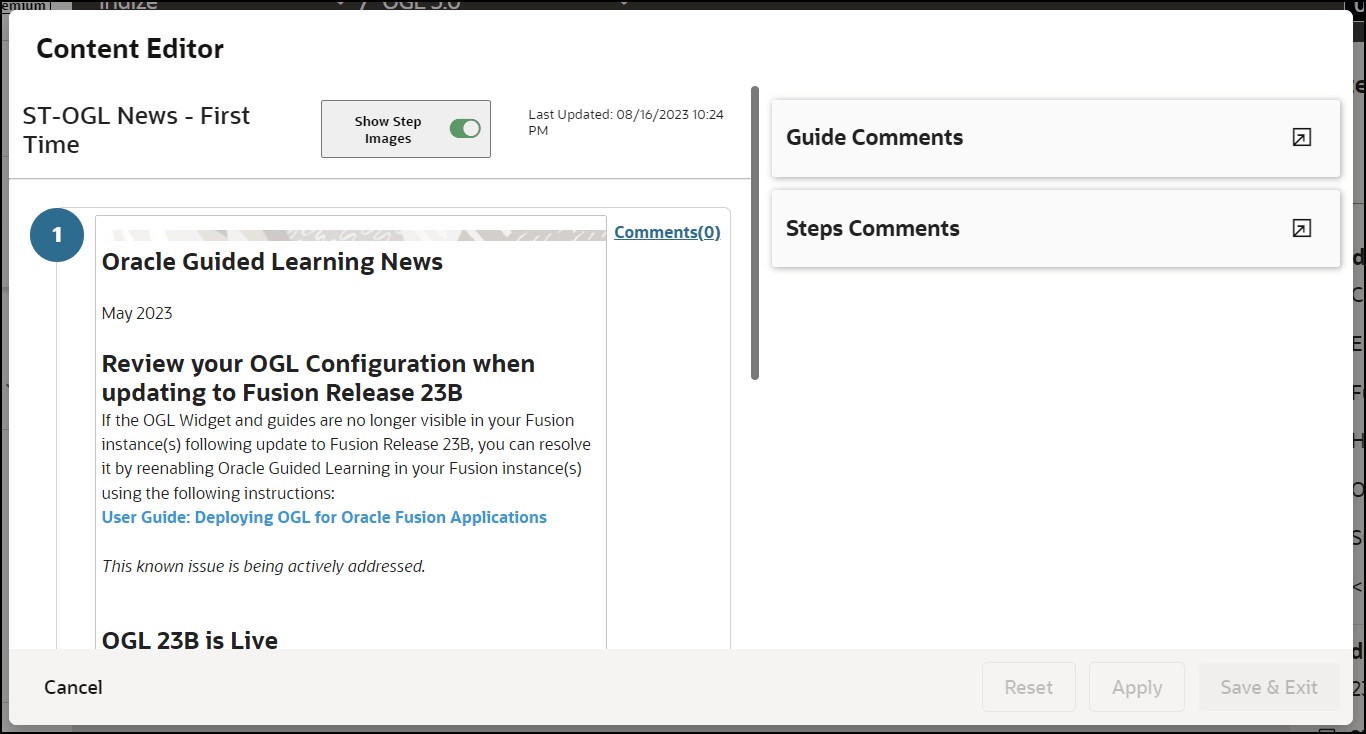
- Open the content editor of the guide that you want to
translate.
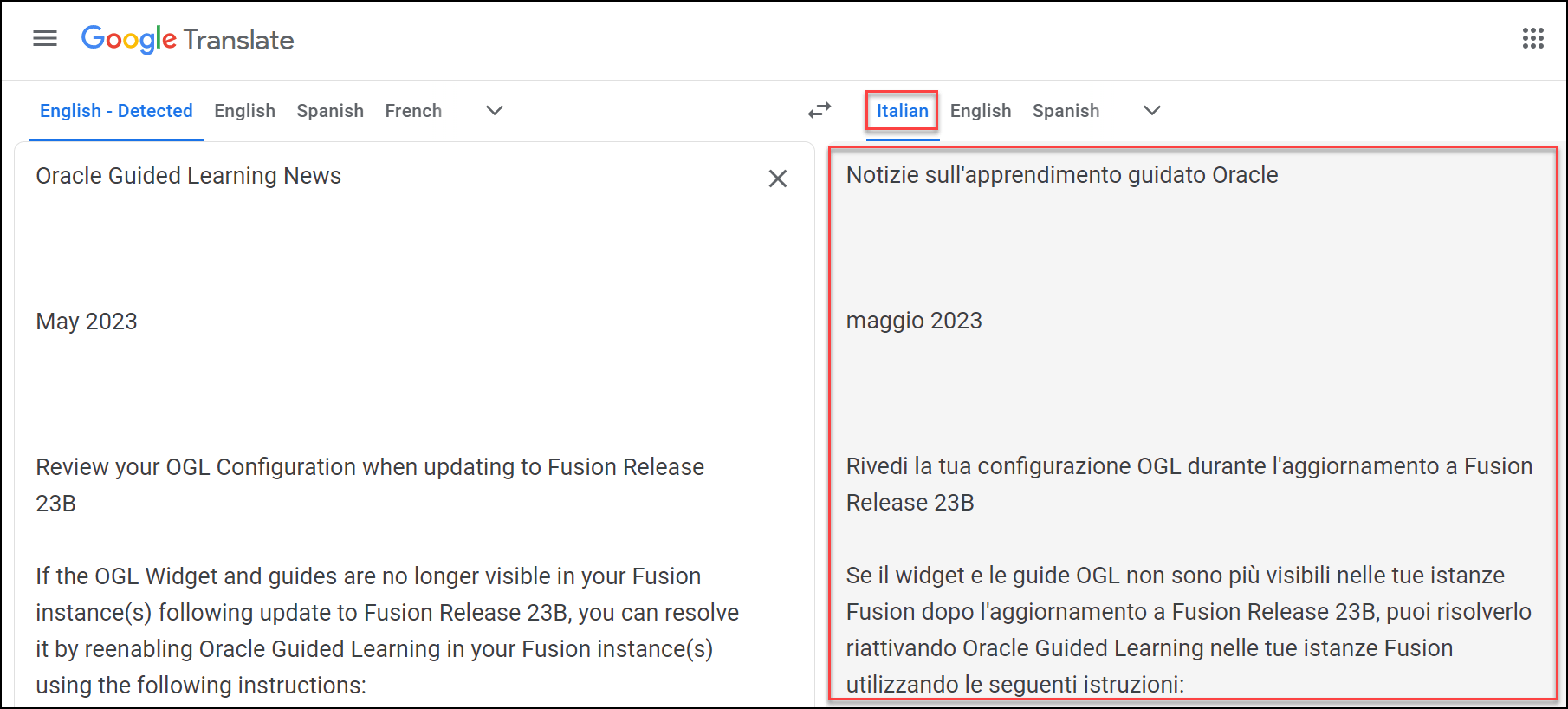
- In a new browser tab, go to Google Translate.
- Copy the contents from the content editor and paste it into the Google Translator's input column.
- Select the desired output language, and the content is
instantly translated.
- Copy the translated content from Google Translate and paste it back into
the content editor of the guide.
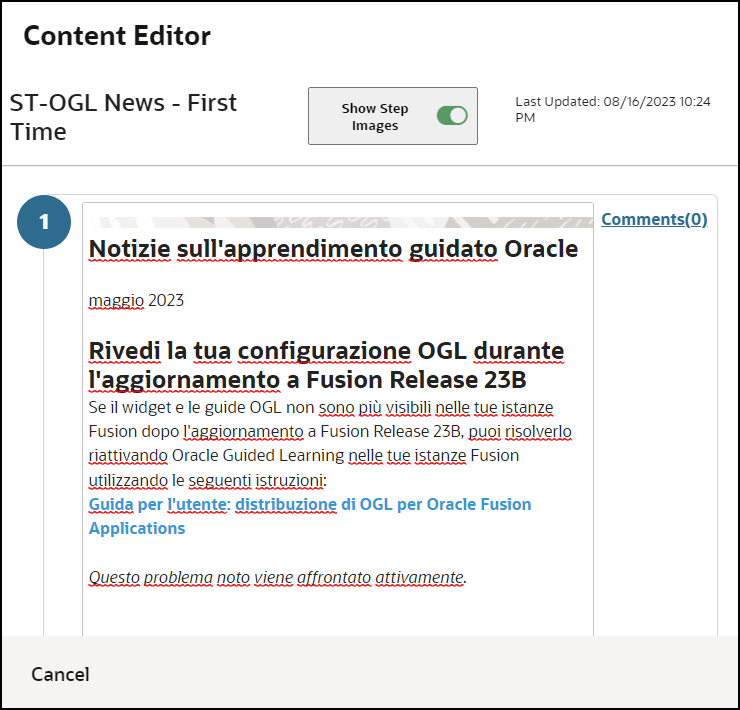
- Select Apply and then Save & Exit to save the
changes.
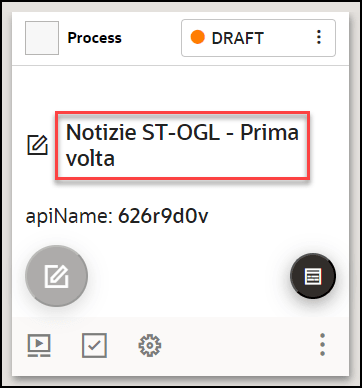
Now the content is manually translated. You can also update the guide title manually to the desired language.
- Open the content editor of the guide that you want to
translate.
WARNING:
Deleting an OGL item from the alternate language folder will delete all copies of the OGL item. You can restore the OGL item by recovering it from the Archive folder.Understanding the relationship between the default OGL item and its alternate language copies
The OGL items in the default language are the primary data files where critical information relating to the OGL items is stored. An OGL item in an alternate language cannot exist without an OGL item in the default language.
Legend:
| Information Stored | Default Language OGL item (i.e. English) | Alternate Language 1 OGL item (i.e. Dutch) | Alternate Language 2 OGL item (i.e. French) |
|---|---|---|---|
| Display Settings, Activation Settings, and Advanced Settings (incl. Selectors) | |||
| OGL item Name | |||
| OGL item Step Text | |||
| Number of Steps | |||
| Step Sequence | |||
| OGL item Status | |||
| apiName | |||
| OGL item Property: Products | |||
| OGL item Property: Modules | |||
| OGL item Property: Sticky Guide | |||
| OGL item Property: Managed Guide | |||
| OGL item Property: Labels | |||
| OGL item Property: OGL item Type | |||
| OGL item Property: Descriptions (Keywords) | |||
| OGL item Activation Conditions: Role | |||
| OGL item Activation Conditions: Time | |||
| OGL item Activation Conditions: URL (incl. Autosegmentation) | |||
| OGL item Activation Conditions: All other (assuming the condition can be localized) | |||
| Editing Steps in the Default Language for Multilingual OGL item: Adding a step | |||
| Editing Steps in the Default Language for Multilingual OGL item: Deleting a step | |||
| Editing Steps in the Default Language for Multilingual OGL item: Text change |
Note:
- Inherits the default language text(not auto-translated), needs to be updated using Content Editor in the relevant alternate language.
- Deletes the step in all copies of the OGL item.
- Text changes to existing steps are not auto-translated, needs to be updated Content Editor.
Important:
Creating a new OGL item in the default language does not automatically create the alternate language copies of the OGL item.