Automated Machine Translation
Improving upon OGL’s existing multi-language support capabilities, the Automated Machine Translation feature allows content developers to instantly translate guides into any of the 31 supported languages using machine translation directly from within the OGL console, without the need to export/import guides.
This feature employs the OCI Language Translation service to allow OGL content developers to quickly and efficiently translate their guides into any of the supported languages listed below, without the need to export/import guide content.
When using Automated Machine Translation, consider the following:
- Currently, OGL supports 31 languages (see OGL Supported Languages below).
- This feature will only translate guide contents, not application properties or selectors. (See Translating Application Properties section below.)
- Each translation is subject to a character limit of 5,000 characters per step (including HTML tags).
- If the selected Generic Language is not on the list of available languages as listed in the Translation dialog box, the translation will fail and return an unspecified error message.
Note:
This feature requires the following OGL security role and permissions: Owner role → Change Application Settings permissions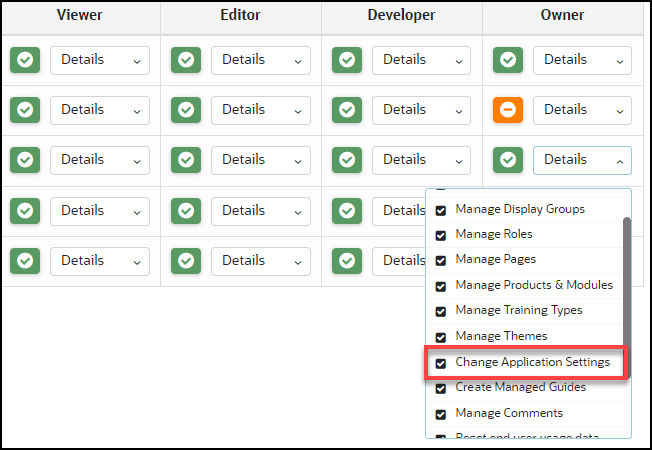
OGL Supported Languages
OGL uses OCI's Language Translation Services and supports machine translation for the following languages. Additional languages may be added with future enhancements to this feature:
- Arabic
- Chinese-China
- Chinese-Taiwan
- Croatian
- Czech
- Danish
- Dutch
- Finnish
- French
- French-Canada
- German
- Greek
- Hebrew
- Hungarian
- Italian
- Japanese
- Korean
- Norwegian
- Polish
- Portuguese
- Portuguese-Brazil
- Romanian
- Russian
- Slovak
- Slovenian
- Spanish
- Swedish
- Thai
- Turkish
- Vietnamese
Translating Individual Guides
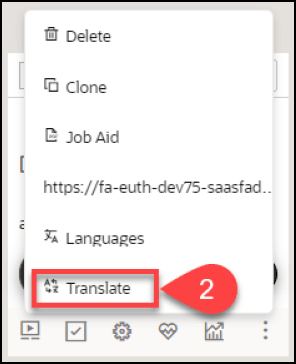
- From the My Content page, select the “More…” icon in the lower
right corner of the guide you wish to translate.
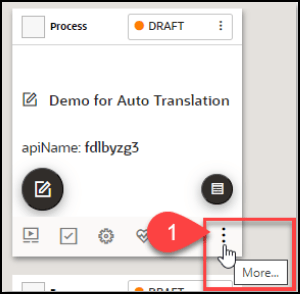
- Select Translate from the actions menu.
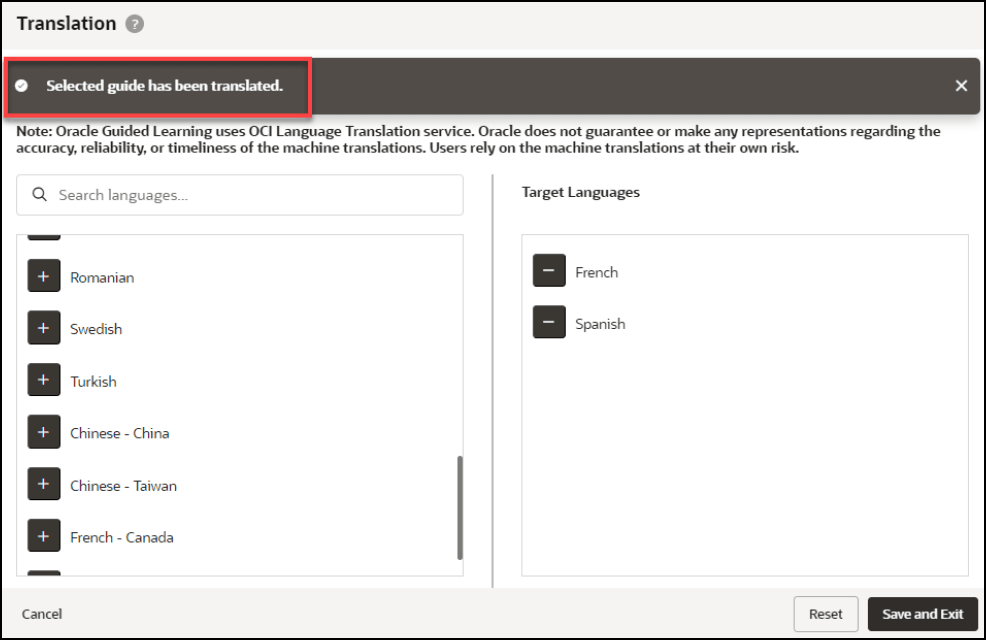
- The Translation modal opens.
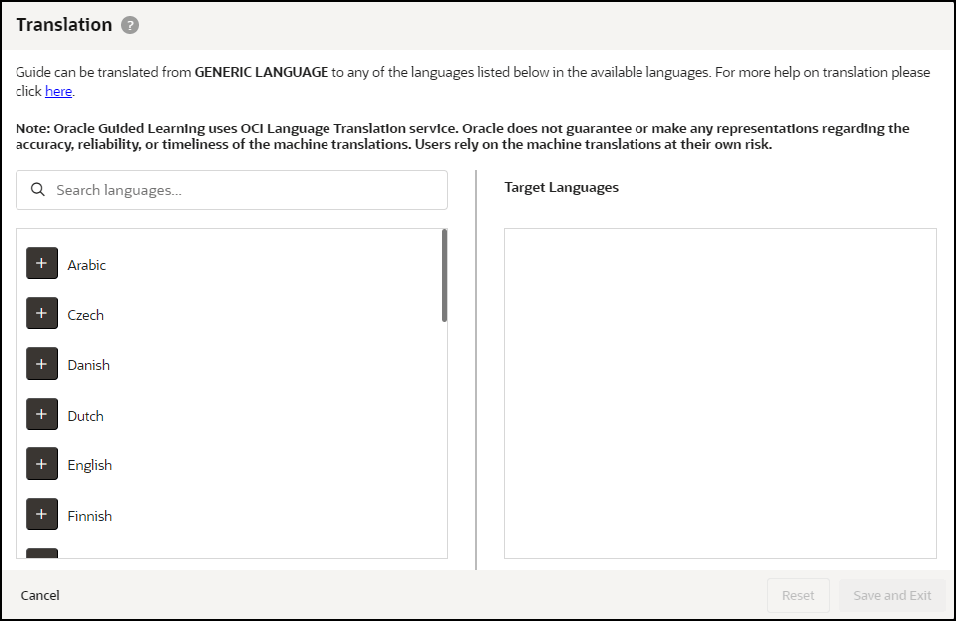
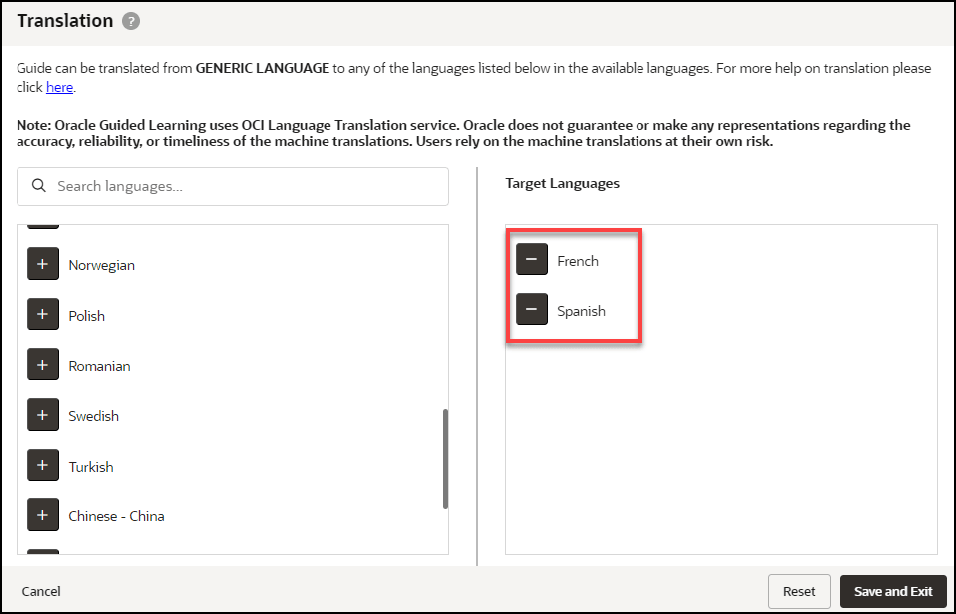
- Select the “+” button next to the language(s) you wish to translate the
guide from the list of available languages on the left. Any selected languages
will appear in the Target Languages, then select Save and Exit when
done.
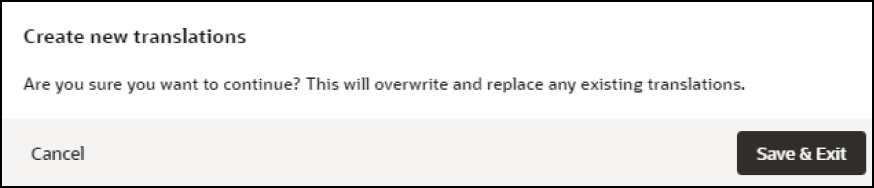
- A confirmation dialog box will appear (read carefully) and will prompt you to
confirm the action.
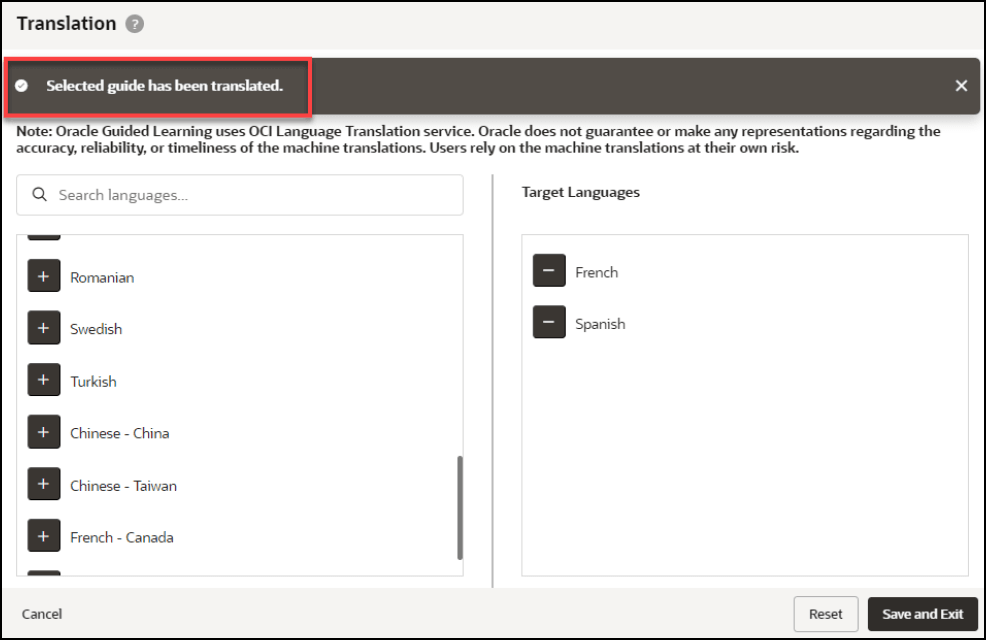
- Once the translation is complete, a confirmation message will appear at the top
of the Translation modal to confirm that the guide has been
translated.
Note:
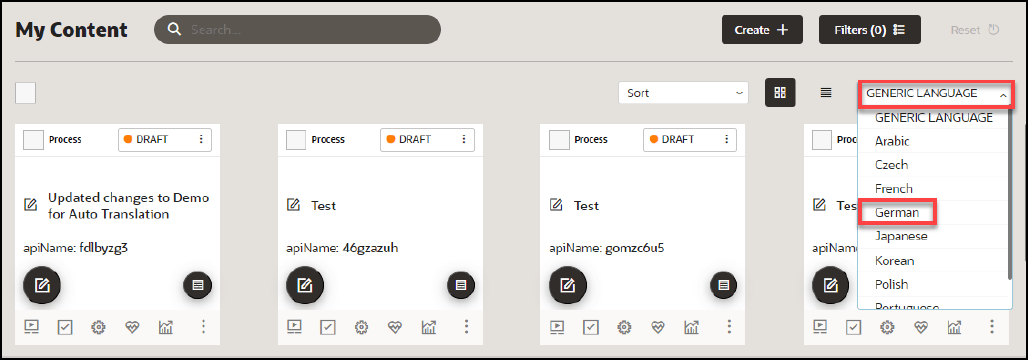
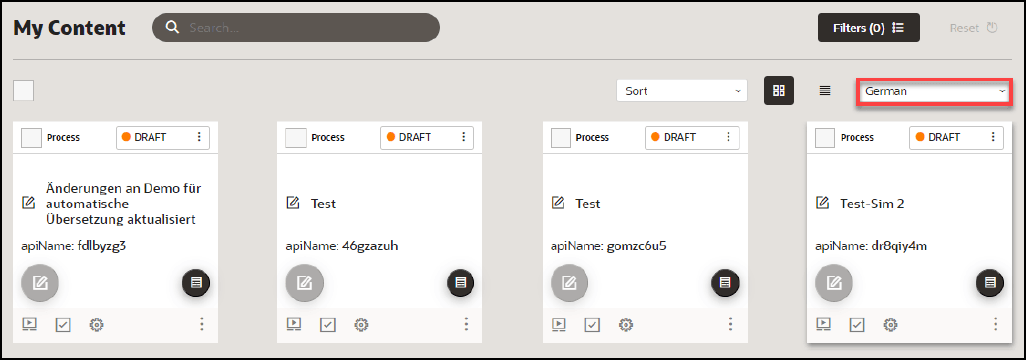
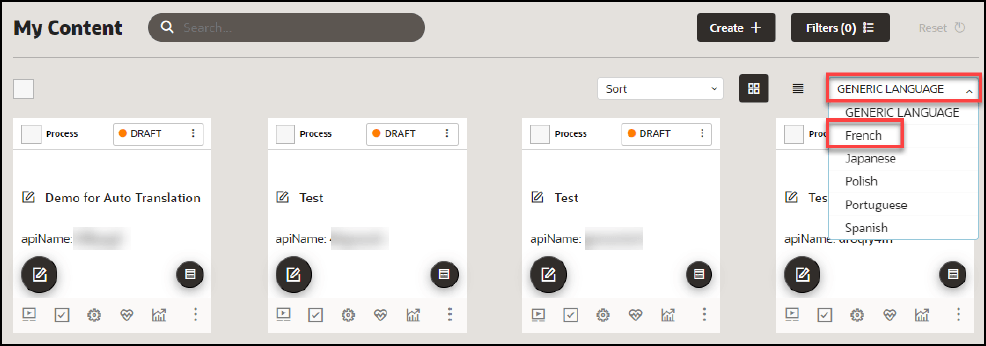
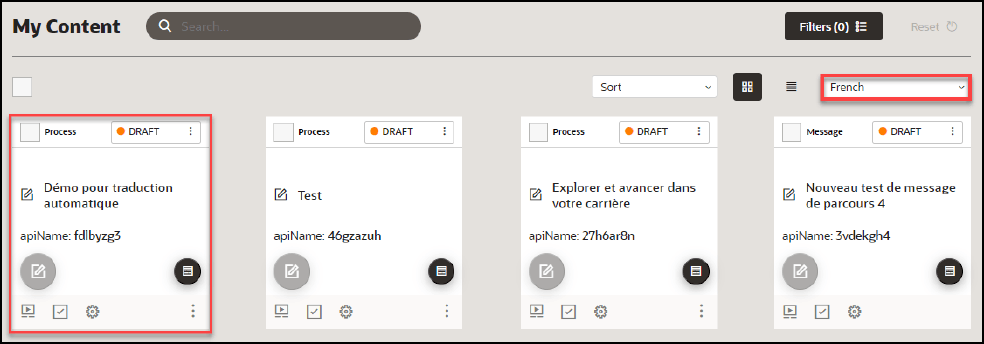
Translations cannot be undone. To restore the guide to a previous version, use the Version History in the Guide Status. - The translated guides will now appear in their respective language folders in the My Content page. To toggle between each language folder, select the language drop-down menu.
- If you make any content changes to the original guide and then translate the
guide again, you will be prompted with an option to retranslate the guide for
all target languages.
Translating Multiple Guides (Bulk Action)
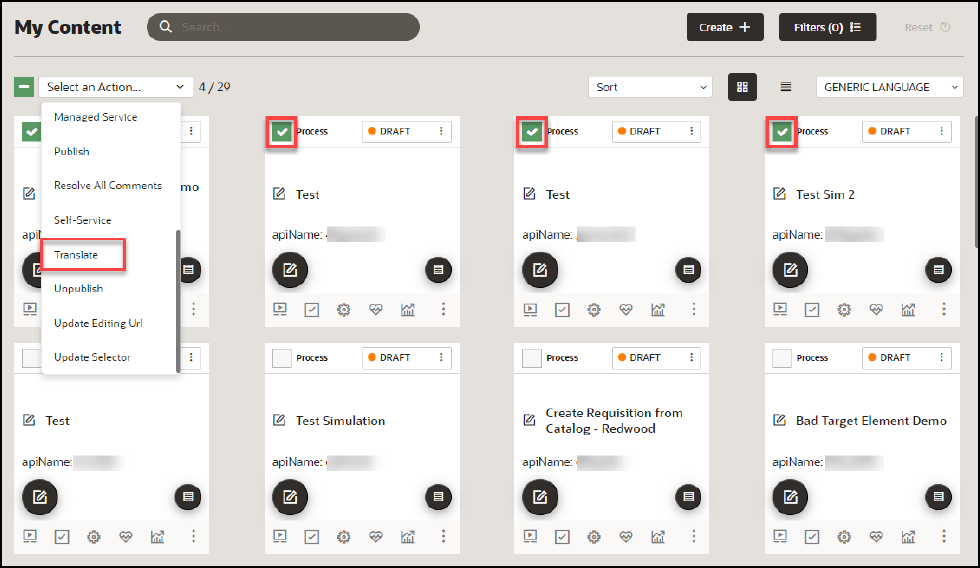
- From the My Content page, select one or more guides that you wish to
translate, then select Translate from the Bulk Actions dropdown
menu.
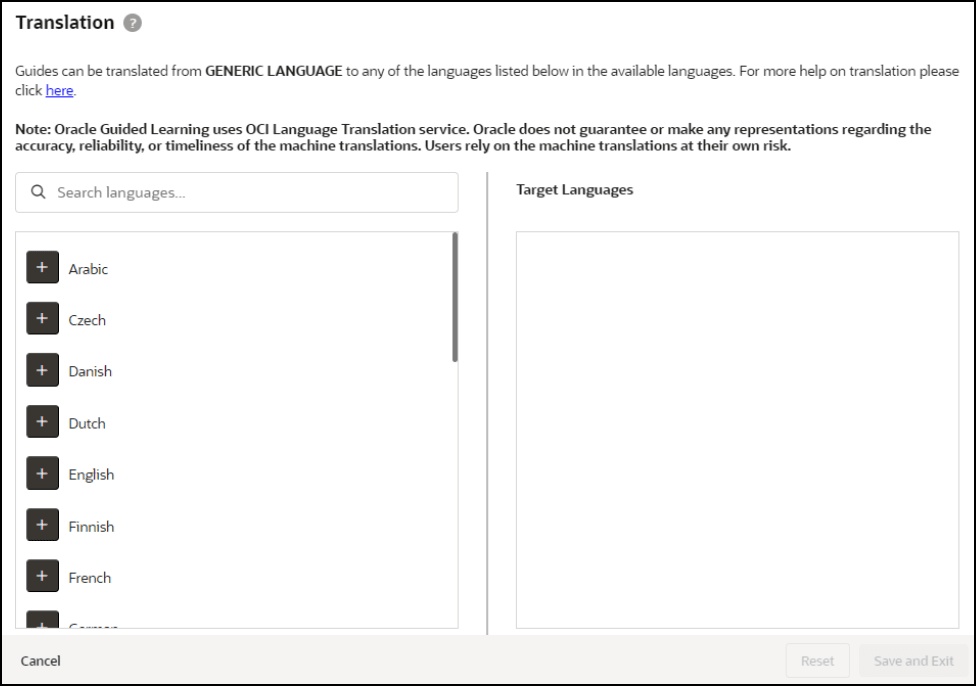
- The Translation modal opens.
Note:
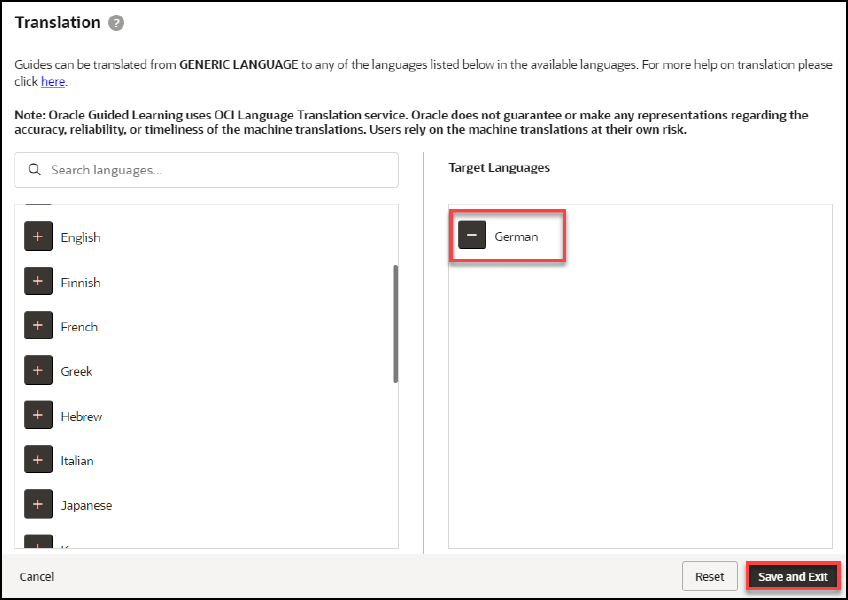
With bulk translations, any pre-existing translated languages will not be displayed in the Target Languages column. Any translations applied using Bulk Actions will affect all selected guides and will overwrite any existing translations. To translate specific guides into specific languages, consider translating the guide(s) individually. - Select the “+” button next to the language(s) you wish to translate the
guide from the list of available languages on the left. Any selected languages
will appear in the Target Languages, then select Save and Exit when
done.
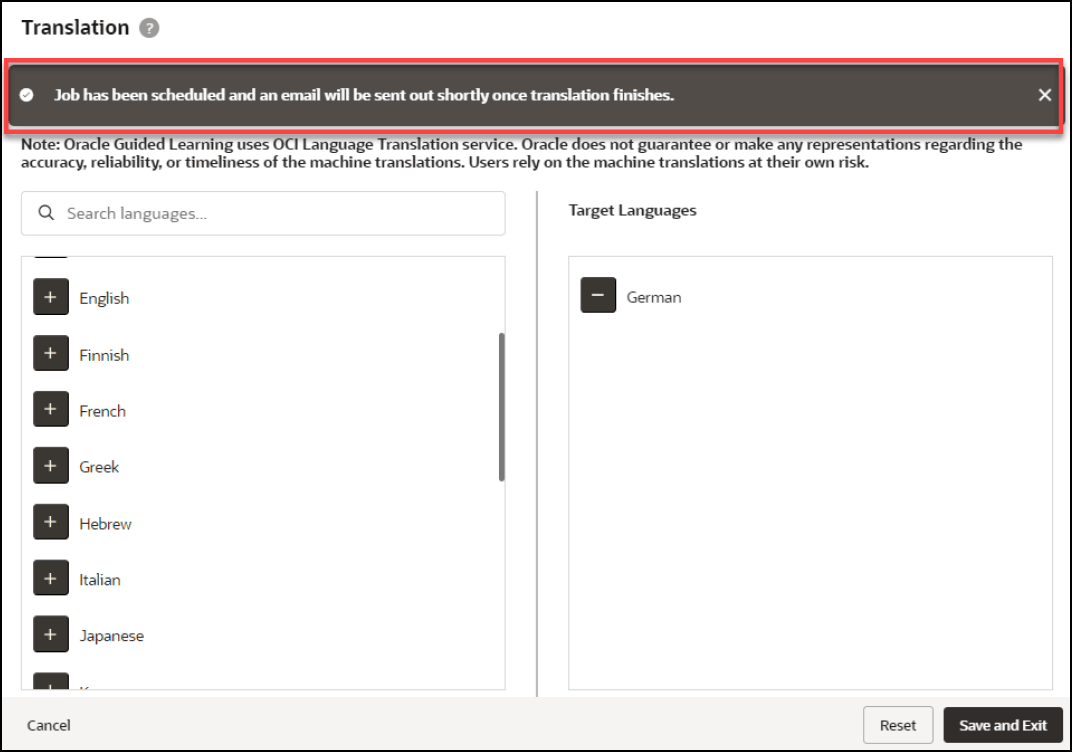
- Once the translation is complete, a confirmation message will appear at the top
of the Translation modal indicating that the job has been scheduled and that an
email will be sent to notify you when completed.
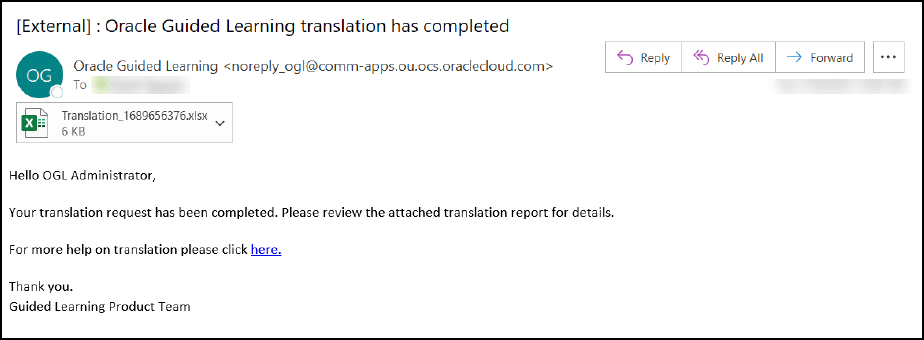
- Check your email inbox for a message from Oracle Guided Learning
<noreply_ogl@comm-apps.ou.ocs.oraclecloud.com>. The message should look like
this:
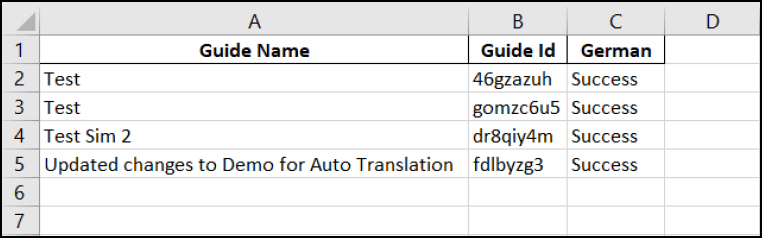
- Open the attached Excel spreadsheet to view the translation status of all
selected guides.
- The translated guides will now appear in their respective language folders in
the My Content page. To toggle between each language folder, select the
language dropdown menu.