AI Assistant for Steps
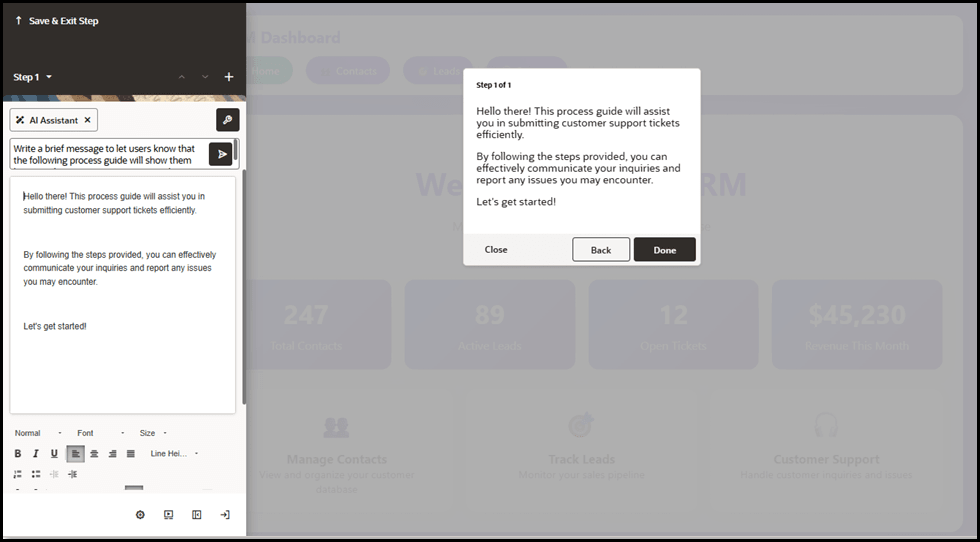
OGL’s Generative AI capabilities have extended the OGL AI Assistant beyond the console and into the Full Editor to provide step-level assistance to content developers. Previously it was available only for Messages, but now the AI Assistant is available in the full editor text area for other guide types, including Process guides, Smart Tips, Beacons, and Messages.
The OGL AI Assistant can provide content developers with intelligent assistance with generating or rephrasing step text quickly and efficiently.
Key Benefits
- Get quick, intelligent suggestions for tip text content
- Rephrase existing tip text using different writing styles
- Improve quality and clarity of language for text content
- Fix spelling and grammar issues instantly
- Instantly translate tip text with ease
- Supported for multiple guide types, including Process guides, Smart Tips, and Surveys
Note:
Enable/Disable AI Assistant - The AI Assistant feature can be enabled or disabled by the OGL Owner Administrator, based on customer preference. OGL customers who wish to enable/disable the AI Assistant can do so in the Settings > Application modal, as described in the instructions below. Requires the Owner > Change Application Settings role and permission, which can be found in the User Management settings. Please consult your OGL Owner Administrator to change this setting, if needed.Enabling the AI Assistant in the OGL console
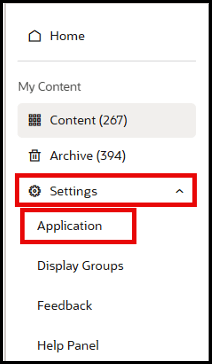
- From the OGL console, go to Settings > Application in the left navigation panel.
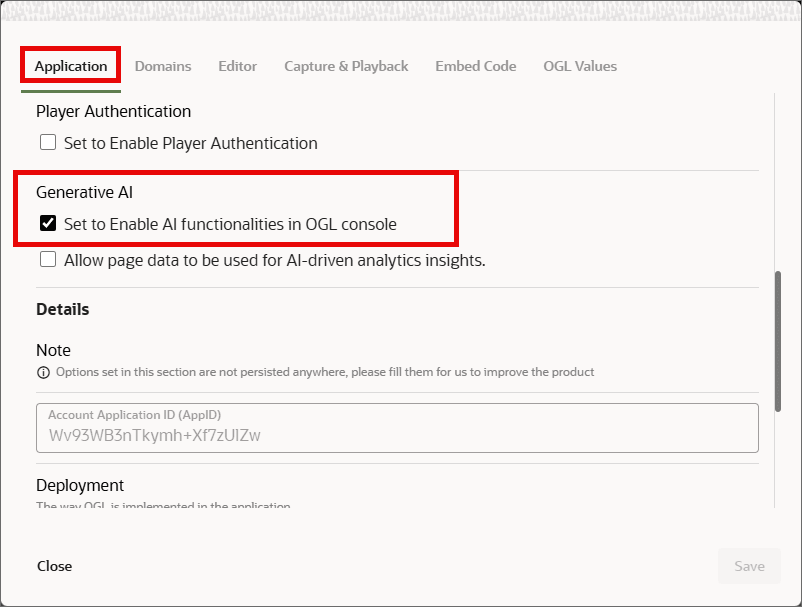
- In the Application settings modal, scroll down to the Generative AI section and select the checkbox for ‘Set to Enable AI functionalities in the OGL console’.
Using the AI Assistant in the Full Editor
- From the OGL console, create a new Process guide, Smart Tip, or Beacon.
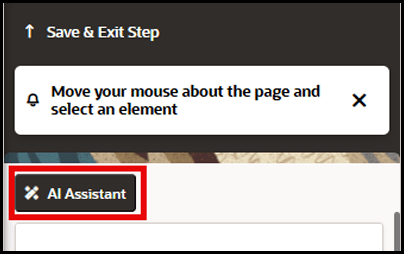
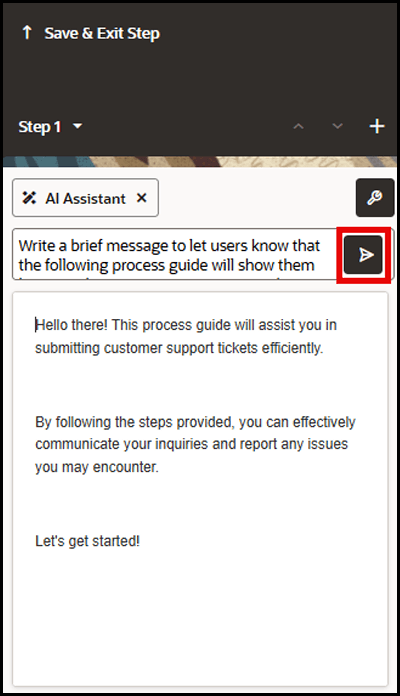
- Select the AI Assistant button located at the top of the Full Editor.
- In the AI Assistant text box, enter a prompt to ask it to generate the text you wish to add to the Step/Tip. For example, “Write a brief message informing users that the following guide will show them how to create a customer support ticket.” Then press the Send button (or press Enter).
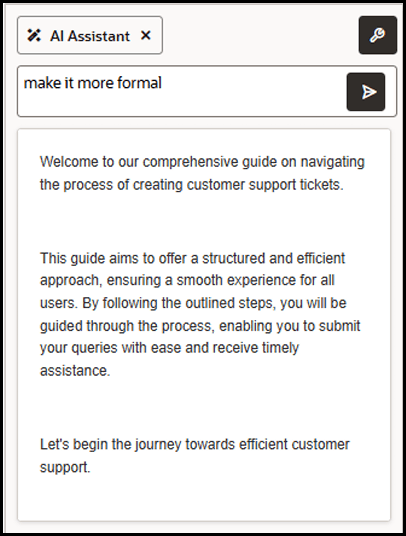
If you wish to change the recommended text, you can add more prompts within the same session, such as “Make it more formal” or “Make it casual”.
Note:
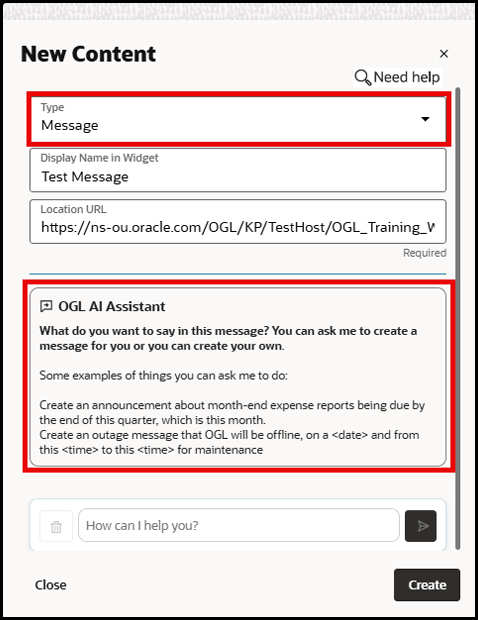
When creating a new message, the AI Assistant (if enabled) will appear in the New Content modal when the Message type is selected.
Things to consider when using the AI Assistant:
- The Assistant response will automatically be added to the step text area:
- If the text area is empty, the response is inserted.
- If the text area already contains text, the existing text is replaced with the assistant response.
- When content already exists, you can refine it by entering a prompt (e.g. "Rephrase it more professionally"). The system should process the existing step content and return an improved version accordingly.
- Each time a prompt is submitted, the response is generated and displayed in the step text area.
- You can press ‘Ctrl + Z‘ to undo changes and restore the previous text.
- You may also make additional edits directly within the editor.
- Once editing is complete, users can click Save & Exit to finish updating the guide.
Data Handling in Generative AI FAQs
- Does OCI Generative AI retain customer-provided training data used to fine-tune a custom model?
No. The customer stores and manages their training data in their own customer tenancy (commonly inside an OCI Object Storage bucket). OCI Generative AI's fine-tuning job uses this training data to train a custom model for customer. OCI Generative AI doesn't retain this training data beyond the duration of this training job. This training data is solely used for building a custom model for this customer. The custom model is also a resource that's managed by the customer. This training data is not used to improve the general use cases for OCI Generative AI.
- Does OCI Generative AI retain customer-provided prompts and inputs used for inferencing, on the large language models (LLMs)?
No, OCI Generative AI doesn't retain customer inputs. A user's input on an inference call is sent to the LLM and a response is generated by the LLM that's returned to the user. Both input and output are not stored inside OCI Generative AI.
- Does OCI Generative AI share prompts and responses, fine-tuning training data, or fine-tuned custom models with third-party model providers such as Cohere or Meta?
No.
- Is the training data encrypted?
The data is encrypted both at rest and in transit. The training data is deleted from the fine-tuning cluster as soon as the training job is completed. Training data for fine-tuning a model is always double encrypted, by default, by Oracle-managed AES-256 encryption and optionally by customer-managed private keys through OCI Vault service. Customers can delete the data at any time.