Quick Share Links
The OGL Console consolidates Permalinks, Simulations, Step Guides, and Videos into a single modal for efficient access to shareable links to your guides. These links can then be shared with users outside of OGL and the host application and embedded into other applications, such as email campaigns, SharePoint links, or other external platforms to provide convenient access to your OGL content. This enhancement enables you to deploy alternative playback options to Process guides without the need for the user to authenticate into the host application, in most cases.
Note:
The Quick Share feature replaces the prior Permalink action within the More Actions menu of the guide tile. For this feature to work properly, OGL must first be deployed to your host application (i.e., Fusion) and you must have your OGL Domains setup for your DEV and/or PROD environments. Permalinks areunique and specific to each guide (apiName) and domain.How to access Quick Share
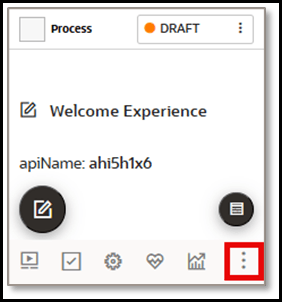
- From the My Content page, select the More Actions (3-dot menu) in the lower-right corner of the guide tile.
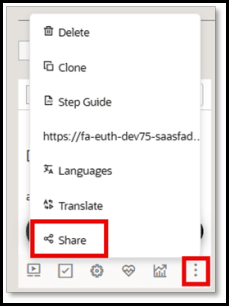
- Select Share.
New Share Modal
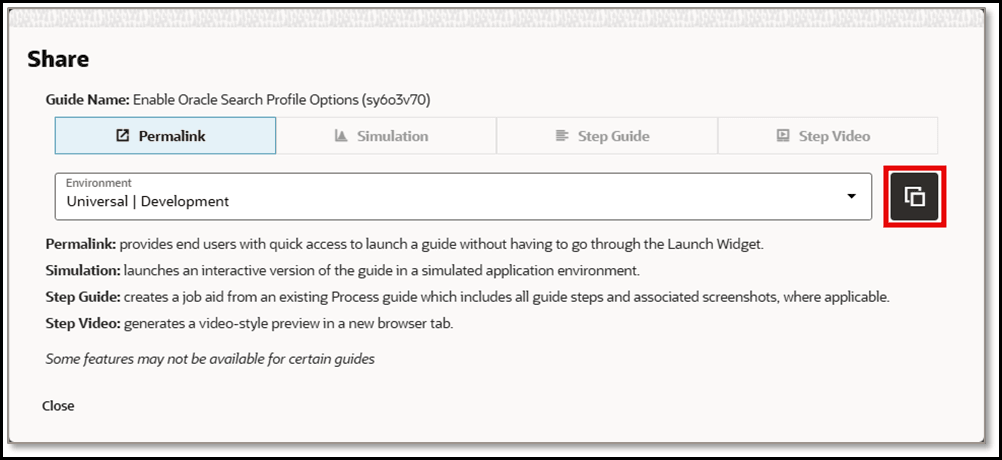
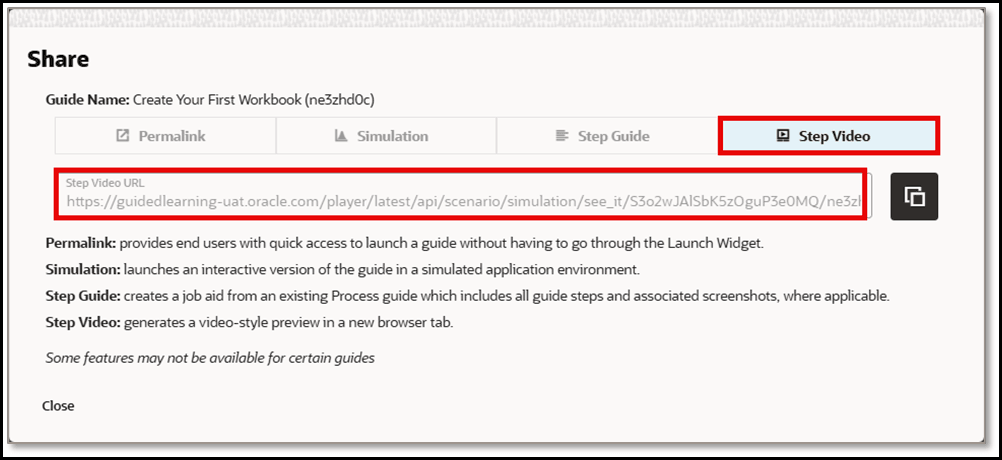
In the new Share modal, you can now access and copy shareable links to the guide’s Permalink, Simulation (if enabled), Step Guide, and Step Video. You can simply select the Copy button on the modal to copy the “player-side” URL to your clipboard for use in other applications.
Share Permalinks
Note:
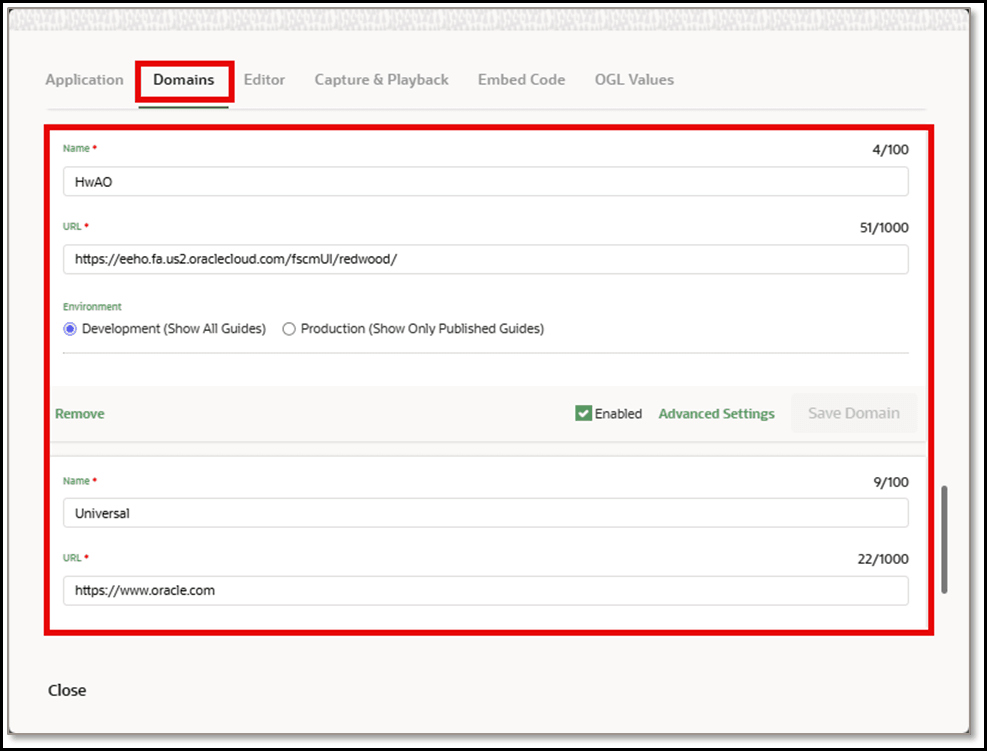
For more information about Permalinks, refer to this OGL Knowledge Article: https://docs.oracle.com/en/education/customer-success/guided-learning/ogl-faq/tips-tricks.html#GUID0C732461-4044-4220-A010-9A85E1BB0FD0For Permalinks, you can choose the environment (or domain) from which to copy the appropriate URL based on any available domains configured within your application environment. For example, you can choose to the copy the Permalink from any DEV or PROD domains, if enabled.
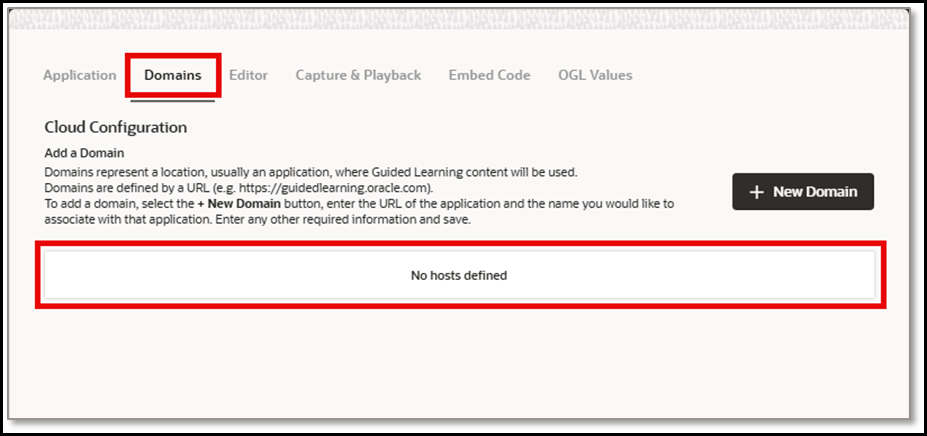
If no domains are currently configured, your Domain settings may look like this:
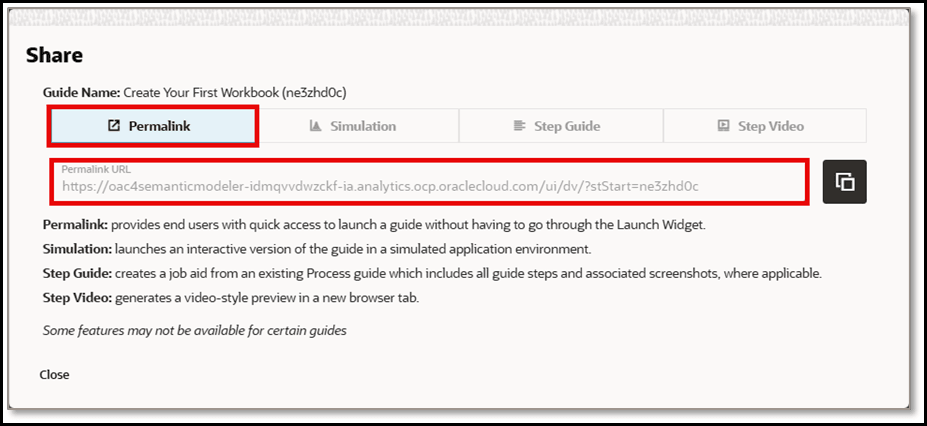
In this case, the Permalink will allow you to copy a pre-defined URL comprised of the guide’s editing URL with an appended API call to launch the guide’s apiName, as shown below:
Known Issue - Permalinks
If you encounter the following error when opening the Share modal, as shown below, you will not be able to select from any available domains in the Permalink URL dropdown menu. This is due to a missing OGL role & permission.
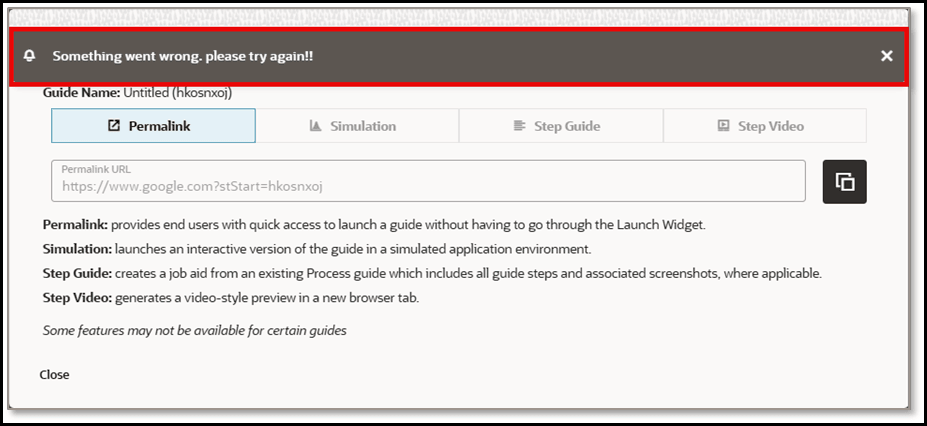
To resolve this, you will need to have the Owner > Change Application Settings role/permission in User Management. Please consult with your OGL Owner Administrator to request this permission. Once you have this permission, you will be able to select from all available domains from which to copy the Permalink URL.
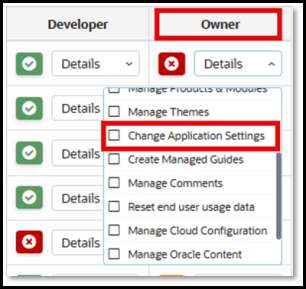
Note:
The Owner > Change Application Settings role/permission is only required for copying Permalink URLs and is not required to copy Simulation, Step Guide, or Step Video URLs.Expected behaviour
- Signing into the Host Application:
- For Fusion applications, when an end user clicks a Permalink, they will be redirected to sign in with their Fusion login credentials before launching the guide (if the user is not already logged in).
- For Non-Fusion applications, the Permalink may or may not launch the guide depending upon the server configuration. As a best practice, end users should sign into the host application before attempting to access the Permalink.
- Permalinks do not recognize activation conditions assigned to the guide and can be opened by any user who opens the link, provided that they have access to the host application.
- For the Permalink to work properly, the guide must be Active and in Draft or Published status.
- Permalinks can only be obtained via the modal from the following supported guide types:
- Message
- Process
- Survey
- In Fusion applications, Permalinks can only launch a guide from the home page and cannot launch to specific pages or deep links.
- For non-Fusion applications, Permalinks are dependent on the host application configuration and we recommend that you thoroughly test Permalinks in both the DEV and/or PROD environments before deploying them to end-users.
Share Simulation Links
For Simulation-enabled OGL accounts, you can use the Share modal to obtain and copy the “player side” Simulation URL of a guide, which can then be shared with other external users to allow easy access to a simulation of a Process guide without the need to authenticate into the host application.
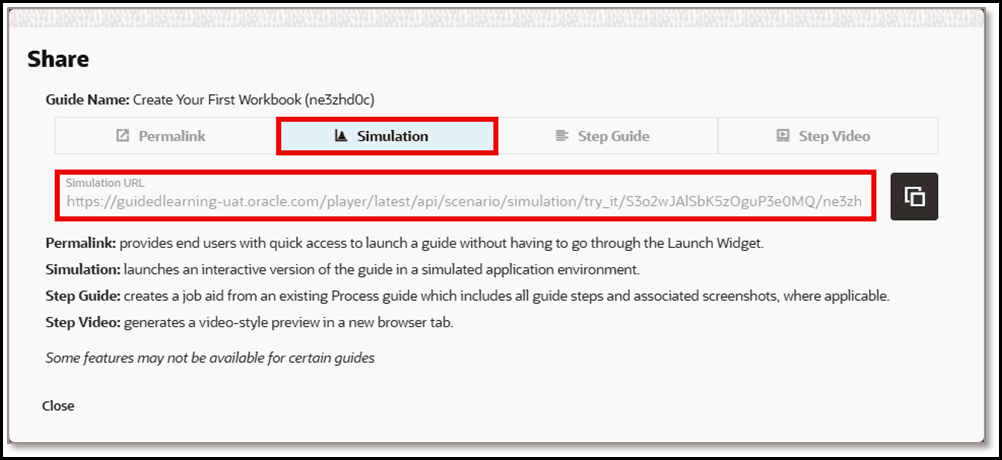
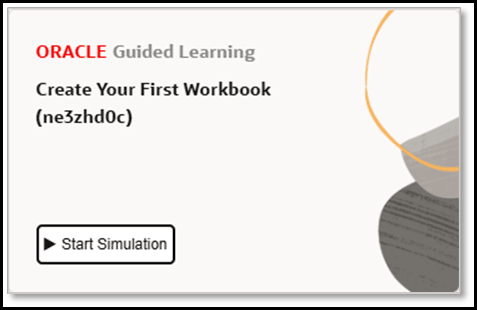
When users open the Simulation link, they will be presented with an option to start a simulation of the guide:
Note:
To request for the Simulation feature to be enabled on your OGL account, please consult with your OGL Enablement Lead or contact OGL Support for assistance.Share Step Guide Links
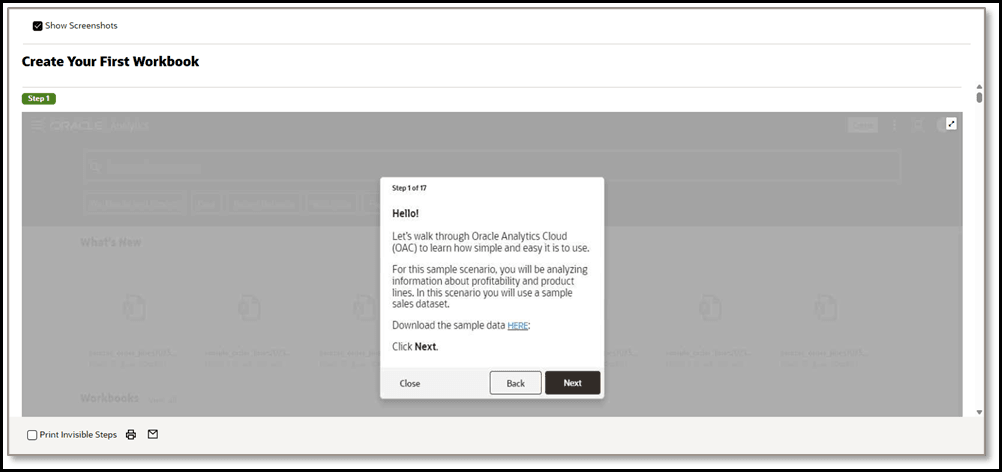
For Process guides, you can use the Share modal to obtain and copy the “player-side” URL of a Step Guide to allow users to easily access a job aid of the guide, depicting each step and screenshot (if available).
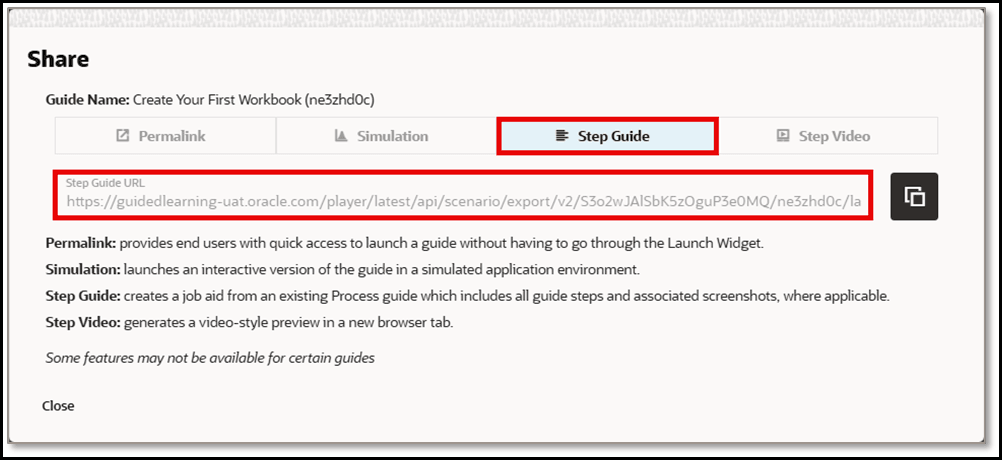
When users open the shared link, the Step Guide will open in their browser, as shown below:
Share Step Video Links
For Process guides, you can use the Share modal to obtain and copy the “player side” Step Video URL, which can allow external users watch a video of the Process guide without the need to authenticate into the host application.
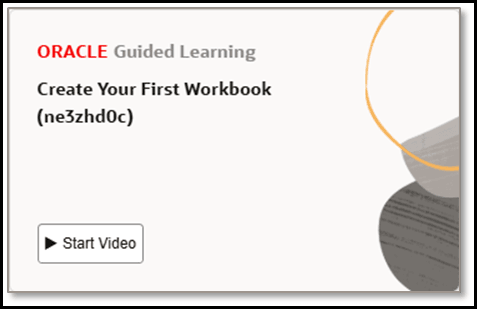
When users open the Video link, they will be presented with an option to start a Video of the Process guide:
Note:
For Step Guides, Simulations and Videos share links to work properly, please ensure that you have enabled the appropriate settings in the Content & Playback settings located in Settings > Application.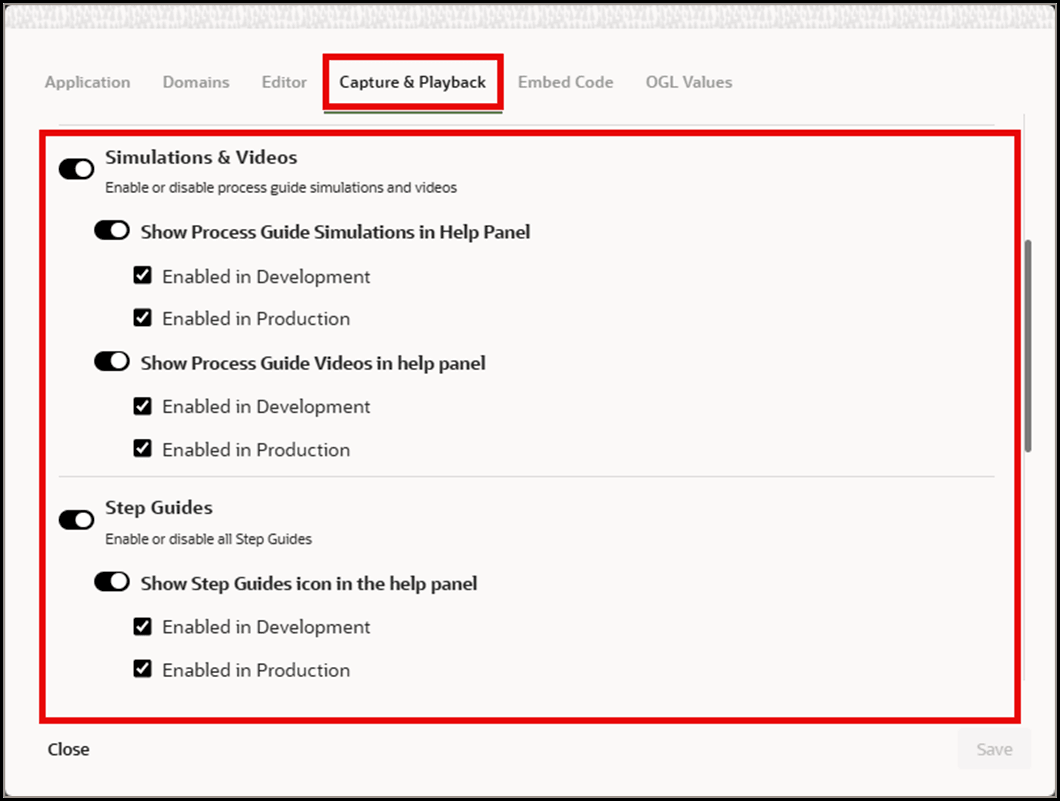
Permalinks
Permalinks provide end users with quick access to launch a guide without having to go through the Launch Widget. These links can be embedded into an email message, knowledge base article, or LMS asset to allow end users to quickly launch a guide simply clicking the link. This link, when opened, automatically launches the guide in the host application, providing more efficiency and flexibility in distributing OGL content to end-users.
Note:
For more information about Permalinks, refer to this OGL Knowledge Article: https://docs.oracle.com/en/education/customer-success/guided-learning/ogl-faq/tips-tricks.html#GUID0C732461-4044-4220-A010-9A85E1BB0FD0- Message
- Process
- Survey
Accessing the Permalink
- From the My Content page, locate the guide from which to copy the Permalink.
- Select the More… (

) button in the bottom-right of the guide tile.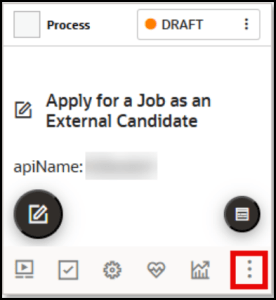
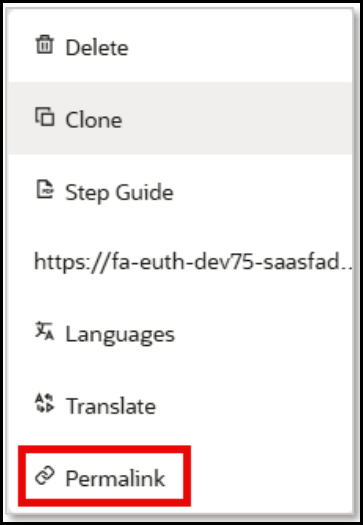
- In the More Actions menu, select Permalink.
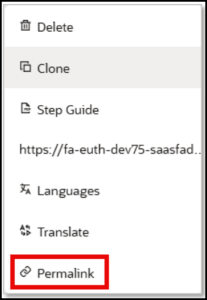
- The Permalink modal will appear providing the Domain Name, Environment, and URL of each available Permalink.
Note:
A separate, unique Permalink will be listed for each available Domain.Select the Copy (

) button to copy the Permalink to your clipboard or select the URL to open the Permalink.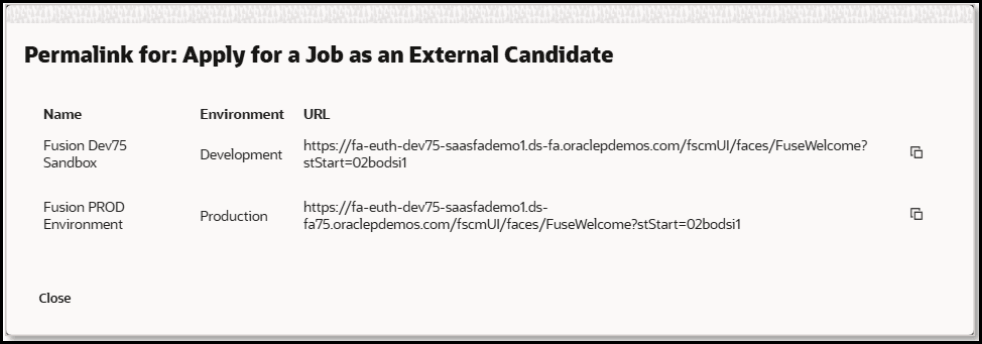
- You can now paste the Permalink into your source documentation (e.g., email template, knowledge article/document, LMS content link, etc.).
Note:
For the Permalink functionality to work properly, OGL must first be deployed to your host application (i.e., Fusion) and you must have your OGL Domains setup for your DEV and/or PROD environments. Permalinks areunique and specific to each guide (apiName) and domain.
Known Issues/Expected Behavior
- Signing into the Host Application:
- For Fusion applications, when an end user clicks a Permalink, they will be redirected to sign in with their Fusion login credentials before launching the guide (if the user is not already logged in).
- For Non-Fusion applications, the Permalink may or may not launch the guide depending upon the server configuration. As a best practice, end users should sign into the host application before attempting to access the Permalink.
- Permalinks do not recognize activation conditions assigned to the guide and can be opened by any user who opens the link, provided that they have access to the host application.
- For the Permalink to work properly, the guide must be Active and in Draft or Published status.
- Permalinks can only be obtained via the modal from the following supported guide types:
- Message
- Process
- Survey
- In Fusion applications, Permalinks can only launch a guide from the home page and cannot launch to specific pages or deep links.
- For non-Fusion applications, Permalinks are dependent on the host application configuration and we recommend that you thoroughly test Permalinks in both the DEV and/or PROD environments before deploying them to end-users.