Best Practices for Optimizing Backup and Recovery on Oracle Database Appliance
This document provides an overview of the best practices for defining optimal backup and recovery strategies to protect mission critical data and file systems in Oracle Database Appliance environments. The Oracle Database provides sophisticated and scalable backup technologies. These technologies work transparently on the Oracle Database Appliance.
- Introduction to Oracle Database Appliance
Oracle Database Appliance is a pre-built, ready to deploy platform for Oracle Database. - Oracle Database Appliance Backup and Recovery Terminology
Understand the terminology used in this document. - Backup and Recovery on Oracle Database Appliance
Use BUI or ODACLi commands to backup and recover databases with and without Transparent Data Encryption (TDE) enabled, which are deployed on bare metal and KVM-based DB systems on Oracle Database Appliance. - Backup and recovery in Zero Data Loss Recovery Appliance
This section describes the procedure to backup databases deployed on Oracle Database Appliance to Zero Data Loss Reocvery Appliance (ZDLRA) and restore them from those backups. - Backup and Recovery using Tape Devices
You may choose to store your database backups on tape devices. - Disk Backups
Understand disk backups for Oracle Database Appliance. - RMAN Backups to Oracle ZFS Storage Appliance
ZFSSA is a single-head storage controller with capacity and performance that matches well with the Database Appliance. - Backup and recovery with Network File System (NFS) storage
External storage on Network Attached Storage can be made available on Oracle Database Appliance using NFS mounts. - Backup and Recovery with Third Party Agents
Installing third party agent for backup and recovery operations is allowed on Oracle Database Appliance if it does not cause conflict with existing packages or change the configuration of existing system, which may impact the functionality of the system. - Backup and Recovery for Oracle Database Appliance S|M|L
Understand backup and recovery options on Oracle Database Appliance hardware models. - Database Backup and Recovery Best Practices
This section outlines some of the core best practices when establishing your backup and recovery configuration in an Oracle Database Appliance environment. - Protect system from patching failures
ODABR is a reliable and long time available utility that can help you to restore your system quickly in case of a patching failure. - Backup and Restore of KVM guest virtual machines
Refer to My Oracle Support note 2779329.1 for various backup and recovery scenarios applicable to Kernel-based Virtual Machine (KVM guest virtual machines) virtual platform deployed on Oracle Database Appliance. - Conclusion
Oracle Database Appliance benefits from native Oracle database integration with Oracle Recovery Manager (RMAN). You can choose from a variety of backup destinations depending on your requirements. - Appendix A: Configuring load-balanced backups
Understand how to configure load-balanced backups. - Appendix B: Sample Scripts
Understand the sample scripts. - Appendix C: Sample commands for backup and recovery in ZDLRA
Understand the sample commands for backup and recovery in ZDLRA. - References
Use these references for more information.
Introduction to Oracle Database Appliance
Oracle Database Appliance is a pre-built, ready to deploy platform for Oracle Database.
Oracle Database Appliance is an Oracle Engineered System consisting of hardware and software that saves customers time and money by simplifying deployment, maintenance, and support of high availability database solutions. It is built using the world’s most popular database - Oracle Database. Along with Oracle Real Applications Clusters (Oracle RAC), the Database Appliance offers customers a fully integrated system of software, servers, storage and networking that delivers high availability database services for a wide range of custom and packaged OLTP and Data Warehousing workloads.
Oracle Database Appliance offers customers capacity-on-demand database software licensing, allowing seamless scalability from 4 to 128 on X10-HA processor cores without any hardware upgrades. The appliance also offers the option of deploying a Kernel-based Virtual Machine (KVM) virtual platform. With Oracle Database Appliance KVM deployments, you can use the capabilities of Oracle KVM to effectively allocate resources to databases and applications running on the same physical Oracle Database. Support for KVM virtualization allows customers and ISVs to build a solution-in-a-box that efficiently utilizes resources and extends capacity-on-demand licensing to both database and application workloads by leveraging Oracle hard partitioning.
With built-in redundancy Oracle Database Appliance offers high protection against hardware failures. However, you must backup your databases, operating system, application software, and any other artifacts to ensure recoverability from data loss and corruption type of scenario. This document discusses the different options and considerations for backup and recovery operations in an Oracle Database Appliance environment.
For supported Oracle Database Appliance Software versions, refer to the Support note (ODA: Quick Reference ODA Software and Hardware Support (Doc ID 2757884.1))
Oracle Database Appliance Backup and Recovery Terminology
Understand the terminology used in this document.
Backup and recovery procedures and processes are one of the key operational aspects of Oracle Database Appliance. In order to protect against data loss and corruption, you must ensure that file systems and databases running on your Oracle Database Appliance system are backed up regularly. These backups must be validated and consistent so that the databases and file systems can be restored and recovered when needed.
Oracle Database Appliance includes high bandwidth bonded 10GbE / 25GbE (SFP28)) port interfaces. For backup traffic either the regular public network interface or a dedicated backup network interface can be used Deployment process allows you to choose the DATA/RECO distribution of disks with NORMAL/HIGH/FLEX redundancy. Recommendation is to use FLEX redundancy and, in that case, the local backup will inherit the database's redundancy.
Oracle Database Appliance X10-HA allows you to choose DATA disk group capacity between 10% and 90% of total shared disk storage and remainder is reserved for RECO. For example, if you enter 80, then 80% of the storage for DATA and 20% for RECO. Note that Oracle Database Appliance storage capacity varies for different hardware models. The following core technologies are the key enablers of efficient backup and recovery operations on the Oracle Database Appliance platform.
Oracle Recovery Manager (RMAN): Oracle Recovery Manager (RMAN) provides the native backup and recovery infrastructure within Oracle Database, enabling optimized data protection in the Oracle Database Appliance environments. Backup, restore, and recovery operations are performed using standard RMAN commands. RMAN can parallelize backup operations across both Real Application Cluster (RAC) nodes. This allows all disks, all network connections and all CPUs in the system to contribute towards performing backup operations.
RMAN block change tracking allows incremental backups to run very quickly and efficiently. With block change tracking, only the areas of the database that have been modified since the last incremental backup, or full backup, are read from disk.
RMAN stores data in one of two formats – image copy or backup set. An image copy is an exact copy of a single data file, archived redo log file, or control file. Image copies are not stored in an RMAN-specific format. They are identical to the results of copying a file with operating system commands. RMAN can use image copies during RMAN restore and recovery operations, and it can use image copies with non-RMAN restore and recovery techniques.
A backup set contains the data from one or more data files, archived redo log files, control files or server parameter file. The smallest unit of a backup set is a binary file called a backup piece. Backup sets are the only form in which RMAN can write backups to sequential devices such as tape drives. For more information, refer Oracle Recovery Manager (RMAN) documentation.
- Backup to Disk
- Oracle Object Storage
- Network File System (NFS)
- Backup to Disk
- Oracle Fast Recovery Area (FRA) on Oracle ASM or Oracle ACFS
Oracle Database Backup Cloud Service: Oracle Database Backup Cloud Service is a secure, scalable, on-demand storage solution for backing up Oracle databases to Oracle Cloud. The service complements your existing backup strategy by providing an off-site storage location in the public cloud. Storage management and data transfer complexities are handled by the service, not by database administrators. Database Administrators use the familiar RMAN interface to perform backup and restore operations and there is no need to learn new tools or commands
- Unused block compression eliminates the time and space needed to backup blocks that are allocated to tablespaces but are not currently used by tables.
- Undo optimization eliminates the time and space usage needed to back up undo data that is not required to recover using the current backup.
Oracle ZFS Storage Appliance (ZFSSA): Oracle ZFS Storage Appliance can be used as a backup storage location for databases. The high-speed networks support good performance. With the ZFS HA solutions, customers do not have to worry about single point of network failures Oracle ASM Cluster File System Oracle Database Appliance provides the ability to create a high availability (HA) clustered file system. It is highly recommended that you store all scripts and configuration files in the shared ACFS file system. Create dedicated ACFS file system and take backup of this file system on a regular basis to external storage.
Zero Data Loss Recovery Appliance (ZDLRA): Oracle Zero Data Loss Recovery Appliance is a cloud-scale engineered system designed to dramatically eliminate data loss and reduce data protection overhead for all Oracle databases in the enterprise. Integrated with Recovery Manager (RMAN), it enables a centralized, incremental forever backup strategy for hundreds to thousands of databases in the enterprise, using cloud-scale, fully fault-tolerant hardware and storage. The appliance provides databases with sub-second recovery point objectives and continuously validates backups for assured recoverability of Oracle data. Oracle Enterprise Manager enables control of all administrative operations on the appliance, providing complete, end-to-end visibility of the Oracle backup lifecycle.
Backup and Recovery on Oracle Database Appliance
Use BUI or ODACLi commands to backup and recover databases with and without Transparent Data Encryption (TDE) enabled, which are deployed on bare metal and KVM-based DB systems on Oracle Database Appliance.
- Backup to and recovery from an Oracle Fast Recovery Area (FRA) disk (Internal FRA)
- Backup to and recovery from a Network File System (NFS) location (External FRA)
- Backup to and recovery from Oracle Cloud Infrastructure Object Storage (Oracle Object Storage)
- Prerequisites
- Create a Database Backup Policy
- Attach a Backup Policy to Database
- Perform a Backups using Browser User Interface
- Perform a Restore and recover operations using Browser User Interface, when necessary
- Create a database from backup using Browser User Interface.
Prerequisites:
Following are the prerequisites to be completed before creating a Backup Policy depending upon the Backup destination:
Prerequisites for Backup destination as Network File System location (External FRA):
oracle user must have read/write
permissions to the NFS location.
- Follow these steps on the source server (storage server).
- Create a shareable location on the
source server and give full permissions to this
directory:
# mkdir shared_locationFor example:# mkdir /mnt/nfs_storage # chmod 774 /mnt/nfs_storage - Add entries in the /etc/exports file in the
format <shared_location> <destination_IP>
(<permissions>). In this file, replace
<shared_location> with the directory being
exported, replace <destination_IP> with the
destination host IP address or network to which
the export is being shared, and replace
<permissions> with the options for that host or
network (for example, read/write (rw) and etc) For
example:
# cat /etc/exports /mnt/nfs_storage 192.0.2.1(rw,sync) /mnt/nfs_storage 192.0.2.2(rw,sync) - Restart the NFS
server:
# service nfs restart - Check the export list for the entries.
# showmount -e For example: Export list for odadbserver /mnt/nfs_storage 192.0.2.1,192.0.2.2 - Follow these steps on the client machine, that
is Oracle Database Appliance database server:
- Create a client location on the client machine
as the root
user.
#mkdir <client location> For example, # mkdir /nfs/oda_backup - Mount this location with the source location
in the format
<storage_server>:<source_folder>
<client_location> <mount options>. For
example, add the following entries in a single
line to file /etc/fstab and mount
it:
192.0.2.3:/mnt/nfs_storage /nfs/oda_backup nfs rw,bg,hard,nointr,rsize=32768,wsize=32768,tcp,actimeo=0,vers=3,timeo=600 # mount <client location> For example, # mount /nfs/oda_backup - Check if the mount details are
correct:
# mount | grep <client location> For example, # mount | grep /nfs/oda_backup - For TDE-enabled database, as per security guidelines, Oracle Database Appliance requires the backup path to be different for database and TDE wallet. If the database is TDE-enabled, then configure another NFS shared backup location by following above steps, otherwise not required.
- Create a client location on the client machine
as the root
user.
Prerequisites for Backup destination as Oracle Cloud Infrastructure Object Storage (Oracle Object Storage):
- Purchase the Oracle Database Backup Cloud Service subscription. To get started with the Oracle Database Backup Cloud Service, you need to purchase the service.
- Create an Object Store Object with your credentials.
- Log into the Browser User Interface using the user
oda-adminathttps://host name or ip-address:7093/mgmt/index.html. - Click the Object Store tab in the Browser User interface.
- Click Create Object Store Credential to create a new Object Store
credential. For example, specify the entries Object Store Credential Name as
ObjectStoreCredential, User Name asbackup_user@example.com, Endpoint URL ashttps://swiftobjectstorage.us-phoenix-1.oraclecloud.com/v1, Tenant Name asodatestand Password as Object Store swift authentication token. - Click Create. Click Yes to confirm that “Are you sure you want to create an Object Store". A link to the job is displayed. When the job completes successfully, the Object Store Credential is ready.
- Create a container (Bucket):
- Log into the Cloud Console using Tenancy User name and
Password:
https://console.us-<region>-1.oraclecloud.com/object-storage/bucketsFor example:https://console.us-phoenix-1.oraclecloud.com/object-storage/buckets - Click Create Bucket, specify Bucket Name, for example, odadbbackup, and Click Create Bucket to create a bucket.
- Log into the Cloud Console using Tenancy User name and
Password:
Configure Agent Proxy Settings for Object Store Access:
- Log into the Oracle Database Appliance database server and switch to
rootuser. - Define the
HttpProxyHostandHttpProxyPortsettings in theodacli update-agentconfig-parameterscommand:# odacli update-agentconfig-parameters -n HttpProxyHost -v www-proxy.test.com -n HttpProxyPort -v 80 –uSpecify values for the parameters
HttpProxyHostandHttpProxyPortand run the command. For more information about the update-agentconfig-parameters command usage, see the Oracle Database Appliance Deployment and User's Guide for your hardware model. - Verify that the update
succeeded:
# odacli describe-job -i <job id from above command> For example, # odacli describe-job -i 0b0cbf9b-b0ab-4523-a096-5da4e48fc825 - Run the
odacli list-agentconfigParameterscommand to view the changes in the proxy settings:# odacli list-agentconfigParameters
Create a Database Backup Policy:
- Log into the Browser User Interface using user
oda-adminathttps://host name or ip-address:7093/mgmt/index.html. - Click the Database tab in the Browser User interface.
- Click the Backup Policy in the left navigation to display a list of available backup policies.
- Click Create Backup Policy.
- Specify a name for the Backup Policy. Select the number of days for the Recovery Window. Select Enable Crosscheck to determine if the files on the disk on in the media management catalog correspond to data in the RMAN repository.
- Select one of the following as the backup destination:
- To backup to disk, select Internal FRA as the backup destination.
- To backup to the cloud, select Object Store as the backup destination. If you have more than one Object Store, then select the Object Store Credential Name from the list. Enter a name in the Container Name field.
- To backup to an NFS location, select External FRA as the backup destination, and specify the NFS mount point location.
- If the database is enabled for TDE, then you must specify the TDE Wallet Backup
Location, otherwise not required.
For example, specify the values for Backup to Disk to create a backup policy for the entries such as Backup Policy Name as BackuptoDiskBackupPolicy, Backup Destination as Internal FRA, Recovery Window (Days) as 7, and Enable Crosscheck.
For example, specify the values for Backup to Cloud to create backup policy for the entries such as Backup Policy Name as BackupObjectStoreBackupPolicy, Backup Destination as ObjectStore, Recovery Window (Days) as 30, Container as odadbbackup for database backup, TDE Wallet Backup Location as odatdebackup for TDE wallet backup, and Enable Crosscheck.
Note that container (bucket) must be different for database and TDE wallet backup. For example, specify the values Backup to NFS Location to create backup policy for the entries such as Backup Policy Name as BackuptoNFSBackupPolicy, Backup Destination as External FRA, Recovery Window (Days) as 14, External FRA Mount Point as /nfs/oda_backup for database backup, TDE Wallet Backup Location as /nfs/oda_tde_backup, and Enable Crosscheck).
Note that the mount point location must be different for the database and TDE wallet backup.
- Click Create. Click Yes to confirm that “Are you sure you want to create a backup policy". A link to the job is displayed. When the job completes successfully, the backup configuration is ready. After creating a Backup Policy, you can see all created Backup policies under the Database tab by selecting Backup Policy.
Attach a Backup Policy to Database:
Associate the database with this backup policy, either during database creation, or by updating the backup policy for the database. Attach a backup policy to a database to define the database backup attributes and destination.
- Log into the Browser User Interface using the
oda-adminuser athttps://host name or ip-address:7093/mgmt/index.html. - Click the Database tab in the Browser User interface, and then select a database from the list.
- For the selected database, under Actions tab, Click Modify.
- Select the Backup Policy from the list of available backup policies created in step 2.
- Specify the Backup Encryption Password depending upon the following criteria:
- For TDE-enabled databases: Backups are encrypted by default and do not require the RMAN backup encryption password to be specified separately, irrespective of the backup destination.
- For non-TDE enabled databases: When you backup to Disk, you do not need to
specify the RMAN backup encryption password.
When you backup to NFS location, specifying the RMAN backup encryption password is optional.
When you backup to Object Storage, specifying the RMAN backup encryption password is mandatory.
- Click Modify, and then click Yes to confirm that "Are you you want modify
the database?".
A link to the job is displayed. When the job completes successfully, the backup policy is attached to the database. Once a backup policy is attached to a database, the DCS framework schedules daily automatic backups for the database. It also schedules archivelog backups for the database. By default, the frequency of the archivelog backup is 30 minutes. The default schedule is a level 0 backup every Sunday and a level 1 backup Monday through Saturday. However, depending upon the database workload, you can change the level 0 backup day from the default Sunday to any day of the week. The database backup scheduler and archive logs backup schedulers can be disabled or have their frequencies changed and this can be achieved using the Update Database Backup Schedule and Update Archive Log Backup schedule or disable the schedule.
Perform Backups using Browser User Interface
After attaching the backup policy, backups are automatically scheduled, and you can also run manual backups. You can specify manual backup options in the Browser User Interface.
- Log into the Browser User Interface using the
oda-adminuser athttps://host name or ip-address:7093/mgmt/index.html. - Click the Database tab in the Browser User interface, and then select a database from the list.
- Click on the Database name for which you need to take a backup.
- Review the database information, including the backup policy name and destination details.
- Select a policy and specify the Backup Encryption Password.
For TDE-enabled databases, backups are encrypted by default and do not require the RMAN backup encryption password to be specified separately.
For databases that do not have TDE enabled, the Backup Encryption Password is mandatory for Objectstore backup destination, optional for NFS backup destination, and not required for the Disk backup destination.
- Click Manual Backup and then specify the Backup Type as Level 0
Incremental Backup or Level 1 Incremental Backup or Archive Log Backup or Lonterm
Backup.
If you select Backup Type as Lonterm Backup, then specify Keep Days, otherwise this is not required.
- Specify the Backup Tag.
- Select Component:
- For Database Backup: Database
- For TDE Wallet Backup: TDE Wallet
For example, specify values to Back up Database for the entries such as Backup Type as Level 0 Incremental Backup, Backup Tag as dbbackuptonfs and Component as Database.
- Click Start and click Yes to confirm that "Are you sure you want to start a backup?". A link to the job is displayed. When the job completes successfully, the backup is ready. A list of backups is displayed at the bottom of the page. The DCS framework generates and saves a backup report for each backup. The backup report contains the metadata required to recover or restore a database.
Restore and Recover a Database Using the Browser User Interface:
Recovering a database in Oracle Database Appliance is a full RMAN database recovery.
- Log into the Browser User Interface using the
oda-adminuser athttps://host name or ip-address:7093/mgmt/index.html. - Click the Database tab in the Browser User interface, and then select a database from the list.
- Click on Database name.
- On the Database Information page, click Recover.
On the Recover Database page, depending upon your requirement, select any of the following recovery options:
- Recover Full Database to the specified Backup: Select the existing backup from which you want to recover the database
- Recover Full Database to the Latest: Select this option to recover the database from the last known good state, with the least possible data loss.
- Recover Full Database to the specified Timestamp: Specify the timestamp to recover the database.
- Recover Full Database to the System Change Number (SCN): Specify the SCN of the backup from which you want to recover the database.
- Specify the Backup Encryption Password:
- For TDE enabled databases, you need not specify RMAN backup encryption password.
- For non-TDE databases, if backup is taken with the RMAN backup encryption password, then specify the same RMAN backup encryption password, otherwise there is no need to specify any password.
- Click Recover Database to recover the database.
- Click Yes to confirm “Are you sure you want to start a recovery”. A link to the job is displayed. When the job completes successfully, the database is recovered as per the specified recovery options.
Create a Database from Backup using Browser User Interface:
Ensure that automatic database backups are set up or you manually backup using the BUI. Oherwise, you cannot create a database from backup.
- Log into the Browser User Interface using the
oda-adminuser athttps://host name or ip-address:7093/mgmt/index.html. - Click Create Database to display the Create Database page.
- Click Clone Database from Backup, then click Next to display the Clone Database from Backup page.
- Select the Backup Destination from which you want to create the database.
- If your backup destination is ObjectStore: Select the Backup Destination as ObjectStore. Select your Object Store Credential Name. Enter the password in the Backup Encryption Passwords field and the Confirm Backup Encryption Passwords field.
- If your backup destination is Network File System (NFS): Select Backup Destination as External FRA. Enter the password in the Backup Encryption Passwords field and the Confirm Backup Encryption Passwords field.
- Click Browse and select the backup report from which you want to create the
database. When the backup report is loaded, additional fields are displayed on the page
and are populated based on the backup report. You can edit some of the fields.
For example, specify values for DB Name, SYS and PDB Admin User Password, Networks and if your source database has Transparent Database Encryption (TDE) enabled, then you can enable TDE on the cloned database. If the source database has TDE enabled, then the backup report has the TDE wallet backup location and the TDE Wallet Backup Location field in the BUI displays this value. Specify and confirm the TDE Password.
For Standard Edition Oracle Database 19c or later, you cannot clone Oracle RAC or Oracle RAC One Node Database. You can only clone a single-instance Oracle Database. For Standard Edition Oracle Database 19.6 or later, you can choose to enable high-availability for single-instance database. For Enterprise Edition Oracle Database 19.15 or later or Oracle Database 21.6 or later, you can choose to enable high availability for single-instance databases.
- Click Create.
- Click Yes to confirm that you want to clone a database from the selected Object Store or External FRA.
- When you submit the job, the job ID and a link to the job is displayed. Click the link to display the job status and details. When the job completes successfully, database is created from the backup.
Backup and recovery in Zero Data Loss Recovery Appliance
This section describes the procedure to backup databases deployed on Oracle Database Appliance to Zero Data Loss Reocvery Appliance (ZDLRA) and restore them from those backups.
Following is the ZDLRA terminology:
Recovery Appliance administrator: The administrator who manages a Recovery Appliance. Typical duties include creating and adding databases to protection policies, managing storage space, managing user accounts, configuring tape backups and the Recovery Appliance replication, and monitoring the Recovery Appliance.
Protected database: A client database deployed on Oracle Database Appliance that backs up data to a Recovery Appliance.
RMAN recovery catalog: A set of metadata views residing in the Recovery Appliance metadata database.
Virtual private catalog: A subset of the metadata in a base RMAN recovery catalog to which a database user account is granted access. Each restricted user account has full read/write access to its own virtual private catalog.
Protection policy: A group of attributes (recovery window and estimated space is required for backup) that control how a Recovery Appliance stores and maintains backup data. Each protected database is assigned to exactly one protection policy, which controls all aspects of backup processing for that client.
Recovery Appliance metadata database: The Oracle database that runs inside of the Recovery Appliance. This database stores configuration data such as user definitions, protection policy definitions, and client database definitions. The metadata database also stores backup metadata, including the contents of the delta store.
Recovery Appliance user account: A user account that is authorized to connect to, and request services from, Recovery Appliance. Every Recovery Appliance user account is an Oracle Database user account on the Recovery Appliance metadata database, and the owner of a virtual private catalog. When RMAN backs up a protected database, it connects to the recovery catalog with the Recovery Appliance user account credentials.
Recovery Appliance Backup Module: An Oracle-supplied SBT library that RMAN uses to send backups of protected databases over the network to the Recovery Appliance. The library must be installed in each Oracle home used by a protected database.The module functions as an SBT media management library that RMAN references when allocating or configuring a channel for backup to the Recovery Appliance. RMAN performs all backups to the Recovery Appliance, and all restores of complete backup sets, using this module.
About Backup Encryption and Recovery Appliance
You can configure protected databases to use backup encryption. If a backup is encrypted during an RMAN backup operation to Recovery Appliance, then the backup remains encrypted on the Recovery Appliance. A subsequent copy of this backup totape will also remain in an encrypted format. However, Oracle recommends that you avoid using RMAN backup encryption when performing backups to Recovery Appliance. Encrypted backups are not ingested by Recovery Appliance and cannot be used to construct virtual full backups or be part of an incremental-forever backup strategy. Backups that are copied to tape from the Recovery Appliance can be encrypted using hardware-based encryption on tape drives or using Oracle Secure Backup.
Tools for Protected Database Operations
Recovery Appliance provides multiple interfaces to manage backup and recovery operations for protected databases.
Oracle Enterprise Manager Cloud Control (Cloud Control)
Cloud Control provides a GUI for administering, managing, and monitoring a Recovery Appliance environment. It also enables you to configure, backup, and recover protected databases. Additional information about using Cloud Control is available in the Cloud Control online help.
RMAN Client
Recovery Appliance is integrated with RMAN and you can use the RMAN client installed on your protected database to configure, backup, and recover protected databases.
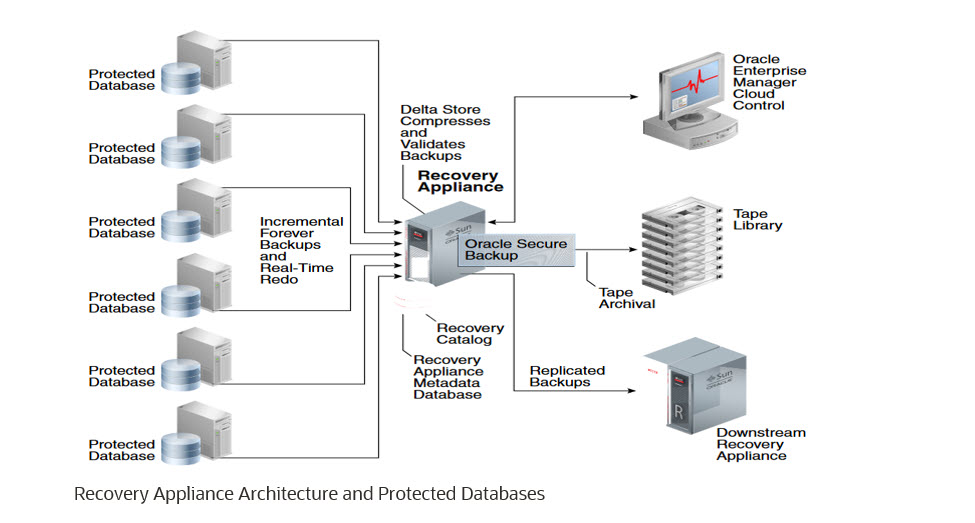
- Configure the Recovery Appliance.
- Enroll the protected database with a Recovery Appliance.
- Configure backup and recovery settings using Recovery Manager (RMAN) for the protected database.
- Use familiar recovery manager (RMAN) commands to perform backup and recovery operations
To use Recovery Appliance as a centralized repository for your protected database backups, configuration is required both on the Recovery Appliance and on the protected database.
- Create a protection policy that is assigned to the protected database.
- Create a Recovery Appliance user who owns the virtual private catalog.
- Grant access for the protected databases to Recovery Appliance user: Grant the privileges required for performing backup and recovery operations to the Recovery Appliance user that the protected database will use for authentication. This Recovery Appliance user owns the virtual private catalog that stores metadata for the protected database.
- On the protected database, the configuration includes:
- Enroll a protected database with a Recovery Appliance using RMAN.
- Install the Recovery Appliance backup module.
Protected databases communicate with the Recovery Appliance through the Recovery Appliance backup module. You must install the backup module on the protected database host before you enroll the protected database with Recovery Appliance. The backup module installation creates the Oracle wallet that stores the credentials required to access or authenticate the protected database with Recovery Appliance and installs the shared library that transfers backup data to the Recovery Appliance.
- Verify that you have Java version 1.7 or later.
- Contact the Recovery Appliance administrator and obtain the following information o Recovery Appliance host name and port number o Credentials of the Recovery Appliance user that will be used to authenticatethe protected database with the Recovery Appliance. The permissions required to perform protected database backup and recovery operations need to be assigned to this Recovery Appliance user.
Obtain the installer for the Recovery Appliance Backup Module:
- Download the Recovery Appliance backup module installer from OTN.
- Access the following URL on OTN:
http://www.oracle.com/technetwork/database/availability/oracle-zdlra-backup-module-2279224.html
- Sign in using your OTN account credentials.
- Select Accept License Agreement to accept the OTN license agreement.
- Click All Supported Platforms to download the Recovery Appliance backup module
for your platform.
The Recovery Appliance installer is named
ra_installer.zip.
Install the Recovery Appliance backup module:
- Unzip the installer downloaded in above step into a local directory.
- Log into the protected database server and switch to
oracleuser. For example, downloaded location is /home/oracle/zdlra and unzipped into location:/home/oracle/zdlra> unzip ra_installer.zip - After the unzip, the installer contains the files
ra_install.jarandra_readme.txt:/home/oracle/zdlra> ls ra_install.jar ra_readme.txt - Set the environment and ensure that the ORACLE_HOME environment variable is set to the Oracle home of the protected database.
- Prepare the parameters required to install Recovery Appliance backup module:
Table - Parameters required to install Recovery Appliance backup module
Parameter Name Description dbUser User name of the Recovery Appliance user who has the privileges required to connect to, send, and receive backups for the protected database. dbPass Password for the dbUser user. Host SCAN host name of the Recovery Appliance. Port Listener port number of the Recovery Appliance metadata database. serviceName Service name of the Recovery Appliance metadata database. walletDir Location of the Oracle wallet that stores the Recovery Appliance user credentials and the proxy information used to connect to the Recovery Appliance. Note: If an Oracle wallet already exists in this directory, then the Recovery Appliance backup module installer overwrites the existing wallet libDir Location where the shared library for the Recovery Appliance backup module is stored. This library is used to transfer backup data over the network to the Recovery Appliance. It is recommended that you store the shared library in $ORACLE_HOME/lib. Downloading the library is not required only when you regenerate the Oracle wallet and configuration file in an Oracle home where the backup module was previously installed. configFile Location of the configuration file that stores the configuration parameters for the Recovery Appliance backup module. The default location is $ORACLE_HOME/dbs/ra$ORACLE_SID.ora. - Run the following step to install the backup
module:
/home/oracle/zdlra>java -jar /home/oracle/zdlra/ra_install.jarFor example:/home/oracle/zdlra>java -jar /home/oracle/zdlra/ra_install.jar -dbUser zdlravpc -dbPass ****** -host zdlra-scan.example.com -port 1521 -serviceName zdlra -walletDir $ORACLE_HOME/dbs/ra_wallet -libDir $ORACLE_HOME/lib Recovery Appliance Install Tool, build 19.0.0.0.0DBBKPCSBP_2018-06-12 Recovery Appliance credentials are valid. Recovery Appliance wallet created in directory /u01/app/oracle/product/ 19.0.0.0/dbhome_1/dbs/ra_wallet. Recovery Appliance initialization file /u01/app/oracle/product/ 19.0.0.0/dbhome_1/dbs/radbzdlra1.ora created. Downloading Recovery Appliance Software Library from file ra_linux64.zip. Download complete. - After the Backup Module is installed, validate that the following files exist. These files
are used to perform backup and restore:
Table - Parameters required to install Recovery Appliance ZDLRA backup module
File Location Purpose libra.so As specified for the -libDir parameter when you run the installer for the Backup Module. For example: $ORACLE_HOME/lib. Operating system-specific SBT library that enables cloud backups and restores with the Oracle Cloud Infrastructure. ra$ORACLE_SID.ora As specified for the -configFile parameter when you run the installer for the Backup Module Default location is under $ORACLE_HOME/dbs. Configuration file that contains credential wallet location, Recovery Appliance (SCAN host name, Listener port number of the metadata database and Service name) and , where ORACLE_SID is the system identifier of the protected database being backed up. cwallet.sso As specified for the -walletDir parameter when you run the Backup Module. For example: $ORACLE_HOME/dbs/ra_wallet. Oracle wallet file that that stores the Recovery Appliance user credentials and the proxy information used to connect to the Recovery Appliance. Note: If an Oracle wallet already exists in this directory, then the Recovery Appliance backup module installer overwrites the existing wallet.
Each Oracle home may support five protected databases, for a total of ten databases running on the host. In this case, only two Recovery Appliance Backup Modules must be installed: one in each Oracle home.
Registering a Protected Database with the Recovery Appliance Catalog:
- Register a protected database with the Recovery Appliance.
- Obtain the name and password of the Recovery Appliance catalog owner that will store backup metadata for this protected database. Contact the Recovery Appliance administrator for these credentials.
- Connect to the protected database as TARGET and to the Recovery Appliance catalog as
CATALOG
For example:/home/oracle> rman target / catalog < Recovery Appliance catalog owner >/<Password>@< SCAN host name of the Recovery Appliance>:< Listener port number of the Recovery Appliance metadata database >/< Service name of the Recovery Appliance metadata database>/home/oracle> rman target / catalog zdlravpc/*****@zdlra-scan.example.com:1521/zdlra:dedicated - Register the protected database using the REGISTER DATABASE command. The following
command registers the protected database with the Recovery
Appliance:
RMAN> REGISTER DATABASE;For example:
RMAN> REGISTER DATABASE;
database registered in recovery catalog
starting full resync of recovery catalog
full resync complete
RMAN>
Configuring Backup and Recovery Settings for Protected Databases:
RMAN> CONFIGURE CHANNEL DEVICE TYPE 'SBT_TAPE' PARMS 'SBT_LIBRARY= location-of-the-SBTlibrary,ENV=(RA_WALLET=location=file: location-of-the-configuration file credential_alias=< SCAN host name of the Recovery Appliance>:< Listener port number of the Recovery Appliance metadata database >/< Service name of the Recovery Appliance metadata database>)' FORMAT '%U_%d';RMAN> CONFIGURE CHANNEL DEVICE TYPE 'SBT_TAPE' PARMS 'SBT_LIBRARY=/u01/app/oracle/product/19.0.0.0/dbhome_1/lib/libra.so,ENV=(RA_WALLET=location=file:/u01/app/oracle/product/19.0.0.0/dbhome_1/dbs/ra_wallet credential_alias=zdlra-scan.example.com:1521/zdlra:dedicated)' FORMAT '%U_%d';In the example, ORACLE_HOME is /u01/app/oracle/product/19.0.0.0/dbhome_1.
Configure autobackup:
RMAN> CONFIGURE CONTROLFILE AUTOBACKUP ON; RMAN> CONFIGURE RETENTION POLICY TO RECOVERY WINDOW OF x DAYS; RMAN> CONFIGURE RETENTION POLICY TO RECOVERY WINDOW OF 30 DAYS;
/home/oracle> sqlplus "/as sysdba"
SQL> ALTER SYSTEM SET control_file_record_keep_time = 30 SCOPE=both SID='*'Optionally, configure Real Time Redo Transport.
- Ensure that the Recovery Appliance user that the protected database uses to send backups to the Recovery Appliance is configured. This same user will be used for redo transport. Also ensure that an Oracle wallet is created on the protected database that contains credentials for the Recovery Appliance (and redo transport) user.
- Ensure that the following conditions are met for the protected database:
- ARCHIVELOG mode is enabled.
- DB_UNIQUE_NAME parameter is set.
- Ensure that, following initialization parameters are set for the protected
database:
/home/oracle> sqlplus “/as sysdba”
SQL> ALTER SYSTEM SET REMOTE_LOGIN_PASSWORDFILE=exclusive SCOPE=BOTH;
SQL> ALTER SYSTEM SET LOG_ARCHIVE_FORMAT='log_%d_%t_%s_%r.arc' SCOPE=BOTH;
Note, REMOTE_LOGIN_PASSWORDFILE can be set to exclusive or shared
SQL> ALTER SYSTEM SET DB_UNIQUE_NAME=<db_unique_name> SCOPE=BOTH;
SQL> ALTER SYSTEM SET LOG_ARCHIVE_CONFIG='DG_CONFIG=(<db_unique_name_of_ZDLRA>, <db_unique_name_of_projected database>)' SCOPE=BOTH;
For example,
SQL> ALTER SYSTEM SET LOG_ARCHIVE_CONFIG='DG_CONFIG=(zdlra, dbzdlra)' SCOPE=BOTH;
The DB_NAME and the DB_UNIQUE_NAME of the Recovery Appliance database is zdlra.
The DB_NAME and the DB_UNIQUE_NAME of the protected database is dbzdlra.
SQL> ALTER SYSTEM SET LOG_ARCHIVE_DEST_3='SERVICE=boston VALID_FOR=(ALL_LOGFILES, ALL_ROLES) ASYNC DB_UNIQUE_NAME=zdlra' SCOPE=BOTH;
SQL>ALTER SYSTEM SET LOG_ARCHIVE_DEST_STATE_3='ENABLE' SCOPE=BOTH;SQL> ALTER SYSTEM SET REDO_TRANSPORT_USER= zdlravpc SCOPE=BOTH;Shut down the protected database and restart it.
Note: Recommendation is use server parameter file for the protected database. If the protected database uses a parameter file instead of a server parameter file,then add the parameters that were set in above steps to the parameter file before you start up the protected database.
Performing Test Backup and Recovery Operations:
After you enroll the protected database with a Recovery Appliance, it is recommended that you perform a test backup and recovery operation. This testing helps confirm that your configuration settings are accurate and that the backup to and recovery from the Recovery Appliance are performed successfully. If you encounter any problem with the test backup or recovery, you may correct your settings and reconfigure your protected database
Run a Test Backup:
To create a test backup of the protected database:
/home/oracle> rman target / catalog zdlravpc/*****@zdlra-scan.example.com:1521/zdlra:dedicatedRMAN> CONFIGURE CHANNEL DEVICE TYPE 'SBT_TAPE' PARMS 'SBT_LIBRARY=/u01/app/oracle/product/19.0.0.0/dbhome_1/lib/libra.so,ENV=(RA_WALLET=location=file:/u01/app/oracle/product/19.0.0.0/dbhome_1/dbs/ra_wallet credential_alias=zdlra-scan.example.com:1521/zdlra:dedicated)' FORMAT '%U_%d';RMAN> BACKUP DEVICE TYPE SBT CUMULATIVE INCREMENTAL LEVEL 1 DATABASE PLUS ARCHIVELOG;Run a Test Recovery:
- Shutdown and restart the protected database in NOMOUNT mode.
- Connect to the protected database as TARGET and to the Recovery Appliance catalog as
CATALOG. For
example:
/home/oracle> rman target / catalog zdlravpc/*****@zdlra-scan.example.com:1521/zdlra:dedicated
RMAN> BACKUP DEVICE TYPE SBT CUMULATIVE INCREMENTAL LEVEL 1 DATABASE PLUS ARCHIVELOG;/home/oracle> rman target / catalog zdlravpc/*****@zdlra-scan.example.com:1521/zdlra:dedicated
RMAN> run
{
allocate channel c1 DEVICE TYPE 'SBT_TAPE' PARMS 'SBT_LIBRARY=/u01/app/oracle/product/19.0.0.0/dbhome_1/lib/libra.so,ENV=(RA_WALLET=location=file:/u01/app/oracle/product/19.0.0.0/dbhome_1/dbs/ra_wallet credential_alias=zdlra-scan.example.com:1521/zdlra:dedicated:dedicated)' FORMAT '%U_%d';
RESTORE VALIDATE DATABASE;
}If these backup and recovery procedures succeed, then the client (protected) database is ready to perform regular backups to the Recovery Appliance.
Perform backup / restore and recovery using ZDLRA After you configure the protected database, using standard RMAN backup, restore, and recovery commands you can create, schedule protected database backups and perform restore and recovery operations. Recovery Appliance uses the incremental-forever backup strategy for protected database backups. In this strategy, an initial level 0 incremental backupis followed by successive level 1 incremental backups. Refer to the appendix for sample commands.
To determine network throughput for a specific time period, use RMAN network analyzer, see My Oracle Support Note 2022086.1.
Backup and Recovery using Tape Devices
You may choose to store your database backups on tape devices.
- The Oracle Database Appliance and tape-based backups provide fast backup and restore rates.
- Tape-only solutions isolate faults from the Oracle Database Appliance.
- Oracle Database Appliance storage capacity and network bandwidth are maximized.
-
Weekly RMAN level 0 (full) backups of the database
-
Daily cumulative RMAN incremental level 1 backups of the database
-
Daily backups of the Oracle Secure Backup catalog
Media Management Software for Tape Backups
- Target database has 1 TB of data with a data compression of approximately 1.4 to 1. Depending on the composition of the data, compression will vary and so will transfer rates to the tape drive.
- There were minimal archive logs to backup and the database was mostly idle during backup. If a significant number of archive logs are present, then it will impact backup times as backing up a large number of small files slows performance. Additionally, if there is heavy load on the database and CPU is fully consumed, backup rates could be affected.
- Restore tests consisted of restoring the control file and data files from tape, but the recovery operation retrieved archive logs from the local Fast Recovery Area (FRA).
- Backup rates assume tape drives are mounted before the job starts and rates are calculated on data transfer time utilizing OSB recorded start/stop times.
Disk Backups
Understand disk backups for Oracle Database Appliance.
- Faster recovery times during data and logical corruptions
- Ability to perform Tablespace Point-in-Time Recovery (TSPITR)
- Ability to use backups directly with no restore by switching to a copy of the database, tablespace or data file.
- Use a Fast Recovery Area (FRA)
- Perform an initial RMAN level 0 (full) backup
- Perform daily RMAN incremental level 1 backups
- Roll incremental backups into full backup and delay by 24 hours
RMAN Backups to Local Disks
On Oracle Database Appliance Fast Recovery Area (FRA) is created on the RECO ASM diskgroup. Together the Oracle database and RMAN manage the space inside this area, keep track of and manage backups, including deleting old unneeded backups. Oracle RMAN backs up image copies, archived logs, control files, and flashback logs to the FRA. When new backups demand more room, Oracle automatically removes the nonessential backups, freeing the DBA from this chore. The files in the FRA are considered nonessential when they become obsolete according to the backup retention policy, or when they have already been backed up to tape with Oracle RMAN. Note, when you can not access ASM disk group due to server crash and etc, you will not have access to backups and can not perform any restore and recovery operations, hence RMAN backups to local disk is not recommended.
RMAN Backups to Oracle ZFS Storage Appliance
ZFSSA is a single-head storage controller with capacity and performance that matches well with the Database Appliance.
For use as a Database Appliance backup target, NFS shares accessed over 10 Gb
interfaces are recommended. The ZFSSA architecture provides flexible configuration options.
For this white paper, we chose a configuration that optimizes the RMAN large block, streaming
write and read performance over Ethernet interfaces, while maintaining fault-tolerance.
Defining NFS shares in a single double parity (RAID-Z2) storage pool provides the necessary
performance and availability. The ZFS Storage Appliance can be configured using the web-based
Browser User Interface (BUI) or via CLI commands executed directly on the ZFS Appliance. In
all examples below it is assumed the user has logged into the BUI using the root user and
password. The usual form of the BUI URL is: https://ZFSSA Name or IP
Address:215.
- Click Configuration and then click Storage.
- Click the plus sign (+) next to Available Pools.
- Give the pool a name (Pool-0 for example) and click Apply.
- At the “Verify and add devices” screen, select all HDDs but do not select the Boot drives.
- Click Commit.
- On the next screen choose the Double parity storage profile.
- Click Commit.
-
Database record size: 128 KB
- Synchronous write bias: Throughput
- Data Compression: Off for best performance, LZJB for good inflight compression The
number of NFS shares to define for Oracle Database Appliance backup depends on the number
of services and RMAN channels defined to execute the RMAN backups. Generally, one NFS
share per RMAN channel provides optimum throughput. As with the FRA based backup
configurations, two RMAN channels per server are a good starting point. For a RAC
configuration, a total of four RMAN channels and four shares work well. NFS shares belong
to a Project on the appliance, so first we define a Project, then the shares owned by the
Project.
- Click Shares and then click Projects.
- In the Projects pane on the left side, click the plus sign (+) next to the word All.
- Enter a name for the project and click Apply.
- Click on the new Project name in the Projects pane, then click General.
- Change Synchronous Write Bias to Throughput, Database record size to 128K, and set Data compression to Off or LZJB as desired.
- Adjust the default permissions for the shares in the project.
- Click Apply. You now have a Project for your Oracle Database Appliance backup shares.
- The Filesystems pane is displayed. Click the plus sign (+) next to the word Filesystems.
- Provide a share name.
- Adjust the default permissions given to the share if necessary.
- Click Apply.
- Create three more shares.
- Note the export mount point name shown in the Properties page of each share.
Network Configuration: Assume a configuration with the optional 2 x 10 Gb interface card. The ports can be used independently or can be bound together using the Link Aggregation Protocol (LACP) or IP Multi-Pathing (IPMP). In general, LACP is used for improved performance, while IPMP is used for availability. LACP requires a switch that can use the LACP techniques to load balance between physical ports, while IPMP does not require special switch configuration. Alternatively, the 10 Gb ports on the ZFSSA can be directly connected, one port to each server on the Oracle Database Appliance, without a switch, using a 192.168.* private non-routable network domain between Oracle Database Appliance and the ZFSSA. Jumbo frames should be specified.
Mounting Shares on Oracle Database Appliance and Configuring dNFS
mkdir /mnt/backup1 /mnt/backup2 /mnt/backup3 /mnt/backup4Edit /etc/fstab to include an entry for each mount point. For example:
192.168.2.1:/export/ODA/backup1 on /mnt/backup1 type nfs (rw,bg,hard,nointr,rsize=1048576,wsize=1048576,tcp,nfsver=3,timeo=600)‘mount –a’ to read fstab A summary of how to configure dNFS is as follows:
oracle user on each server:
$ make –f $ORACLE_HOME/rdbms/lib/ins_rdbms.mk dnfs_on server: zfs-server
path: 192.168.2.1
export /export/ODA/backup1 mount: /mnt/backup1
export /export/ODA/backup2 mount: /mnt/backup2
export /export/ODA/backup3 mount: /mnt/backup3
export /export/ODA/backup4 mount: /mnt/backup4select * from v$dnfs_servers;
select * from v$dnfs_files; You may also want to review the database alert log and check database startup messages.
Configuring RMAN to Use the ZFSSA
In order to efficiently allocate resources across the database nodes during backups, the backup load should be spread evenly between the RAC nodes.
$ srvctl add service –d <dbname> -s <service name1> -r <instance1>  -a<instance2>
$ srvctl add service –d <dbname> -s <service name2> -r <instance2> -a <instance1>
For example:
$ srvctl add service –d isr –s isrsvc1 –r isr1 –a isr2
$ srvctl add service –d isr –s isrsvc2 –r isr2 –a isr1$ srvctl start service –d <db_unique_name> -s <service_name1>
$ srvctl start service –d <db_unique_name> -s <service_name2>
For example:
srvctl start service –d isr –s isrsvc1
srvctl start service –d isr –s isrsvc2RUN
{
allocate channel oem_backup_disk1 type disk format '/mnt/backup1/%U' connect ’@isrsvc1’;
allocate channel oem_backup_disk2 type disk format '/mnt/backup2/%U' connect ’@isrsvc2’;
allocate channel oem_backup_disk3 type disk format '/mnt/backup3/%U' connect ’@isrsvc3’;
allocate channel oem_backup_disk4 type disk format '/mnt/backup4/%U' connect ’@isrsvc4’;
backup as BACKUPSET tag '%TAG' database;
backup as BACKUPSET tag '%TAG' archivelog all not backed up;
release channel oem_backup_disk1;
release channel oem_backup_disk2;
release channel oem_backup_disk3;
release channel oem_backup_disk4;
}Backup and recovery with Network File System (NFS) storage
External storage on Network Attached Storage can be made available on Oracle Database Appliance using NFS mounts.
This may be useful if you choose to store backups on external storage (or tapes) and want to a larger sized DATA diskgroup. External Backup Type specified as the Backup Type during Oracle Database Appliance deployment allows you to allocate more storage to the DATA disk group.
- Perform an initial RMAN level 0 (full) backup
- Perform daily RMAN incremental level 1 backups
- Roll incremental backups into full backup and delay by 24 hours.
For more information see the Oracle RMAN documentation in the Oracle Database Documentation Library.
Backup and Recovery with Third Party Agents
Installing third party agent for backup and recovery operations is allowed on Oracle Database Appliance if it does not cause conflict with existing packages or change the configuration of existing system, which may impact the functionality of the system.
Install third party agent packages using yum as yum versionlock plugin protects existing packages and it will block the install automatically if the third party agent is trying to install something conflicting. Follow the recommendations and best practices for installing third party agent from the respective vendor documentation (for example: Agent install user and etc). Note, sometimes installing third party agent version depending upon the existing OS package versions. For example, to install VEEAM backup agent, the package systemd-devel version should be same as existing package systemd version. As part of Oracle Database Appliance patching activity, it may not require removing third party agent, but if server prepatch report flags it, it must be removed temporarily and need to install again after server patching is completed.
RMAN backups of Oracle Database Appliance to an Oracle ZFS Storage Appliance can be configured automatically using the Engineered Systems Backup Utility (ESBU), a free utility available on OTN. The ESBU User's Guide can guide the user through the setup of the utility. This document illustrates an alternative method of configuring backups to the ZFS Appliance using manual interfaces.
Restore and Recover the database
Use standard RMAN procedures for restore and recovery of the instances for all these scalable destinations. Refer to the appendices for sample steps.
Backup and Recovery for Oracle Database Appliance S|M|L
Understand backup and recovery options on Oracle Database Appliance hardware models.
The Oracle Database Appliance S|M|L are single node configurations. Thus, these configurations do not provide high availability that Oracle Database Appliance high-availability configurations provide. If an Oracle Database Appliance S|M|L server becomes unrecoverable, in most cases, you must re-image, re-deploy, restore, and recover your system from backups.
Database Backup and Recovery Best Practices
This section outlines some of the core best practices when establishing your backup and recovery configuration in an Oracle Database Appliance environment.
- Choose backup location based on RTO/RPO requirements.
During the Oracle Database Appliance deployment process, you are required to choose backup location and storage mirroring. These choices determine storage allocation to the DATA and RECO disk groups. The placement of backups on local storage has direct bearing on backup and recovery processes and time requirements. However, local storage on Oracle Database Appliance is premium storage and limited to a maximum capacity and configuration. Choosing the backup location and mirroring options appropriately should allow you to meet your requirements and objectives.
- Use “weekly full and daily incremental” backup strategy Incremental backups allow you to
back up only those data blocks that have changed since a previous backup. Incremental
backups are thus efficient in terms of time and space requirements. The RMAN block change
tracking feature for incremental backups improves incremental backup performance by
recording changed blocks in each data file in a change tracking file. If change tracking
is enabled, RMAN uses the change tracking file to identify changed blocks for incremental
backup, thus avoiding the need to scan every block in the data file at backup time. To
enable or disable block change tracking refer to the example below. Additional information
can also be found in the RMAN Incremental Backup
documentation.
SQL>ALTER DATABASE ENABLE BLOCK CHANGE TRACKING;
SQL>ALTER DATABASE DISABLE BLOCK CHANGE TRACKING;
However, prior to you should evaluate if your RTO requirements can still be met if you choose to use this approach. Incremental backup typically require substantially less time to execute, giving you the option to backup more frequently and reduce RTO/RPO. By doing incremental backups, you also reduce network usage and network bandwidth requirements when backing up over a network. Further, incremental database backups reduce backup overhead and read I/O volume on the database.
- Schedule archived log backup more frequently to reduce RPO The archived redo logs residing on the system are vulnerable to loss in case of a complete system failure that renders the whole system in an unrecoverable state. For this reason, archived redo logs are backed up to a separate external (often remote) location. Choose a frequency of archived redo log backups that meets your requirements. Many customers use a standby system to transfer redo data to the remote location to ensure minimal redo loss in case of a complete system failure.
- Validate backups Perform RMAN CROSSCHECK operation on the backups to ensure validate
backups.
RMAN> CROSSCHECK BACKUP; - Validate backups regularly to check for physical and logical corruptions After a backup
operation, use the RMAN BACKUP VALIDATE command to check the data files for physical
corruptions. To check for logical corruptions, include the CHECK LOGICAL clause in the
BACKUP VALIDATE command.
RMAN> BACKUP VALIDATE CHECK LOGICAL DATABASE ARCHIVELOG ALL; - Perform restore validate weekly Use the RMAN RESTORE VALIDATE command to check and
verify the integrity of the backups. RESTORE DATABASE VALIDATE command only checks for the
datafile backups and not ARCHIVELOG or CONTROLFILE backups. Issue RESTORE ARCHIVELOG
VALIDATE and RESTORE CONTROLFILE VALIDATE commands for the latter. Use RESTORE SPFILE
VALIDATE command to check server parameter file backup. For more information, please see
Oracle Database documentation. RMAN restore validate command does a block level check of
the backups and verifies all needed database files are available, thus ensuring that an
actual restore can be performed. It is recommended to validate backups on a regular basis.
RMAN> RESTORE DATABASE VALIDATE CHECK LOGICAL;For large backup sets, restore validate command can take longer to complete. For a quick validation to ensure the backup files are available you can leverage restore validate header. This will validate that backups are present but will not perform block-level check.
RMAN>RESTORE DATABASE VALIDATE HEADER; - Test a full restore of the database in a test environment on a quarterly basis to ensure backups can be reliably used if needed.
- Allocate RMAN channels RMAN allows for parallel processing of backup workloads in Oracle Real Application Clusters (RAC) environments, hence to maximize backup transfer rates to backup destination, use both instances for the backup by allocating RMAN channels per each instance.
- Use Fast Connect when using backups to Oracle Cloud If storing backups in Oracle Cloud, use the Fast Connect facility to leverage greater bandwidth and lower latency and perform backups most efficiently.
- Update RMAN SBT Module If using the RMAN SBT module, update it periodically to ensure you are using a more current version and avoid known issues that may have surfaced and may have been fixed in a latter version.
- Monitor backup location free space. Ensure sufficient free space is available at backup location to avoid backup failures due to unavailability of space. Based on recovery window, Oracle Database Appliance tooling automatically removes older backups once they become obsolete.
- Retain the backups behind recovery window. Retaining backups for longer period of time than the recovery window needs archiving backups to external storage or tape devices.
Protect system from patching failures
ODABR is a reliable and long time available utility that can help you to restore your system quickly in case of a patching failure.
Take LVM snapshot based backup of all bare metal nodes after updating the DCS framework and running server prepatchreport and delete the ODABR backup once server update completed.
Refer to Oracle Database Appliance: ODABR a System Backup/Restore Utility (Doc ID 2466177.1)
If the system is not bootable, you can boot it up from ODA Rescue Live Disk: ODA (Oracle Database Appliance): ODARescue Live Disk (Doc ID 2495272.1)
Backup and Restore of KVM guest virtual machines
Refer to My Oracle Support note 2779329.1 for various backup and recovery scenarios applicable to Kernel-based Virtual Machine (KVM guest virtual machines) virtual platform deployed on Oracle Database Appliance.
Conclusion
Oracle Database Appliance benefits from native Oracle database integration with Oracle Recovery Manager (RMAN). You can choose from a variety of backup destinations depending on your requirements.
When Oracle Database Appliance is deployed with the best practices outlined in this white paper, the backup, restore, and recovery operations for your Oracle Databases can be optimized. Backup placement for Oracle Databases running on Oracle Database Appliance can be either on local storage or external storage. Local backups are placed in the RECO disk group on Oracle Database Appliance storage while external backups can be placed on NFS storage, tape storage, or in the Oracle Cloud. Oracle ZFS Storage Appliance and Oracle StorageTek Tape device provide a unique value proposition in terms of performance and high availability for hosting external database backups for databases running on Oracle Database Appliance. Oracle Cloud presents a unique opportunity to store backup securely and cost effectively in an offsite location. Oracle Cloud Database Backup Service offers an effective and low cost alternative to protect your Oracle Appliance databases while at the same time securing your backups in a remote location.
Appendix A: Configuring load-balanced backups
Understand how to configure load-balanced backups.
$ srvctl add service –d <dbname> -s <service name> -r <instance1>,<instance2>
$ srvctl add service –d isr –s isrsvc –r isr1,isr2
Start the service
$ srvctl start service –d <db_unique_name> -s <service_name>
$ srvctl start serviceISR =
(DESCRIPTION =
(ADDRESS = (PROTOCOL = TCP)(HOST = hamms-scan)(PORT = 1521))
(CONNECT_DATA =
(SERVER = DEDICATED)
(SERVICE_NAME = isr)
)
)ISR1 =
(DESCRIPTION =
(ADDRESS = (PROTOCOL = TCP)(HOST = hamms1)(PORT = 1521))
(CONNECT_DATA =
(SERVER = DEDICATED)
(SERVICE_NAME = isr)
(SID = isr1)
)
)
ISR2 =
(DESCRIPTION =
(ADDRESS = (PROTOCOL = TCP)(HOST = hamms2)(PORT = 1521))
(CONNECT_DATA =
(SERVER = DEDICATED)
(SERVICE_NAME = isr)
(SID = isr2)
)
)Appendix B: Sample Scripts
Understand the sample scripts.
For all scripts in this section archive logs needed for recovery are available on disk. The scripts do not cover special considerations that may arise when restoring a production database. You may use these examples, adjust them to their needs and embed them in shell scripts.
Tape Backup in RAC environments
RUN
 {
   ALLOCATE CHANNEL ch00 TYPE 'SBT_TAPE' CONNECT='@isr';
   ALLOCATE CHANNEL ch01 TYPE 'SBT_TAPE' CONNECT='@isr';
   BACKUP INCREMENTAL LEVEL 0 DATABASE PLUS ARCHIVELOG;
 }
Note: Channels are load balanced in Oracle RAC.
Tape Restore for Single Instance and RAC One Node
ALTER DATABASE MOUNT
RUN
{
  ALLOCATE CHANNEL ch00 TYPE 'SBT_TAPE';
  ALLOCATE CHANNEL ch01 TYPE 'SBT_TAPE' ;
  RESTORE DATABASE; RECOVER DATABASE;
}
ALTER DATABASE OPEN RESETLOGS;
Note: To run parallel restores you must mount the database on the second node and allocate channels using connect strings.
Image copy backup for Oracle RAC, Oracle RAC One Node and Oracle Single Instance Databases
CONFIGURE DEFAULT DEVICE TYPE TO DISK;
CONFIGURE SNAPSHOT CONTROLFILE NAME TO '+RECO/ISR/snap.cf';
CONFIGURE DEVICE TYPE DISK BACKUP TYPE TO COPY;
CONFIGURE DEVICE TYPE disk PARALLELISM 2;
CONFIGURE CONTROLFILE AUTOBACKUP ON;
RUN
{
  BACKUP AS COPY DATABASE;
} RUN
{
ALLOCATE CHANNEL ch1 DEVICE TYPE DISK CONNECT ‘@isr1';
ALLOCATE CHANNEL ch2 DEVICE TYPE DISK CONNECT ‘@isr2';
RESTORE DATABASE;
RECOVER DATABASE;
}
startup;Note: To run parallel restores you must mount the database on the second node and allocate channels using connect strings.
Image restore RAC One Node and Single Instance
CONFIGURE DEVICE TYPE disk PARALLELISM 2;
RUN
{
RESTORE DATABASE;
RECOVER DATABASE;
}
startup;
Backup script for backup set
CONFIGURE DEFAULT DEVICE TYPE DISK;
CONFIGURE DEVICE TYPE DISK BACKUP TYPE TO BACKUPSET;
CONFIGURE SNAPSHOT CONTROLFILE NAME TO '+RECO/ISR/snap.cf';
 CONFIGURE DEVICE TYPE disk PARALLELISM 2;
CONFIGURE CONTROLFILE AUTOBACKUP ON;
RUN
{
 BACKUP DATABASE;
}
Monitoring disk based backups
SELECT sid, serial#, context, sofar, totalwork, round(sofar/totalwork*100,2) "% Complete" FROM v$session_longops WHERE opname LIKE 'RMAN%' AND opname NOT LIKE '%aggregate%' AND totalwork != 0 AND sofar <> totalwork /SQL> SELECT operation,OBJECT_TYPE,status, mbytes_processed, start_time, end_time FROM v$rman_status order by end_time;
SQL> SELECT operation, status, mbytes_processed, start_time, end_time FROM v$rman_status where status ='RUNNING';
SQL> select SID,STAMP,COMMAND_ID,OUTPUT_DEVICE_TYPE,OBJECT_TYPE from v$rman_status where status ='RUNNING';
SQL> select sid,start_time,totalwork, sofar, (sofar/totalwork) * 100 pct_done from v$session_longops where totalwork > sofar AND opname NOT LIKE '%aggregate%' AND opname like 'RMAN%';Appendix C: Sample commands for backup and recovery in ZDLRA
Understand the sample commands for backup and recovery in ZDLRA.
Backing Up Protected Database
To schedule protected database backups, create a script that contains the required backup commands and then use any scheduling utility to schedule backups. You can create full backups, incremental backups, archived redo log backups, control file backups,or backups of specific data files and tablespaces.
To implement the incremental forever backup strategy, you need one level 0 incremental database backup and successive periodic level 1 incremental backups. Because multiple protected databases are backed up to the same Recovery Appliance, backup piece names must be unique across all protected databases. Use the substitution variables %d_%U in the FORMAT string of BACKUP commands to ensure that backup piece names are unique.
Creating the Initial Full Backup of the Protected Database
- Connect to the protected database as TARGET and to the Recovery Appliance catalog as
CATALOG. For
example:
/home/oracle> rman target / catalog zdlravpc/*****@zdlra-scan.example.com:1521/zdlra:dedicated - Ensure that the configuration steps described in the section Backup and Recovery Using Zero Data Loss Recovery Appliance are completed.
- Run the following command to allocate three SBT channels for the Recovery Appliance and
then create a full backup of the protected database including archivedredo log
files.
RMAN>
RUN
{
ALLOCATE CHANNEL C1 DEVICE TYPE 'SBT_TAPE'  PARMS 'SBT_LIBRARY=/u01/app/oracle/product/19.0.0.0/dbhome_1/lib/libra.so,ENV=(RA_WALLET=location=file:/u01/app/oracle/product/19.0.0.0/dbhome_1/dbs/ra_wallet credential_alias=zdlra-scan.example.com:1521/zdlra:dedicated:dedicated)' FORMAT  '%U_%d';
ALLOCATE CHANNEL C2 DEVICE TYPE 'SBT_TAPE'  PARMS 'SBT_LIBRARY=/u01/app/oracle/product/19.0.0.0/dbhome_1/lib/libra.so,ENV=(RA_WALLET=location=file:/u01/app/oracle/product/19.0.0.0/dbhome_1/dbs/ra_wallet credential_alias=zdlra-scan.example.com:1521/zdlra:dedicated:dedicated)' FORMAT  '%U_%d';
ALLOCATE CHANNEL C3 DEVICE TYPE 'SBT_TAPE'  PARMS 'SBT_LIBRARY=/u01/app/oracle/product/19.0.0.0/dbhome_1/lib/libra.so,ENV=(RA_WALLET=location=file:/u01/app/oracle/product/19.0.0.0/dbhome_1/dbs/ra_wallet credential_alias=zdlra-scan.example.com:1521/zdlra:dedicated:dedicated)' FORMAT  '%U_%d';
BACKUP TAG 'db_full_incr'  CUMULATIVE INCREMENTAL LEVEL 1  DATABASE FORMAT '%d_%U'  PLUS ARCHIVELOG FORMAT '%d_%U' NOT BACKED UP;
The BACKUP ... INCREMENTAL LEVEL 1 command automatically creates a level 0 backup if no level 0 backup already exists.
Creating Incremental Backups of the Protected Database
- Connect to the protected database as TARGET and to the Recovery Appliance catalog as
CATALOG. For example:
/home/oracle> rman target / catalog zdlravpc/*****@zdlra-scan.example.com:1521/zdlra:dedicated - Ensure that the configuration steps described in the section Backup and Recovery Using Zero Data Loss Recovery Appliance are completed
- Run the following command to allocate three SBT channels for the Recovery Appliance and
then create a level 1 incremental backup of the protected database including archivedredo
log
files.
RMAN>
RUN
{
ALLOCATE CHANNEL C1 DEVICE TYPE 'SBT_TAPE'  PARMS 'SBT_LIBRARY=/u01/app/oracle/product/19.0.0.0/dbhome_1/lib/libra.so,ENV=(RA_WALLET=location=file:/u01/app/oracle/product/19.0.0.0/dbhome_1/dbs/ra_wallet credential_alias=zdlra-scan.example.com:1521/zdlra:dedicated:dedicated)' FORMAT  '%U_%d';
ALLOCATE CHANNEL C2 DEVICE TYPE 'SBT_TAPE'  PARMS 'SBT_LIBRARY=/u01/app/oracle/product/19.0.0.0/dbhome_1/lib/libra.so,ENV=(RA_WALLET=location=file:/u01/app/oracle/product/19.0.0.0/dbhome_1/dbs/ra_wallet credential_alias=zdlra-scan.example.com:1521/zdlra:dedicated:dedicated)' FORMAT  '%U_%d';
ALLOCATE CHANNEL C3 DEVICE TYPE 'SBT_TAPE'  PARMS 'SBT_LIBRARY=/u01/app/oracle/product/19.0.0.0/dbhome_1/lib/libra.so,ENV=(RA_WALLET=location=file:/u01/app/oracle/product/19.0.0.0/dbhome_1/dbs/ra_wallet credential_alias=zdlra-scan.example.com:1521/zdlra:dedicated:dedicated)' FORMAT  '%U_%d';

BACKUP TAG 'db_full_incr' CUMULATIVE INCREMENTAL LEVEL 1 DATABASE FORMAT %d_%U' PLUS ARCHIVELOG FORMAT '%d_%U' NOT BACKED UP;
}
Recovering a Protected Database
- Connect to the protected database as TARGET and to the Recovery Appliance catalog as
CATALOG. For
example:
/home/oracle> rman target / catalog zdlravpc/*****@zdlra-scan.example.com:1521/zdlra:dedicated - Ensure that the configuration steps described in section Backup and Recovery Using
Zero Data Loss Recovery Appliance are completed.
/home/oracle> sqlplus “/as sysdba”
SQL> STARTUP MOUNT;
RMAN>
RUN
{
ALLOCATE CHANNEL C1 DEVICE TYPE 'SBT_TAPE'  PARMS 'SBT_LIBRARY=/u01/app/oracle/product/19.0.0.0/dbhome_1/lib/libra.so,ENV=(RA_WALLET=location=file:/u01/app/oracle/product/19.0.0.0/dbhome_1/dbs/ra_wallet credential_alias=zdlra-scan.example.com:1521/zdlra:dedicated:dedicated)' FORMAT  '%U_%d';
ALLOCATE CHANNEL C2 DEVICE TYPE 'SBT_TAPE'  PARMS 'SBT_LIBRARY=/u01/app/oracle/product/19.0.0.0/dbhome_1/lib/libra.so,ENV=(RA_WALLET=location=file:/u01/app/oracle/product/19.0.0.0/dbhome_1/dbs/ra_wallet credential_alias=zdlra-scan.example.com:1521/zdlra:dedicated:dedicated)' FORMAT  '%U_%d';
ALLOCATE CHANNEL C3 DEVICE TYPE 'SBT_TAPE'  PARMS 'SBT_LIBRARY=/u01/app/oracle/product/19.0.0.0/dbhome_1/lib/libra.so,ENV=(RA_WALLET=location=file:/u01/app/oracle/product/19.0.0.0/dbhome_1/dbs/ra_wallet credential_alias=zdlra-scan.example.com:1521/zdlra:dedicated:dedicated)' FORMAT  '%U_%d';

RESTORE DATABASE;
RECOVER DATABASE;
ALTER DATABASE OPEN;
}
Restoring and Recovering an Entire Database With the Existing Current Control File
Run the following command to allocate three SBT channels for the Recovery Appliance and then restore and recover all the data files. This example assumes that some or all the data files in the protected database are lost or damaged. However, the control file is available.
Point-in-time restore and recovery
Depending upon the date and time of the restore, you must identify the control file and use “set until time” clause to do the point-in-time recovery.
Restoring and Recovering Tablespaces in a Protected Database
This example demonstrates how to restore and recover one or more tablespaces in the protected database after they are accidentally dropped or corrupted. The example assumes that the database is up and running and that you will restore only the affected tablespaces.
RMAN>
RUN
{
<Allocate the channels, like in above step>
SQL 'ALTER TABLESPACE users OFFLINE';
RESTORE TABLESPACE users;
RECOVER TABLESPACE users;
SQL 'ALTER TABLESPACE users ONLINE';
}
Restoring and Recovering whole PDB
RMAN>
RUN
{
<Allocate the channels, like in above step>
ALTER PLUGGABLE DATABASE "mypdb" CLOSE IMMEDIATE;
RESTORE PLUGGABLE DATABASE 'mypdb';
RECOVER PLUGGABLE DATABASE 'mypdb';
ALTER PLUGGABLE DATABASE "mypdb" OPEN;
}
Restoring and Recovering a whole PDB in an Oracle RAC environment
This example demonstrates how to perform complete recovery for a PDB in the protected database. Run the following command to allocate SBT channels for the Recovery Appliance and then restore and recover whole PDB.
SQL> ALTER PLUGGABLE DATABASE "mypdb" CLOSE IMMEDIATE INSTANCES=all;
RMAN>
RUN
{
<Allocate the channels, like in above step>
ALTER PLUGGABLE DATABASE "mypdb" CLOSE IMMEDIATE;
RESTORE PLUGGABLE DATABASE 'mypdb';
RECOVER PLUGGABLE DATABASE 'mypdb';
ALTER PLUGGABLE DATABASE "mypdb" OPEN RESETLOGS;
ALTER PLUGGABLE DATABASE "mypdb" OPEN INSTANCES=all;
}
Restoring and Recovering a control file and database, when real-time Redo Transport is configured
- Determine the SCN to which the protected database must be recovered by querying the
RC_DATABASE view. This SCN is the highest SCN at the time the database crashed.
SELECT final_change# FROM rc_database WHERE name='<DBNAME>'; - This example assumes that the control file is available. If the control file is
lost,then you need to first recover the control file before performing the steps listed
here.
STARTUP FORCE NOMOUNT;
SET DBID=<dbid of protected database>;
RESTORE CONTROLFILE;
ALTER DATABASE MOUNT;
RMAN>
RUN
{
<Allocate the channels, like in above step>
SET UNTIL SCN <specify SCN value from above query;
 RESTORE DATABASE;
 RECOVER DATABASE;
}
ALTER DATABASE OPEN RESETLOGS;
References
Use these references for more information.
- Oracle Database Appliance Documentation Library at https://docs.oracle.com/en/engineered-systems/oracle-database-appliance/
- Using Oracle Database Backup Cloud Service at https://docs.oracle.com/en/cloud/paas/db-backup-cloud/csdbb/getting-started-oracle-database-backup-cloud-service.html
- My Oracle Support Note 2363679.1 Bck2Cloud - “1-Button” Cloud Backup/Restore Automation Utility at https://support.oracle.com/rs?type=doc&id=2363679.1
- My Oracle Support Note 2784991.1 Database System backup on Oracle Database Appliance Release 19.10 and later at https://support.oracle.com/rs?type=doc&id=2784991.1
- To diagnose Oracle Cloud Backup Performance, see My Oracle Support Note 2078576.1 at https://support.oracle.com/rs?type=doc&id=2078576.1
- For details on Oracle ZFS Storage Appliance, refer to https://www.oracle.com/storage/nas/.
- For details on Oracle Database storage documentation, refer to https://docs.oracle.com/en/storage/.
Documentation Accessibility
For information about Oracle's commitment to accessibility, visit the Oracle Accessibility Program website at http://www.oracle.com/pls/topic/lookup?ctx=acc&id=docacc.
Access to Oracle Support
Oracle customers that have purchased support have access to electronic support through My Oracle Support. For information, visit http://www.oracle.com/pls/topic/lookup?ctx=acc&id=info or visit http://www.oracle.com/pls/topic/lookup?ctx=acc&id=trs if you are hearing impaired.
Oracle Database Appliance Best Practices for Optimizing Backup and Recovery on Oracle Database Appliance
G52417-01
Primary Authors: Aparna Kamath, Krisztian Fekete, MAA Platform Engineering team (Oracle RACPACK)