23 Support for Customization of Enterprise Manager Login Page
Enterprise Manager allows customization of the login page in order to accommodate corporate policies and standards.
Logo on Enterprise Manager Login Page
A logo can be placed in the header of the Enterprise Manager login page. The supported image formats are jpeg, jpg, png, and gif. The logo ratio of the image file is adjusted according to the allocated space.
The current size of the space provided is “width:200px;height:70px”.
It is recommended to modify the logo image to ensure it fits properly in the space provided.
Figure 23-1 Logo on the Enterprise Manager login page
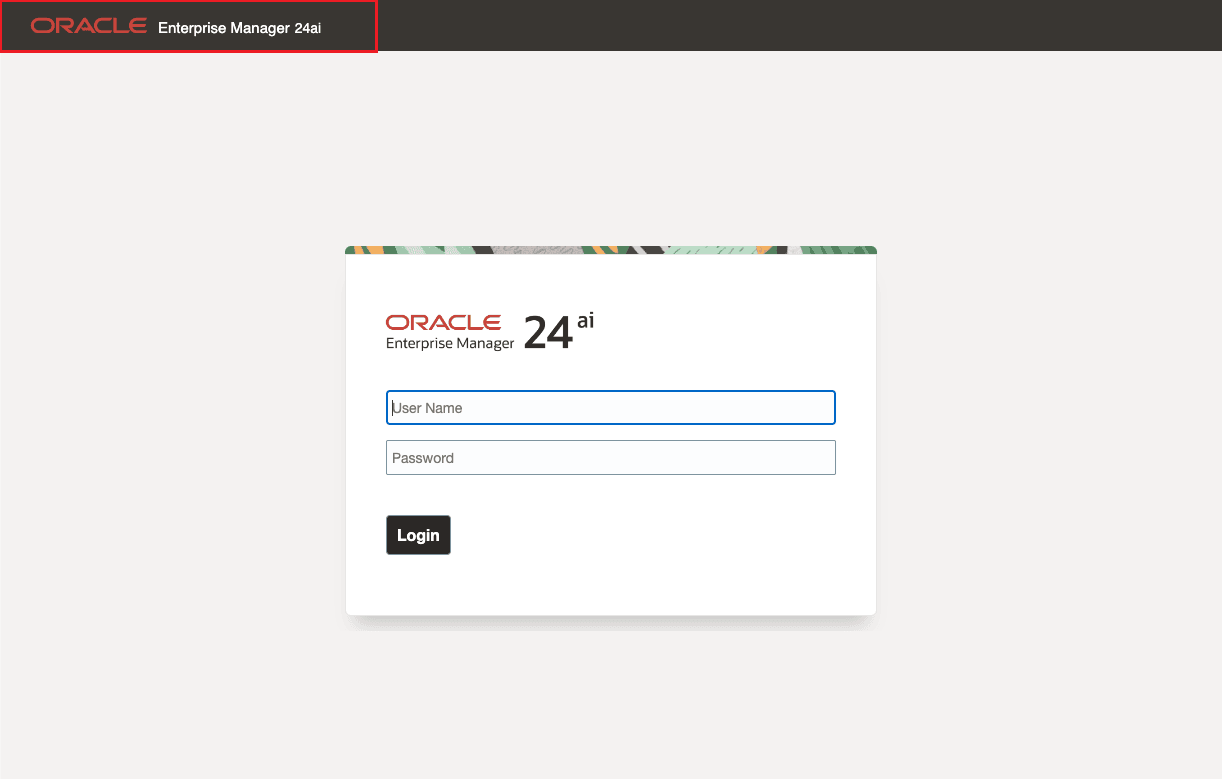
The image file can be hosted on any web server including Weblogic server. For an example on how to set it up on Weblogic server, see Setup Weblogic Server to Host Images.
Setup Weblogic Server to Host Images
In order to load a custom logo image file on the Enterprise Manager login page, a web application containing the static image file needs to be deployed to the Weblogic domain on the Admin Server. For instructions on how to install a Web application, see https://docs.oracle.com/middleware/1213/wls/WLACH/taskhelp/web_applications/InstallWebApplications.html
-
On the OMS host, create a directory to store the logo image file to be used on the EM login page. For example,
/u01/oracle/gc_inst/em/EMGC_OMS1/temp -
Copy the logo image file to the newly created directory. For example,
/u01/oracle/gc_inst/em/EMGC_OMS1/temp/custom_logo.png -
In the newly created directory, create a WEB-INF directory. For example,
/u01/oracle/gc_inst/em/EMGC_OMS1/temp/WEB-INF -
In the WEB-INF directory create a file called web.xml with the following content:
<?xml version="1.0" encoding="UTF-8"?>
<!DOCTYPE web-app PUBLIC
"-//Sun Microsystems, Inc.//DTD Web Application 2.3//EN"
"http://java.sun.com/j2ee/dtds/web-app_2_3.dtd">
<web-app>
</web-app>
-
Login to the Weblogic console. Username by default is weblogic and password is the sysman password.
URL:
https://hostname:port/consoleExample:
https://<fully_qualified_host_name>:7102/consoleNote:
The Weblogic console URL (Admin Server URL) is not the same URL as the Enterprise Manager console. The host and the port are values specified in the AS_HOST and AS_HTTPS_PORT parameters, respectively, in the emgc.properties file. This properties file is available in the Oracle Management Service Instance Base location of the first OMS. For example,/u01/oracle/gc_inst/em/EMGC_OMS1/emgc.properties. The Admin Server URL can also be found in the<EM Home Dir>/install/setupinfo.txtfile. -
Click Deployments menu at the left. The Install button is disabled by default.
-
Click Lock & Edit to enable the Install button.
-
In the Deployments screen, click the Install button.
-
Set the path to the directory created from Step 1
( /u01/oracle/gc_inst/em/EMGC_OMS1/temp). -
Click Next.
-
In the next screen, accept the default values for the selected options. By default Install this deployment as an application option will be selected.
-
Click Next.
-
In the next screen, select EMGC_ADMINSERVER as the target.
-
Click Next.
-
In the next screen, accept the default values.
-
Click Finish.
If the application is successfully deployed, the following message appears:
All changes have been activated. No restarts are necessary.
The deployment has been successfully installed.
-
Ensure that the status of the web application 'temp' deployed above is in 'Active' state. If not, click Activate Changes on the upper left corner to activate.
-
If the status of ‘temp’ appears as Prepared even after Step 18, select ‘temp’ from the table and click Start.
Note:
Ensure that the status of ‘temp’ appears ‘Active’ in the Deployments table.Figure 23-2 Deploying a Web Application on the Weblogic Server Administration Console

-
Access the file path to ensure the image appears on the browser screen.
URL:
https://hostname:port/console/<newly created directory>/<logo image filename>Example:
https://<fully_qualified_host_name>:7022/temp/custom_logo.pngOnly https based image location is supported.
Run EMCTL Command to set the Logo Image
The login page logo can be set by using EMCTL commands. For more information, see Executing EMCTL Commands. OMS restart is not required to reflect the new property value.
emctl set property -name oracle.sysman.core.uifwk.loginPageLogo –value ‘<HTTPS URL to the image file>’ -sysman_pwd <sysman password>
emctl set property -name oracle.sysman.core.uifwk.loginPageLogo –value ‘https://page.example.com:7022/temp/custom_logo.png’ -sysman_pwd password
bash-4.2$ ./emctl set property -name oracle.sysman.core.uifwk.loginPageLogo –value ‘https://page.example.com:7022/temp/custom_logo.png’ -sysman_pwd password

Oracle Enterprise Manager  24 Release 1
Copyright (c) 1996, 2025 Oracle Corporation.  All rights reserved.
Property oracle.sysman.core.uifwk.loginPageLogo has been set to value https://page.example.com:7022/temp/custom_logo.png for all Management Servers
OMS restart is not required to reflect the new property value
emctl set property -name oracle.sysman.core.uifwk.loginPageLogo -value null -sysman_pwd <sysman password>
emctl set property -name oracle.sysman.core.uifwk.loginPageLogo -value null -sysman_pwd password
License Agreement Popup
A License Agreement popup can be configured to appear after the user clicks on the Login button from the Enterprise Manager login page. On pressing Login, a License Agreement popup message appears confirming the user whether they ‘Agree’ or ‘Disagree’. On pressing Agree the user will be able to successfully login. On pressing Disagree or Close, the user will stay in the login page. By default, the popup title is Terms of Service Agreement and the button labels are Agree and Disagree. The License Agreement popup title, message, and the button labels are customizable using EMCTL commands. OMS restart is not required to reflect the new property value.
emctl set property -name oracle.sysman.core.uifwk.licenseAgreementMessagePopupTitle -value ‘<popup title>' -sysman_pwd <sysman password>
emctl set property -name oracle.sysman.core.uifwk.licenseAgreementMessagePopupTitle -value ‘ABC Company License Agreement’ -sysman_pwd password
emctl set property -name oracle.sysman.core.uifwk.licenseAgreementMessage -value ‘<popup message>’ -sysman_pwd <sysman password>
emctl set property -name oracle.sysman.core.uifwk.licenseAgreementMessage -value ‘Do you agree to the License Agreement?’ -sysman_pwd password
The popup message supports HTML tags. For a list of supported HTML tags, see https://docs.oracle.com/html/E12419_09/tagdoc/af_outputFormatted.html
emctl set property -name oracle.sysman.core.uifwk.licenseAgreementMessage -value '<H2 align=center>ABC Company </H2> Warning: You are accessing a system operated by ABC Company. Unauthorized access or use of this system is prohibited and may constitute an offense under the Computer Misuse Act 1990. </b> <br><br> ABC Company will take appropriate actions if information is disclosed without prior authorization. This may include legal proceedings, prosecution and disciplinary action up to and including dismissal. <br><br> <b>Click "Agree" if you are authorized to access this application and agree to the stated Terms of Service Agreement. </b>' -sysman_pwd password
emctl set property -name oracle.sysman.core.uifwk.licenseAgreementMessage -value null -sysman_pwd <sysman password>
emctl set property -name oracle.sysman.core.uifwk.licenseAgreementMessage -value null -sysman_pwd password
emctl set property -name oracle.sysman.core.uifwk.licenseAgreementMessageAgreeButton -value ‘<Agree button label>’ -sysman_pwd <sysman password>
emctl set property -name oracle.sysman.core.uifwk.licenseAgreementMessageAgreeButton -value ‘Yes’ -sysman_pwd password
emctl set property -name oracle.sysman.core.uifwk.licenseAgreementMessageDisagreeButton -value '<Disagree button label>' -sysman_pwd <sysman password>
emctl set property -name oracle.sysman.core.uifwk.licenseAgreementMessageDisagreeButton -value ‘No’ -sysman_pwd password
Figure 23-3 Enterprise Manager License Agreement Popup

Informational Text on Enterprise Manager Login Page
An informational text can be placed to the left of the Enterprise Manager login fields. The Informational text can be used to provide contextual help with using the site. Some examples of usage include instructions to apply for access, password reset policy, and instructions for assistance. Similar to the License Agreement popup message, informational text also supports HTML tags. OMS restart is not required to reflect the new property value.
emctl set property -name oracle.sysman.core.uifwk.loginPageInformationText -value ‘<informational text>’ -sysman_pwd <sysman password>
emctl set property -name oracle.sysman.core.uifwk.loginPageInformationText -value ‘<b> Please use your IUSER credentials to log into OEM </b> <br><br> For lost/forgotten passwords, please use the reset facility: https://page.example.com <br><br> To apply for access please complete this application form: https://page.example.com <br>' -sysman_pwd password
emctl set property -name oracle.sysman.core.uifwk.loginPageInformationText -value null -sysman_pwd <sysman password>
emctl set property -name oracle.sysman.core.uifwk.loginPageInformationText -value null -sysman_pwd password
Figure 23-4 Enterprise Manager Login Page Informational Text
