Management Operations
Here's information on how you can use Oracle Enterprise Manager to administer and manage Exadata Exascale storage components, namely, storage pools, vaults, and users and privileges.
Topics:
Storage Pools
An Exascale storage pool is a collection of pool disks that provides persistent physical storage for Exascale vaults and files.
For information on storage pools, see Storage Pools in Exascale User's Guide.
In Oracle Enterprise Manager, the Storage Pools page for an Oracle Exadata Exascale target outlines the configuration of a storage pool including its media type, the number of cells and disks that comprise the pool, the Cell Offline and Disk Offline timers (in minutes), and the percentage of space provisioned. Additionally, you can view provisioned IOPS, flash cache, and IORM cache percentages by selecting the relevant columns in the View menu.
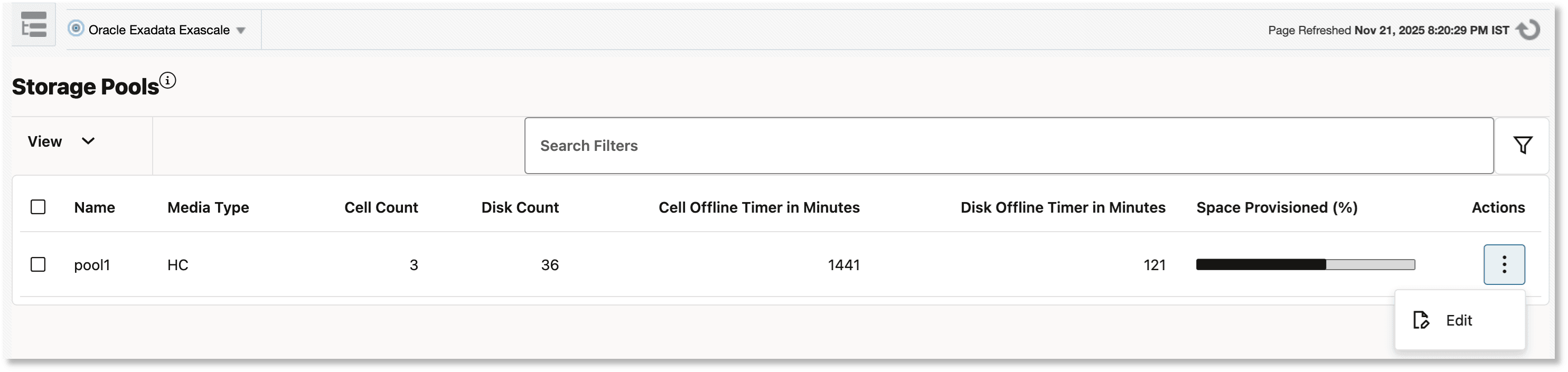
On the Storage Pools page, you can also:
- Filter by storage pool name and media type attributes.
- Edit storage pool attributes by clicking Edit in the Actions column. After updating the attributes of a storage pool, you must provide Control Server Credentials and Host Server Credentials. The Control Server Credentials must have the appropriate privileges to edit the storage pool. Host Server Credentials refer to the agent host credentials from which management operations are initiated. Before submitting the job, you can click Show Payload to review the payload sent to Exascale. The changes to the storage pool attributes are reflected in the table on the Storage Pools page, upon successful job completion. Once a storage pool is edited and the job is submitted, and you can view the status of the job on the Deployment Procedure Manager page. To go to the Deployment Procedure Manager page, from the Enterprise menu, select Jobs and Procedures, and then select Procedure Activity.
Vaults
An Exascale vault is a logical storage container that uses the physical resources provided by Exascale storage pools.
For information on vaults, see Vaults in Exascale User's Guide.
On the Vaults page for an Oracle Exadata Exascale target in Oracle Enterprise Manager, various vault attributes are displayed, such as provisioned IOPS and space (in gigabytes). Additionally, you can view created time, created by, provisioned XRMEM cache, and so on, by selecting the relevant columns in the View menu.
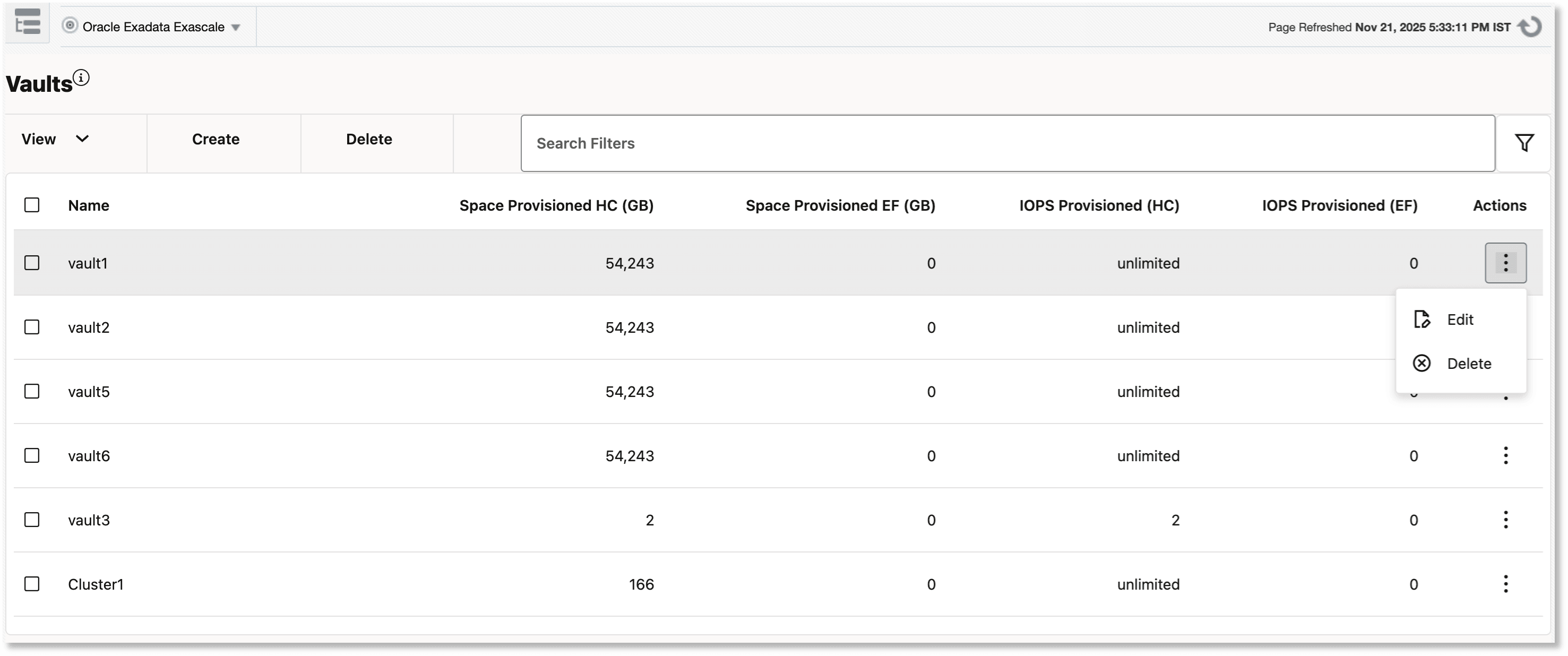
On the Vaults page, you can also:
- Filter by vault name and created by attributes.
- Create a vault by clicking Create, which displays a panel for entering the required attributes.
- Edit vault attributes by clicking Edit in the Actions column.
- Delete a vault by clicking Delete. You can select and delete up to six vaults at a time.
To perform the actions listed above, you must provide Control Server Credentials and Host Server Credentials to submit the job. The Control Server Credentials must have the appropriate privileges to create or edit the vault. Host Server Credentials refer to the agent host credentials from which management operations are initiated. Before submitting the job, you can click Show Payload to review the payload sent to Exascale. The changes to the vault attributes are reflected in the table on the Vaults page, upon successful job completion. Once a vault is created, edited, or deleted and the job is submitted, and you can view the status of the job on the Deployment Procedure Manager page. To go to the Deployment Procedure Manager page, from the Enterprise menu, select Jobs and Procedures, and then select Procedure Activity.
Users and Privileges
Oracle Exadata Exascale has a system of user accounts enabling different users to perform actions and access data according to their assigned privileges.
For information on users and privileges, see Exascale Users in Exascale User's Guide.
In Oracle Enterprise Manager, the Users and Privileges page for an Oracle Exadata Exascale target displays each Exascale user's ID and privilege attributes, including cluster, service, and vault privileges. Additionally, you can view the category of the user belonged to by selecting the relevant column in the View menu.
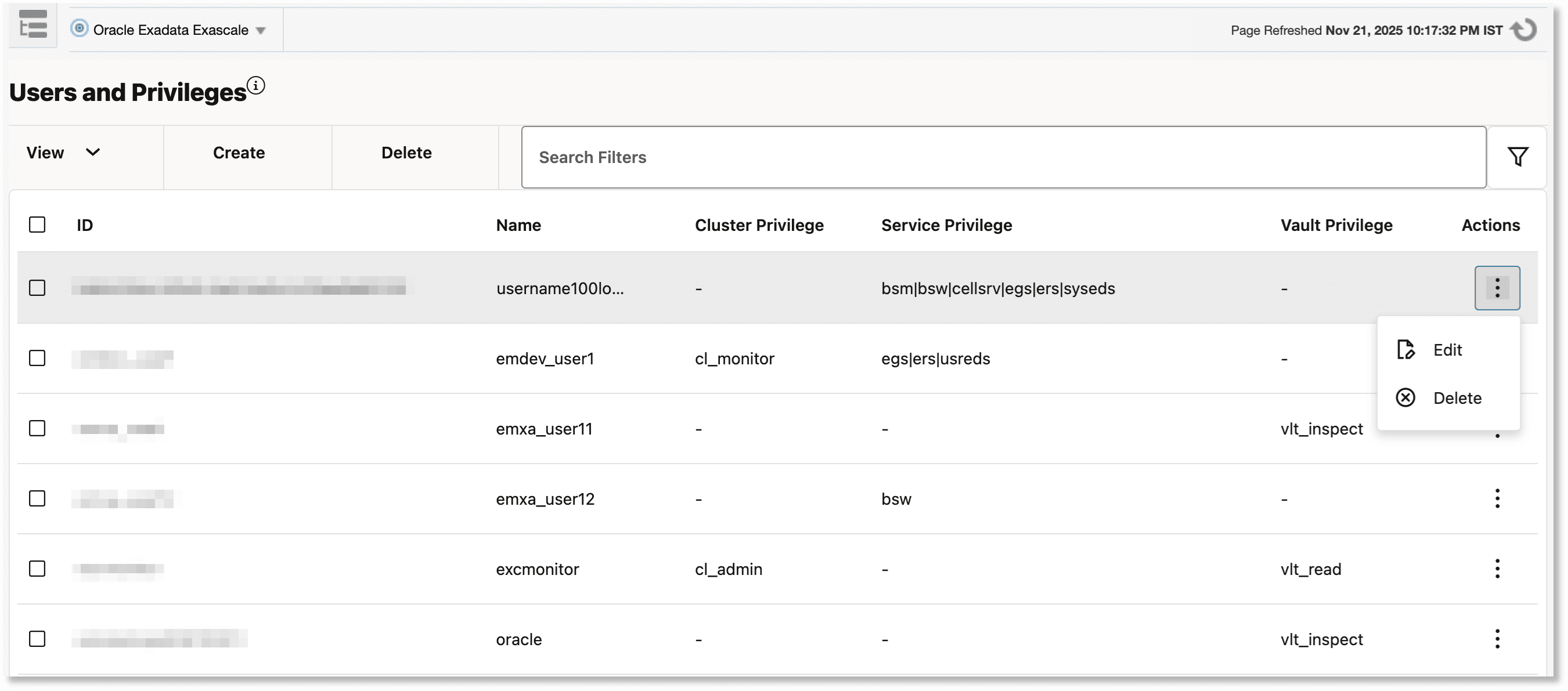
On the Users and Privileges page, you can also:
- Filter by category and privilege attributes.
- Create an Exascale user by clicking Create, which displays a panel for entering the required attributes. User ID and Name are mandatory fields when creating a user.
- Edit Exascale user attributes by clicking Edit in the Actions column.
- Delete an Exascale user by clicking Delete.
To perform the actions listed above, you must provide Control Server Credentials and Host Server Credentials to submit the job. The Control Server Credentials must have the appropriate privileges to create or edit the user. Before submitting the job, you can click Show Payload to review the payload sent to Exascale. The changes to the user attributes are reflected in the table on the Users and Privileges page, upon successful job completion. Once a user is created, edited, or deleted and the job is submitted, and you can view the status of the job on the Deployment Procedure Manager page. To go to the Deployment Procedure Manager page, from the Enterprise menu, select Jobs and Procedures, and then select Procedure Activity.