7 Migrating From SCOM Connector 13.2.2.0.0 or Older Version
If you are using a previous SCOM connector, note that version 13.5.1.0.0 uses a different backend logic. Before installing and configuring the new connector, you must completely uninstall the previous connector and its iWave web service.
If you have previously customized any of your request templates, retain a copy for reference before removing the connector. You will need to migrate your customizations from the previous template to the new template, because the older format is incompatible with the new REST version of the connector.
Note:
Uninstalling the previous SCOM connector will remove all the current alerts generated by the connector service, regardless of their status. Before uninstalling, review the currently open alerts or export all open alerts using Microsoft documentation. Due to limitations within SCOM, these cannot be reimported to the new connector’s alert table, but can be maintained for historical accounting.Topics
- Moving Custom Logic from Previous to New Templates
- Forwarding Events to the New Connector
- Uninstalling the Alert Creator Management Pack
- Uninstalling the Oracle SCOM Agent
- Uninstalling the Microsoft SCOM Web Service on UNIX
- Uninstalling the Microsoft SCOM Web Service on Windows
- Uninstalling the Microsoft SCOM Event Connector
Moving Custom Logic from Previous to New Templates
Here is information on how to move customization from previous request templates to new templates.
If you have customized your previous template, the most common areas will be within the <severity>, <priority>, or <extended-fields> tags. Moving customized logic to the new templates will require planning, since you cannot copy and paste the previous template.
severity Tags in the Previous and New Templates
The new template includes severityLevel and severityCode. These tags replace severity in the previous template. Both severityLevel and severityCode represent the same concept and should be mapped in a 1:1 relationship according to the following logic:
| Previous Template | New Template |
|---|---|
severity=Information |
severityLevel=Information and severityCode=0 |
severity=Warning |
severityLevel=Warning and severityCode=1 |
severity=Error |
severityLevel=Error and severityCode=2 |
For example, if you had the following warning mapping inside the severity tags of your previous template:
<severity>
  <xsl:choose>
    …
    <xsl:when test="a:SystemAttributes/a:SeverityCode = 'WARNING'">Warning</xsl:when>
    …
  </xsl:choose>
</severity>
The new template should contain the following two mappings:
<string name="severityLevel">
  <xsl:choose>
    …
    <xsl:when test="emcf:SystemAttributes/emcf:SeverityCode = 'WARNING'">Warning</xsl:when>
    …
  </xsl:choose>
</string>

…

<string name="severityCode">
  <xsl:choose>
    …
    <xsl:when test="emcf:SystemAttributes/emcf:SeverityCode = 'WARNING'">1</xsl:when>
    …
  </xsl:choose>
</string>
priority Tags in the Previous and New Templates
In the previous template, priority was defined as Low, Normal, or High. The new template sends priorityCode instead, which represents the same concept but is sent using an integer representation.
| Previous Template | New Template |
|---|---|
priority=Low |
priorityCode=0 |
priority=Normal |
priorityCode=1 |
priority=High |
priorityCode=2 |
For example, if you had the following Normal mapping inside the priority tags of your previous template:
<priority>
  <xsl:choose>
    …
    <xsl:when test="a:SystemAttributes/a:SeverityCode = 'WARNING'">Normal</xsl:when>
    …
  </xsl:choose>
</priority>
The new template should contain the following mapping:
<string name="priorityCode">
  <xsl:choose>
    …
    <xsl:when test="emcf:SystemAttributes/emcf:SeverityCode = 'WARNING'">1</xsl:when>
    …
  </xsl:choose>
</string>
Note that the above translation is assuming that you are customizing the new template to use the old connector’s mapping relationship between priority and severity. The new template’s default behavior is to map SCOM's priority from the Oracle Enterprise Manager source’s priority, rather than its severity.
CustomField Variable in the Previous and New Templates
In the previous template, if you were sending a CustomField variable, it should now be sent as an annotation to the Message variable. For example, if you had a CustomField variable you were sending in the previous template:
<extended-fields>
          <string-field name="CustomField1">MY_CUSTOM_VALUE</string-field>
</extended-fields>
In the new template, it should be annotated with the Message variable:
<string name="message">
  <xsl:value-of select="emcf:SystemAttributes/emcf:Message" />. MY_CUSTOM_VALUE
</string>
Forwarding Events to the New Connector
When upgrading from the older connector, you must ensure that you have modified your Incident Rules to forward event updates to the new connector instance.
To do so, replace your old connector instance with the new one in this section of the Add Actions page of any relevant incident rules:
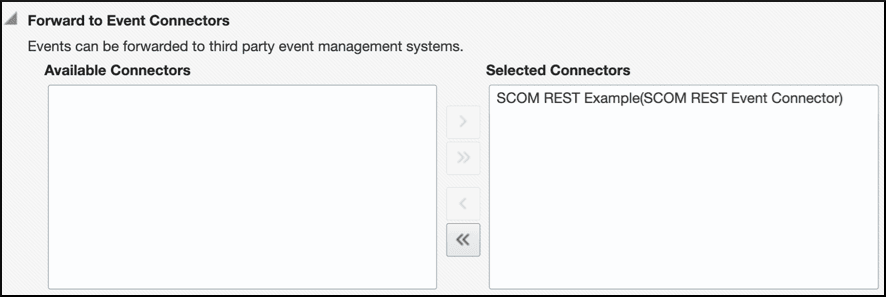
For more information, see Using Incident Management in Oracle Enterprise Manager Monitoring Guide.
Uninstalling the Alert Creator Management Pack
- In the Administration pane of the Microsoft SCOM Operations console, select Administration, then Management Packs.
- In the Management Packs pane, right click the Oracle Enterprise Manager Alert Creator management pack (
OracleEnterpriseManager.Alert.Creator.xml) and click Delete. - On the message stating that deleting the management pack might affect the scoping of some user roles, click Yes.
Uninstalling the Microsoft SCOM Web Service on UNIX
- Run the
service.sh statuscommand to determine whether the web service is running. - If the web service is running, run the
service.sh stopcommand to stop the web service and verify it completes successfully. - Delete all files in the installation directory.
Uninstalling the Microsoft SCOM Web Service on Windows
- If the web service is installed as a Windows service:
- Determine if the web service is running.
- If the web service is running, run the
service.bat stopcommand to stop the web service and verify it completes successfully. - Run the
service.bat uninstallcommand to remove it as a Windows service and verify it completes successfully.
- If the web service is not installed as a Windows service, perform the following steps:
- Determine if the web service is running.
- If the web service is running, stop the web service by closing the Java window.
- Delete all files in the installation directory.
Uninstalling the Microsoft SCOM Event Connector
To uninstall the connector, you must first delete all defined instances of the connector, then you must delete the connector from the Self Update page in Oracle Enterprise Manager.
- From the Setup menu, select Extensibility, then Management Connectors.
- Select an instance of the connector you want to delete, then click Delete.
- On the Confirmation page, click Yes.
- Repeat steps 2 and 3 until all instances of the connector have been deleted.
- From the Setup menu, select Extensibility, then Self Update.
- Click the Management Connector link in the Type column. A list of updates is displayed for Management Connectors.
- Click the connector you want to delete, select Actions, then select Delete. The Delete Update dialog box is displayed.
- Click Delete to delete the connector. A pop-up confirmation message is displayed.
- Click OK to confirm and delete the connector.