1 Introduction to the Order Control Application
The Oracle Communications ASAP Order Control Application (OCA) is a Java-based GUI that communicates with the OCA Service Request Processor (SRP) server. OCA is commonly used to perform fallout management; however, you can also use it to perform ASAP work order queries and submit new ASAP work orders.
For information on installation and configuration, contact your system administrator or refer to ASAP Installation Guide.
You can extend the functionality contained in the ASAP OCA client to support your business requirements.
To start the OCA Client:
-
Unzip the asap800BXXXClientWin.zip file.
-
Go to the config/ folder and open the OCA.cfg file in notepad or text editor.
-
In the OCA.cfg file, you can modify the following fields:
Table 1-1 Server Session Configuration Fields
Field Description IDLETIMEOUT
Maximum idle time, in minutes, after which the OCA SRP server terminates the OCA client connection. Set to 0 to disable this feature.
OCA_EVENTS_SUPPORTED
The flag should be set to false when connecting to servers on the HP10.20 platform. Events are not supported on this platform.
MAXW_OPEN_DETAILS
The number of detail windows a user can have open at one time.
LANGCODE
Language code for the language in which translatable information is returned to and displayed by the client.
If applied, all translatable fields are shown in the OCA client native language, as specified by the LANGUAGE variable.
DEFAULT_TEMPLATE
The template (user or global) that will be selected by default in the Order Entry Wizard after OCA client is launched.
DATE_FORMAT
The date format that will be displayed in the OCA client including in work order headers, the Work Order Query window and its results, the Work Order Release dialog box, audit logs, report generation dialog boxes, and in standard ASAP reports.
TIME_FORMAT AM_PM or NON_AM_PM The parameter specifies the clock display convention used in the OCA client. When set to AM_PM, times are shown using a 12‑hour format with AM/PM indicators. When set to NON_AM_PM, times are presented in a 24‑hour format. -
Provide the host details, port number and ENV_ID in the OCA.cfg file by running the following command:
SESSION HOST hostname #PORT port1 SSL_PORT port2 #HTTPS_PORT port2 ENV_ID SB11 SYSTEM_NAME OCA_SB11 END_SESSION -
Run the following script to launch the OCA client and create a shortcut on the desktop:
Note:
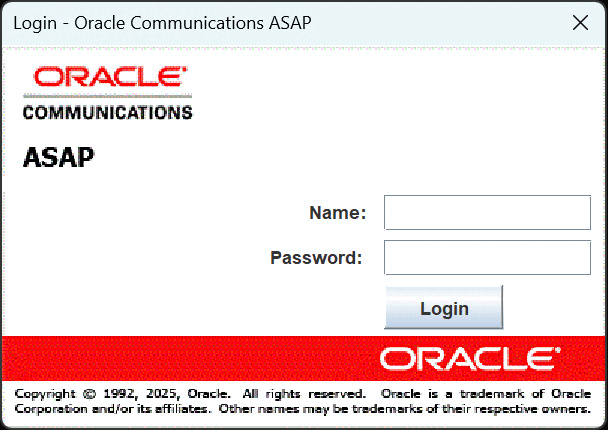
Before running the script, please make sure that you are using Java 21.runocaclient.batThe Login dialog box appears.
-
In the Name field, enter your name.
-
In the Password field, enter your password.
-
Click Login, which starts the OCA Client.
OCA Components
The OCA window provides access to the following functions:
Provisioning Management
-
Order Management: Order Management window enables you to:
-
Predefine order management search criteria.
-
Set order management search criteria.
-
Manage order management fallout.
Before starting a search, all search criteria is checked for valid values. If the values are not valid, the search is not initiated.
-
-
New Work Order: You create and submit new work orders to the ASAP system using the New Work Order window. In addition to work order header information (work order ID, date, priority and operation), this dialog box includes the following tabs:
-
CSDL Information: You can add, update, and delete Common Service Description Layers (CSDLs). When you update a CSDL, you must add the required CSDL parameters.
-
Work Order Details: You can specify more information for the work order, including rollback if the work order fails, Atomic Service Description Layer (ASDL) retries, external system ID, among others.
-
Global Parameters: You can add and delete global work order parameters.
-
-
Order Entry Wizard: The Order Entry Wizard guides you through the entry of required CSDL and global work order parameters based on predefined templates.
-
Audit Log: You can view a log of work order events using the Audit Log. The Audit Log window displays all user-generated changes to work orders, as well as system-generated events.
Events
Work orders can fail due to a number of factors. Failed work orders must be analyzed to determine the cause of the failure.
The Events function of the OCA contains:
-
Events Management: Through the Event Management dialog box, you can subscribe or unsubscribe to work order notifications based on event type. You can subscribe to multiple event types.
-
Events Message Board: Through the Event Message Board window, you can track the progress of a work order through the ASAP system without having to poll ASAP for results. The Events Message Board displays work order events occurring on the ASAP system according to the criteria defined in the Event Management dialog box. After the work order is submitted, the events appear on the Events Message Board as it is provisioned in ASAP.
Changing Your Password
Your system administrator uses the WebLogic Remote Console to manage user and group security.
Note:
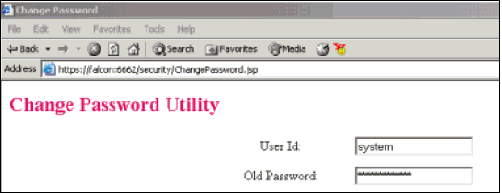
ASAP Administrators can set password policies and can change user passwords at any time using the Change Password Utility Java Server Page (JSP), provided that the system uses the WebLogic Server as the user security repository. For more information, refer to the "Configuring the WebLogic Server Change Password Utility Page" section in ASAP System Administrator's Guide.
To change your password:
-
In the Oracle Communications ASAP OCA window, select Security, then select Change Password.
The Change Password dialog box appears.
-
In the Old Password field, enter your current password.
-
In the New Password field, enter your new password.
-
In the Confirm Password field, enter your new password again.
-
Click OK.
A confirmation message appears.
Changing the Date or Time Format
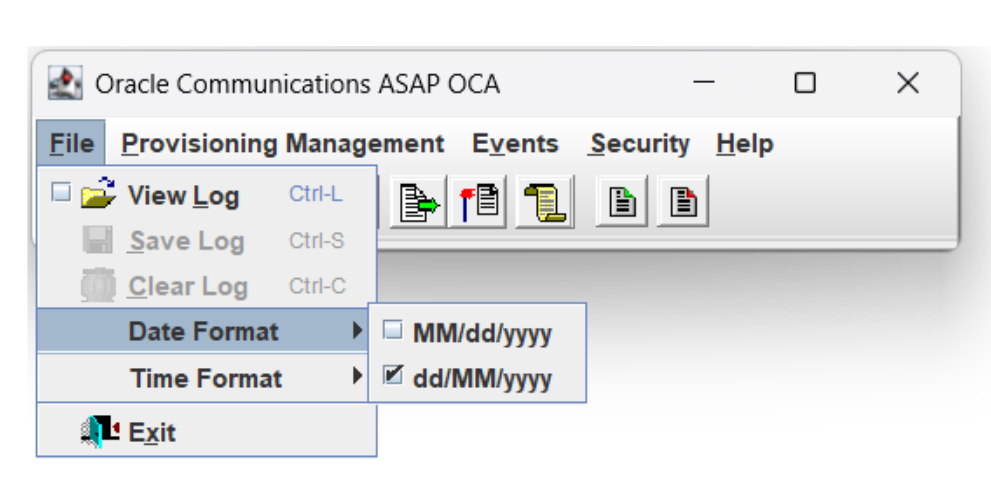
You can select either the MM/dd/yyyy or dd/MM/yyyy date format.
The date format affects the way date values are entered and displayed in the OCA client including in work order headers, the Work Order Query window and its results, the Work Order Release dialog box, audit logs, report generation dialog boxes, and in standard ASAP reports.
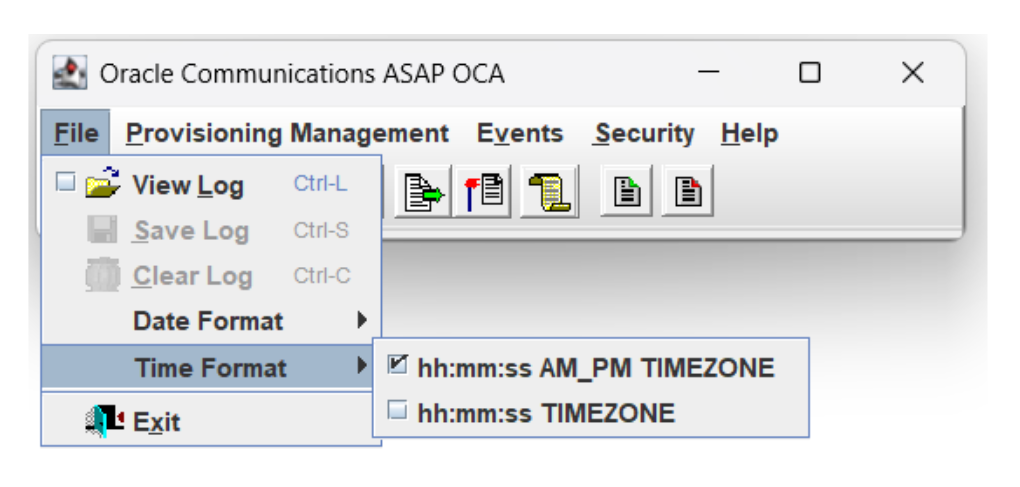
Changes to the time format apply to the Calendar tool use (for time range selection in the Work Order Query, Audit Log, and New Work Order windows).
To change the date or time formats:
-
In the Oracle Communications ASAP OCA, from the File menu, select Date Format and the appropriate date format option.
-
In the OCA window, from the File menu, select Time Format and the appropriate time format option.
Select AM_PM TIMEZONE if you want times specified using a 12-hour clock with an AM or PM designation. Select TIMEZONE if you want time specified using a 24-hour clock.