15 Collections
You can manage your customers' bill units that are in collections by using Oracle Communications Billing Care.
To work with collections, see the following topics:
About Collections
Collections, or debt management, is a proactive process used by businesses to collect overdue payments from their customers. Collections includes identifying accounts that have overdue balances, determining whether those accounts meet predefined criteria, and then taking collections actions.
When you create an account and its bill units, you can specify whether collections actions must be taken against another account and bill unit. To do this, you create a collections sharing group, see "About Collections Sharing".
Finding an Account in Collections
To find an account in collections:
-
On the landing page, click Collections.
Note:
The Collections button appears on the landing page only if you have installed Collections Manager. For information, see "Understanding Collections Manager" in BRM Collections Manager.
The Collections page appears with the details about all accounts and bill units in collections.
-
In the filter section on the left, you now must click "Edit Filter" link in one of the groupings. See "Filtering Collections Results".
If there are many results, you can refine the search by adding more filters or sorting the search results. See "Sorting Collections Results".
-
From the search results list, select an account.
The account's collections details appear. See "Viewing a Bill Unit in Collections" for more information.
Tip:
To return to the landing page, you now have to click Search Results at the top right.
Filtering Collections Results
Narrow your collections results by clicking Edit Filter provided by Bill Unit, Collections, and Account.
Tip:
Click the Reset button to return to the default filter page.
To filter your search based on billing details, use these fields under Bill Unit:
| Fields | Description |
|---|---|
|
Name |
Filter the results using the name of the bill unit. |
|
Status |
Filter the results using the status of the bill unit. |
|
Billing Day |
Filter the results using the billing day of the month (DOM). |
To filter your search based on collections details, use these fields under Collections:
| Fields | Description |
|---|---|
|
Assigned |
Filter the results using the CSR assigned. Click Assigned to me to see bill units assigned to you. |
|
Amount Due |
Filter the results using the amount due to be collected. |
|
Days Overdue |
Filter the results using the days overdue. |
|
Scenario |
Filter the results using the scenario information. |
|
Profile |
Filter the results using the collections profile information. |
To filter your search based on account details, use these fields under Account:
| Fields | Description |
|---|---|
|
Account Number |
Filter the results using the account number for the bill unit. |
|
Name |
Filter the results using the customer name. |
|
Company |
Filter the results using the company name. |
|
Schema |
Filter the results using the schema number. By default, the primary schema is selected. |
Sorting Collections Results
By default, the search results are sorted in ascending order of days overdue. You can change how the results are sorted to one of the following:
-
Descending order of days overdue
-
Ascending order of collections amount due
-
Descending order of collections amount due
Click Show More to see the next set of records.
Viewing a Bill Unit in Collections
You can view the following information about a bill unit that is in collections:
-
Collections details, such as when the bill unit entered collections, the past due amount, and the date of the last collections payment.
-
The collections agent assigned to the bill unit.
-
An ordered list of collections actions that are scheduled for the bill unit, along with their current status.
You can click a collections action to view more details.
-
The collections agent notes associated with each collections operation.
To view details about a bill unit that is in collections:
-
Find and open the customer's account. See "Finding an Account in Collections" for more information.
-
Select the bill unit that is in collections.
The account bar at the top of the page displays Collections tile with collections details.
Tip:
Click the Search Results button to return to the Collections page.
Collections Details Page
Use the Collections Details page to view information about a specific bill unit that is in collections for an account. Bill units are listed separately on the Collections search page. When you select a bill unit, the Collections Details page displays information for that selected bill unit only.
The top of the page shows the following information:
-
Account Name: Displays the name of the account.
-
Account Number: Displays the account number.
-
Past Due: Displays the past-due amount for the selected bill unit.
-
Entry Date: Displays the date the bill unit entered collections.
-
Overdue: Displays the number of days the bill unit is overdue.
-
Minimum Payment: Displays the minimum payment amount for the bill unit.
The Collections Details page also includes these sections:
Collections Scenario Table
The Collections Scenario table displays the order of collections actions that can be performed against the bill unit, along with their schedule and current status. You can also add or edit a collections action:
-
To add a collections action, click the Add Action button. See "Adding a Collections Action to a Bill Unit" for more information.
-
To edit an existing collections action, click the

icon in the Edit column of the Collections Scenario table. See "Changing the Status or Due Date of a Collections Action" for more information.
The Collection Scenario table includes the following columns:
| Column | Description |
|---|---|
|
Action |
Displays the name of a collections action. |
|
Scheduled |
Displays the date when the collection action is due. |
|
Completed |
Displays the collections action's current status or the date when the action was completed. |
|
Edit |
Click this to edit the action details like status, change schedule to date and other follow on actions. |
Notes Section
The Notes section displays consolidated notes for each bill unit. It includes all comments that have been added for various collections operations on that bill unit.
You can also enter notes for the bill unit, if required.
Removing a Bill Unit from Collections
To remove a bill unit from collections:
-
Find and open the customer's account. See "Finding an Account in Collections" for more information.
-
Select the bill unit that you want to remove from collections.
The account bar at the top of the page displays the Collections tile.
-
Click the Actions button at the top right and then select Exit Collections.
The Exit Collections dialog box appears.
-
(Optional) Enter a note.
-
Click Exit.
Adding a Collections Action to a Bill Unit
To add a collections action to a bill unit in collections:
-
Find and open the customer's account. See "Finding an Account in Collections" for more information.
-
From the Collections tile, click the View in Collections link.
The Collections Details page appears. See "Collections Details Page" for details.
-
Click the Add Action above the Collections Scenario table.
The Add Action dialog box appears. See "Add Action Dialog Box" for details.
-
From the Select an Action list, choose the collection action you want to add.
You can choose from the following options:- Close Services of Billinfo
- Collect Payment
- CustomAction
- Inactivate Services of Billinfo
- Refer to outside agency
- Writeoff Billinfo
-
If you selected Collect Payment, do the following:
-
In the Amount field, enter the payment amount to collect.
-
In the Payment Method list, select a payment method.
-
-
In the Scheduled field, select or enter a due date for the collections action.
-
From the Follow on actions list, select one of the following:
-
No schedule change to keep the due date of all remaining collections actions.
-
Days to slip schedule to move out the due date of all remaining collections actions by the specified number of days.
-
Cancel all to cancel all remaining collections actions.
-
-
From the reasons list, select a reason.
-
(Optional) Enter a note.
-
Click Save.
Add Action Dialog Box
Use the Add Action dialog box to add a collections action to a bill unit.
| Field | Description |
|---|---|
|
Action |
Select the collections action to add. |
|
Amount |
If the selected action is Collect Payment, enter the payment amount to collect. |
|
Payment Method |
If the selected action is Collect Payment, select a payment method. |
|
Scheduled |
Select or enter the date for the collections action. |
|
Follow on actions |
Select how to handle the scheduling of the remaining collections actions. |
|
Reason |
Select a reason for the action. |
|
Notes |
(Optional) Enter the notes for future reference. |
Changing the Status or Due Date of a Collections Action
You can change the scheduled date or the status of a bill unit's collections action.
To edit an existing collections action for a bill unit:
-
Find and open the customer's account. See "Finding an Account in Collections" for more information.
-
Select the bill unit that is in collections.
The account bar at the top of the page displays the Collections tile.
-
Click the
 icon in the respective row in the Scenarios table.
The Edit Action dialog box appears. See "Edit Action Dialog Box" for details.
Note:
You cannot edit a promise-to-pay collections action.
-
From the Status list, select a new status.
-
If you selected a Pending status, do the following:
-
Select Do not reschedule outstanding actions if you do not want to reschedule any outstanding collections actions.
-
In the Change the schedule to field, enter a date or select a date from the calendar.
-
From the Follow on actions list, select an action.
-
-
If you selected a Canceled status, select one of the following options:
-
Only this task (and select Do not reschedule outstanding actions if you do not want to reschedule any outstanding collections actions).
-
All following tasks to cancel all remaining collections actions.
-
-
From the reasons list, select a reason.
-
(Optional) Enter a note.
-
Click Save.
Edit Action Dialog Box
Use the Edit Action dialog box to change the scheduled date or status for a collections action.
| Field | Description |
|---|---|
|
Action |
Displays the name of the collections action. |
|
Status |
Select a new status, if applicable. |
|
Change schedule to |
Select or enter a new date. For a Pending status, also select one of the following:
|
|
Follow on actions |
Select how to schedule any follow-on collections actions:
|
|
Reason |
Select a reason for the change. |
|
Notes |
(Optional) Enter notes for future reference. |
Viewing Actions History for a Bill Unit in Collections
The actions history for a bill unit in collections displays all the actions assigned to the bill unit.
To view the action history for a bill unit in collections:
-
Find the bill unit, see "Finding an Account in Collections" for more information.
-
Select the bill unit.
-
In the Actions table, click an action.
The Actions History dialog box appears with the details of the past actions.
Replacing a Bill Unit's Collections Scenario
To replace a bill unit's collection scenario:
-
Find and open the customer's account. See "Finding an Account in Collections" for more information.
-
Select the bill unit that is in collections.
The account bar at the top of the page displays the Collections tile.
-
Click View in Collections in the Collections tile.
The Scenario Details page appears.
-
Click the Actions button at the top right and then select Replace Scenario.
The Replace Scenario dialog box appears. See "Replace Scenario Dialog Box" for details.
-
Under Replace with, do one of the following:
-
To specify a new collections scenario to assign to the bill unit, click New Scenario and then select the new collections scenario from the list that appears.
-
To automatically assign a collections scenario based on the amount owed, the number of days the bill unit has been in collections, and any custom criteria, click Auto assigned by collections criteria.
-
-
From the Scheduled list, select when the bill unit starts using the new collections scenario:
-
To start the new collections scenario on the bill unit's next payment due date, select between Select a date and Bill due date.
-
To start the new scenario on a specific date, choose Select a date to enter a date from the calendar.
Note:
The date specified must occur on or after the next bill due date.
-
-
If you want the new scenario's entry days to be considered for scheduling the collections actions, select Based on new scenario entry days.
-
(Optional) Enter a note.
-
Click Save.
Replace Scenario Dialog Box
Use the Replace Scenario dialog box to replace a bill unit's collections scenario.
| Field | Description |
|---|---|
|
Scenario |
Displays the bill unit's current collections scenario. |
|
Replace with |
Select a new scenario or automatically assign a collections scenario based on the amount owed. |
|
Scheduled |
Select when the bill unit starts using the new collections scenario:
|
|
Based on new scenario entry days |
Select this option to consider the new scenario's entry days for scheduling its collections actions. |
|
Notes |
(Optional) Enter a note if required. |
Making a Payment for a Bill Unit in Collections
To make a payment for a bill unit under collections:
-
Find and open the customer's account. See "Finding an Account in Collections" for more information.
-
Select the bill unit that is making the payment.
The account bar at the top of the page displays the Collections tile.
-
Click the Actions button and then select Make Payment.
The Make a Payment dialog box appears. See "Make a Payment Dialog Box" for details.
-
Enter the payment amount.
-
(Optional) To use a payment method other than the one displayed, select Use a different payment method and then select a method from the Payment Method list.
-
Enter the account information for the new payment method.
-
Select Use name and billing address from primary contact, or enter the name and address for the card holder.
-
(Optional) Select Save to Payment Methods on file for credit card and debit payment methods.
If you are making a payment for an account, the payment method applies to the account. If you are making a payment for a bill unit, the payment method applies to the bill unit.
-
-
For Select a reason, select the reason that matches the situation.
-
(Optional) Enter notes.
-
Do one of the following:
-
Click Continue to manually allocate to make the payment and to allocate the payment.
-
Click Save to make the payment without allocating.
-
Assigning a Collections Agent
By default, bill units in collections are not assigned to any collections agent. When you assign a bill unit to a collections agent, the agent becomes responsible for completing all of the manual tasks for that bill unit.
Note:
You must have permission to assign collections agents to collections accounts.
To assign a collections agent:
-
Find and open the account. See "Finding an Account in Collections" for more information.
-
From the list of search results, select an account with the required bill unit.
The collection details for the selected account and bill unit appears.
-
Click the Edit icon

next to the Assigned to list.
The Assigned to list becomes editable.
-
From the Assigned to list, select an agent.
-
Click Save.
Working with Exempted Bill Units
You exempt a bill unit from collections to prevent it from ever entering collections. Exemption also removes the bill unit from any existing collections scenarios and cancels any pending collections actions against it.
To work with exempted bill units, see the following topics:
Exempting a Bill Unit from Collections
To exempt a bill unit from collections:
-
Find and open the customer's account. See "Finding an Account in Collections" for more information.
-
Select Action button at top right, then select Exempt Bill Unit from the list.
The Exempt Bill Units dialog box appears. See "Exempt Bill Unit Dialog Box" for details.
-
Select a reason for the exemption from the list.
-
(Optional) Enter a note.
-
Click Save.
Viewing Bill Units Exempted from Collections
To view bill units exempted from collections:
-
On the landing page, click Collections.
The Collections page appears with details about all accounts and bill units in collections.
-
Click Exempted Bill Units at the top right.
The Exempted Bill Units dialog box appears with a list of bill units that have been exempted from collections. See "Exempted Bill Units Dialog Box" for details.
Removing a Bill Unit from Exemption
To remove a bill unit from exemption:
-
On the landing page, click Collections.
The Collections Search page appears containing details of all the bill units in collections.
-
Click Exempted Bill Units at the top right.
The Exempted Bill Units dialog box appears with a list of bill units that have been exempted from collections. See "Exempted Bill Units Dialog Box" for details.
-
(Optional) Enter any comments in the notes section.
-
Select an exempted bill unit and then click Remove Exemption.
Exempted Bill Units Dialog Box
Use the Exempted Bill Units dialog box to view the bill units exempted from collections. Select a bill unit to view its details or to remove it from exemption.
| Field | Description |
|---|---|
|
Remove exemption |
Click to remove the bill unit from collections exemption. |
|
Notes |
Displays the bill unit details. |
|
Comment |
Click and enter a comment. |
Working with Promise-to-Pay Agreements
When a bill unit is in collections, you can offer customers the option of a promise-to-pay agreement. This agreement defers all collections actions for a bill unit, allowing the customer to pay the due amount at a date beyond the original payment due date. Customers can choose to pay off the agreement amount using one or more installments.
The installments in a promise-to-pay agreement can be one of the following:
-
System-configured: Collections Manager calculates the installment schedule and installment amount for you.
-
Manually configured: Allows you to create installments with varying amounts owed and varying intervals between due dates.
Note:
After a promise-to-payment agreement has been created, it cannot be modified.
To work with promise-to-pay agreements, see the following topics:
Configuring System-Managed Promise-to-Pay Agreements
To create a promise-to-pay agreement with system-configured details:
-
Find and open the customer's account in collections. See "Finding an Account in Collections" for more information.
-
Select the bill unit that is in collections.
The account bar at the top of the page displays the Collections tile.
- Click View in Collections.
-
Click Actions on the top right and then select Promise to Pay.
-
The Promise to Pay Installment Details dialog box appears. See "Promise to Pay Installment Details Dialog Box" for details.
-
In the Amount promised field, enter the total amount that the customer agrees to pay.
By default, Billing Care displays the full overdue amount. It also lists the minimum amount that the customer must pay to exit collections.
-
From the Payment method list, select a payment method.
-
In the First installment due field, enter or select the due date for the first installment payment.
-
Disable the Manual installment configuration option.
Note:
This option is displayed only if your system contains promise-to-pay specifications.
-
From the Payment options field, specify how to calculate the number of installment payments and the amount owed for each installment:
-
To specify the number of installment payments, select Make a specific number of payments and then enter the number of payments.
To calculate the amount of each installment payment, the amount promised is divided by the number of installment payments.
-
To specify the amount owed for each installment, select Pay a specific amount each time and then enter the installment amount.
To calculate the number of installment payments, the amount promised is divided by the installment amount.
-
-
From the Time options field, specify how to calculate the installment payment schedule:
-
To specify the interval between payments, select Specify number of days between payments and then enter the number of days between each payment.
To calculate the end date of the promise-to-pay agreement, the number of installment payments is multiplied by the interval amount.
-
To specify the date when the full amount will be paid off, select Complete payments by a specific date and then select a date.
To calculate the installment schedule, the total number of days between the first installment date and end date is divided by the number of installment payments.
-
-
Select a reason for entering a promise-to-pay agreement and optionally enter a note.
-
Click Save.
Manually Configuring a Promise-to-Pay Agreement
Note:
You can create manually configured promise-to-pay agreements only if your system contains promise-to-pay specifications. See "Creating Promise-to-Pay Specifications" in BRM Collections Manager.
To create a promise-to-pay agreement with a manually configured installment schedule and payment amounts:
-
Find and open the customer's account. See "Finding an Account in Collections" for more information.
-
Select the bill unit that is in collections.
The account bar at the top of the page displays the In Collections tile.
-
From the In Collections tile, click the View in Collections link.
The Collections Details page appears. See "Collections Details Page" for details.
-
Select the bill unit's
 icon and then select Promise to Pay.
The Promise to Pay Installment Details dialog box appears. See "Promise to Pay Installment Details Dialog Box" for details.
-
In the Amount promised field, enter the total amount that the customer agrees to pay. By default, it is set to the total amount past due.
Underneath this field, Billing Care displays the minimum amount that the customer must pay to exit collections.
-
From the Payment method list, select a payment method.
-
In the First installment due field, enter or select the due date for the first installment payment.
-
Enable the Manual installment configuration option.
The Promise to pay specification section appears. See "Enabled Manual Installment Configuration Option" for details.
-
From the Select specification list, select the promise-to-pay specification to apply.
On the bottom right, Billing Care displays the terms associated with the specification.
-
Select one of the following:
-
Amount to specify an absolute amount to pay for each installment.
-
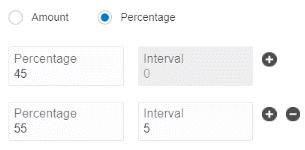
Percentage to specify a percentage of the total promised amount to pay for each installment.
-
-
In the Amount or Percentage field, enter what the customer agrees to pay for the first installment.
The Interval field is set to 0, because the date of the first installment has already been set.
-
If the customer wants to pay in multiple installments, click the
 for each additional installment.
Billing Care displays an Amount/Percentage and Interval field for each installment.
-
In each subsequent installment row, enter the amount or percentage the customer agrees to pay as well as the interval, in days, from the previous installment when the payment is due.
For example, this creates two installments. On the first installment date, the customer owes 45% of the total amount promised. Five days later, the customer owes 55% of the total amount promised.
-
Ensure that the sum of all amount fields equals the amount promised, or that the sum of all percentage fields equal 100% of the amount promised.
Billing Care displays an error message if the total installment amount does not equal the promised amount.
-
Select a reason for entering a promise-to-pay agreement and optionally enter a note.
-
Click Save.
Canceling a Promise-to-Pay Agreement
To cancel a customer's promise-to-pay agreement:
-
Find and open the customer's account. See "Finding an Account in Collections" for more information.
-
From the In Collections tile, click the View in Collections link.
The Collections Details page appears. See "Collections Details Page" for details.
-
On top right, click Actions button, and select Cancel Promise to Pay from the list.
Note:
You can cancel a promise-to-pay agreement only if there is an active promise-to-pay agreement for the selected bill unit.
-
Click Cancel Promise to Pay.
Promise to Pay Installment Details Dialog Box
Use the Promise to Pay Installment Details dialog box to enter a bill unit into a promise-to-pay agreement.
Table 15-1 General Information
| Field | Description |
|---|---|
|
Past due |
Displays the total amount due that is in collections. |
|
Amount promised |
Enter the total amount that the customer agrees to pay. The amount must be greater than the minimum payment amount. By default, this field displays the total due in collections and the minimum payment amount for exiting collections. |
|
Payment method |
Select a payment method, such as credit card. |
|
First installment due |
Enter or select the due date for the first installment. By default, it displays the existing due date. |
|
Manual installment configuration |
Do one of the following:
Note: This option is displayed only if your system contains promise-to-pay specifications. |
Enabled Manual Installment Configuration Option
When you enable the Manual Installment Configuration option, the fields in the following table appear. Use these fields to create installments with varying amounts due and varying intervals between due dates.
| Field | Description |
|---|---|
|
Select specification |
Select the promise-to-pay specification to apply. |
|
Amount |
Select Amount to set this installment to an absolute value, such $50. |
|
Percentage |
Select Percentage to set this installment to a percentage of the total amount due, such as 25%. |
|
Interval |
For each installment, select or enter the interval, in days, from the previous installment. |
|
Specification details |
Displays the limits in the specified promise-to-pay specification. |
Disabled Manual Installment Configuration Option
When you disable the Manual Installment Configuration option, the fields in the following table appear.
| Field | Description |
|---|---|
|
Payment options |
Select one of these payment options:
|
|
Time options |
Select the time milestone for installments:
|
|
Promise To Pay |
Select a reason why the bill unit entered a promise-to-pay agreement and optionally add notes. |
About Collections Sharing
When you create an account and its bill units, you can specify whether collections actions must be taken against another account and bill unit. To do this, you create a collections sharing group, which consists of a group owner and one or more members.
A bill unit can belong to only one collections sharing group, and the group owner cannot be a member of the same collections sharing group. You can change a collections sharing group's owner and add or remove members' bill units at any time.
Use Collections Sharing in the Sharing Groups menu to add, view, modify, or delete collections sharing groups and to add or delete members from a collections sharing group. For more information, see the following topics:
Creating a Collections Sharing Group
To create a collections group:
-
From the Actions menu, select Sharing Groups, and then Collections Sharing.
The Collections Groups page appears, with Ownership and Membership sections.
-
Click New next to the Collections Groups pane.
The New Collections Group page appears.
-
In the Name field, enter a name for the collections sharing group.
-
Select a Group Owner from the list.
-
Click Save.
A collections group is created with no members.
Viewing the Membership List in a Collections Sharing Group
To view the membership list in a collections group:
-
From the Actions menu, select Sharing Groups, and then Collections Sharing.
The Collections Groups page appears, with Ownership and Membership sections.
The Ownership section displays all the collections groups owned by the account.
The Membership section displays the collections groups in which the account has been associated as a member.
-
In the Ownership section. click the link showing the number of members.
The Members page appears with a list of members.
Modifying a Collections Sharing Group
To modify a collections sharing group:
-
From the Actions menu, select Sharing Groups, and then Collections Sharing.
The Collections Groups page appears, with Ownership and Membership sections.
-
In the Ownership section, click Edit
for the group that you want to modify.
The Edit Collections Group page appears.
-
To change the name of the collection sharing group, enter a new name in the Name field.
-
To change the owner of the group, select a different Group Owner from the list.
-
Click Save.
Deleting a Collections Sharing Group
To delete a collections group:
-
From the Actions menu, select Sharing Groups, and then Collections Sharing.
The Collections Groups page appears, with Ownership and Membership sections.
-
In the Ownership section, click Delete
 for the group that you want to
delete.
for the group that you want to
delete.
A warning message appears.
-
Click Delete.
Adding Members to the Collections Sharing Group
To add members to the collections sharing group:
-
From the Actions menu, select Sharing Groups, and then Collections Sharing.
The Collections Groups page appears, with Ownership and Membership sections.
-
In the Ownership section, do one of the following:
- If the group has existing members, click the link showing the number of members, and then Add Members.
- If the group has no members, click Add Members.
The Search Accounts page appears.
-
Enter the account search criteria and click Search.
The search results appear on the right. Search returns a maximum of 50 results. Refine your search criteria if you do not find the account you are searching for.
-
Select an account to add as a member.
-
Click Open.
The Bill Unit page appears.
-
Select the required bill units and click Add Member.
The member is added to the collections sharing group.
Removing a Member from the Collections Sharing Group
To remove a member from the collections sharing group:
-
From the Actions menu, select Sharing Groups, and then Collections Sharing.
The Collections Groups page appears, with Ownership and Membership sections.
-
In the Ownership section, click the link showing the number of members.
The Members page appears with a list of memebrs in that group.
-
Click Delete
for the member you want to remove from the group.
A warning message appears.
-
Click Delete.
New or Edit Collections Group Page
Use the New or Edit Collections Sharing Group page to:
-
Create and modify collections sharing groups
-
Add or remove members from collections sharing groups
| Field | Description |
|---|---|
|
Name |
Name the collections sharing group. The name you enter must be unique. You cannot use this name for any other sharing group owned by the account. |
|
Group Owner |
Select a group owner of the collections sharing group. |