3 Getting Started
Accessing ACS using SMS
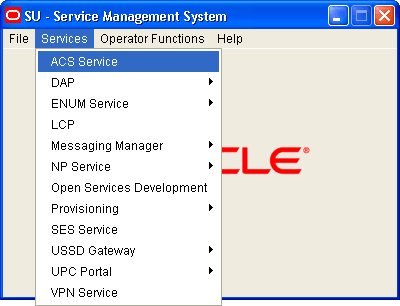
Accessing ACS as a Standalone Application
To access the ACS user interface (UI), do the following:
-
Ensure the Java SE Runtime Environment version 21 is installed on your machine.
-
If required, obtain, and install the trusted certificate for the database connection into your keystore.
Obtain the application zip file containing jars and other files (acsGui.bat or acsGui.sh).
-
In Windows, run acsGui.bat to start the application.
In other machines:
Change the permission of acsGui.sh using
chmod 755 acsGui.shcommand.Run the application using
bash acsGui.shcommand.The ACS Login window appears.
Service Management System Default Page
Here is an example Service Management System default page that is displayed for users navigating to the SMS on a web-server.
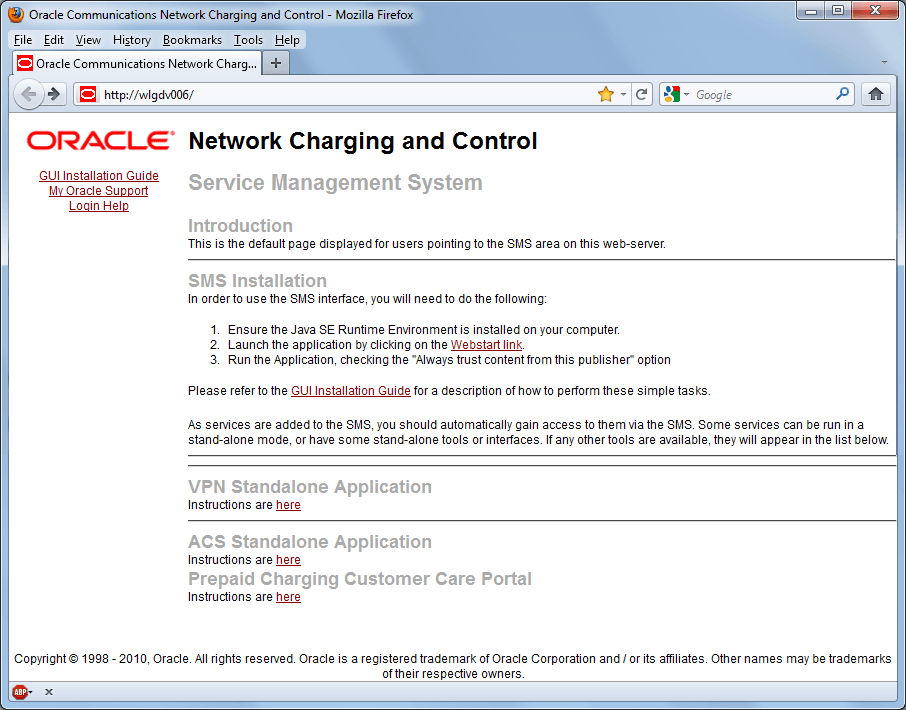
This page provides access to ACS Standalone Application. Click the link on the here link to access the instructions. For more information, see Advanced Control Services default page
Note:
If you upgraded the Convergent Charging Controller product from an earlier version, you will continue to have the option to launch the application using the acs.html file.Advanced Control Services Default Page
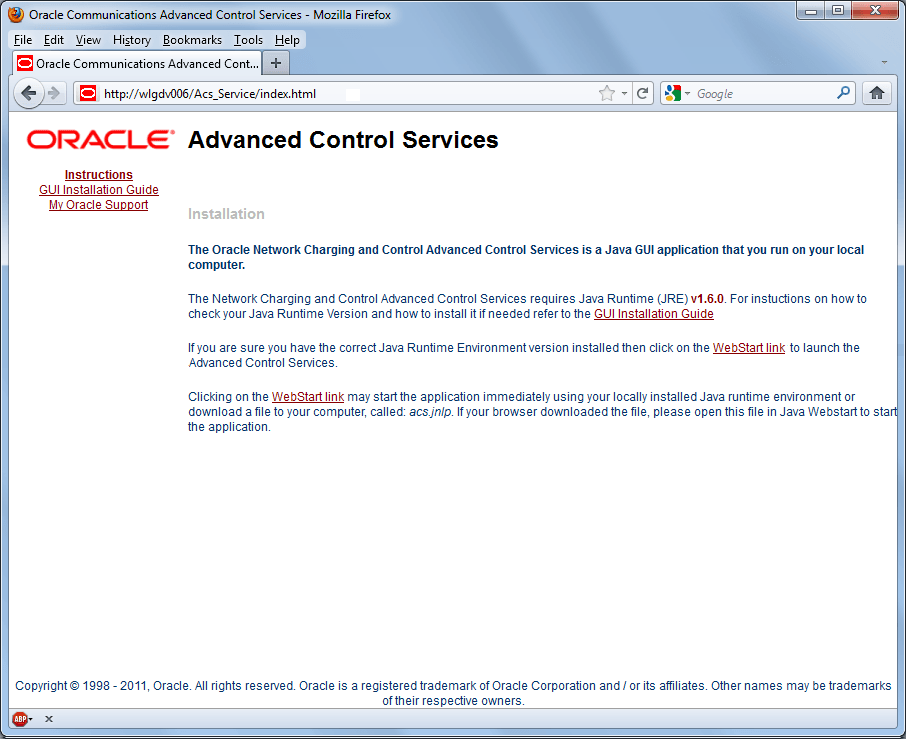
Here is an example Advanced Control Services default page. The format of the address of this page is:
http://SMS_hostname/Acs_Service/index.html
Note:
If you upgraded the Convergent Charging Controller product from an earlier version, you will continue to have the option to launch the application using the acs.html file.
ACS Logon Screen
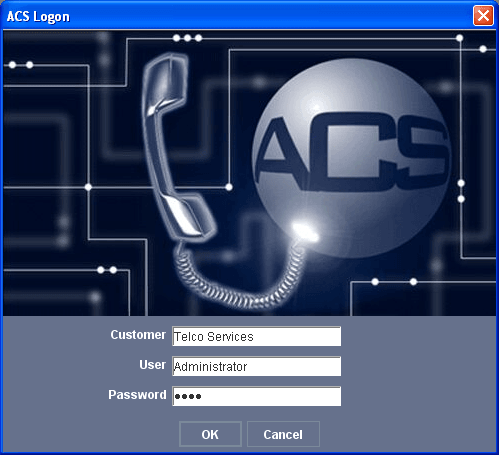
Here is the ACS Logon screen.
Note:
This screen does not appear when ACS is opened through the SMS, and the user is taken directly to the ACS main screen. This is because the user has already logged on to the system using the SMS security mechanism. See SMS User's Guide for details on SMS security.
Logging on to ACS
Follow these steps to log on to ACS using the ACS Logon Screen:
-
In the Customer field, enter your ACS customer's name.
-
In the User field, enter your username.
-
In the Password field, enter your password.
-
Click OK.
Result: If your log on details are correct, you will see the ACS main screen .
Note:
All fields are case sensitive.
You have three attempts to enter a correct user name and password before the user ID is locked. If this happens, you must see your system administrator.
ACS Main Screen
Introduction
The Advanced Control Services main screen is displayed when you successfully log in to the ACS UI. This screen displays icons that represent the configuration options available in ACS. Click a button in the Advanced Control Services main screen to open the configuration screen for that option.
Note:
The ACS Events feature has been deprecated in the current release of Convergent Charging Controller because it requires java21. However, you can configure your system to display the previous version of the Advanced Control Services main screen that includes this configuration option by setting theACSStartScreenVersion Java application property in the
smsGui.bat/smsGui.sh file. See SMS Technical Guide for more
information.
ACS Main Screen
The following screen example shows the Advanced Control Services main screen.
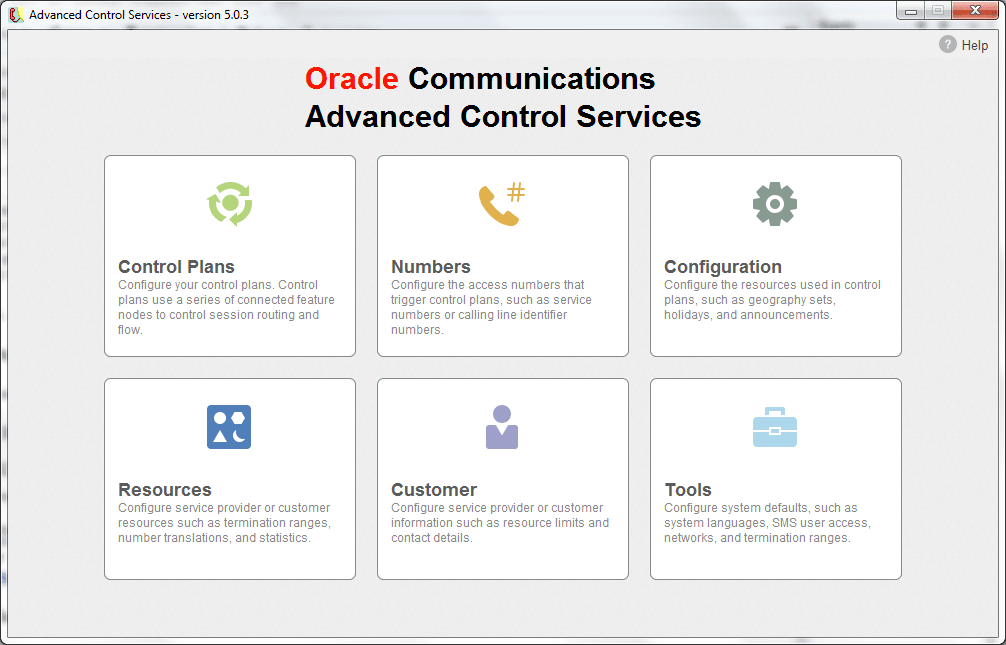
Access to elements of this screen are controlled by user permissions. If you cannot see some of the functionality described for this screen, your permissions may have been set to restrict access to that element.
ACS Configuration Options
The following table describes the Advanced Control Services configuration options.
| Configuration Option | Function |
|---|---|
| Control Plans | Accesses the Control Plan Editor Overview where you configure your ACS control plans. |
| Numbers | Accesses the Numbers screen where you configure the access numbers that trigger control plans such as service numbers (SN) or caller line identifier (CLI) numbers. |
| Configuration | Accesses the Configuration screen where you configure the ACS resources used in control plans such as geography sets, holidays and announcements. |
| Resources | Accesses the Resources screen where you configure service provider resources such as termination ranges and number translations. |
| Customer | Accesses the Customer screen where you configure service provider information such as resource limits and contact information. |
| Tools | Accesses the Tools screen where you configure system defaults such as system languages, SMS user access, networks, and termination ranges. |
| Password |
Note: This option is not available to users who access ACS through the SMS. For SMS logins, ACS uses the SMS security mechanism, so the user's password must be changed through the SMS. Accesses the Change Password screen. Users who can access this screen can set up user passwords. |
Defining the Security Levels
Introduction
ACS maintains its own security system that is distinct from the system provided by SMS. When ACS is accessed through the SMS, the SMS security settings take precedence over the ACS security settings. In this case ACS will assume that the user has ACS security permissions of level 7.
When ACS is not accessed via the SMS, it uses its own security system. When a user logs on to the system using the ACS Log-on screen, they are allowed to access to the database based on their user privileges.
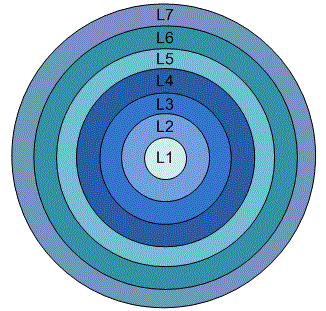
Each user has a privilege level set by the ACS system administrator. Privilege levels range from 1 to 7, as defined below.
Security Level Diagram
This diagram illustrates the different security levels available for ACS users.
Security Level Permissions
Here are the permissions granted to each security level.
| Level | User Type | Permission |
|---|---|---|
| 1 | User |
Has read-only access to information for their customer. May change own password. |
| 2 | User |
Has access of permission 1. Can change any Switch feature nodes to point to other output branches. |
| 3 | User |
Has access of permission 2 and can:
|
| 4 | User |
Has access of permission 3 and can:
|
| 5 | User |
Has access of permission 4 and can:
|
| 6 | System Administrator |
Has access to add, delete and modify all aspects of ACS including all public data and announcements. Can add and delete ACS customers and termination numbers. Can set resource allocations for users. |
| 7 | Super User |
Has full access to ACS system. Can add and delete level 6 (System Administrator) users. |
Who is the ACS Super User?
The ACS super user (SU) is the user created when ACS is installed. This user has a system privilege level of 7 and has full access to all parts of the system and can manage level 6 (ACS system administrator) users. The ACS super user will initially be given a default customer name, user name and password, as shown below:
| Customer: | Boss |
| User Name: | Boss |
| Password: | ssob |
To ensure the security of the system, these default super user settings should be changed when ACS is used for the first time. There can be only ever one ACS super user in the system. The super user cannot be deleted.
Who is the ACS System Administrator?
The ACS system administrator is a user of system privilege level 6. This gives them full access to all parts of the system - but they do not have the ability to add or delete level 6 and 7 Users.
Note:
The ACS help pages use the term "ACS system administrator" to refer to all ACS users of system privilege 6 and 7.
Passwords
ACS User Passwords
For security reasons, the first time a customer uses ACS, they should change the user name and password of the administrator user that the system provides for them. It is important to inform the customer of this. This option is not available to users who open ACS through the Service Management System (SMS).
Note:
This is part of the ACS internal security mechanism, which is not required when run through the SMS.
Changing Password
Note:
This procedure can only be performed if you access the system via the ACS login screen. If you log in to ACS through the SMS you will be unable to change your password using this procedure.
Follow these steps to change your ACS user password.
-
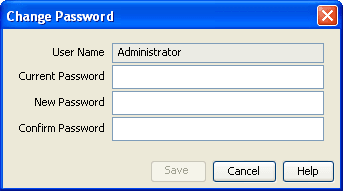
Click Password on the ACS main screen.
Result: The Change Password screen appears.
-
Enter your current password.
-
Enter your new password.
-
Enter your new password again in the Confirm Password field.
-
Click Save.