7 Tools
This chapter explains the tools to use for testing calls and provisioning the service.
Basic SLPIT
Oracle Communications Convergent Charging Controller IN Applications ‘talk’ a common language – a subset of CS1-INAP known as G8-INAP. Using this common language, IN Applications can be created that focus on functionality without worrying about the lower-level languages spoken by the telephony networks. To cater for the many different protocols and languages implemented in the physical telephony network Interfaces are designed and/or implemented. The interfaces are responsible for communicating with the physical network in whichever protocol the network demands. They translate the messages from the physical network into G8-INAP so that the applications can understand what is going on (The advantage to this approach is that the applications are portable and plug-able to any network, as long as an effective interface can be implemented). The passing of messages back and forth between the applications and the interfaces takes place in the SLEE, where it is possible for many interfaces to be communicating with many applications concurrently. So, where does the SLPIT test tool fit into this picture?
The functional testing of Oracle Communications Convergent Charging Controller applications, using the SLPIT (Service Logic Program Instance Tester), can be done without concern for the protocol of a given network. As long as the application provides the correct functionality in G8-INAP it can be assumed that it will perform the same way on a given network with the appropriate interface(s).
SLPIT is a testing tool which is capable of sending and receiving G8-INAP messages across the SLEE from the application under test. SLPIT communicates with the application through the SLEE, just like a regular interface. It ‘receives’ messages from a text file script rather than a real network and sends these messages through the SLEE as G8-INAP. It then ‘parses’ the responses from the application under test, comparing them to the responses expected by the script. From the perspective of the application under test, SLPIT is a real interface converting the network messages to and from G8-INAP.
The main advantage that SLPIT provides is the ability to effectively test IN applications without the need for a physical telephony network, or a low-level network specific test tool.
The main disadvantage with SLPIT is that it is not a real network, and so the quirkiness and variation between networks and their protocols is not simulated.
SLPIT acts as a TCAP interface to trigger Intelligent Network platform service logic, instead of using a ‘real’ Service Switching Point (SSP). SLPIT supports the following IN protocols: CAP, MAP, SCCP, GPRS and IS41.
You can view supported protocols using the –h option when running SLPIT.
Basic SLPIT Script
Log in to the SLC hostname_of_SLC using the user account: acs_oper. This will place you in directory: /IN/service_packages/ACS
To test that everything is set up and working, run a basic SLPIT script against the control plan you created in a previous exercise.
-
Create the following script and name it acs_basic.slp. Save the script in the scripts directory of your backup area.
define call basic { // replace Destination No. (DN) below with your customer’s service numberDN ?= "015111111"CLI ?= "0139411111"send { initialdp calledpartynumber DN callingpartynumber CLI callingpartyscategory 10 locationnumber CLI eventtypebcsm analyzedinformation } receive { continue }}startcall basic using once -
Test the acs_basic.slp script against the control plan shown below (you might need to create it and assign it to your customer's service number first).

Test the acs_basic.slp script against the control plan shown below (you might need to create it and assign it to your customer's service number first).
Note:
The Terminate Unchanged feature node indicates that the call should commence without changing the calling party number.
Your SLPIT script should expect to receive continue from the SLC.
-
Place your script in: /volA|volB/training/your LDAP id
/scriptsNote:
The calledpartynumber (Dialed Number) should relate to the service number of your customer. Although this script will succeed even with a non existent service number, as the default will be to continue.
-
Run the script:
- In one terminal window - start 'tailing' the slee acs log
file:
$ tail –f
/IN/service_packages/ACS/tmp/slee_acs_
your LDAP id
.log - In another terminal window, run the SLPIT script. Remember to set your
SLEE_FILE if required, then run the script and look at the
output:
$ slpit –v –k 111 < acs_basic.slp
Note:
The Service Key (-k) for ACS is 111 and for CCS it is 1. You will be using 111 throughout this workbook (see SLEE.cfg)
The outcome should be Successful, for example.:
Call success summary: call type basicCalls Run: 1Calls Succeeded: 1, 100.00%Calls Failed: 0, 0.00%Calls Aborted: 0, 0.00% Total duration in call processing 0 seconds.Call rate based on that is Inf CAPS. - In one terminal window - start 'tailing' the slee acs log
file:
-
Try running SLPIT without
–vand also with> acs_basic.out, for example:slpit –v –k 111 < acs_basic.slp > acs_basic.outNote:
You will be looking at the contents of a basic script in the next task.
If the script failed:
-
Create the above control plan and assign it to your customer’s service number. Then schedule the control plan to run against your customer’s service number.
-
Alter the calledpartynumber in the SLPIT script to reflect this change and retest.
If you have no luck getting the basic script to work, please see your trainer or mentor, indicating what checks you have already made. Failure to run a SLPIT script could indicate that there is a server configuration problem.
-
Analyze a Basic Script
Open your acs_basic.slp from you backup area: /volA | volB/training/your_LDAP_id/scripts/.
The is a very basic script that currently emulates making a call to a service number (setup earlier) and then passes control back to the Service Switching Point (SSP) with no database lookup or change to the calling number. For this script, the calling party number (CLI) can be anything.
The call represented as a call flow.
Figure 7-1 Call Flow
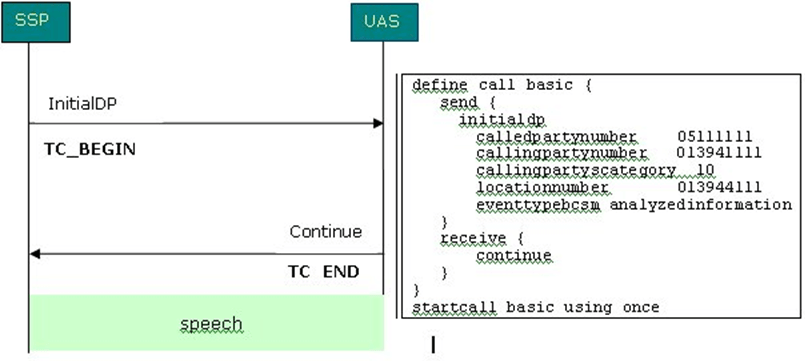
You will see in one example variables have been defined to hold the called and calling party numbers, but you can also just specify them directly if you choose:
…initialdpcalledpartynumber 0151111111
callingpartynumber 0139411111callingpartyscategory 10locationnumber
0139411111…
Remember when testing your scripts, set your SLEE_FILE. Run the script and look at the output:
$ cd /volB/training/your_LDAP_id/scripts $ slpit –v -k
111 < acs_basic.slp > acs_basic.out
Description of the Script acs_basic.slp
This table gives you a description of each part of the script.
| Script | Description |
|---|---|
define call basic {
|
This is the start of the script definition and names it basic and uses { to define the start of the call. |
|
|
DN is the Destination / called phone number and CLI is the Calling Line Identifier. A value assigned using ?= is used to specify default values for a variable. If a value is assigned using =, this will take priority over one with ?=. So DN = "0151222222" and DN ?= "015111111". If the first DN was then blanked out, the second DN (?=) would be used. |
Send {
|
Send defines the data to be sent to the IN platform. The start of the send message block is defined using {. |
Initialdp
|
The SLC expects to receive an Initial Detection Point containing called and calling numbers. The InitialDP procedure (with parameters, for example required data) is sent by the service switching function (SSF) after trigger detection point TDP-R in the basic call state model to request for instructions to complete the call. This is referred to as the "Waiting for instructions" state. |
Calledpartynumber DN
|
The calledpartynumber refers to the called party in the forward direction |
Callingpartynumber CLI
|
The callingpartynumber refers to the calling party number signaling information |
Callingpartyscategory 10
|
Callingpartyscategory indicates the type of calling party, for example. operator, pay phone, ordinary subscriber, etc. This information is in standards document Q764E. Category 00000010 = operator, English language. Code 00001101 is used for a ‘test call’. |
Locationnumber CLI
|
Locationnumber is used when callingpartynumber does not contain any information about the geographical location of the calling party, for example origin dependent routing when dealing with a mobile subscriber |
|
} |
eventtypebcsm specifies the type of event that is being reported. For analyzedinformation it will contain the calledpartynumber. The end of the send message is defined using }. |
Receive {
|
Receive defines what will be received from the SLC. The start of the receive message block is defined using {. |
|
} |
Continue returns control back to the SLC without changing the destination number. Connect would change the dialed number. The end of the receive message block is defined using }. |
|
}
|
The end of the call block is defined using }.This runs the script block named basic.
Note: Instead of running it once, you can call
a script several times using
startcall id |
SLPIT scripts are based on the sending and receiving of INAP messages. You can find details of each message by searching the INAP standards (for example CS-2, CAMEL).
Refer to the INAP standards document for details of INAP messages, for example initialDP.
SLPIT Script for UATB Node
To test that your product type calls the correct control plan and runs as expected, write a SLPIT script. The SLPIT script will test the Universal Attempt Terminate with Billing node. If you completed Induction Volume 1, you will notice that this script is similar to the script used to test the conditional terminate node. You will also need to add a receive statement to apply charging. See the SLPIT User's Guide for more information.
Example Script - your script can be based on the following example:
define call ccs_uatb { send {initialdpappContext
"0,4,0,0,1,0,50,1"calledpartynumber
"441394100005"callingpartynumber "441394100009" // change this to
your subscriber's numbercallingpartyscategory 10eventtypebcsm
analyzedinformation} // The maxDuration parameter tells the switch
the maximum time permitted before// the next reservation request
should be sent to the SCP receive { applychargingmaxDuration
2400release 0tone 0 requestreportbcsmeventeventtypebcsm
oCalledPartyBusy (2)eventtypebcsm oNoAnswer (2)dpspecificcriteria
applicationtimer 10eventtypebcsm oAbandon (1)eventtypebcsm
RouteSelectFailureeventtypebcsm oDisconnect monitormode interrupted
(2)eventtypebcsm oDisconnect monitormode notifyAndContinue(1)
connect destroutingaddr "441394100005" } send
{eventreportbcsmeventtypebcsm oDisconnect misccallinfo request
(1)// The timeNoTariffSwitch parameter tells the SLC how long to
charge for in decisecondsapplychargingreportreceivingSide
2timeNoTariffSwitch 1200callActive 1 } } startcall ccs_uatb using
once
Please do not run your script yet. You will first create and check your environment.
Provisioning Interface
The Provisioning Interface (PI) provides a mechanism for manipulating data in the Convergent Charging Controller solution using an API. It enables bulk or scripted changes to SMF data, where it would be inefficient or more prone to errors for an operator to do so using the Java administration screens.
The provisioning interface uses TCP/IP based Unix sockets to receive commands and parameters that are effectively translated into SQL commands to update the application tables on the SMF database. The PI supports the querying, addition, deletion and modification of database records. It is used by many operators to integrate database-driven software with an existing customer care solution or a web front end.
The PI can be used to provide access to the billing engine for customer care operators or by the operator to enable web based self-care for their customers.
It is a reliable, extensible, network-aware interface based on interoperability standards.
Security on the provisioning interface is achieved by allowing only recognized hosts the ability to connect. For this a username and password is required and checksums are used within the dialogs to ensure messages are not modified or additional messages are not added to the information. The first task you need to perform if you wish to use PI is to configure your PC to access the service. This exercise takes you through the necessary steps in order to set this up.
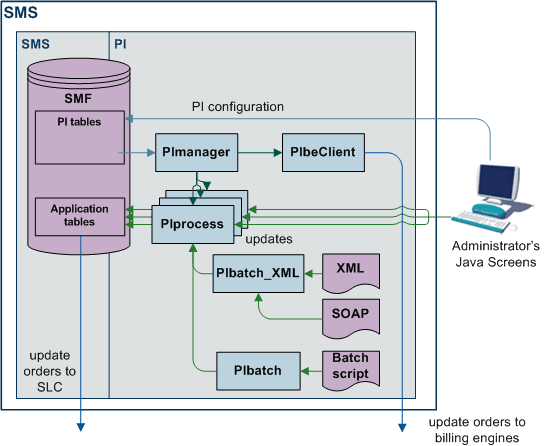
Component Diagram
This diagram shows the PI components and processes.
Figure 7-2 Component and Processes
Process Descriptions
This table describes the processes involved in the PI application.
Table 7-1 Process Description
| Component | Description |
|---|---|
| PIprocess | Updates the SMF database and the SMS sends the data through replication to the other nodes in the network. PIprocess waits for TCP/IP connections and processes commands sent to it. Commands are processed through a shared library or by running a PL/SQL function in the SMF database. |
| PIManager |
Stops and starts the PIprocess. PImanager is started by init - you should find an entry in /etc/inittab called pim1. The log file for this command can be found at /IN/service_packages/PI/tmp/PImanager.log You can restart PI in two ways:
|
| PIbatch |
Allows multiple PI commands to be sent to PIprocesses through a script file: /IN/service_packages/PI/bin/PIbatch script server Results are placed in a file of the same name but with a .result extension. |
Configuring User Access to PI Screens
To configure access to PI screens for a specified user:
- Open the SMS user interface (UI) using smsGui.bat/smsGui.sh.
- Log in to the SMS UI as the systems administrator (for example by logging in as the user su).
- Select User Management from the SMS Operator Functions menu.
-
Find the user to whom you want to give PI permissions by clicking Find, and then Search.
Tip:
Leave the User Name field empty to find all users. To find a specific user, specify the first few letters of the user's name.
- Select the user you want and click Close.
-
On the Template Creation tab, select the
PIgroup (includingPI ScreensandPI Tester) from the list in the Available Permissions area and drag and drop them to the Allocated Permissions area.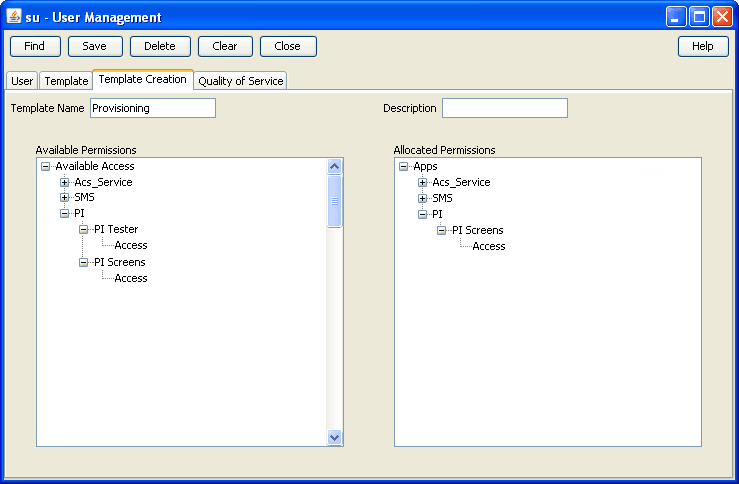
- Click Save.
-
Click Close.
The specified user now has the ability to administer the PI through the PI UI.
Configuring User and PC Connection to PI
To configure personal computer (PC) connection details to the PI for a specified user.
-
Open the SMS UI, and log in as the user who requires a PC connection to the PI.
Note:
The user should already have screens access to the PI configured. For more information, see Configuring user access to PI screens.
-
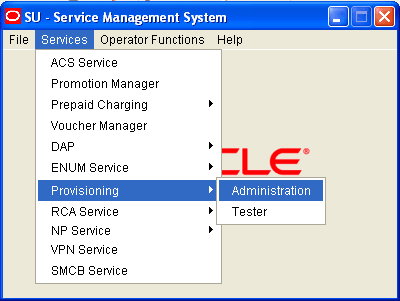
Select the Administration option from the SMS Services, Provisioning menu.
-
On the Hosts tab, click New.
The PI Hosts window is displayed.
-
In the IP Address field, enter the IP address of the PC.
Tip:
You can find the PC IP address by using the ipconfig command in a CMD window or by entering ifconfig from a UNIX terminal.
-
On the Users tab, click New.
The PI Users window is displayed.
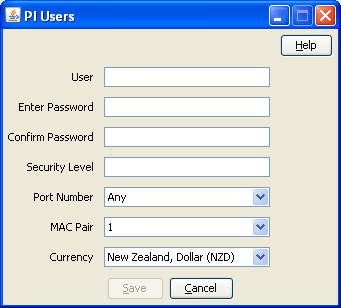
- Enter the SMS user details for the user who will be using the PC. You must allocate security level 99 to the user in the Security Level field.
- Restart the PI to activate the changes by performing the following steps:
- Log in to the SMS as the smf_oper user.
- Go to the following directory:
1/IN/service_packages/PI/bin - Check the owner of the PIrestart.sh file and su to this user.
- Restart the PI by entering the following command:
1PIrestart.sh
Testing User and PC Connection
To test your user and PC connection:
-
Give PI a moment to restart, then, through
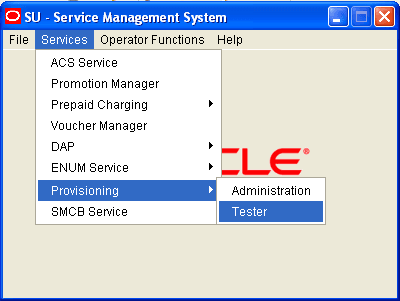
smsGui.bat/smsGui.sh, log in as your SMS user.Click Services, then Provisioning, and then Tester.
-
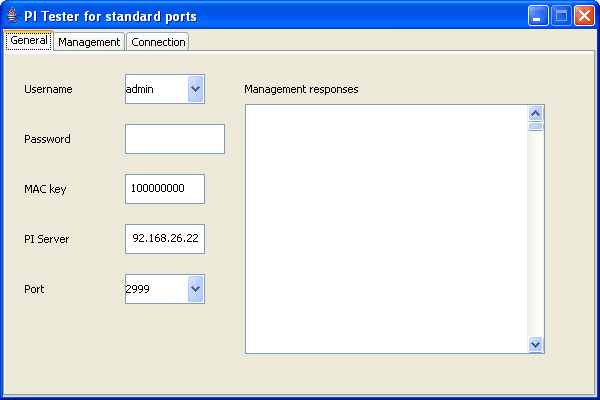
On General tab, select your username from the drop-down list and enter the password.
-
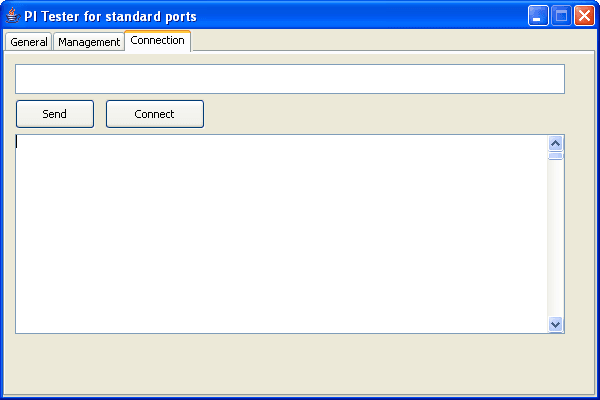
On Connection tab, click Connect.
Result: If connection is:
- Successful the following should be displayed in the Connection
window:
>username,********;<ACK,SYNSTAMP=2007041108352386; - Unsuccessful, for example invalid username/password, the following should
be displayed in the Connection
window:
>username,********;
 <NACK,72-INVALIDLOGON - username,password;
- Successful the following should be displayed in the Connection
window:
ACS Commands
Click Service Management System, then Provisioning =, and then Administration to view the list of PI commands available. You will find these in the Commands tab.
A list of ACS PI commands and their expected format can be found at ProjectDrive:\Provisioning Interface (PI)\PI_v2.6\Design\ACS Product\Commands
PI ACS Commands
Once you have established a connection to the SMS using PI Tester you should be able to run the following ACS commands. The command should be entered into the ‘command’ window (window above the Send and Connect buttons). PI processes interrogate the timestamp SYNSTAMP at the end of each command and expect this value to be later that the previous timestamp recorded. Therefore, this SYNSTAMP value has to be manually incremented by ‘1’ each time a new command is sent.
CSAdd CLI
ACSCLI=ADD – add a CLI
Use this command to add a new CLI to the ACS customer that the specified control plan belongs to.
When you connect to PI, you will receive a SYNSTAMP. copy and paste this and use it as your SYNSTAMP. For each command you issue, increment the number by 1. See an example of the command entered below:
ACSCLI=ADD:CLI=01206888888,CALLPLAN=callplan,ALLOWED=1|2|3|4|5,SYNSTAMP=2007041108352387;
Try sending some commands where the CLI entered does not exist.
Note:
It was observed during testing that the only control plans (call plans) that CLIs could be added and related to where those that belonged to the ACS customer 'Boss'.
ACS Query CLI (Calling Line Identifier)
ACSCLI=QRY – query an existing CLI, this will return a
list of allowed CLIs.
Use this command to perform a database query on one of your ACS customers’ CLIs created earlier. See an example of the command entered below:
ACSCLI=QRY:CLI=01473666666,SYNSTAMP=2007041108352386;
Note:
If the commands are not present (for some reason), you will get this:
<NACK,75-UNKNOWN COMMANDACSCLI=QRY;
CCS Commands
Query Subscriber
CCSCD1=QRY – query a CCS subscriber
Use this command to perform a database query on one of your CCS subscribers created earlier in this induction book. PI commands have mandatory parameters that must be entered and optional parameters that can be entered to gain more information from the database. For this command the mandatory parameter is the subscriber MSISDN. More information may be returned depending on what applications are loaded on the server for example if piWalletSms is loaded onto the server then details of the subscriber’s wallet and balances will also be returned. See an example of the command entered below:
CCSCD1=QRY:MSISDN=44123457,SYNSTAMP=2007041213581396;
The response should be similar to this:
<CCSCD1=QRY:ACK:MSISDN=44123457,ACCOUNT_NUMBER=1044123457,PRODUCT=PT1,SERVICE_PROVIDER=Boss,STATUS=A,CREATION_DATE=20070131175807,WALLET_EXPIRY_DATE=,BALANCE_EXPIRY_DATE=20070904165847,BALANCE=56815,INITIAL_BALANCE=100000,LANGUAGE=english,LAST_RECHARGE_DATE=20070405150304,LAST_CC_RECHARGE_DATE=,LAST_USE_DATE=20070405150230,LAST_RECHARGE_AMOUNT=0,PREV_WALLET_EXPIRY_DATE=,PREV_BALANCE_EXPIRY_DATE=,PREV_BALANCE=0,LAST_EXP_CREDIT=0,TOTAL_EXP_CREDIT=0,LAST_EXP_DATE=20070302231001,FIRST
ACTIVATION
DATE=,LAST_STATE_CHANGE_DATE=20070131180057,LAST_STATE_CHANGE_REASON=,BYPASS_NUMBER=,WALLET_TYPE=Personal,CHARGING_DOMAIN=5,FFD=,FFN=,FDN=,CUG=,CURRENCY=EUR,SYNSTAMP=2007041213581396;
Add Friends and Family Number
Ensure your subscriber’s product type is configured to have Friends and Family numbers. It is set to 0 by default:
Click Subscriber Management and then Product Type. Edit the product type you are querying and select Friends and Family from the list presented on the left hand side. Change Maximum F&F numbers allowed to say, 5.
Check that F&F is activated for the subscriber you are adding F&F numbers for.
To add a number to the Friends & Family list, use CCSCD8=ADD
CCSCD8=ADD:MSISDN=44123457,FFNUM=01473222222,SYNSTAMP=2007041213581402;
If the number is added to the database successfully the response should be similar to this:
<CCSCD8=ADD:ACK,SYNSTAMP=2007041213581402;
Verify that new number has actually been added to your subscriber’s Friends & Family list using the CCS screens and by querying the database. Did you have any problems adding the new number? You could try to delete the number now.