6 Adding a Service
This chapter explains how to add an Oracle Communications Convergent Charging Controller service.
Service Creation
After the installation processes, you now have a functional platform which contains all the required components to run the Convergent Charging Controller service.
As seen before some services are delivered as template as part of the installation. Those can be used as such with additional minor configuration. That configuration requires some advanced knowledge due to the service complexity.
Process
Here we shall develop a bit how to create a new service by explaining the different steps. Most of them have been already detailed in this guide, so we shall just refer to them.
To create a service:
-
Determine how your service will be triggered, let assume by SK (not an internal service).
-
Create the Service Key entry in SLEE.cfg.
-
Create the Service in SLEE.cfg.
-
Create the Service Entry in acs.conf.
-
Create a Service Provider Creation.
-
Create a control plan that will define what the service will be doing.
-
Create a capability for your service using the above control plan as default.
For now, you will be able to trigger that control plan for any subscriber.
If you want to be able to restrict or customize the action for a range of subscribers, for example, you will need to create product types and add subscribers in those product types or have multiple capabilities based on CdPN.
To create a product type, you will first need to Rating and Tariffs.
-
Create a product type.
-
Creating a subscriber account in that product type.
Now you have a service that will be triggered using the same service key, but which could have different behavior, tariff and configuration based on the product type.
Triggering on Service Key
Most of the time your service will be triggered from the network using an IDP.
That IDP would contain the call information that will be used to trigger your service.
IDP Fields
This table describes the function of each field.
| Field | Description |
|---|---|
| appContext |
This holds the value of application-context-name in the TCAP section of the initialDP. Possible values for this parameter include: |
| CallingPartyNumber |
This specifies the A party number (the subscriber making the call) and is defined in SLPIT in the following format: (NOA) "MSISDN" Some examples include: |
| CallingPartysCategory | This indicates the type of calling party (for example, operator, pay phone, ordinary subscriber). Values are defined in ETS 300 356-1, an ordinary subscriber will be most common. |
| LocationNumber | This indicates the Location Number for the calling party. This number represents the geographical location of the A party. In a scripted test LocationNumber is often fictional as it is rarely examined in service logic. |
| Bearer type |
The bearer parameters indicate whether the call is voice, video, etc. Some common examples are: |
| EventTypeBCSM | This indicates the BCSM detection point event. This parameter
is used in the IDP that begins the call and also in the trigger detection point that
ends the call. Trigger detection points are used for both originating and terminating
voice traffic. The full list of possible values for this parameter is provided below,
with the values relevant to the IDP highlighted in bold:
|
| IMSI |
The IMSI is a unique number associated with all GSM and UMTS network mobile phone users. It is stored in the SIM inside the phone and is sent by the phone to the network. The first five digits of the IMSI are identical to the countryCode and networkCode parameters. From the example above: |
| vlrNumber |
This specifies the GT of the visitor location register. In scripted tests the most important part of this number is the Country Code prefix. In the example, the subscriber is attached to a New Zealand VLR (Country Code 64): vlrNumber (1) "64241420003"
|
| CellGlobalIdOrServiceAreaIdFixedLength |
The parameter in the snoop trace is broken into four parts in the SLPIT script. These parts are extracted following the rule below: From the example snoop above, the CellGlobalIdOrServiceAreaIdFixedLength is 35F04200023C55, which gives the following fields in the SLPIT script: |
| callreference |
This parameter refers to a call reference number allocated by a call control MSC. This is unused in the call plan, so any previously used callReference can be used. callreference "1E1B7CE329"
|
| mscAddr |
This specifies the GT of the mobile switching subsystem (MSC). In scripted tests the most important part of this number is the Country Code prefix. In the example, the subscriber is attached to a New Zealand MSC (Country Code 64): mscAddr (1) "64241420003"
|
| CalledPartyBCDNumber |
This specifies the B party number (the number dialed on the handset) and is defined in SLPIT in the following format: |
Service Key
When the IDP arrives on the platform it would contains an SK. This can be used to trigger the service. This is done using a mapping in the SLEE.cfg configuration file as follows:
The CCS_HPLMN_MO service is attached to service key 102, which is included in the file in a decimal and hex format as below:
SERVICEKEY=INTEGER 102 CCS_HPLMN_MOSERVICEKEY=INTEGER
0x19200000015 CCS_HPLMN_MO
Refer to SLEE Technical Guide for more information about Service Key definitions.
Service
This service is mapped to CCS_HPLMN_MO by the following line in SLEE.cfg:
SERVICE=CCS_HPLMN_MO 1 slee_acs CCS
Refer to SLEE Technical Guide for more information about Service definitions.
Service Entry
In this example, the CCS service is triggered for mobile originating voice calls as the CCS service library is used to load the service. The Service Entry in acs.conf appears as below:
ServiceEntry (CCS,cCANLanl,lLcCaAnN,ccsSvcLibrary.so)
Refer to ACS Technical Guide for more information about Service Entry definitions.
CCS Capability
The CCS capabilities are defined in the Service Management screen, Capability tab.
Figure 6-1 Capability Tab
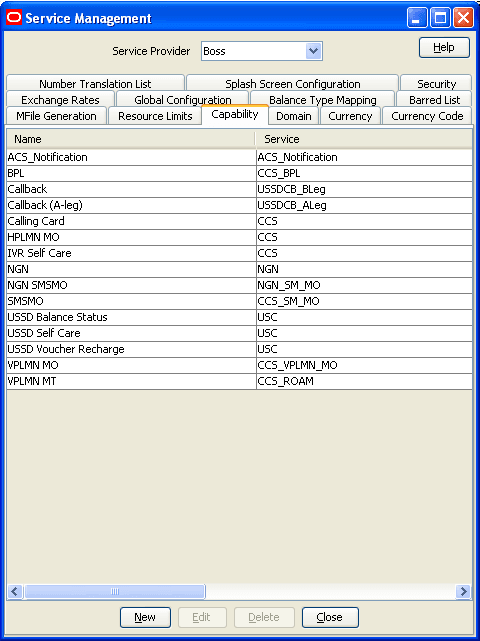
For example, click Prepaid Charging, then Service Management, and then Capability.
Figure 6-2 Edit Capability
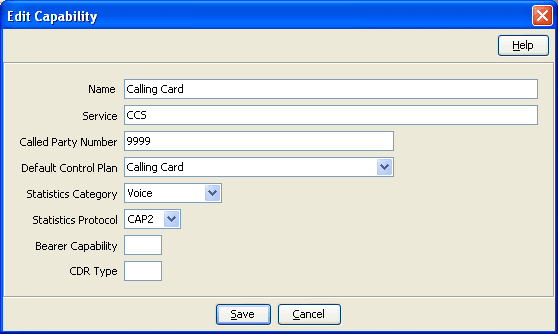
Creating a capability
To create a capability:
-
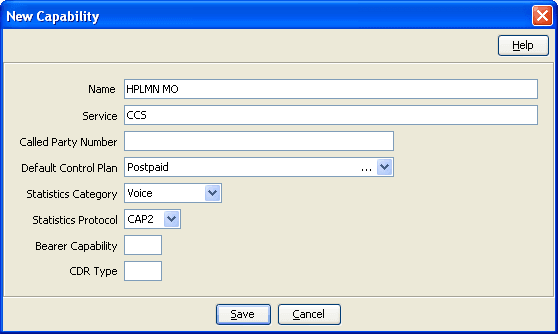
On the Capability tab, click New.
Result: You see the New Capability screen.
-
In the Name field, enter the name to use to identify the capability.
- In the Service field, enter name of the service for the capability.
- In the Called Party Number field, optionally enter the CdPN prefix (so that the capability is called only for those terminating numbers).
- Select the Default Control Plan from the drop down list (that can be overwritten in the product type if set).
- From the Statistics Category drop down list, select the service to count calls through this capability against in a license report.
- From the Statistics Protocol drop down list, select the protocol to count calls
through this capability against in a license report.
-
Click Save.
WARNING:
You must restart the SLEE in order for the changes to take effect. For more information about restarting the SLEE, see SLEE Technical Guide.