5 Rating and Tariffs
This chapter explains rating and tariffs.
Tariff Creation
Prepaid Charging calculates the standard tariff from the CLI (calling line identifier / origin) and SN (service number / destination) numbers of the call and accepts or rejects a call. Your new brand provides a standard calling rate which enables subscribers to call cell phones at a reduced cost.
Rating
Rating is provided for:
- Voice calls
- Data calls
- Specified Events (including SMS messages)
Call charges can include a:
- Maximum or minimum charge for each call/data session
- Minimum charge period after which charging starts
- Low credit warning threshold
- Rating can be based on complex configurable factors, including:
- Duration
- Destination number, (including its geographical location)
- Foreign roaming network
- Day of year, day of week, and time of day
Components
Calls are controlled using ACS.
The Voucher and Wallet Server (VWS) handles money.
CCS deals with charging rules, for example: it costs x amount of money to call from place A to place B for n minutes. There are also further calculations related to discounts for certain days/weeks and specific sections of a call. The charge for a call or data session is set by the subscriber's product type in CCS.
Tariff Plans
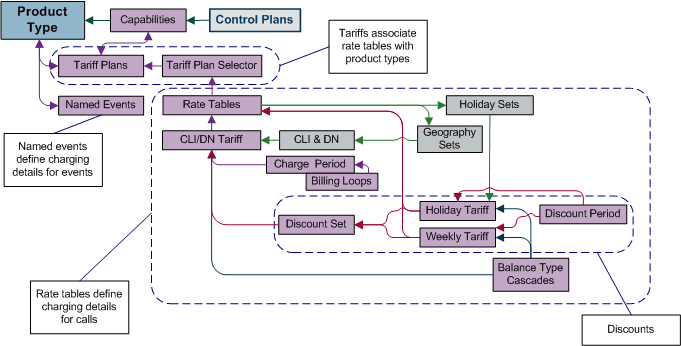
Tariff plans enable you to define which rate table applies to a product type at a particular time.
Rate tables define how Prepaid Charging charges for calls.
An ACS customer requires a tariff plan, such that they can provide a service which charges special rates for some locations.
Tariff Configuration
This diagram shows tariff configuration.
Figure 5-1 Tariff Configuration
Creating Tariff Plan
The tariff plan defines rules for how a call by your subscribers will be charged. You will also generate the memory mapped file used on the billing engine.
For your product type, you will create a tariff, by:
- Configuring a rate table.
- Rate table, charge periods, balance type cascade, discount sets, CLIxDN tariffs, and the rest.
- Configuring a tariff plan.
- Link tariff plan to rate table using the Tariff Plan Selector tab.
- Configuring discounts.
- Create discount periods, and weekly and holiday tariffs.
- Creating named events.
- Creating a MFile (memory mapped file for BE containing rating information).
Tariffing needs to be created in order to be able to do billing. It all starts by creating a new tariff plan, this will be the way of billing used in the product type.
Creating a Tariff
In order to create a proper tariff, you’ll need to create the following, in this order.
- Geography set
- Holiday set
- Tariff plan
- Rate table
- Tariff plan selector
- Balance type cascade
- Charge period
- Discount set
- Discount period
- CLI-DN
- Weekly tariff
- Holiday tariff
- MFile
Tariff Plan
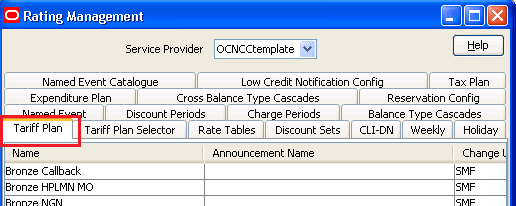
To create a tariff plan:
-
Select the Tariff Plan tab.
-
Click New.
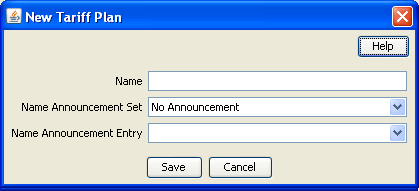
Result: The New Tariff Plan screen is displayed.
-
Give your tariff plan a name.
-
Click Save.
Rate Table
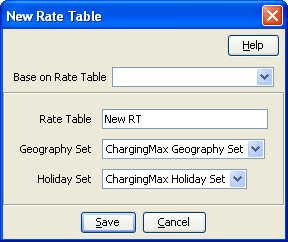
Rate tables define charging details for calls. This data is used to set the charging rates according to specific dates and geographical location.
Note:
It is not possible to change the geography set for a rate table once saved. You first must delete all records associated with the rate table, then delete the rate table and re-create it.To create a rate table:
-
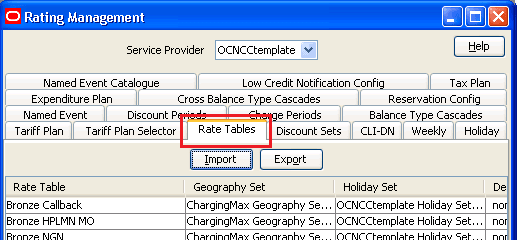
Select the Rate Tables tab.
-
Click New.
Result: The New Rate Table screen is displayed.
-
Give your rate table a name.
-
Select a Geography set.
-
Select a Holiday set.
-
Click Save.
Tariff Plan Selector
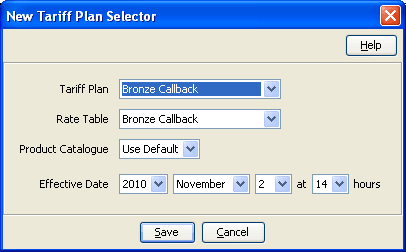
The tariff plan selector links the tariff plan and the Rate Table.
To create a tariff plan selector:
-
Select the Tariff Plan Selector tab.
-
Click New.
Result: The New Tariff Plan Selector screen is displayed.
-
Select a tariff plan.
-
Select a rate table.
-
Update the effective date.
-
Click Save.
Balance Type Cascade
A Balance Type Cascade includes the different Balance Types that are available to pay for the cellphone calls. Here you will set the order in which the balance types will be exhausted.
Note:
You may want to use this Balance Cascade pattern in other tariffs, so give it a name which is descriptive of the pattern, not the tariff you are planning to use it in.
The Balance cascade is how the balance is going to be used, if we take the example bellow, we will first use the Promotional Cash, then the General Cash, then the Free SMS. For example:
-
Promotional Cash
-
General Cash
-
Free SMS
To create a balance cascade:
-
Select the Balance Type Cascades tab.
-
Click New.
Result: The New Balance Cascade screen is displayed.
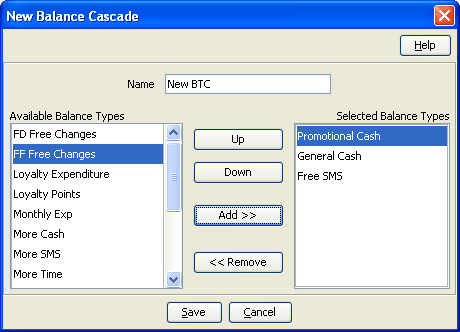
- Type a Balance Type Cascade name.
- Select an available balance type and Add. Repeat until you have selected all balance types you require.
- Use Up / Down to order the selected balance types.
- Click Save.
Charge Period
A charge period is charging rate per minute. First you create a charge period set by simply giving it a name, then you choose a rate table to give you the charge rates. With this information you can then create the charge periods for that set.
For example: 10 cents the first 60 seconds, then 5 cents per minute for the rest of the call.
To create a charge period set with charge periods:
- Select the Charge Periods tab.
-
Click New Set.
Result: The New Charge Period Set screen is displayed.
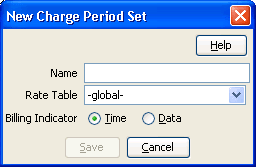
- Type a name for the charge period set.
- Select the associated rate table.
- Select the billing indicator.
- Click Save.
-
Highlight the charge period and click New.
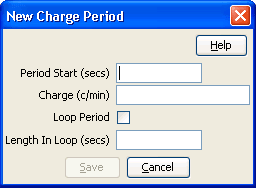
Result: The New Charge Period screen is displayed.
-
The first period starts at 0 sec and is charged at 10c/min.
Create a charge period with a:
-
Period start of 0.
-
Charge of 10.
and click Save.
-
-
The second period starts at 60 seconds and is charged at 5c/min, but the charge is per second.
Create another charge period with a:
-
Period start of 60.
-
Charge of 5.
and click Save.
-
Refer to CCS User's Guide for more information about the fields.
Discount Set
The discount set is only a name and description.
This set is associated with the holiday and weekly tariffs and is used to provide a logical link from the rate table to the CLI-DN data. If no holiday or weekly discounts are set, the discount set will not apply.
A discount period defines the discount percentage to be applied to a charge period.
To create a new discount set and discount periods for the discount period set:
-
On the Discount Sets tab, select, from the Rate Table drop down box, the rate with which to associate a discount set.
-
Click New.
Result: You see the New Discount Set screen.
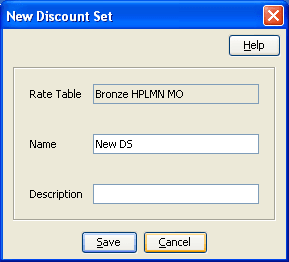
The Rate Table field displays the rate table selected.
- Enter a name and description.
- Click Save.
Discount Period
A discount period defines the discount percentage to be applied to a charge period.
To create a new discount set and discount periods for the discount period set:
-
Select the Discount Periods tab.
-
Click New Set.
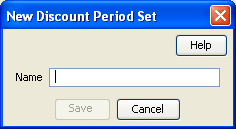
Result: You see the New Discount Period Set screen.
-
Enter a name and click Save.
-
Then create a new discount period where a percentage of discount is defined.
On the Discount Periods tab, select the discount period set from the Discount Period drop down box.
-
Click New.
Result: You see the New Discount Period screen.
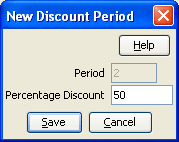
The Period field displays the amount of time before the charge is initiated.
In the Percentage Discount field, type the numeric percentage of the discount to be applied to the charge period, in this example, 50%.
- Click Save.
- Create as many discount periods as required to match your charge period.
Refer to CCS User's Guide for more information about discount usage.
CLI-DN
A CLI-DN (Calling Line Identifier – Destination Number) record defines, for the rate table, the rate for calls between two geographical areas.
Use the records you have defined so, to configure a CLI-DN record applicable to the rate table you created. Each rate table includes rates for calls between two geographical areas.
The tariff code is a 2 digit hexadecimal code that is usually provided by the switch manufacturer. The tariff code is set in Tariff Codes. You can find it if you click ACS Services,then Resources, and then Tariff Codes. There you will see SCI (Set Charging Info) and FCI (Furnish Charging Info). SCI is set when you receive the tariff code from the switch.
To create a new CLI-DN:
-
Select the CLI-DN tab.
-
Click New.
Result: The New CLI-DN Tariff screen appears.
Select the following from its respective drop down list:
- DN
- Discount set
- Charge period
- Cross balance type cascade
Set the following fields:
- Maximum charge
- Minimum length
- Billing resolution
- Low credit
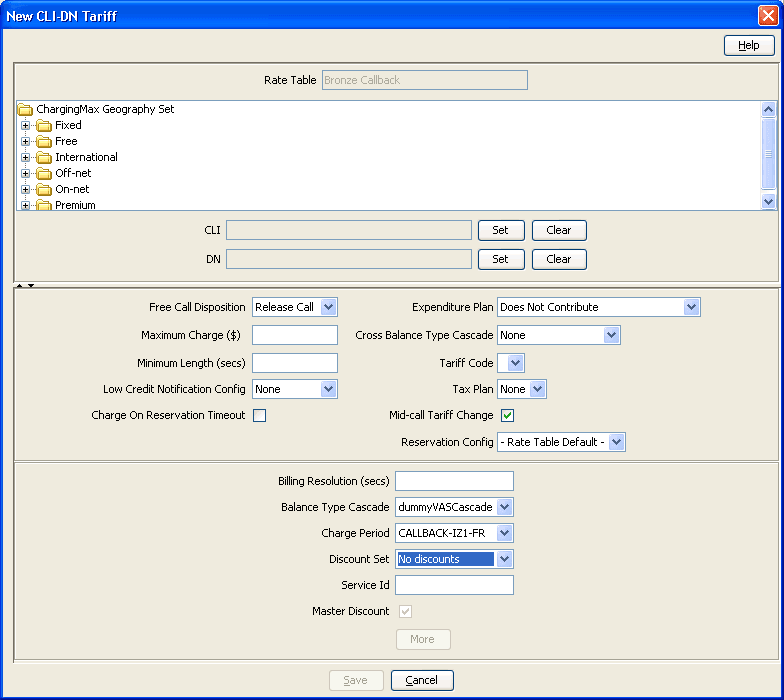
- Click Save.
Weekly Tariff
Weekly tariff are used to define specific discount during period of the week (off-peak for example).
To create a weekly tariff:
-
Select the Weekly tab.
-
Click New.
Result: The New Weekly Tariff screen appears.
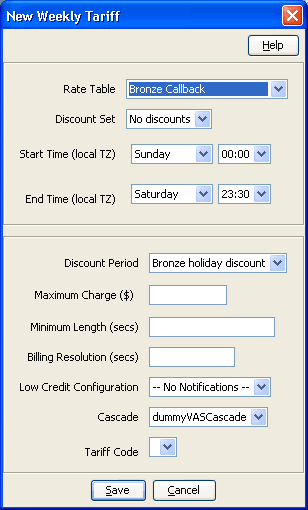
-
Fill in the fields.
Refer to the CCS User's Guide for information about the fields.
- Click Save.
Holiday Tariff
Holiday tariffs are used to define the specific discounts that will apply during holidays.
- Select the Holiday tab.
-
Click New.
Result: The New Holiday Tariff screen appears.
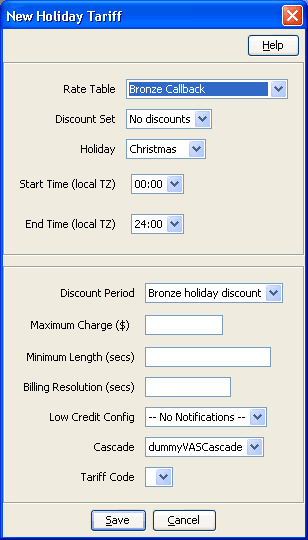
-
Fill in the fields.
Refer to the CCS User's Guide for information about these fields.
- Click Save.
MFile
MFile is the core of the rating system. It is a file that is mapped into memory (using standard Unix mmap - memory mapping functionality). The data contained within the file is generated from all the rating data configured within the database. This file removes the requirement for database access for call rating data, which offers speedier access to the data.
To create an MFile:
- Select Prepaid Charging, then Service Management, and then MFile Generation tab.
-
Click New.
Result: The New MFile Configuration screen appears.
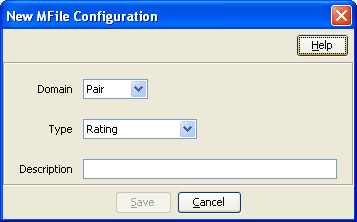
-
Select the Pair on which creating the MFile.
Select the Type (Rating or Named Event Catalogue).
Enter a description (optional).
-
Click Save.
Result: The MFile data is replicated and the copied MFile is compiled.