3 Import WSDL
Import WSDL Screen
Introduction
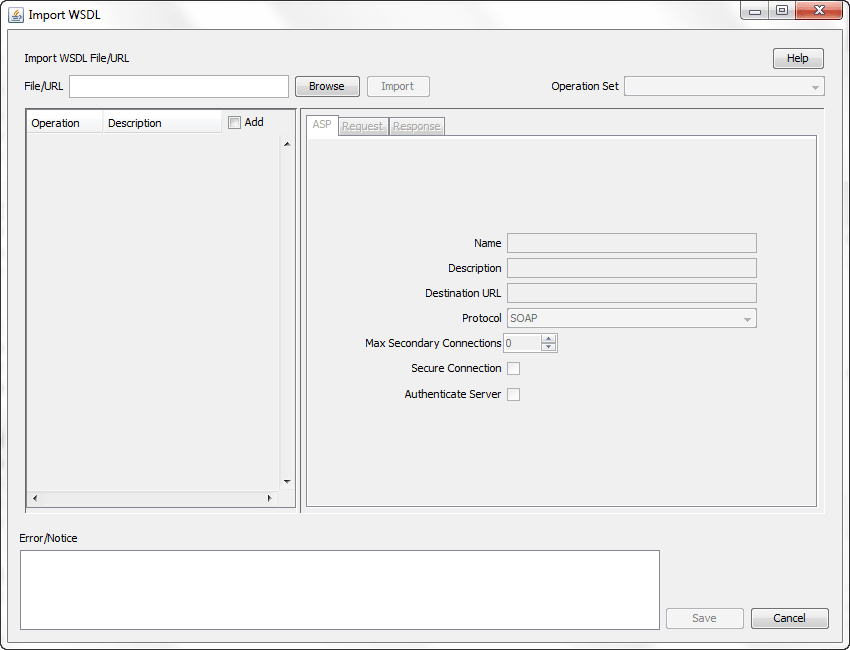
The Oracle Communications Convergent Charging Controller Controller Data Access Pack DAP Import WSDL screen allows you to import and configure predefined web services from ASPs.
It contains these functions:
- Import WSDL files
- ASP Configuration
- Operation Request Configuration
- Operation Response Configuration
What is WSDL?
Web Services Description Language (WSDL) is a XML based language that provides a model for describing web services.
The reason for using WSDL is to import predefined web services from ASPs, thereby speeding up configuration of DAP messages.
For restrictions on what parts of the specification are supported, see Convergent Charging Controller Data Access Pack PICS Guide.
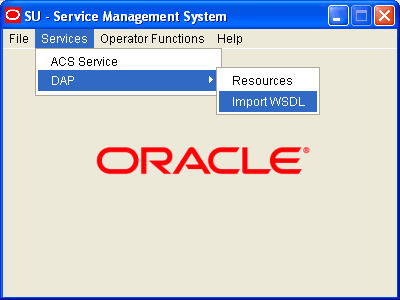
Import WSDL Files
Importing a WSDL file
Follow these steps to import a WSDL file.
| Step | Action |
|---|---|
| 1 |
On the Import WSDL screen , perform one of the following actions to select a file:
The file has the suffix of .wsdl (for example DAP.wsdl) |
| Result: The Import button becomes available. | |
| 2 |
Click Import. Result: The WSDL file is imported, then:
|
| 3 |
To add:
Result:
Warning: If you select multiple operations, you must configure all of them before the Save button is available. If there are any kind of fatal system problems, you will need to re-do any unsaved configuration. |
| 4 |
Select the Operation Set to use from the drop down list. Note: See Operation Sets for details on configuring this list. |
| 5 | Click on the operation to configure. |
| 6 | Configure the ASP as required. See ASP for more information. |
| 7 | Configure the request as required. See Operation Request Configuration for more information. |
| 8 | Configure the response as required. See Operation Response Configuration for more information. |
| 9 | Repeat steps 4 to 8 for each operation that you want to configure. |
| 10 |
When there are no errors listed in the Error/Notice area, the Save button becomes available. Click Save. The ASP and the configured operations are created. You can view and edit them on the DAP Resources screen . |
Operation Request Configuration
Introduction
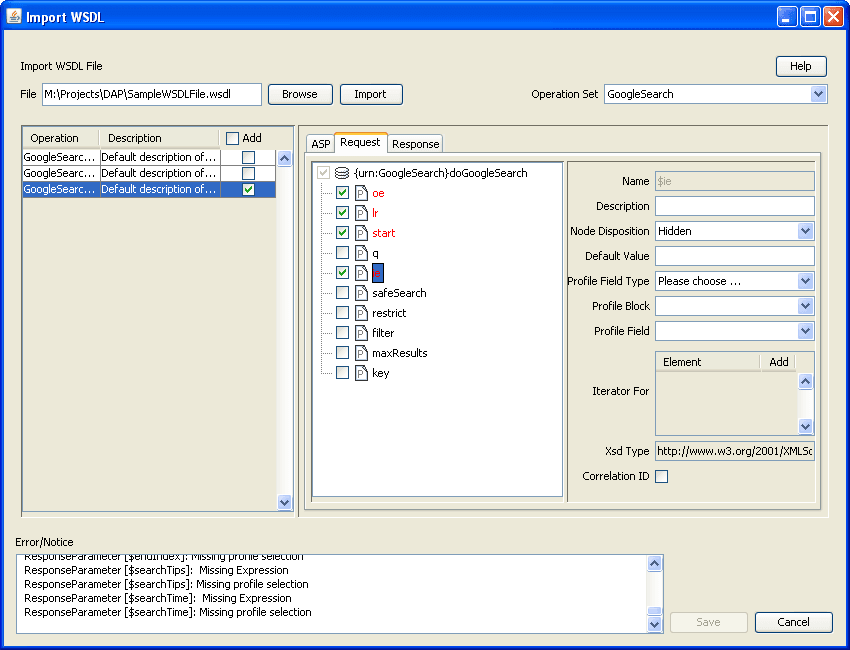
You use the Request tab on the Import WSDL screen to configure the request parameters that are within the imported operation script. The imported operations are used by the DAP Request feature node.
Request tab
Here is an example of the Request tab on the Import WSDL screen after a WSDL file has been imported.
Configuring requests
Follow these steps to configure operation request parameters.
| Step | Action |
|---|---|
| 1 |
In the Request tab , expand the parameter tree to see all the elements that can be configured (click + signs). Note: Each element is preceded by a C, a P, an O, or an E:
|
| 2 |
Select the parameters to configure by selecting the check box preceding the parameter. All the selected parameter names are colored red to indicate that the parameters require configuration, and the error reasons appear in the Error/Notice area. Sometimes all parameters under a selected complex parameter are automatically selected because they are all required. Tip: Hover over a parameter to get a tip if a box cannot be selected or deselected. |
| 3 |
Click a parameter name to configure. The parameter name appears in the Name field, the editable parameter fields are made available, and the Iterator For table is populated with all the request elements. |
| 4 | If this parameter is to be used as a unique id, select the Correlation ID check box and then start configuring a new parameter. |
| 5 | Type a description for the parameter in the Description field. |
| 6 |
Select the feature node behavior for the parameter from the Node Disposition list. Note: The option you select determines whether or not you are required to configure a run-time parameter in a DAP feature node that sends XML requests. Select one of the following options:
Note: The Transient option enables the DAP to process XML requests containing attributes where the parameters are not recognized. |
| 7 |
If you selected the
Tip: The Xsd Type field indicates what type of data is expected in the DAP message for this parameter. Note: If an expected profile field is missing, it can be added via the ACS Configuration screens. For information about configuring profile fields, see Advanced Control Services User's Guide. |
| 8 |
If this parameter is being used as an iteration value for a request element, scroll to find the element in the Iterator For list and select the Add check box. The parameter will be added to the request template element as an iteration. Tip: A parameter can be an iterator for more than one element, however one element registers just one parameter as the iterator. |
| 9 | Repeat steps 3 to 8 for all the parameters that require configuration. |
Operation Response Configuration
Introduction
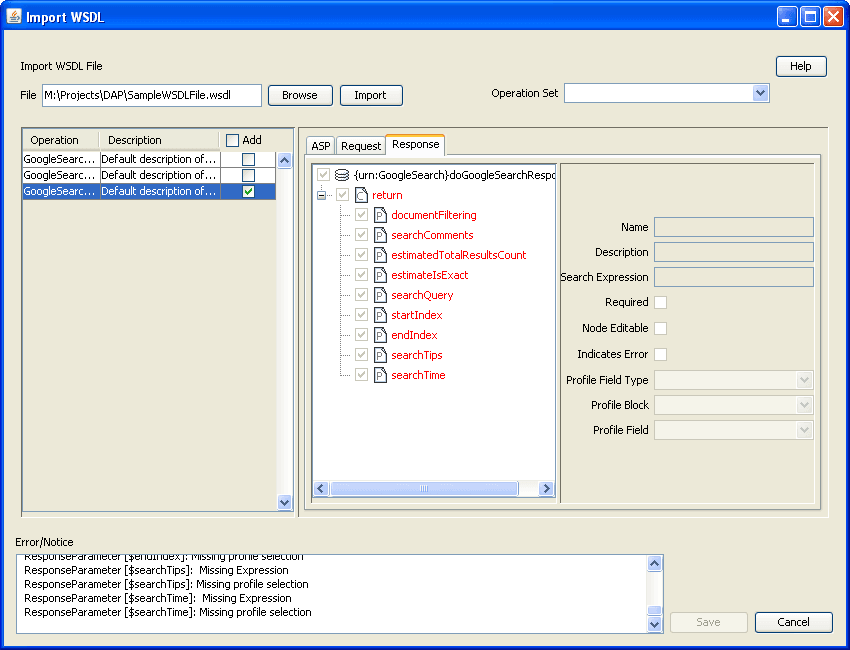
You need to configure any responses required by the imported script. You perform this on the Response tab.
Response tab
Here is an example of the Response tab on the Import WSDL screen after a WSDL file has been imported.
Configuring responses
Follow these steps to configure all response parameters.
| Step | Action |
|---|---|
| 1 |
In the Response tab , expand the parameter tree to see all the elements that can be configured (click + signs). Note: Each element is preceded by a C, a P, an O, or an E:
|
| 2 |
Select the parameters to configure by selecting the check box that precedes each parameter. All the selected parameter names are colored red to indicate that the parameters require configuration. |
| 3 |
Click a parameter name to configure. The parameter name appears in the Name field, the editable parameter fields are made available |
| 4 | In the Description field, type what the response is expected to be. |
| 5 | If this parameter must be returned, select the Required check box. |
| 6 | If this parameter can be edited in feature nodes, select the Node Editable check box. |
| 7 |
If the return of this parameter is an error condition, select the Indicates Error check box. Note: The Required and Indicates Error check boxes are mutually exclusive. |
| 8 |
Select the profile type and location for the parameter from the Profile Field Type, Profile Block and Profile Field lists. Note: If an expected profile field is missing, it can be added via the ACS Configuration screens. For information about configuring profile fields, see Advanced Control Services User's Guide. Result: The last error message for this parameter will disappear from the Error/Notices panel. |
| 9 | Repeat steps 3 to 8 to configure all the response parameters. |