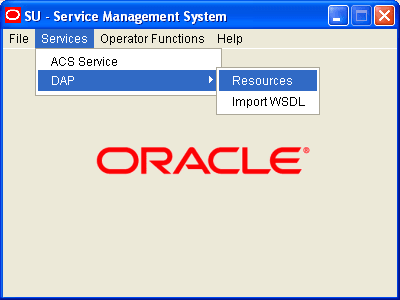
2 Resources
Resources Screen
ASP
About Specifying URLs
When you configure an ASP you must specify the URL to which requests are sent. You can also specify an URL as the file location to use for importing WSDLs. The URL can contain either the host name of the ASP or its Internet Protocol (IP) address, and an optional port number. You can specify an IP version 6 (IPv6) or an IP version 4 (IPv4) address.
If you specify an IPv6 address and port number in the URL, then you must enclose the IPv6 address in square brackets []; for example: [2001:db8: n:n:n:n:n:n ] where n is a group of 4 hexadecimal digits. The industry standard for omitting zeros is also allowed when specifying IP addresses. Note that square brackets are not required for IPv4 addresses or if the port number is not included in the URL.
Example IPv4 and IPv6 addresses
192.0.2.1:4000[2001:db8:0000:1050:0005:0600:300c:326b]:3004[2001:db8:0:0:0:500:300a:326f]:12342001:db8::c3
If the URL starts with "http:" or "https:", then you must append a trailing forward-slash, "/", after the host name and port. For example:
http://domain_name:port/
http://domain_name:port/mydoc
Where:
- domain_name is the URL domain name or IP address.
- port is the port number to use.
ASP tab
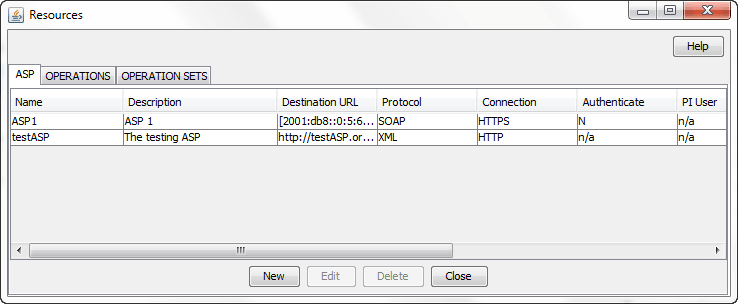
The ASP tab gives a view of all the ASPs that have been created for the service. Here is an example.
ASP tab fields
This table describes the function of each field on the ASP tab. The records that display on the ASP tab are sorted by the Name field.
| Field | Description |
|---|---|
| Name |
(Required) The unique name for this ASP connection. The ASP name can be up to 64 alphanumeric characters in length. Note: When you save a new ASP, this field becomes read only and may not be edited. |
| Description | (Required) A description of the ASP that can be up to 64 characters in length. |
| Destination URL |
(Required) The destination URL to which requests are sent. Specify either the host name of the ASP or the IP address, and an optional port number. The destination URL can be up to 256 characters in length. For more information about specifying the destination URL, see About Specifying URLs . |
| Protocol |
The protocol field contains the protocol that should be used when interacting with the ASP. The protocol can be one of: XML, SOAP, HPSA, PIXML, or LDAP. Note: You define which protocols are available to ASPs in the Mapping parameters configuration. |
| Connection |
The type of the connection (normal/HTTP or encrypted/HTTPS). Note: This field is only available for the SOAP and XML protocols. |
| Authenticate |
Whether to check server authentication. Note: This field is only available for HTTPS connectivity. For more information about server authentication, see HTTP and HTTPS Connections . |
| PI User |
The PI user for whom PI commands may be triggered by the DAP Send Request feature node. The PI logs in the specified PI user automatically when a PI command is first triggered. Note: This field is only available for the PIXML protocol. This field is populated by the PI Users tab in the PI Administration screen. For more information, see PI User's Guide. |
| Destination Auth User |
The user name to authenticate with the ASP server using HTTP basic authentication. Note: This field is only available for the SOAP, XML, and LDAP protocols. |
| Max Secondary Connections | This field contains the maximum number of secondary connections that can be created by the DAP interface. |
ASP configuration
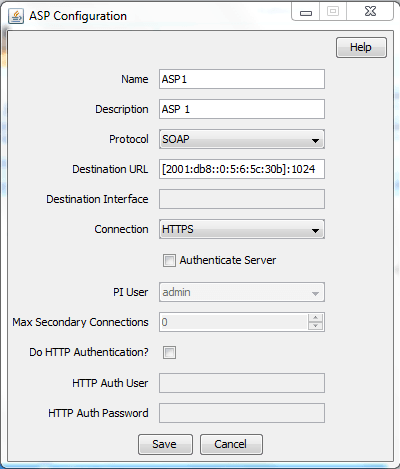
The table on the ASP tab in the Resources screen displays the ASPs that are currently available to the DAP. Follow these steps to edit or create an ASP.
For more information about the fields on this screen, see ASP tab fields .
| Step | Action | ||||||||
|---|---|---|---|---|---|---|---|---|---|
| 1 |
On the ASP tab do one of the following:
The ASP Configuration screen displays. |
||||||||
| 2 |
If you are creating a new ASP, enter the name of the ASP in the Name field. Note: When you save a new ASP, this field becomes read only and may not be edited. |
||||||||
| 3 | Enter a description for the ASP in the Description field. | ||||||||
| 4 |
Select the protocol to use when interacting with the ASP from the Protocol list. The available protocols depend on the Mapping parameters configuration. The following table lists the additional fields that become enabled if you select one of the listed protocols.
|
||||||||
| 5 | Specify the destination URL to which requests should be sent in the Destination URL field. You can specify the host name of the ASP or the IP address, and an optional port number. For more information, see About Specifying URLs . | ||||||||
| 6 | If you selected SLEE in the
Protocol field, then specify the SLEE interface
that the DAP should use when sending requests in the
Destination Interface field.
|
||||||||
| 7 | If the protocol is XML or SOAP, select whether the connection should use HTTP or HTTPS. | ||||||||
| 8 | If you selected an HTTPS connection and you want to ensure that it matches the server name in the HTTPS certificate, select the Authenticate Server check box. | ||||||||
| 9 | If the protocol is PIXML, select the required PI user from the PI User list. | ||||||||
| 10 | If required, specify the maximum number of secondary connections that can be created by the DAP interface in the Max Secondary Connections field. | ||||||||
| 11 |
If the protocol is XML or SOAP and you want to configure HTTP authentication then perform the following steps:
|
||||||||
| 12 |
Click Save. The ASP is saved to the database. Note: When editing an ASP description, the Save button is disabled if the new description is the same as the original description. |
Deleting an ASP
Follow these steps to delete an ASP from the service.
| Step | Action |
|---|---|
| 1 | Select the ASP that you want to delete in the table on the ASP tab. |
| 2 |
Click Delete. The Delete Confirmation prompt displays. Note: An error is raised if the ASP has any operations attached to it. |
| 3 |
Click OK. The ASP record is removed from the database. |
Operations
Introduction
You use the Operations tab on the Resources screen to configure the operations that are available to the DAP application. These operations are used by the Send Request or DAP Request feature nodes.
Operations tab
The Operations tab contains a view of all the operations created in the service. Here is an example.
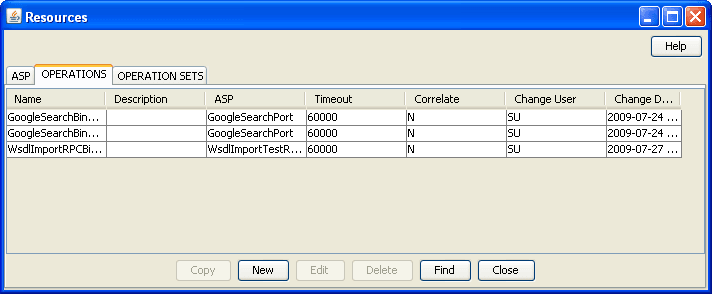
Operations tab fields
This table describes the function of each field in the Operations tab.
| Field | Description |
|---|---|
| Name |
(Required) The name of the operation. The operation name can be up to 64 alphanumeric characters in length. Note: When you save a new operation, this field becomes read only and may not be edited. |
| Description | (Required) A description of the operation. The description can be up to 64 characters in length. |
| ASP |
The ASP associated with the operation. This field is populated by the records configured on the ASP tab. |
| Timeout | The number of milliseconds that dapIF should wait for a response from the ASP. |
| Correlate | Indicates return parameters are expected. See Correlation . |
Correlation
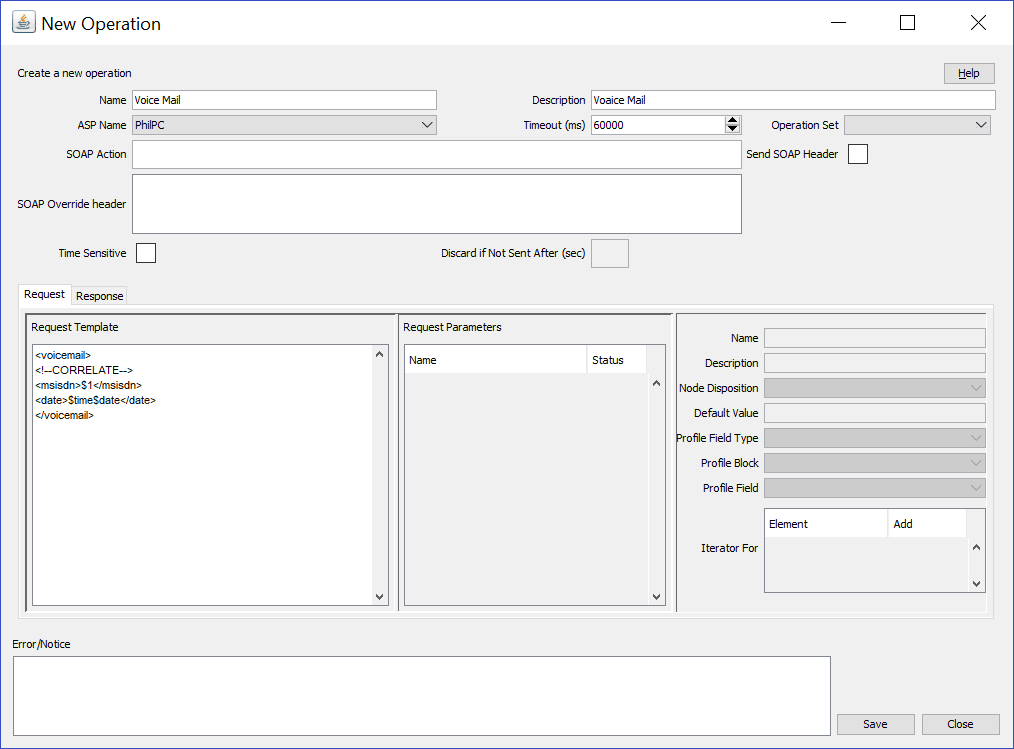
When the correlation comment
<!--CORRELATE-->, or
<!--CORRELATE-ID--> is specified within the
request script, it is implied that return parameters will be sent
back by the ASP. The return parameters can be stored within ACS in
a user defined profile block and field.
The correlation tag is only supported in asynchronous connections. For more information about asynchronous connections, see Synchronous and asynchronous connections .
Adding an operation
Follow these steps to add a new operation and the associated request and response templates.
For more information about the fields on the Operations tab, see Operations tab fields .
| Step | Action |
|---|---|
| 1 |
On the Operations tab, click New. The Request tab in the New Operation screen displays. |
| 2 |
Type the name of the new operation in the Name field. Note: After you save an operation, the name is no longer editable. |
| 3 | Type the description for the operation template in the Description field. |
| 4 | Select the ASP to associate with the operation from the ASP Name list. |
| 5 | (Optional) Change the timeout specified for a response to the DAP interface from the ASP by selecting a different value in the Timeout field. |
| 6 | (Optional) Select the operation set for this operation from the Operation Set list. For more information, see Operation Sets . |
| 7 |
If the ASP uses the SOAP protocol then you can optionally configure the following:
|
| 8 |
Select the Time Sensitive check box to discard SOAP requests after a certain period of time if the destination ASP cannot be reached. By default, this check box is unchecked. In the Discard if Not Sent After (sec) field, enter the total number of seconds which the request will be retried for before it is discarded. Note: The Discard if Not Sent After (sec) field is enabled only if the Time Sensitive check box is selected. If set, Discard if Not Sent After (sec) will take priority over discardPendingQueueRequestsAfterSeconds parameter. |
| 9 | In the Request Template section create the template for the request by entering a valid script in XML format. For more information about script formats, see Script Format . |
| 10 |
Configure the variables listed in the Request Parameters area that have an error status and corresponding message in the Error/Notice area. A variable is any item within an element that is enclosed in double angle brackets <<>> and that has a $ prefix, or an empty element. For information about variable configuration, see Request Parameter Configuration . For more information about variables, see Variables . |
| 11 | Add and configure the response parameters that you require on the Responses tab. See Response Parameter Configuration . |
| 12 |
Click Save. The Save button is available when there are no errors listed in the Error/Notice area. |
Script Format
The script entered in the script text field of a template forms the body of the request template. The expected format is XML.
A parameter is defined either by using the $ prefix or by using an empty element:
<voicemail><!--CORRELATE--><msisdn>$1</msisdn><language></Language><date>$time$date</date></voicemail>
The parameters specified in the example are $1, language, $date and $time.
DAP requests sent through the SLEE have a limitation of 10 parameters per script. This limit is enforced at run time. A parameter can be up to 32 characters in length.
Note: The "$" character will not be treated as a parameter within the text of a tag if it is escaped, that is, "\$".
Request Parameter Configuration
Follow these steps to configure operation request parameters.
| Step | Action |
|---|---|
| 1 |
Click on the parameter to configure. The parameter name is displayed in the Name field on the Request tab and the editable parameter fields are made available. The Iterator For panel is populated with all the request template elements. |
| 2 | In the Description field type a description for the parameter. |
| 3 |
Select the feature node behavior for the parameter from the Node Disposition list. Note: The option you select determines whether or not you are required to configure a run-time parameter in a DAP feature node that sends XML requests. Select one of the following options:
Note: The Transient option enables the DAP to process XML requests containing attributes where the parameters are not recognized. |
| 4 |
If you set Node Dispostition to
Note: You can configure any missing profile fields in the ACS Configuration window in the ACS UI. For information about configuring profile fields, see Advanced Control Services User's Guide. |
| 5 |
If you want to use this parameter as an iteration value for an element in a request template, scroll through the Iterator For list to find the element, and select the Add check box. The parameter is added to the request template element as an iteration. |
| 6 | Repeat steps 1 to 5 for each parameter that you need to configure. |
Response Parameter Configuration
Follow these steps to add and configure any required response parameters.
| Step | Action |
|---|---|
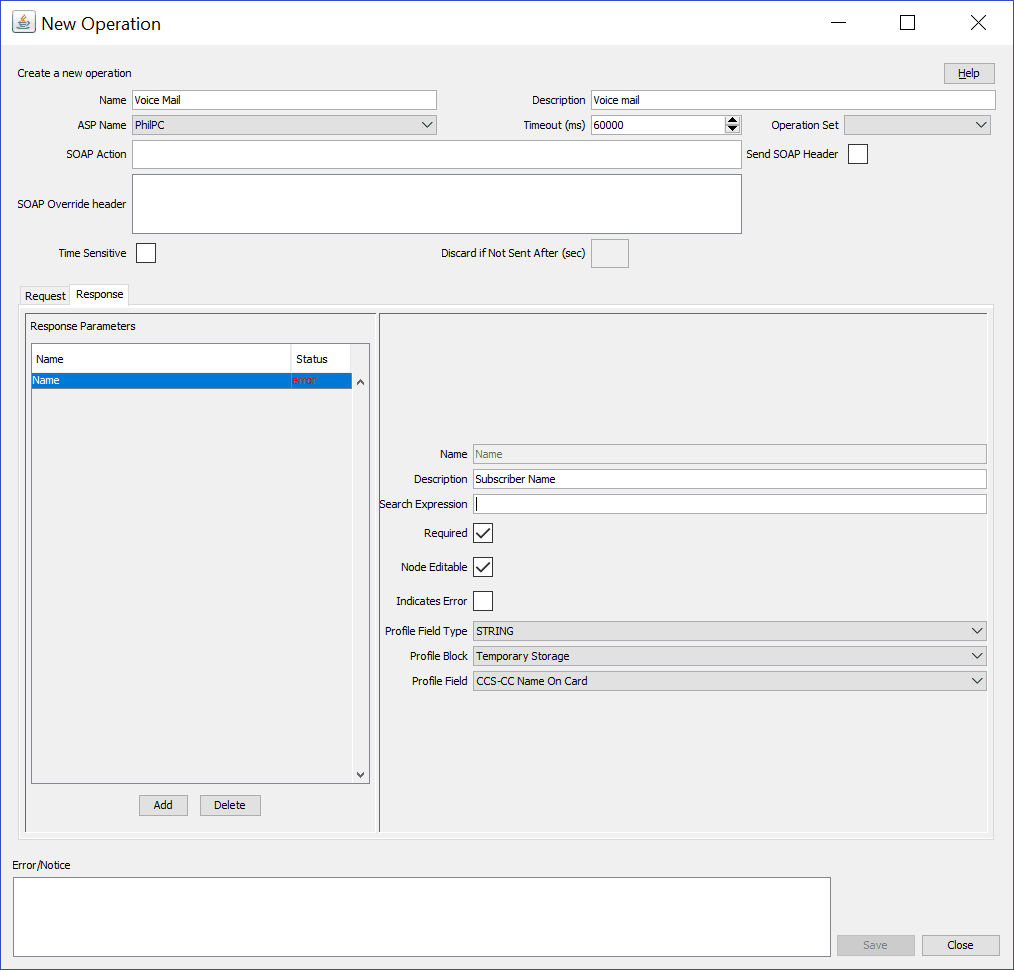
| 1 | Select the Response tab in the New Operation screen . |
| 2 |
To add a new parameter, click Add. A new editable row is added to the table in the Response Parameters area. |
| 3 | Type the parameter name in the empty Name field. |
| 4 |
Press Enter, or click on the Name field heading. The status field displays |
| 5 | Type a description for the parameter in the Description field. |
| 6 | Type a valid XPath search expression in the Search Expression field. |
| 7 | If this parameter must be returned, select the Required check box. |
| 8 | If this parameter can be edited in the feature nodes, select the Node Editable check box. |
| 9 |
If the return of this parameter is an error condition, select the Indicates Error check box. Note: The Required and Indicates Error check boxes are mutually exclusive. |
| 10 |
Select the profile field location for this parameter from the Profile Field Type, Profile Block and Profile Field lists. Note: If an expected profile field is missing, it can be added via the ACS Configuration screens. For information about configuring profile fields, see Advanced Control Services User's Guide. |
| 11 | Repeat steps 2 to 10 for all the response parameters that you want to add. |
| 12 |
Click Save. Note: The Save button is enabled when all errors indicated in the Error/Notice area are resolved. |
Editing an Operation
Follow these steps to edit an operation on the Operations tab.
For more information about the fields on the Operations tab, see Operations tab fields .
| Step | Action |
|---|---|
| 1 |
Select the operation that you want to edit on the Operations tab and click Edit. The Request tab for the operation displays in the Edit Operation screen. The Name field for the operation is read only. |
| 2 | (Optional) Change the description for the operation in the Description field. |
| 3 | (Optional) Select a different ASP to associate with the operation from the ASP list. |
| 4 | (Optional) Change the timeout specified for a response to the DAP interface from the ASP by selecting a different value in the Timeout field. |
| 5 | (Optional) Select a different operation set from the Operation Set list. |
| 6 |
If the ASP uses the SOAP protocol then you can optionally configure the following:
|
| 7 | (Optional) Change the Request Template script and update the configuration for any parameters listed in the Error/Notice area. See Request Parameter Configuration for more information. |
| 8 |
If required, select the Response tab and update the parameters configured on the tab by adding, editing and deleting response parameters:
Tip: If you delete a parameter by mistake, then add a new parameter with the same name as the deleted parameter. |
| 9 |
Click Save. Note: The Save button is enabled only when there are no errors listed in the Error/Notice panel. |
Finding a DAP template
Follow these steps to search for a DAP operation.
| Step | Action |
|---|---|
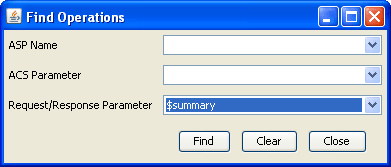
| 1 |
On the Operations tab, click Find. Result: You see the Find Operations screen . |
| 2 |
Enter the search criteria in one of the query fields using the drop down list and click Find. Result: When you click Find a query is triggered and the first 100 records matching the value in the query field will be returned. The results appear in the table on the Operations tab. Note: If you select a value in more than one query field then the Find button will be disabled. |
Copying DAP templates
Follow these steps to copy a defined DAP operation.
| Step | Action |
|---|---|
| 1 | On the Operations tab, select the operation to copy. |
| 2 |
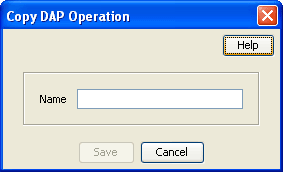
Click Copy. Result: You see the Copy DAP Operation screen . |
| 3 | In the Name field, type a unique name for the new operation. |
| 4 |
Click Save. Result: The operation will be saved to the database under the new name. Note: This operation will have exactly the same details as the original operation. See Editing an Operation to change the operation details. |
Deleting an operation
Follow these steps to delete an Operation from the service.
| Step | Action |
|---|---|
| 1 | In the table on the Operations tab, select the operation to delete. |
| 2 |
Click Delete. Result: You see the Delete Confirmation prompt. Note: An error is raised if the operation exists in an active control plan. |
| 3 |
Click OK. Result: The operation is removed from the database. |
Operation Sets
Add or edit an operation set
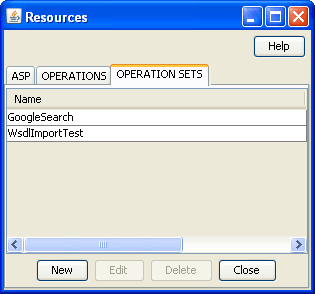
The table in the Resources screen Operation Sets tab displays the operation sets that are currently available in the system.
Follow these steps to add a new operation set or edit an existing set.
| Step | Action |
|---|---|
| 1 |
On the Operation Sets tab:
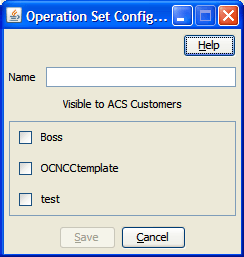
Result: You see the Operation Set Configuration screen . |
| 2 | In the Name field, enter or edit the name of the operation set. |
| 3 | Select the check box for all the listed users you want in this operation set. |
| 4 | Click Save. |