9 Data Operations Nodes
Available Feature Nodes
Data Operations Feature Nodes List
This table lists the feature nodes available from the Data Operations palette group in the ACS Control Plan Editor and the fast key for each feature node in the list. You can use the fast key to search for a feature node in the palette or the canvas.
| Feature Node Name | Feature Node Description |
|---|---|
| Calculation |
Allows you to perform basic calculations on two input values and stores the result in a profile field. Fast key: MATH |
| Compare Profile Data |
Allows you to compare the value of two profile fields and then branch on the outcome. Fast key: CPF |
| Copy |
Copies data (for example - digits) from one data field to another. Fast key: STTP |
| Delete Profile Field |
Removes the selected profile field if it exists (not just the contents). Fast key: DPF |
| Modify |
Adds, changes or removes digits from the start or end (or both) of a number. Fast key: CUTC |
| Prefix Branching |
Compares the contents of an ACS number buffer against the specified profile field. Fast key: APBN |
| Prefix Tree Branching |
Compares the contents of an ACS number buffer against the specified prefix tree. Fast key: APTB |
| Profile Branching |
Checks the value of a specified profile field against a set value. Fast key: PB |
| Profile Counting |
Sets or increments a profile counter. Fast key: PCNT |
| Set |
Stores a fixed value in a data field. Fast key: SDTN |
Calculation
Node description
The Calculation feature node allows basic calculations on two input values. The input values can be retrieved either from profile fields, or from a profile field and a fixed value. The result of the calculation is then stored to another profile field.
You use the Calculation feature node to perform the following operations:
- Addition: Adding two source numbers (2+2=4)
- Subtraction: Subtracting the second source number from the first (5-2=3)
- Multiplication: Multiplying two source numbers together (2×2=4)
- Division: Dividing the second source number into the first (10÷2=5)
- Modulus: Finding the remainder when one number is divided into another (10 mod 6=4)
Node exits
This node has one entry and three exits. The number of exits cannot be changed.
| Exit | Name | Cause |
|---|---|---|
| 1 | Success | All calculation results have been stored successfully. |
| 2 | Error | The unrounded result is too large for the type of target profile tag, or an error occurs (other than divide by zero). |
| 3 | Divide by zero | The calculation divides a number by zero. |
Configuring the node
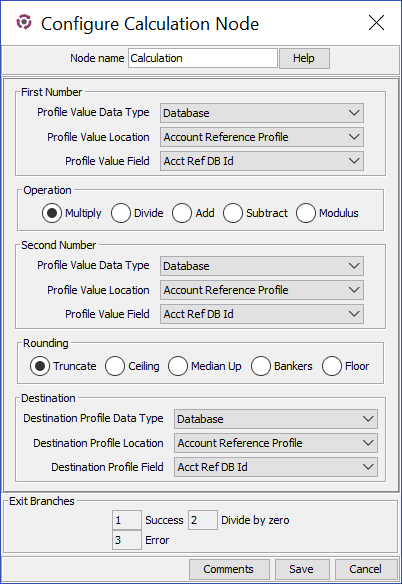
Follow these steps to configure the node.
| Step | Action |
|---|---|
| 1 |
In the First Number section, specify the input value for your mathematical calculation by performing the following steps:
|
| 2 | In the Operation section, select the mathematical operation you wish to perform (Multiply, Divide, Add, Subtract, or Modulus). |
| 3 |
In the Second Number section, specify the input value needed to complete your mathematical calculation by performing the following steps:
|
| 4 | In the Rounding section, select the option for the type of rounding you prefer (Truncate, Ceiling, Median Up, Bankers, or Floor). |
| 5 |
In the Destination section, specify the profile field in which to store the calculation result by performing the following steps:
|
| 6 | Click Save. |
Compare Profile Data
Node description
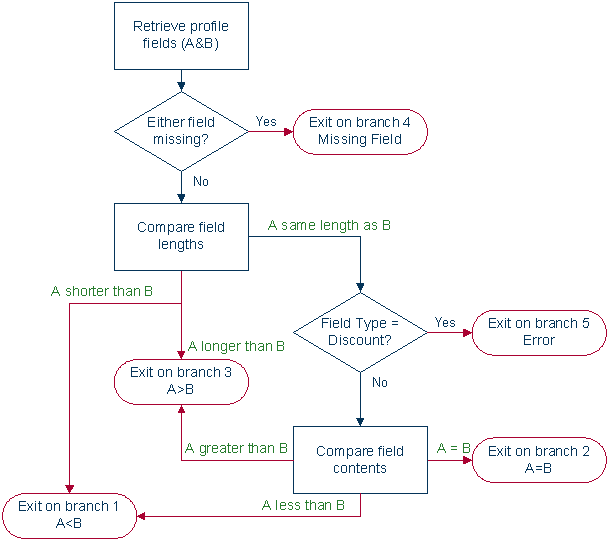
The Compare Profile Data node allows you to compare the value of two profile fields and then branch on the outcome.
The compare is initially done at the field length level and then at the content level if the two fields are the same length.
Node icon
If the CPE has been configured to use the static panel CPE palette style, the CPE displays the icon shown below to represent the feature node.

Node exits
This node has one entry and five exits. The number of exits cannot be changed.
| Exit | Cause | Description |
|---|---|---|
| 1 | A < B | Profile field value A is less than profile field B. |
| 2 | A = B | Profile field value A is equal to profile field B. |
| 3 | A > B | Profile field value A is greater than profile field B. |
| 4 | Missing Field | Either profile field A or profile field B is missing from their respective profiles. |
| 5 | Error |
Any of:
|
Content comparison rules
This table describes how the field contents are compared when the two field lengths are equal.
| Profile Field Type | Comparison |
|---|---|
| BOOLEAN | Integer comparison where false = 0, and true = 1. |
| BYTE | Integer comparison. |
| INTEGER | Integer comparison. |
| DATE | Integer comparison, where the dates are represented as a positive integer (seconds since the Epoch). |
| STRING, NSTRING, LNSTRING | Lexicographical comparison between the two equal length strings (finding the order of two words as they would appear in a dictionary). |
| PREFIX, OPREFIX, LOPREFIX | Perform byte by byte comparison of the two compiled prefix trees. Branches based on the difference between the two bytes in the two prefix trees that differ. |
| PATTERNs, UINTEGER, UINTEGER64 | Perform a memory compare between the two fields. |
Configuring the node
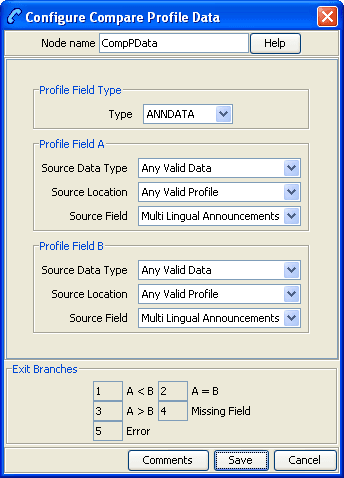
Follow these steps to edit the node configuration.
| Step | Action |
|---|---|
| 1 |
Select the profile field type for the comparison from the Type drop down list. Note: Not all the list items are valid for comparison. See the Content comparison rules table. |
| 2 | Using the drop down lists in the Profile Field A area, select the first profile field to compare. |
| 3 | Using the drop down lists in the Profile Field B area, select the other profile field to compare. |
| 4 | Click Save. |
Note: The list of data types is fixed at installation time for each feature node or screen.
Further reference:
- For information about profile blocks (data type, location, and field) and how to use them, see Profile Blocks and Tags.
The primary tag lists are configured in the SMS > Services > ACS Service > Configuration > Profile Tag Details and Profile Tag Mapping tabs (see ACS User's Guide, Profile Tag Details for more information).
Copy
Node description
The Copy feature node allows you to copy data (for example - digits) from one profile field to another. You can always copy a profile field to another profile field of the same type. In addition, you can use the Copy feature node to convert between the following profile field types:
- Boolean
- Byte
- Short
- Integer
- Unsigned Integer
- Unsigned 64-bit Integer
- String
- Numeric String
- Limited Numeric String
- Bounded Integer
- Price (from Integer or String)
The Copy feature node first converts the source field to a character string (except when it is already a string or a numeric string field) and then converts the character string to the target type, according to a set of predefined Profile Field Conversion Rules.
If the source profile field type is OPREFIX or LOPREFIX, then the Copy feature node copies the source field content directly into a corresponding prefix tree without any conversion.
Profile Field Conversion Rules
This table lists the types of conversions and the corresponding conversion rules used by the Copy feature node to convert profile field data to and from character strings.
| Type of Conversion | Conversion Rule |
|---|---|
| Boolean to character string |
Interprets the stored bytes as a signed four byte integer that is represented in base 10, and:
|
| Character string to boolean |
Converts the following values to true:
Converts all other values, including an empty string, and zero (0) to false. |
| Byte to character string | Converts bytes (assumed to be unsigned) to a value in the range of "0" to "255". |
| Short to character string | Converts shorts (assumed to be unsigned) to a value in the range of "0" to "65535". |
| Integer to character string |
Converts integers (represented in base 10) to a value in the range of "-9223372036854775808" to "9223372036854775807". Note: Integers are either four bytes or eight bytes long. |
| Unsigned 64-bit integer to character string | Converts unsigned integers (represented in base 10) to a value in the range of "0" to "18446744073709551615". |
|
Character string to one of:
|
Converts the string to the required number type. If the character string starts with "0x", then the Copy feature node discards the "0x" and interprets the string as a base 16 number. Otherwise the Copy feature node interprets the string as a base 10 number. |
| Unsigned integer to character string | Converts unsigned integers (represented in base 10) to a value in the range of "0" to "4294967295". |
|
String, limited numeric string, or numeric string to character string. Character string to string, limited numeric string, or numeric string. |
No conversion needed. The Copy feature node copies these types of profile fields to another profile field of the same type. |
| Bounded integer to character string | The Copy feature node cannot copy a bounded integer to a character string. |
| Character string to bounded integer |
Converts the character string to a four byte integer and puts it in bytes 9, 10, 11 and 12 of the bounded integer. Note: Bytes one to four hold the lower bound, and bytes five to eight hold the upper bound. To successfully copy an integer to a bounded integer, the source integer must be between the two bounds. |
|
Integer
to Price |
A Price profile tag contains a string with the strict format DDDDDDCC, where DDDDDD are the big units (for example, Euros) with zero padding and CC are the small units (for example, Cents) also zero padded. Conversion from an integer value will assume the value is expressed in small units with the lowest two digits providing the CC part. The conversion (and copy) will fail if the integer value is bigger than 99999999. Example: An integer value 95642 will be converted to" 00095642" which equates to 956.42 (Euros). |
|
String
to Price |
A Price profile tag contains a string with the strict format DDDDDDCC, where DDDDDD are the big units (for example, Euros) with zero padding and CC are the small units (for example, Cents) also zero padded. Conversion from a string value will accept two forms of input. A string containing a decimal point will be assumed to contain a value already in cost form. A string conversion will fail if the input value is too large (the max is either "999999.99" or "99999999"). Behaviors:
|
Node icon

If the CPE has been configured to use the static panel CPE palette style, the CPE displays the icon shown below to represent the feature node.

Node exits
This node has one entry and two exits. The number of exits cannot be changed.
| Exit | Cause | Description |
|---|---|---|
| 1 | Success Branch | Data successfully saved to the profile. |
| 2 | Not Updated Branch | Data could not be saved. |
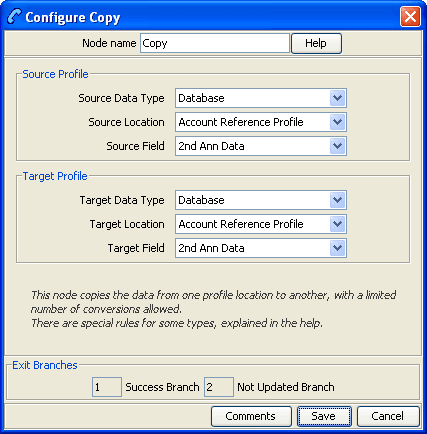
Configuration screen
Here is an example Configure Copy screen.
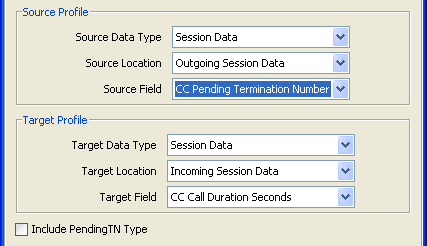
Include Pending TN Type
The Include PendingTN Type check box appears when the Source
Field selection is CC Pending Termination Number, as shown in this
example of part of the screen.
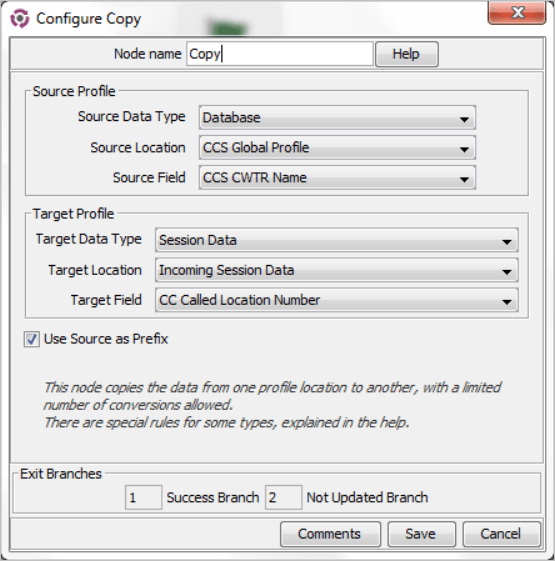
Treat Target as Prefix
The Use Source as Prefix check box appears when the Source Field and Target Field selections are of type string or number string, as shown in this example of part of the screen.
Use Stored Sub-Tag
The Use Stored Sub-Tag check box appears when the Target Field selection contains sub-tags (for example, the Speed Dial Block contains the sub-tag list of speed dial numbers. For more information, see Sub-tags, as shown in this example of part of the screen.
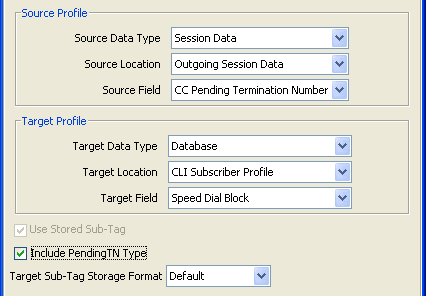
In this example, earlier in the control plan, the sub-tag (e.g. the speed dial number, let's say 50) has been specified using the Collect Digits To Sub-tag node. The telephone number, e.g. 08001234567, to associate with it has then been stored in the CC Pending TN buffer using the Collect Digits to Pending TN node. Using the Copy node, that number is copied into the Speed Dial block, so that the speed dial number 50 is set to call 08001234567.
Configuring the node
Follow these steps to configure the Copy node.
| Step | Action | ||||||
|---|---|---|---|---|---|---|---|
| 1 |
From the drop down lists in the Source Profile area, select the source stored data location. Notes: If you set a customer-specific profile, the profile set in this field must belong to the customer who will be running the Control Plan. If the Control Plan is owned by the Boss user:
|
||||||
| 2 | From the drop down lists in the Target Profile area, select the target that the data is to be copied to. | ||||||
| 3 |
If the Include Pending TN Type check box is displayed, then either:
|
||||||
| 4 |
If the Use Source as Prefix check box is displayed, then either:
|
||||||
| 5 | If the Use Stored Sub-Tag check box is displayed, select the required target field format from the Target sub-tag Storage Format drop down list. The node will save the sub-tag value with the required format in the target field. | ||||||
| 6 |
Click Save. Note: Save is not available until all the required information has been selected or entered. |
||||||
Note: The list of data types is fixed at installation time for each feature node or screen.
Further reference:
- For information about profile blocks (data type, location, and field) and how to use them, see Profile Blocks and Tags.
The primary tag lists are configured in the SMS > Services > ACS Service > Configuration > Profile Tag Details and Profile Tag Mapping tabs (see ACS User's Guide, Profile Tag Details for more information).
For information about using the Call Context Profile, refer to ACS Buffers.
Delete Profile Field
Node description
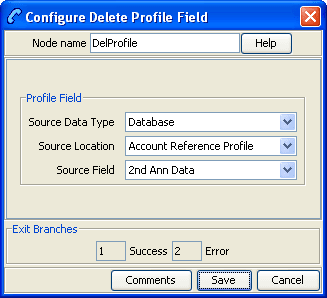
The Delete Profile Field node allows you to delete the specified profile field from the profile (that is, the field as well as the contents are removed from the profile).
Node icon

If the CPE has been configured to use the static panel CPE palette style, the CPE displays the icon shown below to represent the feature node.

Node exits
This node has one entry and two exits. The number of exits cannot be changed.
| Exit | Cause | Description |
|---|---|---|
| 1 | Success | The delete was successful. |
| 3 | Error | The delete failed. |
Configuring the node
Follow these steps to edit the node configuration.
| Step | Action |
|---|---|
| 1 | In the Profile Field area, using the drop down lists, select the profile field to delete. |
| 2 | Click Save. |
Note: The list of data types is fixed at installation time for each feature node or screen.
Further reference:
- For information about profile blocks (data type, location, and field) and how to use them, see Profile Blocks and Tags.
The primary tag lists are configured in the SMS > Services > ACS Service > Configuration > Profile Tag Details and Profile Tag Mapping tabs (see ACS User's Guide, Profile Tag Details for more information).
Modify
Node description
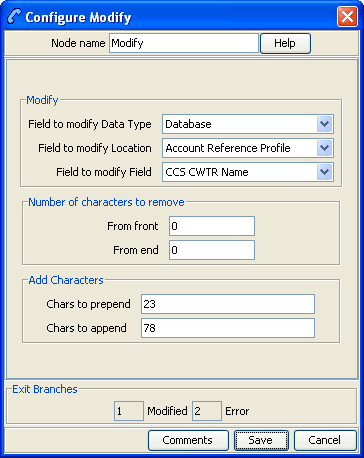
The Modify feature node allows you to add, change or remove digits from the start or end (or both) of a number.
Node icon

If the CPE has been configured to use the static panel CPE palette style, the CPE displays the icon shown below to represent the feature node.

Node exits
This node has one entry and two exits. The number of exits cannot be changed.
| Exit | Cause | Description |
|---|---|---|
| 1 | Modified | The number was modified. |
| 2 | Error | Error |
Configuring the node
Follow these steps to edit the node.
| Step | Action |
|---|---|
| 1 |
In the Modify area, using the drop down lists, select the field to modify. Note: ACS normalisation will have already been applied to this number. |
| 2 |
Type the number of digits that are to be stripped from the front of the number. Example: If a value of 2 is entered, 2 digits are removed from the start of the number. |
| 3 | Type the number of digits that are to be stripped from the end of the number. |
| 4 | Type the characters to prepend to the start of the number. |
| 5 | Type the characters to append to the end of the number. |
| 6 | Click Save. |
Note: The list of data types is fixed at installation time for each feature node or screen.
Further reference:
- For information about profile blocks (data type, location, and field) and how to use them, see Profile Blocks and Tags.
The primary tag lists are configured in the SMS > Services > ACS Service > Configuration > Profile Tag Details and Profile Tag Mapping tabs (see ACS User's Guide, Profile Tag Details for more information).
Prefix Branching
Node description
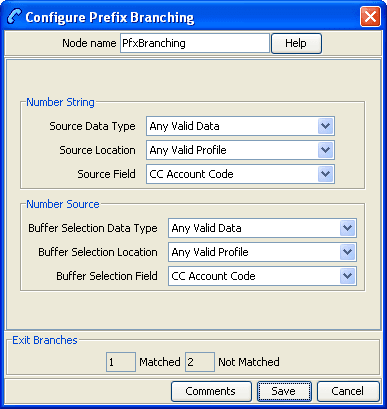
The Prefix Branching node allows you to compare the contents of an ACS number buffer against the specified profile field, and will branch according to whether the profile field content is a prefix of the ACS number buffer value.
Node icon

If the CPE has been configured to use the static panel CPE palette style, the CPE displays the icon shown below to represent the feature node.

Node exits
This node has one entry and two exits. The number of exits cannot be changed.
| Exit | Cause | Description |
|---|---|---|
| 1 | Matched | The specified profile field’s value was a prefix of the number buffer’s value. |
| 2 | Not Matched | The specified profile field’s value was not a prefix of the number buffer’s value. |
Editing the node
Follow these steps to edit the node configuration.
| Step | Action |
|---|---|
| 1 | Using the drop down lists in the Number String area, select the source prefix tree. |
| 2 | Using the drop down lists in the Number Source area, select the ACS number buffer containing the number to compare with the prefix tree. |
| 3 | Click Save. |
Note: The list of data types is fixed at installation time for each feature node or screen.
Further reference:
- For information about profile blocks (data type, location, and field) and how to use them, see Profile Blocks and Tags.
The primary tag lists are configured in the SMS > Services > ACS Service > Configuration > Profile Tag Details and Profile Tag Mapping tabs (see ACS User's Guide, Profile Tag Details for more information).
Prefix Tree Branching
Node description
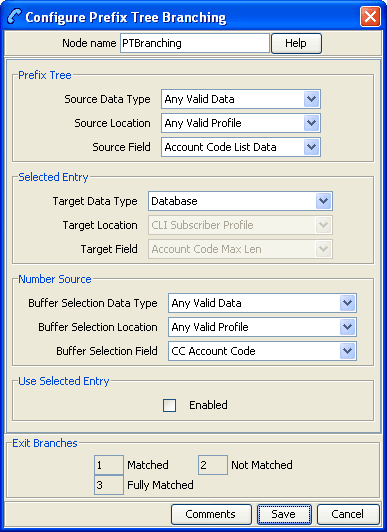
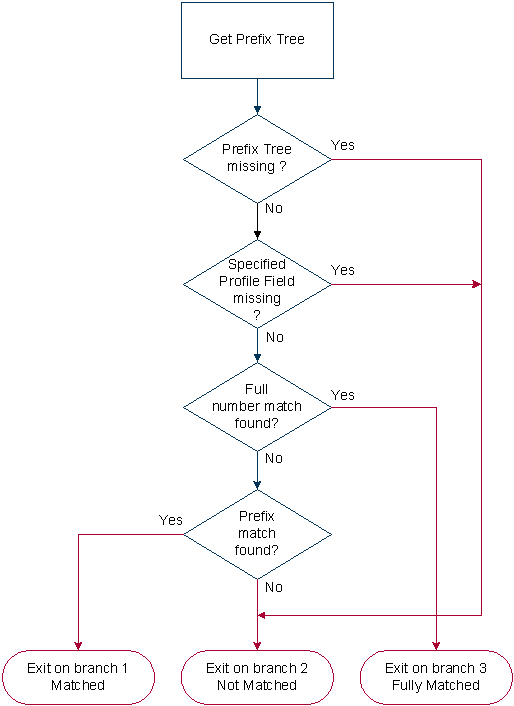
The Prefix Tree Branching node allows you to compare the contents of an ACS number buffer against the specified prefix tree, and will branch according to whether the tree contains a prefix of the number.
If a match is found, the value associated with the matched entry (often the order of a limited prefix tree) will be stored in the specified profile field.
Node icon

If the CPE has been configured to use the static panel CPE palette style, the CPE displays the icon shown below to represent the feature node.

Node exits
This node has one entry and three exits. The number of exits cannot be changed.
| Exit | Cause | Description |
|---|---|---|
| 1 | Matched | A prefix of the number was found in the tree. |
| 2 | Not Matched | A prefix of the number was not found in the tree. |
| 3 | Fully Matched | The number was found in the tree (full match, not a prefix) |
Configuring the node
Follow these steps to edit the node configuration.
| Step | Action |
|---|---|
| 1 | In the Prefix Tree area, using the drop down boxes, select from the list of prefix trees. |
| 2 | In the Number Source area, using the drop down boxes, select the source for the number to match. |
| 3 |
If you want to temporarily store a matched number in a specified field so that the node doesn't change the prefix tree:
|
| 4 | Click Save. |
Note: The list of data types is fixed at installation time for each feature node or screen.
Further reference:
- For information about profile blocks (data type, location, and field) and how to use them, see Profile Blocks and Tags.
The primary tag lists are configured in the SMS > Services > ACS Service > Configuration > Profile Tag Details and Profile Tag Mapping tabs (see ACS User's Guide, Profile Tag Details for more information).
Profile Branching
Node description
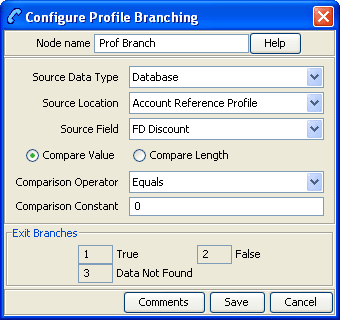
The Profile Branching feature node checks the value of a specified profile field against a set value.
Node icon

If the CPE has been configured to use the static panel CPE palette style, the CPE displays the icon shown below to represent the feature node.

Node exits
This node has one entry and three exits. The number of exits cannot be changed.
Note: These exit descriptions are specific to the responses received from an Oracle VWS billing engine. For specific information about how responses from other billing engines map to these exits, see the technical guide for the interface for billing engine being used.
| Exit | Cause | Description |
|---|---|---|
| 1 | True | The result of the comparison is true for the factors set in the node screen. |
| 2 | False | The result of the comparison is false for the factors set in the node screen. |
| 3 | Data Not Found | Data required by the node has not been found. No comparison has been made. |
Configuring the node
Follow these steps to configure the Profile Branching node.
Note: For information on profiles and how to use them, see Selecting profile locations and fields.
| Step | Action |
|---|---|
| 1 | In the Source Data Type field, select the data type of the source profile block. |
| 2 | In the Source Location field, select the profile block in which relevant information is stored. |
| 3 | In the Source Field field, select the profile tag that identifies the information required by the node. |
| 4 | Select either to compare the Value, or the Length of the source. |
| 5 |
From the Comparison Operator list, select the type of comparison that is to be made. This field describes the relationship between the value in the specified profile field and the value set as the Constant. Example: In the screen shown above, the value in the specified profile field is required to be greater than 0. Therefore, the Comparison Operator is set to “Greater than” and the Comparison Constant is set to “0”. |
| 6 |
Type the Comparison Constant that is required. Result: The specified Profile field will be compared with the set constant value. |
| 7 |
Click Save. Note: The Save button becomes available when the Primary Tag field is populated with a value other than 0. |
Profile Counting
Node description
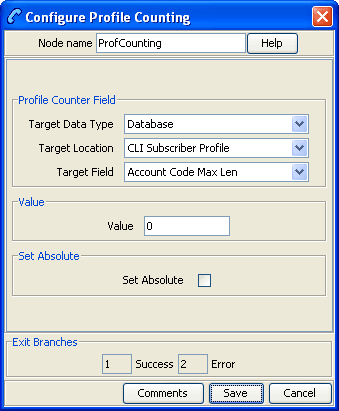
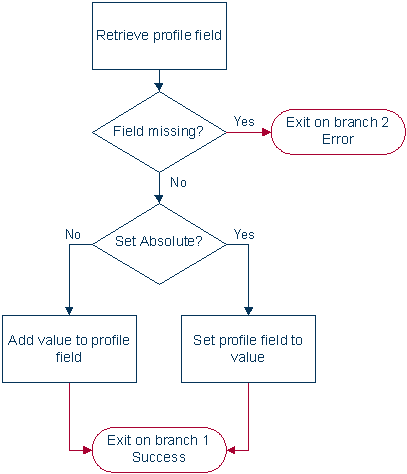
The Profile Counting node resets the configured integer profile field by one of:
- Setting the profile field content with this nodes configured value
- Incrementing the profile field content by this nodes configured value
Node icon

If the CPE has been configured to use the static panel CPE palette style, the CPE displays the icon shown below to represent the feature node.

Node exits
This node has one entry and two exits. The number of exits cannot be changed.
| Exit | Cause | Description |
|---|---|---|
| 1 | Success | The profile counting field was updated successfully. |
| 2 | Error | General Error. |
Configuring the node
Follow these steps to edit the node configuration.
| Step | Action |
|---|---|
| 1 | In the Profile Counter Field area, using the drop down boxes, select the target profile counter field. |
| 2 | Type the number to set to or increment the profile counter by in the Value field. |
| 3 |
To set the profile counter to the value, tick the Set Absolute check box. To increment the profile counter by the value, clear the Set Absolute check box. |
| 4 | Click Save. |
Note: The list of data types is fixed at installation time for each feature node or screen.
Further reference:
- For information about profile blocks (data type, location, and field) and how to use them, see Profile Blocks and Tags.
The primary tag lists are configured in the SMS > Services > ACS Service > Configuration > Profile Tag Details and Profile Tag Mapping tabs (see ACS User's Guide, Profile Tag Details for more information).
Set
Node description
This node stores the entered digits in a data field. They may be later collected from this profile and used in the control plan.
A percentage character will have a special meaning during the node processing. If a '%' is entered in the digits field on the node edit screen it will be replaced by the current value of the buffer and the buffer will be updated with that final result. Only the first occurrence of the '%' char will be treated this way. Any other occurrences of the percentage character will be ignored.
Node icon

If the CPE has been configured to use the static panel CPE palette style, the CPE displays the icon shown below to represent the feature node.

Node exits
This node has one entry and two exits. The number of exits cannot be changed.
| Exit | Cause | Description |
|---|---|---|
| 1 | Success | Value has been set in target profile. |
| 2 | Error | Error occurred. |
Configuring the node
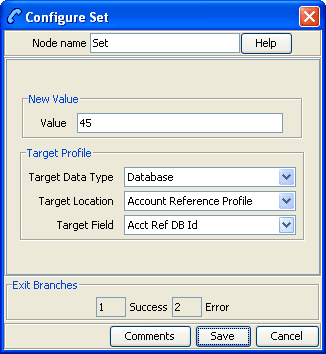
Follow these steps to configure the Set node.
| Step | Action |
|---|---|
| 1 | In the Value field type the number (in digits) to save in the selected target profile field. |
| 2 | In the Target Profile area, using the drop down boxes, select the target profile. |
| 3 | Click Save. |
Note: The list of data types is fixed at installation time for each feature node or screen.
Further reference:
- For information about profile blocks (data type, location, and field) and how to use them, see Profile Blocks and Tags.
The primary tag lists are configured in the SMS > Services > ACS Service > Configuration > Profile Tag Details and Profile Tag Mapping tabs (see ACS User's Guide, Profile Tag Details for more information).