10 ENUM Feature Nodes
Available Feature Nodes
ENUM Feature Nodes List
This table lists the feature nodes available from the ENUM palette group in the ACS Control Plan Editor and the fast key for each feature node in the list. You can use the fast key to search for a feature node in the palette or the canvas.
| Node name | Node description |
|---|---|
| ENUM Call Out |
The ENUM Call Out node performs an ENUM lookup using the ENCA interface. Fast key: enco |
| ENUM Naptr |
The ENUM NAPTR Response node processes a previously retrieved NAPTR response to extract specific records. Fast key: ennr |
| ENUM Query |
The ENUM Query node is used to query the ENUM database. Fast key: enqr |
ENUM Call Out
Node icon
If the CPE has been configured to use the static panel CPE palette style, the CPE displays the icon shown below to represent the feature node.

Node exits
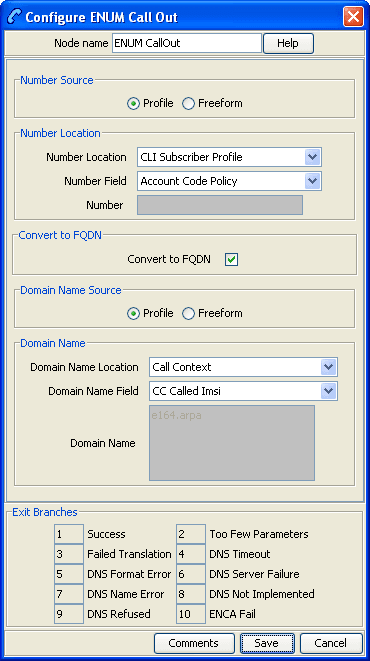
This node has one entry and ten exits. The number of exits cannot be changed.
| Exit | Cause | Description |
|---|---|---|
| 1 | Success | ENCA return code = 0 |
| 2 | Too Few Parameters | No number was given in the call-out ENCA request (number is blank). |
| 3 | Failed Translation | ENCA DNS response translation failed. |
| 4 | DNS Timeout | DNS server(s) failed to respond within the configured time-limit. |
| 5 | DNS Format Error | DNS served responded with message: "Format Error". |
| 6 | DNS Server Failure | DNS served responded with message: "Server Failure". |
| 7 | DNS Name Error | DNS served responded with message: "Name Error". |
| 8 | DNS Not Implemented | DNS served responded with message: "Not Implemented". |
| 9 | DNS Refused | DNS served responded with message: "Refused". |
| 10 | ENCA Fail | ENCA failure (out of resources / bad domain name / any other error). |
Configuring the node
Follow these steps to configure the node.
| Step | Action |
|---|---|
| 1 |
Select where the number to convert will be sourced from, one of:
Result: The relevant Number Location fields are made available. |
| 2 |
Depending on what was selected at step 1, one of:
|
| 3 | If the number is to be converted to FQDN format, select the Convert to FQDN check box. |
| 4 |
Select where the domain name will be sourced from, one of:
Result: The relevant Domain Name fields are made available. |
| 5 |
Depending on what was selected at step 4, one of:
|
| 6 | Click Save. |
ENUM Naptr Response
Node description
The ENUM NAPTR Response node processes a previously retrieved NAPTR response to extract specific records.
When extracting AUS (Application Unique String) type, the presence of the AUS is detected by a ‘+’ character found, followed by one or more numerical characters terminated with ‘@’ (for example "!^.*$!+016505550100@oracle.com!")
Node icon
If the CPE has been configured to use the static panel CPE palette style, the CPE displays the icon shown below to represent the feature node.

Node exits
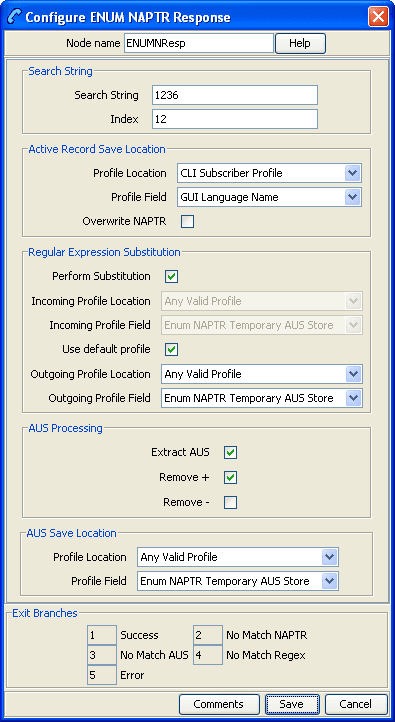
This node has one entry and four exits. The number of exits cannot be changed.
| Exit | Cause | Description |
|---|---|---|
| 1 | Success | The record was extracted and saved. |
| 2 | No Match NAPTR | The required record could not be found. |
| 3 | No Match AUS | An AUS format number could not be found. |
| 4 | Error | Any other error situation. |
Configuring the node
Follow these steps to configure the node.
| Step | Action |
|---|---|
| 1 |
In the Search String section, set the search criteria to match records against.
|
| 2 |
In the Active Record Save Location, identify where the found record is to be saved, one of:
Note: selecting this check box overrides any profile selection. |
| 3 |
In the Regular Expression Substitution section, to invoke the regular expression substitution, check the Perform Substitution check box, then:
|
| 4 |
In the AUS Processing section, for AUS format numbers extracted:
|
| 5 | In the AUS Save Location section, for AUS format numbers, select the save location from the Profile Location and Profile Field drop down lists. |
| 6 | Click Save. |
ENUM Query
Node icon
If the CPE has been configured to use the static panel CPE palette style, the CPE displays the icon shown below to represent the feature node.

Node exits
This node has one entry and five exits. The number of exits cannot be changed.
| Exit | Cause | Description |
|---|---|---|
| 1 | Subscriber records |
Search key found subscriber records that matched the search key (dialed number within a record number range) and may have matched the optional Service criteria. Note: The search key is used to find subscribers/operators. This is a dialed number (for example, 1234567) that is searched for between a range of numbers. |
| 2 | Operator records | Search key did not find any subscriber records, but did find operator records that matched the search key (dialed number within a record number range) and may have matched the optional Service criteria. |
| 3 | No NAPTR Records | Search key did find subscriber or operator records that matched the search key but did not find any NAPTR records. |
| 4 | No SUB/OP info | Search key did not find any subscriber or operator records that matched the search key. |
| 5 | Error | Database or I/O error. |
Note:
The Service criteria is an optional delimiter for the NAPTR record returned. By specifying the service you can delimit on the service of a NATPR records (that is, only return records of E2U+sip type). The search key is still the primary search criteria.
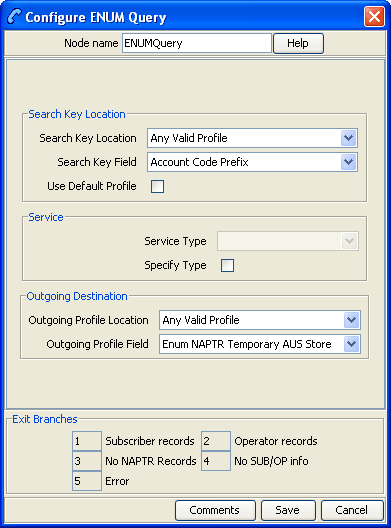
Configuring the node
Follow these steps to configure the node.
| Step | Action |
|---|---|
| 1 |
Select the Search Key Location, one of:
|
| 2 |
To optionally specify a Service Type:
Note: The Service Type list is configured in SMS > Services > ENUM service > NAPTR Record Management > Service tab/screens. |
| 3 | Select the Outgoing Destination location using the drop down lists. |
| 4 | Click Save. |